


Automate invoicing means using AI tools like Zapier, Notion, and FreshBooks to auto-generate invoices when projects complete, send payment reminders on schedule, and log every invoice in a central tracker. This system replaces 6-15 hours of monthly manual work for freelancers and small businesses sending 20-50 invoices.
This guide covers a complete AI-powered system to automate invoicing - from auto-generating invoices to tracking payments and prepping for tax time - built around Zapier, Notion, and your existing invoicing software.
Sending an invoice should take 30 seconds. In reality, it usually takes 20-30 minutes when you factor in pulling the client file, calculating hours, formatting line items, writing the email, and logging the invoice somewhere so you remember to follow up when it’s overdue.
For freelancers and small businesses sending 20-50 invoices a month, that adds up to 6-15 hours of pure administrative work - time that could be spent on billable projects or growth.
When you automate invoicing with AI tools, that manual burden drops to near zero. When your system is set up correctly, invoices generate automatically when a project is marked complete, payment reminders go out on schedule, every invoice is logged in a central tracker, and your monthly revenue report writes itself. You review and approve; the system does the rest.
This guide walks through exactly how to build that system and automate invoicing end-to-end.
TL;DR: The Invoicing Automation Stack
Automate Invoicing covers the strategies and tools that deliver real productivity gains in this space. This guide covers a complete AI-powered system to automate invoicing - from auto-generating. This guide walks through the practical steps from setup through advanced optimization.
| Tool | Role | Starting Price |
|---|---|---|
| Zapier | Automation engine - triggers and connects everything | Free, paid from $29.99/month |
| Notion | Invoice tracker + client database | Free, paid from $12/month/user |
| FreshBooks / QuickBooks / Wave | Invoice creation and payment collection | Varies (Wave is free) |
| Stripe Invoicing | Payment processing + invoice generation | 0.4% per invoice (paid plans) |
The core concept: Your invoicing platform creates and sends invoices. Zapier automates the triggers (when to create an invoice), the reminders (when to chase payment), and the logging. Notion keeps a clean, queryable record of every invoice with status, due dates, and client details.
Why Automate Invoicing? The Problem with Manual Workflows
Before building the automation, it’s worth understanding exactly what breaks down in manual invoicing workflows:
The “I’ll invoice them on Friday” problem. Project wraps up on a Tuesday. You plan to invoice on Friday. Friday comes and you’re heads-down on something else. Two weeks pass. The invoice is now late, your cash flow is disrupted, and you feel vaguely guilty bringing it up.
The follow-up dread problem. An invoice is 14 days overdue. You write three versions of a follow-up email in your head, each one more apologetic than the last, and then don’t send any of them.
The lost invoice problem. A client disputes an invoice amount. You spend 20 minutes hunting through email threads to reconstruct what was agreed.
The tax prep problem. It’s March. Your accountant wants a breakdown of invoices by client and category for the year. You open a spreadsheet that hasn’t been updated since October.
Automation with AI tools solves all four. Invoices go out when they should, reminders fire on schedule, every invoice is logged automatically, and reporting is always current.
Step 1: Build AI-Assisted Invoice Templates
Before automating the workflow, you need an automate invoicing template that AI can populate reliably.
What Does a Good Invoice Template Look Like?
Every invoice template should have clearly labeled variable fields that automation tools can fill:
[client_name]- Legal name for the invoice[client_email]- Where the invoice goes[invoice_number]- Auto-incremented by your invoicing platform[invoice_date]- Date generated[due_date]- Payment terms applied automatically (e.g., Net 30)[line_item_description]- The service or deliverable[line_item_quantity]- Hours or units[line_item_rate]- Your agreed rate[line_item_total]- Auto-calculated[subtotal]/[tax]/[total_due][payment_instructions]- Bank transfer details or payment link
Most automated invoice processing software platforms (FreshBooks, QuickBooks, Wave, Stripe) support these variable fields natively, unlike an automated invoice in Excel spreadsheet that lacks native triggers. The key is setting them up before you build the Zapier automation - the template is what Zapier populates.
How Do You Create Service-Specific Invoice Templates?
If you offer multiple types of work, create a template for each:
- Hourly work template: Line items are hours × rate
- Project work template: Line items are milestone deliverables with fixed amounts
- Retainer template: Single recurring line item with fixed monthly amount
- Expense reimbursement template: Separate section for pass-through expenses
Using dedicated templates for each service type means Zapier can select the right template automatically based on project type, then deliver the final automate invoicing PDF to the client - you don’t need to manually choose.
Step 2: Auto-Trigger Invoice Creation on Project Completion
This is the core automation - the moment a project is complete, the invoice generates automatically.
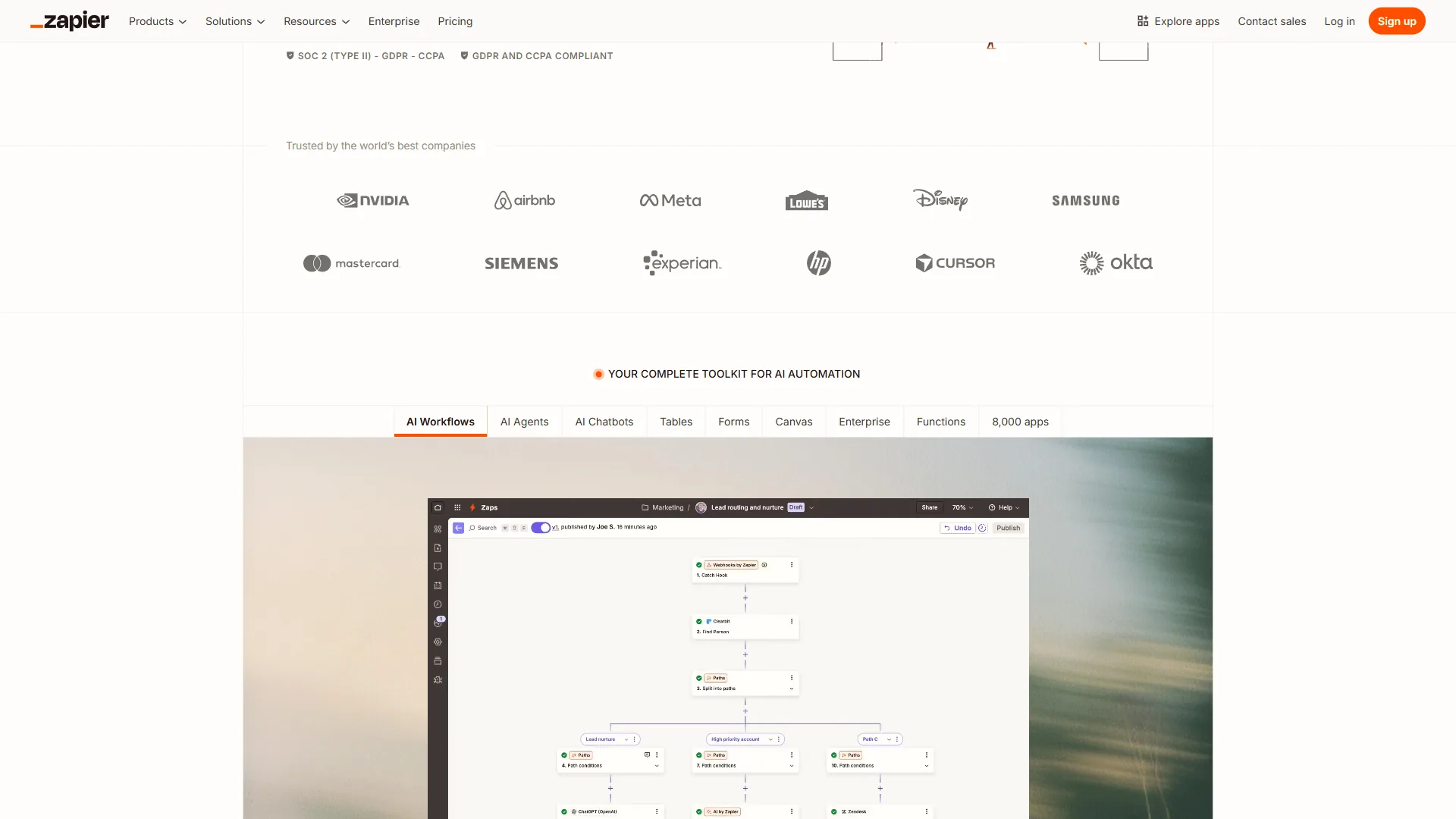
Setting Up the Zapier Trigger
The trigger depends on where you track project status:
If you use Notion for project management:
- Trigger: Notion - Updated Database Item
- Filter: Status field changes to “Complete”
- Trigger: Asana - Task Completed (in specific project)
- Trigger: ClickUp - Task Status Changed to “Done”
If you use a time tracker (Harvest, Toggl):
- Trigger: Harvest - New Timer Stopped (for time-based billing)
- This pulls hours automatically without any manual entry
The Invoice Creation Action
Once the trigger fires, Zapier calls your invoicing platform’s API to create the invoice:
FreshBooks action: Create Invoice
- Client: map from your Notion/CRM client database
- Line item description: map from the project title
- Hours/quantity: map from time tracking data (if hourly)
- Amount: map from the project budget field (if fixed-price)
- Due date: auto-calculate as trigger date + 30 days
Stripe Invoicing action: Create Invoice Item, then Finalize Invoice
- Useful if you want payment links embedded in the invoice automatically
- Stripe’s 0.4% per-invoice fee on paid plans (free on pay-as-you-go) is worth it for automatic card payment
Wave action: Create Invoice (Wave is free and has a Zapier integration)
- Best option for businesses just starting with automation who want zero invoicing platform cost
The invoice is created in draft state, allowing you to review before it sends. Or set it to send immediately if you trust the automation fully - many businesses run fully automated invoicing for retainer clients where the amount never varies. If you are weighing Zapier against Make for your automation engine, both support the invoice triggers described above.
Step 3: Track Every Invoice in a Notion Database
Every invoice that gets created should flow into a central Notion tracker. This is your single source of truth for outstanding, overdue, and paid invoices.
Building the Notion Invoice Database
Create a database with these properties:
| Property | Type | Description |
|---|---|---|
| Invoice # | Title | Auto-populated from invoicing platform |
| Client | Relation | Linked to client database |
| Amount | Number | Invoice total |
| Status | Select | Draft / Sent / Viewed / Paid / Overdue |
| Invoice Date | Date | When created |
| Due Date | Date | Payment deadline |
| Days Outstanding | Formula | Today() - Invoice Date |
| Platform | Select | FreshBooks / Stripe / Wave |
| Invoice Link | URL | Direct link to invoice in platform |
| Notes | Text | Any context (dispute notes, payment plan, etc.) |
Automating Notion Updates with Zapier
Set up Zapier to create a new Notion row whenever an invoice is created:
Trigger: FreshBooks - New Invoice (or Stripe - New Invoice) Action: Notion - Create Database Item
Map all fields from the invoice to the Notion database. This runs every time an invoice is created - manually or via automation - so the tracker stays complete.
Updating invoice status automatically:
Add additional Zaps for status changes:
- Trigger: FreshBooks - Invoice Paid → Action: Notion - Update item Status to “Paid”
- Trigger: Stripe - Payment Succeeded → Action: Notion - Update item Status to “Paid”
With these in place, your Notion tracker reflects real-time payment status without any manual updates.
Views That Make the Database Useful
Create these filtered views in Notion:
- Outstanding: Status = Sent or Viewed, sorted by Due Date ascending
- Overdue: Due Date < Today and Status != Paid
- This Month: Invoice Date is this month
- By Client: Grouped by Client relation
The “Overdue” view becomes your weekly action list. Open it Monday morning, see what needs attention, and make calls or send emails - the system has already done the tracking.
Step 4: Automated Payment Reminders
Payment reminders are one of the highest-ROI automations in the invoicing stack. The data consistently shows that timely, polite reminders reduce average payment time by 8-12 days.
The Three-Touch Reminder Sequence
Build a Zapier automation with time delays for a three-touch reminder sequence:
Touch 1: Invoice Due in 3 Days
- Trigger: Zapier Schedule (daily check)
- Filter: Notion invoice where Due Date = Today + 3 and Status != Paid
- Action: Gmail - Send email using template
Subject: Friendly reminder: Invoice #[invoice_number] due [due_date]

Hi [client_name],

Just a quick heads-up that invoice #[invoice_number] for [amount]
is due on [due_date].

View and pay here: [invoice_link]

Let me know if you have any questions.
Touch 2: Invoice Due Today
- Same pattern, filter: Due Date = Today and Status != Paid
- Slightly more direct subject line: “Invoice #[invoice_number] is due today”
Touch 3: Invoice 7 Days Overdue
- Filter: Due Date = Today - 7 and Status != Paid
- Warmer but clearer tone:
Subject: Invoice #[invoice_number] - 7 days past due

Hi [client_name],

Invoice #[invoice_number] for [amount] was due on [due_date].
I wanted to reach out in case it slipped through.

Pay now: [invoice_link]

If there's an issue or you'd like to discuss payment timing,
just reply to this email.
Why Automated Reminders Work
The main reason people don’t send payment reminders isn’t laziness - it’s social discomfort. Automating the reminder removes the emotional friction. The email goes out on schedule whether you feel awkward about it or not. Clients who intended to pay but forgot respond quickly. Clients who are avoiding payment know you have a system.
Most businesses using this sequence report that 85-90% of invoices are paid within 48 hours of the first reminder, with no human intervention. If you want to compare dedicated invoicing platforms before committing, our best AI invoice tools roundup covers the leading options.
Step 5: Reconciliation and Reporting Automation
Manual reconciliation - matching payments received to invoices sent - is where accounting hours disappear. Automation makes this continuous rather than a month-end scramble.
Connecting Stripe to Your Books
If you collect payment via Stripe, connect it directly to your accounting platform:
Zapier workflow:
- Trigger: Stripe - New Charge Succeeded
- Action 1: FreshBooks - Mark Invoice as Paid
- Action 2: Notion - Update invoice status to “Paid”
- Action 3: QuickBooks - Create Receipt (if you use QuickBooks for accounting)
This three-action Zap means every payment automatically reconciles across all three systems simultaneously. No manual logging.
Automated Monthly Revenue Reports
Use Zapier’s Schedule trigger to generate a monthly revenue summary:
- Trigger: Zapier Schedule - First of month at 8am
- Action 1: Notion - Query invoice database (this month, status = Paid)
- Action 2: Gmail - Send summary email to yourself
The email summary might look like:
February 2026 Revenue Summary

Total invoiced: $12,400
Total collected: $11,200
Outstanding: $1,200 (2 invoices)
Overdue: $0

Top clients:
- Acme Corp: $4,800
- Beta Industries: $3,600
- Gamma LLC: $2,800

Next actions:
- 2 invoices outstanding, due March 5
This report requires zero manual work and arrives in your inbox on the first of every month, ready to forward to your accountant or review in your monthly business review.
Step 6: Tax Prep Automation
Tax season is painful because financial data is scattered across email, invoicing platforms, and spreadsheets. Automation consolidates it continuously so tax prep is never a scramble.
Running Year-Round Tax Categories
In your Notion invoice database, add a Category property with your key revenue categories (these align with Schedule C or your equivalent tax form):
- Professional Services
- Consulting
- Writing / Content
- Design
- Coaching
- Product Sales
- Licensing
When Zapier creates a new Notion row for each invoice, include the project category in the mapping. Your invoicing platform’s project type field can drive this automatically.
Quarterly Tax Estimate Preparation
Set a Zapier schedule to run quarterly (January 15, April 15, June 15, September 15) that:
- Queries Notion for the past quarter’s paid invoices
- Groups them by category
- Calculates quarterly totals
- Sends you a structured summary with estimated quarterly tax obligation
You’ll need to apply your tax rate manually (this isn’t tax advice - consult your accountant), but having accurate quarterly revenue figures delivered automatically means you’re never surprised by a tax bill.
Expense Tracking Integration
If you use an expense tracker (like FreshBooks’ built-in expense tracking, or a separate tool), connect it to Notion with a parallel Zaps workflow. A simple Expenses database alongside your Invoices database gives you the profit view your accountant needs.
Tool Breakdown: FreshBooks, Wave, Stripe, and HoneyBook
The automation stack above works with multiple invoicing platforms. Here’s where each one fits best:
FreshBooks - Best for Freelancers and Service Businesses
FreshBooks offers the strongest combination of invoicing automation, time tracking, and expense management for service professionals. Its Zapier integration is comprehensive, exposing all invoice events as triggers. Paid plans start at $23/month.
Best for: Freelancers and agencies billing hourly or by project who want a polished client experience.
Wave - Best Free Option
Wave is entirely free for invoicing and accounting, with payment processing fees for card payments. Its Zapier integration covers the essential triggers (invoice created, payment received). For solo operators or businesses just starting automation, Wave eliminates invoicing software cost entirely.
Best for: Solopreneurs and very small businesses who want zero invoicing platform cost.
QuickBooks Online - Best for Full Accounting Integration
QuickBooks Online is the right choice if you need invoicing tightly integrated with full bookkeeping, payroll, and accountant collaboration. Intuit Assist AI handles invoice drafts, anomaly detection, and cash flow forecasting. See the QuickBooks pricing page for current plan details.
Best for: Small businesses that need invoicing as part of a complete accounting system, especially those working with accountants who use QuickBooks.
Stripe Invoicing - Best for Payment-First Workflows
Stripe Invoicing is purpose-built for businesses where payment and invoicing are the same action. Invoices include an embedded payment link; Stripe handles the collection, reconciliation, and reporting. The API is developer-friendly for custom integrations.
Best for: Software companies, SaaS businesses, and anyone who wants payment links embedded in every invoice automatically.
HoneyBook - Best for Creatives and Client-Facing Service Businesses
HoneyBook combines proposals, contracts, invoicing, and client communication in a single platform with a strong visual interface. Its automation features handle the full client lifecycle from lead to final invoice.
Best for: Photographers, designers, event planners, and creative professionals who want an all-in-one client management and invoicing system.
Frequently Asked Questions
Can I automate invoicing without coding skills?
Yes. Zapier and Notion both use visual interfaces with no code required. The workflows described in this guide are all point-and-click configuration. The most complex part is connecting your accounts - which each platform walks you through step by step. Most freelancers complete the full setup in 2 to 3 hours over a single afternoon, and the only “technical” decision is which trigger event to start each Zap from.
What if I have retainer clients with fixed monthly fees?
Retainer invoicing is the simplest automation case. Use your invoicing platform’s recurring invoice feature to generate and send the invoice automatically on a fixed date each month. Add the Zapier Notion logging automation so every recurring invoice still appears in your tracker. You don’t need any trigger-based automation - the invoicing platform handles it natively. The only ongoing task is updating the recurring invoice template when contract terms change.
How do I handle invoices that need review before sending?
Set your invoicing platform to create invoices in draft mode rather than sending automatically. Zapier can notify you via email or Slack when a draft is ready. You review, approve, and send - but you don’t have to do any of the data entry. For high-volume invoice review, Notion’s approval workflow feature (using a Checkbox property and a filtered “Needs Review” view) works well. Most teams catch issues with this hybrid approach without sacrificing the time savings of automation.
What about international clients and currencies?
Zapier handles multi-currency invoicing by passing whatever currency code your project database stores. Make sure your invoicing platform supports the currencies you use. Xero has the strongest multi-currency support; Stripe handles this natively across 135+ currencies. For freelancers billing across regions, set the default currency at the client record level so each project automatically inherits the correct one.
Can I integrate this with my existing CRM?
Yes. If your CRM has a Zapier integration (HubSpot, Pipedrive, Salesforce, and most others do), you can trigger invoice creation from deal stage changes, set up Notion as your client database and connect it bidirectionally, and log payment events back to the CRM contact record. This closes the loop between sales and billing without any manual data re-entry.
What does this entire stack cost per month?
The minimum viable build runs $0 if you stay on free tiers (Zapier Free, Notion Free, Wave for invoicing). Realistic production cost combines Zapier Professional at $29.99/month, Notion Plus at $12/month/user, and either Wave (free) or FreshBooks Lite. Most freelancers recover that monthly cost within the first week of automated time savings.
The Bottom Line
Invoicing automation is not a luxury - it’s a multiplier. Every hour you spend on manual billing is an hour not spent on work that grows your business. The stack covered in this guide costs a modest amount per month at its most basic (Zapier Starter + Notion Plus at $12/month/user, with Wave as a free invoicing platform) and consistently returns 5-10 hours per month of administrative time.
Here’s the build order:
- Set up Notion as your invoice tracker (free, takes 30 minutes)
- Connect Zapier to your invoicing platform and Notion (first Zap free, takes 1 hour)
- Configure the three-touch payment reminder sequence (1 hour)
- Add reconciliation automation once the basics are running (30 minutes)
Start with Step 1 today. The first automated reminder that fires for an overdue invoice - without you having to think about it - will make the whole setup feel worth it.
Want to learn more about Zapier?
Related Guides
- Automate Client Onboarding with AI Tools - Build the intake workflow that feeds your invoicing pipeline
- AI Workflow Automation Maturity Model - Understand where invoicing automation fits in a broader operations stack
- How to Manage Clients with AI - Connect invoicing into the rest of the client lifecycle
- How to Summarize Meetings with AI: Never Miss Action Items - Automate the kickoff and review meetings around invoiced projects
Related Reading
- Notion Review - AI workspace, invoice tracker setup, and database features
- Zapier Review - Automation workflows, Zap templates, and pricing tiers
- Automate Client Onboarding with AI Tools - Build the complete client intake and onboarding system that feeds your invoicing pipeline
- AI Workflow Automation Maturity Model - Understand where your business sits on the automation spectrum
- AI Tools for Accountants - Tools and workflows for accounting professionals managing invoicing at scale
External Resources
- Zapier Invoice Automation Guide
- Stripe Invoicing Best Practices
- FreshBooks Invoice Automation Resources
Related Guides
- 15 Calendly Tips and Tricks to Save 4+ Hours Weekly
- ActiveCampaign AI Features: Active Intelligence Guide
- ActiveCampaign CRM Setup: How to Set Up ActiveCampaign CRM
- ActiveCampaign Email Automation: 10 Workflows That Work
- ActiveCampaign Lead Scoring: Complete Setup Guide (2026)
- ActiveCampaign Shopify Integration: Complete Setup
- ActiveCampaign WordPress: Forms, Tracking & Automation
- ActiveCampaign Zapier: 10 Automations to Build Today
- AI Agent Orchestration: Patterns That Scale in 2026
- AI Avatar Video Marketing: 2026 Walkthrough for Teams