




There is a ceiling every freelancer and solopreneur hits, and learning how to manage clients with AI is what breaks through it. The ceiling usually arrives somewhere between client number five and client number ten. Suddenly the inbox is a warzone, deadlines blur together, follow-ups slip through the cracks, and the bookkeeping you promised yourself you would stay on top of is three weeks behind. The obvious solution is to hire help - but at $3,000 to $5,000 per month for a part-time virtual assistant, that math does not always work when you are still scaling.
The less obvious solution is learning how to manage clients with AI. Not the vague, “let AI handle everything” fantasy - the practical version where a stack of three tools replaces the administrative overhead that used to require a dedicated person. In 2026, the combination of AI-powered workspaces, smart scheduling, and no-code automation has made it possible for a single freelancer to manage 15 to 20 active clients with the same operational rigor as a small agency - delivering a level of responsiveness once reserved for dedicated customer service teams.
This guide walks through the entire client lifecycle - from the moment a lead fills out your intake form to the day you send the final invoice. Every workflow is concrete, every tool recommendation comes with real pricing, and every AI prompt template is ready to copy and paste. The same automation playbook also powers our best AI automation tools 2026 breakdown.
How to Manage Clients with AI: The Stack
How to Manage Clients with AI is easier than most people expect with the right tools and approach. This guide walks through the practical steps to manage clients with AI, from choosing the right platform to building workflows that save hours each week.
Before diving into workflows, here is the toolkit this guide builds around:
| Tool | Role in Stack | Free Tier | Paid Starting At | Rating |
|---|---|---|---|---|
| Notion | Client hub, project tracking, AI drafting | Yes (unlimited pages) | $12/month/user (Plus) | |
| Calendly | Scheduling, onboarding calls, check-ins | Yes (1 event type) | $12/month (Standard) | |
| Zapier | Connects everything, automates handoffs | Yes (100 tasks/mo) | $29.99/month (Professional) |
These three tools form the backbone of how to manage clients with AI effectively. Each one handles a different layer of client management - similar to how AI in customer service examples from larger organizations show dedicated automation layers for each touchpoint - and when connected through Zapier automations, they create an end-to-end system that runs with minimal manual intervention.
Why Traditional Client Management Breaks Down
Before jumping to solutions, it is worth understanding exactly where the bottlenecks live. Most freelancers manage clients through a combination of email, spreadsheets, calendar invites, and memory. This works fine at three clients. It starts cracking at five. By ten, it collapses.
The information is scattered. Client details live in email threads. Project status lives in a spreadsheet. Meeting notes live in a Google Doc. Invoices live in QuickBooks. When a client asks “where are we on the homepage redesign?” you spend 15 minutes hunting across four apps before you can answer.
Follow-ups depend on your memory. The average freelancer manages 30 to 50 discrete tasks across all clients at any given time. Without a system, follow-ups happen when you remember them - which means some never happen at all. A Harvard Business Review study found that knowledge workers spend 41% of their time on tasks others could handle - a finding echoed in AI in customer service research paper after research paper examining how automation shifts routine work away from human operators. For freelancers, those “others” are now AI tools.
Scheduling eats your mornings. Coordinating meeting times via email takes an average of 8 messages per meeting. If you schedule 10 client meetings per week, that is 80 emails just for logistics - before you do any actual work.
Onboarding is inconsistent. Every new client gets a slightly different experience because you are building the onboarding process from scratch each time. Some get a welcome packet. Some get a verbal walkthrough. Some get nothing because you are too busy. A repeatable onboarding flow is one of the SOPs covered in our how to create SOPs with AI guide.
The total cost? Most freelancers lose 8 to 12 hours per week on administrative client management tasks. At $100/hour, that is $800 to $1,200 in lost billable time every week - or $41,600 to $62,400 per year. Research from McKinsey confirms that AI can reclaim significant portions of this time. An AI-powered client management stack typically costs well under $200 per month and reclaims most of that lost revenue.
How Do You Automate Client Onboarding with AI?
The onboarding phase sets the tone for the entire client relationship. A smooth, professional onboarding experience makes you look like an agency. A chaotic one makes you look like someone winging it. AI lets you deliver the agency experience at the freelancer price point - the same shift documented in our AI customer service automation guide.
How Do You Set Up a Client Portal in Notion?
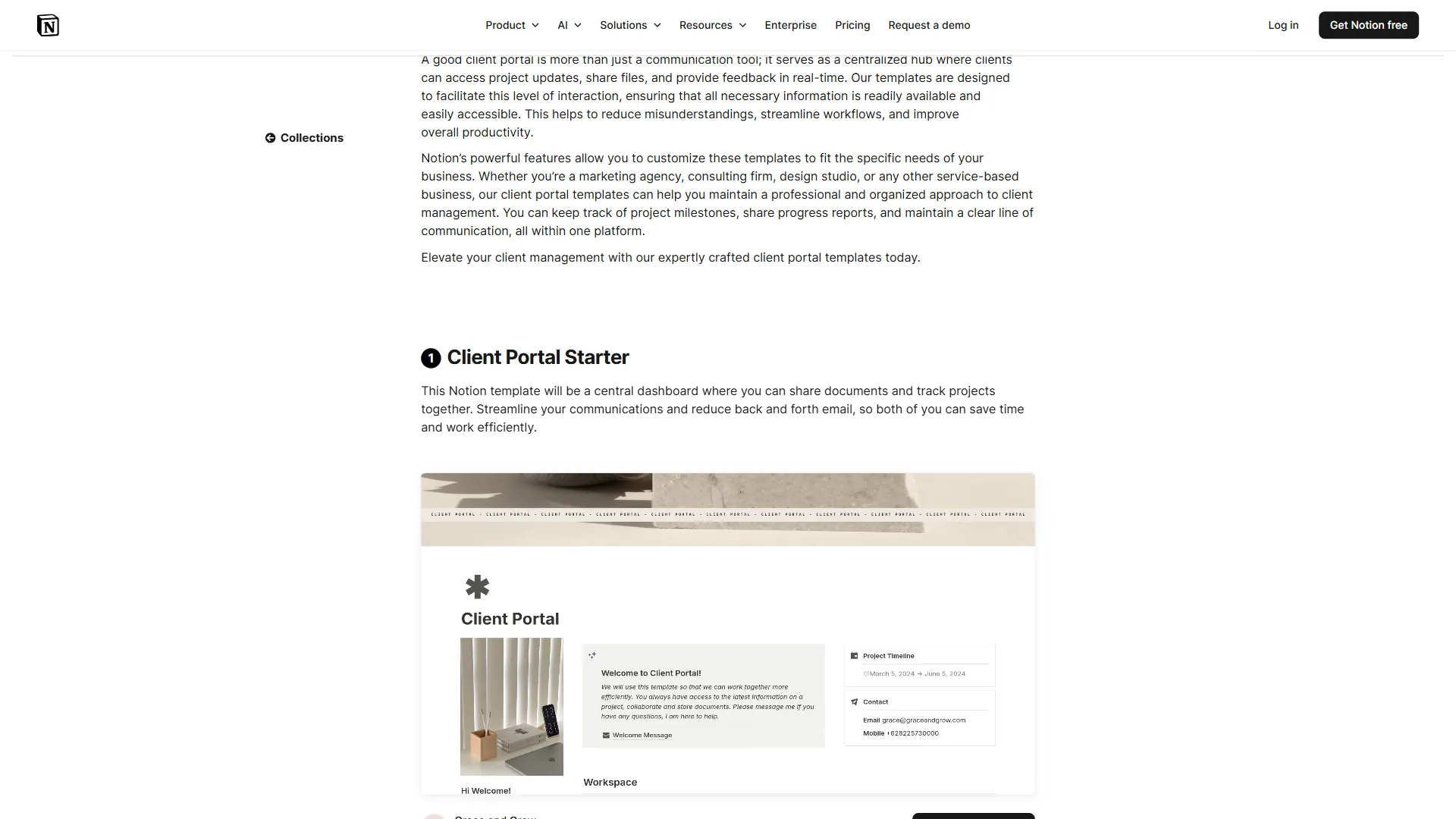
Notion serves as your central client hub. Create a master database called “Clients” with the following properties:
- Client Name (title)
- Status (select: Lead, Onboarding, Active, On Hold, Completed)
- Project Type (multi-select: Web Design, Copywriting, Consulting, etc.)
- Monthly Retainer (number)
- Start Date (date)
- Primary Contact (email)
- Next Action (text)
Each client entry links to a sub-page that contains their project tracker, meeting notes, deliverables, and communication log. Notion AI can generate this entire sub-page structure from a template with one click. The Notion database guide walks through setting up linked databases that make this hub structure possible.
AI Prompt Template - Client Onboarding Brief:
“Based on the following client intake information, generate a project brief that includes: project scope summary, key deliverables with estimated timelines, communication preferences, and three potential risks to flag early. Client info: [paste intake form responses]. Keep the tone professional but approachable. Format with headers and bullet points.”
This prompt, fed into Notion AI, turns a raw intake form into a structured project brief in under 30 seconds. Without AI, writing this brief manually takes 20 to 30 minutes per client. The prompt structure mirrors the templates in our ChatGPT prompts collection.
Automate the Intake-to-Portal Pipeline
Here is where the magic happens. When a new client fills out your intake form (Google Forms, Typeform, or Notion’s native forms), a Zapier automation triggers the following chain:
- New form submission triggers the Zap
- Zapier creates a new Notion database entry with the client’s details pre-filled
- Zapier sends a Calendly scheduling link via email for the kickoff call
- Zapier sends a welcome email with portal access instructions
This four-step automation replaces what used to be a 45-minute manual process for each new client: reading the form, creating the project entry, sending the scheduling link, and writing the welcome email. Multiply that by 3 to 4 new clients per month and you are saving 2 to 3 hours monthly from onboarding alone. For more multi-step Zap recipes, see Zapier’s guide to multi-step automations.
Schedule the Kickoff Call with Calendly
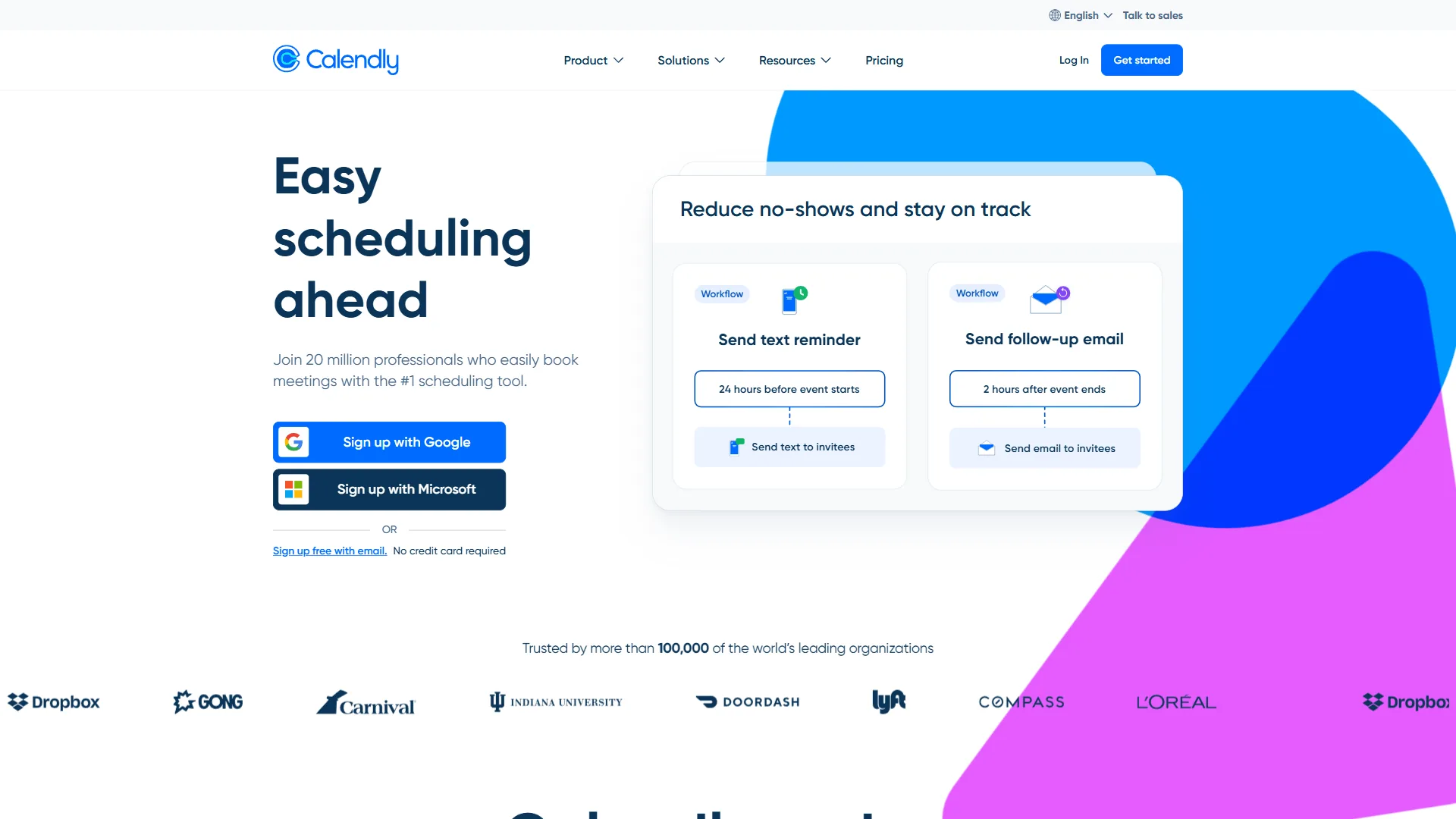
Calendly handles all scheduling logistics. Set up dedicated event types for your client workflow:
- Kickoff Call (60 min, one-time) - includes intake questions in the booking form
- Weekly Check-in (30 min, recurring) - auto-scheduled after kickoff
- Ad Hoc Consultation (15 min, as-needed) - for quick questions
The key configuration: set buffer times between meetings (15 minutes minimum), block your deep work hours as unavailable, and enable automatic timezone detection. Calendly’s routing feature on the Teams plan can even direct different client types to different meeting formats automatically.
Time saved per client per month: Eliminating scheduling back-and-forth saves roughly 30 to 45 minutes per client monthly. With 10 active clients, that is 5 to 7.5 hours recovered. For deeper scheduling tactics, our Calendly tips and tricks guide covers buffer rules, AI routing, and no-show workflows.
Phase 2: Ongoing Client Management
Once onboarding is complete, the daily work begins. This is where most freelancers lose the most time - not on the client work itself, but on the management overhead surrounding it.
Build a Client Dashboard in Notion
Your Notion client database becomes a real-time dashboard when configured correctly. Create filtered views for:
- This Week’s Priorities - tasks due in the next 7 days, sorted by client
- Waiting on Client - items blocked by client feedback or approvals
- Overdue Items - anything past its deadline (this view should ideally be empty)
- Revenue Tracker - monthly retainer totals with status indicators
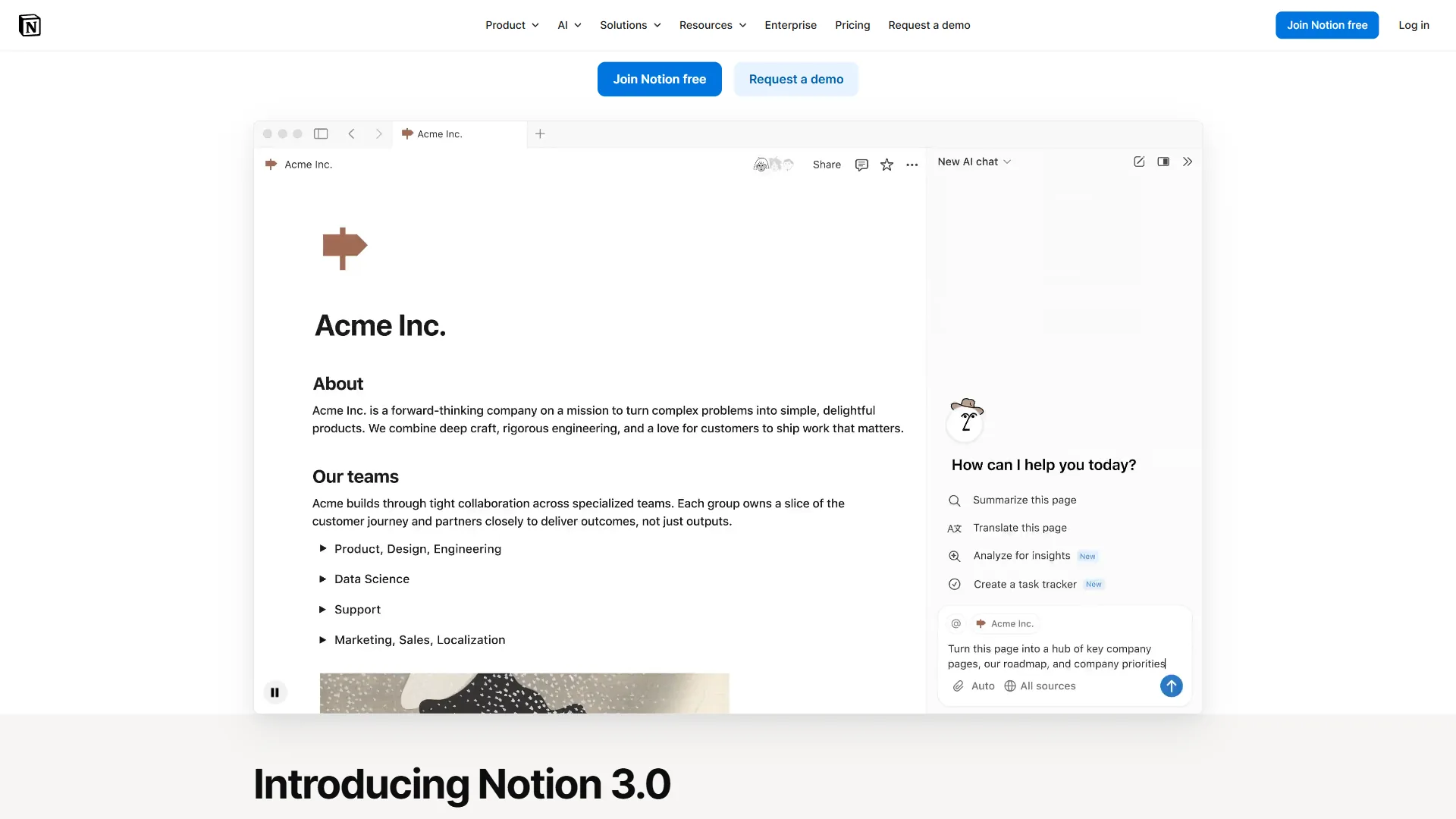
Notion AI can summarize the state of any client project in seconds. Instead of scrolling through pages of notes to prepare for a client call, ask Notion AI to generate a status summary.
AI Prompt Template - Client Status Summary:
“Summarize the current status of [Client Name]‘s project based on the following notes and task list. Include: completed milestones, items in progress, upcoming deadlines, any blockers, and recommended discussion points for the next check-in. Keep it under 200 words.”
This turns a 15-minute meeting prep into a 30-second AI generation. Over a month with 10 clients and weekly check-ins, that is 10 hours of meeting prep reduced to about 20 minutes. The same summary-on-demand pattern is detailed in our AI meeting notes guide.
Automate Status Updates and Follow-ups
The most valuable Zapier automations for ongoing management are the ones that replace manual follow-ups:
Automation 1: Weekly client digest. Every Monday morning, Zapier pulls the current task status from Notion and emails each client a formatted summary of what was completed last week and what is planned for this week. No manual writing required.
Automation 2: Overdue task alerts. When a task in Notion passes its due date, Zapier sends you a Slack message (or email) with the client name, task description, and how many days it is overdue. This catches things before they become problems.
Automation 3: Meeting follow-up. After every Calendly meeting, Zapier creates a follow-up task in Notion due 24 hours later. The task includes a reminder to send meeting notes and next steps.
AI Prompt Template - Meeting Follow-up Email:
“Write a professional follow-up email after a client check-in meeting. Meeting highlights: [paste 3-5 bullet points]. Next steps: [list action items]. Tone: warm but concise. Include a summary of decisions made and clearly assign each action item to either us or the client with deadlines.”
Phase 3: Client Communication at Scale
Communication is where client relationships are won or lost. The challenge is maintaining the personal touch as your client count grows. AI makes this possible without cloning yourself.
Templatize Without Sounding Robotic
The mistake most people make with AI-generated client communication is using it verbatim. The right approach is to use AI for structure and first drafts, then add your personal voice in the edit pass.
Create a library of communication templates in Notion for common scenarios:
- Project kickoff confirmation
- Milestone completion update
- Scope change discussion
- Payment reminder (gentle)
- Payment reminder (firm)
- Project completion and handoff
Notion AI can generate all of these templates in one session. Then you customize them with your voice and save them for one-click reuse.
AI Prompt Template - Scope Change Discussion:
“Draft a professional email to a client explaining that their latest request falls outside the original project scope. The request: [describe]. Original scope: [describe]. Tone: collaborative, not confrontational. Offer two options: (1) add it to the current project with a cost estimate of [amount], or (2) schedule it as a separate follow-up project. Keep it under 150 words.”
This is one of the most dreaded client conversations. Having an AI draft the email first removes the emotional friction that causes most freelancers to either avoid the conversation entirely or handle it poorly. The drafting-then-personalizing approach is also documented in our how to write faster guide.
Centralize Communication Logs
Every client interaction - email, meeting note, Slack message summary - gets logged in the client’s Notion page. This creates a searchable history that prevents the “I thought we agreed on X” conversations.
Set up a Zapier automation that captures key communication touchpoints:
- Calendly meeting completed triggers a “Meeting held” log entry in Notion
- Email sent via Gmail (with client’s email in the To field) creates a communication log entry
- Form submission received logs the client’s feedback or request
Having this log means you never walk into a meeting unprepared. A quick glance at the communication history - or better yet, an AI-generated summary of it - gives you full context in seconds.
Phase 4: Automating the Business Side
Client work is the revenue generator. Administrative work is the revenue leaker. AI automation handles the administrative layer so you can focus on deliverables.
Invoice and Payment Tracking
While FreshBooks and QuickBooks handle the actual invoicing, the triggers and tracking live in your Notion + Zapier stack:
- When a project milestone is marked “Complete” in Notion, Zapier triggers an invoice creation reminder
- Payment status is tracked in the Notion client database (Pending, Sent, Paid, Overdue)
- Overdue payments (7+ days) trigger automated gentle reminder emails via Zapier
AI Prompt Template - Payment Reminder:
“Write a friendly payment reminder email for an invoice that is [X] days overdue. Invoice amount: [amount]. Invoice date: [date]. Client name: [name]. Tone: professional and understanding, not aggressive. Mention that the invoice may have been overlooked and offer to resend if needed. Keep it under 100 words.”
Contract and Proposal Generation
Notion AI can draft client proposals and contracts from structured inputs. While you should always have a lawyer review your contract template, AI dramatically speeds up the customization process for each new client.
Feed Notion AI your standard contract template plus the specific project details, and it generates a customized version in under a minute. What used to take 30 to 45 minutes of manual editing becomes a quick review-and-send process. For high-volume proposal work, see our best AI proposal generators breakdown.
How Much Should You Spend on an AI Client Management Stack?
Not every freelancer needs the full stack from day one. Here is how to build up as your client count and revenue grow.
Starter Stack: Free (1-5 clients)
| Tool | Plan | Cost |
|---|---|---|
| Notion | Free | $0/mo |
| Calendly | Free | $0/mo |
| Zapier | Free (100 tasks/mo) | $0/mo |
What you get: A basic client database in Notion, one scheduling link in Calendly, and up to 5 simple two-step Zaps. This handles the fundamentals - centralized client info, automated scheduling, and basic form-to-database connections.
Limitations: No Notion AI (requires Plus plan), only 1 Calendly event type, Zapier limited to 100 tasks and 2-step Zaps. You will handle more things manually, but the organizational foundation is solid.
Growth Stack: $50-$100 per month (5-10 clients)
| Tool | Plan | Cost |
|---|---|---|
| Notion | Plus | $12/month/user |
| Calendly | Standard | $12/month |
| Zapier | Professional | $29.99/month |
What you get: Notion AI for drafting and summarization, multiple Calendly event types with workflows, and multi-step Zaps with 750 tasks per month. This is where the real automation kicks in - you can build the full onboarding pipeline, automated status updates, and meeting follow-up systems described in this guide.
The unlock: Notion AI at the Plus tier is what makes this tier work. It handles meeting prep, status summaries, email drafts, and proposal generation. At 5+ clients, this alone saves 8 to 10 hours per month.
Scale Stack: $100-$200 per month (10-20 clients)
| Tool | Plan | Cost |
|---|---|---|
| Notion | Business | $20/month/user |
| Calendly | Teams | $20/month |
| Zapier | Professional | $29.99/month |
What you get: Everything in the Growth stack plus Notion AI Agents (Business plan), Calendly’s routing and round-robin for team scheduling, and higher Zapier task limits. At this tier, you are running a genuine agency-level operation as a solopreneur.
The unlock: Notion AI Agents on the Business plan can autonomously monitor your databases and surface insights - like flagging a client whose project has had no activity in 10 days, or identifying which clients are approaching their contract renewal date. This is proactive management that would normally require a dedicated account manager.
ROI at Each Tier
| Stack | Monthly Cost | Hours Saved/Month | Value at $100/hr | Monthly ROI |
|---|---|---|---|---|
| Starter | $0 | 5-8 hrs | $500-$800 | Infinite |
| Growth | $54 | 15-20 hrs | $1,500-$2,000 | 2,700-3,600% |
| Scale | $68 | 25-35 hrs | $2,500-$3,500 | 3,500-5,000% |
Even at the most conservative estimates, the return on investment is extraordinary. The Scale stack pays for itself within the first two hours of saved time each month - similar to the model in our knowledge management ROI guide for larger teams.
Putting It All Together: The Complete Workflow
Here is how a typical week looks with the AI client management stack fully operational:
Monday morning (15 minutes):
- Open Notion’s “This Week’s Priorities” view - scan all client tasks at a glance
- Automated weekly digests have already been sent to clients via Zapier
- Review any overdue items flagged by your automation
Client check-in calls (prep: 30 seconds each):
- Ask Notion AI: “Summarize [Client Name]‘s project status and suggest discussion points”
- Open Calendly - meeting is already scheduled, reminders already sent
- After the call, Zapier creates the follow-up task automatically
New client inquiry (5 minutes):
- Lead fills out your intake form
- Zapier creates the Notion entry, sends the Calendly link, and fires the welcome email
- You review and approve the auto-generated project brief from Notion AI
End of week (10 minutes):
- Review the revenue tracker in Notion
- Zapier has flagged any overdue invoices
- Use AI to draft any needed follow-up communications
Total admin time per week: 2 to 3 hours (down from 8 to 12 hours with manual management).
What Are the Common Mistakes to Avoid When Managing Clients with AI?
Over-automating too early. Start with the highest-impact automations (onboarding pipeline, scheduling) and add more as you identify specific bottlenecks. Building 20 Zaps on day one creates a maintenance burden.
Using AI-generated text without editing. AI drafts are starting points, not finished communications. Always add your personal touch - reference specific project details, use the client’s name naturally, and inject your personality. Clients can tell when they are getting templated responses.
Skipping the client portal. Some freelancers set up the automations but skip the centralized Notion hub. Without a single source of truth for each client, the automations create entries that nobody checks. The portal is the foundation - build it first.
Not setting boundaries in Calendly. If you make all your hours available for booking, clients will book them all. Set explicit availability windows, enforce buffer times, and block deep work periods. The tool only protects your time if you configure it to do so.
Ignoring the free tiers. You do not need to spend $100 per month from the start. The free tiers of all three tools are genuinely useful and can handle 3 to 5 clients comfortably. Upgrade when you hit the limitations, not before.
The Bottom Line
Learning how to manage clients with AI is not about replacing the human relationship - it is about removing the administrative friction that prevents you from being fully present in that relationship. When you are not scrambling to find meeting notes, chasing overdue invoices, or spending 30 minutes writing a status update, you can focus on what clients actually pay you for: your expertise.
The stack is straightforward. Notion is your brain - the central hub where every client detail, project status, and communication log lives. Calendly is your scheduler - eliminating the back-and-forth that eats hours every week. Zapier is your glue - connecting these tools together and automating the handoffs that used to require manual effort.
Start with the free tiers this week. Build the client database in Notion. Set up your first Calendly event type. Create one Zapier automation that connects a form to your database. That foundation alone will save you 5 to 8 hours per month. Then layer in AI drafting, automated follow-ups, and the full onboarding pipeline as your client count grows.
The freelancers who scale past 10 clients without hiring are not working harder. They have figured out how to manage clients with AI tools that handle the administrative overhead - and in 2026, that stack is more accessible and affordable than ever.
Frequently Asked Questions
How many clients can a solo freelancer manage using an AI tool stack?
With the right AI stack, a single freelancer can manage 15 to 20 active clients with the same operational rigor as a small agency. The combination of AI-powered workspaces, smart scheduling, and no-code automation replaces the administrative overhead that previously required a dedicated hire.
What tools make up the core AI client management stack?
The core stack is three tools: Notion serves as the client hub for project tracking and AI drafting, Calendly handles scheduling and onboarding calls, and Zapier connects everything by automating handoffs between them. All three offer free tiers, with paid plans starting at around $12 to $30 per month.
How much time can AI client management automations save each week?
With the full AI client management stack operational, total admin time drops to 2 to 3 hours per week - down from 8 to 12 hours with manual management. At a rate of $100 per hour, that reclaimed time is worth $500 to $900 weekly in billable capacity.
Do you need to pay for tools to start managing clients with AI?
No - the free tiers of Notion, Calendly, and Zapier can comfortably handle 3 to 5 clients. Notion’s free plan offers unlimited pages, Calendly’s free plan includes one event type, and Zapier’s free plan covers 100 tasks per month with two-step automations. Upgrading becomes worthwhile once you hit those limits.
What is the most common mistake when automating client management?
Over-automating too early is the most common mistake. Starting with 20 Zapier automations on day one creates a maintenance burden before you understand your real bottlenecks. The recommended approach is to start with the highest-impact automations - the onboarding pipeline and scheduling - then add more as specific friction points emerge.
Want to learn more about Notion?
Related Guides
- How to Schedule Smarter with AI
- How to Automate Email with AI
- Calendly Tips and Tricks
- How to Create SOPs with AI
Related Reading
- Best AI Automation Tools 2026
- Best Free Project Management Tools
- How to Schedule Smarter with AI
- How to Automate Email with AI
- Project Management for Small Teams
- Notion Review
- Calendly Review
- Zapier Review
External Resources
- Collaborative Overload - Harvard Business Review
- Five Ways to Use AI to Manage Your Time Better - McKinsey
Related Guides
- 15 Calendly Tips and Tricks to Save 4+ Hours Weekly
- ActiveCampaign CRM Setup: How to Set Up ActiveCampaign CRM
- ActiveCampaign Shopify Integration: Complete Setup
- ActiveCampaign WordPress: Forms, Tracking & Automation
- ActiveCampaign Zapier: 10 Automations to Build Today
- AI Agent Orchestration: Patterns That Scale in 2026
- AI Workflow Automation Maturity Model: 5 Levels
- Atlassian Intelligence Review: 2026 Pricing & Features
- Automate Approval Process No Code: Complete 2026 Guide
- Building AI First Workflows: A Practitioner's 2026 Guide