



Mailchimp to ActiveCampaign migration is the process of moving your contacts, automations, templates, and integrations from Mailchimp to ActiveCampaign - a switch many marketers make due to Mailchimp’s shrinking free plan, rising prices, and limited automation depth. ActiveCampaign offers built-in migration tooling designed specifically for Mailchimp users, making the transition relatively straightforward.
Switching email platforms feels like moving house. Everything is in boxes, you are not sure what goes where, and there is a creeping fear that something important will get lost in transit. The good news is that migrating from Mailchimp to ActiveCampaign is one of the more straightforward platform switches you can make - the two tools share enough conceptual overlap that most of your data maps cleanly, and ActiveCampaign has built migration tooling specifically for Mailchimp users.
This guide walks you through the complete migration process from start to finish. You will export your Mailchimp data, set up your ActiveCampaign account, import contacts with their tags and custom fields intact, rebuild your automations, recreate your templates, reconnect integrations, and verify everything works before you flip the switch. The whole process takes about 45 minutes of hands-on work, plus some waiting time for DNS propagation and data syncing.
Whether you are migrating because of Mailchimp’s pricing changes, hitting the ceiling on automation complexity, or simply ready for a platform that scales with your business - this guide has you covered.

Why Plan a Mailchimp to ActiveCampaign Migration
A Mailchimp to ActiveCampaign migration is something most marketers consider once their list outgrows Mailchimp’s free tier or once their automations need branching logic that Mailchimp’s Customer Journeys cannot handle. This section covers why the switch makes sense in 2026 and which audiences benefit most.
Mailchimp was the default choice for email marketing for over a decade, and for good reason - it was generous with free plans, simple to use, and had strong brand recognition. But the landscape has shifted significantly since Intuit acquired the platform in 2021, and many users are finding that Mailchimp no longer fits their needs.
Pricing changes that keep climbing. Mailchimp’s free plan has been steadily shrinking - from 2,000 contacts to 500, with sending limits tightened at every tier. The Standard and Premium plans have seen repeated price increases, and features that were once included at lower tiers have migrated upward. ActiveCampaign’s pricing starts with Starter at $15/month and scales more predictably as your list grows. Compare plans on the ActiveCampaign pricing page.
Automation limitations. Mailchimp’s Customer Journeys builder has improved, but it still lacks the depth that serious marketers need. Branching logic is limited, conditional actions are basic, and there is no equivalent to ActiveCampaign’s if/else branching, goal tracking, or split testing within automations. If your automations have outgrown “send email, wait, send another email,” you will feel the difference immediately.
Feature gaps at the platform level. ActiveCampaign includes a built-in sales CRM, lead scoring, site tracking, conditional email content, predictive sending, and SMS marketing - all features that either do not exist in Mailchimp or require expensive add-ons. For businesses that want email marketing and sales tools in one platform, the comparison is not close. See our best email marketing tools roundup for a broader look at the options.
Who benefits most from switching. This migration makes the most sense for growing businesses with more than 1,000 contacts, anyone running multi-step automations, ecommerce stores needing deep behavioral triggers, and teams that want CRM functionality without paying for a separate tool. If you are a solo creator sending a monthly newsletter to 200 people, Mailchimp probably still works fine. For everyone else, the switch pays for itself quickly.
What Should You Do Before Migrating from Mailchimp to ActiveCampaign?
A successful Mailchimp to ActiveCampaign migration starts with documentation, not exports. Before you pull data out of Mailchimp, document your current setup. Rushing into the export without a clear inventory is the number one cause of messy migrations. Spend 15 minutes cataloging what you have.
Lists and audiences. Write down every audience in your Mailchimp account with subscriber counts and whether contacts overlap between audiences.
Tags and segments. Export or screenshot your tag list and saved segments. Tags transfer cleanly, but segments need rebuilding in ActiveCampaign’s condition builder.
Automations and journeys. Document every active automation: the trigger, each step, branching logic, and performance metrics. You cannot export automations directly, so this documentation is your rebuild blueprint.
Email templates. Identify templates you actively use. Screenshot them or save the HTML source for reference when rebuilding.
Integrations. List every tool connected to Mailchimp - website platform, ecommerce system, CRM, form builders, and any Zapier or Make automations.
Custom fields and merge tags. Document custom fields (birthday, company, date fields, dropdowns). These need to be recreated in ActiveCampaign before importing contacts.
Forms and landing pages. Note embedded signup forms and Mailchimp-hosted landing pages that will need replacement.
How Do Mailchimp and ActiveCampaign Compare on Features?
Understanding how Mailchimp concepts translate to ActiveCampaign concepts prevents confusion during the migration. The platforms use different terminology for similar (and sometimes different) features.
| Mailchimp | ActiveCampaign | Notes |
|---|---|---|
| Audiences | Lists | AC lists are simpler - use tags for segmentation |
| Tags | Tags | Direct equivalent, transfers cleanly |
| Groups | Custom Fields | Rebuild as dropdown or checkbox custom fields |
| Segments | Segments | Rebuilt using AC’s condition builder (more powerful) |
| Customer Journeys | Automations | AC automations have deeper branching and conditions |
| Campaigns | Campaigns | Nearly identical concept |
| Merge Tags | Personalization Tags | Different syntax: `* |
| Landing Pages | Landing Pages (or Pages) | Available on Plus plan and above |
| Signup Forms | Forms | AC forms support inline, modal, floating bar, floating box |
| Reports | Reports | AC adds contact-level engagement scoring |
| Creative Assistant | AI Brand Kit | AC’s version learns your brand and generates content |
| Audience Dashboard | Contacts Overview | AC adds CRM, lead scoring, deal tracking |
The most important conceptual shift is this: Mailchimp organizes everything around audiences, while ActiveCampaign organizes around contacts. In ActiveCampaign, a contact exists once in your account regardless of how many lists they belong to. Tags and custom fields handle all the segmentation that Mailchimp spread across audiences, groups, and segments. This is a cleaner model once you adjust to it.
Step 1: Export Your Mailchimp Data
Start by pulling your data out of Mailchimp. The export process is straightforward but has a few nuances worth knowing.
Export Contacts
Navigate to Audience > All contacts in Mailchimp. Click Export Audience in the top right. Mailchimp generates a CSV file with email addresses, names, tags, custom field data, subscription status, and engagement metrics.
Key details: unsubscribed and cleaned contacts are included with their status marked - do not import these as active subscribers. Tags appear as comma-separated values in a column that ActiveCampaign can parse during import. If you have multiple audiences, export each one separately.
Document Automations
Mailchimp does not offer an automation export. For each active Customer Journey, document the trigger, each step, branching logic, and performance data. Screenshots work well. This becomes your rebuild blueprint.
Save Template References
For each template you actively use, save the HTML source or take detailed screenshots of the layout, colors, and content blocks. ActiveCampaign uses a different designer, so you will recreate templates visually.
Note Integration Settings
For each connected integration, document the configuration - API keys, webhook URLs, sync settings, and field mappings.
Step 2: Set Up Your ActiveCampaign Account
With your Mailchimp data exported and documented, set up your ActiveCampaign account before importing anything.
Create your account. Start with the 14-day free trial to test the full platform before committing. For migrations, the Plus plan ($49/month) is recommended - it includes unlimited automation actions, CRM, landing pages, and the integrations most Mailchimp users need.
Connect and authenticate your domain. Do this first because DNS changes can take up to 48 hours to propagate. Navigate to Settings > Advanced > Email Authentication and add the DKIM and DMARC records to your domain’s DNS. If you had authentication set up with Mailchimp, you will be replacing those records.
Set up your branding. Go to Settings > Branding and upload your logo, set brand colors, and add your physical mailing address. The AI Brand Kit can analyze your website and generate brand-consistent templates automatically.
Create your list structure. Create one primary list and use tags for segmentation. This is simpler than replicating Mailchimp’s multi-audience structure and uses ActiveCampaign’s contact-centric design.
Recreate custom fields. Navigate to Contacts > Manage Fields and create fields matching your Mailchimp custom fields and groups. Having these ready before import means CSV columns map directly to the correct fields.

Step 3: Import Contacts
The contact import is where your preparation pays off. ActiveCampaign’s import wizard handles most of the complexity, but there are decisions you need to make.
Run the CSV Import
Navigate to Contacts > Import and upload your Mailchimp CSV. The import wizard displays columns from your file and asks you to map each one to a contact field.
Map standard fields first. Email, first name, and last name usually auto-detect. Verify the mapping is correct.
Map custom fields. Match Mailchimp custom field columns to the ActiveCampaign fields you created in Step 2.
Handle tags. Map the tags column to the Tags field - ActiveCampaign parses comma-separated values automatically. Add a tracking tag like “Mailchimp Import” to all imported contacts.
Assign to a list. Select the list you created. Every imported contact needs at least one list assignment.
Handle Unsubscribed and Bounced Contacts
Your Mailchimp export includes unsubscribed and bounced contacts. The recommended approach is to filter your CSV before import, removing rows where the status is “unsubscribed,” “cleaned,” or “bounced.” This ensures you only import contacts who have opted in. Alternatively, ActiveCampaign can import contacts with their unsubscribed status preserved - they will exist in your account but will not receive messages. Avoid importing bounced addresses as they can hurt your sending reputation on the new platform.
Avoid Duplicate Imports
If you exported multiple Mailchimp audiences with overlapping contacts, ActiveCampaign merges automatically - when an email address already exists, it updates the record rather than creating a duplicate. Double-check after import by reviewing contacts with unexpected list assignments.
Step 4: Rebuild Your Automations
This is the most time-intensive part of the migration, and also the biggest opportunity to improve your marketing. ActiveCampaign’s automation builder is significantly more powerful than Mailchimp’s Customer Journeys, so you should not just replicate - you should upgrade.

Map Your Existing Automations
Pull out the automation documentation you created in Step 1. For each Mailchimp Journey, create a corresponding automation in ActiveCampaign by navigating to Automations > Create an Automation. You can start from scratch or browse ActiveCampaign’s automation recipes - pre-built templates for common sequences.
Common Automation Patterns to Rebuild
Welcome series. Set the trigger to “Subscribes to a list” or “Tag is added.” Add your welcome emails with wait steps in the ActiveCampaign automation builder. The upgrade opportunity: add if/else conditions to branch based on whether the contact opened previous emails or clicked specific links.
Abandoned cart recovery. Rebuild using the ecommerce trigger “Abandons a cart” via the ActiveCampaign Shopify integration. ActiveCampaign supports more sophisticated timing, multiple reminder emails with different incentives, and conditional logic based on cart value.
Re-engagement campaigns. Use ActiveCampaign’s contact scoring and date-based conditions to identify contacts who have not opened emails in 90 days. The platform tracks engagement across emails, site visits, and CRM activity for more granular targeting.
Post-purchase follow-ups. Rebuild using ActiveCampaign’s ecommerce triggers or tag-based triggers from your platform integration.
What to Improve During Migration
Migration is the perfect time to fix what was not working. Common upgrades: conditional content blocks based on contact data, lead scoring to identify engaged subscribers, SMS follow-ups for critical automations, and AI-powered send time optimization.
Step 5: Recreate Email Templates
You will not be importing Mailchimp templates directly. Instead, you will rebuild them in ActiveCampaign’s email designer - which is a different tool with its own strengths.
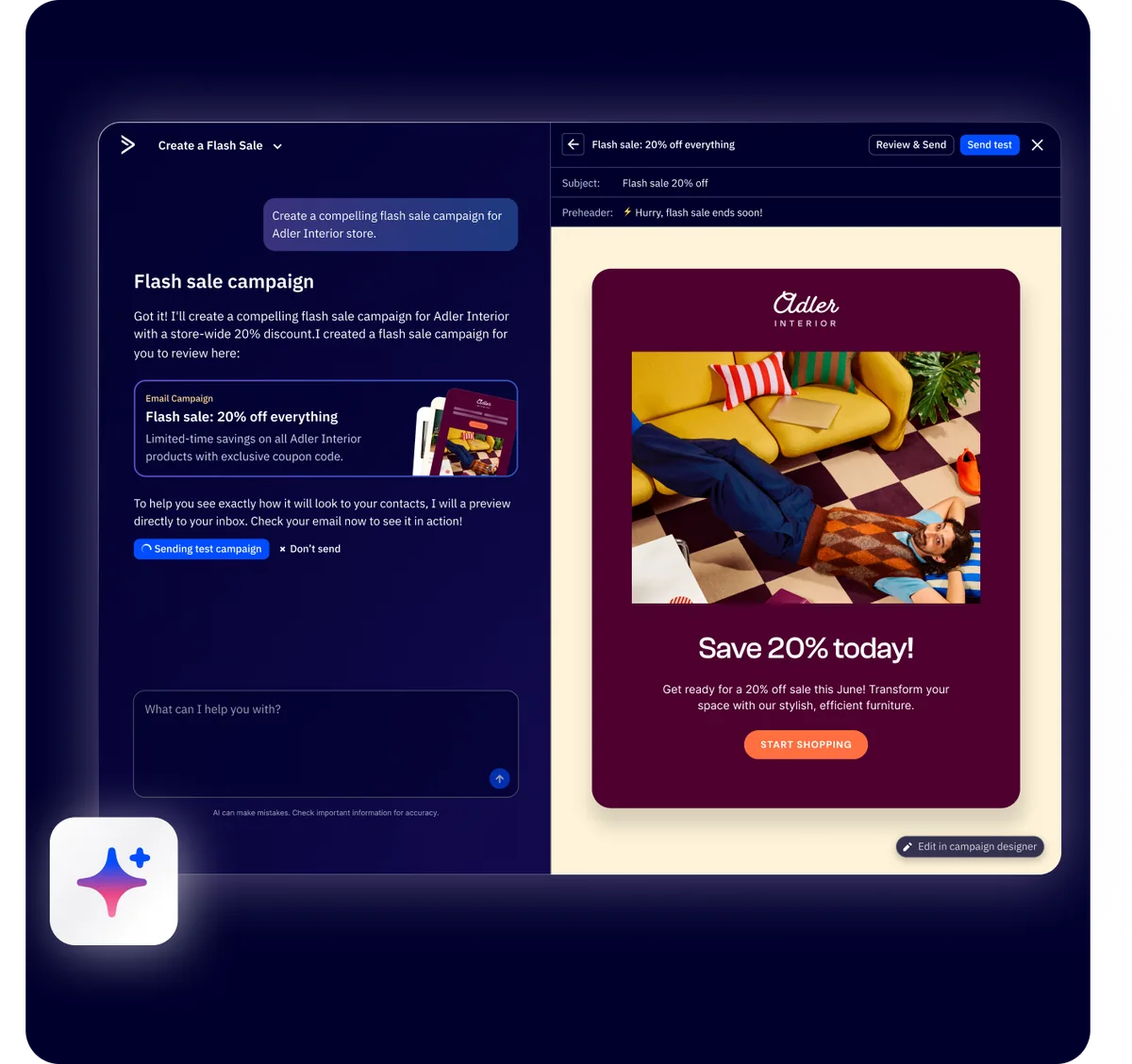
Use the drag-and-drop designer. ActiveCampaign’s email designer uses content blocks - text, image, button, divider, social links, and HTML. If you set up branding in Step 2, your colors and logo are already available.
Use the AI Brand Kit. The Brand Kit analyzes your website and generates on-brand templates automatically - recreating the look of your Mailchimp templates in minutes rather than hours.
Recreate your core templates. Focus on three to five essentials: newsletter layout, promotional email, notification email, text-style personal outreach, and product announcement.
Update your merge tags. Mailchimp uses *|FNAME|* syntax while ActiveCampaign uses %FIRSTNAME%. Common replacements: *|FNAME|* to %FIRSTNAME%, *|LNAME|* to %LASTNAME%, and *|EMAIL|* to %EMAIL%.
Save templates for reuse. Save finished templates under Campaigns > Manage Templates for use across campaigns and automations.
Step 6: Reconnect Integrations
Every integration connected to Mailchimp needs to be reconnected to ActiveCampaign. The good news is that ActiveCampaign has native integrations with over 900 apps, so most of your tools will connect directly.
Ecommerce platforms. Shopify, WooCommerce, BigCommerce, and Square all have native integrations - the ActiveCampaign Shopify guide covers the deepest connection. Navigate to Settings > Integrations, search for your platform, and follow the connection wizard.
Website and CMS. WordPress users can install the ActiveCampaign WordPress plugin for site tracking, forms, and contact sync. For other platforms, add the site tracking JavaScript snippet to your website header.
Form builders and landing pages. Replace Mailchimp form embed codes with ActiveCampaign forms created in Website > Forms. Gravity Forms, WPForms, and Typeform also have direct integrations.
Zapier and Make. Update existing automations to use the ActiveCampaign app instead of Mailchimp. Triggers and actions are similar - most need only the app swap and field remapping. If you are deciding between the two, our Zapier vs Make comparison covers the key differences.
CRM and sales tools. Evaluate whether ActiveCampaign’s built-in CRM can replace your standalone tool. It includes deal pipelines, contact scoring, task management, and sales automation.
Step 7: Test and Verify
This is the make-or-break step of any Mailchimp to ActiveCampaign migration. Do not cancel your Mailchimp account until you have thoroughly tested your ActiveCampaign setup. Run through this verification checklist.
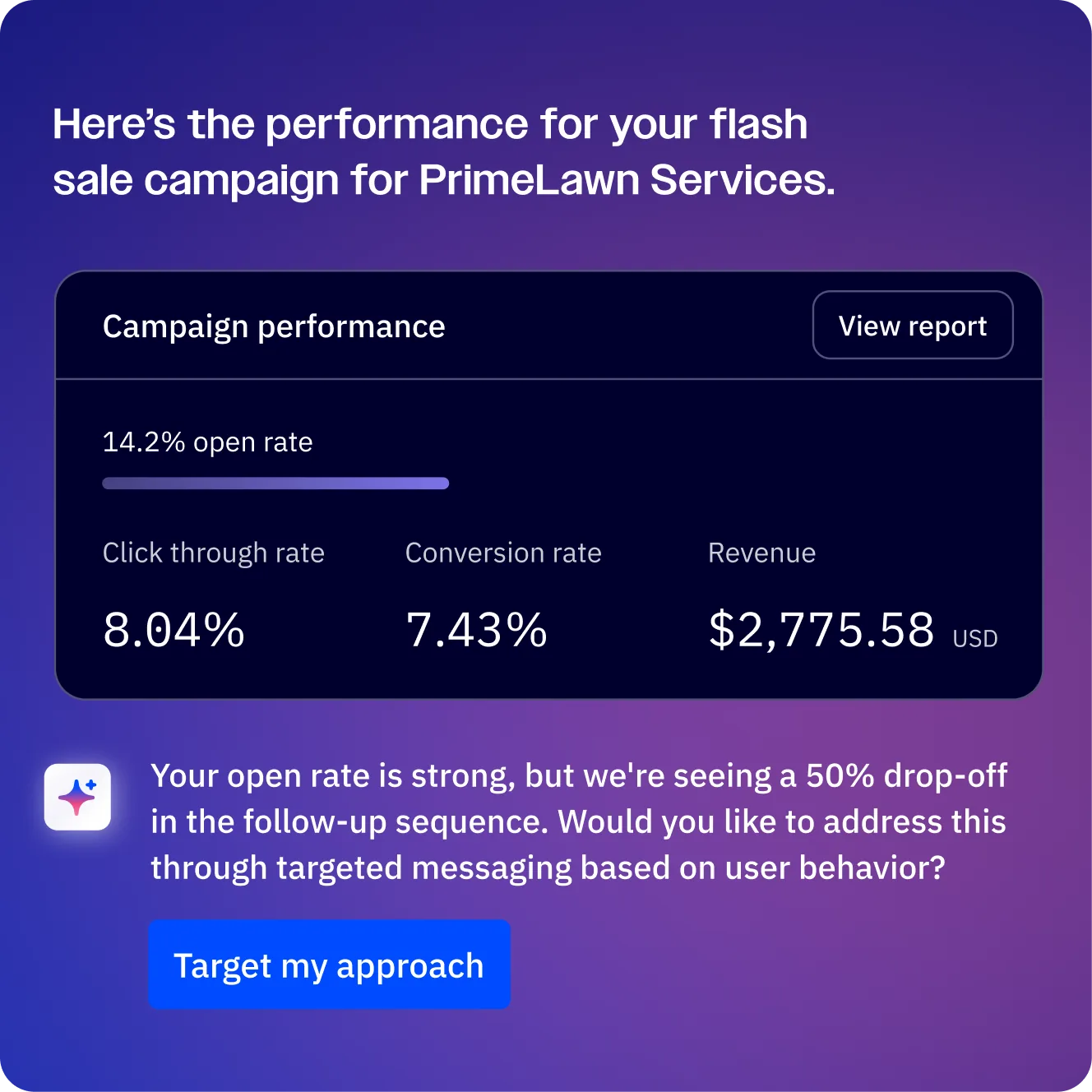
Send test campaigns. Send a test campaign to yourself and team members. Verify from name, subject line, template rendering, personalization tags, and links on both desktop and mobile.
Verify automation triggers. Add yourself as a test contact and trigger each automation. Confirm emails send, wait steps work, branches route correctly, and tags update as expected. ActiveCampaign’s automation map view shows exactly where a contact is in the workflow.
Check deliverability. Follow the ActiveCampaign deliverability guide and send test emails to Gmail, Outlook, Yahoo, and Apple Mail addresses. Verify emails land in the primary inbox, not spam.
Warm up your sending domain. For large lists (10,000+ contacts), start by sending to your most engaged segment and gradually increase volume over one to two weeks.
Verify integrations. Test each reconnected integration - place a test order, submit a form, create a CRM record - and confirm data flows correctly.
Compare contact counts. Cross-reference your Mailchimp subscriber count with ActiveCampaign. Differences should be accounted for by contacts you chose not to import.
What Should You Optimize After Migrating to ActiveCampaign?
A Mailchimp to ActiveCampaign migration unlocks features the old platform never had. Once your migration is verified and running, take advantage of ActiveCampaign features that Mailchimp does not offer. These are the quick wins that make the migration worth the effort.
Conditional email content. Show different content blocks within the same email based on contact data - location, purchase history, tags, or custom field values. This eliminates the need to create separate campaigns for different segments.
Predictive sending. ActiveCampaign’s Active Intelligence AI analyzes each contact’s engagement history and delivers emails at the time they are most likely to open. Enable this on campaigns and automations for an immediate lift in open rates without any extra work.
Lead scoring. Assign point values to actions - email opens, link clicks, site visits, form submissions, page views. Contacts accumulate scores over time, letting you identify your most engaged subscribers and trigger automations when a contact reaches a threshold.
CRM deal tracking. If you were paying for a separate CRM alongside Mailchimp, ActiveCampaign’s built-in CRM can likely replace it. Set up deal pipelines, track deal values, assign tasks to team members, and build automations that trigger based on deal stage changes.
Site tracking. Install ActiveCampaign’s site tracking code to see which pages each contact visits on your website. Use this data to trigger automations, score leads, and personalize emails based on browsing behavior - something Mailchimp’s basic tracking could not do at the contact level.
What Are Common Mailchimp to ActiveCampaign Migration Issues?
Even well-planned migrations hit bumps. Here are the five most common problems and how to fix them.
Missing contacts after import. Check whether contacts with invalid email formats were rejected or duplicates across audiences merged (correct behavior). Review the import summary report for specific errors.
Broken automations. Verify the automation status is “Active,” trigger conditions match exactly, and no entry conditions or goals are blocking progress. Check the automation’s contact log.
Deliverability dip after migration. A temporary decrease is normal when establishing a new sending reputation. Mitigate by authenticating your domain, warming up gradually, maintaining consistent sending frequency, and cleaning inactive contacts.
Duplicate contacts. ActiveCampaign should merge during import, but if duplicates slip through, use the bulk operations tool to merge them manually.
Custom field mapping errors. If data landed in wrong fields, re-import with corrected mapping. ActiveCampaign updates existing contacts without creating duplicates - select “Update existing contacts” during import.
The Bottom Line
A clean Mailchimp to ActiveCampaign migration takes about 45 minutes of hands-on work plus a few days of testing. Document everything in Mailchimp first, set up ActiveCampaign with proper domain authentication, import contacts with their tags, and rebuild automations as upgrades rather than copies. The free migration team can carry most of the load if you are on a paid plan. If you are still weighing alternatives, the Mailchimp tool review and our Zapier vs Make comparison will help you decide which platform combo fits your stack.
Frequently Asked Questions
How long does the full migration from Mailchimp to ActiveCampaign take?
The hands-on work takes about 45 minutes for a straightforward migration - exporting data, importing contacts, and basic account setup. Rebuilding complex automations and templates can add several hours depending on how many you have. DNS propagation for domain authentication takes up to 48 hours. Most businesses complete the full migration in one to three days, with a week of overlap running both platforms while testing.
Will I lose my email history and campaign data from Mailchimp?
ActiveCampaign imports contacts and their field data, but it does not import historical campaign performance data (open rates, click rates, send history). That data stays in your Mailchimp account. Keep your Mailchimp account active on the free plan after migration if you need to reference historical reports. Your contacts will start building fresh engagement data in ActiveCampaign from day one.
Does ActiveCampaign offer a free migration service?
Yes. ActiveCampaign provides a free migration service for customers on paid plans. Their migration team will import your contacts, recreate your forms, rebuild your automations, and set up your templates. The service typically takes a few business days depending on account complexity. You can use this guide for a DIY migration or combine it with the free service for a hybrid approach.
Can I run Mailchimp and ActiveCampaign simultaneously during the transition?
Yes, and this is recommended. Keep both platforms active during the testing period. The key rule is to avoid sending to the same contacts from both platforms - this confuses subscribers and can trigger spam complaints. Use Mailchimp for your existing active campaigns while setting up and testing in ActiveCampaign, then switch over once everything is verified.
What happens to my Mailchimp signup forms and landing pages?
Mailchimp forms embedded on your website will stop collecting subscribers once you deactivate your Mailchimp account. Replace all embedded form codes with ActiveCampaign form embeds before canceling. For Mailchimp-hosted landing pages, recreate them in ActiveCampaign (available on Plus plans and above) or on your website platform. Update any links pointing to Mailchimp landing pages to point to the new versions.
Is ActiveCampaign more expensive than Mailchimp?
List size and feature needs decide the answer. For small lists under 500 subscribers, Mailchimp’s free plan is cheaper than ActiveCampaign Starter at $15/month. Above 500 subscribers or when automation moves beyond the basics, ActiveCampaign often comes out ahead on value. Our Mailchimp alternatives comparison breaks down the full pricing picture across platforms. The Plus plan at $49/month includes CRM, advanced automations, landing pages, and email marketing automation - features that require Mailchimp’s Premium plan at $350/month or separate paid tools. Compare pricing directly on the ActiveCampaign pricing page.
Want to learn more about ActiveCampaign?
Related Guides
- Getting Started with ActiveCampaign
- ActiveCampaign Email Campaign Setup
- ActiveCampaign Email Automation Workflows
- ActiveCampaign Segmentation Strategies
- ActiveCampaign Lead Scoring Guide
Related Reading
External Resources
- ActiveCampaign Migration Documentation - Official help center walkthrough for Mailchimp imports
- Mailchimp Audience Export Help - Vendor instructions for exporting contacts from Mailchimp
- ActiveCampaign vs Mailchimp Comparison - Vendor-published feature comparison
- ActiveCampaign Mailchimp Switch Landing Page - Dedicated Mailchimp-switch resources and migration assistance
- ActiveCampaign Pricing - Current plan comparison with feature availability by tier
- ActiveCampaign Free Trial - 14-day trial with full access to test before migrating
Related Guides
- 15 Calendly Tips and Tricks to Save 4+ Hours Weekly
- Activecampaign AI Content Generation: Complete 2026 Guide
- ActiveCampaign AI Features: Active Intelligence Guide
- Activecampaign Automation Builder: Complete 2026 Guide
- Activecampaign Brand Kit: 2026 Walkthrough for Teams
- ActiveCampaign Conditional Content: Personalization Guide
- ActiveCampaign CRM Setup: How to Set Up ActiveCampaign CRM
- ActiveCampaign Deals Pipeline: Stages & Automation
- ActiveCampaign Deliverability: Best Practices Guide
- ActiveCampaign Email Automation: 10 Workflows That Work