
An ActiveCampaign email campaign is the core unit of your email marketing operation. Every newsletter, product announcement, flash sale, and content roundup you send lives inside a campaign. Getting the first one right - from template selection through analytics review - sets the pattern for every ActiveCampaign email campaign that follows.
This guide walks you through the complete ActiveCampaign email campaign setup process. You will choose a campaign type, design your email in the drag-and-drop builder, write copy that drives clicks, configure tracking, schedule your send, and read the results. The whole process takes about 20 minutes for your first ActiveCampaign email campaign and gets significantly faster once you save a reusable email campaign template alongside your brand kit.
No marketing background required - just an ActiveCampaign account and something worth emailing your list about.
What You Need Before Creating a Campaign
Before you click that “Create a Campaign” button, make sure these pieces are in place. Missing any of them means stopping mid-setup to go find what you need.
An ActiveCampaign account with at least one list. Campaigns send to lists, not individual contacts. Sign in to your ActiveCampaign login with email and password, then, if you have not created a list yet, navigate to Contacts > Lists > Add a List and set one up. Even a test list with 5-10 contacts works for your first campaign. If you are starting from zero, the ActiveCampaign Getting Started Guide covers account setup and contact imports in detail.
Contacts on that list. An empty list means zero recipients. Import contacts via CSV, add them manually, or use a signup form. ActiveCampaign requires that all contacts have explicitly opted in to receive email from you - this is not just best practice, it is a deliverability requirement.
A verified sending domain. Navigate to Settings > Advanced > Email Authentication and confirm your DKIM and DMARC records are set up. Without domain authentication, your emails are far more likely to land in spam folders. This step takes 5 minutes to configure and up to 48 hours for DNS propagation, so handle it well before your first send; if records will not validate after propagation, open an ActiveCampaign support ticket rather than guessing at DNS. For a complete walkthrough of authentication and inbox placement, see the ActiveCampaign deliverability guide.
Your brand assets. Logo file (PNG or SVG), brand colors (hex codes), and your physical mailing address. ActiveCampaign’s brand kit pulls these into every template automatically once configured. Set this up under Settings > Branding if you have not already. See the ActiveCampaign AI Brand Kit guide for a detailed walkthrough.
A plan that supports campaigns. All ActiveCampaign plans include email campaigns - even the Starter plan at $15/month from ActiveCampaign’s email marketing platform. For A/B testing, predictive sending, and conditional content, you will need the Plus plan ($49/month) or higher. Start with the free trial to test everything before committing, and compare tiers on the pricing page.
Which ActiveCampaign Campaign Type Should You Choose?
When you navigate to Campaigns > Create a Campaign, ActiveCampaign presents several campaign types. Each serves a different purpose, and picking the right one before you start building saves you from rebuilding later.
For a primer on how email marketing fits into broader marketing automation, see ActiveCampaign’s marketing automation overview.
Standard Campaign. This is the default and what most marketers use for newsletters, announcements, and promotional emails. You design one email, choose your recipients, and send it once. Start here for your first campaign.
Automated Campaign. Triggers based on contact behavior - someone joins a list, clicks a link, visits a page, or hits a date milestone. These live inside automations, not the campaign builder. See the ActiveCampaign Email Automation Workflows guide for details.
Split Testing Campaign. A/B testing. Create two or more email versions with different subject lines, content, or from addresses. ActiveCampaign sends each to a percentage of your list, measures performance, then sends the winner to the rest. Requires a few hundred contacts for meaningful results.
RSS-Triggered Campaign. Automatically sends an email whenever your blog or podcast RSS feed updates. Set the feed URL, design the template with RSS content blocks, and ActiveCampaign handles the rest. The RSS 2.0 specification covers what fields ActiveCampaign expects to parse.
Date-Based Campaign. Sends on dates stored in contact fields - birthdays, anniversaries, renewal dates. Design the email once and it sends to each contact on their specific date.
For this guide, we will focus on the Standard Campaign since it covers the full workflow. The design, copy, and settings steps apply to every campaign type.
How Do You Set Up an ActiveCampaign Email Campaign Step-by-Step?
Name Your Campaign and Select Recipients
Click Campaigns in the left sidebar, then Create a Campaign. Select Standard as the type.
Give your campaign an internal name. This name is for your reference only - recipients never see it. Use something descriptive that you will recognize months later: “March 2026 Newsletter” or “Spring Sale Announcement” rather than “Test” or “Campaign 1.” Good naming conventions save time when you are searching through dozens of campaigns later.
Choose your list. Select the list containing your target recipients. You can send to multiple lists if needed, but be careful about overlaps - contacts on both lists will only receive the email once, which is the correct behavior.
Add segment conditions (optional). Click Segment to narrow your audience beyond the full list. You can filter by tags, custom fields, engagement level, geographic location, or any contact data you have collected. For example, send only to contacts tagged “Active Customer” or contacts who opened your last campaign. Our ActiveCampaign segmentation strategies guide covers advanced filtering techniques in depth. For your first campaign, sending to your full list is fine.
Choose a Template or Start From Scratch
ActiveCampaign offers three starting points for your email design:
Pre-built templates. Browse the template library organized by category - newsletters, announcements, promotions, events, and holidays. These come with professional layouts, placeholder images, and sample copy. Select one, swap in your content, and you have a polished email in minutes. This is the fastest path to a good-looking campaign.
Saved templates. If you or your team have built custom templates and saved them, they appear here. Over time, your saved template library becomes the most valuable option because these templates already match your brand perfectly.
Start from scratch. Opens a blank canvas in the email designer. Choose this when you want full control over layout and do not want to work around an existing template structure. The designer provides a grid system - you build your email by dragging blocks into columns and rows.
For your first campaign, pick a pre-built template that matches your email type. You will customize everything in the next step, so do not worry about it being perfect out of the box.
The Drag-and-Drop Email Designer
The email designer is where you spend most of your time building campaigns. ActiveCampaign uses a block-based system - every element in your email is a content block that you can drag, resize, duplicate, or delete.
The layout panel. The left sidebar shows available content blocks and layout options. The main canvas shows your email preview. Click any element on the canvas to select it and see its editing options in the right panel.
Column structures. Each row in your email can contain 1 to 4 columns. Click the + icon between rows to insert a new row, then choose your column layout. A single column works for most text-heavy emails. Two columns work well for product comparisons or image-beside-text layouts. Avoid going beyond 3 columns - most email clients render narrow columns poorly on mobile.
Mobile preview. Click the phone icon in the top toolbar to see how your email renders on mobile devices - Litmus research shows mobile accounts for 41% of all email opens, so designing for mobile-first is non-negotiable. ActiveCampaign templates are responsive by default, but complex multi-column layouts sometimes need adjustment. Check mobile preview after every significant layout change, not just at the end.
Global styles. Click the paintbrush icon to set email-wide styles - background color, default font family, font size, link color, and content area width. Setting these first ensures consistency across all your content blocks.
Adding Content Blocks
The content blocks available in the email designer cover everything you need for a marketing email:
Text block. The workhorse of your email. Drag it in, click to edit, and type or paste your copy. The formatting toolbar gives you bold, italic, lists, alignment, link insertion, and font controls. Click the Personalize button to insert merge fields like the contact’s first name directly in the text.
Image block. Upload from your computer, select from previously uploaded images, or pull from the stock photo library. Always set alt text for accessibility - W3C’s WAI image alt text guidance is the authoritative reference for what to write. Keep file sizes under 200KB per image for fast loading.
Button block. Creates a clickable call-to-action button with customizable text, URL, color, and border radius. Buttons outperform text links for primary CTAs. Make your button text action-oriented - “Get 25% Off” works better than “Click Here.”
Divider and spacer blocks. Dividers add horizontal lines between sections. Spacers add vertical whitespace. Use both to control the visual rhythm of your email and create clear separation between content sections.
HTML block. Drop in raw HTML when you need something the visual editor cannot produce. Use sparingly, as custom HTML can break across email clients if not tested.
Social links and video blocks. Social links add icons to your social profiles - place these in the footer. Video blocks create a thumbnail with a play button overlay that links to your video URL, since email clients do not support embedded playback.
How Do You Write Email Copy That Converts?
The design gets people to open your email. The copy gets them to act on it. Here is where to focus your writing effort within each campaign.
For deeper guidance on writing copy that converts, the AI content generation guide covers prompt patterns that produce better drafts.
Subject line. This is the single most important line of copy in your entire campaign. It determines whether contacts open or ignore your email. Keep it under 50 characters so it displays fully on mobile. Be specific about the value - “3 ways to cut your ad spend this quarter” outperforms “March Newsletter” every time. Avoid spam trigger words like “free,” “guaranteed,” and excessive punctuation. ActiveCampaign lets you A/B test up to 5 subject line variations if you are using a split test campaign.
Preview text. The snippet that appears after the subject line in the inbox. This is your second chance to earn the open. Do not repeat the subject line - extend it. If your subject says “Your spring toolkit is here,” your preview text might say “5 new templates, plus a bonus automation recipe.” Set this in Campaign Settings before moving to the designer.
Body copy structure. Lead with your strongest point or offer in the first two sentences. Email readers scan, they do not read linearly. Use short paragraphs (2-3 sentences maximum), bullet points for lists, and bold text for key phrases. Every email should have one primary call to action - not three or five. Secondary links are fine, but make it crystal clear what the one thing you want the reader to do is.
Call-to-action copy. Button text and surrounding copy should create urgency or communicate clear value. “Start your free trial” is better than “Submit.” “Save 25% today” is better than “Learn more.” Place your primary CTA above the fold and repeat it at the bottom of longer emails.
How Do You Use the ActiveCampaign AI Campaign Builder?
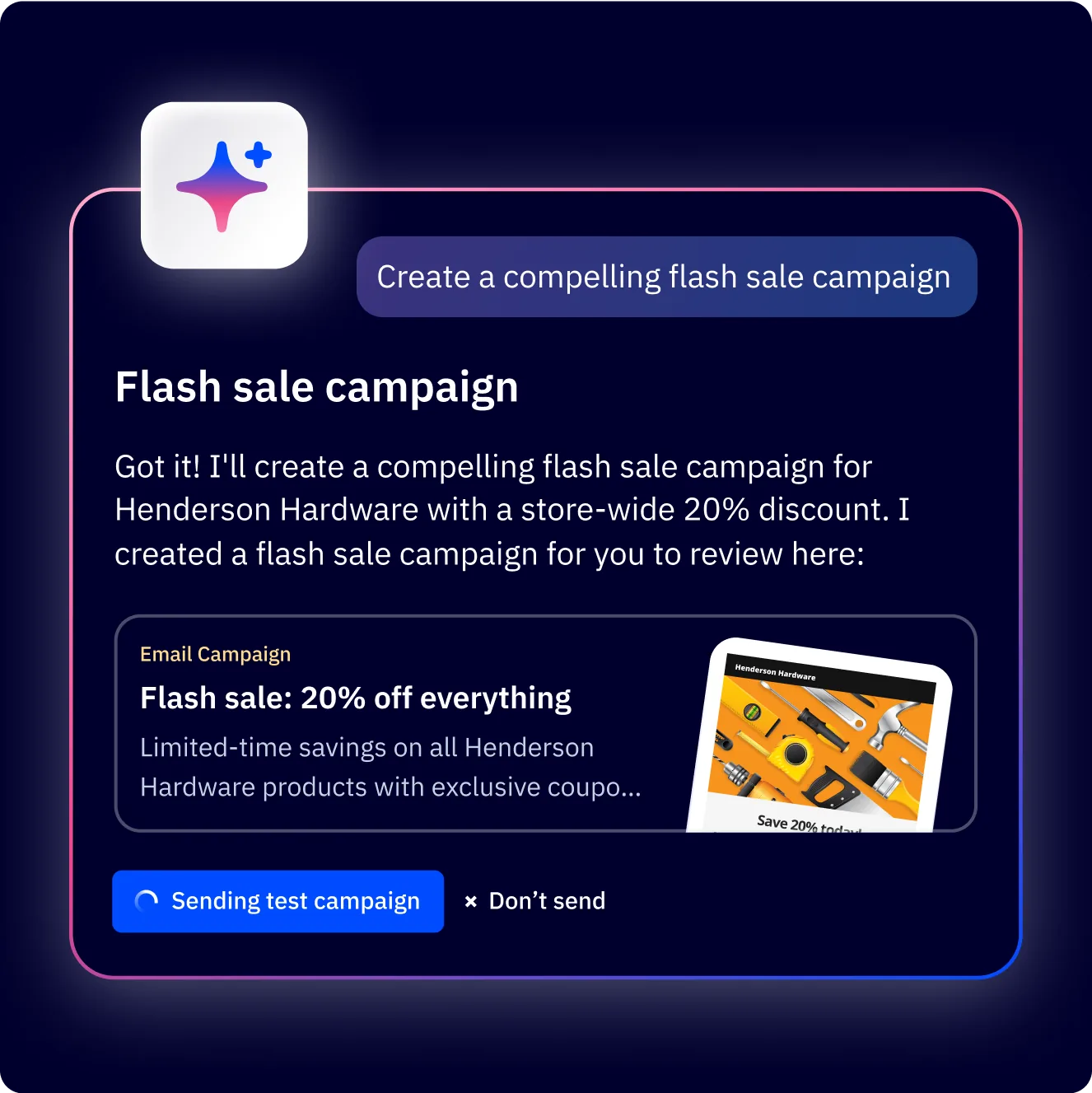
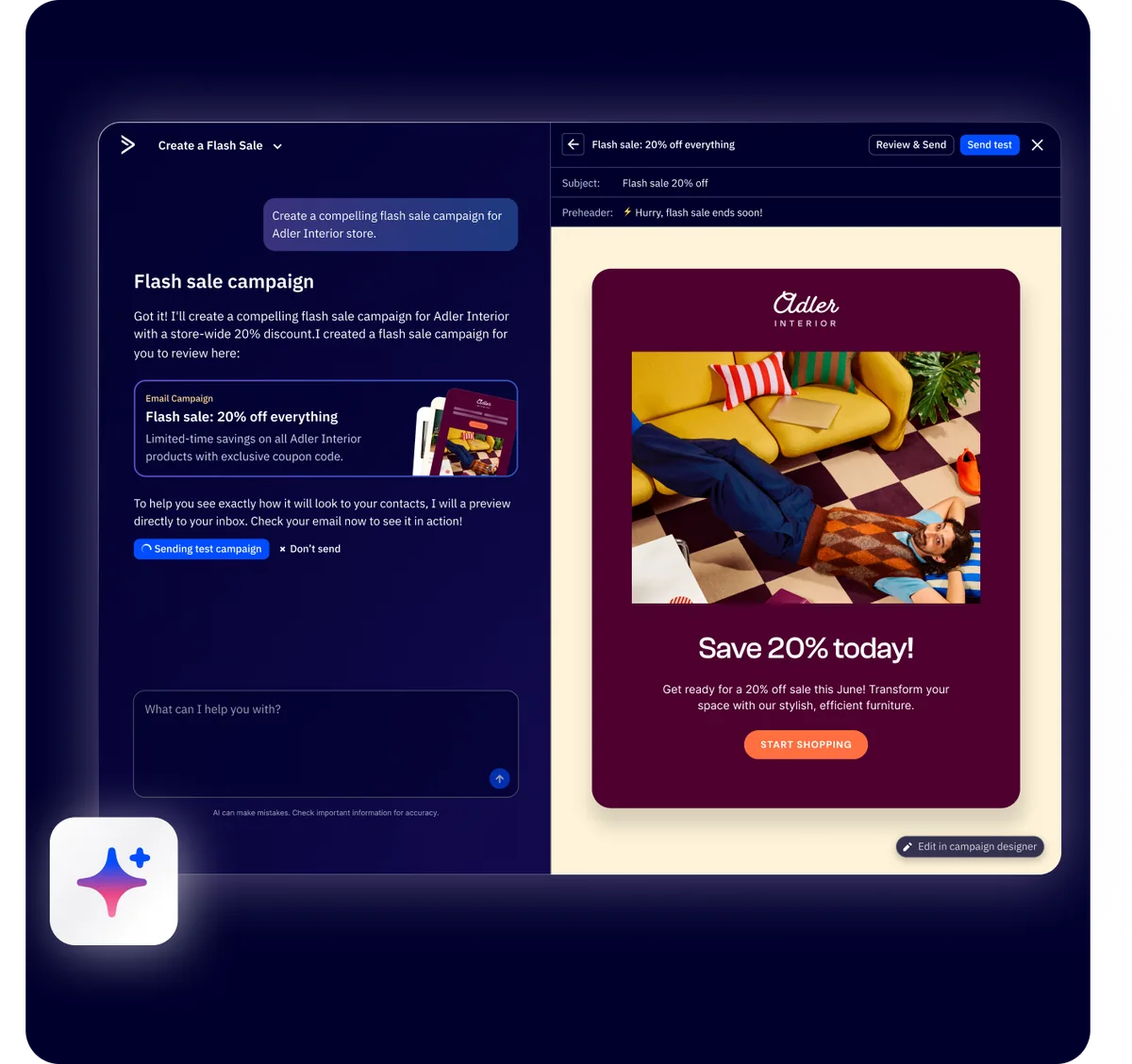
ActiveCampaign’s AI Campaign Builder generates complete email drafts from natural language prompts. Instead of starting from a template and replacing placeholder content, you describe your campaign and get a ready-to-edit email in seconds. For a deep dive into all AI content features, see the ActiveCampaign AI Content Generation guide.
Accessing the AI builder. Navigate to Campaigns > Create a Campaign and select AI Campaign Builder from the campaign type options. You will see a chat-style interface.
Writing effective prompts. The more specific your prompt, the better the output. Include your campaign goal, target audience, tone, key offer details, and any structural requirements. A prompt like “Create a promotional email announcing our 30% off spring sale for existing customers, friendly and urgent tone, include a hero image and CTA button” produces much better results than “Write a sale email.”
What the AI generates. A complete email including subject line, preview text, body copy with section headers, layout structure, and placeholder images matched to your campaign theme. Generation takes 15-20 seconds.
Editing AI output. Treat the AI draft as a strong first draft, not a finished product. Review for accuracy, adjust tone to match your brand voice, swap placeholder images for your own, and verify all links before sending.
When to use it versus templates. Use the AI builder for routine campaigns where speed matters - weekly newsletters and promotional sends. Use templates for campaigns where brand consistency is critical - product launches and company announcements.
How Does Personalization and Dynamic Content Work in ActiveCampaign?
Generic emails perform worse than personalized ones. ActiveCampaign gives you several layers of personalization, from simple merge tags to fully dynamic content blocks that show different content to different contacts.
Merge tags. The simplest form of personalization. Insert %FIRSTNAME% in your subject line or body copy, and each recipient sees their own name. ActiveCampaign supports merge tags for any contact field - first name, company, city, custom fields, and more. Always set a fallback value for empty fields. “Hi %FIRSTNAME | there%,” ensures contacts without a first name see “Hi there,” instead of “Hi ,”
For the full mechanics of conditional blocks across multiple segments, see our conditional content guide.
Conditional content blocks. Show or hide entire sections of your email based on contact data. Click any content block in the designer, then select Conditional Content from the block settings. Set conditions like “Show this block only if Tag equals VIP” or “Hide this block if Custom Field Plan Type equals Free.” This lets you send one campaign to your entire list while showing different offers, images, or copy to different segments.
Dynamic sending fields. Personalize the “From Name” and “From Address” based on contact data. If contacts are assigned to specific sales reps, each email can appear to come from their assigned contact rather than a generic company address. Merge tags also work in subject lines and preview text - but keep personalization subtle. One merge field in the subject is enough; stuffing multiple fields looks robotic.
Campaign Settings: Tracking, Replies, and UTM Parameters
Before you send, configure the settings that control how your campaign behaves after it leaves your outbox.
From address and reply-to. Set the sender email and reply address. These can be different - send from marketing@yourcompany.com but route replies to support@yourcompany.com. Use a real, monitored address for reply-to since contacts do reply to marketing emails.
Open and click tracking. Both are enabled by default - keep them on. Open tracking embeds an invisible pixel; click tracking wraps your links through ActiveCampaign’s server. These metrics power your campaign analytics, automation triggers, and engagement scoring.
Google Analytics (UTM) tracking. Enable under Campaign Settings > Analytics to append UTM parameters to every link - Google’s UTM parameter documentation covers naming conventions to keep reports clean. Set your utm_source, utm_medium, and utm_campaign to connect email clicks to website behavior in Google Analytics.
Link actions. ActiveCampaign can add tags, update custom fields, or trigger automations when a contact clicks a specific link. For example, tag contacts who click your sale link as “Interested in Sale” and trigger a follow-up automation the next day.
How Do You Schedule and Send Your ActiveCampaign Campaign?
With your email designed, copy written, and settings configured, you are ready to send. ActiveCampaign offers several sending options depending on your needs.
Send immediately. Click Send Now and your campaign goes out to all recipients right away. ActiveCampaign processes sends in batches, so a large list may take a few minutes to complete. This is the right choice for time-sensitive announcements where every minute matters.
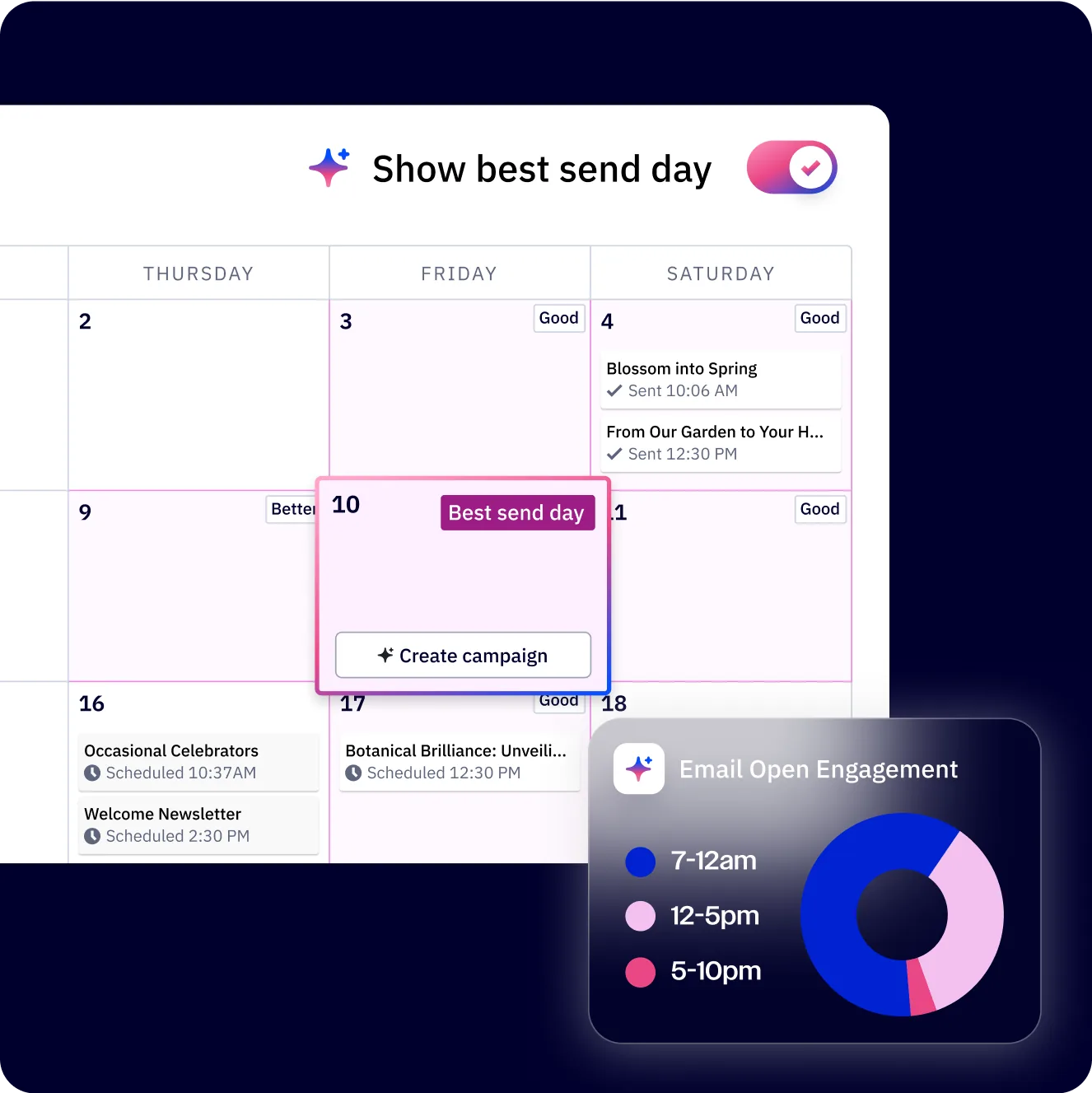
Schedule for later. Click Schedule and pick a date and time. The campaign sits in your queue and sends automatically at the scheduled time. Use this for planned content like weekly newsletters or promotional sends timed to coincide with a product launch. ActiveCampaign shows the scheduled time in your account timezone - double-check this matches your intention.
Time zone optimization. Available on Plus plans and above. Instead of sending to everyone at 10 AM Eastern, ActiveCampaign sends to each contact at 10 AM in their local timezone - essential for international audiences.
For more on send-time optimization patterns, the predictive sending AI guide covers the model in depth.
Predictive sending. Available on Professional plans and above. ActiveCampaign analyzes each contact’s engagement history and sends at the time they are most likely to open. Requires a few months of campaign data to produce accurate predictions. For a detailed setup walkthrough, see the ActiveCampaign Predictive Sending AI guide.
Pre-send checklist. ActiveCampaign runs an automatic check for common issues: missing subject line, empty from address, broken links, and list selection. Also send yourself a test email (click Send a Test Email in the toolbar), open it on desktop and mobile, and click every link before committing to the full send.
How Do You Read ActiveCampaign Campaign Analytics?
After your campaign sends, the real learning begins. ActiveCampaign’s campaign reports show you exactly how contacts interacted with your email, and this data informs every future campaign you build.
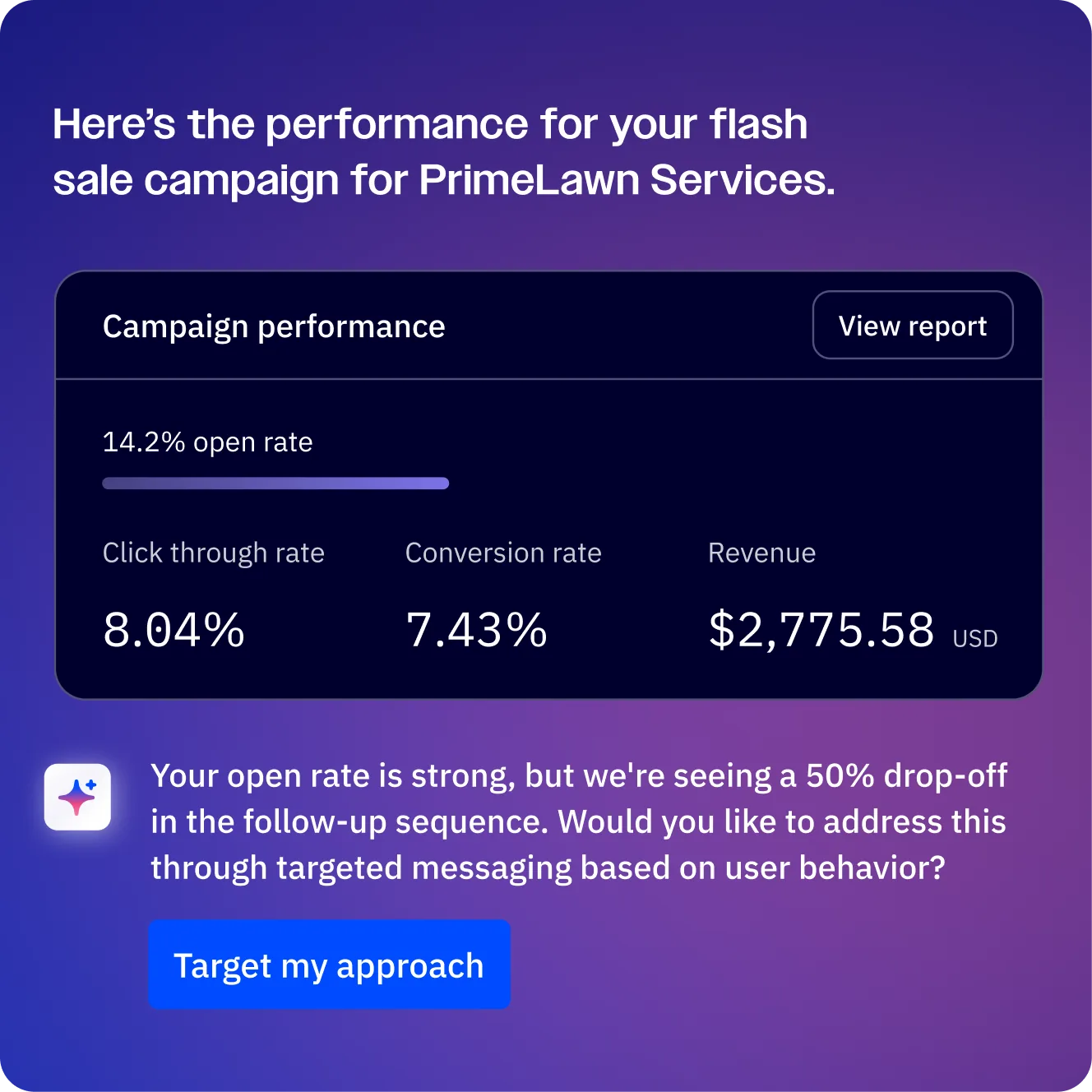
Overview metrics. The campaign report dashboard shows total sent, delivered, opens, unique opens, clicks, unique clicks, unsubscribes, and bounces. Give your campaign at least 24-48 hours before drawing conclusions - most engagement happens in the first few hours, but there is always a long tail.
Open rate. A healthy open rate for a well-maintained list is 20-35%. Below 15% signals problems with subject lines, send time, or list quality - check the deliverability guide if rates keep dropping. Note that Apple Mail Privacy Protection inflates open rates since iOS 15, so treat this metric as directional rather than precise.
Click-to-open rate (CTOR). This measures clicks as a percentage of opens and is the best metric for evaluating your email content since it removes the subject line variable. A CTOR above 10% means your content and CTA are working well.
Link performance. ActiveCampaign shows click data for every individual link in your email. Use this to understand which content sections drive the most engagement and optimize CTA placement in future campaigns.
Revenue and device data. With e-commerce integrations (Shopify, WooCommerce, BigCommerce), ActiveCampaign attributes revenue directly to campaigns. You also get geographic and device breakdowns showing where contacts opened your email and which email clients they used - valuable for optimizing your design approach.
Frequently Asked Questions
How many emails can I send per month on ActiveCampaign?
All ActiveCampaign plans include unlimited email sends. Your plan price is based on contact count, not email volume. There is a rate limit that prevents extremely large blasts from overwhelming the system, but for most users this is never a factor. If you anticipate sending more than 1 million emails per month from a single account, contact support to confirm your account is provisioned for the volume.
Can I send a campaign to contacts on multiple lists?
Yes. When selecting recipients during campaign creation, you can choose multiple lists. ActiveCampaign automatically deduplicates - contacts who appear on more than one selected list will only receive the email once. You can also combine list selection with segment conditions to further narrow your audience across lists, which is useful when running cross-list promotions to a specific subset.
What is the difference between a campaign and an automation email?
A campaign is a one-time send that you create, design, and schedule manually. An automation email is triggered automatically by contact behavior or conditions - a welcome email when someone joins your list, a follow-up after a purchase, or a reminder based on a date field. Campaigns live in the Campaigns section; automation emails live inside the Automations section. The email designer is the same for both, but the triggering mechanism is completely different - see the automation builder guide for the full automation flow.
How do I A/B test my email campaigns?
Create a Split Testing Campaign instead of a Standard Campaign. You can test up to 5 variations of your subject line, from name, from address, or email content. Set what percentage of your list receives the test versions and how long ActiveCampaign should wait before declaring a winner. The winning version then sends to the remaining contacts automatically. You need at least a few hundred contacts per variation for reliable results - smaller lists produce winners that are statistical noise.
Why are my emails going to spam?
The most common culprits: your sending domain is not authenticated (missing DKIM/DMARC records), you are sending to contacts who did not opt in, your content triggers spam filters (excessive caps, too many images with too little text), or your sending reputation is low from high bounce rates. Start by verifying domain authentication under Settings > Advanced > Email Authentication, then review list hygiene by removing bounced contacts and anyone who has not engaged in over 6 months. The full deliverability guide covers diagnosis and recovery in depth.
Can I reuse a campaign as a template for future sends?
Yes. Open any sent campaign, click the three-dot menu, and select Save as Template. The campaign’s design, layout, and content blocks save to your template library. You can also duplicate a campaign directly from the campaigns list - click the campaign, select Duplicate, and ActiveCampaign creates an exact copy that you can modify for your next send. Building a library of reusable templates is one of the best ways to speed up your campaign workflow over time.
Want to learn more about ActiveCampaign?
The Bottom Line
A polished ActiveCampaign email campaign workflow is the difference between sending emails and running an actual marketing program. Once your first campaign ships, build a saved template library and start layering automations on top with ActiveCampaign - that compounding effort is what turns email into a reliable channel.
Related Guides
- ActiveCampaign Getting Started Guide
- ActiveCampaign AI Content Generation Guide
- ActiveCampaign AI Brand Kit Guide
- ActiveCampaign Email Automation Workflows
- ActiveCampaign Conditional Content Guide
Related Reading
External Resources
- ActiveCampaign Email Campaigns Help Center - Official documentation for the campaign builder, scheduling, and reporting
- ActiveCampaign Email Marketing Best Practices - Vendor blog on subject lines, segmentation, and engagement
- ActiveCampaign Campaigns API Reference - REST API for programmatic campaign creation and reporting
Related Guides
- Activecampaign AI Content Generation: Complete 2026 Guide
- ActiveCampaign AI Features: Active Intelligence Guide
- Activecampaign Automation Builder: Complete 2026 Guide
- Activecampaign Brand Kit: 2026 Walkthrough for Teams
- ActiveCampaign Conditional Content: Personalization Guide
- ActiveCampaign CRM Setup: How to Set Up ActiveCampaign CRM
- ActiveCampaign Deals Pipeline: Stages & Automation
- ActiveCampaign Deliverability: Best Practices Guide
- ActiveCampaign Email Automation: 10 Workflows That Work
- ActiveCampaign Forms: Types, Setup, and Conversion Tips