
Murf AI natural sounding voice tips are the Studio techniques that make synthesized voices feel less robotic. This guide covers varying pitch, speed, and emphasis across a script, adding deliberate pauses before key phrases, tuning pacing on long sentences, and mixing Studio controls so the same voice does not repeat the same rhythm throughout.
There is a specific quality that gives away an AI voiceover in the first five seconds - a steady, unwavering cadence that never speeds up, never slows down, and treats every word with identical weight. Human speakers do not talk like that. They rush through familiar phrases, linger on important points, and vary the rhythm of their sentences naturally without thinking about it. That variation is exactly what makes speech feel alive, and it is the one thing that default AI voice settings consistently fail to replicate. Linguists call this acoustic property prosodic naturalness, and it is the engineering target every TTS vendor optimizes against.
Murf AI has the tools to fix this problem. As a Murf AI voice generator, the platform pairs its variability system with deliberate punctuation choices, sentence structure, pause insertion, and speed adjustments, which together can produce voiceovers that genuinely pass the “does this sound human” test. Most users never get there because they generate their first draft and accept the result. These murf AI natural sounding voice tips will walk you through the specific settings and techniques that change that output.
If you have already completed the Murf AI login, worked through the Murf AI Getting Started Guide, and understand the basics of the studio editor, you are ready for everything in this guide.
Why AI Voices Sound Robotic - and How to Fix It
The robotic quality in AI voiceovers comes from a specific technical problem called flat prosody. Prosody is the pattern of stress, rhythm, and intonation in spoken language. Natural human speech has irregular prosody - we speed up through background information, slow down for emphasis, raise pitch at the end of questions, and drop it at the end of statements. These variations are not random. They carry meaning. A sentence delivered with flat prosody loses that meaning layer entirely, which is why even a technically clear AI voice can sound hollow.
Three things produce flat prosody in AI voiceovers:
- Uniform speed - every word receives the same duration, creating a metronomic rhythm that sounds mechanical
- No pitch variation - the voice stays at a constant frequency level regardless of the emotional content of the sentence
- Missing micro-pauses - natural speech contains dozens of tiny hesitations per minute that listeners do not consciously notice but that create a sense of human thinking and breathing
Murf AI addresses all three through a combination of its variability setting, speech engine technology, and manual controls you apply to your scripts. The variability setting handles much of the pitch and micro-rhythm variation automatically, which is what separates a polished result from any generic free AI voice generator. The Murf text-to-speech engine handles the heavy lifting; the manual techniques in this guide cover the rest. If you have not yet read our Murf script writing tips, start there - script structure is the lever variability builds on top of.
One important distinction: this is about delivery, not voice selection. The most expressive voice in the Murf library will still sound robotic on a script that forces flat prosody. The best results come from fixing the underlying script and settings, not from switching voices hoping one will sound better.
What Does the Murf AI Variability Setting Do?
The variability setting is Murf AI’s core tool for making voices sound less synthetic. It controls how much the voice naturally fluctuates in speed and rhythm as it moves through a sentence - essentially how much the voice is allowed to deviate from a mechanical, evenly-spaced delivery.
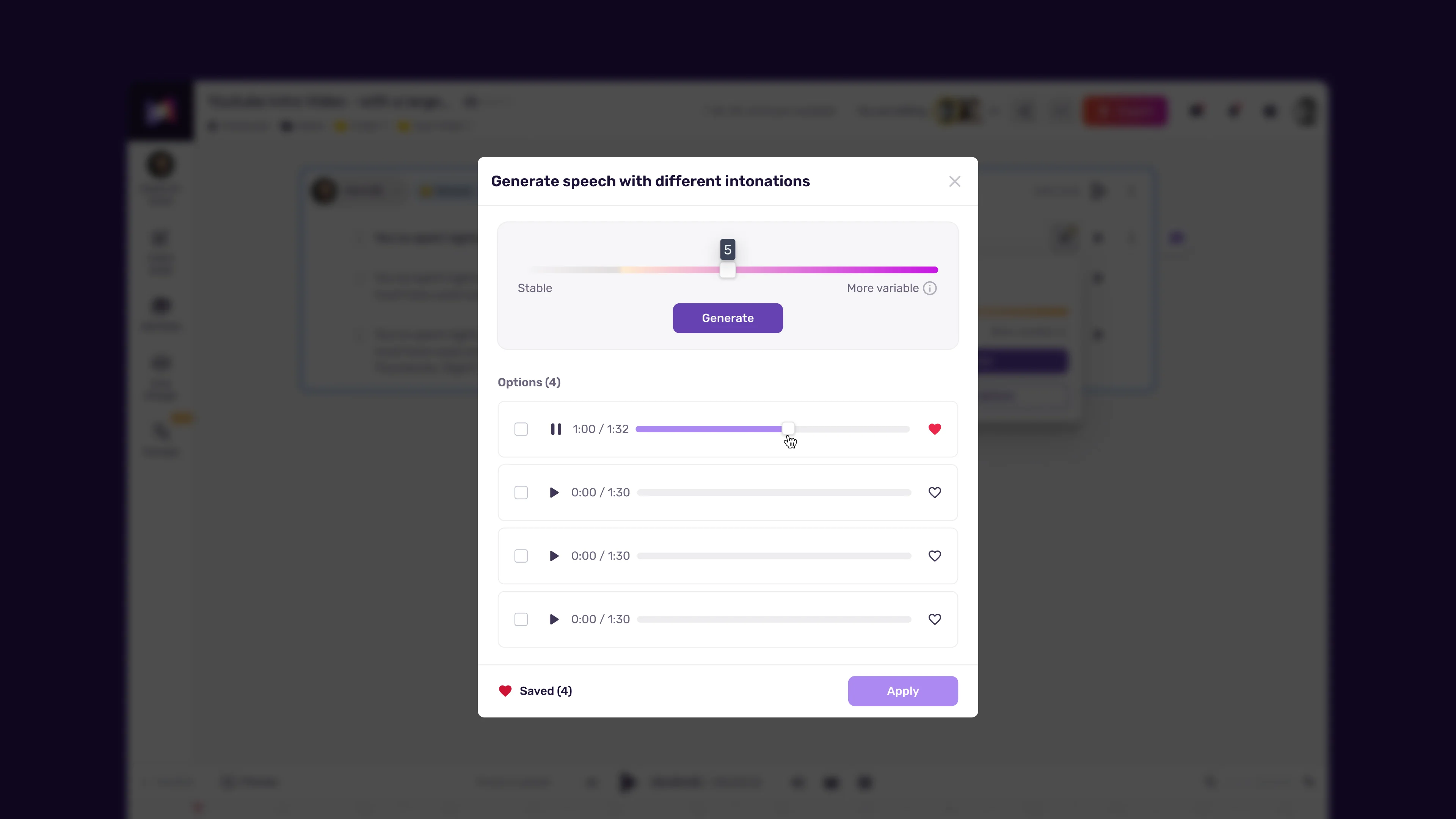
At low variability, the voice maintains consistent timing between syllables. Every word takes roughly the same amount of time. This sounds clean and controlled, which is appropriate for some content types - automated phone system prompts, legal disclosures (the U.S. federal regulation text is a representative example), and data-heavy technical documentation all benefit from the predictability.
At medium to high variability, the voice gains the organic fluctuation that characterizes natural speech. Function words like “the,” “a,” “of,” and “to” get compressed. Content words that carry meaning get more space. Sentence endings have a natural deceleration. Sentence beginnings have a slight surge. The result is a voiceover that feels inhabited rather than generated.
How variability interacts with other settings:
Variability does not operate in isolation. It works alongside the emotion sliders and speed controls. When variability is high, the emotion settings have more room to express themselves because the voice is already fluctuating naturally. When variability is low, emotion sliders need to be pushed further to achieve the same effect. For most conversational and instructional content, medium to high variability paired with moderate emotion settings produces the best results - covered in greater depth in our Murf voice selection tips guide.
Finding your variability setting:
There is no single correct value. A meditation narration needs lower variability than a product demo. A children’s story needs higher variability than corporate training content. Start at the middle of the range, generate a 30-second preview, and adjust upward if the output still sounds too mechanical. In practice, most content sounds better with variability at 60-75% of the maximum than at the default. The Murf best-practices article covers vendor-side guidance on tuning these settings.
Tip 1: Enable Voice Variability
The most impactful single change you can make to a Murf AI voiceover is enabling variability at a medium or higher level. Many users leave it at the default, which prioritizes consistency over naturalness. Adjusting this one setting often eliminates 60 to 70 percent of the robotic quality in a first-draft generation.
How to enable voice variability in Murf Studio:
- Open your project and select the text block you want to adjust
- In the right-hand properties panel, locate the Voice Variability section
- Find the variability slider - it controls how much the voice fluctuates in timing and rhythm
- Set the slider to a medium-high position, roughly 65-75% of the maximum range
- Click Preview on that section to hear the difference before applying to the full project
- If the output still sounds too even, increase to 80%. If it sounds erratic or unstable, drop back to 60%
Settings guide by content type:
| Content Type | Recommended Variability | Why |
|---|---|---|
| Conversational explainer | 70-80% | Needs to feel like a person talking |
| YouTube narration | 65-75% | Energetic but controlled |
| E-learning narration | 55-65% | Clear and consistent, slight variation |
| Corporate presentation | 45-55% | Professional, not stiff |
| Meditation / calm content | 35-50% | Steady and soothing |
| Legal / compliance | 25-40% | Predictable, maximum clarity |
Apply variability per text block if your script has sections with different tonal requirements. A corporate training module might have an introduction at 65% variability and a compliance section at 35%. Our Murf eLearning narration guide covers per-block tuning at length.
Tip 2: Use Natural Punctuation for Rhythm
Punctuation is a hidden speed control in AI voice generation. The way you place commas, periods, em dashes, and ellipses directly affects where the voice pauses, how it breathes, and whether it sounds like it is reading a document or telling you something.
Most users write scripts for the page - the way they would write a paragraph in a report. AI voices interpret these the same way, reading through complex sentences in a single breath with minimal variation. The fix is to write for the ear, which means using punctuation to create the rhythmic structure that makes spoken delivery natural.
Punctuation that creates natural rhythm:
Commas produce short micro-pauses. Use them more liberally than you would in formal writing. “We launched the product, tested it with users, and refined the design” sounds more natural than “We launched the product and tested it with users and refined the design” because the commas give the voice brief breathing points - this is the so-called Oxford comma in action.
Em dashes ( - ) create a slightly longer pause with a shift in tone - useful for introducing a key point or adding a parenthetical thought that carries weight. In Murf AI scripts, write em dashes as space-hyphen-space rather than a typographic dash character. The Merriam-Webster em dash reference covers the conventions if you want a formal grammar primer.
Periods reset the voice’s pitch pattern. A long sentence with multiple clauses never fully resets. Breaking one 40-word sentence into two 20-word sentences gives the voice two opportunities to land cleanly and start fresh. The Hemingway Editor is a useful free tool for catching long sentences before they reach Murf Studio.
Question marks change the intonation pattern entirely. If your script has rhetorical questions, make sure they are actually written as questions. “You might wonder why this matters.” reads differently than “Why does this matter?” The second version gets rising intonation that creates genuine engagement - a phenomenon called intonation contour.
Before vs. after example:
Before:
Murf AI’s variability setting controls how much the voice fluctuates in timing and rhythm as it moves through a sentence which makes a significant difference in whether the output sounds like a robot or a person.
After:
Murf AI’s variability setting controls how much the voice fluctuates - in timing and rhythm - as it moves through a sentence. That single setting makes the difference between robotic output and something that sounds genuinely human.
The second version gives the voice two natural landing points, a parenthetical with the em dash construction that creates a brief shift in delivery, and a short punchy final sentence for emphasis.
Tip 3: Vary Sentence Length
Uniform sentence length is a major contributor to the metronome effect in AI voiceovers. When every sentence in a script runs 20 to 25 words, the voice settles into a repetitive pattern - long sentence, breath, long sentence, breath - that sounds mechanical even with high variability settings.
Natural speech mixes long explanatory sentences with short punchy follow-ups. This creates a rhythm of tension and release that keeps listeners engaged. The longer sentence builds complexity and context. The short sentence that follows provides relief and emphasis.
The short-punch technique:
Follow any multi-clause explanatory sentence with a sentence of 10 words or fewer. The short sentence should capture the core point. The Economist style guide codifies this same convention for written prose.
Before:
When you enable variability at a higher level in Murf AI, the voice will naturally fluctuate in its pacing and rhythm in ways that produce an output that sounds less mechanical and more like a real person speaking.
After:
Enabling variability at a higher level causes the voice to fluctuate naturally in pacing and rhythm. The result sounds like a person, not a machine.
The second version lands harder. The short final sentence functions as a punchline - the payoff after the setup.
Sentence length variation guidelines:
- Mix sentences of 8-12 words with sentences of 20-30 words throughout your script
- Never run more than three sentences of similar length in a row
- Use 5-8 word sentences sparingly, but always after your most important claims
- Opening sentences should be shorter than average - they set the pace and hook the listener immediately
For a 500-word script, aim for a mix that includes at least six sentences under 12 words and no more than four sentences over 30 words. This ratio creates enough variation that the AI voice never settles into a single rhythmic pattern. Our Murf pacing, pauses, and speed tips guide goes deeper on rhythm tuning at the section level.
Tip 4: Add Strategic Pauses
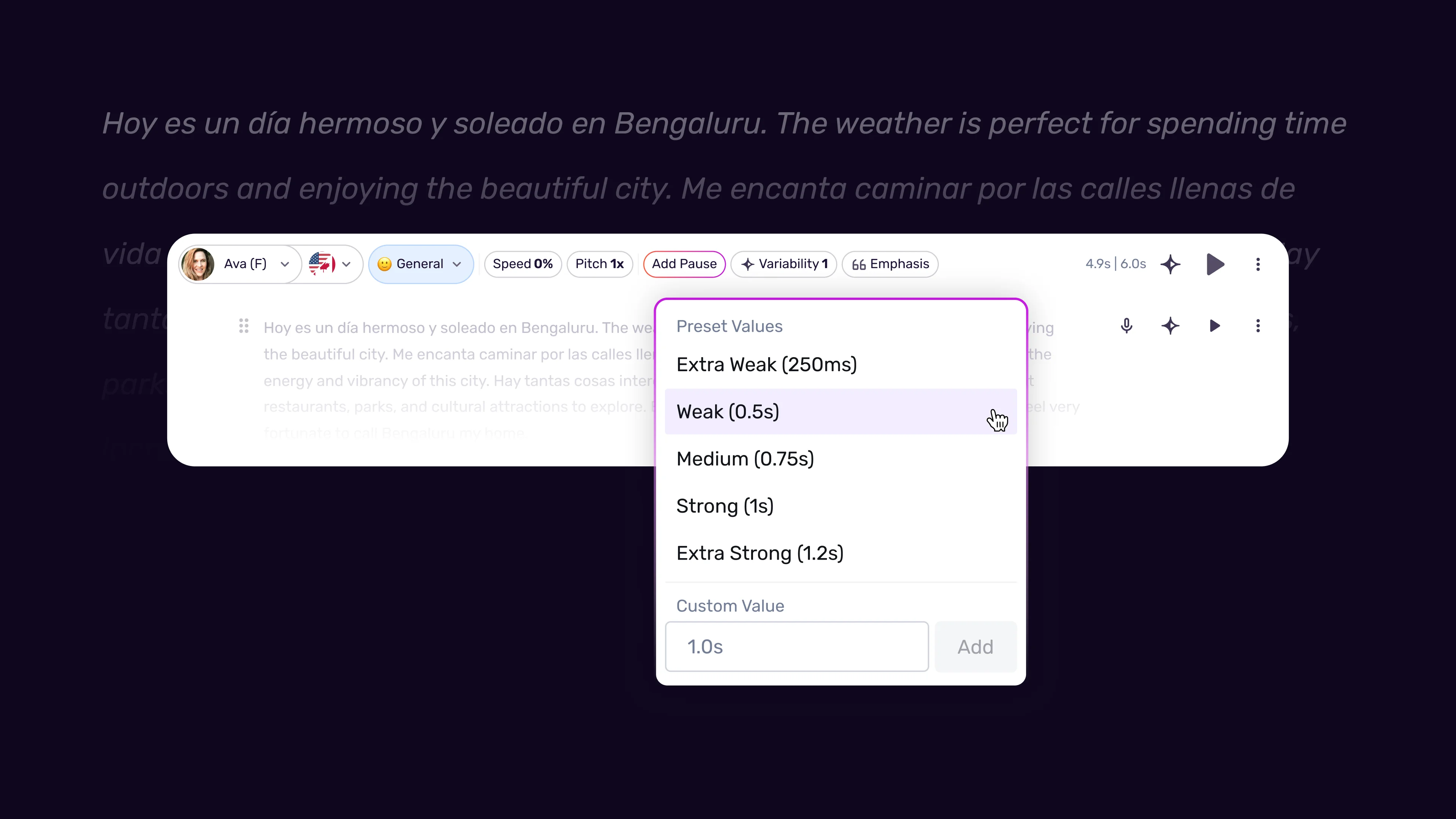
Murf AI supports manually inserted pauses ranging from 100 milliseconds to 5 seconds. This feature is massively underused. Most users let the AI decide where to breathe. The AI makes reasonable sentence-boundary decisions but consistently misses the intra-sentence pauses that make delivery sound thoughtful and deliberate.
Strategic pauses work because silence is information. A pause before an important claim signals to the listener that something significant is coming. A pause after a question gives the rhetorical space for the listener to mentally engage before the answer arrives. Without these pauses, the content arrives in a steady stream that the brain processes as a single undifferentiated block.
Where to insert pauses for maximum impact:
Before key claims - 500-800ms. Any sentence that represents your central argument, primary benefit, or most important finding deserves a pause before it. The listener’s attention increases when the voice pauses briefly, making the following statement land with more weight - a technique borrowed from professional narration covered in our Murf script writing tips.
After rhetorical questions - 300-600ms. Rhetorical questions only work if there is time for the listener to mentally formulate a response. A question immediately followed by an answer is just a statement with a question mark in front of it.
At section transitions - 800-1200ms. When your script shifts from one topic to another, a longer pause acts as an audible paragraph break. This is especially important in educational content where listeners need to mentally process one concept before absorbing the next.
Between list items - 200-400ms. Lists read without pauses blur together. Even a 200ms gap between items helps listeners distinguish them as separate points rather than a continuous phrase. The Murf voice changer guide covers how the same pause-handling logic applies to converted audio.
Before your call-to-action - 600-800ms. A brief pause before the CTA signals a shift in mode - from information to action. It makes the CTA feel more intentional and less like a sentence that happened to come after the last informational point.
How to insert pauses in Murf Studio:
- Place your cursor at the exact position in the script where you want the pause
- Use the pause insertion tool in the toolbar
- Select a preset duration or type a custom value in milliseconds
- The pause appears as a visual marker in the timeline
- Generate a preview to confirm the pause feels natural in context
- Adjust duration up or down by 100ms increments until it sounds right
Run auto-trim silence after your session to remove unintentional gaps the AI added on its own. Your manually inserted pauses are preserved - auto-trim only removes pauses the system generated independently. The Pro plan gives you the higher monthly minute budget you will need if you generate frequent previews while tuning pauses.
Tip 5: Adjust Speed Contextually
A single speed setting applied to an entire script produces one of the clearest markers of AI-generated audio. Natural speech accelerates and decelerates constantly - speakers rush through background information and slow down for the parts that matter. Replicating this pattern with Murf’s per-block speed controls closes the gap between generated and human delivery.
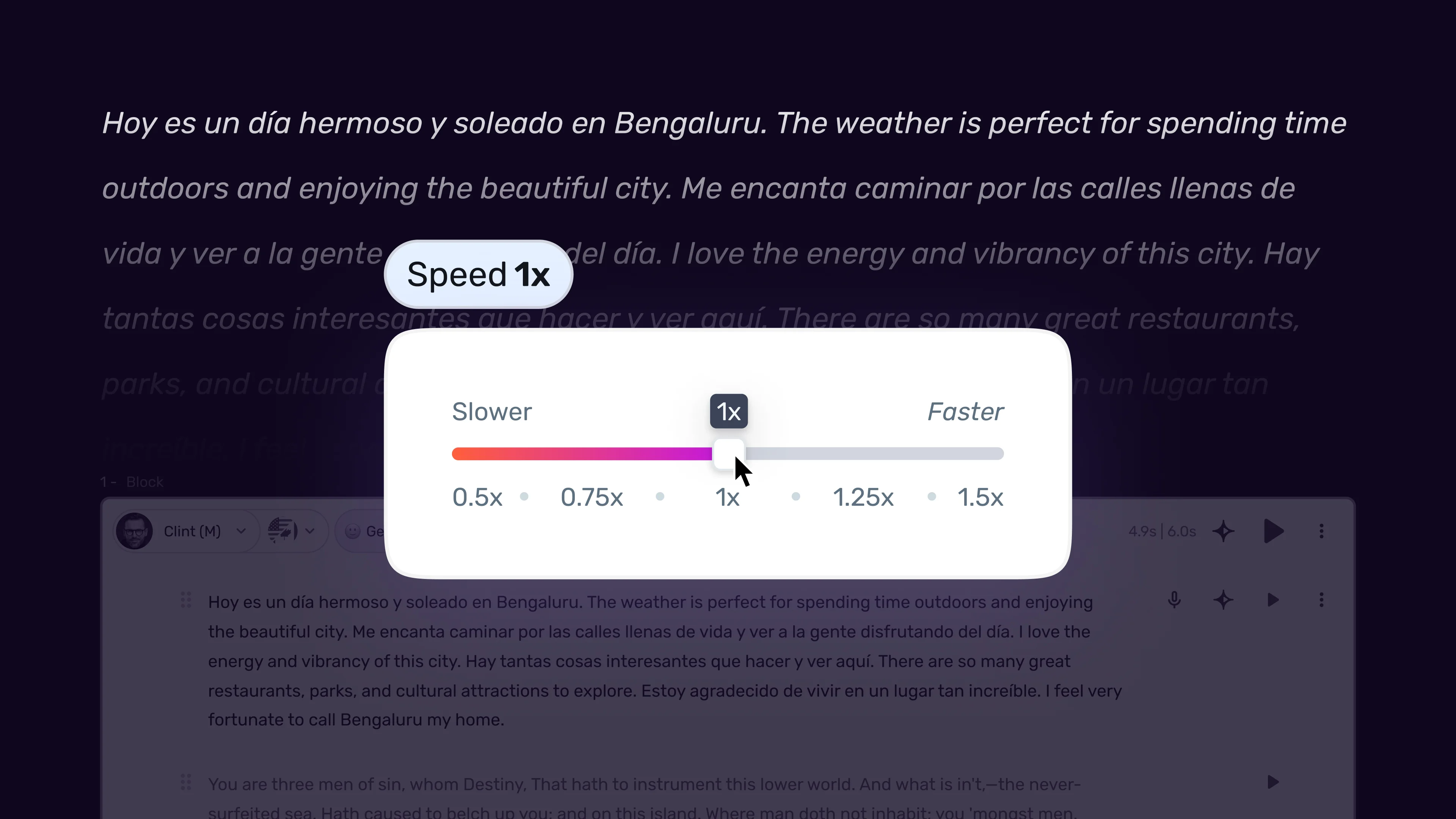
The key principle is that speed should reflect the informational density of each passage. Transitional phrases and contextual setup carry less critical information and can move faster. Core claims, definitions, and key takeaways should slow down. This is not about dramatic swings - a 0.1x to 0.2x shift between sections is enough to create the natural variation that makes the whole voiceover feel human.
Speed strategy by passage type:
| Passage Type | Speed Adjustment | Reasoning |
|---|---|---|
| Opening hook | +0.1x to +0.15x | Start with energy, capture attention |
| Background / context | +0.05x to +0.1x | Already familiar to most listeners |
| Core explanation | Default (1.0x) | Needs careful listener attention |
| Key claims / insights | -0.1x to -0.15x | Signal importance through deceleration |
| Transitions | +0.1x | Move quickly through connective tissue |
| Definitions | -0.15x to -0.2x | Allow processing time |
| Call-to-action | Default or -0.05x | Clear and deliberate |
How to apply per-block speed:
- Select the text block for the passage you want to adjust
- Find the speed slider in the voice controls panel
- Make your adjustment in small increments - 0.1x at a time
- Preview the section before moving to the next block
- Compare adjacent blocks to ensure transitions between speeds do not sound jarring (our Murf voice cloning setup covers similar block-level controls for cloned voices)
One practical technique: record yourself reading the script aloud and notice where you naturally speed up and slow down. These natural instincts are accurate guides for where to adjust Murf’s speed settings. The passages where you rush through your own reading are candidates for a slight speed increase. The passages where you slow down for emphasis tell you where to drop the speed in Murf.
Tip 6: Layer Emotion Settings with Variability
High variability without emotion settings produces a voice that fluctuates dynamically but lacks personality. Emotion settings without variability produce a voice with a consistent mood but robotic delivery. The combination of both is what produces output that sounds genuinely expressive.
The emotion sliders in Murf - Happy, Sad, Excited, and Serious - control the affective quality of the delivery. Variability controls how organically the voice expresses those qualities. Think of variability as the mechanism and emotion as the content. High variability with zero emotion produces technically natural rhythm but an empty quality. Moderate emotion with moderate variability produces a voice that both feels natural and means something.
Recommended combinations by content type:
Conversational tutorial - Variability 70%, Happy 20-25%, Excited 10%. The voice sounds engaged and knowledgeable without being over-enthusiastic. Use this as the default for YouTube narration (see our Murf YouTube voiceover workflow), explainer content, and how-to guides. The YouTube Creator Academy voiceover lesson covers complementary delivery techniques.
Professional explainer - Variability 55-60%, Serious 15-20%, Happy 10%. Authoritative but not cold. The slight Happy offset prevents the Serious setting from making the voice sound stern. Good for business content and case studies.
Product walkthrough - Variability 65-70%, Excited 25-30%, Happy 15%. The Excited slider adds genuine energy. Keep it below 35% to avoid the late-night-infomercial quality. Good for demos and feature introductions, particularly for SaaS product teams.
Educational narration - Variability 55%, Serious 10-15%, Happy 10%. The modest settings keep the voice clear and consistent while adding enough warmth that it does not feel like a lecture. Appropriate for course creators and eLearning producers - see our Murf eLearning narration guide for the broader workflow.
Marketing CTA - Variability 70%, Excited 30%, Happy 20%. For the final 15-30 seconds of promotional content where you need maximum energy. Apply this setting only to the CTA section - using it throughout a full voiceover sounds fatiguing. Our Murf emotion controls guide covers emotion-axis tuning in depth.
How to layer settings in practice:
Apply emotion settings before you finalize variability, because emotion affects how pronounced the variability sounds. With high emotion and high variability, the output can become over-expressive. Set your emotion values first, generate a preview, then adjust variability until the delivery sounds natural. Typically, every 10% increase in the Excited slider warrants a 5% reduction in variability to prevent the voice from sounding unstable.
What Does the Difference Sound Like Before and After?
The most effective way to understand how these tips interact is to see them applied to the same script. These examples show the difference between default generation and fully optimized delivery.
Example 1 - Product introduction:
Before (single flat script):
Murf AI is a text-to-speech platform that allows you to create professional voiceovers using artificial intelligence technology and it includes features like emotion controls, voice variability settings, and a wide range of voices across different languages and accents.
After (optimized for natural delivery):
Murf AI is a text-to-speech platform for creating professional voiceovers with AI. [500ms pause] It is not just voice generation. It is voice design - with emotion controls, variability settings, and over 200 voices across 20 languages and 50 accents.
What changed: one long sentence split into three, an explicit pause added before the key value claim, an em dash used to create a tone shift, and the final point restructured so the specific numbers land at the end where they carry weight.
Example 2 - Technical explanation:
Before:
The variability setting in Murf AI controls how much the voice fluctuates in timing and rhythm as it moves through a sentence and when it is set too low the voice sounds mechanical and when it is set too high the voice sounds unstable so you need to find the right balance for your content type.
After:
The variability setting controls how much the voice fluctuates in timing and rhythm. Too low - and the voice sounds mechanical. Too high - and it sounds unstable. The goal is finding the right balance for your specific content type.
What changed: one 55-word run-on sentence broken into four sentences with a clear parallel structure. The em dash constructions create identical rhythm patterns for “too low” and “too high” that the AI voice reads with natural emphasis. The final sentence is a clean close with a specific direction.
Example 3 - Call to action:
Before:
If you want to start creating more natural-sounding AI voiceovers you should try Murf AI and see how the variability and emotion settings can transform your content production workflow.
After:
Want to hear the difference for yourself? [400ms pause] Start with variability at 70%. Add a single emotion setting. Generate a 30-second preview. [600ms pause] The output will not sound like a robot.
What changed: the CTA opens with a direct question, uses a pause for engagement, then moves into three short imperative sentences that create rhythm and forward momentum. The final line is punchy and declarative - a 9-word sentence that lands as a confident close.
Frequently Asked Questions
What level should I set Murf AI variability for most voiceover projects?
For most conversational and instructional content, variability at 65-75% of the maximum range produces the best results. This range gives the voice enough organic fluctuation to sound natural without becoming unpredictable. Formal and compliance-oriented content benefits from 40-55%. Only drop below 40% for content where predictability genuinely matters more than naturalness, such as automated phone system prompts or highly technical data narration.
Does enabling variability use more generation time or credits?
No. Variability is a voice parameter, not a separate processing step. It adjusts how the Speech Gen 2 engine interprets the timing model for the selected voice. Generation time remains the same regardless of your variability setting, and it does not consume additional minutes from your plan balance beyond the normal audio duration of the generated output.
Can I apply different variability levels to different sections of the same project?
Yes. Variability is set per text block in the Murf Studio editor. Select a specific block, adjust the variability slider, and the change applies only to that section. This lets you run a conversational introduction at 70% variability and a compliance section at 35% variability within the same project without any conflict. The Voice Consistency Engine on Pro plans smooths transitions between blocks with different settings.
Why does my voiceover still sound flat even with high variability?
High variability combined with a short, uniform script often still sounds mechanical because variability can only work with the prosodic cues the text provides. If every sentence is the same length and structure, variability has limited material to work with. Apply Tips 2 and 3 from this guide first - restructure your punctuation and vary your sentence length - and then increase variability. The combination produces dramatically better results than either approach alone.
Do these tips apply to all Murf AI voices equally?
The techniques in this guide apply universally, but the degree of improvement varies between voices. Some voices in the Murf library have broader training data and respond more noticeably to variability and emotion adjustments. If a specific voice sounds flat after applying all these tips, try a different voice in the same language and accent category using the same settings. The Murf AI Voice Selection Tips guide covers how to evaluate voices for expressiveness before committing to a full project.
Should I apply these settings before or after finalizing my script?
Finalize the script content first, then apply settings. The most important step - rewriting for the ear with natural punctuation and varied sentence length - happens before you open Murf Studio. Once the script is solid, paste it into the editor, set your variability and emotion, insert your pauses, and then apply contextual speed adjustments per block. Trying to fix a flat script by adjusting settings is less effective than fixing the script first and letting good settings amplify the result.
Want to learn more about Murf AI?
Related Reading
Related Guides
- Getting Started with Murf AI
- Murf Studio Interface Walkthrough
- How to Clone Your Voice with Murf AI
- Murf Text-to-Speech Tutorial
- Choosing the Right AI Voice in Murf
- Murf AI Emotion Controls
- Murf AI Pronunciation and Emphasis
- Mastering Pacing in Murf AI
- Murf MultiNative: Multilingual Voiceovers
- Murf AI Dubbing Walkthrough
- AI Voiceover for YouTube Videos: Murf Workflow
- Murf AI eLearning Narration: Educator’s Guide
- Murf AI Canva Integration
- Murf Falcon API Tutorial
- Murf AI Free Plan Tips
- Murf AI Voice Changer Guide
- Murf AI Podcast Intro Guide
- Murf AI Google Slides Voiceover
- Murf AI Voice Agent API
- Write Scripts for AI Voice: Murf Tips
- Murf AI Team Collaboration Guide
- Murf AI Marketing Voiceover Workflow
- Murf AI Custom Pronunciation Guide
External Resources
- Murf AI Help Center - Official documentation for variability, emotion controls, and the Studio editor
- Murf Voiceover Best Practices - Vendor reference covering naturalness, pacing, and tonal variation
- Prosody (linguistics) overview - Background on the rhythm and intonation patterns AI variability emulates
Related Guides
- AI Voiceover Corporate Training With WellSaid Labs
- AI Voiceover for YouTube Videos: Murf Workflow Guide 2026
- AI Voiceover Tips: Making Synthetic Voices Sound Human
- ElevenLabs Getting Started: Complete Beginners Guide
- ElevenLabs Voice Cloning Tutorial: Complete 2026 Guide
- Luma Dream Machine Video Tutorial 2026: Text-to-Video & Ray3
- Murf AI Canva Integration: Add Voiceovers to Designs
- Murf AI Custom Pronunciation: Say It My Way Guide (2026)
- Murf AI Dubbing: Complete Walkthrough | Complete Guide 2026
- Murf AI eLearning Narration: Educator's Guide | Review 2026