




AI video generation has gone from a research curiosity to a practical tool for creators, marketers, and businesses in the span of about two years. The challenge is no longer whether AI can generate video - it is finding the right tool and learning how to get consistent, usable results from it. That is exactly what this Luma Dream Machine video tutorial covers.
Luma Dream Machine is built by Luma Labs, a company that started in photogrammetry and 3D capture before expanding into AI video generation. Their latest model, Ray3, introduced something genuinely new: a reasoning video model that can think through complex scenes and iterate on results rather than simply generating a single output from a prompt. Whether you are creating social media clips, marketing campaign variations, or product demos, this guide walks through every major workflow from account setup to advanced techniques. For a wider lens on what other AI video tools can do, our AI video creation tips guide covers prompt patterns that apply across the category.
Luma currently holds based on available reviews, reflecting strong user satisfaction with speed and affordability alongside some noted inconsistencies in output quality.
Getting Started: Account Setup and Interface Tour
Creating Your Account
Head to lumalabs.ai/dream-machine and sign up with a Google account or email. The free tier gives you 8 draft mode videos per month and 30 image generations - enough to follow along with every technique in this guide before committing to a paid plan.
Understanding the Interface
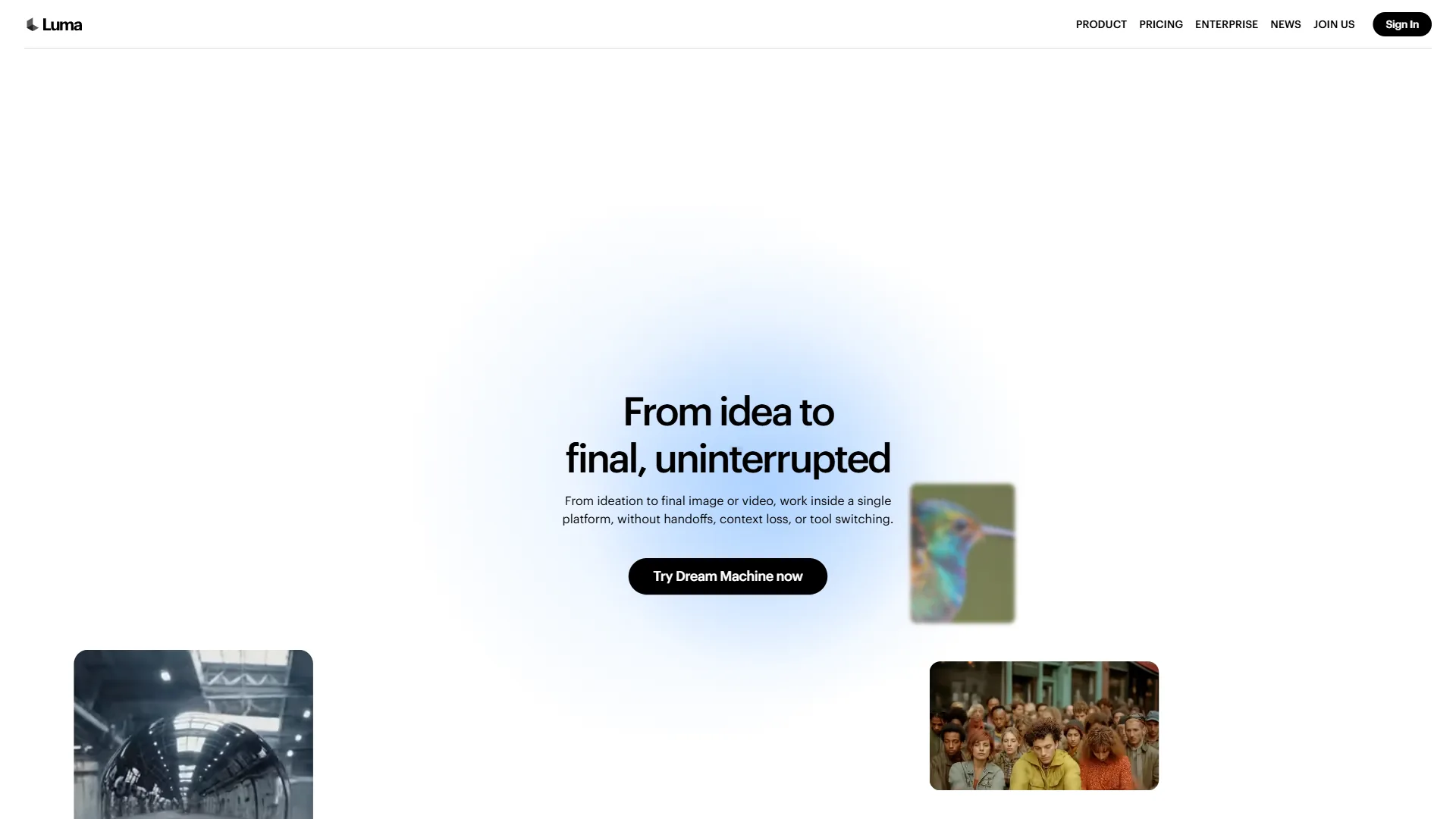
Once inside, the interface is straightforward. The main generation area sits front and center with a prompt input field, generation mode selector (text-to-video, image-to-video, or video-to-video), and your recent creations displayed in a gallery below.
Key interface elements to locate:
- Prompt field - Where you type your video description. Longer, more specific prompts consistently produce better results
- Mode selector - Toggle between text-to-video, image-to-video, and video modification workflows
- Draft vs. Standard toggle - Draft mode is up to 20x faster and costs fewer credits, perfect for iterating on ideas before running a full-quality render
- Generation settings - Aspect ratio, duration (up to 10 seconds per clip), and camermotionon controls
- Credits display - Shows remaining credits for the billing period. Each 5-second video costs approximately 170 credits on paid plans
Text-to-Video: Writing Effective Prompts
Text-to-video is the core workflow and where most users start. The quality of your output depends almost entirely on how you write your prompts. Vague descriptions produce vague videos. Specific, structured prompts produce results you can actually use.
Prompt Structure That Works
Based on user reports and prompt experimentation, the pattern is clear: effective Luma Dream Machine video prompts follow a consistent structure:
[Subject] + [Action] + [Setting] + [Camera Movement] + [Style/Mood]
Here are examples that illustrate the difference:
Weak prompt: “A dog running on a beach”
Strong prompt: “Golden retriever running toward camera on a sandy beach at golden hour, ocean waves in background, slow motion, cinematic depth of field, warm color grading”
Why the strong prompt works better:
- Subject detail - “Golden retriever” instead of “a dog” gives the model specific visual information
- Action relationship - “Running toward camera” defines both movement and camera angle
- Environmental context - “Sandy beach at golden hour” sets lighting conditions
- Technical direction - “Slow motion, cinematic depth of field” controls the visual style
- Color/mood - “Warm color grading” influences the overall palette
Advanced Prompting Techniques
Beyond basic structure, several techniques reliably improve Luma Dream Machine video output:
1. Reference specific visual styles. Instead of saying “cinematic,” reference specific aesthetics: “shot on 35mm film,” “documentary style,” “vintage VHS aesthetic,” or “studio product photography.” The model has trained on enough visual media to recognize these distinctions.
2. Describe physics and motion explicitly. AI video models still struggle with realistic physics. Help by being explicit: “coffee pouring into a white ceramic mug, liquid splashing slightly on impact, steam rising” performs better than “pouring coffee.”
3. Use negative direction sparingly. Rather than listing what you do not want, focus on what you do want. “Well-lit interior, clean modern kitchen” works better than “no dark lighting, no messy background.”
4. Keep clips short and focused. Dream Machine generates clips up to 10 seconds. Single-action scenes with one subject produce the most consistent results. If you need a complex sequence, generate individual clips and stitch them together in your editor of choice (the best AI video generators 2026 roundup covers tools that integrate well with traditional NLE workflows).
Draft Mode for Rapid Iteration
Draft mode deserves special attention. It is 5x cheaper on credits and up to 20x faster than standard generation. The quality is lower - think of it as a rough sketch versus a finished painting - but it shows you whether your prompt concept works before you spend credits on a full render.
Recommended workflow for text-to-video:
- Write the prompt following the structure above
- Generate in draft mode first (takes seconds)
- Review the draft - does the composition, movement, and mood match the intent?
- Adjust the prompt based on the draft results
- Generate 2-3 more draft variations if needed
- Run the final version in standard mode once the prompt is dialed in
This approach saves 70-80% of credits compared to running every attempt in standard mode.
Image-to-Video: Animating Still Images
Image-to-video is where Dream Machine shows particular strength. You upload a still image and the AI generates motion from it - a product photo becomes a rotating showcase, a landscape becomes a sweeping cinematic shot, a portrait gains subtle lifelike movement.
How to Use Image-to-Video
- Switch to image-to-video mode in the interface
- Upload your source image (high resolution produces better results)
- Write a prompt describing the motion you want added
- Select duration and quality settings
- Generate
The prompt in image-to-video mode describes the motion, not the scene. The image already provides the visual content. Your job is to tell the AI how things should move.
Effective image-to-video prompts:
- For product photos: “Slow 360-degree rotation, soft studio lighting, seamless loop”
- For landscapes: “Gentle camera push forward, clouds drifting, subtle wind through grass”
- For portraits: “Subtle head turn to the left, natural blinking, slight smile forming”
- For food photography: “Steam rising from dish, camera slowly pulling back to reveal full table setting”
Best Source Images for Animation
Not all images animate equally well. Images that work best with Luma Dream Machine video generation share several qualities:
- High resolution - At least 1080p source material. Low-resolution images produce muddy, artifacted animations
- Clear subjects - Images with a distinct subject and background separation animate more naturally
- Natural poses - Static, posed images with clean geometry animate better than complex, overlapping compositions
- Good lighting - Well-lit images with clear shadows give the AI more information about depth and dimension
Images that often struggle: busy crowd scenes, extreme close-ups of faces (uncanny valley territory), images with text overlays, and heavily filtered or edited photos.
Camera Motion Controls and Cinematic Techniques
Camera motion is what separates amateur-looking AI video from content that feels professionally produced. Dream Machine provides several camera control options that give you directorial control over how the virtual camera moves through the scene.
Available Camera Motions
- Pan left/right - Horizontal camera movement, like turning your head from side to side
- Tilt up/down - Vertical camera movement, looking up or down
- Zoom in/out - Moving closer to or further from the subject
- Orbit - Camera circles around the subject, great for product showcases
- Dolly - Camera physically moves forward or backward through the scene (different from zoom)
- Static - No camera movement, keeping focus on subject motion only
Combining Camera Motion with Prompts
Camera motion works best when your prompt and camera direction complement each other. A few effective combinations:
Product showcase: Image-to-video with “slow orbit, 180 degrees clockwise, studio lighting” - Creates a professional product rotation video from a single photo.
Establishing shot: Text-to-video of a location with “slow dolly forward, revealing the full scene” - Mimics a cinematic establishing shot.
Dramatic reveal: “Camera starts on close-up detail, slowly pulls back to reveal the full subject” - Creates tension and visual interest.
Parallax effect: “Camera tracks laterally while subject remains centered” - Adds depth and professionalism to any scene.
Keyframe Control (Plus Tier and Above)
Users on the Plus tier and above get access to keyframe control, which lets you set specific camera positions at different points in the timeline. This is closer to traditional animation than prompt-based generation - you define where the camera should be at the start and end, and the AI interpolates the motion between those points.
Keyframe control is particularly valuable for:
- Precise product rotations with exact start and end positions
- Complex camera paths that combine multiple motion types
- Matching existing footage where the AI clip needs to cut seamlessly into a larger edit
Video Extension and Outpainting
Once you have a clip you like, Dream Machine offers two ways to expand it:
Extend Video
Available on Lite tier and above, Extend Video lets you add additional seconds to the end of an existing clip. The AI analyzes the final frames and continues the scene naturally.
Tips for better extensions:
- Clips with smooth, continuous motion extend more naturally than clips with sudden movements
- Add a prompt describing what should happen next to guide the extension
- Extend in short increments (2-3 seconds) rather than trying to add long segments at once
- Review each extension before adding more - quality tends to degrade with multiple consecutive extensions
Loop Animation
Loop Animation creates a seamless loop from your clip - perfect for social media backgrounds, website hero sections, or presentation visuals. The AI modifies the start and end frames to create a continuous cycle.
Content that loops well:
- Abstract patterns and textures
- Nature scenes (flowing water, waving grass, clouds)
- Geometric animations and product rotations
- Ambient environments (candle flickering, rain on a window)
Content that struggles to loop:
- Clips with dramatic action or directional movement
- Videos with visible start/end points (a person walking from point A to point B)
- Scenes with complex physics interactions
Best Practices for Quality Output
Based on user feedback and best practices, here are the practices that consistently produce the best Luma Dream Machine video results:
1. Iterate in Draft, Finalize in Standard
This bears repeating because it is the single biggest efficiency gain. Draft mode at 20x speed is not a compromise - it is a creative tool. Use it for every ideation round. Only switch to standard when you have locked in the prompt, composition, and motion you want.
2. One Subject, One Action Per Clip
AI video models generate the best results with focused scenes. “A woman drinking coffee at a cafe” will produce cleaner output than “A woman enters a busy cafe, orders coffee, sits down, and reads a newspaper.” Break complex sequences into individual clips and edit them together in post-production.
3. Specify Lighting and Time of Day
Lighting is one of the biggest quality differentiators. Adding “studio lighting,” “golden hour,” “overcast natural light,” or “dramatic side lighting” to your prompts gives the AI crucial information about how surfaces and shadows should render.
4. Use Aspect Ratios Strategically
Match your aspect ratio to your distribution platform from the start:
- 16:9 - YouTube, websites, presentations
- 9:16 - TikTok, Instagram Reels, YouTube Shorts
- 1:1 - Instagram feed, some social media ads
- 4:5 - Instagram feed (tall), Facebook
Generating in the wrong ratio and cropping later wastes composition and quality. Always set the target ratio before generating.
5. Build a Prompt Library
Once you find prompts that produce consistently good results, save them. A simple text file organized by category (product shots, nature scenes, abstract backgrounds, character animations) with proven prompts makes it easy to adapt them for new projects. If you are also generating still images as starting frames, our AI image generation tips guide covers prompt techniques that translate well to video workflows.
Pricing Breakdown and Credit Usage
Understanding Luma’s pricing structure helps you choose the right tier and manage credits effectively.
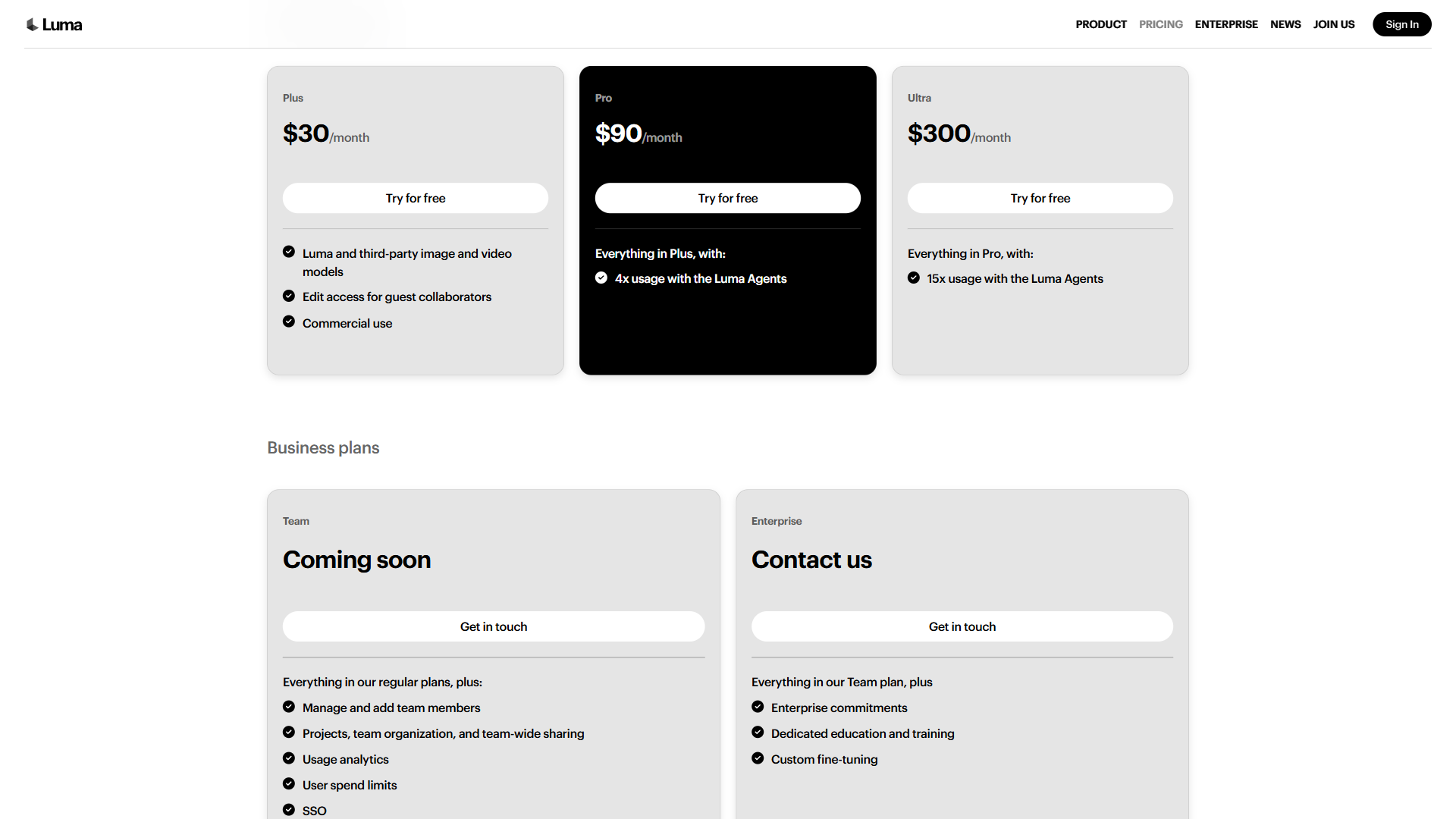
| Tier | Monthly Price | Key Features |
|---|---|---|
| Free | $0 | Watermarked, no commercial use |
| Plus | $30/month | Commercial use, trial credits included |
| Pro | $90/month | 4x usage with Luma Agents, commercial use |
| Ultra | See current pricing | Highest usage tier |
Which Tier Should You Choose?
Free tier is genuinely useful for testing whether Dream Machine fits your workflow. Eight draft videos per month is enough to experiment with different prompt styles and understand the tool’s strengths and limitations before spending money.
Plus ($30/month) is the entry point for commercial use. You get commercial licensing, no watermarks, and trial credits included. Most freelancers and small businesses should start here.
Pro ($90/month) adds 4x usage with Luma Agents. This tier is worth the premium if you are producing content for professional pipelines or need precise creative control. Annual billing saves 20% across all tiers.
Credit Economy Tips
- Each 5-second standard video costs approximately 170 credits
- Draft mode costs roughly 34 credits per 5-second video (5x cheaper)
- Image generations cost far fewer credits than video
- Credits reset monthly - they do not roll over
- Annual billing saves 20% across all tiers
Limitations and When to Use Alternatives
Honest assessment matters more than hype. Here is where Luma Dream Machine falls short and what alternatives handle those gaps better:
Quality Inconsistency
This is the most significant limitation. Users consistently report that only 20-30% of generations are production-ready without regeneration. Runway’s Gen-3 Alpha delivers more reliable quality on first attempts, though at a higher price point. If you are on tight deadlines and cannot afford to iterate through multiple generations, Runway may be the safer choice.
Resolution Ceiling
While Luma now offers 4K output on paid plans, some competitors offer higher native resolutions or better upscaling. For projects where resolution is critical - large format displays, broadcast television, or cinema - verify the output quality meets your specific requirements.
Consistent Characters Across Clips
Like most AI video generators, maintaining the same character appearance across multiple clips remains challenging. If your project requires a consistent character throughout a multi-clip narrative, consider tools with dedicated character consistency features or plan to use image-to-video mode with a consistent reference image across all clips.
Audio
Dream Machine generates video only - no audio. You will need separate tools for voiceover, music, and sound design. Pair Luma output with ElevenLabs (see ElevenLabs pricing) or Murf (see Murf pricing) for AI voiceover, or check our AI voiceover tips guide for production workflow patterns. This is standard across most AI video generators, though some competitors like Kling AI are beginning to integrate native audio generation.
When Alternatives Might Be Better
- Runway - When you need consistent, production-reliable quality and can afford the premium pricing. See our Luma vs Runway comparison for a detailed head-to-head
- Pika - For fastest generation speed on social media loops and short-form content. Our text-to-video tools guide covers Pika and other emerging options in detail
- Kling AI - For longer-form content (up to 2 minutes) with sophisticated physics understanding
- Synthesia - When you need AI avatars with lip-synced speech (a completely different use case)
For video editors evaluating AI tools, the choice often comes down to your primary use case: speed and experimentation (Luma), reliability and consistency (Runway), or quick social clips (Pika). Our best AI video generators 2026 roundup benchmarks all the major options side by side.
The Bottom Line on Luma Dream Machine Video
Luma Dream Machine is the most accessible entry point into AI video generation. The combination of a usable free tier, affordable paid plans, and the Ray3 reasoning model makes it genuinely compelling for creators who want to experiment with AI video without a significant financial commitment. Draft mode at 20x speed is excellent for rapid iteration, and features like visual annotation and keyframe control on higher tiers provide real creative control.
The trade-off is consistency. You will generate more variations to get usable output compared to Runway, and some sessions will produce better results than others. For social media content, marketing campaign variations, and creative experimentation, that trade-off is often worth it. For high-stakes production work with tight deadlines, budget for the possibility of extra iteration time or consider a more predictable alternative.
Start with the free tier, work through the prompt techniques in this guide, and see whether the output quality meets your specific needs. Check out our full Luma Dream Machine review and tool page for detailed feature comparisons, ratings, and the ROI calculator.
Frequently Asked Questions
Is Luma Dream Machine free to use?
Yes - Luma offers a free tier that includes 8 draft mode videos per month and 30 image generations. The free tier is watermarked and does not include commercial use rights, but it is enough to test every technique in this guide before committing to a paid plan. See current pricing at Luma Dream Machine.
How long can a Luma Dream Machine video be?
Each individual clip can be up to 10 seconds long. For longer sequences, generate multiple clips and combine them in a video editor. Higher tiers also unlock the Extend Video feature, which lets you add additional seconds to the end of an existing clip while preserving scene continuity.
What is the difference between draft mode and standard mode?
Draft mode is up to 20x faster and 5x cheaper on credits than standard mode, making it ideal for prompt iteration. The quality is lower - think of it as a rough sketch versus a finished painting - but it shows you whether your concept works before spending credits on a full-quality render.
How does Luma Dream Machine compare to Runway?
Luma is more affordable and offers faster iteration through draft mode, while Runway tends to deliver more consistent first-pass quality at a higher price point. For social media and creative experimentation, Luma is the better value; for high-stakes production with tight deadlines, Runway is more predictable. See our Luma vs Runway comparison for a detailed breakdown.
Can Luma Dream Machine generate audio with video?
No - Dream Machine generates video only. You will need separate tools for voiceover, music, and sound design. This is standard across most AI video generators today, though some competitors like Kling AI are beginning to integrate native audio generation.
Related Guides
- AI Video Marketing Guide: From Concept to Campaign - Integrate Luma and other AI video tools into your marketing workflow
- 12 AI Video Creation Tips for Better Results in 2026 - Broader strategies that apply across all AI video generators
- AI Avatar Video Marketing - When you need talking-head AI videos with lip sync
- AI Image Generation Tips - Prompt techniques that translate directly to image-to-video workflows
Want to learn more about Luma Dream Machine?
Related Reading
- Luma Dream Machine Review - Full review with pricing, features, and ratings
- Best AI Video Generators 2026 - Side-by-side comparison of all the major AI video tools
External Resources
- Luma Dream Machine - Official platform with tutorials and documentation
- Luma Labs Blog - Latest feature announcements and model updates
- Luma API Documentation - For developers building on the Luma platform
Related Guides
- AI Avatar Video Marketing: 2026 Walkthrough for Teams
- AI Video Creation Tips: 2026 Walkthrough for Teams
- AI Voice Cloning Ethics Best Practices: Complete 2026 Guide
- AI Voiceover Corporate Training With WellSaid Labs
- AI Voiceover for YouTube Videos: Murf Workflow Guide 2026
- AI Voiceover Tips: Making Synthetic Voices Sound Human
- Elai AI Training Videos: 2026 Walkthrough for Teams
- ElevenLabs API Setup: Developer Quick Start Guide (2026)
- ElevenLabs Audio Native Embed Audio on Any Website
- ElevenLabs Audio Quality Settings: Pro Tips and Settings