


This murf ai text to speech tutorial walks you through every step of turning a written script into a polished voiceover using Murf AI. Whether you are creating narration for a YouTube video, an e-learning module, or a product demo, the process follows the same path: write your script, pick a voice, generate audio, refine it, and export. For broader context on alternatives, see our best AI voice generators 2026 roundup and ElevenLabs alternatives comparison.
Murf has changed significantly in 2026. The Speech Gen 2 model - trained on over 70,000 hours of human speech - produces voiceovers that sound noticeably more natural than what text-to-speech tools delivered even a year ago. The platform now offers 200+ text-to-speech voices across 35 languages, with controls for speed, pitch, emphasis, pauses, and even emotional tone. If you have never used a text-to-speech platform before, this murf ai text to speech tutorial will get you from a blank page to a finished audio file in about 25 minutes. New to the editor itself? Pair this with our Murf studio workspace walkthrough for a UI tour.
Murf AI Text To Speech Tutorial: Workflow Overview
This murf ai text to speech tutorial walks through the complete process from initial configuration to advanced usage patterns. Whether you are setting up for the first time or optimizing an existing workflow, this step-by-step guide covers every decision point and common pitfall.
Before diving into the individual steps, here is the full process at a glance. Each step builds on the previous one, and you can always go back to make adjustments.
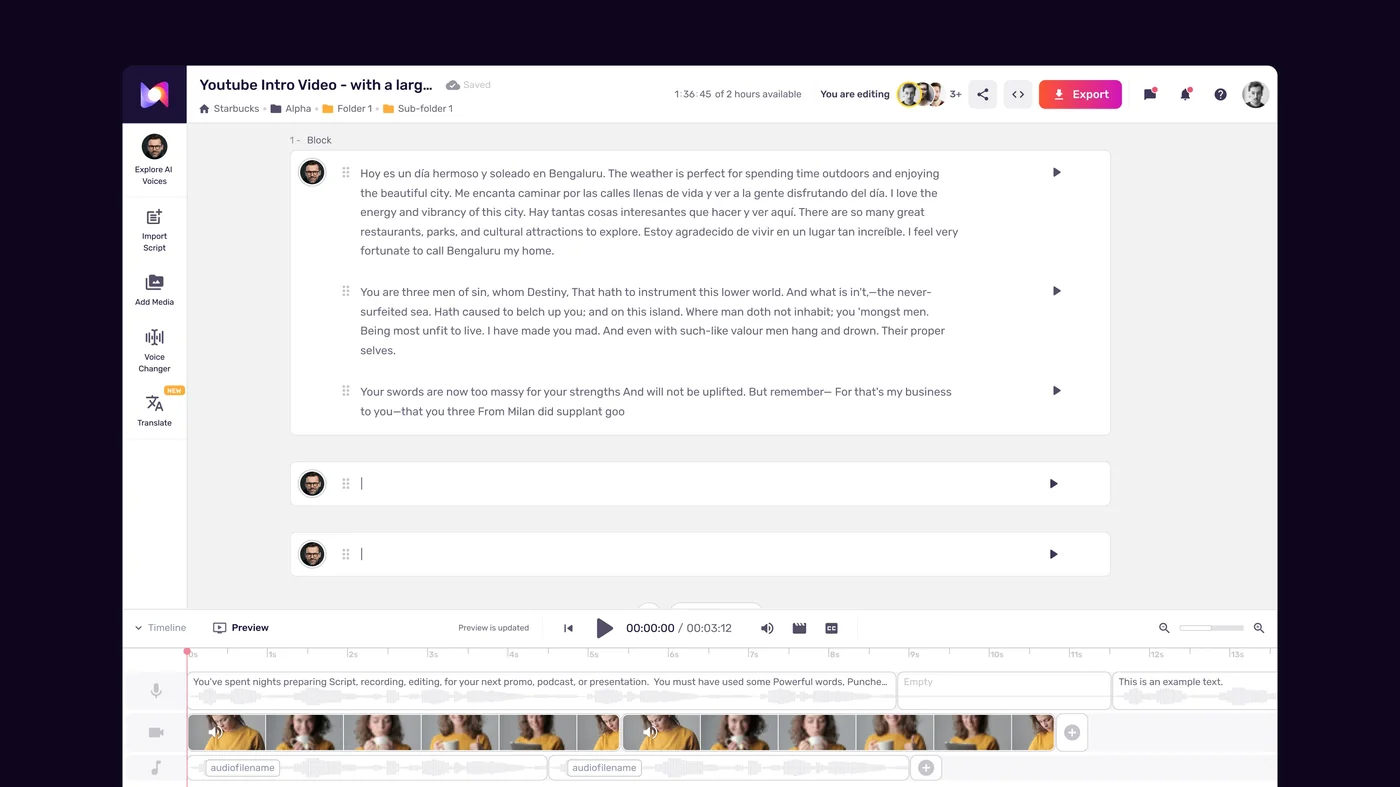
The seven steps you will follow:
- Write Your Script - Prepare text that reads well when spoken aloud
- Choose a Voice - Browse 200+ voices filtered by language, accent, age, and use case
- Generate Audio - Convert your script to speech with Speech Gen 2
- Fine-Tune Output - Adjust speed, pitch, emphasis, pauses, and emotion
- Add Media - Layer in background music or sync with video
- Export and Download - Save your finished voiceover in your preferred format
Each step includes practical tips based on what actually makes a difference in output quality. The single biggest factor is script preparation - a well-written script with short, clear sentences produces better audio than any amount of post-generation tweaking.
What you will need:
- A Murf AI account (the free tier gives you 10 minutes of generation and 2 projects)
- Your script or talking points ready to go
- About 25 minutes for your first complete voiceover
Write Your Script
The quality of your voiceover is determined before you ever hear a single word of audio. Script preparation is the step most beginners rush through, and it is the step that matters most.
Write for the ear, not the eye. Sentences that look fine on screen can sound awkward when spoken. Read your script aloud before pasting it into Murf. If you stumble over a phrase, the AI will too. Short sentences with simple structure produce the most natural-sounding output.
Keep sentences under 25 words. Longer sentences force the AI to make decisions about pacing and breath points that may not match your intent. Breaking a 40-word sentence into two 20-word sentences gives you more predictable results.
Use punctuation to control delivery. Commas create brief pauses. Periods create longer ones. Ellipses (three dots) produce a thoughtful trailing pause. Question marks shift the intonation upward at the end of a sentence. These cues are how you direct the AI’s performance without touching any sliders.
Mark technical terms and proper nouns. If your script includes brand names, acronyms, or technical jargon, note how each one should be pronounced. Murf lets you set custom pronunciations in the studio editor - the Murf pronunciation and emphasis guide and the Murf “Say It My Way” custom pronunciation guide cover the controls in detail. Identifying these terms in advance saves time during the fine-tuning stage. The Murf script writing tips guide covers other prep steps that pay off downstream.
Practical script structure for a 2-minute voiceover (roughly 280 words):
- Opening hook (2-3 sentences) - State the problem or topic
- Key points (3-5 short paragraphs) - One idea per paragraph, 2-3 sentences each
- Closing (1-2 sentences) - Summarize or provide a call to action
Murf includes an AI Script Assistant that catches common issues like run-on sentences, misspelled words, and overly long paragraphs. Run your script through it before generating - spending two minutes on cleanup here saves five minutes of editing later. For background reading on speech-friendly writing, the U.S. plain language guidelines hold up well.
Choose a Voice
Murf offers over 200 voices across 35 languages. That is a lot of options, and picking the right one makes a real difference in how your audience responds to the content.
Start with your audience and content type. A corporate training narration needs a different voice than a casual YouTube explainer. Murf labels voices by tone - conversational, formal, narrative, friendly - which helps narrow the field quickly. The Murf voice selection tips guide walks through a structured shortlisting process.
Use the filters to narrow your search. In the voice selection panel, you can filter by:
- Language and accent - English alone has options spanning American, British, Australian, Indian, and more
- Age range - Younger voices feel energetic and casual; older voices convey authority
- Gender - Male, female, and neutral options are available
- Use case - Tags like “e-learning,” “advertising,” “podcast,” and “audiobook” help match voice to context
Test before you commit. Select 3-5 candidates and generate the same paragraph with each. Listen to all of them back-to-back. The differences between voices are significant, and hearing them in comparison reveals qualities you would miss evaluating one voice in isolation.
Save your selection as a preset. Once you find a voice that works for your project, save the voice and its settings as a preset. This is especially important if you are producing a series - an online course with 15 lessons, a podcast with weekly episodes, or a set of product tutorials. Consistency across episodes matters to your audience, and the Voice Consistency Engine maintains tone and pacing across sessions.
Consider MultiNative for multilingual content. If your audience spans multiple languages, Murf’s MultiNative feature lets you switch languages mid-sentence while keeping the same voice character. The Murf MultiNative multilingual guide walks through code-switching scripts. You can produce the same voiceover in English, Spanish, and German without switching to a different voice, maintaining a consistent brand sound across markets.
Generate Audio
With your script prepared and your voice selected, generating audio is the fastest step in the entire process.
-
Paste your script into the Murf Studio editor. The editor accepts plain text - you do not need any special formatting or markup.
-
Confirm your voice selection in the sidebar. The voice you selected in the previous step should already be active. If you want to change it, click the voice name to open the selection panel.
-
Click Generate. Murf processes your script through the Speech Gen 2 model and produces audio in seconds. Short scripts (under 500 words) typically generate in 5-10 seconds. Longer scripts may take 20-30 seconds.
-
Listen to the initial output. Play the generated audio all the way through without stopping. On your first listen, focus on the overall feel rather than individual words. Does the pacing feel right? Does the voice match your content? Is the tone appropriate?
-
Note any issues for the fine-tuning step. Common first-generation issues include mispronounced words, pacing that feels too fast or slow in certain sections, and emphasis that does not land where you intended.
Do not expect the first generation to be perfect. The initial output is your starting point, and the fine-tuning tools give you precise control over every aspect of delivery. Most voiceovers need 2-3 rounds of adjustment before they are ready for export.
A note on generation limits. The free tier includes 10 minutes of voice generation. The Creator plan ($29/month, $19/month annual annual) gives you 24 hours per year, which covers roughly 20-40 typical voiceovers depending on length. If you are producing content regularly, the Business plan expands those limits and adds team collaboration. Squeezing the free tier first? See the Murf free plan tips guide.
Fine-Tune Your Output
This is where a generic text-to-speech recording becomes a polished voiceover. Murf gives you granular control over how every sentence - and every word - is delivered.
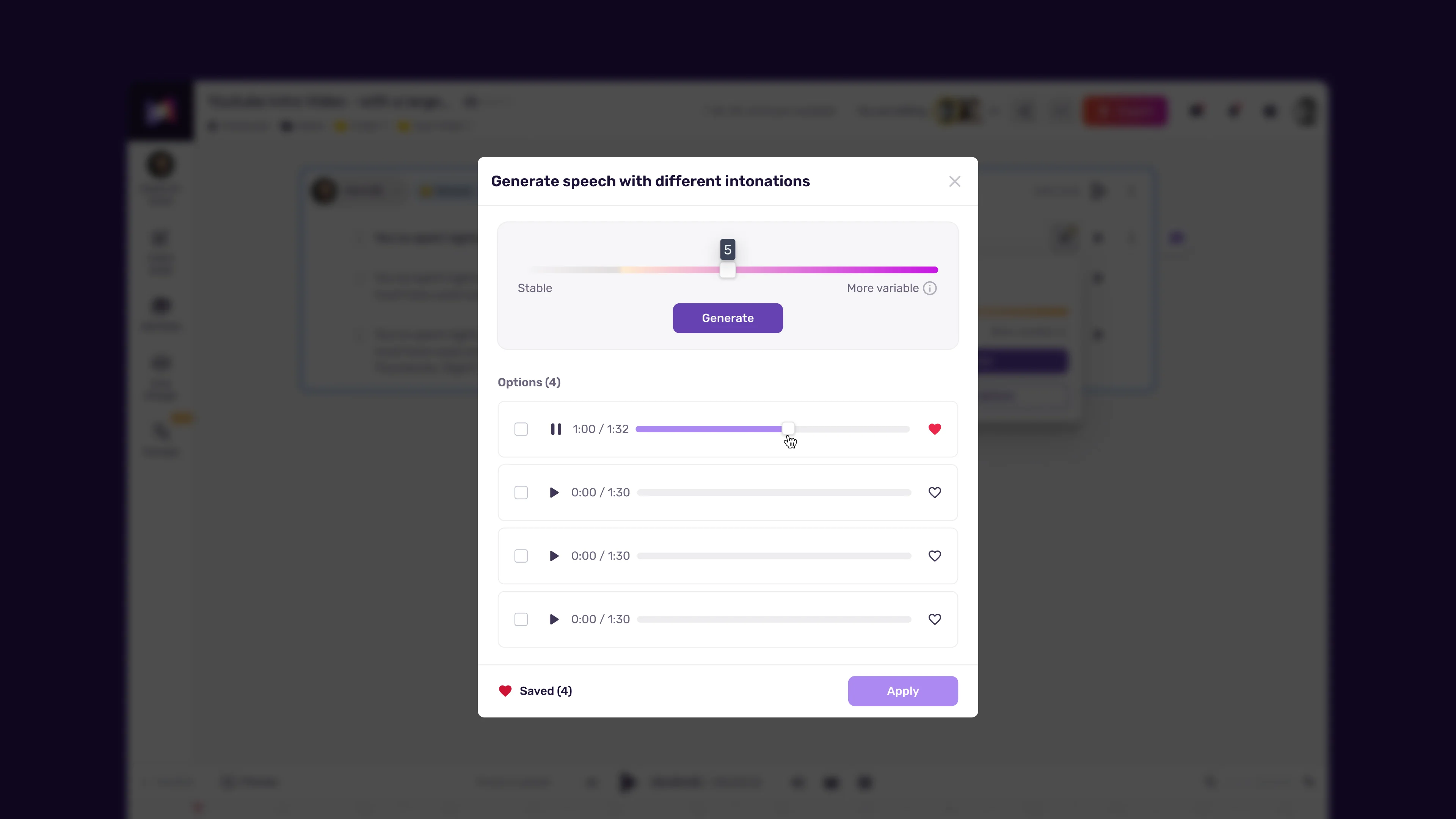
Speed adjustments. The default speed works well for conversational content, but instructional voiceovers often benefit from slowing down 10-15% on complex sections. You can adjust speed globally for the entire script or highlight specific sentences and set a different speed for each. Slower pacing on key points and slightly faster pacing on transitions creates a natural listening rhythm. The Murf pacing, pauses, and speed tips guide covers the rhythm rules in detail.
Pitch control. Subtle pitch adjustments change the perceived energy and authority of the voice. Raising pitch slightly makes the voice sound more energetic and approachable - useful for marketing content. Lowering pitch adds gravity and authority - better for corporate narration. Small adjustments (5-10%) sound natural. Larger changes start to sound artificial.
Emphasis on specific words. Click on any word in your script and increase its emphasis level. This is the most underused feature in Murf, and it makes the biggest difference. Emphasizing the right words turns flat-sounding sentences into engaging speech. Focus emphasis on action words, key terms, and the words that carry the meaning of each sentence.
Pauses between sentences and sections. Insert custom pauses anywhere in your script. A 0.5-second pause between sentences feels natural. A 1-2 second pause between sections gives listeners time to absorb what they just heard. The pause tool is in the toolbar above the script editor.
Emotion control sliders. Murf provides four emotion axes: Happy, Sad, Excited, and Serious. These are not binary toggles - they are sliders that let you blend emotions. The Murf emotion control guide covers blending in depth. For most professional voiceovers, subtle adjustments work best:
- Product demos - Slightly Happy + Excited (20-30% on each)
- Training content - Neutral to slightly Serious (10-20%)
- Marketing ads - Excited + Happy (30-40% on each)
- Tutorials - Neutral with mild Serious undertone (10-15%)
Push the sliders too far and the voice sounds exaggerated. Keep adjustments modest and preview frequently.
Pronunciation overrides. For brand names, technical terms, and acronyms, use the pronunciation editor to specify exactly how each word should be spoken. Murf saves these overrides across projects, so you only need to correct each term once. This is especially useful for recurring content where the same terminology appears in every script.
Add Media
Murf Studio is not just a text-to-speech engine - it includes a timeline-based editor where you can layer additional media alongside your voiceover.
Background music. Murf includes a library of royalty-free background tracks. Adding music behind a voiceover changes the feel significantly - a soft ambient track makes training content feel more produced, and upbeat music gives marketing content energy. The editor automatically ducks the music volume under the voiceover so your narration stays clear. For longer projects you can supplement with the YouTube Audio Library.
A few guidelines for background music:
- Set music volume to 15-20% of the voiceover level for narration-focused content
- Match the music mood to your content type (ambient for tutorials, upbeat for demos)
- Use the auto-duck feature and fine-tune it manually where the AI’s decisions do not match your intent
- Leave music out entirely for content where clarity is the top priority, like technical documentation
Video sync. If you are creating a voiceover for an existing video, import the video file into the Murf timeline. You can then align your voiceover to specific moments in the footage - matching narration to on-screen actions, transitions, and visual cues. This is particularly useful for product walkthroughs and software tutorials - the Murf YouTube voiceover workflow guide walks through the full sync process for video creators.
Timeline editing. The timeline gives you drag-and-drop control over the timing of every element in your project. You can:
- Reorder script sections without re-generating audio
- Adjust the gap between sections to match your video’s pacing
- Trim silence from the beginning and end of generated clips
- Layer multiple audio elements (voiceover, music, sound effects) with precise timing
For projects under 20 minutes, the editor is responsive and handles complex timelines without lag. For longer projects, splitting into segments of 10-15 minutes keeps the editor performant and makes revision easier.
Export and Download
Once your voiceover sounds right and your media elements are aligned, exporting takes about 30 seconds.
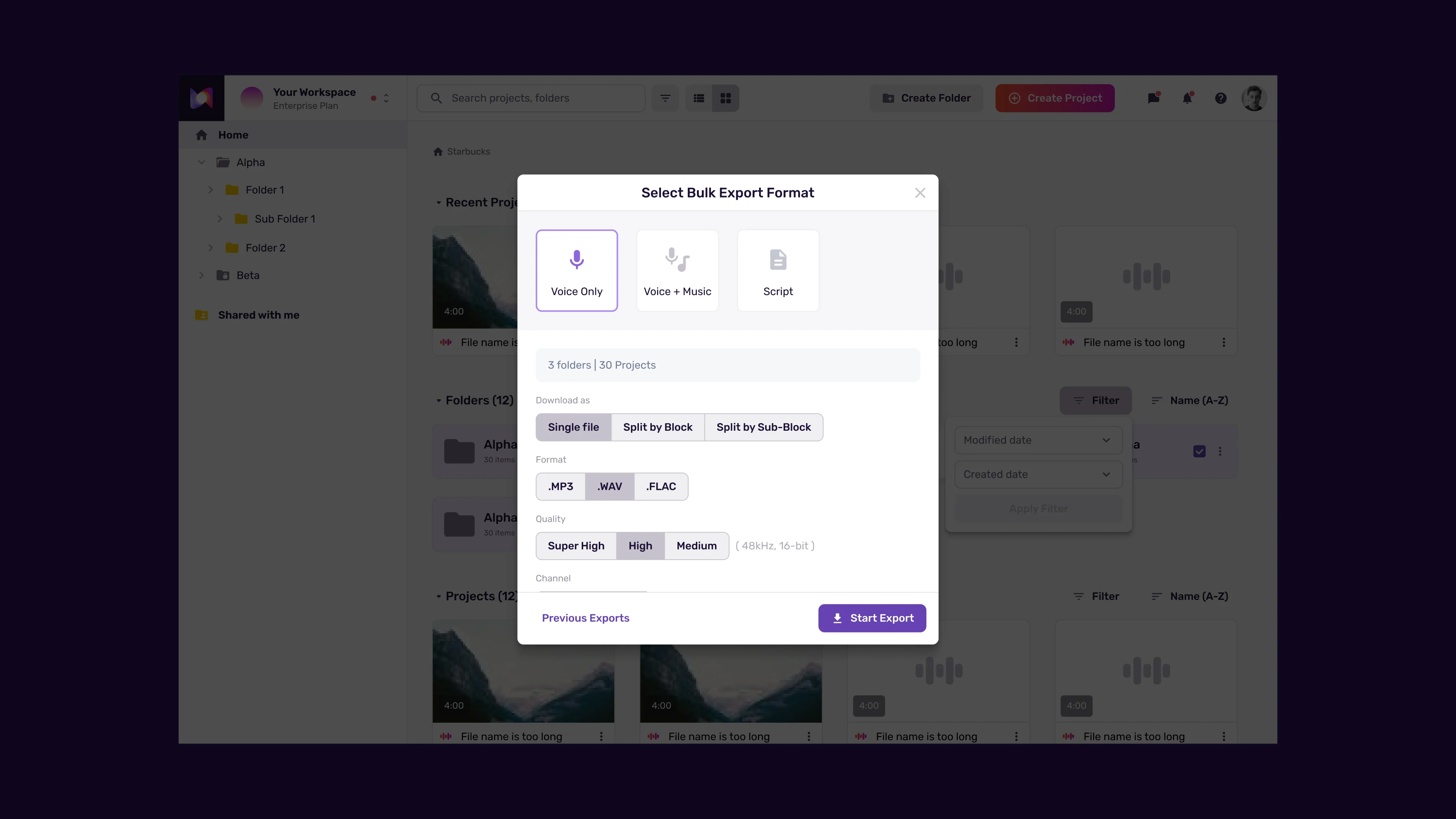
Choose your format based on your use case:
| Format | File Size | Quality | Best For |
|---|---|---|---|
| WAV | Large | Lossless | Post-production editing, high-quality archives |
| FLAC | Medium | Lossless compressed | Archival, audiophile delivery |
| MP3 | Small | Lossy | Web delivery, podcasts, social media |
| OGG | Small | Lossy | Web applications, game audio |
For most users, the decision comes down to WAV or MP3. If you plan to edit the audio further in a DAW (digital audio workstation) like Audacity, GarageBand, or Adobe Audition, export as WAV. The lossless format preserves full audio quality through additional processing steps. If the voiceover is going directly into a video editor, LMS, or website, MP3 is the practical choice - smaller files with quality that is indistinguishable from WAV for speech content. The Murf export formats and quality guide compares each option.
Export the full project or individual sections. If your project has multiple script sections, you can export the entire project as a single file or export each section separately. Separate exports are useful when you need individual audio files for each lesson in a course or each chapter of an audiobook.
Download and organize. After export, Murf saves the file to your downloads folder. Create a consistent naming convention for your audio files - something like project-name_section-number_voice-name.mp3 - so you can find and manage files as your library grows.
Re-export anytime. Your projects stay saved in Murf Studio, so you can return to make edits and re-export without starting over. This is valuable when you need to update a voiceover - changing a product name, updating statistics, or revising a call to action - without re-creating the entire project.
Frequently Asked Questions
How much does Murf AI cost for text-to-speech?
Murf offers a free tier with 10 minutes of voice generation and 2 projects, which is enough to complete this tutorial and produce a couple of short voiceovers. The Creator plan at $29/month gives you 24 hours of voice generation per year with access to all 200+ voices. For teams, the Business plan at $99/month includes collaboration features with 3 editors and 5 viewers. Check the current Murf pricing page for the latest rates and annual billing discounts.
Can I use Murf voiceovers in commercial projects?
Yes. Commercial usage rights are included on all paid plans. You can use Murf-generated voiceovers in YouTube videos, online courses, advertisements, podcasts, client work, and any other commercial context. The free tier is for evaluation and personal use. If you are producing content for clients or for sale, you need at least the Basic plan.
How does Speech Gen 2 compare to the previous Murf model?
Speech Gen 2 was trained on over 70,000 hours of human speech, which is a significant jump from the previous model’s training data - this murf ai text to speech tutorial uses Speech Gen 2 throughout. The practical differences are most noticeable in natural pacing, emotional range, and pronunciation accuracy. Longer passages sound less robotic, transitions between sentences are smoother, and the model handles complex sentence structures without the awkward pauses that older text-to-speech engines produce. The Murf variability and natural-sounding voice tips guide covers the variability controls Speech Gen 2 unlocks. If you tried Murf before 2026 and found the output too artificial, Speech Gen 2 is worth another look.
What languages does Murf support?
Murf currently supports 35 languages with 200+ voices. English has the widest selection with multiple accent options (American, British, Australian, Indian, and others). Major European languages (Spanish, French, German, Italian, Portuguese), Asian languages (Hindi, Japanese, Korean, Chinese), and Arabic are all represented. The MultiNative feature lets you switch languages mid-sentence while keeping the same voice character - useful for content that serves multilingual audiences or includes foreign-language terms.
How do I fix words that Murf mispronounces?
Open the pronunciation editor in the studio toolbar, type the word as it appears in your script, and then type the phonetic spelling of how it should be pronounced. Murf saves custom pronunciations across all your projects, so you only need to correct each term once. For brand names and acronyms, set these pronunciations before your first generation to avoid re-generating audio. If a word is consistently mispronounced across different voices, the phonetic override is the reliable fix.
Can I use Murf without an internet connection?
No. Murf is a cloud-based platform, and both the studio editor and the voice generation engine require an internet connection. Your projects are saved in the cloud, which means you can access them from any device, but you cannot generate or edit audio offline. If you need offline access to your finished voiceovers, export and download the audio files to your local machine after each project. Compared to ElevenLabs pricing, Murf’s plans bias toward longer monthly limits over voice cloning extras - which is the right tradeoff for narration-heavy use cases and the wrong one if you mainly need cloned voices.
Where Murf Falls Short
This murf ai text to speech tutorial wraps with the honest limits. Murf is built for scripted, block-based narration, so it is not the right pick if you need:
- Sub-50ms streaming latency without an Enterprise contract (use the Murf Falcon API tier or ElevenLabs for true real-time)
- Cloning a specific person’s voice from a short reference clip on a low-cost plan - voice cloning sits on Enterprise
- Live podcast or meeting narration where you cannot pre-write the script
- Offline generation in air-gapped environments
For all of those, look at the ElevenLabs alternatives roundup and weigh tradeoffs there. For most YouTube creators, e-learning teams, and marketers who already write scripts, the Creator plan at $29/month is the genuine entry point - the free tier is for evaluation, not for shipping commercial work.
Want to learn more about Murf AI?
Related Guides
- Murf AI Getting Started: Beginner Guide
- Murf AI Studio Workspace Walkthrough
- Murf AI Voice Selection Tips
- Murf AI Pacing, Pauses, and Speed Tips
- Murf AI Export Formats and Quality Guide
Related Reading
- Murf AI Tool Page - Full review with pricing, features, and ratings
- Murf AI Guide: Create Studio-Quality Voiceovers Without a Mic - Comprehensive voiceover production guide
- Best AI Voice Generators 2026 - How Murf compares to ElevenLabs, LOVO, and others
External Resources
- Murf AI Help Center - Official documentation, troubleshooting, and tutorials
- Murf AI Blog - Product updates, voice releases, and use-case write-ups
- Wikipedia: Speech Synthesis - Background on TTS architectures behind Speech Gen 2
Related Guides
- AI Video Creation Tips: 2026 Walkthrough for Teams
- AI Voice Cloning Ethics Best Practices: Complete 2026 Guide
- AI Voiceover Corporate Training With WellSaid Labs
- AI Voiceover for YouTube Videos: Murf Workflow Guide 2026
- AI Voiceover Tips: Making Synthetic Voices Sound Human
- ElevenLabs API Setup: Developer Quick Start Guide (2026)
- ElevenLabs Audio Native Embed Audio on Any Website
- ElevenLabs Audio Quality Settings: Pro Tips and Settings
- ElevenLabs Audiobook Creation: Long-Form Audiobook
- ElevenLabs Conversational AI Agents: Build Voice Agents