
Murf AI voice cloning is a feature that converts a two-minute audio sample into a custom AI voice capable of generating unlimited voiceovers across 20 languages. Voice Cloning 2.0 delivers 99.38% pronunciation accuracy with emotion controls, letting content creators, educators, and marketing teams produce consistent narration without recording every script personally.
Murf AI voice cloning lets you turn a two-minute audio sample into a custom AI voice that sounds like you - across 20 languages, with emotion controls, and without ever stepping into a recording booth again. Unlike a basic AI voice changer that simply modifies a live feed, Murf’s voice cloning online system builds a persistent neural model from your recording. Voice Cloning 2.0 represents a significant leap over the original system, delivering 99.38% pronunciation accuracy and enough tonal flexibility to handle everything from corporate training narration to YouTube intros.
The practical appeal is straightforward. Instead of recording every script yourself, you record once, wait 24 to 48 hours for processing, and then generate unlimited voiceovers in your own voice. For content creators producing weekly videos, educators narrating course modules, or marketing teams standardizing brand voice across campaigns, the time savings are substantial. Teams that use Murf to dub content find the clone especially useful for localized versions - Dub Murf AI workflows let you repurpose a single master script across multiple languages. This guide walks through the complete setup process - from recording your sample to testing your clone and customizing it for different use cases.
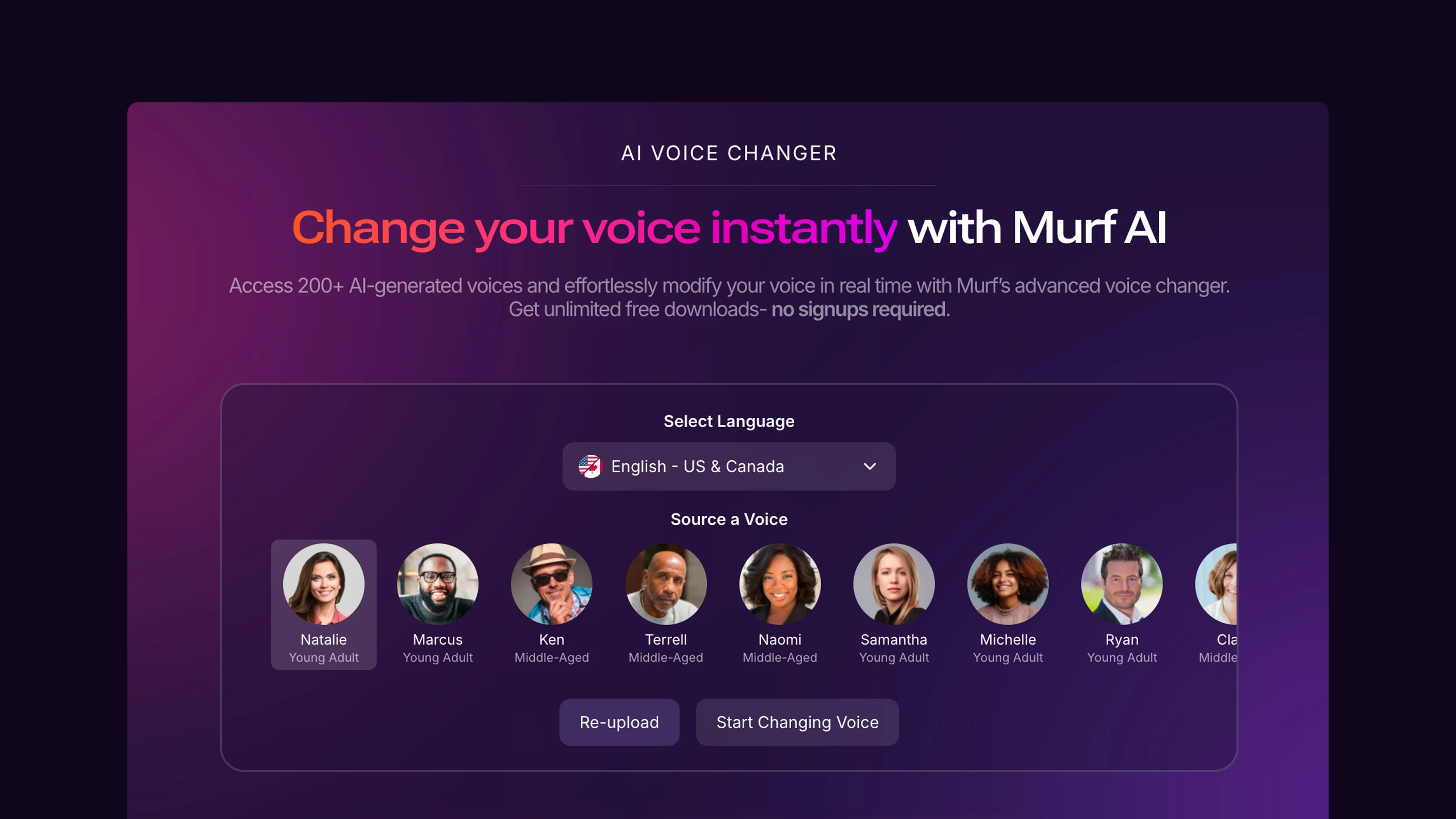
When to Use Murf AI Voice Cloning
Voice cloning is not the right choice for every project. Understanding when it adds genuine value versus when a stock voice serves better will save you time and money.
Voice cloning makes sense when:
- Brand consistency matters. If your audience recognizes your voice - in podcast intros, course narrations, or video content - a clone maintains that familiarity without requiring you to record every piece of content personally. This is especially relevant for solopreneurs and personal brands where the voice is part of the product. The Murf text-to-speech library sits alongside cloning so you can mix custom and stock voices in the same project.
- Volume exceeds recording capacity. When you need to produce 10 or more voiceovers per week, recording each one manually becomes a bottleneck. A voice clone handles the volume while you focus on scripts and strategy. Our Murf script writing tips covers how to structure scripts so a clone delivers them naturally.
- Multilingual content is required. Your cloned voice works across 20 languages through Murf’s MultiNative technology - covered in our Murf MultiNative multilingual guide. Instead of hiring voice talent for each language, your clone adapts - maintaining your vocal character while switching languages naturally.
- Consistency across a long series. A 30-lesson course recorded over several months will have subtle variations in energy, mic placement, and room acoustics. A voice clone delivers identical quality from the first lesson to the last - particularly valuable for the Murf eLearning narration workflow.
Stock voices are a better fit when:
- You are producing a one-off voiceover with no need for recurring brand consistency
- The content calls for a voice character different from your own (different age, accent, or gender) - in that case, browse the standard voice selection options instead
- You need the voiceover immediately and cannot wait 24 to 48 hours for clone processing - in that case, the standard Murf text-to-speech tutorial covers the faster path
Plan Requirements
Voice Cloning 2.0 is available on the Creator plan (starting at $29/month) and above. If you are evaluating Murf as a free AI voice generator before committing, note that voice cloning free access is not included - the free and Basic tiers cover standard text-to-speech only.
Here is what you need before starting:
Account requirements:
- An active Murf AI Pro plan subscription or higher
- Email verification completed on your account
- Voice Cloning consent form signed (Murf requires this for ethical compliance)
Recording equipment:
- A decent microphone - USB condenser mics like the Blue Yeti or Audio-Technica AT2020 work well. Even a quality headset mic is acceptable if the room is quiet
- A quiet recording environment with minimal echo, background noise, or HVAC hum - acoustic treatment guides like the Transom recording spaces primer cover what makes a room sound clean
- Audio recording software - Audacity (free) is sufficient, or use your computer’s built-in voice recorder
Audio sample specifications:
- Minimum 2 minutes of clear speech
- WAV or MP3 format
- Consistent volume throughout - avoid whispering in one section and projecting in another
- Natural speaking pace - not rushed, not artificially slow
- No background music or sound effects
The quality of your clone depends almost entirely on the quality of your input audio. Two minutes of clean, well-paced speech in a quiet room will produce a dramatically better clone than five minutes of noisy, inconsistent audio.
How Do You Record Your Voice Sample for Murf?
This is the most important step in the entire process. A strong recording produces a clone that genuinely sounds like you. A weak recording produces something that vaguely resembles you but falls apart on longer passages.
Choose your content carefully. Read something that represents the range of speech you want your clone to handle. A mix of declarative sentences, questions, and varied vocabulary gives the AI more vocal data to work with. Avoid reading from a list of single words or very short phrases - the clone needs continuous speech patterns.
Here is a sample recording script you can use:
Welcome to this walkthrough. Today I will cover the key features of our platform, explain how pricing works for different team sizes, and answer the most common questions we receive from new users. Whether you are a solo creator or managing a ten-person team, this overview should give you a clear picture of what to expect. Let me start with the dashboard and work through each section step by step.
That paragraph takes roughly 40 seconds to read at a natural pace. Record three to four paragraphs of similar content to hit the two-minute minimum.
Recording best practices:
- Warm up first. Read your script aloud two or three times before hitting record. Your voice settles into a more natural rhythm after the first run-through.
- Maintain consistent distance from the mic. About 6 to 8 inches is ideal for most USB mics. Moving closer or farther during recording creates volume inconsistencies that degrade clone quality.
- Speak naturally. Do not try to sound “professional” or alter your voice. The clone captures your natural tone, cadence, and inflection - if you force a different delivery, your clone will sound forced too.
- Pause and restart if you stumble. It is better to have clean takes with brief silences between retakes than to push through errors. You can trim the dead space in Audacity before uploading.
- Monitor your levels. In Audacity, your waveform should peak between -6 dB and -3 dB. If the waveform is barely visible, you are too quiet. If it clips (flat tops on the peaks), you are too loud. The Transom podcast loudness primer is a useful reference for setting consistent levels.
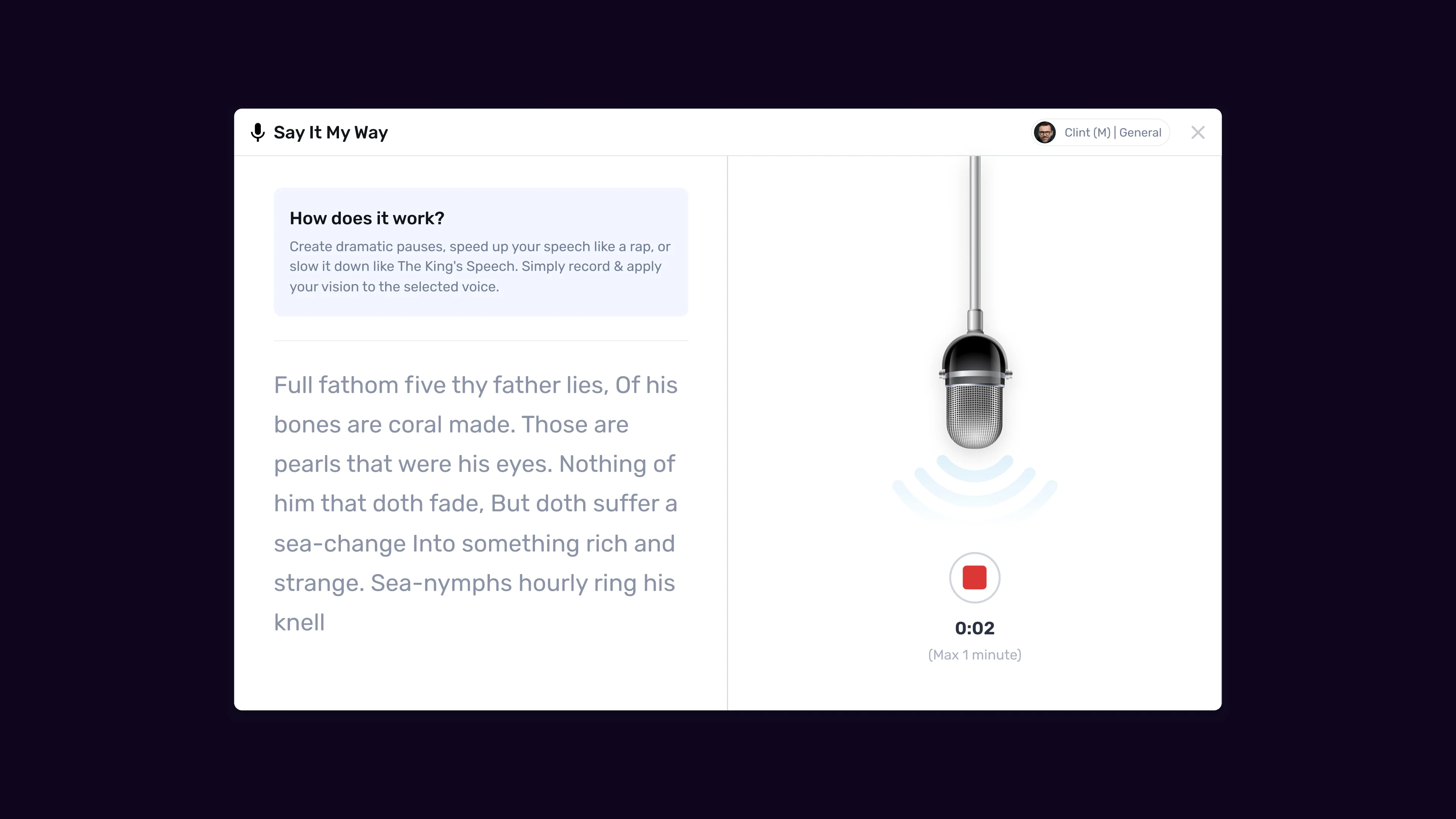
Upload and Processing
Once your recording meets the quality bar, the upload process in Murf AI is straightforward.
Step 1: Navigate to Voice Cloning. Log into your Murf account and open the Studio. In the left sidebar, find the Voice Cloning section under your voice library. Click “Create Voice Clone” to begin.
Step 2: Upload your audio file. Drag your WAV or MP3 file into the upload area, or click to browse your files. Murf accepts files up to 50 MB. If your file exceeds this, compress it or trim any unnecessary silence at the beginning and end.
Step 3: Complete the consent form. Murf requires you to confirm that the voice in the recording is your own (or that you have explicit permission from the speaker). This is a one-time step per voice clone. The consent process exists for ethical reasons - Murf takes voice ownership seriously and will not process clones without verification.
Step 4: Name and configure your clone. Give your voice clone a descriptive name - something like “George - Conversational” or “George - Tutorial Narration.” If you plan to create multiple clones with different tones, clear naming helps you find the right one later.
Step 5: Submit for processing. Click submit and wait. Processing takes 24 to 48 hours. Murf sends an email notification when your clone is ready. During this window, the AI analyzes your speech patterns, tone, cadence, accent, and pronunciation habits to build a comprehensive voice model.
What happens during processing:
The Voice Cloning 2.0 engine extracts hundreds of vocal characteristics from your sample - pitch range, speaking rhythm, vowel formations, consonant emphasis, and breathing patterns. It then builds a neural voice model that can reproduce these characteristics when given new text. The 24 to 48 hour timeline reflects the depth of this analysis. Earlier cloning systems that promised instant results typically captured fewer characteristics, producing clones that sounded generic rather than genuinely personal.
If processing fails: The most common reason is audio quality. Background noise, inconsistent volume, or a sample shorter than 2 minutes can cause the system to reject the upload. Record a fresh sample addressing whatever issue Murf flags, and resubmit.
Testing Your Clone
When your clone is ready, resist the urge to immediately generate a 10-minute voiceover. Start with targeted tests that reveal how well the clone handles different content types.
Test 1: Short declarative sentences. Generate 3 to 5 sentences of straightforward narration. Listen for whether the tone matches your natural speaking voice. This is the baseline.
Test 2: Questions and emphasis. Generate sentences with question marks and words that need emphasis. Check whether the clone naturally raises pitch for questions and stresses the right syllables.
Test 3: Technical vocabulary. If your content includes industry-specific terms, brand names, or acronyms, test those specifically. Murf’s 99.38% pronunciation accuracy is strong, but unusual terms occasionally need manual pronunciation overrides.
Test 4: Longer passages. Generate a full paragraph of 100 to 150 words. Listen for consistency - some clones sound excellent on short phrases but drift on longer content. If you hear inconsistencies, the issue usually traces back to recording quality rather than the cloning engine. Our Murf script writing tips guide covers script-side fixes that compound with clone quality.
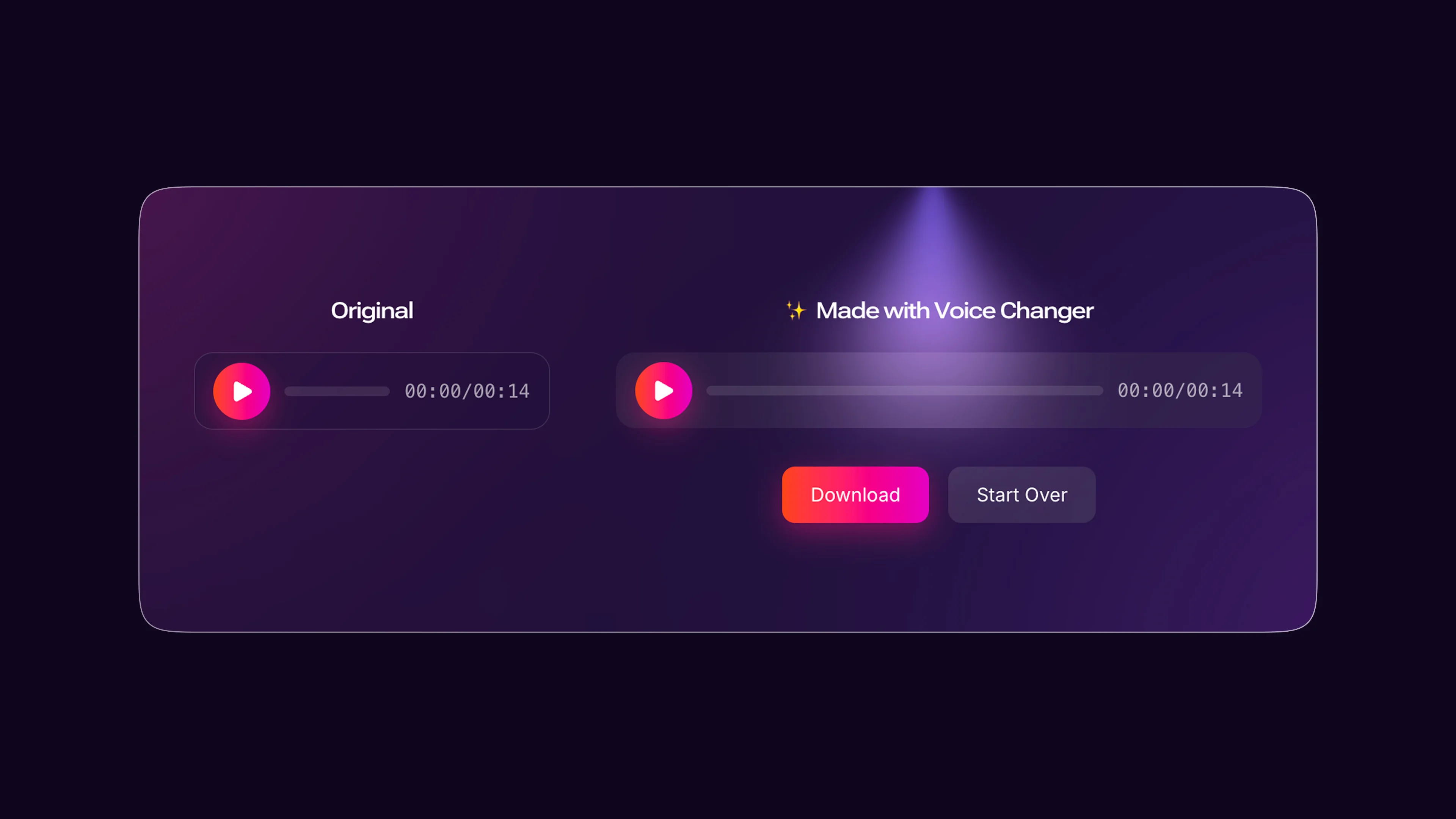
Evaluating quality:
A good voice clone should pass the “squint test” - if someone who knows your voice listened without being told it was AI, they should not immediately detect the difference. Minor variations are normal and expected. The clone will not replicate every micro-inflection of your voice, but it should capture your overall tone, pace, and character.
If the clone sounds noticeably off, consider these adjustments before re-recording:
| Field | Value |
|---|---|
| Flat delivery | Your original sample may have been too monotone. Re-record with more natural energy and variation |
| Wrong pacing | If the clone speaks faster or slower than you typically do, your sample may have had inconsistent pacing. Re-record at your natural comfortable speed |
| Pronunciation issues on specific words | Use Murf’s pronunciation editor to override individual words rather than re-recording the entire sample |
Advanced Customization
Once your base clone passes testing, Murf’s customization tools let you adapt it for different contexts without creating a new clone from scratch.
Emotion controls on cloned voices. Voice Cloning 2.0 supports the same emotion sliders available for stock voices - Happy, Sad, Excited, and Serious - and our Murf emotion controls guide covers each in depth. This means a single clone can narrate an enthusiastic product launch video and a measured corporate training module. The emotion adjustments are subtle by design. They shift the delivery without making it sound like a different person.
Speed and pacing adjustments. Use the speed slider to adjust your clone’s speaking rate. For tutorial content where viewers need time to follow along, slow the pace to 0.85x to 0.9x. For intro sequences or energetic content, push it to 1.1x to 1.15x. Avoid going beyond 1.2x - the quality degrades noticeably at higher speeds.
Emphasis and pronunciation overrides. The Studio editor lets you mark specific words for emphasis or override their pronunciation. This is essential for brand names, product names, and technical jargon that the AI might mispronounce. Overrides persist across projects, so you only need to configure each term once.
Pauses and breathing. Insert manual pauses between sentences or sections using the timeline editor. The clone does not automatically add natural breathing sounds, but strategic pauses between paragraphs give listeners processing time and make the output feel less like a continuous stream of speech - covered in our Murf pacing, pauses, and speed tips guide.
Multilingual output. Your cloned voice works across all 20+ languages supported by Murf’s MultiNative engine - covered in detail in our Murf MultiNative multilingual guide. The clone maintains your vocal character - tone, pace, and personality - while adapting pronunciation and cadence to the target language. This is particularly valuable for agencies producing localized content at scale.
Pro Tips
Record multiple samples for different tones. While one clone handles most use cases through emotion sliders, some creators maintain two clones - one from a conversational recording and one from a more formal, presentation-style recording. The conversational clone works better for casual video content, while the formal clone suits corporate training and documentation.
Keep your original recording file. Store your source audio in a safe location. If Murf updates their cloning engine (which they do periodically), you may want to re-submit your sample to get an improved clone. Having the original saves you from re-recording.
Test across output formats. Your clone may sound slightly different in MP3 versus WAV due to compression artifacts. Generate the same passage in both formats and compare. For production work, always export WAV and compress to MP3 as a final step in your audio editor if needed.
Use the clone for drafting, then polish. Generate a first pass of your entire script using the clone, listen through once, and note sections where the delivery feels off. Then regenerate just those sections with adjusted emotion settings or rephrased text. This selective approach is faster than regenerating the full piece repeatedly.
Combine with background music carefully. When layering your cloned voice over background tracks in Murf’s editor, keep the music at 15 to 20% of the voice volume. Cloned voices can lose clarity against music more quickly than stock voices because the tonal range is modeled from your specific voice rather than optimized for broadcast clarity. The AES audio engineering standards codify the loudness-mix conventions broadcast producers follow.
Schedule re-cloning annually. Voices change over time (a phenomenon documented in the phonation literature). If you use your clone heavily for brand content, re-record and re-clone once a year to keep the output current with how you actually sound. This matters most for podcasters and video creators whose audience hears them regularly.
Frequently Asked Questions
How long does Murf voice cloning processing take?
Processing takes 24 to 48 hours from the time you submit your audio sample. Murf sends an email notification when your clone is ready. The timeline reflects the depth of analysis the Voice Cloning 2.0 engine performs - it is extracting hundreds of vocal characteristics to build an accurate model. There is no way to expedite this process, so plan your production schedule accordingly. If you need voiceover output today, use a stock voice and switch to your clone once it is available.
Can I clone someone else’s voice?
Murf requires explicit consent from the voice owner before processing a clone. During upload, you must confirm either that the voice is yours or that you have documented permission from the speaker. This policy exists to prevent unauthorized voice replication. For business use cases where you want to clone a company spokesperson or executive, have the speaker sign the consent form directly in their Murf account or provide written authorization that you can reference during the upload process.
What is the minimum audio sample length for Voice Cloning 2.0?
The minimum is 2 minutes of clear, continuous speech. While you can submit longer samples, the 2-minute threshold gives the AI enough data to capture your core vocal characteristics. Submitting more audio - say 5 to 10 minutes - can improve accuracy for unusual speech patterns or strong accents, but for most speakers the difference between a 2-minute and a 10-minute sample is marginal. Focus on quality over quantity. Two minutes of clean audio in a quiet room beats ten minutes of noisy, inconsistent recording.
Does my cloned voice work in all 20+ Murf languages?
Yes. Once your voice clone is processed, it is available across all languages supported by Murf’s MultiNative engine. The clone maintains your vocal identity - tone, cadence, and personality - while adapting to the phonetics and rhythm of each target language. The accuracy is highest for languages closely related to the one you recorded in. If you record in English, European languages tend to sound very natural, while languages with significantly different phonetic structures may show minor variations. For translators and multilingual content teams, this feature eliminates the need for separate voice talent in each market.
Can I update my voice clone without starting over?
Currently, Murf does not support incremental updates to an existing clone. If you want to improve your clone - because your voice has changed, your original sample was not ideal, or Murf has updated their engine - you need to record a new sample and create a fresh clone. The old clone remains available until you delete it, so you can run both in parallel and compare before retiring the previous version. Naming your clones with dates (for example, “George - April 2026”) helps you track versions.
What happens to my voice data after cloning?
Murf processes your audio sample to build the voice model and stores the model on their servers for your account’s use. Their privacy policy covers data handling in detail, but the key points are that your voice data is not shared with other users, not used to train general models, and can be deleted by removing the clone from your account. For organizations with strict data governance requirements, the Enterprise plan includes data residency options and additional compliance guarantees.
Want to learn more about Murf AI?
Related Reading
- Murf AI Tool Page - Full review with pricing, features, and ratings
- ElevenLabs Voice Cloning Tutorial - Compare with ElevenLabs’ approach to voice cloning
- AI Voiceover Tips for Professional Audio Content - General best practices for AI-generated voiceovers
- Remote Work Audio Setup Guide - Optimize your recording environment
Related Guides
- Getting Started with Murf AI
- Murf Studio Interface Walkthrough
- Murf Text-to-Speech Tutorial
- Murf AI Pronunciation and Emphasis
- Murf MultiNative: Multilingual Voiceovers
External Resources
- Murf AI Help Center - Official documentation for voice cloning, studio editor, and API
- Audacity (free audio editor) - Recommended free tool for recording and editing your voice cloning sample
- Murf Voice Cloning Resources - Vendor articles on getting clean source recordings and optimizing your clone
Related Guides
- AI Voiceover Corporate Training With WellSaid Labs
- AI Voiceover for YouTube Videos: Murf Workflow Guide 2026
- AI Voiceover Tips: Making Synthetic Voices Sound Human
- ElevenLabs Getting Started: Complete Beginners Guide
- ElevenLabs Voice Cloning Tutorial: Complete 2026 Guide
- Luma Dream Machine Video Tutorial 2026: Text-to-Video & Ray3
- Murf AI Canva Integration: Add Voiceovers to Designs
- Murf AI Custom Pronunciation: Say It My Way Guide (2026)
- Murf AI Dubbing: Complete Walkthrough | Complete Guide 2026
- Murf AI eLearning Narration: Educator's Guide | Review 2026