
Murf AI dubbing is a video localization workflow that re-voices an existing video in a different language while preserving the original speaker’s identity. Using MultiNative technology, the platform handles automatic transcription, translation, voice regeneration, and lip-sync timing in one browser-based workflow - allowing you to produce a dubbed version in about 30 minutes.
Murf AI dubbing lets you take an existing video and re-voice it in a different language while preserving the original speaker’s identity. Instead of hiring voice actors for each market, you upload your video, pick your target languages, and the platform handles translation, voice generation, and lip-sync timing in one workflow - accessible as a dubbing online tool through any modern browser. The result is a dubbed video that sounds natural and stays synchronized with the original visuals.
This walkthrough covers the complete dubbing process from upload to export. If you have a video ready - a product demo, training module, or YouTube video - you can follow along using the Murf dubbing app in your browser and produce your first dubbed version in about 30 minutes. Note that Murf AI dubbing is not available as a dubbing free tier - you will need a Murf AI Business plan or higher to access the feature.
Overview
Murf AI’s dubbing feature sits within the broader Murf Studio platform but operates as a distinct workflow from standard text-to-speech generation. Where text-to-speech converts a written script into audio, dubbing starts with an existing video file - your original content with its original audio - and produces a new version where the spoken words have been translated and re-voiced.
The platform uses MultiNative technology to maintain voice consistency across languages. This means a speaker in your English product demo will sound recognizably like the same person in the Spanish, German, or Japanese version. The AI analyzes vocal characteristics from the original audio and applies them to the generated output, which is a significant step up from simply swapping in a generic TTS voice.
Key capabilities of the dubbing feature:
- Automatic transcription of the original audio track
- Translation into 20+ supported languages
- Voice regeneration that preserves speaker identity
- Lip-sync timing that adjusts audio pacing to match mouth movements
- Manual editing for fine-tuning translations and timing
When to Use Murf AI Dubbing
AI dubbing makes practical sense in specific scenarios. Understanding where it excels - and where it falls short - helps you decide whether this workflow fits your project.
Strong use cases:
- YouTube content localization - You publish videos in English and want to reach Spanish, Portuguese, or Hindi audiences without re-recording (the Murf YouTube voiceover workflow covers the broader pipeline)
- Corporate training videos - Your organization operates in multiple countries and needs consistent training materials across languages (see also our eLearning narration guide)
- Branded content series - Murf’s voice cloning preserves speaker identity across all dubbed language versions, maintaining brand consistency
- Product demos and tutorials - Software walkthroughs and feature demos where the visual content stays the same across markets
- Marketing campaigns - Promotional videos that need to run in multiple markets simultaneously
Where traditional dubbing still wins:
- Highly emotional content like narrative films or documentaries where subtle vocal nuance matters (the Murf emotion control guide covers what AI can and cannot reproduce)
- Videos with multiple overlapping speakers or heavy background noise
- Content requiring culturally adapted scripts rather than direct translation - the AI translates but does not localize idioms, humor, or cultural references (a process known as localization, distinct from translation)
For most business and educational content, AI dubbing delivers 80-90% of the quality at a fraction of the cost and turnaround time. While Murf also offers a free AI voice generator for basic text-to-speech projects, the dubbing feature requires a paid Business plan - a video that would take weeks and thousands of dollars to dub traditionally can be processed in minutes for the cost of your monthly subscription.
Prerequisites and Supported Formats
Before starting the dubbing workflow, make sure you have the following ready.
Account requirements:
- A Murf AI account on the Business plan ($99/month, or $66/month annual) or higher. Free and Creator tiers exclude dubbing access
- Sufficient generation minutes remaining in your monthly quota
Video file requirements:
| Field | Value |
|---|---|
| Supported formats | MP4, MOV, AVI |
| Maximum file size | Check your plan limits - Business plan supports files up to 500MB |
| Audio quality | Clean, clear audio with minimal background noise produces the best results. If your source video has heavy music or sound effects mixed with speech, the AI will struggle to isolate the voice track |
| Single speaker recommended | The feature works best with one primary speaker. Multi-speaker videos are supported but require more careful review of the output |
Preparation checklist:
- Source video file in a supported format
- A list of your target languages - decide this before starting so you can batch the work
- 30 minutes of uninterrupted time for your first dubbing project (subsequent projects go faster)
- A quiet environment for reviewing the dubbed output - you need to listen carefully for timing and pronunciation issues
Upload Your Video
The upload process is straightforward, but a few details affect the quality of your output.
Step 1: Log in to Murf AI and navigate to the Dubbing section from the main dashboard. This is a separate area from the standard Studio workspace and the standard text-to-speech tutorial flow - dubbing requires a video file rather than a script.
Step 2: Click “New Dubbing Project” and give your project a descriptive name. Use a naming convention that includes the video topic and target language - something like “Product Demo - Spanish” - so you can find projects quickly as your library grows.
Step 3: Upload your source video. Drag and drop the file or click to browse your local files. Upload time depends on file size and your internet connection. A typical 5-minute MP4 file takes 30-60 seconds to upload.
Step 4: Once the upload completes, Murf AI automatically begins transcribing the original audio using Whisper-style automatic speech recognition. This usually takes 1-2 minutes for a 5-minute video. The transcription appears in the editor panel, broken into segments that correspond to individual sentences or phrases in the video.
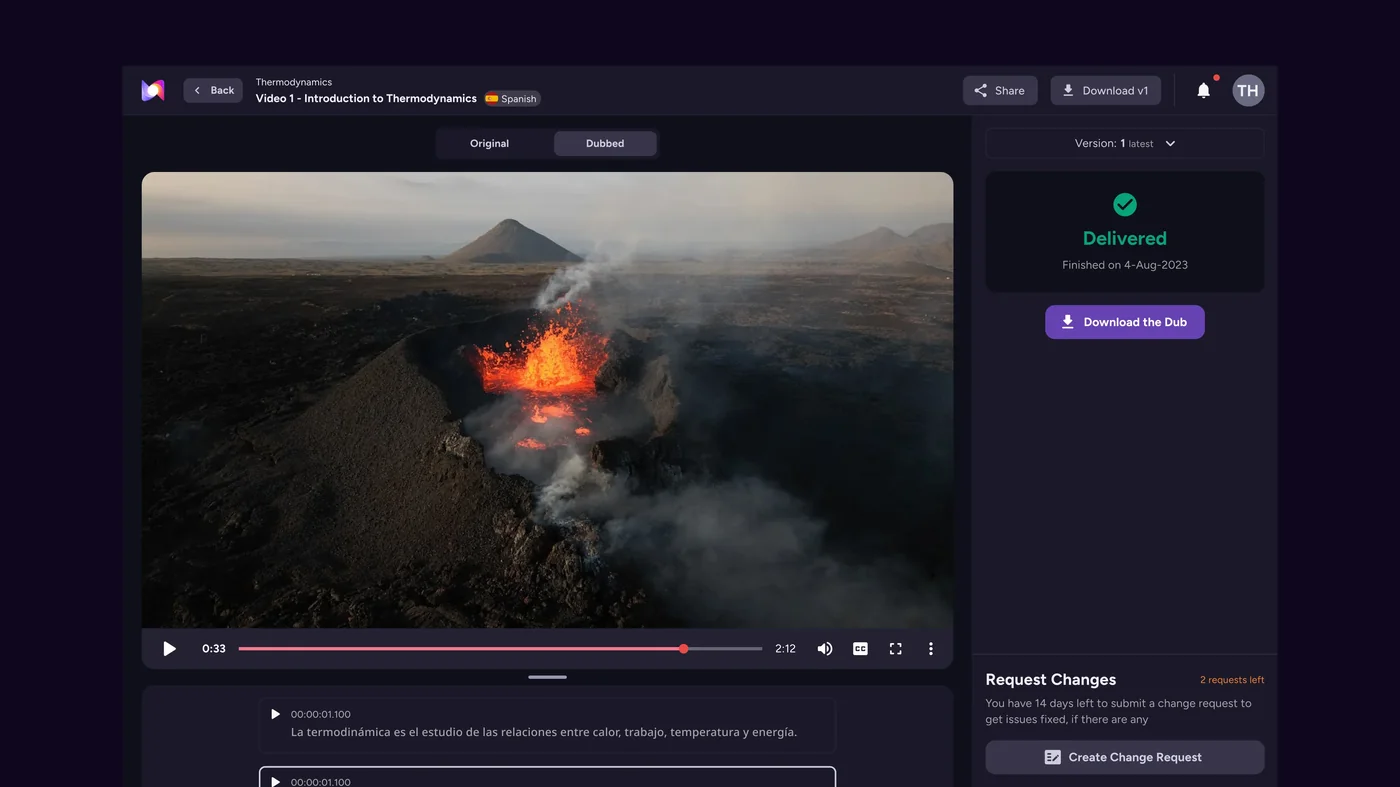
Step 5: Review the transcription before proceeding. The AI handles most speech accurately, but check for:
- Technical terms or brand names that may be misspelled
- Numbers and dates that need to appear correctly in the translation
- Any segments where background noise may have caused transcription errors
Fix any transcription errors now. Corrections at this stage propagate through to the translation and voice generation steps, saving you rework later. If your script needs polishing before you record the source video, the Murf script writing tips guide covers structure and phrasing that survives translation cleanly.
Language and Voice Selection
This is the step that determines the quality of your dubbed output. Take your time here.
Selecting target languages:
Click “Add Language” and choose from the available options. Murf AI supports 20+ languages for dubbing, including Spanish, French, German, Portuguese, Japanese, Korean, Hindi, and Mandarin Chinese. You can add multiple target languages in a single project and process them in parallel.
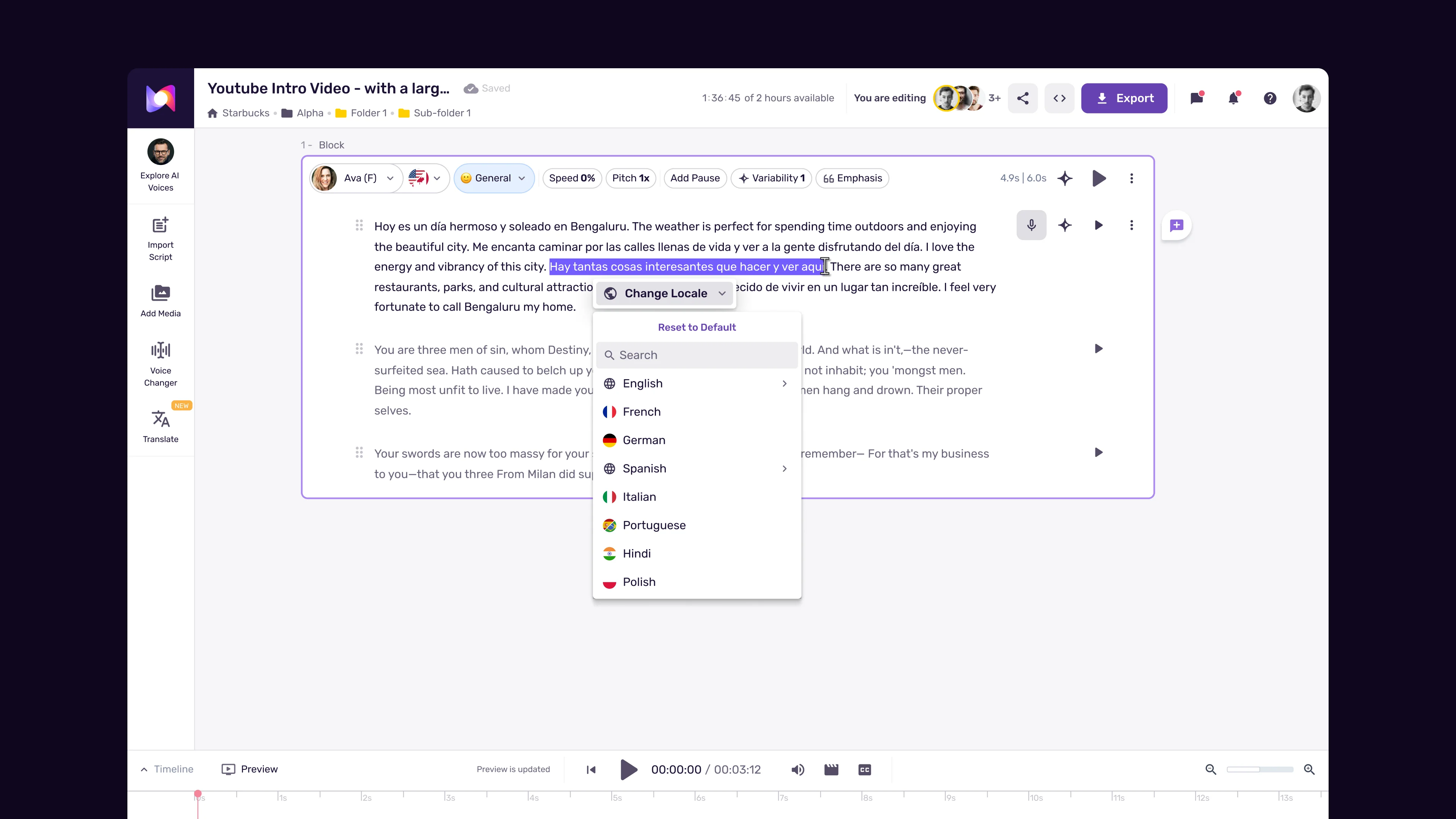
How MultiNative voice matching works:
The platform does not simply pick a random voice from the target language library. Instead, it analyzes the vocal characteristics of your original speaker - pitch, cadence, tone, energy level - and generates a voice in the target language that preserves those characteristics. The result is a dubbed version where the speaker sounds like themselves, just speaking a different language.
Voice selection options:
- Automatic matching (recommended for first-time users) - Let the AI select the best voice match based on the original speaker’s characteristics. This produces the most natural-sounding result in most cases
- Manual override - If the automatic match does not fit your needs, you can manually select a voice from Murf’s library for each target language. This is useful when you want a specific gender, age range, or speaking style that differs from the original
Language-specific considerations:
- Languages with significantly different sentence structures (like Japanese or Korean) may require timing adjustments after generation
- Tonal languages (Mandarin, Vietnamese) add complexity - review these outputs more carefully
- Romance languages (Spanish, French, Italian, Portuguese) tend to produce the smoothest results from English source material due to similar sentence cadence
Review and Edit Dubbed Audio
Once you select languages and initiate the dubbing process, Murf AI generates the dubbed audio tracks. Processing time varies by video length and number of target languages - expect 3-5 minutes per language for a 5-minute video.
Reviewing the translation:
The dubbed script appears alongside the original transcription in a side-by-side view. Even if you do not speak the target language fluently, check for:
- Obvious translation errors - Brand names, product names, and technical terms should remain untranslated or be transliterated correctly
- Segment length - Translated segments that are significantly longer than the original may cause timing issues. The AI handles most of this automatically, but extremely long translations may need manual trimming
- Tone consistency - Play through the dubbed audio and listen for any segments where the voice tone shifts unexpectedly
Editing the dubbed script:
You can edit the translated text directly in the editor. When you change the text, Murf AI regenerates the audio for that segment. Use this for:
- Correcting translation errors identified by native speakers on your team
- Shortening segments that run too long for the available time window
- Replacing translated brand names with the original (some brands should not be translated)
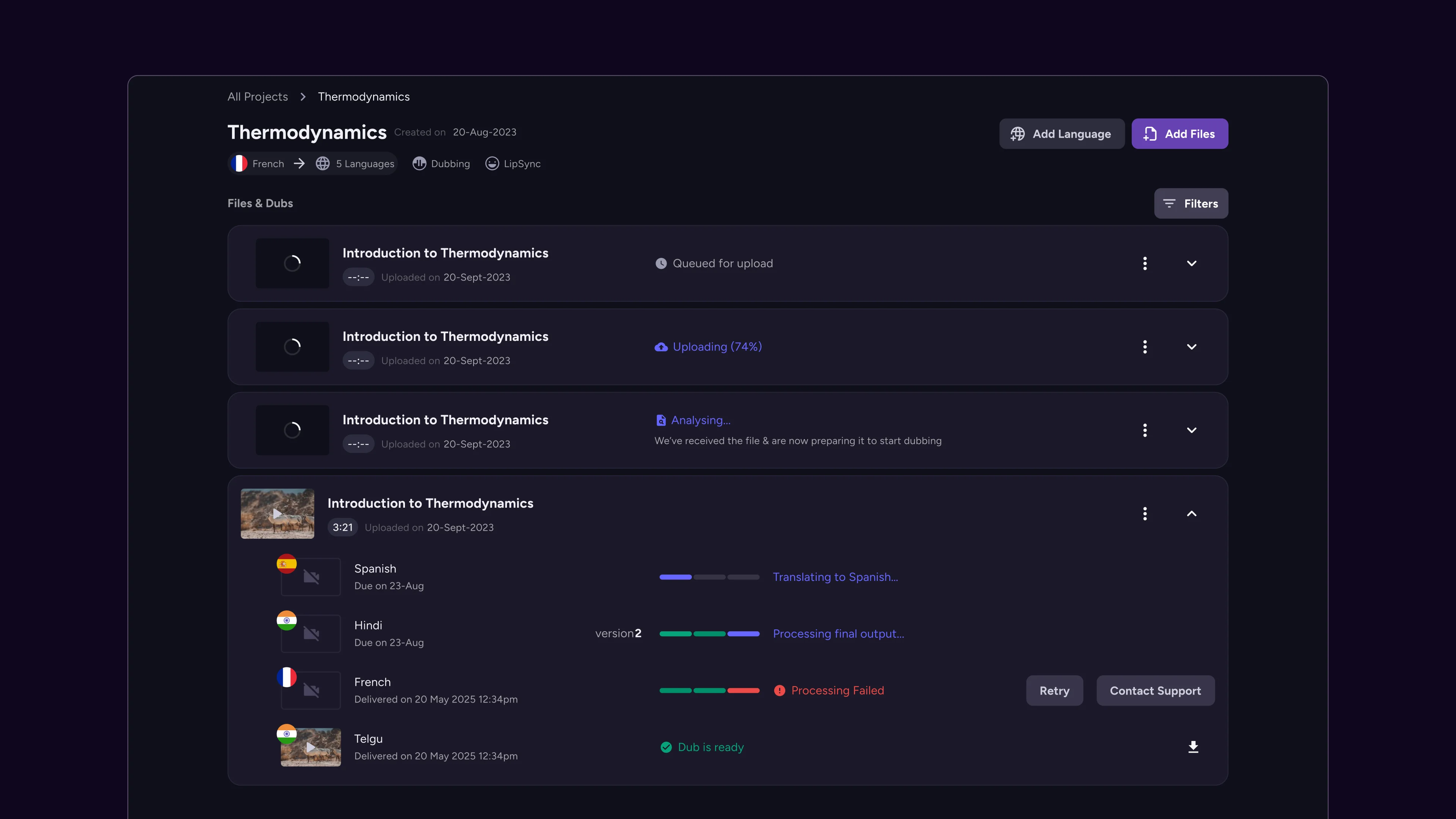
Quality review workflow:
- Play the entire dubbed video from start to finish without stopping
- Note timestamps where something sounds off - do not stop to fix issues on the first pass
- Go back to each noted timestamp and determine whether the issue is in translation, voice quality, or timing
- Make corrections and regenerate affected segments
- Do a final full playback to confirm all fixes
If you have native speakers available, send them the preview link for feedback before exporting. A 5-minute review by someone fluent in the target language catches issues that the AI and non-speakers miss.
Sync and Timing Adjustments
Lip-sync and audio timing are where AI dubbing gets tricky. Different languages express the same idea in different numbers of syllables, which means the dubbed audio rarely matches the original timing perfectly without adjustment.
Automatic lip-sync:
Murf AI’s automatic lip-sync feature adjusts the pacing of the generated audio to match the visual mouth movements in the video. This works by:
- Analyzing the video frames to detect when the speaker’s mouth opens and closes
- Adjusting the speed of the dubbed audio to fit within the same time windows
- Adding or removing micro-pauses to maintain natural speech rhythm
For most content - talking head videos, presentations, and screen recordings with a speaker overlay - the automatic sync is good enough for production use. You will notice occasional slight mismatches, but they are less distracting than you might expect.
Manual timing controls:
When automatic sync is not sufficient, the editor provides manual controls:
- Segment timing - Drag the start and end points of each audio segment to align with specific visual cues
- Playback speed - Adjust the speed of individual segments within a range that sounds natural (typically 0.9x to 1.1x)
- Pause insertion - Add pauses between segments to match the pacing of scene transitions or visual cues in the video
- Gap fill - When a translated segment is shorter than the original, choose between adding natural pauses or slightly slowing the speech to fill the gap
Common timing issues and fixes:
- German and Dutch translations tend to run longer than English. If segments overflow, try shortening the translated text while preserving meaning
- Japanese and Korean translations often run shorter. Use slightly slower speech speed or add natural pauses to fill the gap
- Sentences that span scene cuts - If the original video cuts to a new scene mid-sentence, the dubbed audio should pause at the same point. Adjust segment boundaries to match cut points
When to accept imperfect sync:
Perfect lip-sync on every frame is not realistic with current AI dubbing technology. For a broader look at AI video creation tools that complement dubbing in a production pipeline, see our roundup. Focus your timing adjustments on:
- The first and last words of each segment (these are where mismatches are most noticeable)
- High-visibility close-up shots of the speaker’s face
- Segments where the speaker is directly addressing the camera
For screen recordings, presentations, and videos where the speaker appears in a small overlay, timing precision matters much less. Spend your time on content accuracy instead.
Export Dubbed Video
Once you are satisfied with the dubbed audio and timing, exporting is the simplest step in the process.
Export options:
- Full video - Exports a complete video file with the dubbed audio track replacing the original. The visual track remains identical to your source file
- Audio only - Exports just the dubbed audio track as a separate file. Useful if you want to mix the dubbed audio in your own video editor with more control
- Multiple formats - Export as MP4 for general distribution, MOV for professional editing workflows, or other supported formats based on your delivery needs (see our export formats and quality guide for the full breakdown)
Export settings:
- Match the resolution and frame rate of your source video - do not upscale or change these settings
- Select the audio quality level (standard or high). High quality adds marginal file size but noticeably smoother audio
- Name the exported file with the target language included (e.g., “product-demo-spanish.mp4”) for easy organization
Batch export for multiple languages:
If you dubbed your video into several languages, you can export all versions in a single batch operation. Each language version exports as a separate file. This is significantly faster than exporting one at a time, especially for larger video files.
Post-export checklist:
- Play the exported file in a standard video player (not the Murf editor) to confirm audio and video are properly synchronized
- Check the file size - it should be comparable to your original source file
- Verify that the video quality has not degraded during the dubbing process
- Test the file in your distribution platform (YouTube, LMS, website) to confirm compatibility
Pro Tips
Optimize your source video for better dubbing results:
- Record with a high-quality microphone and minimal background noise. The cleaner your source audio, the better the voice analysis and regeneration quality
- Speak at a moderate, consistent pace in your original recording (see Murf pacing tips for benchmarks). For emotion control nuances that survive the dubbing process, review that guide before recording. Rapid speech or dramatic pace changes make it harder for the AI to produce natural-sounding dubs
- Avoid speaking over music or sound effects. If your video has a background music track, provide a version with just the vocal track for dubbing, then layer the music back in during post-production (the Frame.io guide to mixing music vs dialog covers this in depth)
Workflow efficiency tips:
- Start with your highest-priority language and perfect that version before moving to additional languages. Lessons learned on the first language apply to all subsequent ones
- Create a glossary of terms that should not be translated (brand names, product names, technical terminology) and review each dubbed version against this glossary
- Save your project settings and voice selections as templates for future videos in the same series (see Murf voice selection tips for picking voices that hold up across long content). Consistency across a video series matters more than perfection on any single video
Budget and planning tips:
- The Business plan at $99/month ($66/month annual) includes dubbing access with generous monthly minutes. Calculate your expected dubbing volume before choosing between monthly and annual billing
- Dubbing a 5-minute video into 5 languages consumes roughly 25 minutes of generation time. Factor this into your monthly quota planning
- For large batches of videos - like a full training course - consider processing during off-peak hours when the platform may respond faster
Quality assurance tips:
- Always have a native speaker review dubbed content before publishing (compare against the marketing voiceover workflow for additional QA steps). For broader multilingual strategy, also consult the Murf MultiNative guide on language-specific voice performance. AI dubbing is good, but cultural and linguistic nuance still benefits from human review
- Watch the dubbed video on different devices (laptop, phone, tablet) to check audio quality across speakers and headphones
- Keep your source video files organized and accessible. If you need to re-dub after updating the original content, having the source ready saves time
Frequently Asked Questions
How many languages does Murf AI dubbing support?
Murf AI currently supports dubbing in 20+ languages, including Spanish, French, German, Portuguese, Japanese, Korean, Hindi, Mandarin Chinese, and Arabic. The full list is available in the dubbing interface when you add target languages. New languages are added periodically as Murf expands their MultiNative voice technology - check the platform for the latest count.
Do I need a Business plan to use Murf AI dubbing?
Yes. The dubbing feature is available on the Business plan ($99/month, or $66/month annual) and Enterprise plans only. Free and Creator plans include text-to-speech and voiceover features but not video dubbing. If you are unsure whether dubbing fits your workflow, contact Murf’s sales team about a trial - they occasionally offer limited dubbing access for evaluation.
Can I dub videos with multiple speakers?
Murf AI dubbing works with multi-speaker videos, but the results require more careful review. The platform identifies distinct speakers in the audio and attempts to maintain each speaker’s vocal characteristics in the dubbed version. For best results with multi-speaker content, ensure each speaker has clear, non-overlapping dialogue in the source video. Crosstalk and overlapping speech degrade the quality of both transcription and voice regeneration.
How long does it take to dub a video?
Processing time depends on video length and the number of target languages. As a rough guide, a 5-minute video takes 3-5 minutes per language for the AI to process. A 10-minute video into 3 languages would take approximately 15-25 minutes of processing time. Your review and editing time adds to this - budget 30 minutes total for your first dubbing project, and expect the process to speed up significantly with experience.
What happens to background music and sound effects during dubbing?
Murf AI isolates the speech track from background audio during the dubbing process. The dubbed voice replaces only the spoken words - background music, sound effects, and ambient audio are preserved in the final output. However, if speech and music are heavily mixed in the source (common in promotional videos with loud background tracks), the separation may not be perfect. For the cleanest results, provide source videos where the vocal track is clearly dominant over background audio.
Can I edit the translation before generating the dubbed audio?
Yes. After Murf AI transcribes and translates your video, you can edit the translated text directly in the editor before generating the dubbed audio. This is particularly useful for correcting brand names, technical terms, and culturally specific phrases that automated translation may not handle correctly. Changes to the text trigger regeneration of only the affected audio segments, so you do not need to re-process the entire video.
Want to learn more about Murf AI?
Related Reading
- Murf AI Tool Page - Full platform review with pricing, features, and ratings
- Best AI Tools for Video Editors - Compare AI dubbing and video production tools
- Best AI Tools for Content Creators - AI tools for scaling multilingual content production
Related Guides
- Getting Started with Murf AI
- Murf Studio Interface Walkthrough
- Murf MultiNative: Multilingual Voiceovers
- AI Voiceover for YouTube Videos: Murf Workflow
- Murf AI Export Formats and Quality Guide
External Resources
- Murf AI Help Center - Official documentation for dubbing, voice generation, and platform features
- Murf AI MultiNative Dubbing Overview - Vendor-published explainer on MultiNative voice consistency across languages
- Dubbing (filmmaking) reference - Background context on traditional dubbing workflows and cultural considerations
Related Guides
- AI Voiceover Corporate Training With WellSaid Labs
- AI Voiceover for YouTube Videos: Murf Workflow Guide 2026
- AI Voiceover Tips: Making Synthetic Voices Sound Human
- ElevenLabs Getting Started: Complete Beginners Guide
- ElevenLabs Voice Cloning Tutorial: Complete 2026 Guide
- Luma Dream Machine Video Tutorial 2026: Text-to-Video & Ray3
- Murf AI Canva Integration: Add Voiceovers to Designs
- Murf AI Custom Pronunciation: Say It My Way Guide (2026)
- Murf AI eLearning Narration: Educator's Guide | Review 2026
- Murf AI Emotion Control: Voice Guide | Review 2026