
Murf AI emotion control is a slider-based system that adjusts how voices express feeling across four dimensions - Happy, Sad, Excited, and Serious - inside the Murf Studio editor. Built on Speech Gen 2 and trained on 70,000 hours of speech data, it offers natural vocal nuance for voiceovers without recording takes.
A flat, monotone voiceover can sink otherwise excellent content. Viewers click away from tutorials that sound like a GPS reading legal disclaimers, and training modules lose engagement the moment the narration feels robotic. The murf ai emotion control system solves this by giving you slider-based control over how each voice expresses feeling - from cheerful product demos to measured corporate narration - without recording a single take.
Murf AI (full Murf review) built its emotion controls on top of Speech Gen 2, the same engine that powers the Murf AI voice generator and was trained on over 70,000 hours of human speech data. The result is a set of four emotion sliders - Happy, Sad, Excited, and Serious - that shift voice delivery in ways that sound genuinely natural rather than artificially layered. Combined with pitch, speed, and emphasis adjustments, you get a level of vocal nuance that was not available in text-to-speech platforms even a year ago.
This guide walks through every aspect of the emotion control system: where to find it, how each slider affects output, which emotions pair with which content types, and advanced techniques for combining emotion with other voice parameters.
When to Use Murf AI Emotion Controls
Murf AI Emotion Control covers the strategies and tools that deliver real productivity gains in this space. Because Murf AI emotion control online tooling lives entirely inside the browser-based Studio editor, you can apply these adjustments from any modern computer without installing extra software. A flat, monotone voiceover can sink otherwise excellent content. This guide walks through the practical steps from setup through advanced optimization.
Not every voiceover project needs emotion adjustment. Understanding when emotion controls add value - and when the default neutral delivery works fine - saves you time and produces better results.
Emotion controls improve output when:
- The content has a clear emotional intent. A product launch announcement should sound excited. A customer apology video needs sincerity. A children’s story needs warmth. When your script carries emotional weight, the sliders help the voice match that intent. The Murf script writing tips guide covers writing copy that gives the AI cues to work with.
- You are producing long-form content. Audiobooks, full course modules (see our eLearning narration guide), and documentary narration benefit from emotional variation to maintain listener attention over 10, 20, or 60 minutes. A flat tone across a 30-minute training module causes listener fatigue faster than you might expect.
- Your audience expects personality. YouTube tutorials, podcast intros, and social media audio all perform better when the voice sounds like it belongs to someone who cares about the topic. The difference between a neutral read and a lightly enthusiastic one shows up directly in engagement metrics.
- You are creating ad reads or promotional content. Marketing voiceovers (covered in detail in our marketing voiceover workflow guide) need controlled energy. Too flat and the product sounds boring. Too excited and it sounds like a late-night infomercial. The sliders let you find the sweet spot. For podcast hosts, the Murf podcast intro and outro guide shows how to apply emotion controls to opening hooks and sign-offs without sounding theatrical.
Default delivery works fine when:
- Automated phone system prompts and IVR menus
- Data-heavy report narration where clarity matters more than tone
- Legal or compliance disclosures where a neutral voice is expected
- Internal documentation read-aloud for accessibility
Plan Requirements for Murf AI Emotion Control
Emotion controls are available on the Pro plan and above. Here is how the tiers break down for features relevant to emotion and voice customization:
| Feature | Free | Creator | Pro | Enterprise |
|---|---|---|---|---|
| Emotion sliders | No | No | Yes | Yes |
| Voice library (200+) | Limited | Full | Full | Full |
| Speed and pitch controls | Basic | Full | Full | Full |
| Emphasis marking | No | Yes | Yes | Yes |
| Voice Consistency Engine | No | No | Yes | Yes |
| Priority rendering | No | No | Yes | Yes |
The Business plan runs $99/month on a monthly billing cycle or $66/month annual when billed annually. Because the Murf AI emotion control free tier excludes the slider system, the upgrade to Business is what unlocks expressive delivery. If you are evaluating whether the emotion controls justify the upgrade from Creator, the annual Business plan costs roughly the same as hiring a voice actor for a handful of short projects. Check the Murf pricing page for current plan details and any active promotions.
Emotion Slider Walkthrough
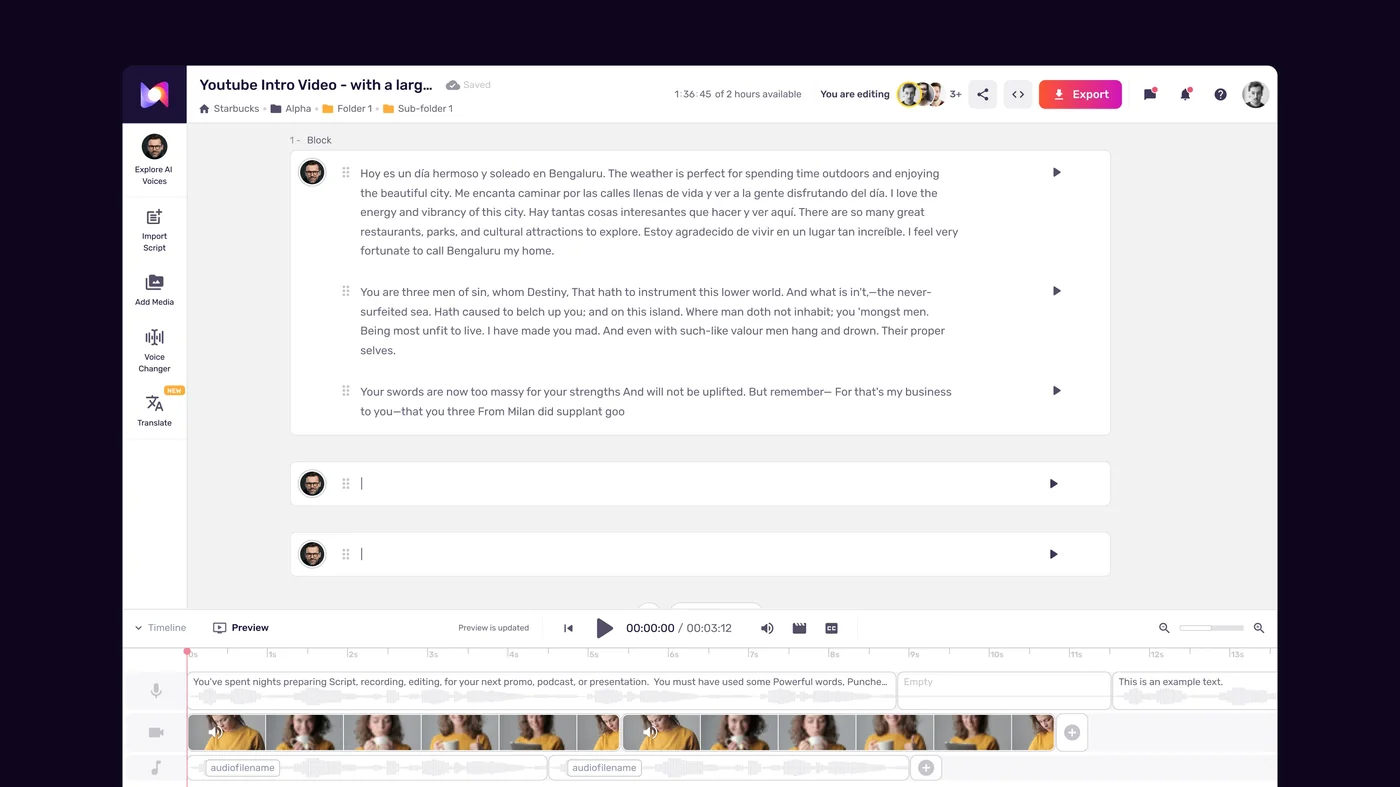
The emotion controls live inside the Murf Studio editor, accessible after you have added text to your project and selected a voice. Here is how to find and use them.
Step 1: Open your project in Murf Studio and select a text block.
Step 2: In the right-hand properties panel, locate the Voice Variability section. This is where the four emotion sliders appear alongside other voice parameters.
Step 3: You will see four sliders, each controlling a distinct emotional dimension:
- Happy - Adds warmth and uplift to the delivery (think of Ekman’s “joy” basic emotion rendered subtly in voice). At low values, the voice sounds pleasant without being overtly cheerful. At high values, the tone becomes noticeably bright and enthusiastic.
- Sad - Introduces a subdued, reflective quality. Useful for empathetic narration, memorial content, or any script that acknowledges difficulty or loss. At moderate levels, it reads as thoughtful rather than mournful.
- Excited - Increases energy and pace slightly. The voice sounds more animated and engaged. This is the slider that makes the biggest difference for product demos, announcements, and any content where you want the narrator to sound genuinely interested.
- Serious - Adds weight and authority. The delivery slows slightly, pitch drops, and the voice sounds more deliberate. Essential for corporate communications, compliance content, and news-style narration.
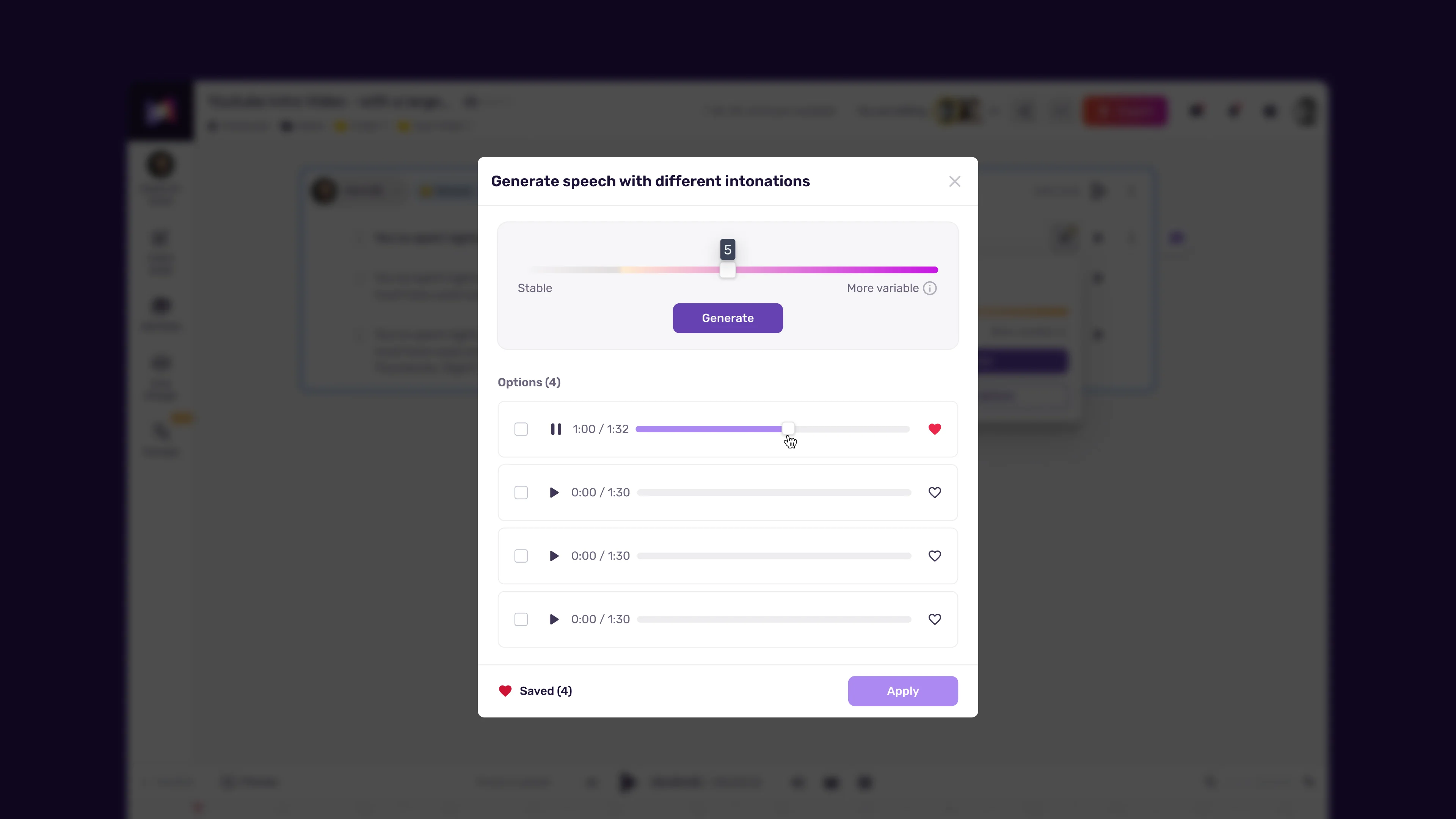
Step 4: Adjust each slider by dragging it or entering a numeric value. Start with small adjustments - moving a slider 20-30% from its default position produces a noticeable but natural shift. Pushing any slider to its maximum often sounds exaggerated.
Step 5: Click Generate or Preview to hear the result. Listen to the full passage, not just the first sentence. Emotion delivery can sound different at the beginning versus the middle of a longer block.
Step 6: Iterate. The most effective approach is to generate, listen, adjust one slider at a time, and regenerate. Changing multiple sliders at once makes it harder to identify which adjustment improved or worsened the output.
Important note: Not all 200+ voices respond identically to emotion sliders. Voices trained on a wider range of source material tend to produce more pronounced emotional variation (see our voice selection tips for picking expressive voices). If a particular voice sounds flat despite slider adjustments, try a different voice in the same language and accent category before assuming the feature is not working.
Which Emotions Match Which Content Types?
Knowing which slider to reach for depends on what you are producing. Here is a practical mapping between common content categories and recommended emotion settings.
Product demos and launch videos Set the Excited slider to 30-50% and Happy to 20-30%. This combination produces an energetic but controlled delivery - the narrator sounds interested without veering into infomercial territory. Keep Serious at 0% and Sad at 0%.
E-learning and training modules The Serious slider at 15-25% adds authority without making the voice sound stern. For course creation content where you want the instructor to sound knowledgeable but approachable, pair this with Happy at 10-15%. The subtle warmth prevents the narration from feeling like a lecture. See our eLearning narration guide for full workflow recommendations.
Corporate communications Set Serious to 30-40% for quarterly reports, investor updates, and policy announcements. The voice should convey competence and gravity. If the content includes positive news - strong earnings, new partnerships - add Happy at 10-20% to signal optimism without undermining the professional tone.
Customer testimonial narration Happy at 25-35% with Excited at 10-20%. The voice should sound genuinely pleased - like someone recommending a restaurant they actually enjoy, not like someone reading a script about a restaurant they have never visited.
Audiobook and storytelling This is where you will use the full range (the Audio Publishers Association tracks how voice direction shapes audiobook quality). Emotion settings should change between chapters and scenes. A tense dialogue scene might use Serious at 40% with everything else near zero. A lighthearted passage might push Happy to 30% and Excited to 15%. Mapping emotions to narrative beats before you start generating saves significant rework time.
Explainer videos and tutorials Happy at 10-20% and Excited at 10-15%. You want the voice to sound engaged and helpful without distracting from the instructional content. Too much emotion in an explainer video competes with the visuals for the viewer’s attention.
Meditation and wellness content Sad at 10-15% creates a calm, reflective quality. Pair this with zero on all other sliders. The goal is a voice that feels present and gentle. Anything above 20% on the Sad slider starts to sound melancholic, which is not what most wellness content aims for. For broader AI voiceover tips, see our dedicated guide.
How Do You Combine Murf AI Emotion Control with Speed and Pitch?
Emotion sliders alone get you 70% of the way to a natural-sounding voiceover. The remaining 30% comes from pairing emotion with speed and pitch adjustments. These three parameters interact with each other, and understanding that interaction is what separates adequate output from professional-grade results.
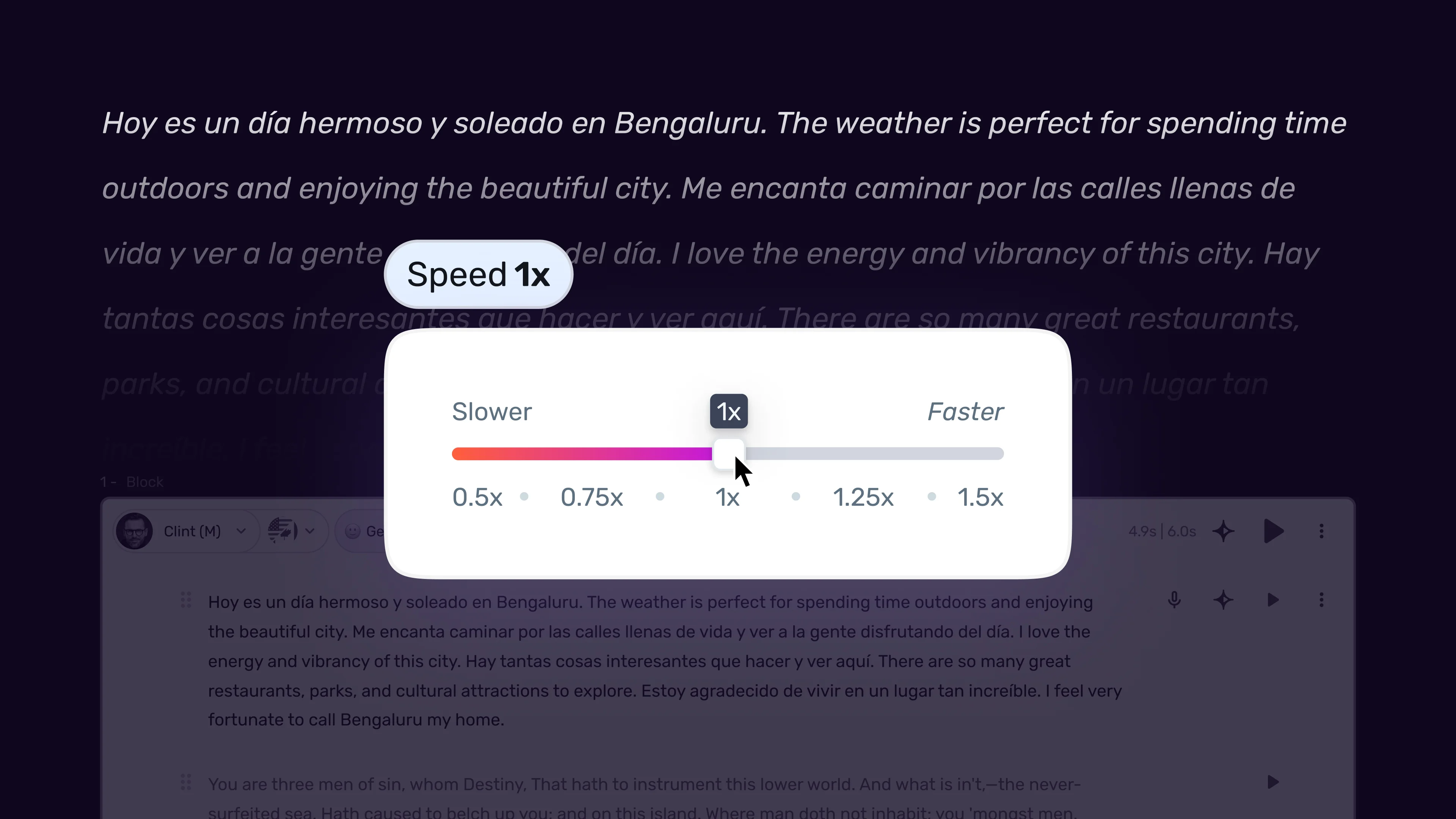
Speed and emotion reinforce each other. When you increase the Excited slider, the voice naturally picks up pace slightly (more on this in the pacing tips guide). If you also increase speed manually, the combined effect can sound rushed. The fix is simple: when using Excited at 30%+, reduce speed by 5-10% from your default to compensate. Conversely, the Serious slider slows delivery, so increasing speed by 5-10% maintains your target pace while keeping the authoritative tone.
Pitch shifts change how emotion is perceived. A higher pitch with Happy sounds youthful and energetic. A lower pitch with Happy sounds warm and reassuring. The same emotion slider value produces meaningfully different results depending on where you set the pitch. Experiment with pitch adjustments of plus or minus 5-10% alongside your emotion settings.
Emphasis markers add precision. While emotion sliders affect the entire text block, the emphasis feature in the Murf editor lets you highlight specific words or phrases for extra stress. Combining block-level emotion with word-level emphasis creates the kind of dynamic delivery that sounds hand-crafted rather than generated. For a deep dive into emphasis techniques, see the Murf AI Pronunciation and Emphasis Guide.
Practical combinations that work well:
| Content Type | Emotion Setting | Speed | Pitch | Result |
|---|---|---|---|---|
| Product demo | Excited 35%, Happy 20% | -5% | +5% | Energetic, clear |
| Training narration | Serious 20%, Happy 10% | Default | Default | Authoritative, approachable |
| News update | Serious 35% | +5% | -5% | Measured, credible |
| Story narration | Varies by scene | -10% | Default | Dramatic, paced |
| Meditation guide | Sad 10% | -15% | -10% | Calm, soothing |
Advanced Techniques
Once you are comfortable with the basic sliders, these techniques help you produce more polished and consistent output.
Scene-based emotion mapping. For any project longer than two minutes, create an emotion map before you start generating. Write down each section of your script and assign target emotion values. A product video might start with Excited at 30% for the hook, drop to Serious at 15% for the feature breakdown, and return to Happy at 25% for the call to action. Planning this upfront prevents the common mistake of generating everything at one setting and then re-doing sections.
Voice Consistency Engine integration. On Pro and Enterprise plans, the Voice Consistency Engine maintains tonal consistency across long-form content (also useful for voice cloning workflows). When you change emotion settings between text blocks, the engine smooths the transition so the voice does not sound like it suddenly switched personalities. This is particularly valuable for audiobook production where emotion needs to shift between paragraphs without jarring the listener.
A/B testing emotion settings. For marketing voiceover content, generate two versions of the same script with different emotion configurations. Export both and test them with a small audience segment before committing to a full production run. A script that reads as “professional” with Serious at 25% might perform better as “approachable” with Happy at 20% and Serious at 0% - but you will not know until you test.
Emotion profiles for recurring projects. If you produce a weekly video series or monthly training updates, document your emotion settings for each segment type. Keep a simple spreadsheet: intro (Excited 30%, Happy 15%), main content (Serious 15%, Happy 10%), outro (Happy 25%). This ensures consistency across episodes and saves setup time. When adjusting your overall pacing strategy, the Murf AI Pacing and Speed Tips guide covers speed profiles in detail.
Multi-voice projects with consistent emotion. When using multiple voices in a single project - for example, a dialogue between two characters or alternating narrators - apply the same emotion settings to both voices as a baseline, then adjust each voice individually. Starting from the same foundation prevents one voice from sounding dramatically different in tone from the other.
Language-specific emotion calibration. If you produce multilingual content using Murf’s MultiNative capabilities, be aware that emotion sliders may produce slightly different results across languages. The same 30% Happy setting might sound subtly brighter in English than in German, reflecting natural differences in spoken language prosody. Preview each language version independently and adjust as needed.
Pro Tips
-
Start at 20%. For any slider, 20% is the sweet spot between noticeable and natural. Adjust up or down from there based on what you hear, but beginning at 20% gives you a reliable starting point for any content type.
-
Only move one slider at a time. Adjusting Happy and Excited simultaneously makes it impossible to know which change improved the output. Change one, preview, then change the next.
-
Preview with headphones. Emotion nuances that are obvious in headphones can be inaudible through laptop speakers. Always preview through the same output device your audience will use - or at minimum, through decent headphones.
-
Use shorter text blocks for emotional content. The AI produces more consistent emotion delivery on blocks of 2-3 sentences versus full paragraphs. Split longer sections into smaller blocks when emotion accuracy matters. The Murf studio workspace walkthrough shows exactly how to split scenes in the editor.
-
Save your settings before experimenting. Note your current slider positions before trying alternatives. There is no undo for slider adjustments, and recreating a setting you liked but did not record is frustrating.
-
Match the voice to the emotion range you need. Some voices in the Murf library are inherently more expressive than others. If you need strong emotional range, preview 3-4 voices with the same emotion settings before committing. The Murf AI Voice Selection Tips guide covers how to evaluate voices for expressiveness.
-
Avoid maxing out opposing sliders. Setting both Happy and Sad to high values creates an unnatural delivery where the AI tries to express conflicting emotions. Treat the sliders as a spectrum - lean into one direction per text block.
Frequently Asked Questions
Do emotion controls work with all Murf voices?
Yes, all 200+ voices in the library support the emotion slider system. However, the degree of emotional variation differs between voices. Voices based on broader training data produce more pronounced shifts, while some voices respond more subtly to slider changes. If a voice sounds flat despite high slider values, try a different voice in the same language category rather than pushing sliders to their maximum.
Can I apply different emotions to different paragraphs in the same project?
Absolutely. Each text block in the Murf Studio editor has its own independent set of emotion sliders. You can set the first paragraph to Excited at 30% and the next to Serious at 25% without any conflict. The Voice Consistency Engine on Pro plans ensures smooth transitions between blocks with different emotion settings.
Will emotion controls increase my rendering time?
Not significantly. Emotion processing adds roughly 1-2 seconds to the generation time per text block compared to a neutral render. For a full project with 20-30 blocks, you might notice an additional 30-60 seconds total. Priority rendering on the Pro plan further reduces wait times.
Are emotion sliders available on the free plan?
No. Emotion controls require the Business plan ($99/month, or $66/month annual on annual billing) or the Enterprise plan. The free tier and Creator plan provide basic voice generation with speed and pitch controls, but the four-slider emotion system is a Business-tier feature. Visit the Murf pricing page to compare all plan features.
How do emotion sliders interact with voice cloning?
Cloned voices support the same four emotion sliders as library voices. The effectiveness depends on the emotional range present in your original voice sample. If your 2-minute recording sample was calm and measured, the cloned voice will respond more subtly to the Excited slider than a library voice trained on diverse emotional data. For best results with cloned voice emotion, record your sample with moderate expressiveness. Learn more in the Murf AI Voice Cloning 2.0 Setup Guide.
Can I export emotion metadata with my audio files?
No. Exported audio files (MP3, WAV, FLAC) contain only the rendered audio. Emotion slider values are not embedded as metadata in the exported file. If you need to track which emotion settings you used, document them separately in your project notes or emotion mapping spreadsheet.
Want to learn more about Murf AI?
Related Reading
- Murf AI Tool Page
- AI Voiceover Tips for Professional Audio Content
- AI Voiceover for Corporate Training
- Remote Work Audio Setup Guide
- Voice Productivity Tips
Related Guides
- Getting Started with Murf AI
- Murf AI Pronunciation and Emphasis
- Mastering Pacing in Murf AI
- Murf AI Voice Cloning Setup
- Murf AI Variability and Natural-Sounding Tips
External Resources
- Murf AI Help Center - Official documentation for emotion controls, voice cloning, and Speech Gen 2
- Paul Ekman’s Universal Emotions - Research foundation behind the four-emotion model used in vocal expression
- Speech Synthesis Reference - Background on how modern neural TTS engines like Speech Gen 2 produce expressive output
Related Guides
- AI Voiceover Corporate Training With WellSaid Labs
- AI Voiceover for YouTube Videos: Murf Workflow Guide 2026
- AI Voiceover Tips: Making Synthetic Voices Sound Human
- ElevenLabs Getting Started: Complete Beginners Guide
- ElevenLabs Voice Cloning Tutorial: Complete 2026 Guide
- Luma Dream Machine Video Tutorial 2026: Text-to-Video & Ray3
- Murf AI Canva Integration: Add Voiceovers to Designs
- Murf AI Custom Pronunciation: Say It My Way Guide (2026)
- Murf AI Dubbing: Complete Walkthrough | Complete Guide 2026
- Murf AI eLearning Narration: Educator's Guide | Review 2026