




How to schedule smarter with AI means using tools like Reclaim.ai, Motion, and Calendly to automate calendar coordination, defend focus time, and cluster meetings into longer uninterrupted blocks. This guide walks through auditing your current calendar, picking the right platform for your pain point, and building workflows that cut scheduling overhead each week.
The average professional spends 12 hours per week on scheduling-related tasks. That includes the email back-and-forth, the calendar Tetris, the awkward “does 3pm work for you?” threads, and the time spent staring at your week wondering where all your focus time went. Over a year, that adds up to roughly 624 hours - about 78 full workdays - lost to calendar logistics.
If you want to learn how to schedule smarter with AI, you’re in the right place. Whether you’re shopping for a Free AI scheduling assistant or ready to invest in a paid plan, this guide walks you through the exact process of setting up AI-powered scheduling, choosing the right tool for your situation, and building a calendar that actually serves your productivity instead of undermining it. No vague promises about “working smarter” - just concrete steps you can implement this week.
TL;DR: AI Scheduling Tools at a Glance
How to Schedule Smarter with AI is easier than most people expect with the right tools and approach. Whether you start with a Free AI scheduling app or jump straight to a paid plan, this guide walks through the practical steps to schedule smarter with AI, from choosing the right platform to building workflows that save hours each week.
Before diving into the how-to, here’s a quick comparison of the three tools this guide covers:
| Feature | Reclaim.ai | Motion | Calendly |
|---|---|---|---|
| Best For | Focus time + habit building | Auto-scheduling tasks and projects | External meeting booking |
| Starting Price | Free (Starter: $10/month annual) | Pro: $19/month | Free (Standard: $10/month annual) |
| AI Strength | Habit defense, task scheduling | Task auto-prioritization across projects | AI routing, no-show workflows |
| Ideal Team Size | 1-100 | 1-50 | Any size |
| Calendar Support | Google, Outlook (beta) | Google, Outlook, iCloud | Google, Outlook, iCloud |
| Standout Feature | ADHD-friendly time blocking | Rebuilds your day when priorities shift | Payment collection built in |
Why Manual Scheduling Fails (And What It Actually Costs)
Before jumping to solutions, it helps to understand exactly why your current approach is draining your time. Manual scheduling fails for three specific, measurable reasons.
The coordination tax grows exponentially. As Reclaim’s meeting statistics report notes, scheduling a meeting between two people takes 3-5 emails on average. Add a third person and it jumps to 8-12 messages. A four-person meeting across two time zones? You’re looking at 15-20 messages and 30+ minutes of coordination. AI scheduling tools eliminate this entirely by analyzing everyone’s calendars simultaneously and finding the optimal slot in seconds.
Your calendar doesn’t protect your priorities. When you manually manage your calendar, meetings fill the space where deep work should happen. A Harvard Business Review study found that 71% of senior managers considered meetings unproductive, yet the average employee’s meeting time has increased by 13.5% since 2020. Without AI defending your focus blocks, incoming meeting requests always win.
Context switching is invisible but devastating. Research from the University of California, Irvine shows it takes an average of 23 minutes to refocus after an interruption. A fragmented calendar with meetings scattered throughout the day doesn’t just waste the meeting time - it wastes the recovery time between each one. AI scheduling tools cluster meetings together automatically, creating longer uninterrupted blocks.
The financial cost is real. For someone earning $75/hour, 12 hours of weekly scheduling overhead adds up to $46,800 per year. Even cutting that by half - whether you reach for an AI schedule generator free of charge or a paid platform - pays for itself hundreds of times over.
How Do You Audit Your Current Calendar?
Before you set up any AI scheduling tool, spend one week tracking how you actually use your calendar. You need this baseline data to configure the tool properly and measure improvement later.
What to track:
- Meeting count: How many meetings do you have per week? Count them - don’t guess. Most people underestimate by 30-50%.
- Internal vs. external split: What percentage of meetings are with colleagues versus clients, prospects, or partners?
- Peak productivity hours: When do you do your best deep work? Morning, afternoon, evening?
- Actual focus time: How many hours of uninterrupted work (2+ hour blocks) do you get per week?
- Scheduling overhead: How much time do you spend coordinating meeting times via email, Slack, or DMs?
Why this matters for AI setup: Every AI scheduling tool asks you to define preferences - when you want focus time, which meetings are flexible, how much buffer you need between calls. If you skip this audit, you’ll configure the tool based on how you think you work rather than how you actually work. The gap between those two things is usually significant.
Quick exercise: Open your calendar right now and count last week’s meetings. Then count the ones that ran back-to-back with no break. According to Microsoft’s Work Trend Index, back-to-back meetings account for 40-60% of the average schedule - and every one of them is a context-switching penalty.
Which AI Scheduling Tool Should You Pick?
The right tool depends on your primary scheduling pain point. Here’s the decision framework.
Choose Reclaim.ai if you need to protect your own time
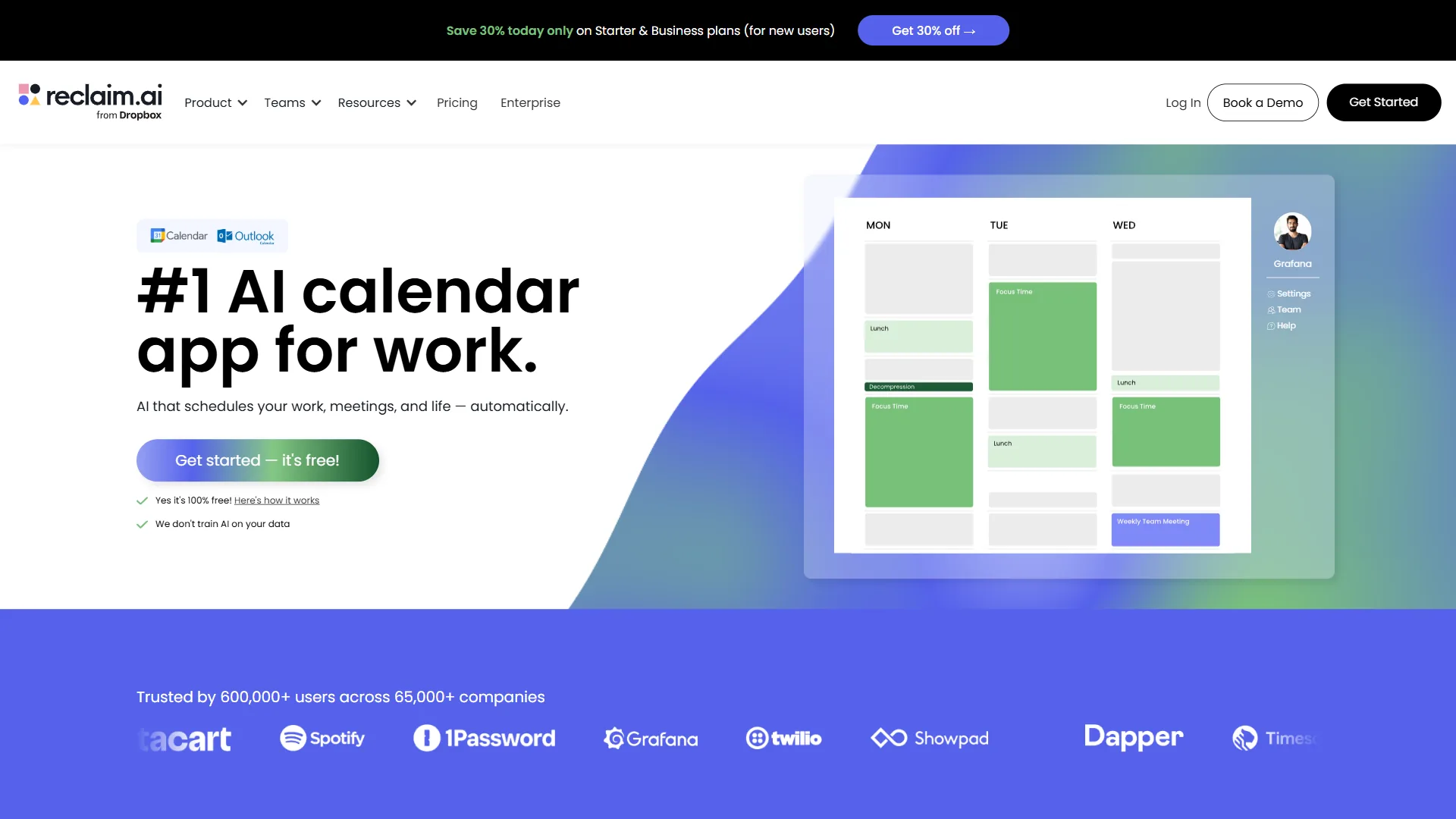
Reclaim.ai is the best choice for individual professionals who struggle with meeting overload and want to build consistent routines. Its standout feature is habit defense - you tell Reclaim you want to exercise at 7am, do deep work from 9-11am, and take lunch at noon, and the AI actively fights to protect those blocks when meetings try to take over. It flexes around conflicts but never abandons your habits entirely.
Best for: Protecting focus time from meetings, habit building, ADHD-friendly time blocking, smart 1:1 scheduling
Pricing:
- Lite (Free): 1 user, 1 habit, 1 scheduling link, unlimited tasks
- Starter ($12/month, $10/month annual annual): Up to 10 users, unlimited habits, 3 scheduling links, integrations with Asana, ClickUp, Todoist, Jira, Linear
- Business ($18/month, $15/month annual annual): Unlimited users and scheduling links, advanced analytics, webhooks, delegated access
- Enterprise: Custom pricing, SSO, SCIM provisioning
Reclaim also integrates bidirectionally with project management tools. Connect Asana or Jira, and your tasks automatically get time-blocked on your calendar based on deadlines. Complete a task in either place and it syncs.
Choose Motion if your task list is overflowing
Motion is built for people whose problem isn’t just meetings - it’s the mountain of tasks competing for the gaps between them. The platform combines task management, project planning, and calendar scheduling in one place. Add a task with a deadline and a duration estimate, and Motion drops it into the optimal slot based on priority and dependencies. When something slips or a new meeting lands, the AI rebuilds your day automatically.
Best for: Solo operators and small teams juggling many concurrent projects, founders, freelancers, ADHD-friendly task triage
Pricing:
- Pro AI ($19/month/user monthly): Auto-scheduling, task management, project planning, calendar booking links
- Business AI ($29/month/user): Team collaboration, project templates, workload balancing, advanced reporting
- Enterprise: Custom pricing with SSO, SCIM, dedicated onboarding
Motion’s AI calendar engine is the differentiator. Type a task with a “must finish by Friday” deadline and the engine slots it into the next viable block, pushes lower-priority work, and respects your meeting buffers and working hours. Reschedule one item and the entire week recalculates in seconds.
Choose Calendly if external booking is your bottleneck
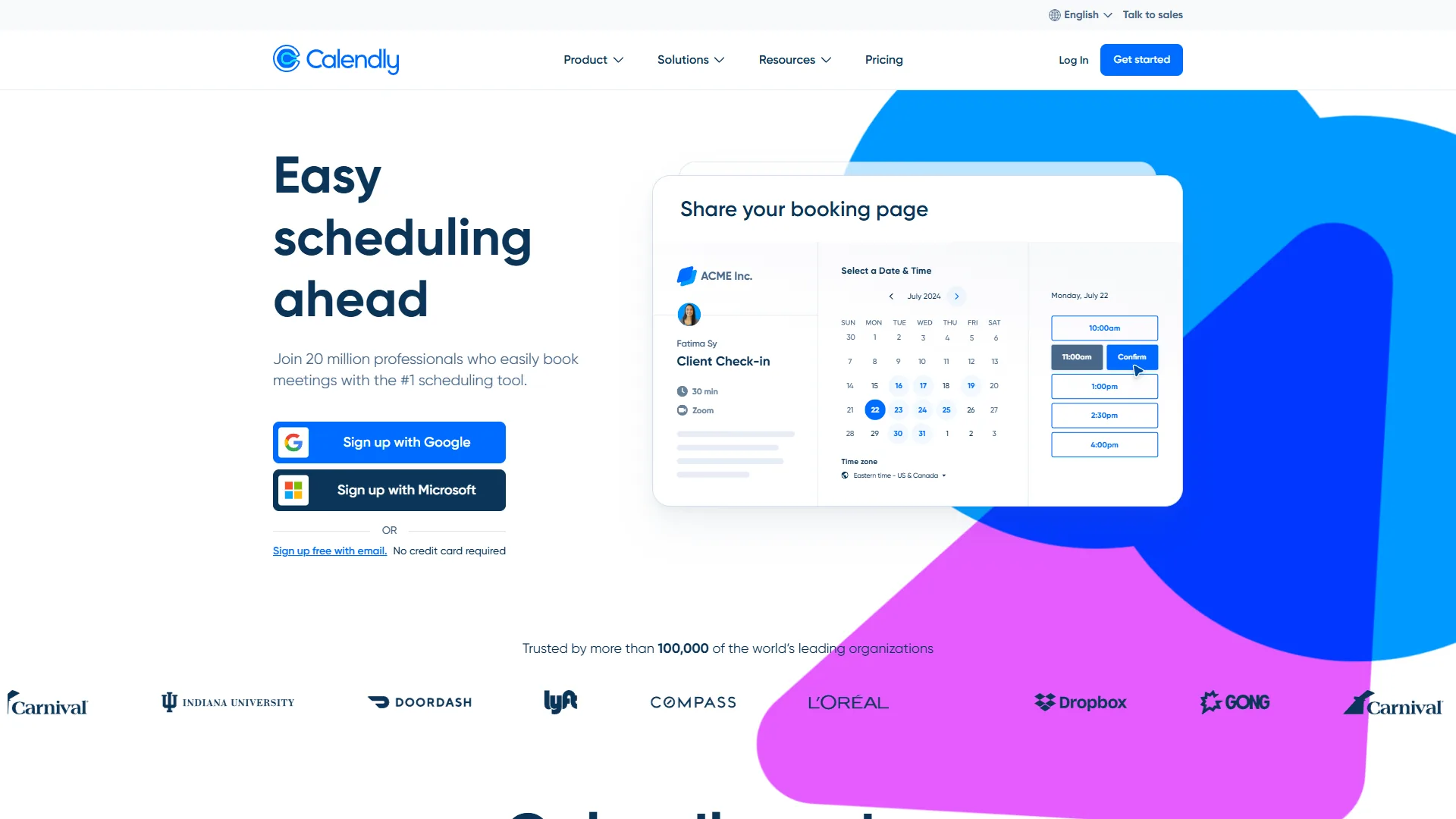
Calendly is the right pick when your scheduling problem is primarily external - clients booking consultations, prospects scheduling demos, candidates booking interviews. With 20M+ users, it’s the industry standard for external scheduling automation. The booking flow is polished, integrations are rock-solid, and the time zone handling is flawless across 12+ zones.
Best for: Sales teams booking demos, consultants and freelancers, recruiting and HR teams, customer success
Pricing:
- Free: 1 event type, 1 calendar connection, basic booking page
- Standard ($12/month, $10/month annual annual): Unlimited event types, integrations (Zoom, Teams, HubSpot, Stripe), workflows, 250 SMS credits
- Teams ($20/month, $16/month annual annual): Round-robin, AI-powered routing, Salesforce, analytics, admin controls
- Enterprise: Custom pricing (starts $15K/year, 30+ seats), SSO, SCIM, compliance tools
Calendly’s AI-powered routing (Teams tier) automatically sends meetings to the right team member based on availability, skills, and workload. And its no-show workflows - automatic reconfirmation emails plus SMS reminders - reduce no-show rates by roughly 50%.
Step 3: Set Up Your AI Calendar (First 30 Minutes)
Once you’ve picked your tool, the initial setup takes about 30 minutes. Here’s a universal process that works across all three platforms.
1. Connect your calendars (5 minutes). Link your primary work calendar (Google Calendar or Outlook) plus any secondary calendars the tool should check for conflicts. If you have a personal calendar that affects your availability, connect that too - otherwise the AI might schedule focus time during your dentist appointment.
2. Define your working hours (5 minutes). Set when you’re available for meetings versus when you’re off-limits. Be honest with yourself here. If you never take calls before 9am, set 9am as your start time. AI tools work better with accurate constraints than with aspirational ones.
3. Set your focus time preferences (10 minutes). This is where the value starts. Tell the tool how many hours of focus time you need daily (2-4 hours is typical), when you prefer it (morning is best for most people’s cognitive performance), whether focus blocks should appear as “busy” to colleagues, and what the minimum block length should be. Two hours is the sweet spot for deep work - anything shorter and you don’t have time to reach flow state.
4. Configure meeting buffers (5 minutes). Add buffer time before and after meetings. Fifteen minutes after every meeting for note-taking and mental recovery, and 10 minutes before for preparation. This single change prevents the back-to-back meeting spiral that destroys your afternoon energy.
5. Create your first scheduling link (5 minutes). Set up at least one scheduling link for external bookings with your preferred duration, buffer time, and available hours. Customize the booking page branding. Then put the link in your email signature - you’ll start seeing results immediately.
Step 4: Configure the Advanced AI Features
After the basics are running, spend another 20-30 minutes configuring the features that separate casual users from people who’ve truly learned how to schedule smarter with AI.
For Reclaim.ai: Set up habits and task sync
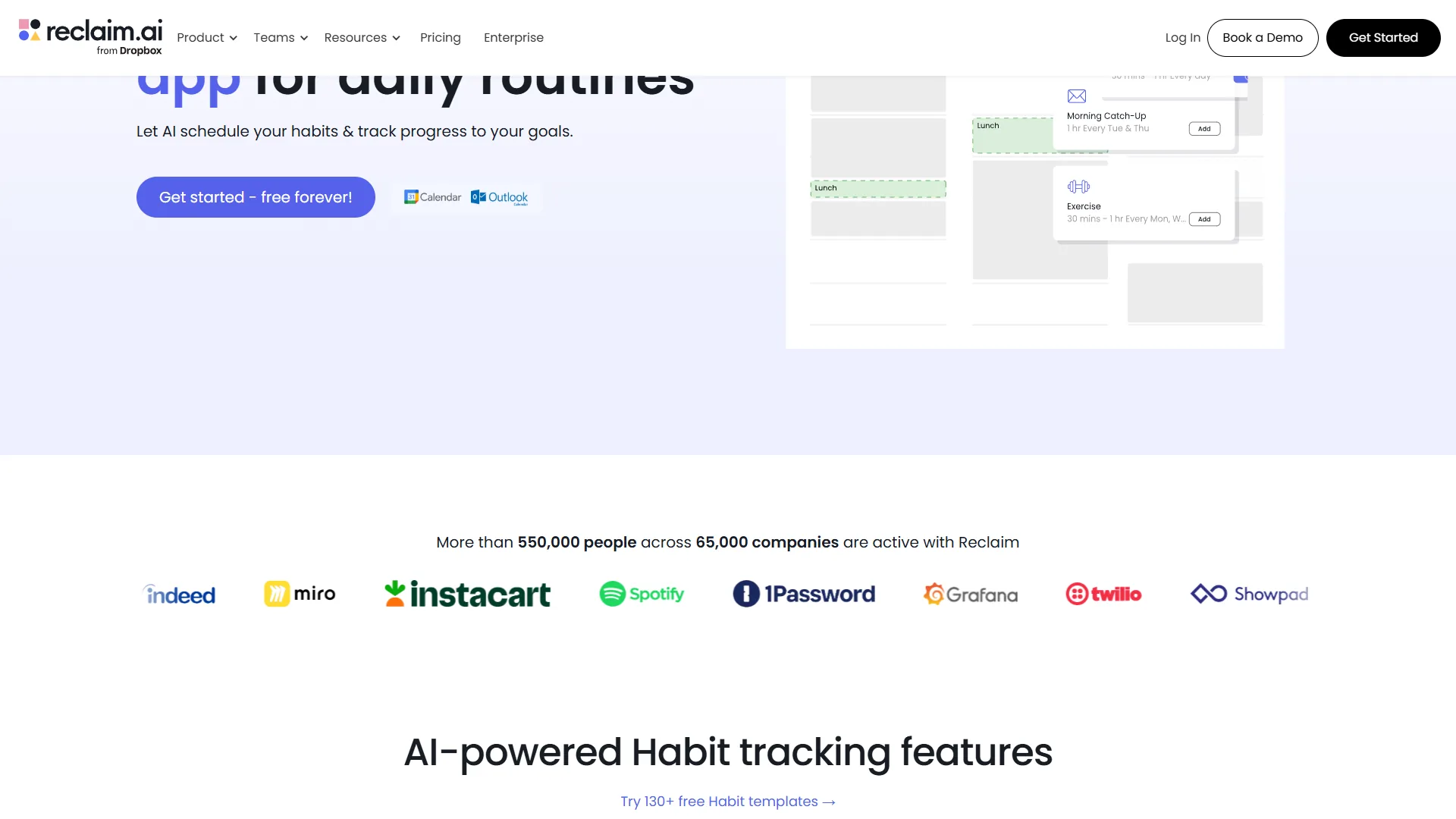
Habits are Reclaim’s most powerful feature. Navigate to the Habits section and create recurring blocks for activities that matter:
- Morning focus time - 2 hours, weekdays, 9-11am ideal window
- Exercise - 1 hour, Mon/Wed/Fri, 7-8am ideal
- Lunch - 30-60 minutes, daily, noon ideal
- Learning/reading - 1 hour, Tue/Thu, 4-5pm ideal
For each habit, set your ideal time, minimum duration, and how aggressively Reclaim should defend it using the importance slider. The AI finds the best available slot and automatically reschedules when conflicts arise - but it never abandons your habit entirely. It just flexes to a different time.
Pro tip: On the free Lite tier, you’re limited to 1 habit. Start with focus time - it delivers the highest ROI per dollar. Upgrade to Starter ($10/month annual annual) when you want unlimited habits and task manager integrations.
Next, connect your project management tool (Asana, ClickUp, Todoist, Jira, or Linear). Reclaim will automatically block calendar time for tasks based on their deadlines and priority. If a meeting gets scheduled during a task block, Reclaim moves the task block to the next available slot.
For Motion: Build projects and let the AI plan your week
Motion’s value compounds the more context you give it. Here’s how to configure it for maximum impact:
Set deadlines and durations on every task. Motion’s scheduler is only as good as the inputs. For each task, add a hard or soft deadline plus an honest time estimate. If something usually takes you 90 minutes, don’t write 30 - the AI will overpack your day and miss every deadline. Realistic estimates produce realistic plans.
Group work into projects. Create a project for each major initiative and add tasks underneath it. Motion uses project priority to rank conflicting tasks, so a “Q2 launch” project will outrank a “nice to have” cleanup. You can also set blocking dependencies, which the AI respects when ordering work.
Use the natural-language task capture. Type something like “draft proposal for Acme by Thursday, 2 hours” and Motion parses the duration, deadline, and project context automatically. The faster you can get tasks into the system, the more accurately your week reflects reality - and the AI handles the slotting from there.
For Calendly: Build purpose-specific workflows
Don’t use a single generic “30-minute meeting” link. Create purpose-specific event types:
- Discovery call (15 min) - Brief intro for potential clients
- Strategy session (45 min) - Deep-dive consulting engagement
- Demo (30 min) - Product walkthrough for prospects
- Quick sync (15 min) - Internal check-ins or short follow-ups
For each type, enable no-show workflows (automatic reconfirmation emails 24 hours before, SMS reminders 1 hour before) and add 1-3 qualifying questions. Pre-filtering prospects (“What’s your budget range?” or “What problem are you trying to solve?”) gives you context before the meeting starts and weeds out poor-fit leads.
Step 5: Train the AI (Weeks 1-3)
Here’s what most scheduling guides skip: AI scheduling tools need 2-3 weeks to learn your preferences. During this training period, your active feedback shapes the system’s behavior.
Week 1: Trust but verify. Check every AI-made decision daily, the same approach HBR recommends for any AI-augmented workflow. Did Reclaim schedule focus time at 6am? Override it and the tool learns that’s not acceptable. Did Motion pack your Tuesday with low-priority tasks? Reorder them and adjust the project priority. Every override teaches the AI what matters to you.
Week 2: Expand control gradually. As the AI makes better decisions, mark more meetings as flexible. Allow the tool to auto-accept or auto-decline scheduling requests based on your rules. Increase buffer times if you notice you’re still feeling rushed between calls.
Week 3: Measure results. Compare your current week to the baseline audit from Step 1. How many hours of focus time do you have now versus before? How much time are you spending on scheduling logistics? Most users see 4-7 hours saved per week by this point.
What to expect per tool:
- Reclaim.ai typically reaches full optimization after 2 weeks of habit and task data, and the team’s product blog details how the priority engine learns over time
- Motion needs about 2 weeks of consistent task input before its priority ranking matches your real preferences
- Calendly has a shorter learning curve since its AI features (routing, workflows) are rule-based rather than adaptive
Step 6: Optimize Monthly and Stack Your Tools
Once the AI has learned your patterns, review and fine-tune your setup on a monthly basis.
Monthly review checklist:
- Are your focus time blocks actually being used for deep work, or are you wasting them on email?
- Which meetings should be shorter, async, or eliminated entirely?
- Is the tool creating too many or too few focus blocks?
- Are your scheduling links converting? Check booking rates and no-show percentages.
- For Motion, are your deadlines and duration estimates still accurate, or is the AI consistently missing because the inputs are off?
Advanced strategy: Stack your tools. Many power users run two tools in parallel. The most common combination is Reclaim.ai for personal calendar optimization (habits, focus time, task blocking) alongside Calendly for external meeting booking. The two don’t conflict - Reclaim protects your internal time while Calendly handles external bookings within your available windows.
Another effective pairing is Motion for project and task auto-scheduling plus Calendly for external bookings. Motion plans the deep work, and Calendly only offers external bookers the slots Motion has left available.
Frequently Asked Questions
How much time does AI scheduling actually save?
Most users report 4-7 hours saved per week, depending on meeting load. Reclaim.ai’s case study with QuitCarbon showed 7.6 hours saved per user per week. Calendly’s data suggests 4+ hours weekly from eliminated email coordination alone. The savings come from three areas: reduced coordination time, protected focus blocks, and fewer context switches between meetings.
Are these tools safe to give calendar access to?
All three tools use OAuth-based calendar connections with enterprise-grade security. They read your calendar to check availability and write events (meetings, focus blocks) to your calendar. None share your calendar data with third parties. Reclaim.ai and Motion both publish SOC 2 reporting, and Calendly’s Enterprise tier adds SSO and SCIM provisioning for IT-managed deployments.
Can I use AI scheduling with Outlook?
Calendly works seamlessly with Outlook, including Exchange Online. Motion supports Google, Outlook, and iCloud with full feature parity. Reclaim.ai launched Outlook support in 2026, though the integration is still maturing - Google Calendar users get the more polished experience. If you’re exclusively on Outlook, Calendly or Motion are the safer bets for complete feature support.
Will AI scheduling tools move my meetings without asking?
Reclaim.ai and Motion can both rearrange flexible items automatically - that’s part of their value. But you have full control over which meetings and tasks are movable. Mark anything as “fixed” or “unmovable” and the AI won’t touch it. Both tools also let you review suggested changes before they take effect during the initial training period. Start with fewer flexible items and expand as you build trust.
What if my team is very small (under 5 people)?
For teams under 5, you don’t need heavy team-coordination features - the value is mostly per-user. Reclaim.ai’s Starter tier ($10/month annual annual, up to 10 users) is a great fit for small teams, especially with its Smart Meetings feature that automates recurring 1:1 scheduling. Motion’s Pro plan works well for solo operators and tiny teams who need task auto-scheduling on top of meeting management. Calendly works at any size since its value is per-user rather than network-dependent.
Can I use multiple AI scheduling tools together?
Yes, and many power users do exactly this. The most popular combination is Reclaim.ai (internal calendar optimization) plus Calendly (external booking). They complement each other without creating conflicts. Reclaim protects your focus time, and Calendly only offers available slots to external bookers. Both connect to your same calendar.
The Bottom Line: How to Schedule Smarter with AI
Learning how to schedule smarter with AI isn’t about adopting the fanciest tool - it’s about solving your specific scheduling problem with the right solution. If meetings are eating your focus time, Reclaim.ai defends your calendar with habit scheduling no competitor can match. If your task list is the real chaos, Motion auto-schedules every project and rebuilds the day whenever priorities shift. If external booking is your bottleneck, Calendly eliminates the email back-and-forth with the most polished scheduling links in the market.
The setup takes about an hour. The training period is 2-3 weeks. And the payoff - 4 to 7 hours reclaimed every single week - starts almost immediately. That’s over 200 hours per year you get back for actual work, learning, or simply not being stressed about your calendar.
Every tool on this list has a free tier or free trial. Start there, follow the steps in this guide, and measure your results after 30 days. If you want to explore even more options, our best AI calendar tools roundup covers additional platforms beyond these three. Your future self will thank you for the investment.
Want to learn more about Reclaim AI?
Related Guides
- 15 Calendly Tips and Tricks to Schedule Smarter in 2026
- Protect Your Focus Time: AI-Powered Productivity Tips
- AI Scheduling Assistants: Automate Your Calendar in 2026
- Calendar Blocking for Deep Work: AI vs Manual Techniques
External Resources
- Reclaim.ai - Smart Calendar for Busy Teams
- Motion - AI Calendar and Project Management
- Calendly - Scheduling Automation Platform
- Harvard Business Review: Dear Manager, You’re Holding Too Many Meetings
Related Guides
- 15 Calendly Tips and Tricks to Save 4+ Hours Weekly
- ActiveCampaign CRM Setup: How to Set Up ActiveCampaign CRM
- AI Workflow Automation Maturity Model: 5 Levels
- Client Onboarding Automation: Automate Client Onboarding
- Focus Time Productivity: 2026 Walkthrough for Teams
- How to Manage Clients with AI Without Hiring in 2026
- Meeting Culture Reform AI: 2026 Walkthrough for Teams
- Tidio Lyro AI Tasks Actions: Custom Workflows Guide