





AI video creation tips are practical techniques that help creators turn text prompts into studio-quality video using tools like Runway, Kling AI, Pika, Synthesia, and HeyGen. This guide covers 12 workflows - prompt engineering, the S.A.C.S. formula, and storyboarding discipline - that cut regeneration waste by 60-70% and save 10+ hours weekly.
Creating professional videos used to require expensive equipment, editing software expertise, and hours of production time. Now, AI video creation tips can transform your workflow and deliver studio-quality results in minutes instead of days.
Every major text-to-video AI generator has matured significantly over the past 18 months. The difference between mediocre AI videos and professional-grade content isn’t the tool you use - it’s how you use it. These 12 AI video creation tips will save you 10+ hours per week and help you create videos that don’t scream “AI-generated.”
What Is the State of AI Video in 2026?
AI Video Creation Tips cover the settings, shortcuts, and workflows that most users overlook. Knowing these techniques turns a basic setup into a productivity system that saves hours each week. This guide focuses on the high-impact adjustments that deliver immediate results.
Before diving into specific tips, understand where we are: Gen-4.5 models from Runway now match professional camera quality, Kling AI’s Video 2.6 engine generates native audio, and Pika’s Pikaffects let you manipulate physics in ways impossible with traditional filming.
But here’s the reality check: 87% of AI videos get abandoned before publishing because creators skip the pre-production fundamentals. Let’s fix that.
1. Start with Script and Storyboard (The 5-Minute Rule)
The biggest mistake in AI video creation? Typing random prompts and hoping for magic.
The 5-Minute Rule: Spend 5 minutes planning for every 1 minute of final video. For a 30-second clip, that’s 2.5 minutes of script development and storyboarding.
Practical workflow:
- Write your shot list in a simple text file
- Number each scene (Scene 1, Scene 2, etc.)
- Define one action per scene
- Specify camera angle and movement
- Note audio requirements (voiceover, music, sound effects)
This pre-production discipline reduces regeneration waste by 60-70%. Instead of generating 10 variations hoping one works, you’ll nail it in 2-3 attempts.
How Do You Master Prompt Engineering Fundamentals for AI Video?
AI video generators aren’t mind readers. Vague prompts like “sunset beach scene” produce generic stock footage. Specific prompts create cinematic moments.
The anatomy of a great video prompt:
[SUBJECT] + [ACTION] + [CAMERA MOVEMENT] + [SCENE/ENVIRONMENT] + [STYLE/MOOD]Weak prompt:
Person walking in cityEngineered prompt:
Professional woman in navy blazer walking confidently through
downtown Manhattan at golden hour, slow tracking shot following
from behind, glass skyscrapers reflecting sunset, cinematic
shallow depth of field, vibrant urban energy
The second prompt gives the AI specific visual references: subject detail (navy blazer), action context (confident walk), camera technique (tracking shot), environment markers (Manhattan, glass skyscrapers), and mood cues (golden hour, vibrant energy).
3. Use the S.A.C.S. Prompt Formula
This framework is based on patterns found across high-performing AI video prompts. S.A.C.S. ensures you never miss critical elements:
S - Subject: Who or what is the focus?
- Bad: “a person”
- Good: “elderly jazz musician with silver beard”
A - Action: What’s happening?
- Bad: “playing music”
- Good: “playing saxophone solo, eyes closed, swaying to rhythm”
C - Camera: How is it filmed?
- Bad: (no camera direction)
- Good: “close-up dolly-in, 24fps, shallow focus on musician’s hands”
S - Scene: Where and when?
- Bad: “at night”
- Good: “dimly lit jazz club, warm amber stage lights, smoke in air, intimate 50-person venue”
Example S.A.C.S. prompt:
S: Bengal tiger with piercing amber eyes
A: slowly emerging from dense jungle foliage, head turning toward camera
C: cinematic reveal shot, 4K, slow motion, depth of field isolating tiger
S: misty rainforest at dawn, dappled sunlight through canopy, tropical atmosphere
This formula works across all AI video generators - Runway, Kling AI, Pika, Synthesia, and HeyGen all respond better to structured prompts.
Which AI Video Tool Should You Choose for Your Budget?
Not all AI video generators are created equal. Here’s how to match your budget to the right platform:
Free Tier Strategy
Best for: Testing, learning, low-stakes content
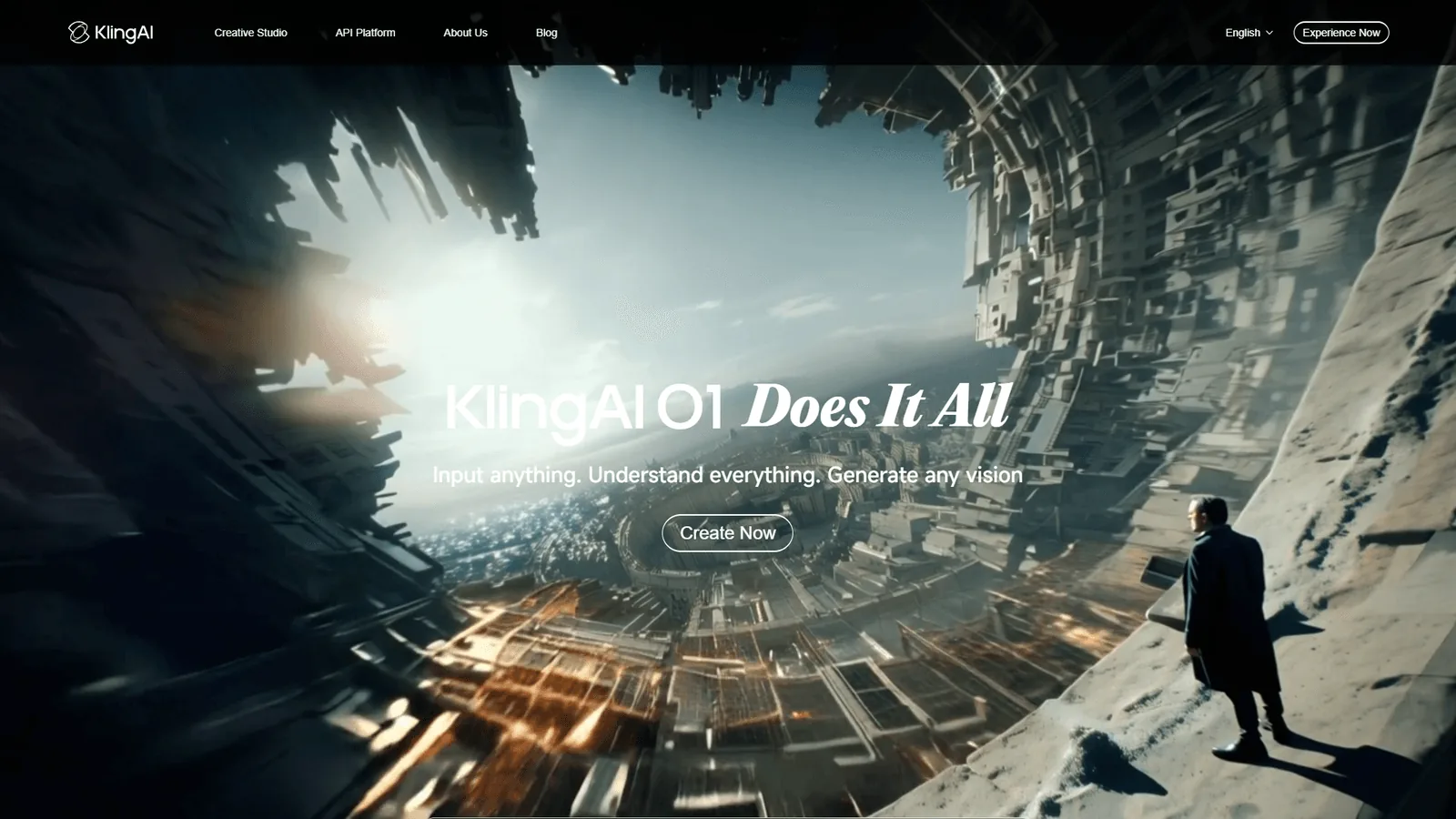
Kling AI offers 66 daily credits on their free plan - that’s roughly 2-3 video generations per day. Use this for social media experiments and concept validation.
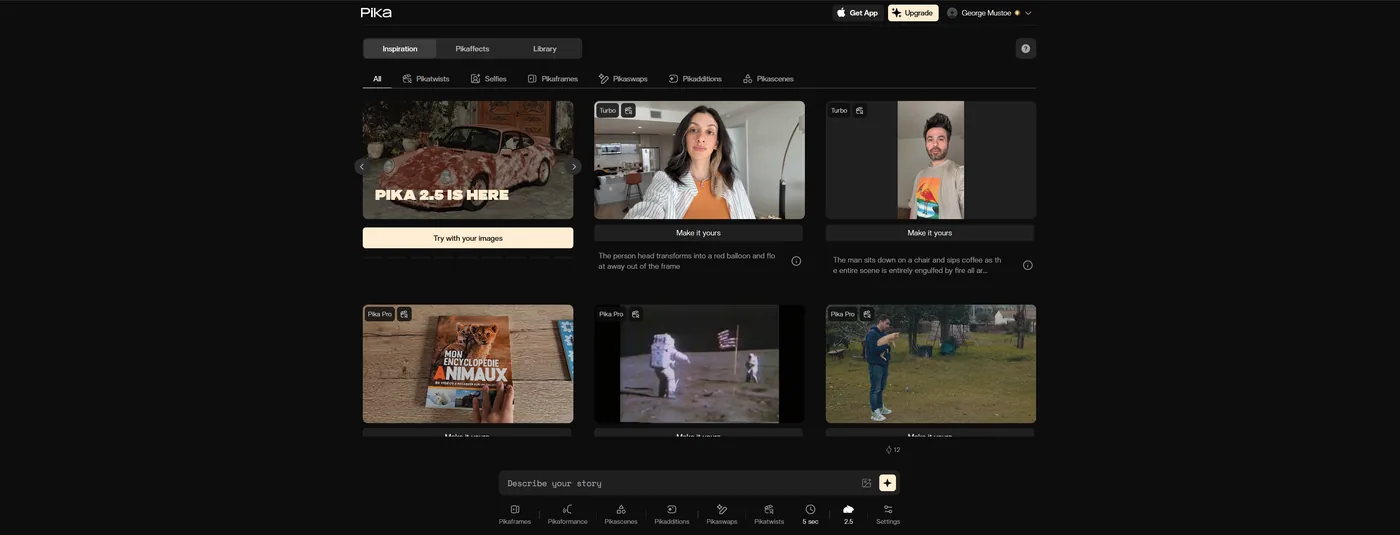
Pika Labs provides 80 monthly credits for free. Their Pikaffects (Inflate, Melt, Explode) are perfect for creative experimentation without financial commitment.
Pro tip: Rotate between free accounts to maximize daily generation quotas during your learning phase.
Professional Tier
Best for: Regular content creators, social media managers, freelancers
At $10/month, Kling AI’s Standard plan gives you consistent access to their cinematic camera controls and Video 2.6 engine with native audio. This is your sweet spot if you’re producing 2-4 videos weekly.
At $15/month, Runway’s Standard plan unlocks their Gen-4.5 model - currently ranked #1 for photorealism. Worth the upgrade if visual quality is non-negotiable.
Pika’s Standard tier offers good value for creators prioritizing volume over maximum quality. Faster generation times mean you can iterate more rapidly.
Premium Tier
Best for: Professional filmmakers, agencies, brands
Runway’s Pro plan ($28/month annual annual) includes 4K rendering and consistent character generation - critical for multi-video campaigns where brand consistency matters.
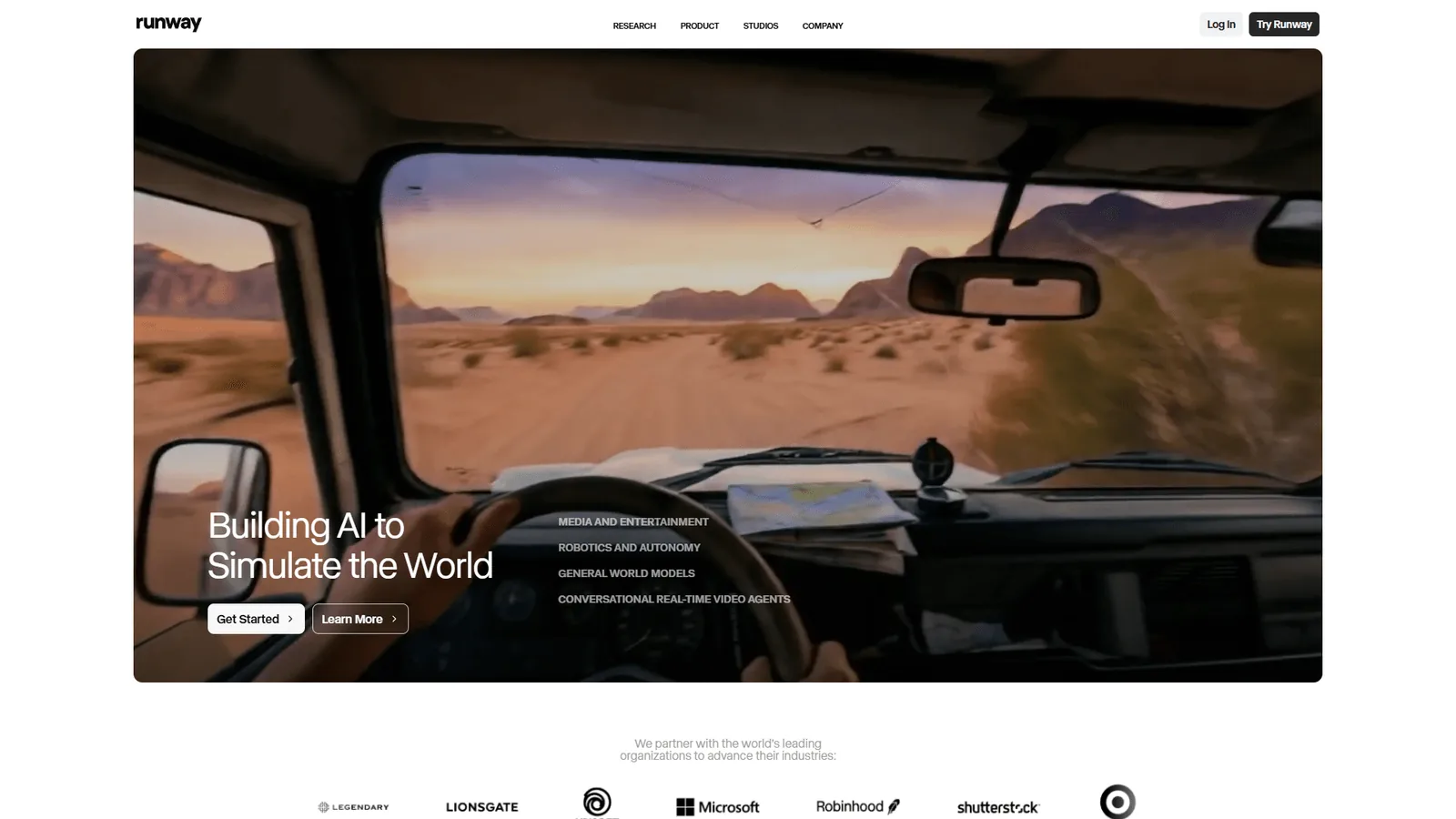
For unlimited generation, Runway’s Unlimited plan ($76/month annual annual) eliminates credit anxiety entirely. Calculate your break-even: if you’re generating 50+ videos monthly, unlimited pays for itself.
ROI calculation: If AI video creation saves 3 hours per video compared to traditional production, and your time is worth $50/hour, one video delivers $150 in value. At 4 videos/month, even the $76 unlimited plan yields $600-76 = $524 net monthly gain.
5. Use Free Tiers Strategically
Here’s how to maximize free credits without hitting paywalls:
The Credit Rotation System:
- Monday-Wednesday: Use Kling AI’s daily 66 credits
- Thursday-Friday: Switch to Pika’s monthly allocation
- Weekends: Experiment with Runway’s one-time 125 credits on new projects
Why this works: You maintain 7-day content velocity without subscription costs, perfect for testing content strategies before committing to paid plans.
Advanced tactic: Use free tiers for rapid prototyping (10-15 rough iterations), then upgrade temporarily to paid for final renders. Most platforms allow monthly billing - subscribe, generate finals, cancel.
6. Optimize for Your Target Platform
A 16:9 landscape video perfect for YouTube will fail on TikTok. Platform optimization isn’t optional in 2026.
Aspect ratio playbook:
| Platform | Aspect Ratio | Max Duration | Key Optimization |
|---|---|---|---|
| YouTube | 16:9 | 60+ minutes | Horizontal framing, 4K quality |
| TikTok | 9:16 | 10 minutes | Vertical framing, hook in first 1.5 seconds |
| Instagram Reels | 9:16 | 90 seconds | Vertical, captions mandatory (85% watch muted) |
| 1:1 or 16:9 | 10 minutes | Professional tone, square for feed priority | |
| Twitter/X | 16:9 | 2:20 minutes | Landscape, design for auto-play without sound |
Prompt modification for vertical video: Instead of: “wide establishing shot of mountain landscape” Use: “vertical composition portrait shot of mountain peak towering above, foreground elements at bottom third”
Most AI video generators default to 16:9. Explicitly specify aspect ratio in your prompt or generation settings to avoid cropping/resizing quality loss.
7. Use Image-to-Video for Brand Consistency
Text-to-video is powerful, but image-to-video is the secret weapon for maintaining consistent visual branding across multiple videos.
The workflow:
- Generate your brand-consistent still images (Midjourney, DALL-E 3Stable Diffusion)
- Upload to AI video generator as source image
- Add motion prompts describing desired animation
- Result: consistent characters, colors, and style across entire video series
Example use case: You’re creating an educational series featuring a recurring animated character. Generate one perfect character portrait, then use image-to-video to animate different expressions and actions while maintaining perfect visual consistency.
For prompt engineering specifics, see our AI image generation tips - the same vocabulary that controls image output also drives image-to-video animation cues. The AI video marketing guide walks through how to chain those clips into a campaign workflow.
Tools that excel at image-to-video:
- Runway ML: Best for photorealistic source images
- Kling AI: Superior for illustrated/animated styles
- Pika Labs: Fastest processing for quick iterations
Motion prompt for image-to-video:
Camera slowly pushes in while character's eyes blink naturally,
slight head tilt left, warm smile gradually forming, hair moving
gently in breeze, maintain exact character features and lighting
8. Add Human Touches to De-AI Your Videos
Here’s the uncomfortable truth: viewers can spot AI-generated content in seconds. The “AI look” comes from over-smoothness, unnatural motion, and generic composition.
De-AI-ification checklist:
1. Add grain and imperfection AI generates unrealistically clean footage. In post-production (CapCut, Adobe Premiere, DaVinci Resolve), add:
- Film grain overlay (8-12% opacity)
- Slight chromatic aberration
- Subtle lens distortion
2. Incorporate real audio Replace AI-generated audio with:
- Real voiceover narration (your voice or ElevenLabs with proper intonation - their monthly plans start free for short clips)
- Licensed music tracks (Epidemic Sound, Artlist)
- Ambient sound effects (Freesound, BBC Sound Effects)
3. Mix AI with real footage The 70/30 rule: 70% AI-generated establishing shots and B-roll, 30% real footage of yourself, products, or customers. This hybrid approach feels authentic while maintaining production efficiency.
4. Edit with intentional imperfection
- Add human-timed cuts (not perfectly beat-synced)
- Include brief pauses and moments of stillness
- Vary shot duration (3 sec, 7 sec, 4 sec instead of uniform 5-second cuts)
For background on color theory in motion, the StudioBinder color-grading primer covers the principles in 10 minutes.
5. Color grade away from AI defaults AI generators favor oversaturated, high-contrast outputs. Apply subtle color grading:
- Reduce saturation by 10-15%
- Lift shadows slightly
- Add warmth to skin tones
- Apply film emulation LUTs (Look-Up Tables)
9. Master Camera Movement Prompts
Camera movement transforms static AI generations into cinematic experiences. But generic prompts like “camera moves forward” yield mediocre results.
Professional camera movement vocabulary:
Dolly-in: Camera moves straight toward subject
Slow dolly-in on scientist examining microscope, camera pushes
forward steadily over 4 seconds, subject remains in focus,
background gradually blurs
Tracking shot: Camera follows moving subject
Smooth tracking shot following cyclist from left side, camera
maintains parallel movement, subject in right third of frame,
urban environment passing in background
Orbit: Camera circles around subject
360-degree orbit around vintage car, camera maintains fixed
distance 8 feet from vehicle, subject centered in frame throughout
rotation, showroom lighting
Crane up: Camera rises vertically
Start close on hands typing laptop keyboard, crane up revealing
person at desk, continue rising to show full modern office space,
ending wide high angle view
Rack focus: Focus shifts from foreground to background
Start focus on coffee cup in foreground, gradually shift focus to
person working at cafe table in background, cup blurs as subject
sharpens, shallow depth of field maintained
Speed matters: Specify “slow,” “steady,” “rapid,” or exact duration (“over 3 seconds”) to control pacing.
10. Batch Your Video Production
The context-switching cost of AI video creation is real. Opening tools, loading prompts, waiting for generation, downloading files - each video in isolation costs 12-15 minutes of overhead.
The batching method:
Monday: Planning Day (1 hour)
- Write all scripts for the week
- Create storyboards for 4-6 videos
- Prepare all S.A.C.S. prompts in a text document
Tuesday: Generation Day (2 hours)
- Queue all prompts in your chosen AI tool
- Generate in bulk (most tools allow queue management)
- Let generations run while you work on other tasks
- Download all finals to organized folder structure
Wednesday: Editing Day (3 hours)
- Batch color grade all videos with same LUT
- Add consistent lower thirds and graphics
- Apply uniform audio mixing
- Export all finals
Thursday-Friday: Publishing and promotion
Time savings: Batching reduces 6 hours of scattered work across 6 videos to 4.5 hours of focused blocks. That’s 1.5 hours saved weekly, or 78 hours annually.
Batching tip for AI tools: Generate variations in parallel. Instead of generating, evaluating, regenerating, generate 3-4 variations of each scene simultaneously, then select best during editing phase.
11. Quality Check Before Publishing
AI video generators occasionally produce artifacts, weird physics, or uncanny valley moments. Catching these before publishing saves your credibility.
The 3-Pass Review System:
Pass 1: Technical Review (5 minutes)
- Resolution check: Is it actually 4K/1080p as expected?
- Aspect ratio confirmation: Correct for target platform?
- Audio sync: Does voiceover match visuals?
- No watermarks: Free tier watermarks removed or upgraded?
- File format: MP4 for maximum compatibility?
Pass 2: Content Review (5 minutes)
- AI artifacts: Any weird hands, morphing faces, impossible physics?
- Continuity: Do sequential shots flow logically?
- Branding: Logo, colors, fonts consistent?
- Call-to-action: Clear next step for viewers?
- Captions: Accurate if auto-generated?
Pass 3: Platform Preview (3 minutes)
- Upload as private/unlisted
- View on actual mobile device (where 78% watch)
- Test with sound off (default for social platforms)
- Check first 3 seconds (hook must work)
- Verify thumbnail displays correctly
Red flags that require regeneration:
- Morphing faces or bodies between frames
- Text that’s unreadable or garbled
- Motion that defies physics (unless intentional)
- Lip-sync issues if using AI avatars
- Background elements that appear/disappear
Tools like Runway ML’s Gen-4.5 are highly consistent, but even top-tier models produce occasional wonky outputs. Don’t publish garbage because you’re on deadline.
12. Track Your Time Savings (ROI)
AI video creation tips don’t matter if you can’t prove they’re working. Track your productivity metrics to justify tool subscriptions and optimize your workflow.
Metrics to measure:
Time per video:
- Traditional production: Avg 6-8 hours (scripting, filming, editing)
- AI-assisted production: Avg 1.5-2 hours (scripting, generation, editing)
- Savings: 4.5-6 hours per video
Cost per video:
- Traditional: Equipment ($1,200+), editing software (annual subscription), time (6 hrs × $50/hr = $300)
- AI: Tool subscription (varies by plan), time (2 hrs × $50/hr = $100)
- Savings: 60-70% per video
Production velocity:
- Traditional: 1 video per week max
- AI-assisted: 3-4 videos per week sustainable
- Increase: 3-4× output
Simple ROI calculator:
Monthly AI tool cost: $28 (Runway Pro)
Videos produced monthly: 12
Time saved per video: 5 hours
Hourly rate: $50

Monthly time savings value: 12 videos × 5 hrs × $50 = $3,000
Net monthly ROI: $3,000 - $28 = $2,972
Annual ROI: $35,664
Even at minimum wage ($15/hr) and conservative time savings (3 hrs/video), the ROI is compelling:
12 videos × 3 hrs × $15 = $540 monthly value
$540 minus the plan cost = strong net monthly gain
For broader marketing context on how video ROI is measured by professional teams, the Content Marketing Institute research library publishes annual benchmarks worth comparing against.
Track this in a simple spreadsheet:
- Column A: Video title
- Column B: Production date
- Column C: Time spent (hours)
- Column D: Tool used
- Column E: Credits consumed
- Column F: Regenerations required
After 3 months, you’ll have clear data showing which workflows, tools, and prompts deliver best ROI.
For more productivity insights, explore our guides on Best Ai Video Generators 2026, and the AI avatar video marketing guide when you need a presenter on screen.
AI Video Creation Tips: Your 7-Day Action Plan
These AI video creation tips work because they address the real bottlenecks: poor planning, weak prompts, wrong tool selection, and lack of human polish.
Your 7-day action plan:
Day 1-2: Pick one free tier tool (Kling AI or Pika Labs) and generate 10 test videos using the S.A.C.S. formula Day 3-4: Practice camera movement prompts - try all 5 types (dolly, tracking, orbit, crane, rack focus) Day 5: Set up your batching workflow and organize your first week of content Day 6: Add human touches to your best AI videos - grain, real audio, color grading Day 7: Publish your first hybrid AI + real footage video and track time spent
The learning curve is real, but the productivity gains are worth it. Creators who master these AI video creation tips are producing content 4-6× faster than traditional methods while maintaining professional quality.
The future of video creation isn’t choosing between AI and traditional production - it’s knowing when and how to blend both for maximum efficiency.
The Bottom Line
Mastering AI video creation tips is about combining the right tools with thoughtful prompting and human polish. Start with free tiers, learn the fundamentals, and scale up as your workflow matures. If you only commit to one paid platform, Runway is the strongest all-rounder for cinematic quality, while Kling is the best free entry point and Synthesia covers the avatar use cases that text-to-video can’t.
Frequently Asked Questions
What is the 5-Minute Rule for AI video creation?
The 5-Minute Rule means spending 5 minutes planning for every 1 minute of final video. For a 30-second clip, that is 2.5 minutes of script development and storyboarding. Writing a numbered shot list, defining one action per scene, specifying camera angle and movement, and noting audio requirements reduces regeneration waste by 60-70%. Most teams that adopt this rule report cutting their average production time roughly in half within the first month.
How should I structure a prompt for AI video generators?
Effective video prompts follow the pattern: subject, action, camera movement, scene or environment, and style or mood. Vague prompts like “sunset beach scene” produce generic stock footage, while specific prompts create cinematic moments. Describe wardrobe, location details, shot type, lighting, and depth of field to guide the model toward the intended result. The S.A.C.S. framework (Subject, Action, Camera, Scene) outlined above gives you a reliable template that works across Runway, Kling AI, Pika, and similar tools.
Why do most AI videos get abandoned before publishing?
About 87% of AI videos get abandoned before publishing because creators skip the pre-production fundamentals. Typing random prompts without a script or storyboard is the biggest mistake in AI video creation. Planning a shot list, numbering scenes, and defining actions in advance prevents wasted regenerations and produces usable footage in 2-3 attempts instead of 10. Combine that planning with a quality-control pass before publish - hands, faces, lip-sync, and physics are the most common failure points to scan for.
Which AI video generators lead the 2026 landscape?
Gen-4.5 models from Runway now match professional camera quality, Kling AI’s Video 2.6 engine generates native audio, and Pika’s Pikaffects let you manipulate physics in ways impossible with traditional filming. The difference between mediocre and professional-grade AI video is not the tool you use - it is how you use it with disciplined prompting and pre-production. For an in-depth comparison see our best AI video generators 2026 roundup.
How much should I budget for AI video tools?
Budgets fall into three tiers. Free accounts (Kling AI, Pika Labs) handle 2-3 generations per day, fine for learning. Mid-tier paid plans ($10/month for Kling Standard, $15/month for Runway Standard) cover regular content creators producing 4-8 videos per month. Higher tiers (Runway Pro, unlimited plans) make sense for agencies and brand teams generating 20+ videos monthly. Calculate break-even by comparing time saved at your hourly rate against subscription cost - in practice, even mid-tier plans deliver positive ROI after 4-5 videos per month.
Want to learn more about Runway?
Related Guides
- AI Image Generation Tips - Prompt fundamentals for visuals
- AI Avatar Video Marketing - Avatar-driven content workflows
- AI Video Marketing Guide - Concept-to-campaign playbook
- AI Voiceover Tips - Pair AI video with AI voice
External Resources
- Kling AI - Official website
- Runway - Official website
- Content Marketing Institute Research
Related Guides
- AI Avatar Video Marketing: 2026 Walkthrough for Teams
- AI Image Generation Tips: 2026 Walkthrough for Teams
- AI Voice Cloning Ethics Best Practices: Complete 2026 Guide
- AI Voiceover Corporate Training With WellSaid Labs
- AI Voiceover Tips: Making Synthetic Voices Sound Human
- Custom AI Models For Brand Consistency: Complete 2026 Guide
- Elai AI Training Videos: 2026 Walkthrough for Teams
- ElevenLabs API Setup: Developer Quick Start Guide (2026)
- ElevenLabs Audio Native Embed Audio on Any Website
- ElevenLabs Audio Quality Settings: Pro Tips and Settings