
Email is the backbone of most marketing strategies, but it has a blind spot: timing. An email might sit unread in an inbox for hours or days. A text message gets read within three minutes on average. That timing gap is exactly why ActiveCampaign SMS marketing exists - when your message needs to land immediately, whether it is a flash sale, an appointment reminder, or a time-sensitive offer, SMS is the channel that delivers.
ActiveCampaign lets you add SMS directly into the same automation workflows you already use for email. You do not need a separate SMS platform or third-party integration. Your contacts, tags, segments, and automation triggers all work across both channels, which means you can build multichannel sequences where email and SMS work together instead of operating in silos.
This guide walks through everything you need to launch SMS marketing in ActiveCampaign - from choosing your number type and building consent to writing effective messages, building automations, and staying compliant with TCPA regulations. If you are new to the platform, start with the ActiveCampaign getting started guide first. Whether you are sending your first text or adding SMS to existing email workflows, this guide gives you a clear path from setup to sending.
How ActiveCampaign SMS Marketing Fits With Your Email Stack
ActiveCampaign SMS marketing lets you send promotional and transactional text messages from inside the same automation builder that powers your email program. It is not a separate platform to manage - SMS shares contacts, tags, segments, and triggers with email, which means you can build true multichannel sequences. This guide walks through the practical steps from setup through advanced optimization.
SMS marketing is not about replacing email - and if you are still evaluating your email marketing platform, get that foundation solid first. Unlike standalone SMS marketing platforms that silo text outreach from the rest of your stack, SMS inside ActiveCampaign fills the gaps where email falls short. The two channels complement each other, and using both together produces results that neither can achieve alone.
The numbers make the case clearly. SMS messages have a 98% open rate compared to roughly 20% for email. Text messages are typically read within three minutes of delivery, while the average email sits unread for several hours. Click-through rates for SMS campaigns run between 20-35%, compared to 2-5% for email campaigns. Before you commit, weigh ActiveCampaign SMS pricing against the lift these numbers represent - these are not aspirational benchmarks, they reflect the fundamental difference in how people interact with text messages versus emails.
Where SMS excels over email:
- Time-sensitive messages - Flash sales, expiring coupons, and limited-time offers get seen immediately
- Appointment reminders - A text message the morning of an appointment reduces no-shows by 30-40%
- Transactional updates - Order confirmations, shipping notifications, and delivery alerts feel natural as texts
- Re-engagement - A well-timed SMS can bring back subscribers who have stopped opening your emails
Where email still wins:
- Long-form content, newsletters, and educational sequences
- Rich media with detailed product showcases
- Messages that benefit from being archived and referenced later
The multichannel advantage is straightforward: contacts who receive both email and SMS from a brand convert at higher rates than those receiving either channel alone. Because SMS runs on the same ActiveCampaign marketing automation engine as your email, ActiveCampaign’s automation builder makes it easy to coordinate both channels in a single workflow, so you can send an email with full product details and follow up with a text reminder two days later if the email goes unopened.
Plan Requirements and Pricing
SMS is not available on every ActiveCampaign plan. Before you start setting things up, make sure your account supports it.
Which plans include SMS: ActiveCampaign SMS is available on the Plus plan and above. The Starter plan does not include SMS capabilities. If you are currently on Starter and want to add SMS, you will need to upgrade to Plus, which also unlocks the CRM, lead scoring, and landing pages.
How SMS credits work: ActiveCampaign uses a credit-based system for SMS. Each text message you send costs a certain number of credits, and you purchase credit bundles in advance. Credits are consumed per message segment - a standard SMS is 160 characters, and longer messages are split into multiple segments that each cost one credit.
See the ActiveCampaign SMS marketing page for the latest plan availability.
Pricing by region:
| Destination | Credits Per SMS |
|---|---|
| United States | 1 credit |
| Canada | 1 credit |
| United Kingdom | 2-3 credits |
| Australia | 2-3 credits |
| Other international | 3-10 credits |
Buying credits: Navigate to Settings > Billing in your ActiveCampaign account to purchase SMS credit bundles. Credits roll over month to month on active accounts, so you do not lose unused credits at the end of a billing cycle. Start with a smaller bundle to test your SMS strategy, then increase as you understand your volume - the getting started guide covers account billing setup.
Check the ActiveCampaign pricing page for current credit bundle prices and plan comparison details.
How Do You Set Up Your SMS Number?
Before you can send a single text, you need a phone number connected to your ActiveCampaign account. The number type you choose affects deliverability, throughput, and compliance requirements.
Navigate to your SMS settings. Go to Messaging > SMS in the left sidebar and click Set Up to begin the configuration process. ActiveCampaign will walk you through selecting and provisioning your number.
Number types available:
Toll-free number. This is the fastest option to get started. Toll-free numbers (starting with 800, 888, etc.) support high throughput and are recognized by recipients as business numbers. They require a simple verification process that typically completes within a few days. Best for businesses sending marketing messages at moderate to high volume.
10DLC (10-digit long code). This is a standard local phone number registered for business messaging through the Campaign Registry. 10DLC numbers have the best deliverability rates because carriers trust registered senders. The registration process takes longer - usually one to two weeks - but the improved delivery rates and lower carrier filtering make it worth the wait. Best for businesses that want the highest possible deliverability and plan to send SMS consistently.
Short code. Five or six-digit numbers (like 12345) designed for high-volume messaging. Short codes support the highest throughput but are significantly more expensive and require a longer approval process. Most small and mid-size businesses do not need a short code - toll-free or 10DLC covers their volume requirements.
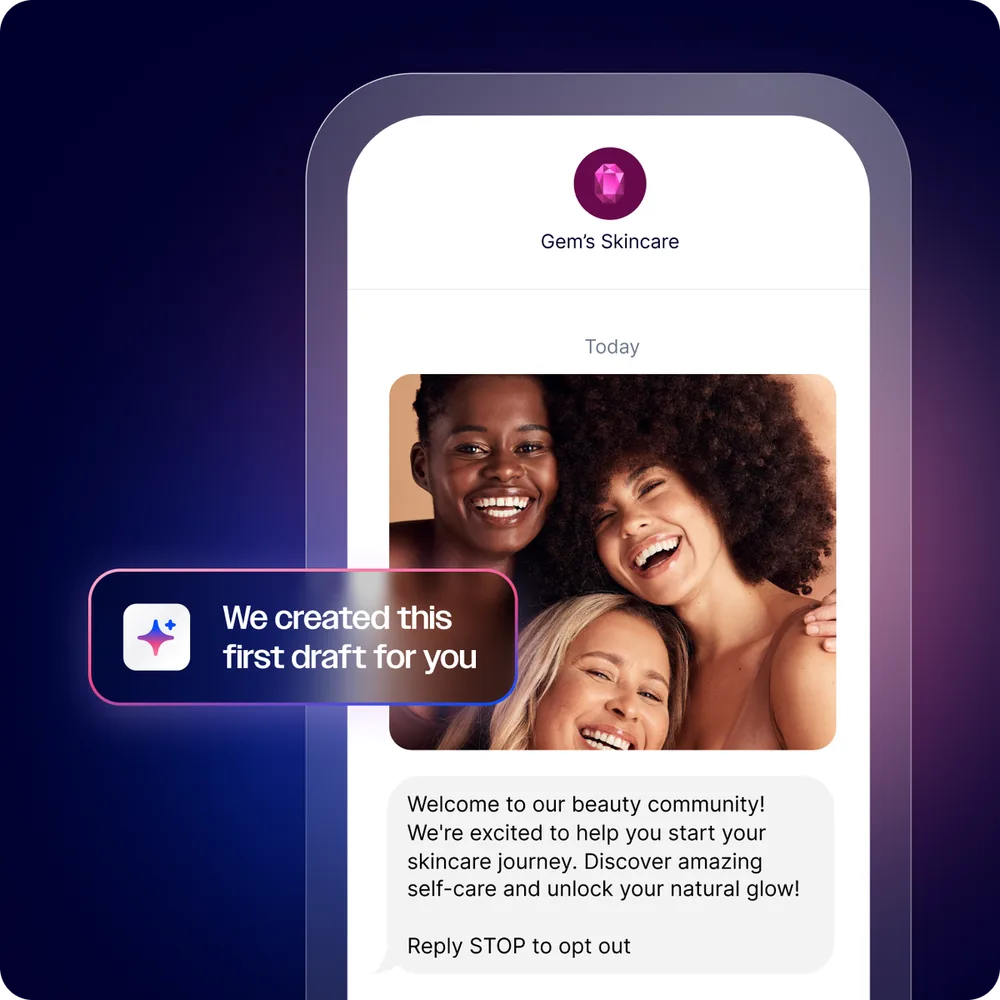
Registering for 10DLC compliance. If you choose a 10DLC number, ActiveCampaign will prompt you to complete the Campaign Registry registration. You will need to provide your business name, EIN or tax ID, business address, a description of your SMS use case, and sample messages. The registry reviews this information to verify you are a legitimate business. Approval times vary, but expect one to two weeks. Do not skip this step - sending from an unregistered 10DLC number results in carrier filtering and failed deliveries.
Connecting your number. Once your number is provisioned and verified, it appears under Messaging > SMS as your active sending number. All SMS automations and campaigns will send from this number. Recipients can reply to it, and those replies appear in your ActiveCampaign conversations inbox.
Building SMS Consent
SMS consent is not optional - it is a legal requirement. The Telephone Consumer Protection Act (TCPA) and carrier regulations require explicit opt-in before you send any marketing text messages. Violating these rules can result in fines of $500 to $1,500 per message.
Explicit opt-in requirements. Unlike email where you might argue implied consent from a business relationship, the TCPA requires clear, documented consent specifically for text messages. A contact opting into your email list does not give you permission to text them. You need separate SMS consent.
Adding SMS consent to your forms. In your ActiveCampaign forms, add a dedicated checkbox field for SMS consent. The label should clearly state what the subscriber is agreeing to - for example: “I agree to receive marketing text messages from [Your Business]. Message frequency varies. Message and data rates may apply. Reply STOP to unsubscribe.” This language satisfies TCPA disclosure requirements.
Collecting phone numbers. Add a phone number field to any form where you collect SMS consent. Use the phone field type (not a generic text field) so ActiveCampaign validates the format. Make the phone field required only when the SMS consent checkbox is checked - you do not want to force a phone number from contacts who only want email.
Double opt-in for SMS. For an extra layer of compliance protection, send a confirmation text after the initial signup. The message should say something like: “Reply YES to confirm you want to receive texts from [Your Business].” Only contacts who reply YES get added to your SMS-eligible segment. This creates an airtight consent record.
Managing SMS preferences. Create a custom field or tag in ActiveCampaign to track SMS consent status. Use a tag like sms-opted-in that gets added when someone checks the SMS consent box and removed if they text STOP. This lets you segment your audience into email-only, SMS-only, and both channels when building automations.
How Do You Write Effective SMS Messages?
SMS is a fundamentally different medium than email. You have 160 characters per standard message segment, no formatting options, and no subject line to grab attention. Every word has to earn its place.
Character limits and segmentation. A single SMS segment is 160 characters using standard GSM encoding. If your message exceeds 160 characters, it gets split into multiple segments - each costing one credit. Messages using special characters or emoji switch to UCS-2 encoding, which drops the limit to 70 characters per segment. Keep messages concise to control costs and ensure readability.
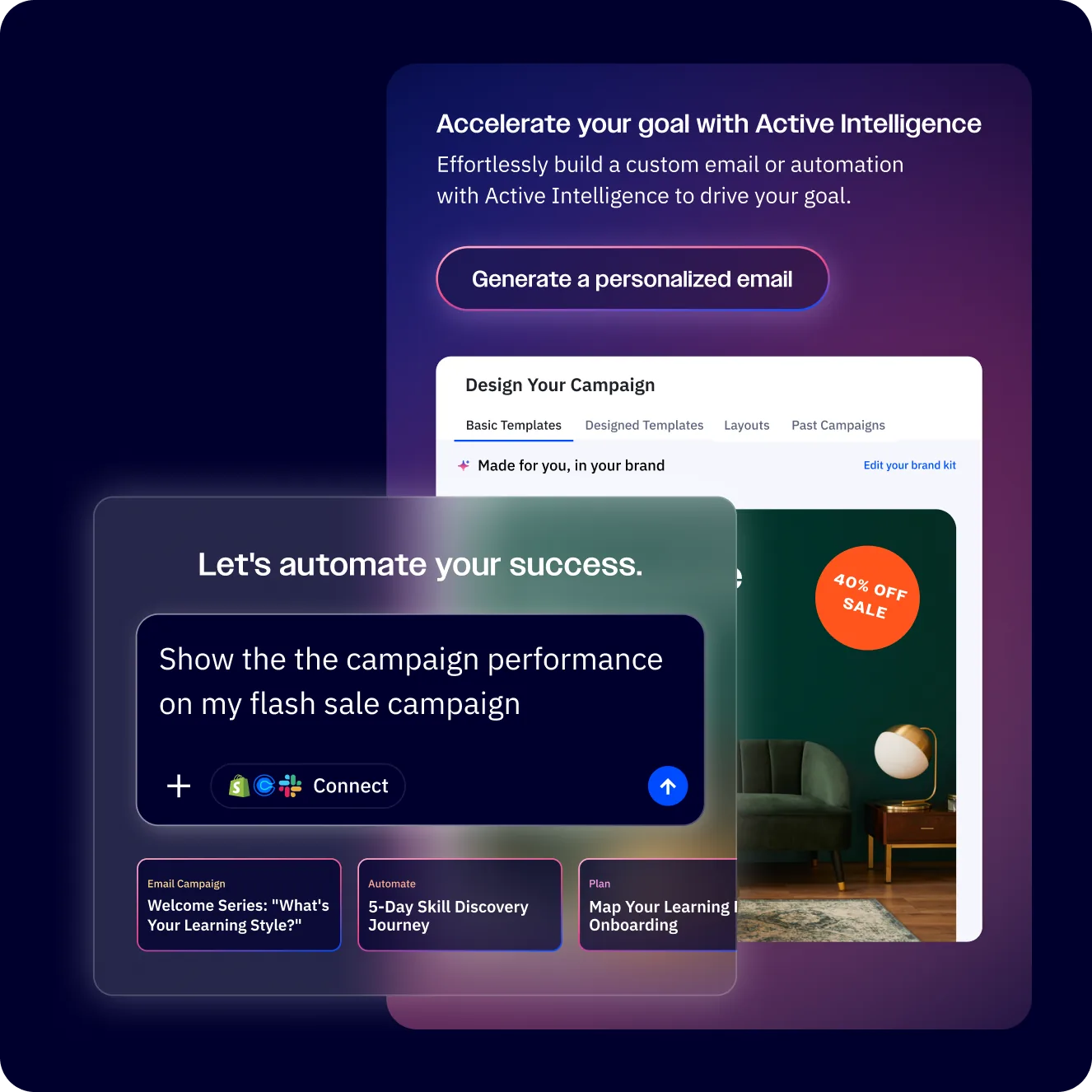
Personalization tags. ActiveCampaign SMS supports the same personalization tags you use in email. Insert a contact’s first name with %FIRSTNAME%, their city with %CITY%, or any custom field value. Personalized texts feel less like mass marketing and more like direct communication. A message that starts with “Hi Sarah” performs measurably better than one that starts with a generic greeting.
Including links. You can include URLs in your text messages, and ActiveCampaign automatically tracks clicks. Use UTM parameters on your links so you can attribute SMS traffic in Google Analytics. Keep URLs short - use a link shortener or ActiveCampaign’s built-in link tracking to avoid eating up your character count with long URLs.
Call-to-action best practices:
- Lead with the value or offer, not your brand name
- Use one clear CTA per message - “Shop now,” “Book today,” “Claim your spot”
- Create urgency when appropriate - “Ends tonight” or “Only 5 left”
- Always include an opt-out reminder in the first message of a new sequence
Message templates to adapt:
- Flash sale: “Hi %FIRSTNAME%, 30% off everything ends tonight at midnight. Shop now: [link] Reply STOP to opt out”
- Appointment reminder: “%FIRSTNAME%, reminder: your appointment is tomorrow at 2 PM. Reply YES to confirm or call us to reschedule.”
- Abandoned cart: “Hi %FIRSTNAME%, you left items in your cart. Complete your order before they sell out: [link]”
- Order shipped: “Great news, %FIRSTNAME%! Your order has shipped. Track it here: [link]“
SMS Automations
The real power of ActiveCampaign SMS is not one-off blasts - it is automated text messages triggered by subscriber behavior. These automations run in the background, sending the right message at the right moment without any manual effort.

Navigate to Automations in the left sidebar and click Create an Automation. You can add an SMS action anywhere in a workflow by clicking the + icon and selecting Send SMS from the action menu. Here are four automation recipes to build first.
Recipe 1: Welcome SMS
- Trigger: Contact subscribes to your list and has the
sms-opted-intag - Timing: Immediately after signup (or 5 minutes after the welcome email)
- Message: “Hi %FIRSTNAME%, welcome! Thanks for joining [Your Business]. We will text you about exclusive deals and updates. Reply STOP anytime to unsubscribe.”
- Why it works: Sets expectations immediately and confirms the subscriber’s number is active. A welcome text also gets your number saved in the contact’s phone, which improves future deliverability
Recipe 2: Appointment Reminder
- Trigger: Custom date field is 24 hours from now (use the “Date Based” trigger)
- Timing: 24 hours before the appointment, with a follow-up 2 hours before
- Message 1 (24 hours): “%FIRSTNAME%, reminder: your appointment with [Business] is tomorrow at %APPOINTMENT_TIME%. Reply YES to confirm.”
- Message 2 (2 hours): “See you in 2 hours, %FIRSTNAME%! Here is the address: [location/link]”
- Why it works: Two-touch reminders reduce no-shows by 30-40%. The reply confirmation creates engagement and flags contacts who might need to reschedule
Recipe 3: Abandoned Cart SMS
- Trigger: Cart abandoned (via ecommerce deep data integration)
- Timing: 1 hour after abandonment (add a condition to check that the cart is still active)
- Message: “Hi %FIRSTNAME%, you left something behind! Complete your order before it sells out: [cart link]”
- Why it works: SMS reaches the contact faster than email for time-sensitive recovery. Use this as a complement to your email abandoned cart sequence - send the text first, then the email 12 hours later if they still have not purchased
Recipe 4: Flash Sale Alert
- Trigger: Contact enters a specific segment or tag is added (manually triggered when you launch the sale)
- Timing: Immediately when the tag is applied
- Message: “%FIRSTNAME%, exclusive for subscribers: 40% off everything for the next 6 hours. Use code FLASH40: [link]”
- Why it works: Flash sales depend on urgency, and SMS delivers that urgency instantly. Open rates near 98% mean almost every subscriber sees the offer within minutes
Setup tip: In each automation, add an If/Else condition that checks for the sms-opted-in tag before the SMS action. This ensures you never accidentally text a contact who has not explicitly consented, even if they end up in the automation through another path.
Combining SMS with Email Campaigns
The most effective marketing automations use both channels strategically. ActiveCampaign’s automation builder lets you mix email and SMS actions in a single workflow, choosing the right channel for each touchpoint.
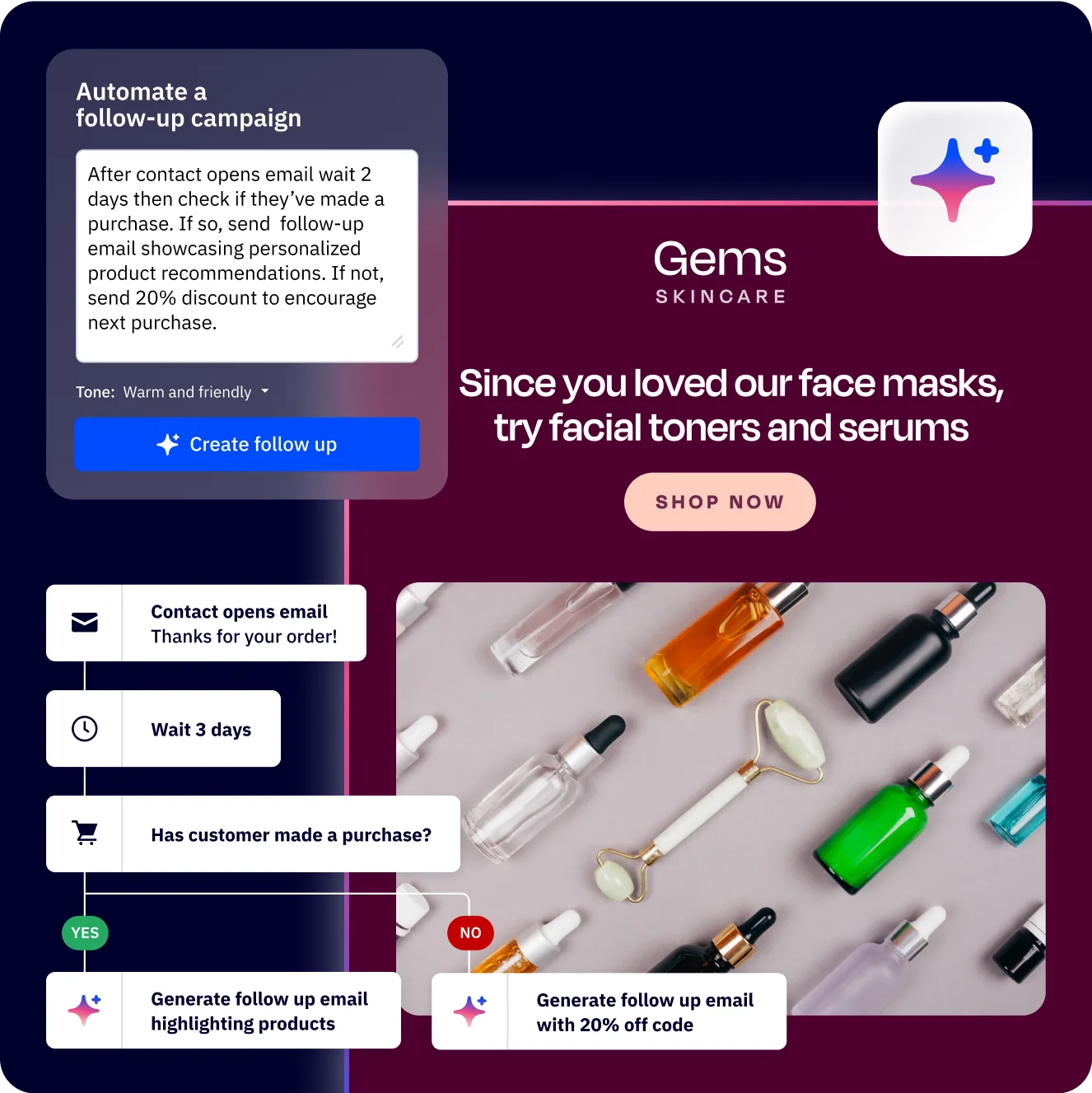
SMS as an email follow-up. One of the highest-impact patterns is sending an SMS to contacts who did not open an email. Build this with a simple automation: send the email, add a wait step of 24-48 hours, then add an If/Else condition checking “Has opened email.” Contacts who did not open get an SMS summary with the key CTA. This catches the 80% of contacts who missed or ignored the email.
Choosing SMS vs email for each message. Not every message belongs on both channels. Use this framework:
| Message Type | Best Channel | Why |
|---|---|---|
| Detailed product info | Space for images, descriptions, multiple links | |
| Time-sensitive offers | SMS | Immediate delivery and near-instant read |
| Weekly newsletters | Long-form content works poorly in 160 characters | |
| Appointment reminders | SMS | Text messages feel personal and urgent |
| Educational sequences | Room for detailed explanations and visuals | |
| Shipping updates | SMS | Quick, actionable - no need for email length |
| Abandoned cart (first touch) | SMS | Speed matters for recovery |
| Abandoned cart (detailed) | Include product images and alternatives |
Wait step timing between channels. When using both channels in sequence, timing matters. If you send an email and an SMS within minutes of each other, you overwhelm the contact. Use these spacing guidelines:
- Email first, then SMS follow-up: wait 24-48 hours
- SMS first, then email expansion: wait 4-12 hours
- Same-day multichannel: send one in the morning, the other in the afternoon
Multichannel automation example: For a product launch, build a sequence that starts with an email three days before launch (detailed preview with images), follows with an SMS the morning of launch (“It is live! Shop now: [link]”), sends a reminder email on day two to non-purchasers with social proof, and closes with a final SMS on the last day to contacts who clicked but did not buy (“Last chance - sale ends tonight”).
SMS Analytics and Optimization
You cannot improve what you do not measure. ActiveCampaign provides SMS-specific metrics that tell you what is working and where to adjust.
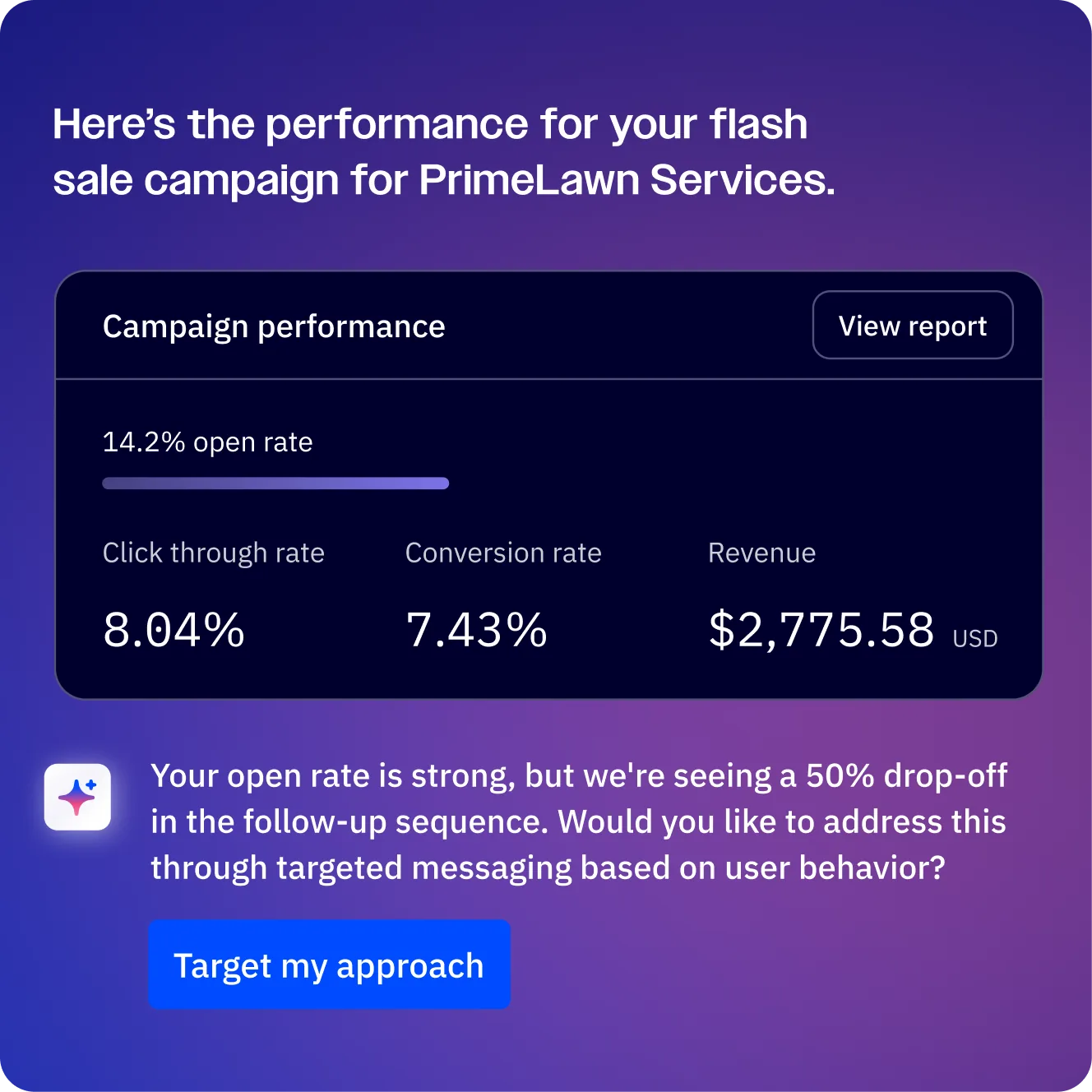
Key metrics to track:
- Delivery rate - The percentage of messages that reached the recipient’s phone. Healthy delivery rates are 95% or above. If yours drops below 90%, check your number registration status and contact list quality
- Click rate - For messages containing links, this shows what percentage of recipients tapped the URL. SMS click rates typically range from 20-35%. Below 15% suggests your CTA or offer needs work
- Opt-out rate - The percentage of recipients who reply STOP after receiving a message. A healthy opt-out rate is below 2% per campaign. If opt-outs spike, you are either sending too frequently or your content is not relevant to the audience
- Reply rate - For conversational SMS, track how many recipients respond. High reply rates indicate strong engagement and can feed into automation triggers
A/B testing SMS content. ActiveCampaign lets you split test SMS messages within automations. Create two versions of a message with different CTAs, different offers, or different personalization approaches. Run each version to 50% of the audience and measure click rates to determine the winner. Test one variable at a time - changing both the CTA and the offer simultaneously makes it impossible to know which change drove the result.
Optimal send times. SMS is more time-sensitive than email because texts get read immediately. Sending at 3 AM annoys people. Based on industry data, the best windows for marketing SMS are Tuesday through Thursday between 10 AM and 12 PM, and between 5 PM and 7 PM in the recipient’s local time zone. Avoid weekends for B2B messages and Monday mornings when people are clearing email backlogs. ActiveCampaign’s predictive sending can help determine the best window for your specific audience.
Compliance and Best Practices
SMS compliance is not a suggestion - it carries real legal weight. The TCPA and state-level regulations impose strict requirements on commercial text messaging, and carriers actively filter non-compliant senders.
TCPA requirements summary:
- Prior express written consent is required before sending marketing texts. Verbal consent or implied consent is not sufficient
- Clear identification - Every message must identify your business. Do not send anonymous texts
- Opt-out mechanism - Every message must include a way to unsubscribe. The standard is “Reply STOP to unsubscribe”
- Record keeping - Maintain records of when and how each contact provided consent. ActiveCampaign timestamps form submissions, which serves as your consent record
Quiet hours. Do not send marketing texts before 8 AM or after 9 PM in the recipient’s local time zone. Some states have stricter windows - Florida, for example, restricts marketing calls and texts to 8 AM - 8 PM. Build quiet hours into your automations using ActiveCampaign’s send window settings to ensure messages only go out during acceptable hours.
Frequency limits. There is no universal rule for how often you can text, but best practice is no more than 4-6 marketing texts per month. More than that and opt-out rates climb sharply. Transactional messages (order confirmations, appointment reminders) do not count against this frequency guideline since they are expected and requested by the contact.
Easy opt-out. ActiveCampaign automatically processes STOP replies and removes the contact from your SMS list. Do not add friction to the opt-out process - no “Are you sure?” follow-ups, no requiring contacts to text a specific phrase beyond STOP. The easier you make it to leave, the more your remaining subscribers trust your messages.
Penalties for non-compliance. TCPA violations carry penalties of $500 per unsolicited message, increasing to $1,500 per message for willful violations. Class action lawsuits against SMS senders have resulted in settlements ranging from hundreds of thousands to tens of millions of dollars. These penalties apply per message, not per campaign - sending 1,000 non-compliant texts could mean $500,000 to $1.5 million in fines.
Troubleshooting Common Issues
Even with proper setup, SMS campaigns occasionally hit problems. Here are the five most common issues and how to resolve them.
Messages not delivering. If your delivery rate drops or messages fail to send - and you have already reviewed the ActiveCampaign deliverability best practices - first check your SMS credit balance under Settings > Billing. Zero credits means zero deliveries. Next, verify your sending number is active and properly registered - navigate to Messaging > SMS and confirm the number status shows as “Active.” If you recently set up a 10DLC number, confirm that registration is fully approved. Unregistered numbers face aggressive carrier filtering. Finally, check the contact’s phone number format - it should include the country code (e.g., +1 for US numbers).
Carrier filtering blocking messages. Carriers use automated systems to filter spam, and legitimate messages sometimes get caught. Common triggers include shortened URLs from public shorteners (like bit.ly), ALL CAPS text, excessive exclamation marks, and words associated with spam (“FREE!!!”, “Act now!!!”). Use ActiveCampaign’s built-in link tracking instead of third-party shorteners. Write messages in normal sentence case with minimal punctuation. If filtering persists, contact ActiveCampaign support to review your sending reputation.
Opt-out not processing correctly. When a contact texts STOP but continues receiving messages, check your automation workflow for logic errors. Ensure that every SMS action in every automation has a condition checking for the sms-opted-in tag or checks the contact’s SMS subscription status. Also verify that ActiveCampaign’s automatic STOP processing is enabled under your SMS settings - this is on by default but can be accidentally disabled. Test the opt-out flow yourself by sending a test message and replying STOP.
Credit balance depleting faster than expected. If credits are disappearing quickly, remember that messages over 160 characters consume multiple credits - one per segment. Check your message lengths in the automation builder, where ActiveCampaign shows the segment count. Messages with special characters or emoji use UCS-2 encoding at 70 characters per segment, which can triple your credit usage. Also check whether you have automations sending to larger segments than intended - review your automation audience sizes under the automation’s reporting tab.
Link tracking not working in SMS. If clicks are not registering in your SMS analytics, verify that link tracking is enabled in your SMS settings. ActiveCampaign wraps your URLs with a tracking redirect - if you are using a custom domain for link tracking, ensure the DNS records are properly configured. Some contacts use SMS apps that do not render links as tappable - they appear as plain text. There is no fix for this on the sender side, but you can shorten your URLs to make them easier to type manually. Test links by sending a test SMS to yourself and clicking through.
Frequently Asked Questions
Does ActiveCampaign SMS work outside the United States?
Yes. ActiveCampaign supports SMS in multiple countries, though availability and per-message credit costs vary by destination. US and Canadian numbers are the most straightforward to set up because TCPA rules are well documented and 10DLC registration is mature. International messaging costs more credits per message - typically 2-10 credits depending on the country - and compliance regulations differ by region. The UK has its own opt-in framework, Australia requires sender registration, and the EU layers GDPR consent rules on top of standard SMS compliance. Check your account’s SMS settings for the full list of supported countries before launching an international program.
Can I send MMS picture messages through ActiveCampaign?
ActiveCampaign’s SMS feature focuses on text-based messages. MMS support for images, GIFs, and video is limited and depends on your number type and the recipient’s carrier. If rich media messaging is critical to your strategy, include a link in your SMS that directs to a landing page with images or video rather than relying on MMS delivery. This approach also gives you better tracking since you can measure landing page engagement, click-through rates, and downstream conversions in a way that MMS does not allow. Most SMS marketing experts recommend the link-to-landing-page pattern even when MMS is technically available.
How do I import existing SMS consent into ActiveCampaign?
If you have contacts who previously opted in to SMS through another platform, you can import them with a CSV upload. Include a column for phone number and a column for SMS consent status with the date and method captured. After importing, apply the sms-opted-in tag to these contacts so your automations can find them. Critically, make sure you have documentation of their original consent - date, method, and the exact language they agreed to. Imported consent without records does not protect you in a TCPA dispute, and the burden of proof is on the sender. Store the consent records somewhere you can produce them if a complaint is ever filed.
What happens when someone replies to my SMS?
Replies appear in ActiveCampaign’s conversations inbox under Conversations > SMS, where you can respond manually one at a time or in bulk. For higher-volume use, set up automation triggers based on specific reply keywords - for example, trigger an automation when someone replies YES to a confirmation message, or move contacts who reply STOP into a suppressed list automatically. Replies from contacts who are not in your system create a new contact record automatically, which lets you capture inbound leads from SMS. This is especially useful for keyword-based campaigns where you advertise “Text PROMO to [number]” on offline channels.
Can I schedule SMS campaigns for a specific date and time?
Yes. When building an automation, you can use date-based triggers to send SMS on specific dates. For one-off campaigns, create an automation with a manual entry trigger, add your SMS action with a wait step that specifies the exact send date and time, and then bulk-add contacts to the automation when you are ready. Use the send window feature to ensure messages go out during acceptable hours in each contact’s time zone - sending at 3 AM is both annoying and TCPA-noncompliant. The marketing automation engine handles this automatically once configured.
How many SMS credits should I buy to start?
Start with enough credits for your first month of testing. Calculate your estimated volume: take the number of SMS-eligible contacts, multiply by the number of messages per month you plan to send, and add 20% buffer for multi-segment messages. For example, if you have 500 SMS contacts and plan to send 4 messages per month, that is 2,000 credits plus a 400-credit buffer - so a 2,500-credit bundle would cover your first month comfortably. You can always purchase more credits as your ActiveCampaign SMS program scales. Avoid buying huge bundles upfront before you understand your real send patterns - it is easy to overestimate volume in the first month.
The Bottom Line
ActiveCampaign SMS turns single-channel email programs into multichannel ones without forcing you to learn or pay for a separate SMS platform. The biggest wins come from low-volume, high-impact use cases: appointment reminders, order updates, abandoned cart recovery, and flash-sale alerts. Start with one of the four automation recipes above, watch your delivery and opt-out metrics for a month, then expand the program as you learn what your audience tolerates. Pair SMS with the email automation workflows you already have running for the cleanest possible multichannel orchestration.
Want to learn more about ActiveCampaign?
Related Guides
- ActiveCampaign Email Automation Workflows
- ActiveCampaign Automation Builder Guide
- ActiveCampaign Forms Setup Guide
- ActiveCampaign Getting Started Guide
- ActiveCampaign Site Tracking Guide
External Resources
- ActiveCampaign SMS Marketing Features - Official overview of SMS capabilities, compliance tools, and credit pricing
- FCC TCPA Reference - Official source for US text message compliance rules
- CTIA Messaging Principles and Best Practices - Carrier industry guidelines for SMS senders
- The Campaign Registry - Official 10DLC registration portal for US business SMS
Related Guides
- Activecampaign AI Content Generation: Complete 2026 Guide
- ActiveCampaign AI Features: Active Intelligence Guide
- Activecampaign Automation Builder: Complete 2026 Guide
- Activecampaign Brand Kit: 2026 Walkthrough for Teams
- ActiveCampaign Conditional Content: Personalization Guide
- ActiveCampaign CRM Setup: How to Set Up ActiveCampaign CRM
- ActiveCampaign Deals Pipeline: Stages & Automation
- ActiveCampaign Deliverability: Best Practices Guide
- ActiveCampaign Email Automation: 10 Workflows That Work
- ActiveCampaign Email Campaign Setup: Step-by-Step Guide