

ElevenLabs Dubbing Studio is a dedicated workspace for translating and dubbing audio or video content into 29 languages while preserving each speaker’s original voice characteristics, pacing, and tone. The five-stage pipeline handles transcription, speaker detection, translation, voice-matched dubbing, and audio sync - producing editable intermediate results you can refine before final render.
Translating video content into multiple languages used to mean hiring voice actors, booking studio time, and managing weeks of back-and-forth with translators. ElevenLabs Dubbing Studio collapses that entire AI video dubbing process into something you can finish during a lunch break. You upload a video, select your target languages, and the platform handles transcription, translation, speaker detection, and voice-matched dubbing automatically - preserving each speaker’s vocal characteristics across languages.
This guide covers the full ElevenLabs Dubbing Studio workflow from upload to export. You will learn how to configure dubbing projects, review and edit transcripts and translations before final rendering, customize voice output for each speaker, handle multi-speaker videos, estimate costs, and troubleshoot the issues that trip up most users. Whether you are a content creator localizing YouTube videos or a business expanding training materials into new markets, this walkthrough gives you a repeatable process for producing professional dubbed content.
Dubbing Studio is available on the Creator plan ($22/month) and above - there is no ElevenLabs dubbing studio free tier and no video dubbing online free workflow here, so compare paid options on the pricing page. If you do not have an ElevenLabs account yet, the Getting Started with ElevenLabs guide covers account creation and platform basics. If you want a deeper multilingual workflow walkthrough afterward, see the multilingual dubbing workflow guide.
What ElevenLabs Dubbing Studio Does
ElevenLabs Dubbing Studio is a dedicated workspace within the ElevenLabs platform designed for translating and dubbing audio and video content, with the same engine also exposed through the ElevenLabs Dubbing API for programmatic workflows. Unlike basic text-to-speech where you write a script and generate audio from scratch, dubbing starts with existing content - a recorded video, podcast episode, or audio file - and produces a version in a different language that preserves the original speakers’ voice characteristics, pacing, and tone.
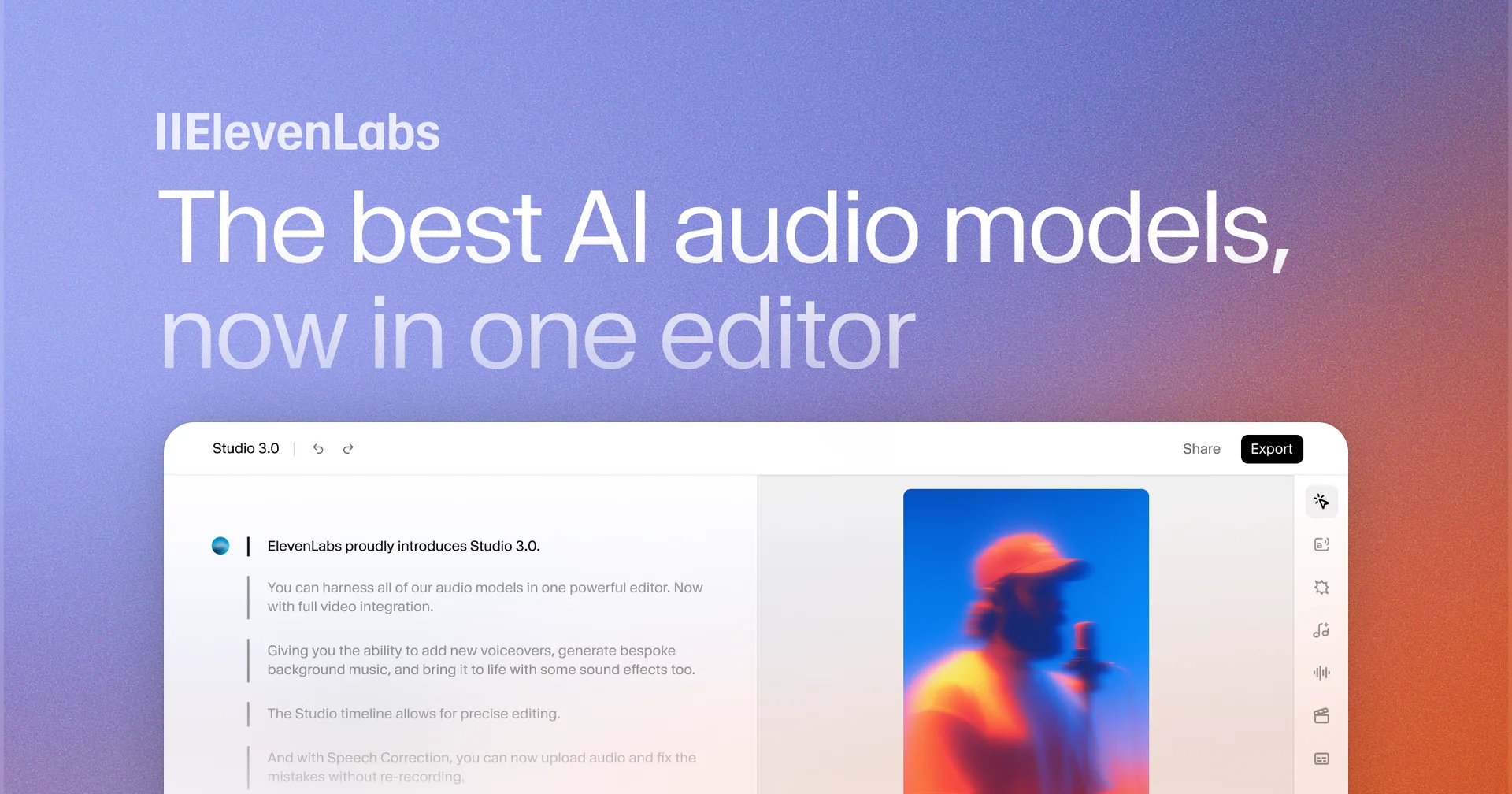
The dubbing pipeline works in five stages. First, the system transcribes the original audio using ElevenLabs’ speech-to-text engine. Second, it detects and separates individual speakers. Third, it translates the transcript into your target language. Fourth, it generates dubbed audio using AI voices matched to each original speaker. Fifth, it syncs the dubbed audio back to the original video timing. Each of these stages produces an editable intermediate result, so you can correct transcription errors, adjust translations for cultural nuance, and fine-tune voice output before committing to a final render.
Plan to spend time in the transcript and translation review stages - those review steps are what separate professional-quality dubbing from awkward machine translations.
When to Use Dubbing Studio
Best use cases:
- YouTube and social media videos. A single English video can become 5, 10, or 20 language versions without re-recording anything.
- Corporate training and onboarding. Dub training videos into local languages while keeping the original presenter’s voice consistent.
- Webinars and presentations. Recorded webinars gain a second life when dubbed for markets that were not in the original audience.
- Podcast episodes. Audio-only content dubs well because there are no lip-sync concerns.
- E-learning and course content. Course creators can reach non-English-speaking students without re-filming entire curricula.
When to consider alternatives:
- Scripted content with no source video. Use ElevenLabs Studio for direct text-to-speech generation in each language instead.
- Content requiring lip sync. Dubbing Studio does not modify video to match dubbed audio lip movements. For talking-head videos, you may need a dedicated lip-sync tool as a post-processing step.
- Single sentences or short clips. The overhead of a dubbing project is not worth it for clips under 30 seconds. Use the Speech Synthesis page instead.
Which Languages Does ElevenLabs Dubbing Studio Support?
ElevenLabs Dubbing Studio supports 29 languages for dubbing, covering the major global markets and several high-demand regional languages. The quality varies by language, and understanding these differences helps you set appropriate expectations.
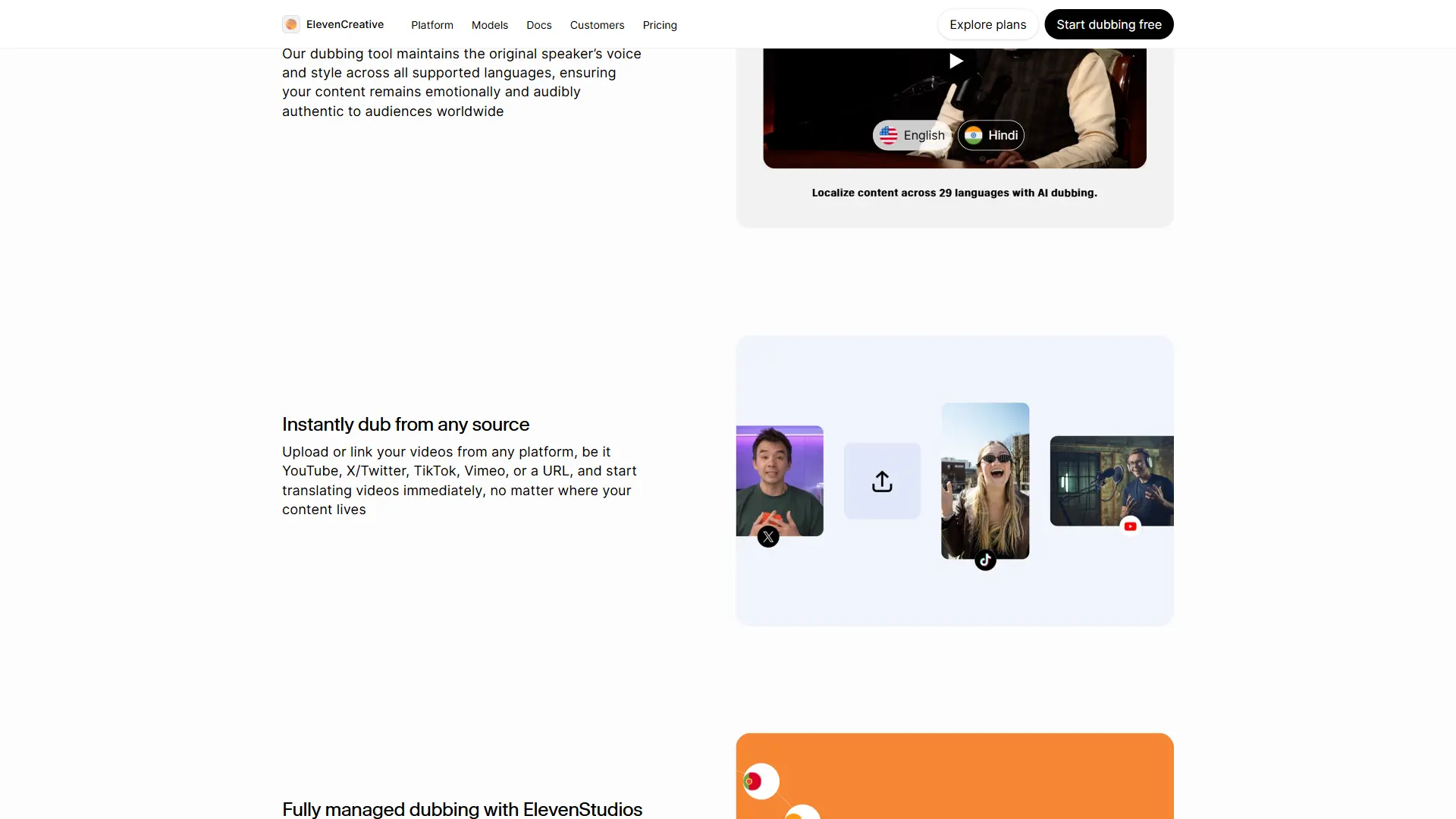
For the official list see the ElevenLabs Dubbing documentation. The community-maintained voice library guide helps you find native-sounding voices for each tier.
Tier 1 - Highest Quality
These languages produce output that is nearly indistinguishable from native-speaker recordings. They have the most training data and the most refined models.
- English (US, UK, Australian variants)
- Spanish (Latin American and European)
- French
- German
- Portuguese (Brazilian and European)
- Japanese
- Korean
- Chinese (Mandarin)
Tier 2 - Strong Quality
Reliable for professional use with occasional minor accent inconsistencies. These work well for most business and content applications.
- Italian
- Dutch
- Polish
- Swedish
- Turkish
- Indonesian
- Hindi
- Arabic
Tier 3 - Functional Quality
Usable for reaching these markets, but expect some pronunciation irregularities with complex vocabulary or domain-specific terms. Review translations more carefully in these languages.
- Czech
- Danish
- Finnish
- Greek
- Hungarian
- Norwegian
- Romanian
- Russian
- Slovak
- Ukrainian
- Vietnamese
- Filipino
- Malay
Tier 1 languages benefit from larger training datasets and more refined models. For Tier 3 languages, budget extra time for translation review - automated translations are more likely to need manual corrections for idiomatic expressions and technical terminology.
Upload and Configure Your Project
Start by navigating to the Dubbing section in your ElevenLabs dashboard. Click Create New Dub to begin a project.
Source Input Options
ElevenLabs accepts three input types for dubbing projects.
Video file upload. Drag and drop or browse for a video file. Supported formats include MP4, MOV, and WebM. The maximum file size depends on your plan tier. Compressing a 4K video to 1080p before upload (using HandBrake or similar) speeds up processing without affecting audio quality.
YouTube URL. Paste a YouTube video URL directly into the input field. ElevenLabs downloads the video and extracts the audio automatically. You need to own or have rights to the content - YouTube’s content rights policies apply.
Vimeo URL. Paste a Vimeo link and the platform handles the download and extraction. This works for publicly accessible videos or content you own.
Project Configuration
After providing your source, configure the dubbing settings.
Source language. Select the language of the original content. Explicitly setting it improves transcription accuracy over auto-detection, especially for accented speakers or code-switching.
Target languages. Select one or more target languages. You can dub into multiple languages simultaneously from a single upload, each generating a separate output you can review independently.
Number of speakers. Indicate how many distinct speakers appear. If unsure, set this to “auto.” For content with more than four speakers, specifying the count manually tends to produce better separation. The voice library guide explains how speaker assignments map to voice selections.
Watermark setting. On lower-tier plans, dubbed output includes an ElevenLabs watermark. Higher tiers remove this - upgrade options are listed on the pricing page. Check your plan’s policy if the dubbed content will be published.
Click Create to start processing. The initial transcription and speaker detection phase typically takes 1 to 3 minutes for a 10-minute video.
Speaker Detection
After the initial processing completes, Dubbing Studio presents you with its speaker detection results. This is the first review checkpoint, and getting it right matters because speaker assignments carry through to every subsequent stage.
The system labels each detected speaker generically - Speaker 1, Speaker 2, and so on. Each speaker is assigned a color in the transcript view, making it visually clear which parts belong to which person.
Reviewing Speaker Assignments
Play through the transcript and verify that the system correctly identified where one speaker stops and another begins. Common issues to watch for:
Over-segmentation. A single speaker gets split into two or more labels, typically when tone changes dramatically. Merge these by selecting the incorrectly split segments and assigning them to the same speaker.
Under-segmentation. Two speakers get grouped under one label, usually when they have similar vocal characteristics. Split these by manually reassigning the affected segments.
Cross-talk errors. When speakers talk over each other, the system may assign overlapping portions to the wrong speaker. For short overlaps, this is usually acceptable. For extended cross-talk, manually adjust the labels.
Naming Speakers
Replace generic labels with meaningful names. Speaker names do not affect audio output, but they make transcript editing and translation review much easier to navigate. The team workspace guide covers how speaker labels propagate when collaborators edit the same project.
Handling Multi-Speaker Videos
Videos with three or more speakers require extra attention. The more speakers present, the higher the chance of misattribution.
- Review the first appearance of each speaker carefully. If the system gets the initial assignment right, it usually maintains accuracy throughout.
- Check transitions. Misattribution is most common at transition points, especially after pauses.
- Listen to edge cases. Audience questions, phone calls, or embedded video clips often confuse the detection system. Flag and correct these manually.
Transcript Editing
Once speaker detection is verified, move to the transcript review. The system displays the full transcription of your source content, segmented by speaker and timestamped.
Why Transcript Accuracy Matters
If the system transcribes “revenue model” as “revenue motto,” every target language will translate the wrong word. Fixing transcription issues here prevents cascading errors downstream.
Common Transcription Issues
Technical terminology. Industry-specific terms and acronyms are the most frequent failures. “Kubernetes” might become “Cooper Netties.” “SaaS” might transcribe as “sauce.”
Numbers and data. The engine sometimes misinterprets numbers spoken quickly. “2.5 million” might become “25 million.” Verify numerical data against the original.
Proper nouns. Names of people, companies, and places are prone to errors that affect downstream translations.
Filler words. The transcription may include “um,” “uh,” and repeated words. For professional content, removing fillers produces better results.
Editing the Transcript
Click on any segment to edit. Changes flow through to the translation stage. Use the play button next to each segment to verify edits match the original audio. Do not add content that was not in the original - timing sync depends on dubbed audio matching the original duration.
Translation Review
After you approve the transcript, the system generates translations for each target language. This is the stage where cultural adaptation happens, and it deserves the most careful attention.
Evaluating Translation Quality
Open each target language’s translation and review it segment by segment. If you are fluent in the target language, read through for:
- Literal translations that sound unnatural. English idioms rarely translate directly. “Break a leg” should not be translated word-for-word into Spanish or Japanese.
- Tone mismatches. The translation might be technically accurate but in the wrong register - too formal for casual content or too informal for corporate training.
- Cultural references. Sports metaphors, holiday references, and region-specific examples may need localization, not just translation.
- Technical term consistency. Verify that industry terms are translated the same way throughout. If “machine learning” is translated one way in segment 5 and differently in segment 20, pick one and standardize.
Working with Languages You Do Not Speak
Use a native speaker reviewer. The best approach. Share the project with a colleague or freelance translator who can edit translations directly in the interface. Platforms like ProZ can connect you with vetted translators if you do not have one in-house.
Back-translate to English. Copy translated text into a translation tool such as DeepL and translate it back to English. This catches gross errors - if the back-translation makes no sense, the forward translation probably has problems.
Focus on segment length. Translations that are dramatically longer or shorter than the source cause timing issues in the final dub.
Cultural Adaptation Best Practices
Effective dubbing goes beyond word-for-word translation.
- Measurement units. Convert miles to kilometers, Fahrenheit to Celsius, and dollars to local currency equivalents where appropriate.
- Date formats. MM/DD/YYYY should become DD/MM/YYYY or YYYY/MM/DD based on the target locale.
- Humor and examples. Replace culturally specific jokes with equivalents that resonate in the target culture.
- Formality levels. Languages like Japanese, Korean, and German have formal and informal registers that English largely lacks. Match the appropriate formality for your audience.
Voice Customization
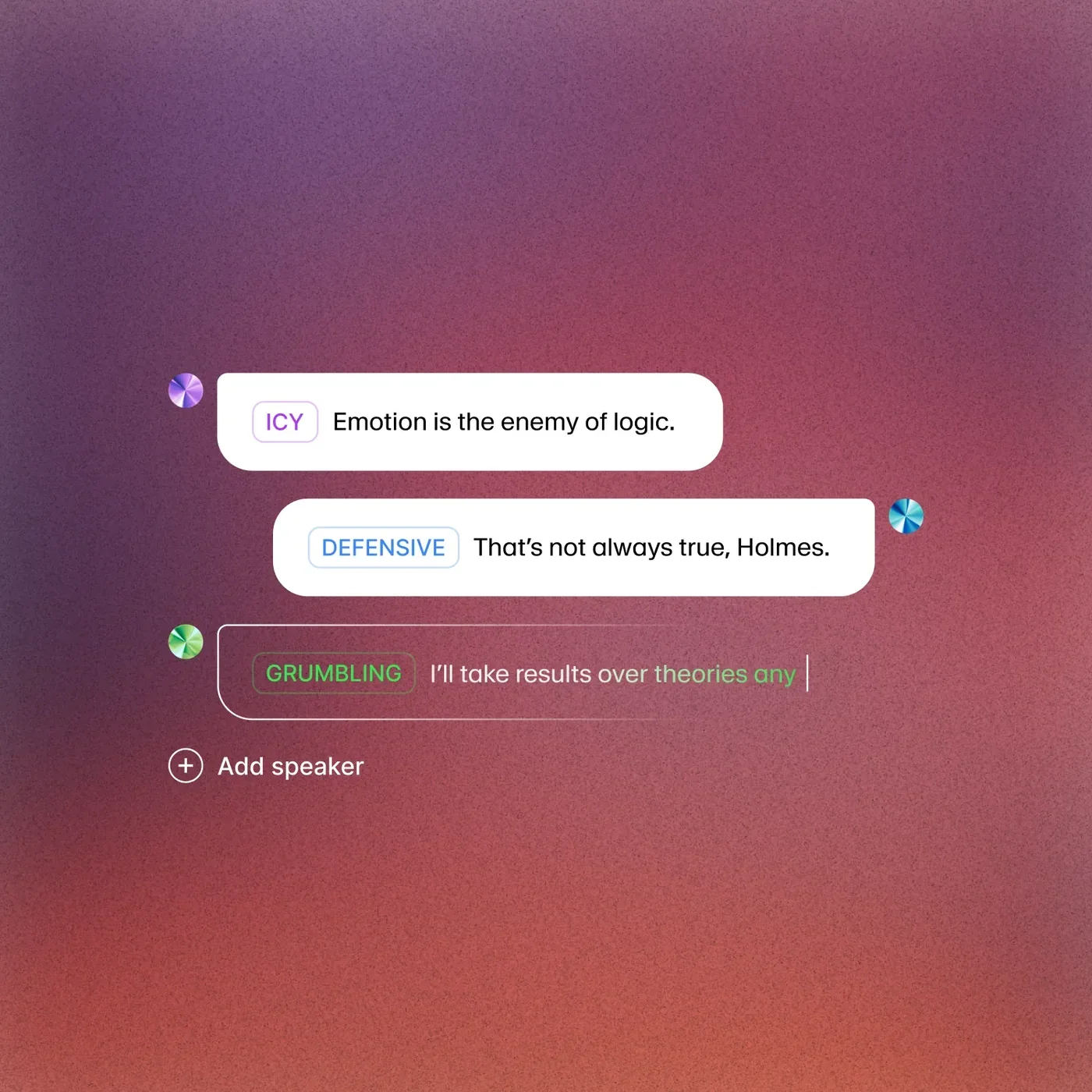
After translations are approved, you can customize how each speaker’s dubbed voice sounds. ElevenLabs matches the dubbed voice to the original speaker’s characteristics by default, but fine-tuning is available for each speaker and each language.
Stability and Similarity Settings
Two primary controls affect voice output quality.
Stability controls how consistent the voice sounds across segments. Higher stability (0.7 to 1.0) produces more uniform, predictable output. Lower stability (0.3 to 0.6) allows more variation and expressiveness but risks inconsistency between segments. For corporate or educational content, higher stability is usually better. For narrative or entertainment content, lower stability can sound more natural.
Similarity Enhancement controls how closely the dubbed voice matches the original speaker. Higher values produce closer matches but can introduce artifacts if pushed too far. Start at 0.75 and adjust based on what you hear. If the dubbed voice sounds slightly robotic, reduce similarity by 5 to 10 percent.
Speaker-by-Speaker Adjustment
In multi-speaker videos, each speaker may need different settings. A narrator reading prepared text typically sounds best with high stability. An interviewee giving spontaneous answers may need lower stability to preserve natural speech patterns. Adjust each speaker independently rather than applying global settings.
Language-Specific Voice Tuning
The same settings can produce different results across languages. A stability value of 0.8 might sound natural in English but slightly stiff in Italian, which has more melodic intonation patterns. When dubbing into multiple languages simultaneously, listen to samples in each language and adjust per-language if needed.
Preserving Emotional Tone
Verify that emotional cues carry through to the dubbed version. The AI preserves tone reasonably well, but transitions between emotions sometimes flatten out. Re-generate individual segments with adjusted settings if specific moments lose their impact.
Export and Delivery
Once you have reviewed and approved the dubbed output for each target language, proceed to export.
Export Options
Video with dubbed audio. The most common export - your original video with the new language audio track replacing the original. The video quality matches your source file.
Audio only. Export just the dubbed audio track as an MP3 or WAV file. Useful when you want to handle video editing yourself or when the source is audio-only (podcasts, audiobooks).
Subtitles. Export SRT or VTT caption files for each language. These match the dubbed audio precisely and work for closed captions on YouTube, Vimeo, or your own video player.
Multiple languages as separate files. Each target language exports as its own file - three target languages produce three separate video, audio, or subtitle files.
Publishing Workflow
For YouTube creators, the typical workflow is:
- Export each language version as a separate video file.
- Upload each as its own YouTube video or use YouTube’s multi-language audio track feature.
- Export subtitle files for each language and upload them as closed captions.
- Update video titles and descriptions in each language (Dubbing Studio does not translate metadata - handle this separately).
For websites and learning platforms, host the language-specific video files on your CDN and implement a language selector that swaps between them.
Cost Estimation
Dubbing costs are measured in credits, which map to minutes of source audio processed. The per-minute cost varies by plan.
| Plan | Monthly Price | Dubbing Credits | Approximate Cost per Minute |
|---|---|---|---|
| Creator | $22/mo | 100,000 credits | around $0.50-1.00/min |
| Pro | $99/mo | 500,000 credits | around $0.30-0.60/min |
| Scale | $299/mo | 1,800,000 credits | around $0.15-0.30/min |
Estimating project costs. A 10-minute video dubbed into 3 languages uses roughly 30 dubbing-minutes of credits. On the Creator plan, that consumes a significant portion of your monthly allocation. On the Scale plan, the same project is a small fraction of your quota.
Tips for managing costs:
- Trim before uploading. Remove intros, outros, and dead air with a tool like Audacity. Every second of source audio costs credits, even silence.
- Start with one language. Review quality before committing credits to additional languages. The voice isolator guide covers cleaning source audio before upload.
- Batch similar content. Translation memory and voice calibration from earlier projects speed up subsequent ones.
- Test with short clips. Before dubbing a 45-minute webinar, test with a 2-minute excerpt to verify quality and settings.
Troubleshooting
Speaker Detection Failures
Problem: All speakers assigned to one label. Try setting the speaker count manually to the exact number of speakers. If the audio is mono and speakers are not well-separated, edit speaker assignments manually segment by segment.
Problem: Background music detected as a speaker. Use a version of the video with music removed or reduced if possible. Otherwise, identify music-only segments in the transcript and delete them.
Problem: Short utterances misattributed. One-word responses like “yes” or “exactly” often get assigned to the wrong speaker. Manually reassign these during speaker review.
Translation Issues
Problem: Technical terms mistranslated. Add correct translations during review. If you dub in the same domain frequently, maintain a glossary and apply corrections consistently across projects.
Problem: Translations too long for the time slot. German text is typically 20 to 30 percent longer than English, and Finnish can be longer still. When dubbed audio does not fit the original timing, the system compresses speech rate, which sounds unnatural. Shorten the translation text instead.
Problem: Formal/informal register mismatch. Languages with distinct formal registers (Japanese, Korean, German, French) may default to the wrong formality level. Manually adjust to match your audience.
Audio Quality Issues
Problem: Robotic or metallic voice artifacts. Reduce the Similarity Enhancement setting by 10 to 15 percent. A slightly less precise voice match that sounds natural is better than a close match with audible distortion.
Problem: Timing drift in long videos. For videos over 20 minutes, verify audio sync throughout. If final segments drift out of sync, split the source into 10 to 15 minute segments, dub separately, and stitch together in a video editor.
Problem: Volume inconsistencies. Dubbed audio may not match the volume levels of the original. Normalize audio levels in post-production using Audacity or your video editor’s normalization feature. The audio quality optimization guide walks through ElevenLabs-specific normalization settings.
Frequently Asked Questions
How many languages can I dub a single video into at once?
You can select multiple target languages for a single source video and process them simultaneously. There is no hard limit, though processing time increases with each language added. Most users dub into 3 to 5 languages per batch and add more in subsequent rounds. Each language produces an independent output you can review and edit separately.
Does Dubbing Studio handle lip sync for talking-head videos?
Dubbing Studio focuses on audio replacement - it does not modify the video to match dubbed audio lip movements. Viewers will notice mismatched lip movements in talking-head content, which is standard for AI dubbing (similar to dubbed films). If precise lip sync is critical, use a dedicated lip-sync AI tool as a post-processing step after export.
Can I dub content that has multiple languages in the source?
Yes, though this requires extra attention. If your source video switches between English and Spanish, for example, set the primary source language and then manually correct any segments where the automatic transcription struggled with the secondary language. The translation engine handles each segment independently, so as long as the source transcript is accurate, the translations will be correct regardless of which language was originally spoken.
How long does the dubbing process take from upload to final export?
A 10-minute video dubbed into one language typically takes 5 to 10 minutes for automated processing. The manual review stages add time based on how thorough your review is. For a first project, expect 30 to 45 minutes including review. Subsequent projects go faster as you learn the interface - the YouTube voiceover workflow shares additional time-saving tips.
What happens to background music and sound effects in the dubbed version?
ElevenLabs separates the vocal track from background audio during processing. The dubbed voice replaces only the vocal layer, and the original music, sound effects, and ambient audio are preserved and mixed back in. The separation is not always perfect - you may hear slight artifacts where music and voice overlap - but for most content the result is seamless.
Want to learn more about ElevenLabs?
Related Reading
- Getting Started with ElevenLabs - Account setup, first generation, and platform basics
- ElevenLabs - Full review with pricing, ratings, and feature breakdown
- Best AI Translation Tools - How ElevenLabs dubbing compares to text-based translation platforms
- Best AI Voice Generators 2026 - Comprehensive comparison of voice synthesis platforms
Related Guides
- ElevenLabs Multilingual Dubbing Workflow - End-to-end multi-language dubbing process
- ElevenLabs Voice Isolator Guide - Clean source audio before dubbing
- ElevenLabs Audio Quality Optimization - Stability, similarity, and post-processing tips
- ElevenLabs YouTube Voiceover Workflow - Producing YouTube-ready voiceover output
- Getting Started with ElevenLabs - Account setup and first generation
External Resources
- ElevenLabs Dubbing Documentation - Official guides for the dubbing workflow and API integration
- DeepL Translator - Reference translator for back-translation review
- Audacity - Free open-source audio editor for post-production normalization
Related Guides
- AI Video Creation Tips: 2026 Walkthrough for Teams
- AI Voice Cloning Ethics Best Practices: Complete 2026 Guide
- AI Voiceover Corporate Training With WellSaid Labs
- AI Voiceover Tips: Making Synthetic Voices Sound Human
- ElevenLabs API Setup: Developer Quick Start Guide (2026)
- ElevenLabs Audio Native Embed Audio on Any Website
- ElevenLabs Audio Quality Settings: Pro Tips and Settings
- ElevenLabs Audiobook Creation: Long-Form Audiobook
- ElevenLabs Conversational AI Agents: Build Voice Agents
- ElevenLabs eLearning Narration: E-Learning Course Narration