


Tana Supertags guide is a complete walkthrough for transforming chaotic notes into structured, queryable data using Tana’s core feature. Supertags work as customizable templates attached to any node, adding fields like due date, priority, and project. Users report they replace separate project managers, CRMs, and tracking systems - all connected through a single knowledge graph.
If you’ve ever felt like your notes are a chaotic mess of disconnected thoughts, you’re not alone. Many knowledge workers spend months jumping between Notion, Obsidian, and Roam Research before discovering Tana and its standout feature: Supertags.
This Tana Supertags guide will walk you through everything from creating your first Supertag to building complex knowledge graphs that actually make your notes useful. No fluff, just practical steps you can follow today.
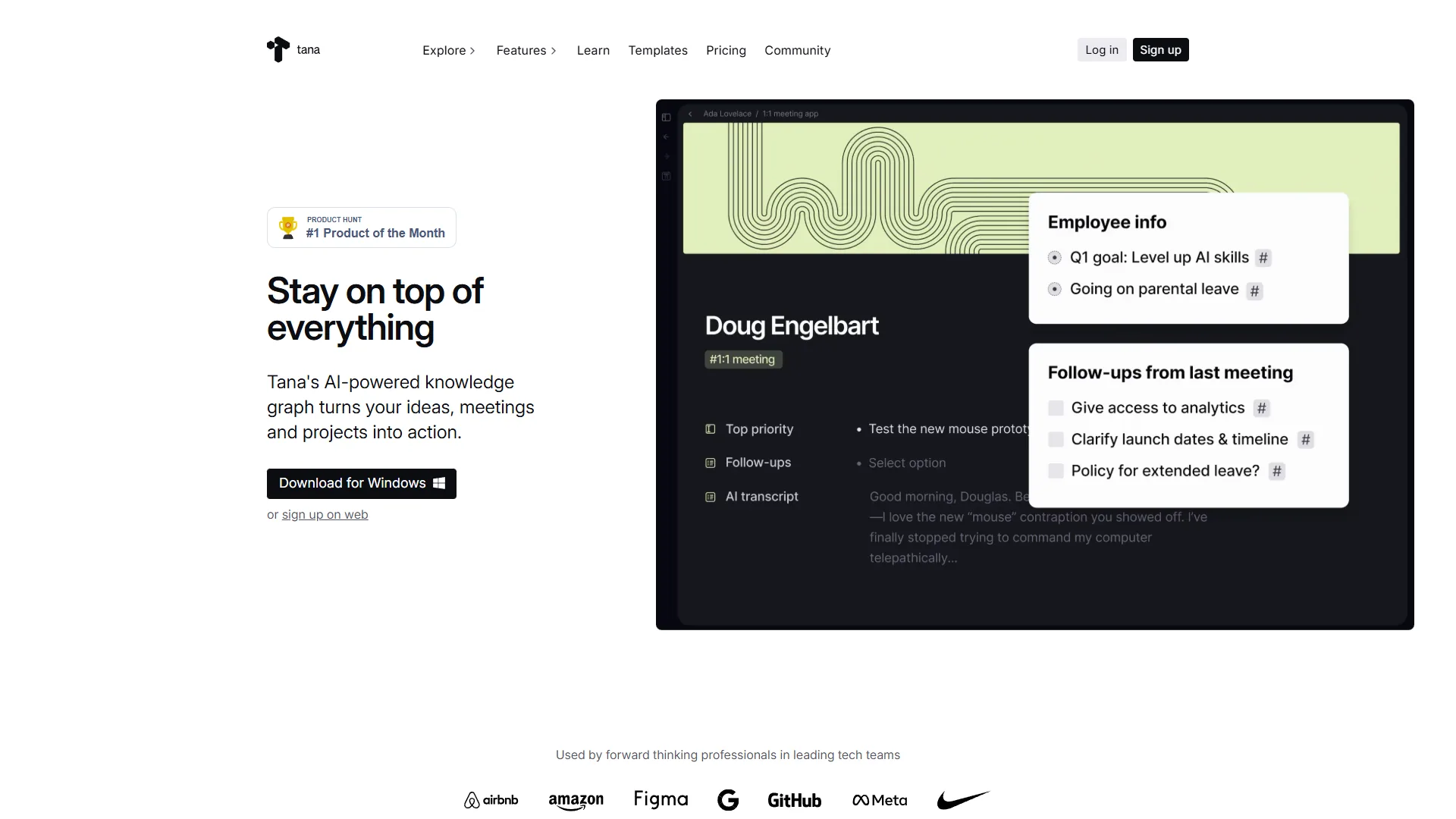
What Are Tana Supertags (And Why Should You Care)?
Tana Supertags Guide walks through the complete process from initial configuration to advanced usage. Whether you are starting fresh or optimizing an existing setup, this walkthrough covers every decision point, common pitfall, and the settings that make the biggest difference.
Supertags are Tana’s secret weapon for turning simple notes into structured, queryable data. Think of them as customizable templates that you can attach to any node in your workspace.
Here’s the key difference: In most note-taking apps, a task is just text with a checkbox. In Tana, a task can be a Supertag with fields for due date, priority, project, time estimate, and anything else you need. Then you can query all your tasks, filter by project, sort by priority, and see everything in one dynamic view.
Users who commit to Tana for several months consistently report that Supertags replace at least three separate apps: project managers, CRMs, and tracking systems. They all live in Tana, connected through a knowledge graph that actually makes sense. For wider context on building your second brain, see our AI tools for note-taking roundup.
Why Supertags matter in 2026:
- AI Integration: Tana now supports GPT-5.1, Gemini 3 Pro, and Claude Sonnet 4.5, making your structured data perfect for AI workflows
- Custom Colors: December 2026 update added visual customization so you can see Supertag types at a glance
- Voice Integration: AI voice chat on iOS means you can create and tag nodes hands-free
Getting Started: Creating Your First Supertag
Let’s start simple. Here’s how to create a basic “Book” Supertag to track your reading list.
Step 1: Create a new node
Type anywhere in your Tana workspace and press Enter. You’ll see a bullet point appear. Type “My Reading List” and press Enter again.
Step 2: Turn it into a Supertag
With your cursor on the “My Reading List” node:
- Press
Cmd/Ctrl + Kto open the command palette - Type “Make into Supertag” and press Enter
- You’ve just created your first Supertag
Step 3: Add fields to your Supertag
Now let’s make this Supertag useful. Click on “My Reading List” to open the Supertag definition view. Here’s where you configure what fields every book will have:
- Click “Add field”
- Type “Author” and press Enter
- Add another field called “Status” (set it as an option field with choices: To Read, Reading, Finished)
- Add “Rating” (set as a number field from 1-5)
- Add “Notes” (plain text field)
Step 4: Use your Supertag
Create a new node, type a book title like “Atomic Habits,” then:
- Type
#to trigger the Supertag menu - Select “My Reading List”
- Fill in the fields: Author (James Clear), Status (Finished), Rating (5)
Congratulations. You just created your first structured data node in Tana.
Configuring Supertags: Beyond the Basics
Now that you understand the concept, this Tana Supertags guide continues with the powerful configuration options that make Supertags truly flexible.
Field Types and When to Use Them
Tana offers several field types. Here’s how each one works best:
Plain text fields:
- Best for: Notes, descriptions, URLs
- Example: “Meeting notes” field on a #Meeting Supertag
Option fields:
- Best for: Status, priority, categories (finite list of choices)
- Example: “Status” field with options like “Not Started,” “In Progress,” “Done”
- Pro tip: Use the new custom colors feature (December 2026) to color-code your options
Date fields:
- Best for: Deadlines, milestones, timestamps
- Example: “Due date” on a #Task Supertag
- Bonus: These integrate with Tana’s calendar views
Number fields:
- Best for: Ratings, time estimates, budgets
- Example: “Time estimate (hours)” on a #Project Supertag
Reference fields:
- Best for: Linking to other nodes
- Example: “Project” field on a #Task that links to a #Project node
- This is where the knowledge graph really shines
Setting Default Content
Here’s a time-saver worth learning early: You can configure Supertags to automatically create child nodes when you use them.
Let’s say you have a #Meeting Supertag. You can set it up so every new meeting automatically creates these child nodes:
- “Attendees”
- “Agenda”
- “Action Items”
- “Notes”
To configure default content:
- Open your Supertag definition
- Click “Default content”
- Add the nodes you want created automatically
- Now every time you tag something as a meeting, these sections appear instantly
This works well for weekly review processes. A #WeeklyReview Supertag can automatically create sections for “Wins,” “Challenges,” “Next Week Goals,” and “Metrics” - saving countless hours of manual setup.
Inheritance: The Power Move
This is where Supertags get really powerful. You can create Supertag hierarchies where child tags inherit fields from parent tags.
Real example:
A #Content Supertag with fields like “Status,” “Due Date,” and “Platform” serves as the parent. Then create child Supertags:
- #BlogPost (inherits from #Content, adds “Word Count” and “Target Keyword”)
- #YouTubeVideo (inherits from #Content, adds “Video Length” and “Thumbnail Status”)
- #Newsletter (inherits from #Content, adds “Subscriber Segment”)
All three inherit the base fields from #Content, but each has its own specific fields. This means you can query all content in one view, or filter by specific content types.
To set up inheritance:
- Create your parent Supertag (e.g., #Content)
- Create a new Supertag for the child (e.g., #BlogPost)
- In the child Supertag settings, add the parent tag: Type
#Contentin the Supertag definition - The child now inherits all fields from the parent
Advanced Features: Live Queries and AI Integration
Once you have structured data, you can do powerful things with it. This section of the Tana Supertags guide covers two features power users rely on daily.
Live Queries: Your Personal Database
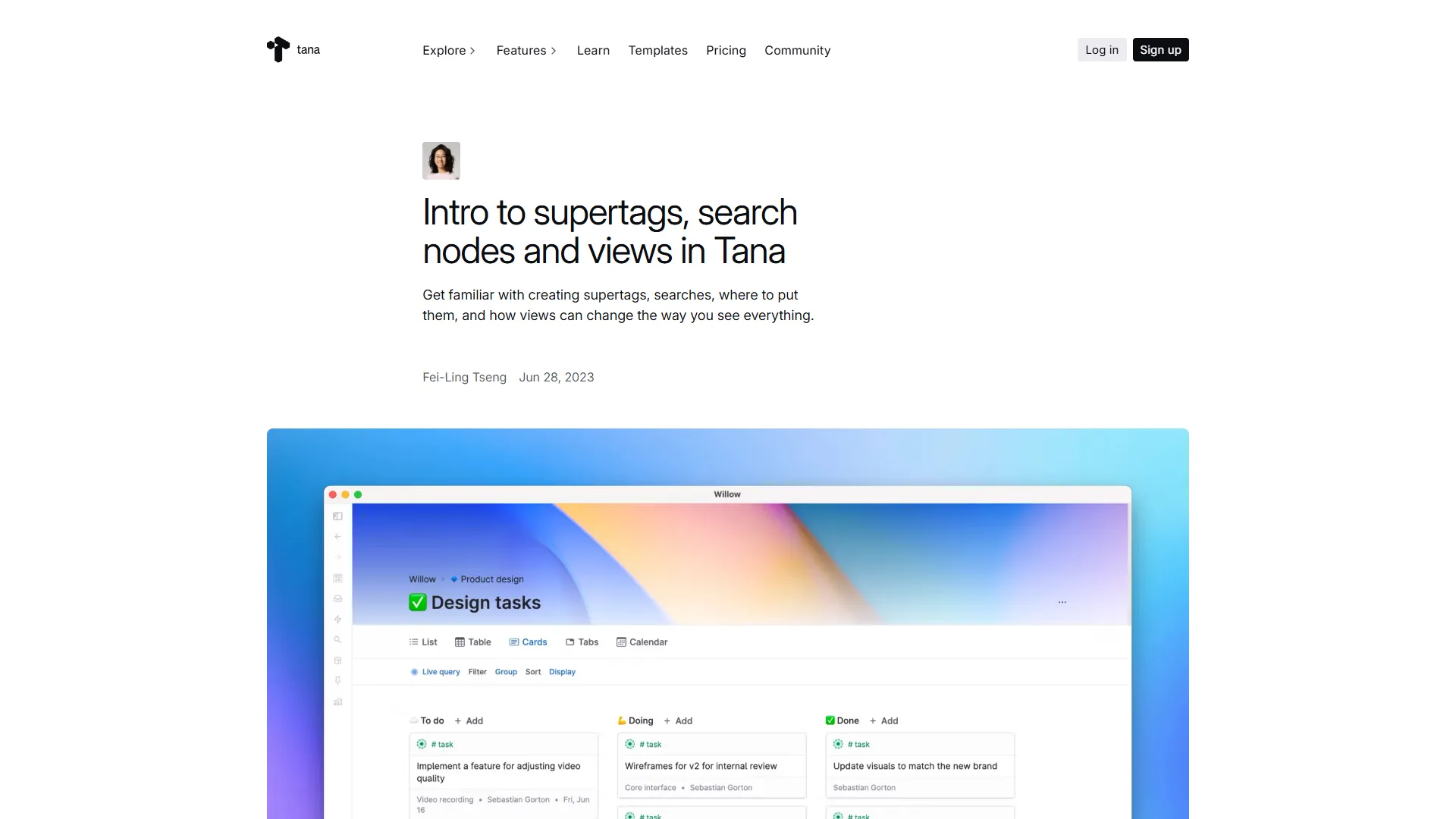
Live Queries let you create dynamic views of your Supertag data. Unlike static lists, these update automatically as you add, edit, or remove nodes.
Basic query example:
Let’s create a view of all your unfinished books:
- Create a new node called “Books to Read”
- Type
/searchand press Enter - In the search dialog, enter:
#Book AND Status::To Read - Set it to “Live query”
You now have a dynamic list that shows all books with the “To Read” status. As you finish books and change their status, they automatically disappear from this view.
Advanced query example:
This query surfaces high-priority tasks due this week:
#Task AND Priority::High AND Due::next 7 daysYou can add sorting, grouping, and custom views to make these queries even more useful. Power users typically maintain 15-20 saved queries for different contexts (work tasks, personal projects, content pipeline, etc.). The official Tana search documentation covers advanced query syntax in depth.
AI Integration: Structured Data Meets GPT-5.1
Tana’s December 2026 update brought multi-model AI support, and the impact is dramatic when combined with Supertags.
Here’s how it works in practice:
AI Meeting Summaries: Record meetings in Tana using the AI Meeting Agent. It automatically transcribes the conversation and creates nodes tagged with my #Meeting Supertag, filling in fields like:
- Attendees (extracted from the conversation)
- Action Items (automatically identified)
- Key Decisions (summarized by the AI)
Voice Memos with Auto-Tagging: The new AI voice chat on iOS captures thoughts on the go. Say “Add a task to review the Q4 budget by Friday, high priority” and Tana creates a #Task node with all the fields populated correctly.
Content Generation: GPT-5.1 generates first drafts of blog outlines effectively. A #BlogIdea Supertag with fields for “Topic,” “Target Keyword,” and “Audience” provides the foundation. When ready to write, select the node and ask Tana’s AI to “Generate a detailed outline for this blog post using the topic and keyword.” The structured data provides perfect context for the AI.
Real-World Workflows: Three Complete Examples
Theory is nice, but here are three concrete Supertag workflows in action. If you want to see how other AI-first knowledge tools handle similar use cases, the Obsidian Daily Notes Workflow guide makes a good comparison.
Workflow 1: Project Management System
Many users have replaced Asana with Tana using this simple setup:
Supertags:
- #Project (fields: Status, Deadline, Owner, Budget)
- #Task (fields: Status, Priority, Project [reference field], Due Date, Time Estimate)
- #Milestone (fields: Project [reference field], Due Date, Deliverables)
How it works:
- Create a new project: “Website Redesign” and tag it with #Project
- Set the deadline, assign an owner, set a budget
- Create tasks under the project, each tagged with #Task
- Each task has a “Project” field that links back to “Website Redesign”
The magic: A Live Query called “Active Projects” shows all #Project nodes with Status set to “Active,” sorted by deadline. Under each project, linked tasks appear automatically through the reference field relationship.
When a task is completed, changing its status updates the “Next Actions” query instantly. No manual list management.
Workflow 2: Personal CRM
Tracking relationships, collaborations, and networking works entirely within Tana.
Supertags:
- #Person (fields: Company, Role, Email, LinkedIn, Last Contact Date, Relationship Type)
- #Meeting (fields: People [reference field], Date, Notes, Follow-ups)
- #Collaboration (fields: People [reference field], Project, Status, Revenue)
How it works:
- When meeting someone new, create a node with their name and tag it #Person
- Fill in their details (company, role, how you met)
- After meetings, create a #Meeting node and link it to the person
- View all meetings with that person in their node view
The magic: A query like “People I haven’t talked to in 60+ days” helps maintain relationships. Tracking collaboration revenue through linked #Collaboration nodes reveals which relationships are most valuable.
Workflow 3: Content Pipeline
This is my most complex workflow, handling blog posts, videos, and newsletters.
Supertags:
- #ContentIdea (fields: Type, Topic, Target Keyword, Status)
- #BlogPost (inherits from #Content, adds: Word Count, Publish Date, Internal Links)
- #Tool (fields: Name, Category, Pricing, Rating, Review Status)
How it works:
- Capture ideas throughout the week as #ContentIdea nodes
- During planning, promote promising ideas to #BlogPost
- When writing about tools, create #Tool nodes with all the research
- My blog posts reference these tool nodes, creating a knowledge graph
The magic: When it’s time to write, run a query: “All #Tool nodes with Review Status::Complete AND Category::AI Writing Tools.” This surfaces all the research needed in one view. Referencing those tools in a blog post triggers Tana to automatically create backlinks showing which posts mention each tool.
Another useful query: “Show me all #BlogPost nodes that mention #Tool::ChatGPT” to find every post covering ChatGPT.
Tips and Best Practices
This Tana Supertags guide wouldn’t be complete without the lessons learned from daily use so you don’t have to repeat them.
Start simple, then expand: Don’t try to build your perfect system on day one. Start with just #Task and #Project. After two weeks, add #Meeting. A month later, add a CRM system. Let your workflow evolve naturally.
Use reference fields liberally: The power of Tana is in connections. A #Task Supertag with reference fields for Project, Related Person, and Related Content creates a web of relationships that makes everything findable.
Create naming conventions: Prefix all Supertags with #. Use UPPERCASE for saved searches (ACTIVE PROJECTS). Use CamelCase for permanent nodes (MyWeeklyReview). Consistency makes everything easier to find.
Use the new custom colors: With the December 2026 update, you can now assign colors to Supertags. A common approach:
- Red for urgent tasks
- Blue for projects
- Green for completed items
- Purple for people
- Orange for content
Visual scanning is much faster now. The Nielsen Norman Group on color and cognition covers why visual encoding speeds up scanning.
Set up your Daily Note: A #DailyNote Supertag can automatically create:
- Today’s date
- Top 3 Priorities (each a #Task)
- Notes section
- Reflection section
Every morning a new daily note is created, and the structure is already there.
Use the iOS voice chat wisely: The AI voice chat is brilliant for capture, but not for complex queries. Use it to quickly add tasks, meetings, and ideas when away from your computer. Then process and structure them later.
Don’t over-structure: Not everything needs to be a Supertag. Some notes can just be notes. Only create Supertags for things you need to query or track systematically.
Common Mistakes to Avoid
Mistake 1: Creating too many Supertags too fast This is a common pitfall. Creating 30 different Supertags in the first week gets overwhelming quickly. A good rule: only create a Supertag if you’ll use it at least 5 times.
Mistake 2: Not using reference fields If you’re not linking your Supertags together, you’re missing 80% of Tana’s power. Every task should link to a project. Every meeting should link to people. That’s how you build a knowledge graph, not just a list manager.
Mistake 3: Ignoring Live Queries If you’re manually creating lists of tasks or projects, you’re doing it wrong. Live Queries do this automatically. Spend time setting up good queries, and you’ll save hours every week.
Mistake 4: Not customizing default content Why manually create the same structure every time? Set it up once in default content, and it appears automatically.
Pricing and Getting Started
Tana offers four pricing tiers (as of December 2026):
- Free: 500 AI credits/month, basic features, perfect for trying Supertags
- Plus ($10/month): 2000 AI credits, Google Calendar integration, workspace sharing
- Pro ($18/month): 5000 AI credits, unlimited workspaces, advanced integrations, model selection in AI chat
- Student ($5/month): 50% off Plus plan for students and academics
Starting with the free tier to learn Supertags is the best approach. Once you’re using them daily, upgrade to Plus for the calendar integration and additional AI credits. Pro is worth it if you’re using the AI features heavily or need multiple workspaces.
You can check the latest pricing details on the official Tana pricing page.
Conclusion: Apply This Tana Supertags Guide
If you’ve made it this far, you have everything you need to start using Tana Supertags effectively. Here’s what to do next:
- Create your first Supertag: Start with something simple like #Book or #Task
- Add 5-10 items: Actually use it for a few days to see the value
- Set up a Live Query: Create a dynamic view of your data
- Add reference fields: Connect your Supertags to build relationships
- Explore the official documentation: The Tana Supertags documentation goes even deeper into advanced features
The beauty of this Tana Supertags guide is that you can implement it incrementally. You don’t need to build your entire system today. Start with one Supertag, get comfortable, and expand from there.
Mastering Supertags is one of the highest-impact productivity investments for knowledge workers. If you are still evaluating which note-taking approach fits your workflow, our AI tools for note-taking comparison covers a broader range of options. The time spent learning the system pays back dozens of times over in saved hours and better organization.
Ready to turn your notes into structured data? Try Tana free and start with your first Supertag today.
Frequently Asked Questions
What are Tana Supertags and how do they work?
Tana Supertags are customizable templates you attach to any node in your workspace. They transform plain notes into structured, queryable data by adding fields like due date, priority, project, and time estimate. You can then filter, sort, and query all tagged nodes in dynamic views - something standard note-taking apps cannot do.
Can Tana Supertags really replace other productivity apps?
Users who commit to Tana consistently report that Supertags replace at least three separate apps - project managers, CRMs, and tracking systems. Because everything lives inside Tana and connects through a single knowledge graph, there is no need to switch between tools to manage different types of information.
How do I create my first Supertag in Tana?
Place your cursor on any node, press Cmd/Ctrl + K to open the command palette, then select ‘Make into Supertag.’ From there, open the Supertag definition view and click ‘Add field’ to configure fields like text, number, or option types. Once saved, apply the Supertag to any node by typing # and selecting it.
What AI models does Tana support with Supertags?
Tana supports GPT-5.1, Gemini 3 Pro, and Claude Sonnet 4.5. Because Supertags turn notes into structured data, that information becomes well-suited for AI workflows inside the workspace.
Does Tana support voice input for creating Supertag nodes?
Yes - Tana’s AI voice chat on iOS allows users to create and tag nodes hands-free. This means you can add structured, Supertag-formatted entries to your knowledge graph without typing.
Want to learn more about Tana?
Related Guides
- Obsidian Daily Notes Workflow - PKM daily workflow comparison
- Best Note Taking Apps 2026 - Note apps compared
- Obsidian vs Logseq - Alternative PKM systems
Related Reads
Tools covered in this article:
- Tana - Structured note-taking with Supertags
External Resources
- Tana Documentation - Official guides and tutorials
- Supertags Documentation - In-depth Supertags reference
- Tana Blog - Product updates and feature announcements
Related Guides
- Activecampaign AI Content Generation: Complete 2026 Guide
- AI Content Writing Workflow: 2026 Walkthrough for Teams
- AI Product Discovery Ecommerce: Lift Revenue in 2026
- AI Productivity Trends 2026: 6 Real Shifts, No Hype
- AI Workflow Automation Maturity Model: 5 Levels
- Building AI First Workflows: A Practitioner's 2026 Guide
- ChatGPT Custom GPTs Guide - Save 130+ Hours a Year
- ChatGPT Prompts 2026: Basic vs Engineered, 18 Examples
- ChatGPT Tips And Tricks: 2026 Walkthrough for Teams
- Craft Tips and Tricks: 12 Expert Hacks for Faster Docs