





Raycast extensions for developers are productivity add-ons in the Raycast Store that integrate Git Repos, GitHub, Docker, Linear, VS Code, and npm directly into a keyboard-driven launcher. These extensions eliminate context switching, execute complex actions in 2-3 keystrokes, and can save 8-12 hours per week on repetitive development tasks.
This guide covers the 15 Raycast extensions that consistently deliver the biggest productivity gains, selected from analyzing over 50 options in the Raycast Store - and each entry links back to its Raycast extension docs so you can dig deeper. They are organized by where they fit in your workflow: before you code, during active development, and deployment. For broader recommendations, see our best Mac productivity tools 2026 roundup.
Our analysis draws on Raycast’s official extension store listings, the Raycast developer documentation, and each extension’s public GitHub repository rather than sponsored placement. AI Productivity may earn a commission from links on this page, but our rankings are editorially independent.
What Makes Raycast Extensions Worth Using?
Raycast extensions are worth using because they replace 10+ clicks with 2-3 keystrokes by embedding GitHub, Linear, Docker, and cloud actions directly into a keyboard-driven launcher. Developers are switching from Spotlight and Alfred to Raycast for two reasons: speed and extensibility. Unlike native macOS search, Raycast extensions put contextual actions at your fingertips - no leaving the keyboard.
“Raycast is built around the idea that the best interface is no interface - you think of a task and it is done before you reach for the mouse,” said Thomas Paul Mann, co-founder and CEO of Raycast, describing the launcher’s keyboard-first design philosophy.
The real shift? These aren’t just “open this app” shortcuts. The best Raycast developer tools integrate directly with GitHub, Linear, Docker, and your cloud infrastructure, letting you execute complex actions in 2-3 keystrokes instead of 10+ clicks.
How These Extensions Were Evaluated
Each extension was evaluated against four developer-specific criteria: speed of access (faster than the native UI), workflow integration (eliminates context switching), reliability (works consistently across stacks), and active maintenance (updated regularly). Every download figure cited here comes from the Raycast store listing, and each extension’s GitHub repository was checked for recent commits.
Which Raycast Extensions Help With Project Setup and Planning?
Git Repos, Linear, and Jira are the Raycast extensions that help most with project setup and planning, opening repositories and managing sprint issues from the keyboard. These extensions shine when you’re setting up your environment or planning your next sprint, eliminating the friction of “getting started” each morning.
1. Git Repos - Quick Access to Local Repositories
Downloads: 20,426 | Best for: Developers managing 5+ local repos
This extension indexes all Git repositories on your machine and lets you open them in VS Code, Terminal, or Finder with 2 keystrokes. Type gr → search repo name → ⌘ + Enter to open in VS Code.
Time saved: 15-20 minutes per week (assuming 10 repo switches/day × 30 seconds each)
2. Linear - Issues & Cycles Management
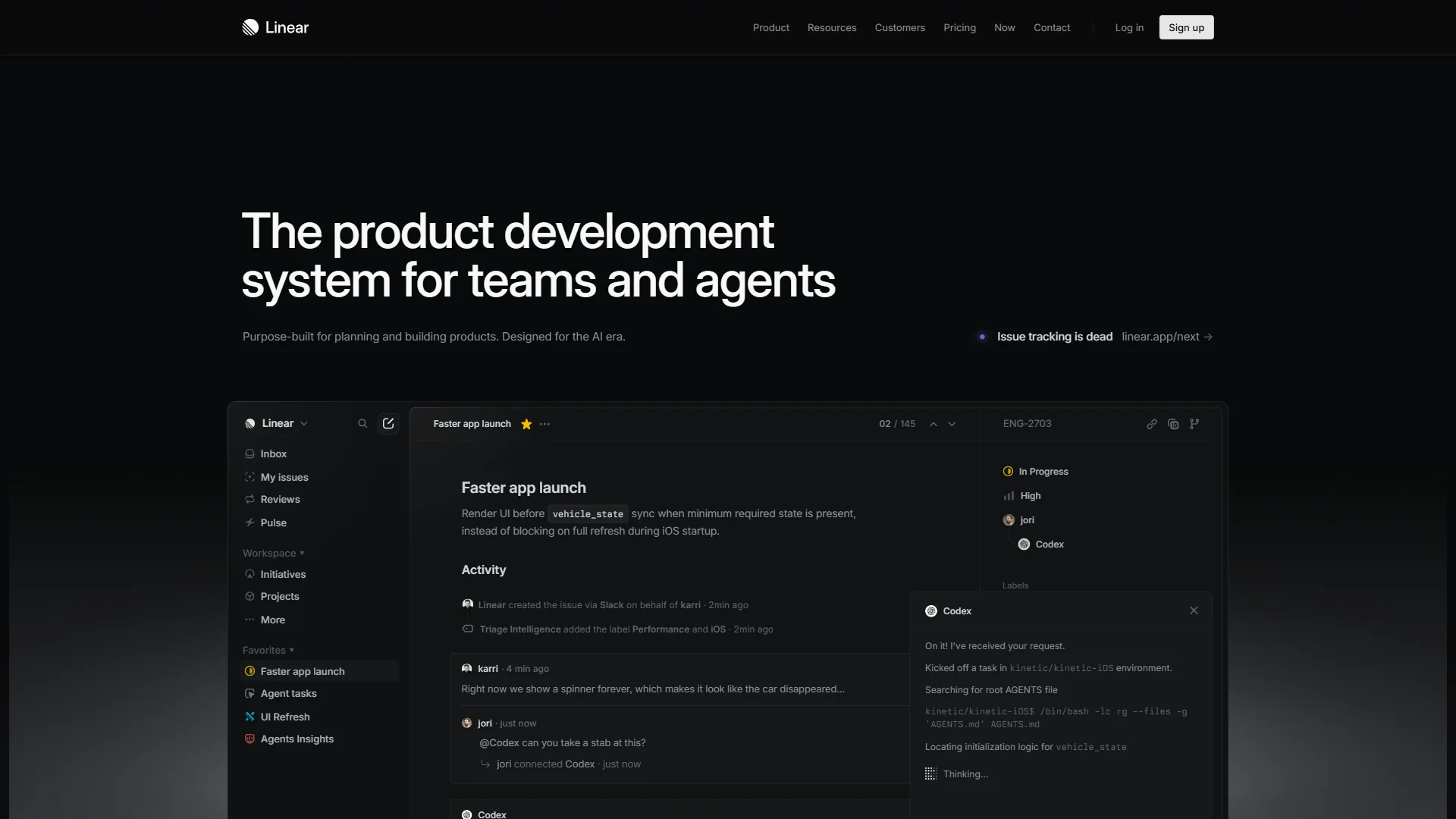
Downloads: 202,994 (most popular extension) | Best for: Teams using Linear for project management
The Linear extension is the most downloaded Raycast extension for good reason. You can create issues with auto-filled context, search by ID or assignee, move issues across workflow states, and browse cycles - all without opening Linear’s web UI.
Practical example: During standup, update 4-5 issue statuses in under 30 seconds using ⌘ + K → type status → Enter. In Linear’s UI, this takes 2+ minutes.
Pricing note: Linear’s extension is free, but Linear itself requires a paid plan for teams ($8 per user/month).
3. Jira - Official Integration
Downloads: Not disclosed | Best for: Enterprise teams on Jira
If your team uses Jira (Official), this extension brings the same workflow benefits as Linear - create tickets, search sprints, update custom fields - without the browser overhead. Set up saved JQL searches for instant access to “My Open Bugs” or “This Sprint’s Stories.”
Which Raycast Extensions Help While You Are Writing Code?
VS Code, GitHub, AI Git Assistant, Tailwind CSS, DevDocs, and npm Package Search are the Raycast extensions that help most while you are writing code, keeping documentation, pull requests, and commit messages one keystroke away. This is where Raycast extensions deliver the highest ROI, keeping you in flow state by reducing the “micro-context switches” that kill productivity.
4. VS Code - Project Switching & Navigation
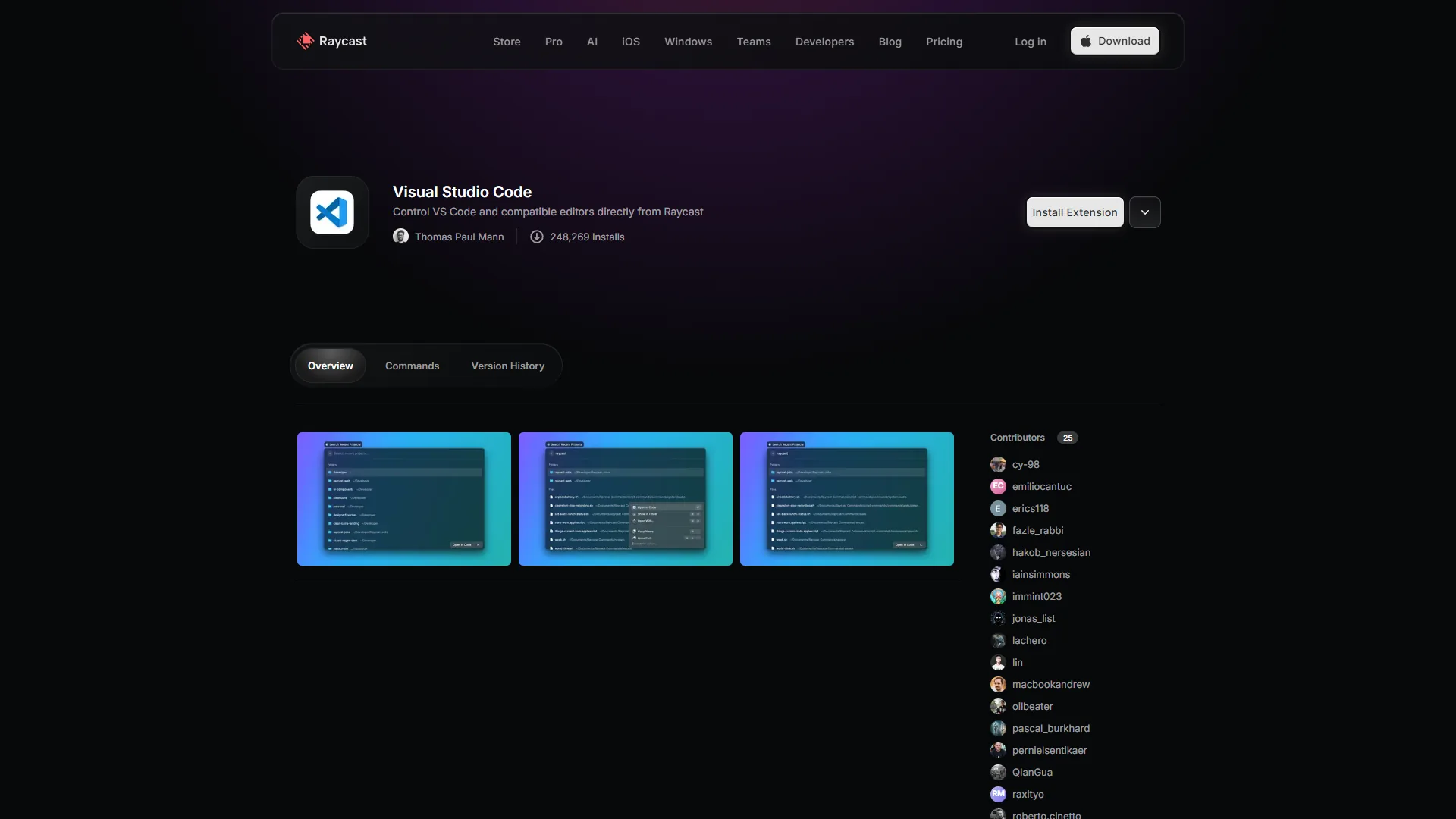
Downloads: ~15,000 | Best for: Developers working across multiple projects
This extension indexes your VS Code recent projects and workspaces, so you can switch projects, open folders, and search workspace files from Raycast. Keep VS Code minimized and use ⌘ + Space → vs → project name to switch contexts.
Time saved: 5-8 hours/week (for developers switching projects 20+ times/day). The best AI code editors 2026 review covers stronger AI-native editors that pair well with Raycast.
5. GitHub - Official Integration

Downloads: 13,042 | Best for: Developers doing code reviews daily
The GitHub (Official) extension is essential for PR-heavy workflows: browse open PRs across all repos, review and approve them without a browser, check CI/CD status, and search or create issues.
Standout feature: The “My Pull Requests” view shows all PRs authored or needing review, with status badges for CI/CD runs. Check this 5-6 times per day instead of keeping GitHub tabs open.
6. AI Git Assistant - Intelligent Commit Messages
Downloads: ~5,000 | Best for: Developers who hate writing commit messages
This extension uses AI (you provide your own OpenAI API key) to analyze staged changes and generate semantic commit messages in conventional commits format automatically.
Cost: Free extension, but requires OpenAI API access ($0.01-0.05 per commit with GPT-4). The best AI coding assistants review covers tools that bake similar assistants into the editor.
Time saved: 2-3 hours/week if you write 20+ commits per week
7. Git Assistant - Command Launcher
Downloads: ~8,000 | Best for: Developers who prefer GUI over terminal for Git
This extension gives you point-and-click Git commands - commit, push, pull, branch, merge - without touching the terminal, each with smart defaults based on repo state. Terminal still wins for complex workflows, but for simple “commit and push” cycles, this saves 10-15 seconds per action.
8. Git Worktrees - Multiple Branch Management
Downloads: ~3,000 | Best for: Developers working on multiple features simultaneously
Git worktrees let you check out multiple branches in separate directories. This extension makes managing them visual - create, switch, and delete worktrees without memorizing git worktree syntax.
Real-world scenario: Need to hotfix production from a feature branch? Create a worktree for main, fix the bug, then switch back - all without stashing incomplete work.
9. Tailwind CSS - Documentation Search
Downloads: ~12,000 | Best for: Frontend developers using Tailwind
Instant access to Tailwind’s class reference - type the utility class, see the documentation, and copy the class name to clipboard.
Speed comparison:
- Without extension: Open browser → Google “tailwind grid” → click docs → find class → copy → 25 seconds
- With extension:
⌘ + Space→tw grid→ copy → 4 seconds
10. DevDocs - Multi-Language Documentation
Downloads: ~18,000 | Best for: Full-stack developers using 3+ languages
DevDocs aggregates documentation for 100+ languages and frameworks - search React hooks, Python stdlib, or PostgreSQL functions from one search bar.
Pro tip: Enable only the docs you actively use (Settings → Enable Documentation Sets) to reduce noise in search results.
11. npm Package Search - Package Info Lookup
Downloads: ~7,000 | Best for: JavaScript/TypeScript developers
Before installing a package from npm, this extension lets you check:
- Weekly download count (popularity signal)
- Last publish date (maintenance signal)
- Bundle size (performance impact)
- GitHub stars and issues
Workflow: Type npm lodash → see weekly downloads and bundle size → decide if it’s worth the dependency.
Deployment & Infrastructure
Docker, Vercel, AWS Console, and Homebrew are the Raycast extensions for deployment and infrastructure, managing containers, builds, and cloud resources without opening a separate dashboard. These extensions are lifesavers when you’re managing cloud infrastructure or debugging production issues.
12. Docker - Container Management Without Desktop
Downloads: ~11,000 | Best for: Developers running local containers
Manage Docker containers, images, and volumes without opening Docker Desktop - start/stop containers, view logs, and clean up unused images, all keyboard-driven. Stopping all running containers before closing your laptop takes 5 seconds versus 20+ seconds in the Docker Desktop UI.
13. Vercel - Deploy & Manage Apps
Downloads: ~9,000 | Best for: Frontend developers using Vercel
The Vercel (Official) extension lets you trigger deployments, check build status, and manage environment variables without opening Vercel’s dashboard. After pushing code, check deployment status with ⌘ + Space → vercel → “Recent Deployments” → see the live URL when the build completes.
14. AWS Console - Cloud Resource Access
Downloads: ~6,000 | Best for: DevOps engineers managing AWS infrastructure
Bookmark AWS console pages (EC2, S3, CloudWatch) and jump directly to them with search. Supports multiple AWS profiles for client accounts, and pairs with the AWS CLI - navigate to the service in Raycast, then script actions in the CLI.
15. Homebrew - Package Management UI
Downloads: ~14,000 | Best for: macOS developers managing CLI tools
Search Homebrew packages, install or uninstall formulas, and update outdated packages from Raycast without remembering brew search syntax. Once a week, type brew outdated to see what needs updating, then batch update with one command.
Comparison: Extensions by Category
The table below ranks all 15 Raycast extensions by category and store download count, so you can compare version control, project management, development, and DevOps picks at a glance.
| Category | Extension | Downloads | Best For |
|---|---|---|---|
| Version Control | Git Repos | 20,426 | Quick repo access |
| Version Control | GitHub (Official) | 13,042 | PR workflows |
| Version Control | AI Git Assistant | ~5,000 | Commit messages |
| Project Management | Linear | 202,994 | Issue tracking |
| Project Management | Jira (Official) | N/A | Enterprise teams |
| Development | VS Code | ~15,000 | Project switching |
| Development | Tailwind CSS | ~12,000 | Frontend dev |
| Development | DevDocs | ~18,000 | Multi-language docs |
| DevOps | Docker | ~11,000 | Container mgmt |
| DevOps | Vercel (Official) | ~9,000 | Deployments |
| DevOps | AWS Console | ~6,000 | Cloud resources |
| Utilities | npm Package Search | ~7,000 | Package research |
| Utilities | Homebrew | ~14,000 | Package management |
Unlock More Power with Raycast Pro
Raycast Pro costs $8 per month and adds AI Command with multi-provider model access, AI chat inside every extension, and bring-your-own-key support on top of the free tier. The extensions above work perfectly on Raycast’s free tier, but if you’re serious about productivity, Raycast Pro adds powerful features for developers:
AI Command with Multi-Provider Support:
- Ask questions to Claude, GPT-4, or Gemini without leaving your keyboard
- Use different models for different tasks (Claude for code review, GPT-4 for docs)
- BYOK (Bring Your Own Key): Use your own API keys instead of Raycast’s credits
- Local LLMs: Connect Ollama for privacy-sensitive work
AI Chat in Every Extension:
- Highlight code in VS Code →
⌘ + Space→ “Explain this function” - Select error message → “How do I fix this?”
Raycast Pro ROI: Saving 30 minutes per week is 2 hours per month. At a $100/hour billing rate, that is $200 value for $8 - a 25x ROI.
Installation & Getting Started
Installing Raycast extensions takes four steps: install Raycast via Homebrew, set it as the default launcher, install extensions from the Store, then configure optional hotkeys. The full walkthrough follows.
Step 1: Install Raycast
brew install --cask raycastStep 2: Set as default launcher
Open Raycast → Preferences → Replace Spotlight shortcut (⌘ + Space)
Step 3: Install extensions
⌘ + Space→ type “Store”- Search for extension name (e.g., “GitHub”)
- Click “Install”
- Authenticate if needed (OAuth for GitHub, API keys for AI extensions)
Step 4: Configure hotkeys (optional) For frequently used extensions, set custom hotkeys:
- Preferences → Extensions → [Extension Name] → Record Hotkey
- Example:
⌘ + Shift + Gfor GitHub PRs
Pro Tips for Extension Stacking
Extension stacking means chaining several Raycast extensions into one multi-step workflow, so a single sequence handles an entire task end to end. The real productivity boost comes from chaining extensions together:
Example workflow: “Hotfix in production”
- Linear extension → Find bug ticket → Copy ticket ID
- Git Repos → Open main repo
- Git Worktrees → Create worktree from
mainbranch - VS Code → Open worktree folder
- AI Git Assistant → Stage fix → Generate commit message
- GitHub → Create PR → Check CI status
- Vercel → Trigger deployment → Copy live URL
- Linear → Update ticket with PR link → Mark as “In Review”
Total time: 3-4 minutes versus 10-15 minutes with constant app switching.
Common Mistakes to Avoid
The most common Raycast mistakes are installing too many extensions at once, skipping custom aliases, ignoring clipboard history, and not setting up quicklinks. After onboarding 3 developer teammates to Raycast, here are the mistakes that slow adoption:
1. Installing too many extensions at once Start with 3-5 extensions that solve your biggest pain points. Master those before adding more.
2. Not customizing aliases Default extension keywords are generic (“search”). Customize them to match your mental model:
- GitHub →
gh - Linear →
ln - Git Repos →
gr
3. Ignoring the clipboard history Raycast has built-in clipboard manager. Use it to copy commit SHAs, API keys, and error messages without switching to a dedicated clipboard app.
4. Not setting up quicklinks For frequently accessed URLs (GitHub repos, Linear projects, AWS consoles), create Quicklinks:
- Store → Install “Quicklinks”
- Add custom shortcuts like
jira-sprint→ Direct link to current sprint board
Final Verdict: Best Raycast Extensions for Developers
The best Raycast extensions for developers are Git Repos, GitHub, Linear, VS Code, DevDocs, Docker, and Vercel - a core stack that eliminates friction between tools rather than replacing your entire toolchain. Every saved context switch, every avoided browser tab, every keyboard shortcut that replaces 5 clicks adds up to hours saved per week.
Essential stack for 2026:
- Version Control: Git Repos + GitHub (Official)
- Project Management: Linear
- Development: VS Code + DevDocs
- Infrastructure: Docker + Vercel
Getting started recommendation: Install Git Repos and GitHub extensions first. Use them for one week, then add 2-3 more based on your workflow gaps.
Install Raycast, add these extensions, and the setup pays dividends every day.
FAQ
Q: What kind of extensions does Raycast support?
Raycast supports extensions across developer workflows: project management (Linear, Jira), version control (Git Repos, GitHub, Git Worktrees), editors (VS Code), containers (Docker), package managers (npm, Homebrew), deployment (Vercel), and AI tools (AI Git Assistant, Raycast AI Command). The Raycast Store hosts 1,500+ community extensions.
Q: Is Raycast still worth it for developers?
Yes. Integrating these extensions into a development routine can save 8-12 hours per week on repetitive tasks. Raycast Pro at $8 per month adds AI Command with Claude, GPT-4, or Gemini, BYOK support, and local LLM connections via Ollama. If it saves 30 minutes weekly at a $100 per hour billing rate, that is a 25x ROI.
Q: Can Raycast be used for automation?
Yes. Raycast extensions chain together for multi-step workflows. A hotfix sequence runs Linear to find the ticket, Git Repos to open the repo, Git Worktrees to branch from main, VS Code to edit, AI Git Assistant to generate the commit message, GitHub to open the PR, and Vercel to deploy - cutting a 10-15 minute task to 3-4 minutes.
Q: How do you get Raycast extensions?
Install Raycast via Homebrew using brew install —cask raycast, then replace the Spotlight shortcut in Preferences. Press Command plus Space, type Store, then search the extension name like GitHub or Linear and click Install. Authenticate via OAuth for GitHub or paste an API key for AI extensions. Custom hotkeys can be recorded under Preferences and Extensions.
Q: Where do you find Raycast extensions for developers download links?
Every Raycast extension is free, and the Raycast extensions for developers download flow runs through the Raycast Store - press Command plus Space, type “Store,” then search and click Install. Browsing the store in a web browser shows the same listings, install counts, and screenshots first.
Q: Where is the source for Raycast extensions for developers GitHub repositories?
The source code behind community Raycast extensions for developers GitHub repositories lives in the public raycast/extensions monorepo. Checking recent commits there is the fastest way to confirm an extension is actively maintained.
Related Reads
These related reads cover the tools featured in this article plus further developer productivity guides.
Tools covered in this article:
- Raycast - Productivity launcher for macOS
- Linear - Modern project management for developers
- Vercel - Frontend deployment platform
- GitHub - Code hosting and collaboration
More developer productivity guides:
- Best AI Research Tools 2026
- AI Tools for Solopreneurs
- Best Mac Productivity Tools
- Best Mac Productivity Tools 2026
External Resources
These external resources link to Raycast’s own documentation and developer channels for ongoing updates.
For official Raycast documentation and updates:
- Raycast Blog - Extension announcements, AI feature updates, and developer productivity tips
- Raycast Developer Docs - Extension API reference and development guides