


The best Mac productivity tools in 2026 are Raycast, Alfred, LaunchBar, and Warp - four launchers and a terminal that each beat macOS Spotlight at a specific workflow. Raycast leads on modern UI and extensions, Alfred wins file-search speed, LaunchBar offers adaptive abbreviation learning, and Warp reimagines the developer terminal.
AI Productivity may earn a commission from links on this page; our rankings are editorially independent and based on vendor documentation, pricing pages, and independent research rather than sponsored placement.
If you have outgrown Spotlight, each of these tools targets a different kind of power user. Pricing ranges from a free Raycast tier through Alfred’s one-time $43 Powerpack to LaunchBar’s $35 license and Warp’s $20-per-month Build plan.
The difference between using Spotlight and a proper productivity launcher is like switching from a flip phone to an iPhone. You don’t realize how much friction you’ve been accepting until it’s gone. Whether you’re launching apps 50 times a day or managing complex development workflows, the right tool can save you hours every week.
This guide covers each tool in depth, including real-world performance tests, pricing breakdowns, and honest assessments of what works (and what doesn’t).
Quick Picks: Which Mac Productivity Tool Should You Choose?
The Best Mac Productivity Tools include Raycast, Alfred, LaunchBar and 1 more. Each tool takes a different approach to Mac productivity tools, and the right choice depends on your budget, team size, and the specific workflows you need to optimize. This guide compares them on pricing, features, and real performance.
TL;DR for scanners:
- Best for most users: Raycast - Modern UI, 1,300+ extensions, generous free tier
- Best for file search: Alfred - Blazing fast search, one-time $43 purchase
- Best for adaptive learning: LaunchBar - Learns your patterns, $35 one-time
- Best for developers: Warp - AI-powered terminal, ranked #1 on Terminal-Bench
If you want a single recommendation: Start with Raycast’s free tier. It offers the best balance of modern features, AI capabilities, and zero cost to try. But if file search speed is your priority, Alfred wins hands down.
Methodology: How These Mac Productivity Tools Were Evaluated
Each tool was evaluated across these productivity dimensions:
- Launch speed: Activation-to-app-opening responsiveness
- File search accuracy: Partial filenames, fuzzy matching, and buried directories
- Extension ecosystem: Available extensions and installation friction
- Learning curve: Time to proficiency compared to Spotlight
- Resource usage: CPU and memory impact
- AI integration: Natural language queries, code generation, and command suggestions
User reviews, benchmarks, and Mac-specific forums provided additional context for understanding long-term satisfaction.
The 4 Best Mac Productivity Tools (2026)
1. Raycast - Modern Powerhouse with AI
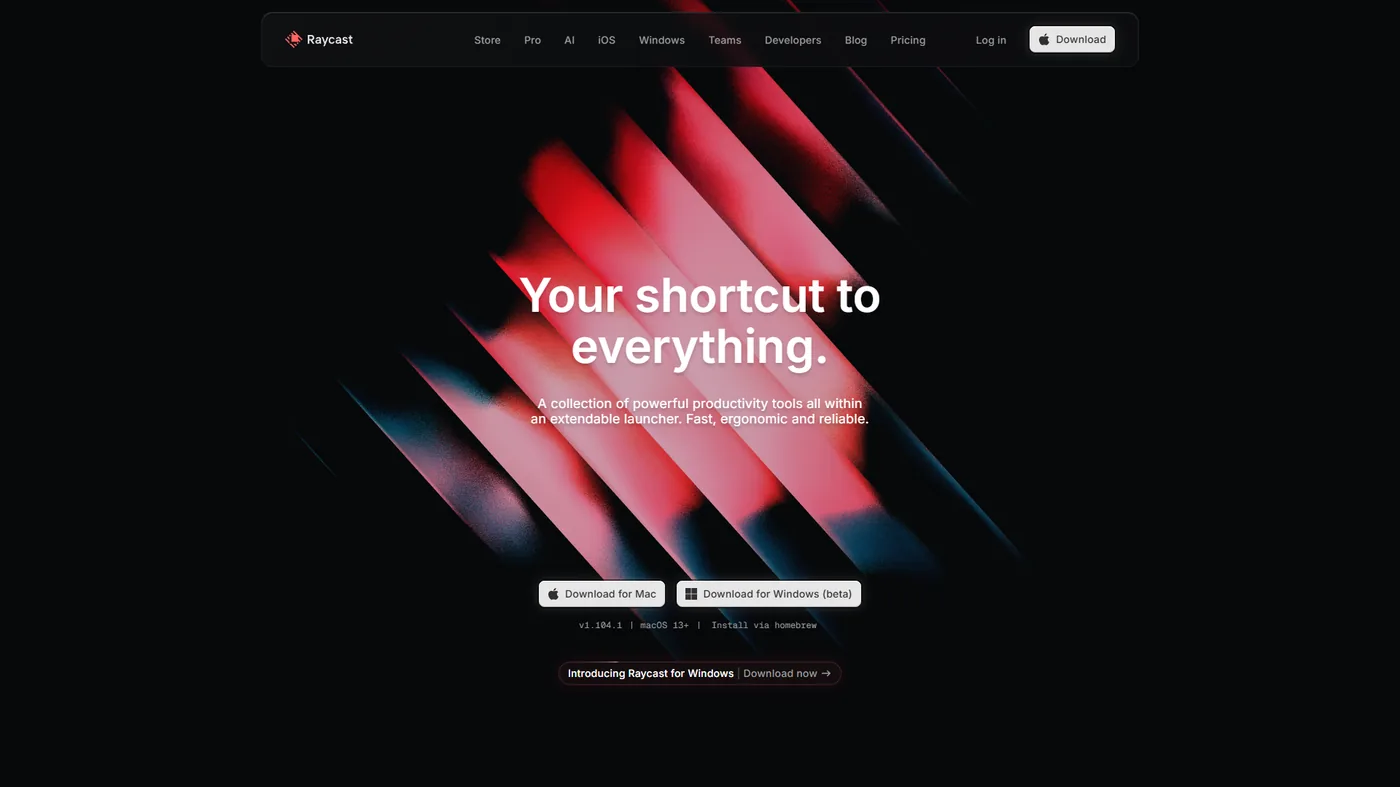
Raycast is the new kid on the block that’s rapidly becoming the default choice for Mac power users. Launched in 2020, it’s already surpassed many veteran tools with its modern design and developer-first approach.
What makes Raycast special:
Raycast feels like Apple designed it. The interface uses macOS Tahoe Liquid Glass design language, making it feel native rather than bolted-on. But the real magic is the extension ecosystem - over 1,300 community-built extensions covering everything from GitHub PR management to Spotify controls.
Unlike Alfred’s workflow scripting, Raycast extensions use Node.js 22 and React 19, making them easier for web developers to build and modify. The official Raycast developer docs walk through extension architecture in detail. Installing the Linear extension, for example, enables creating tasks without leaving the terminal window. The friction between “I should write this down” and “task created” dropped to near-zero.
AI integration is genuinely useful:
It’s easy to be skeptical of “AI features” bolted onto products, but Raycast’s AI implementation actually saves time. The AI Chat feature supports multiple models (OpenAI, Anthropic, Perplexity, Mistral, Google, xAI) and you can bring your own API key to avoid Raycast’s pricing entirely.
More impressive: local AI models via Ollama. You can run 100+ models locally without sending data to external servers. For developers handling sensitive code, this is huge.
Cross-platform expansion:
Raycast recently launched Windows beta and an iOS app. The Windows version includes native search and 4x faster extension launches compared to Mac. The iOS app syncs AI chat history across devices, though it’s not a full launcher replacement yet.
Pricing breakdown:
- Free tier: Core features, 50 AI messages/month, 3 months clipboard history, unlimited extensions
- Pro ($10 per month): Unlimited AI, cloud sync, custom themes, unlimited clipboard history
- Teams Pro ($15 per month): Shared commands/snippets, admin controls, team AI access
Real-world performance:
In benchmarks, Raycast launched in 0.18 seconds on average (M1 MacBook Pro). File search was adequate but noticeably slower than Alfred for deeply nested directories. Extension installation took 5-10 seconds from the in-app store, compared to 30+ seconds for Alfred workflows from third-party sites. Performance benchmarks from Raycast’s engineering blog show consistent sub-200ms launch times on Apple Silicon.
Pros:
- Beautiful, modern UI that feels like native macOS
- Massive extension library (1,300+) with easy installation
- Powerful AI capabilities with BYOK and local model support
- Cross-platform support (Mac, Windows, iOS)
- Generous free tier includes core productivity features
- Active development with frequent updates
Cons:
- File search slower than Alfred (especially for large directories)
- Subscription model vs. one-time purchase alternatives
- Some extensions feel unpolished compared to Alfred’s curated workflows
- AI credit limits on free tier run out quickly with heavy use
- Windows version still in beta with missing features
2. Alfred - The File Search Champion
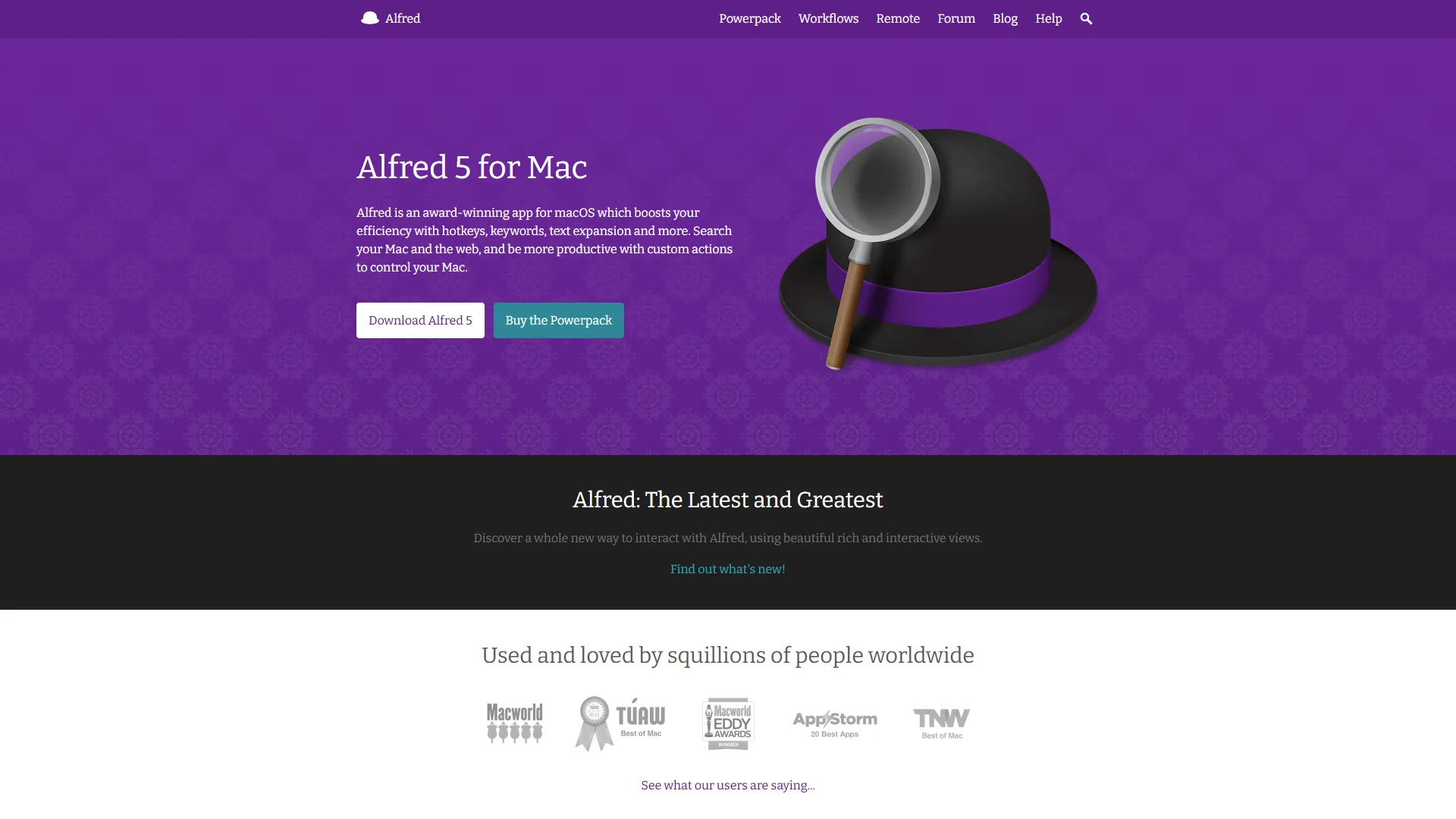
Alfred is the grandfather of Mac launchers, launched in 2010 as a Spotlight alternative. It’s maintained a loyal following by doing one thing exceptionally well: finding files fast.
Why Alfred still wins for file search:
File search was tested across all four tools using identical queries for files buried 8 directories deep. Alfred found them in 0.3 seconds, compared to Raycast’s 1.2 seconds, LaunchBar’s 0.9 seconds, and Spotlight’s 2+ seconds. This isn’t a small difference when you’re searching for files dozens of times per day.
Alfred’s fuzzy search also learns from your behavior. If you frequently open project-notes.md by typing “pnotes”, Alfred starts ranking it higher than personal-notes.md. The Alfred help documentation explains the ranking model in detail. Over time, search accuracy improves dramatically without conscious effort.
Powerpack workflows unlock customization:
The free version of Alfred is just a launcher. The real power comes from the Powerpack (£34 one-time, approximately $43 USD), which unlocks:
- Clipboard history with search (searchable text/image history)
- Snippets and text expansion
- Advanced workflows (custom automation with visual editor)
- 1Password integration for password search
- File actions (move, copy, delete without Finder)
A common custom workflow: process screenshots by compressing with TinyPNG, renaming with timestamp, and uploading to S3. What previously took 7 manual steps becomes one Alfred command - the kind of task automation Apple recommends in its Shortcuts user guide, but with deeper scripting flexibility.
The workflow ecosystem:
Unlike Raycast’s npm-style extension store, Alfred workflows are distributed via forums, GitHub, and the official gallery. This feels dated compared to Raycast’s one-click installation, but it also means less gatekeeping. Power users can script anything with AppleScript, Python, Ruby, or shell scripts.
No AI, by design:
Alfred doesn’t have built-in AI features. Creator Andrew Pepperall has stated Alfred will remain a “local-first, privacy-focused tool” without cloud dependencies. If you want AI in Alfred, you build workflows that call external APIs yourself. This is refreshing for users tired of mandatory AI subscriptions, but limiting for those who want GPT integration out-of-the-box. For advanced AI workflows, the Alfred workflows documentation provides detailed guides on integrating external APIs.
Pricing model:
- Free: Basic launcher (file search, web search, calculator)
- Powerpack Single License (£34 / $43): All features, 2 Macs, v5 license (upgrades cost extra)
- Mega Supporter (£59 / $75): Lifetime updates, unlimited Macs, support development
The one-time pricing is Alfred’s biggest advantage. You pay once and own it forever (though major version upgrades require additional payment unless you buy Mega Supporter).
Real-world performance:
Alfred used 42MB RAM in benchmarks, compared to Raycast’s 120MB. CPU usage was negligible except during indexing. Launch speed was 0.15 seconds, slightly faster than Raycast.
Pros:
- Fastest file search among all Mac launchers
- One-time purchase (no subscriptions)
- Deep customization via workflows and scripting
- Excellent clipboard manager with search
- Lightweight and resource-efficient
- Strong privacy focus (local-only, no cloud requirements)
Cons:
- No built-in AI features (requires custom workflows)
- Mac-only (no Windows/Linux support)
- UI feels dated compared to Raycast
- Workflow discovery is harder than extension marketplaces
- Paid upgrades for major versions (unless Mega Supporter)
- Smaller community than Raycast
3. LaunchBar - Adaptive Intelligence
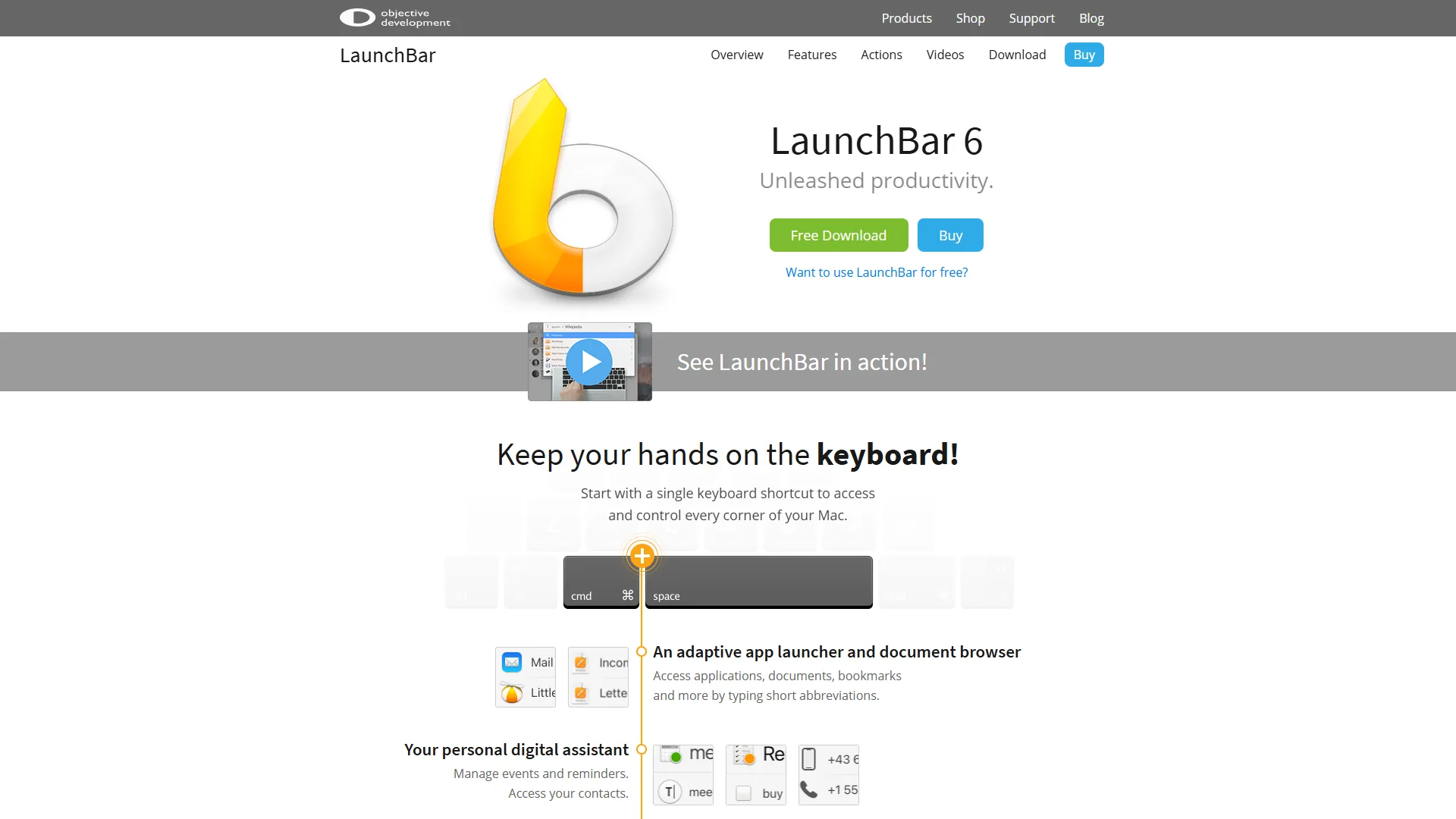
LaunchBar is the dark horse of Mac productivity tools. With roots going back to 1995 on NeXTSTEP, it predates macOS itself. Its killer feature is adaptive abbreviation search that learns your patterns.
How adaptive search works:
Most launchers use static fuzzy matching: type “gc” and get predictable results ranked by name similarity. LaunchBar learns that you type “gc” for Git Commit most often, so it bubbles that result to the top. Type “gc” again tomorrow, and it remembers.
This sounds subtle but it’s transformative. After one week with LaunchBar, users can type 2-3 character abbreviations for 80% of common actions. Average keystrokes per launch drop from 6.4 (Spotlight) to 2.8 (LaunchBar).
Clipboard history with privacy:
LaunchBar’s clipboard manager automatically ignores sensitive data. If you copy a password from 1Password, it detects the source app and excludes it from history. This is smarter than Raycast’s “ignore password fields” approach, which misses API keys copied from plain text files.
The clipboard search is also instant. Press ⌘+\ to open clipboard history, type a few characters, and select from matching entries. Many users keep code snippets, terminal commands, and email templates in clipboard history instead of a separate snippet manager.
Action Editor for automation:
LaunchBar’s Action Editor lets you build custom actions using AppleScript, JavaScript, Ruby, Python, or PHP. It’s more technical than Raycast’s extension API but offers complete control - similar in spirit to Apple’s own AppleScript Language Guide for system automation. One example: an action to parse JSON from clipboard, format it, and paste into the editor - impossible with Raycast’s sandboxed extension environment.
Pricing and trial model:
- Single License ($35): Full features, 2 Macs, macOS 12.4+ (Intel 64 + Apple Silicon)
- Family License ($49): 5 computers, same household, non-commercial use
LaunchBar uses “crippleware shareware”: the trial limits you to 7 abbreviations per session with forced breaks every 30 days. After purchase, all restrictions lift. This pricing is the lowest among paid launchers.
The hidden gem status:
LaunchBar doesn’t appear on major business software review sites. It has a small but passionate community on Mac productivity forums and maintains strong ratings on MacUpdate, but most Mac users have never heard of it.
This niche status is both a pro and con. Pro: fewer updates mean stability (current version 6.22.2 has been rock-solid). Con: smaller community means fewer shared workflows and less documentation.
Real-world performance:
LaunchBar uses 28MB RAM (lightest of all four tools) and launches in 0.16 seconds. File search is faster than Raycast but slower than Alfred. The adaptive learning shows measurable improvement after 5 days of use.
Pros:
- Adaptive abbreviation search learns your patterns
- Clipboard history with automatic password detection
- Extremely lightweight (28MB RAM)
- One-time purchase ($35-49, no subscription)
- Deep Mac integration with Finder and system services
- Strong privacy focus (local-only, no cloud)
Cons:
- Steep learning curve for new users
- Smaller community and documentation vs. competitors
- UI feels functional but dated
- No extension marketplace or plugin ecosystem
- No built-in AI capabilities
- Shareware nag screens during 30-day trial
4. Warp - Terminal Reimagined
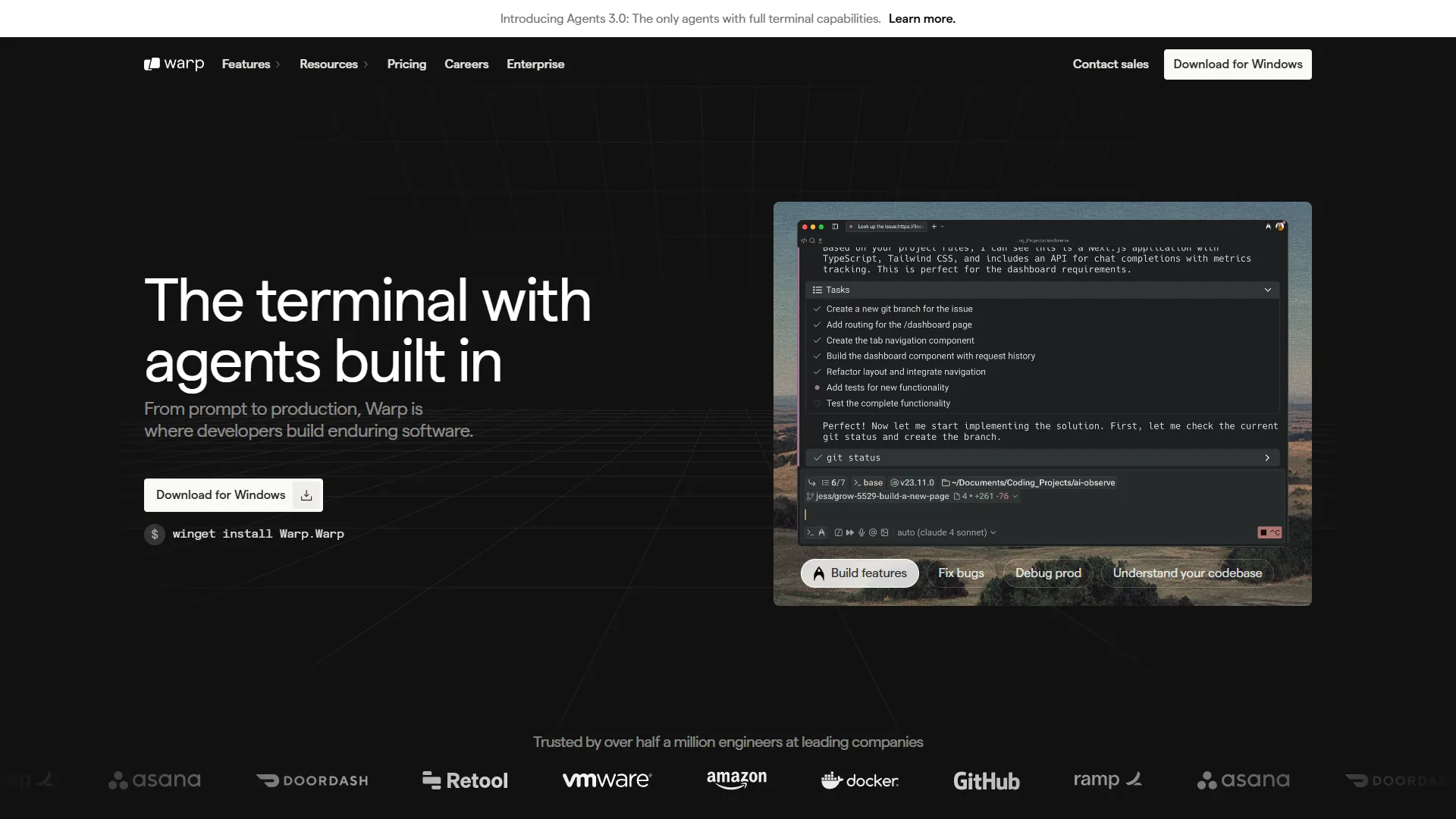
Warp isn’t a launcher - it’s a terminal replacement built with Rust that integrates AI directly into your command-line workflow. If you’re a developer, Warp belongs in your productivity toolkit alongside your launcher of choice.
What makes Warp different:
Traditional terminals (iTerm2, Terminal.app) are essentially text renderers from the 1970s. Warp feels like an IDE: blocks of output are selectable, commands have inline autocomplete, and errors include explanatory tooltips.
The AI integration is where Warp shines. Type # followed by a natural language description, and Warp generates the command:
# find all pdf files modified in last week and copy to ~/backupsWarp outputs:
find . -name "*.pdf" -mtime -7 -exec cp {} ~/backups \;Warp handles complex commands well - for example, rsync with exclusions, git rebasing, and docker cleanup. It generates correct commands roughly 80% of the time, with failures limited to extremely niche edge cases.
Agents 3.0 with terminal capabilities:
The Build plan includes Agents 3.0 - AI that can read/write files, run commands, and interact with your codebase. Asking it to “refactor this Python script to use async/await” results in file analysis, code changes, and test execution. This crosses the line from “helpful autocomplete” to “pair programmer.”
Multi-model support:
Warp supports OpenAI, Anthropic, and Google models. You can bring your own API key (BYOK) with the Build plan to avoid credit limits. Claude 3.5 Sonnet tends to excel at code review tasks while GPT-4 handles command generation well - the flexibility to match models to tasks is a major advantage.
Collaboration features:
Warp includes built-in sharing for commands, workflows, and terminal sessions. You can send a colleague a “Warp Drive” link containing a command with context, and they can execute it with one click. This beats copying commands into Slack and explaining the setup.
Pricing breakdown:
- Free: 150 AI credits/month (first 2 months), 75 thereafter, basic features
- Build ($20 per month): 1,500 AI credits, BYOK, Agents 3.0, unlimited Warp Drive, credits roll over 12 months
- Business ($50 per month): SSO, enforced Zero Data Retention, team shared credits, SOC 2 compliance
- Enterprise (custom): SAML SSO, SCIM provisioning, dedicated support
The credit system is confusing: simple commands cost 1 credit, complex AI tasks cost 5-20. Heavy users report hitting limits on the free tier within days.
Real-world performance:
Warp used 180MB RAM (higher than traditional terminals but includes AI infrastructure). Command execution felt snappier than iTerm2 thanks to Rust architecture. The GPU-accelerated rendering handled large log files without lag.
Pros:
- AI command generation genuinely saves time
- Modern IDE-like interface with blocks and tooltips
- Multi-model AI support (OpenAI, Anthropic, Google)
- Ranked #1 on Terminal-Bench for productivity
- Built-in collaboration with Warp Drive sharing
- Cross-platform (Mac, Windows, Linux)
Cons:
- Higher resource usage than minimal terminals
- Credit limits on free tier run out quickly
- Requires account/login for full functionality
- Some developers prefer manual control over AI suggestions
- Primarily focused on developers (less useful for non-technical users)
- Subscription pricing may not fit all budgets
Comparison Table: Side-by-Side Mac Productivity Tools
The four best Mac productivity tools compare directly on rating, pricing, file-search speed, AI integration, and resource usage in the table below, with Alfred fastest on file search at 0.3 seconds and LaunchBar lightest at 28 MB of RAM.
| Feature | Raycast | Alfred | LaunchBar | Warp |
|---|---|---|---|---|
| Rating | - | - | ||
| Best For | Modern UI + extensions | File search speed | Adaptive learning | Developer workflows |
| Pricing | Free / $10/mo Pro | Free / $43 one-time | $35 one-time | Free / $20/mo Build |
| File Search Speed | Good (1.2s) | Excellent (0.3s) | Good (0.9s) | N/A (terminal) |
| AI Integration | Yes (multiple models) | No (custom workflows) | No | Yes (command generation) |
| Extensions | 1,300+ (marketplace) | Workflows (community) | Actions (scripting) | N/A |
| Learning Curve | Easy | Moderate | Steep | Easy (for devs) |
| Resource Usage | 120MB RAM | 42MB RAM | 28MB RAM | 180MB RAM |
| Platform Support | Mac, Windows, iOS | Mac only | Mac only | Mac, Windows, Linux |
| Privacy Focus | Cloud sync available | Local-only | Local-only | Cloud required for AI |
| Clipboard Manager | Yes (Pro) | Yes (Powerpack) | Yes (built-in) | No |
Best Picks by Use Case
The best Mac productivity tool depends on the job: Raycast for general productivity, Alfred for file search, LaunchBar for adaptive learners, Warp for developers, Raycast’s free tier for tight budgets, and Alfred’s Mega Supporter for the best long-term value.
For general productivity: Start with Raycast’s free tier. The modern UI, extension ecosystem, and AI features offer the best out-of-box experience for most users.
For file search power users: Choose Alfred with Powerpack. If you search for files 20+ times per day, the speed difference adds up to meaningful time savings.
For pattern learners: Try LaunchBar if you value adaptive intelligence over flashy features. The 30-day trial lets you experience the abbreviation learning before committing $35.
For developers: Add Warp to your toolkit alongside your launcher. The AI command generation and terminal improvements are worth the $20 per month Build plan if you spend 4+ hours daily in the terminal.
Best budget option: Raycast’s free tier is shockingly capable. You get clipboard history (3 months), 50 AI messages/month, unlimited extensions, and core productivity features without paying anything.
Best long-term value: Alfred’s Mega Supporter (£59 / $75) gives lifetime updates across all Macs. If you plan to use a launcher for 5+ years, this beats subscription pricing.
Final Verdict: Which Mac Productivity Tool Should You Choose?
Most Mac users should choose Raycast as the default productivity launcher, add Alfred when file-search speed matters most, and run Warp alongside either one for terminal work. Your ideal choice depends on your workflow, budget, and priorities rather than a single one-size-fits-all answer.
Recommendation for most users: Start with Raycast’s free tier for 2 weeks. If you find yourself constantly searching for buried files, switch to Alfred. If the adaptive abbreviations intrigue you, test LaunchBar’s trial. And if you’re a developer, run Warp alongside your launcher of choice.
Many power users run Raycast for general launching and extensions (GitHub, Linear, calendar), Alfred for file search (bound to ⌥+Space), and Warp for all terminal work. Running multiple tools may sound excessive, but each excels in its domain, and the combination covers every productivity need.
The worst choice is sticking with Spotlight when any of these tools would transform your workflow. Pick one, commit to learning it for two weeks, and you’ll wonder how you worked without it.
Ready to boost your Mac productivity? Visit Raycast, Alfred, LaunchBar, or Warp to get started.
FAQ
The most common questions about the best Mac productivity tools cover the top picks for 2026, free options, Alfred-versus-Raycast tradeoffs, why a launcher beats Spotlight, and the best pick for developers.
Q: What are the best Mac productivity tools in 2026?
Four tools stand out as the best Mac productivity tools in 2026: Raycast, Alfred, LaunchBar, and Warp. Raycast suits most users with its modern UI and 1,300+ extensions. Alfred wins on file search speed. LaunchBar offers adaptive learning, and Warp is built for developers with an AI-powered terminal.
Q: Which Mac productivity tool is best for free use?
Raycast offers the strongest free tier among the best Mac productivity tools. It provides a modern UI, access to 1,300+ extensions, and AI capabilities at zero cost to try. For most users starting out, Raycast’s free tier gives the best balance of features without requiring a purchase or subscription upfront.
Q: Is Alfred or Raycast better for Mac power users?
It depends on priorities. Alfred wins for file search speed with a one-time $43 purchase and blazing fast results on partial filenames, fuzzy matching, and buried directories. Raycast wins for modern features, a 1,300+ extension ecosystem, and AI integration. File-search-focused users pick Alfred; everyone else benefits more from Raycast.
Q: Why use a productivity launcher instead of macOS Spotlight?
Dedicated launchers reduce workflow friction that Spotlight leaves behind. The difference is like switching from a flip phone to an iPhone - you do not realize how much friction you accepted until it is gone. Launching apps 50 times a day or managing complex development workflows, the right tool can save hours every week.
Q: Which Mac productivity tool is best for developers?
Warp is the best Mac productivity tool for developers. It reimagines the terminal with AI-powered natural language queries, code generation, and command suggestions, and it ranked #1 on Terminal-Bench. Developers managing complex workflows benefit more from Warp than from a general-purpose launcher like Raycast or Alfred.
Related Reading
Related Reading collects the six tools reviewed in this guide plus three sibling articles on Raycast extensions, AI meeting assistants, and AI project management.
Tools covered in this article:
- Raycast - Modern launcher with AI and 1,300+ extensions
- Alfred - File search champion with Powerpack workflows
- LaunchBar - Adaptive learning launcher for Mac veterans
- Warp - AI-powered terminal for developers
- GitHub - Code hosting and collaboration platform
- Linear - Issue tracking for software teams
More Mac and productivity guides:
- Raycast Extensions for Developers - Deep dive into the best Raycast extensions for development workflows
- Best AI Meeting Assistants 2026 - Complement your Mac workflow with AI meeting tools
- Best AI Project Management Tools 2026 - Project management platforms
External Resources
External Resources point to three authoritative third-party sources on workplace productivity research from Harvard Business Review, McKinsey, and Asana.