


The seven essential Obsidian productivity plugins are Tasks, Dataview, Templater, Calendar, Kanban, Periodic Notes, and QuickAdd - a free, open-source stack that replaces around $45 per month of SaaS apps. Obsidian ships as a clean, fast Markdown editor, but the real story is its ecosystem of over 2,690 community plugins that replace Todoist, Trello, Notion databases, and even AI assistants like ChatGPT. Most must-have Obsidian plugins lists dump 30 recommendations without explaining which work together, which conflict, and how many is too many before your vault lags.
Our analysis is based on independent community research, current vendor documentation, the official forum showcase, and the GitHub release history for each plugin - not sponsored placement. Every plugin here is obsidian plugins productivity free of cost, open-source, and actively maintained. AI Productivity may earn a commission from links on this page; our rankings are editorially independent.
Why Obsidian Plugins Matter for Productivity
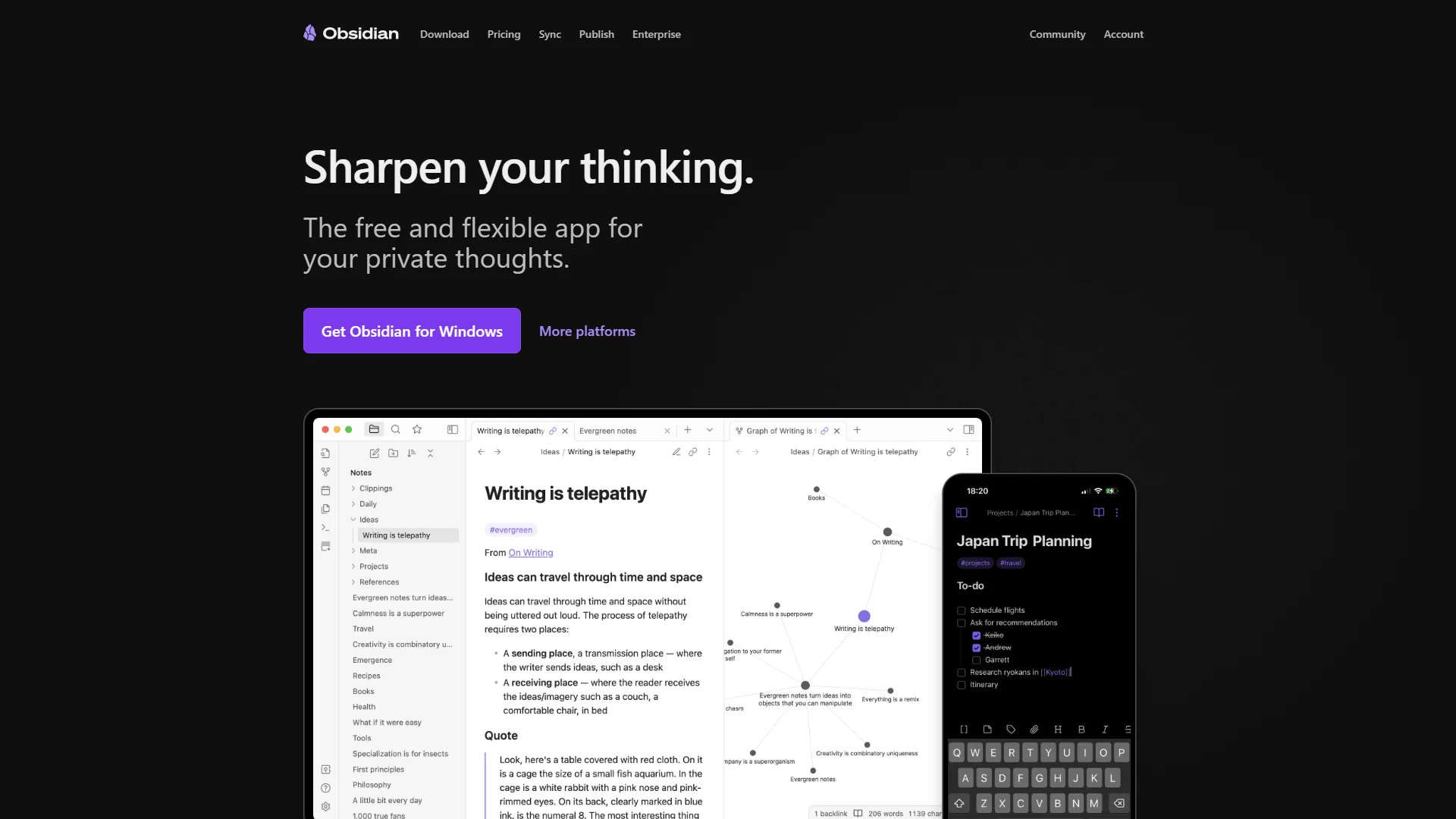
Obsidian plugins are what convert a plain Markdown editor into a complete productivity system, replacing task managers, databases, and AI assistants without a single subscription. The core app handles notes, backlinks, and graph view, but managing tasks, automating workflows, and querying hundreds of notes require plugins, most published as obsidian plugins productivity github repositories you can audit before installing.
Workflow automation is no longer niche: 75% of knowledge workers now use AI tools in some capacity, according to the Microsoft Work Trend Index, and Forrester research found businesses report an average ROI of 250% on workflow automation. A well-chosen obsidian plugins productivity stack captures that return locally - saving 5-10 hours per week and $20-40 per month in subscriptions.
According to Steph Ango, CEO of Obsidian, on the app’s official about page: “We make Obsidian for ourselves, and we are happy to share it with you.” That philosophy explains the ecosystem’s fast growth and the depth of its plugin library.
A well-chosen plugin stack replaces these standalone tools:
| Standalone Tool | Monthly Cost | Obsidian Plugin Replacement |
|---|---|---|
| Todoist Pro | $5/mo | Tasks plugin |
| Trello Premium | $10/mo | Kanban plugin |
| Notion Plus | $10/mo | Dataview + Templater |
| Google Calendar (workflow) | Free | Calendar + Periodic Notes |
| ChatGPT Plus | $20/mo | Smart Connections + Copilot |
| Total savings | Around $45/mo | $0 (all plugins free) |
That is $540 per year in savings - and your data stays in plain text files you own forever.
Quick Overview: Obsidian in 2026
Obsidian is a free, local-first note-taking app that stores everything as Markdown files on your computer - no cloud dependency, no vendor lock-in, no subscription for core features.
Current pricing (February 2026):
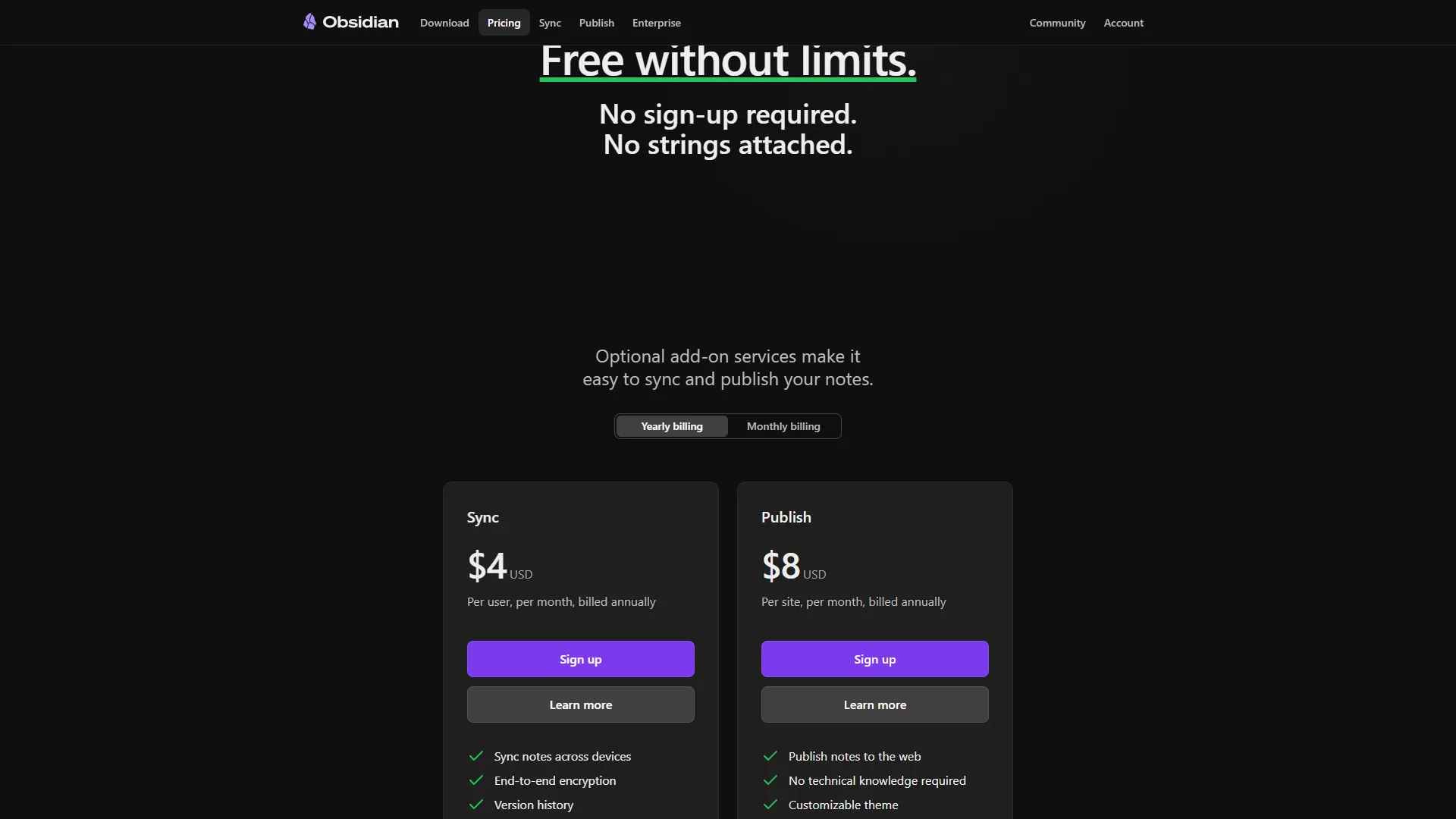
Pricing verified April 2026 from Obsidian's pricing page:
- Personal: $0/mo (Local storage only)
- Full app functionality
- Unlimited notes and vaults
- Plugin ecosystem access (2,690+ plugins)
- Local storage
- Best for: Individual users
- Sync: $4/user/mo annual ($5 monthly) (5 remote vaults, 10GB per vault)
- Sync notes across devices
- End-to-end encryption
- Version history
- Collaborate on shared vaults
- Best for: Multi-device users
- Publish: $8/user/mo annual ($10 monthly) (Per site pricing)
- Publish notes to web
- Customizable theme
- Graph visualization on web
- Full-text search
- Best for: Public knowledge sharing
- Catalyst: $25/year (One-time payment)
- Early beta access
- Community badges
- VIP Discord channel
- Support development
- Best for: Power users and supporters
- Commercial License: $50/year (Required for business use)
- Commercial use license
- Priority support
- Bulk purchase option
- Featured organization listing
- Best for: Companies with 2+ employees
The free tier includes everything for a complete obsidian plugins productivity system, with all 2,690+ community plugins.
What Are the 7 Essential Obsidian Plugins for Productivity?
The seven essential Obsidian plugins for productivity are Tasks, Dataview, Templater, Calendar, Kanban, Periodic Notes, and QuickAdd - the plugins that appear in nearly every serious Obsidian setup. They are stable, maintained, and work well together.
1. Tasks - Replace Your Task Manager
What it does: The Tasks plugin turns Obsidian into a full task management system with due dates, recurring tasks, priorities, and custom queries. A task created during a meeting note automatically appears in your daily dashboard - no separate app required.
Key features:
- Create tasks with
- [ ]syntax plus metadata: due dates, priorities, recurrence - Query tasks across your entire vault with powerful filters
- Sort by due date, priority, status, or custom fields; supports task dependencies
Time saved: Around 30 minutes/day by eliminating context-switching between separate apps.
Example query pulling all tasks due this week:
tasks
due before next week
not done
sort by due
Tasks is the most-recommended obsidian plugin for productivity, replacing Todoist, Things 3, or TickTick for individual use.
2. Dataview - Query Your Notes Like a Database
What it does: Dataview treats your vault as a queryable database, generating tables, lists, and task views from your Markdown files. Past 500 notes, manual organization breaks down; Dataview builds dynamic dashboards and trackers that update automatically.
Key features:
- Query notes using a SQL-like syntax or JavaScript
- Create dynamic tables from frontmatter metadata
- Build dashboards that aggregate data across your vault; filter, sort, and group by any property
Example: A dashboard listing all active projects with their status:
TABLE status, due, priority
FROM "Projects"
WHERE status != "completed"
SORT priority ASC
This single plugin replaces Notion databases for most individual workflows.
3. Templater - Automate Repetitive Note Creation
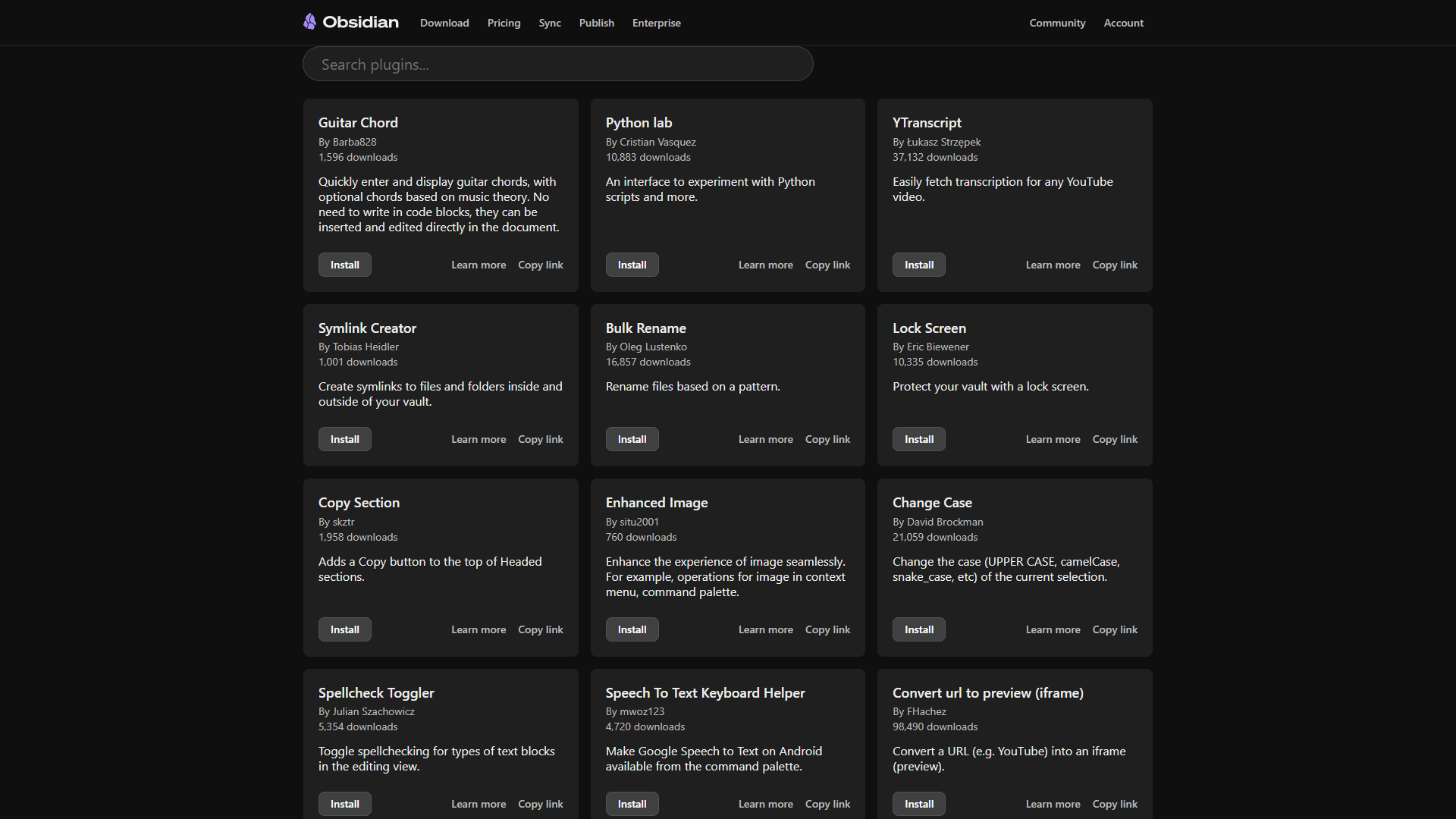
What it does: Templater extends Obsidian’s template system with dynamic content - dates, prompts, file manipulation, and JavaScript - eliminating manual setup time for any repeating note structure.
Key features:
- Dynamic date insertion (
<% tp.date.now("YYYY-MM-DD") %>) - User prompts for variable input when creating notes
- Automatic file renaming and folder placement
- JavaScript execution and folder-specific templates that auto-apply
Time saved: Around 15 minutes/day if you create 3-5 structured notes daily.
4. Calendar - Visual Date Navigation
What it does: The Calendar plugin adds a sidebar that integrates with your daily and weekly notes - click any date to jump to that note or create it from a template. A visual calendar gives instant navigation and shows which days have notes via dots.
Key features:
- Calendar widget in the sidebar with click-to-create daily/weekly notes
- Visual indicators for days with existing notes
- Works seamlessly with the Periodic Notes plugin
5. Kanban - Visual Project Management
What it does: The Kanban plugin creates Trello-style boards inside Obsidian, where each card is a Markdown note and each board is a Markdown file. Moving tasks through “To Do > In Progress > Done” columns gives a clear picture of project status without leaving your vault.
Key features:
- Drag-and-drop cards between columns, each linking to a full Obsidian note
- Board data stored as plain Markdown
- Supports dates, tags, and metadata on cards
This replaces Trello or basic Asana boards for individual project management.
6. Periodic Notes - Structured Time-Based Notes
What it does: Periodic Notes extends daily notes to weekly, monthly, quarterly, and yearly review notes, each with its own template. Daily notes capture detail; weekly and monthly notes give the altitude to see patterns and plan ahead.
Key features:
- Weekly, monthly, quarterly, and yearly note templates
- Auto-creation with calendar integration and template variables for date ranges
- Works with the Calendar plugin for navigation
7. QuickAdd - Speed Up Everything
What it does: QuickAdd captures notes, tasks, and ideas with configurable keyboard shortcuts - create a task, add a journal entry, or start a project brief in under 2 seconds. The fastest way to kill a thought is to make it hard to capture, and QuickAdd removes that friction.
Key features:
- Custom capture commands with keyboard shortcuts
- Template-based note creation and multi-choice menus for categorization
- Macro support for chaining multiple actions
Example: Press Ctrl+Shift+T, type “Call dentist Friday,” and QuickAdd creates a dated task in today’s daily note.
AI-Powered Plugins: The Differentiator Nobody Covers
AI plugins give an Obsidian vault semantic search and chat features, with Smart Connections, Copilot for Obsidian, and Text Generator as the three core options. They understand what you have written, not just where you stored it.
Smart Connections - Semantic Search Across Your Vault
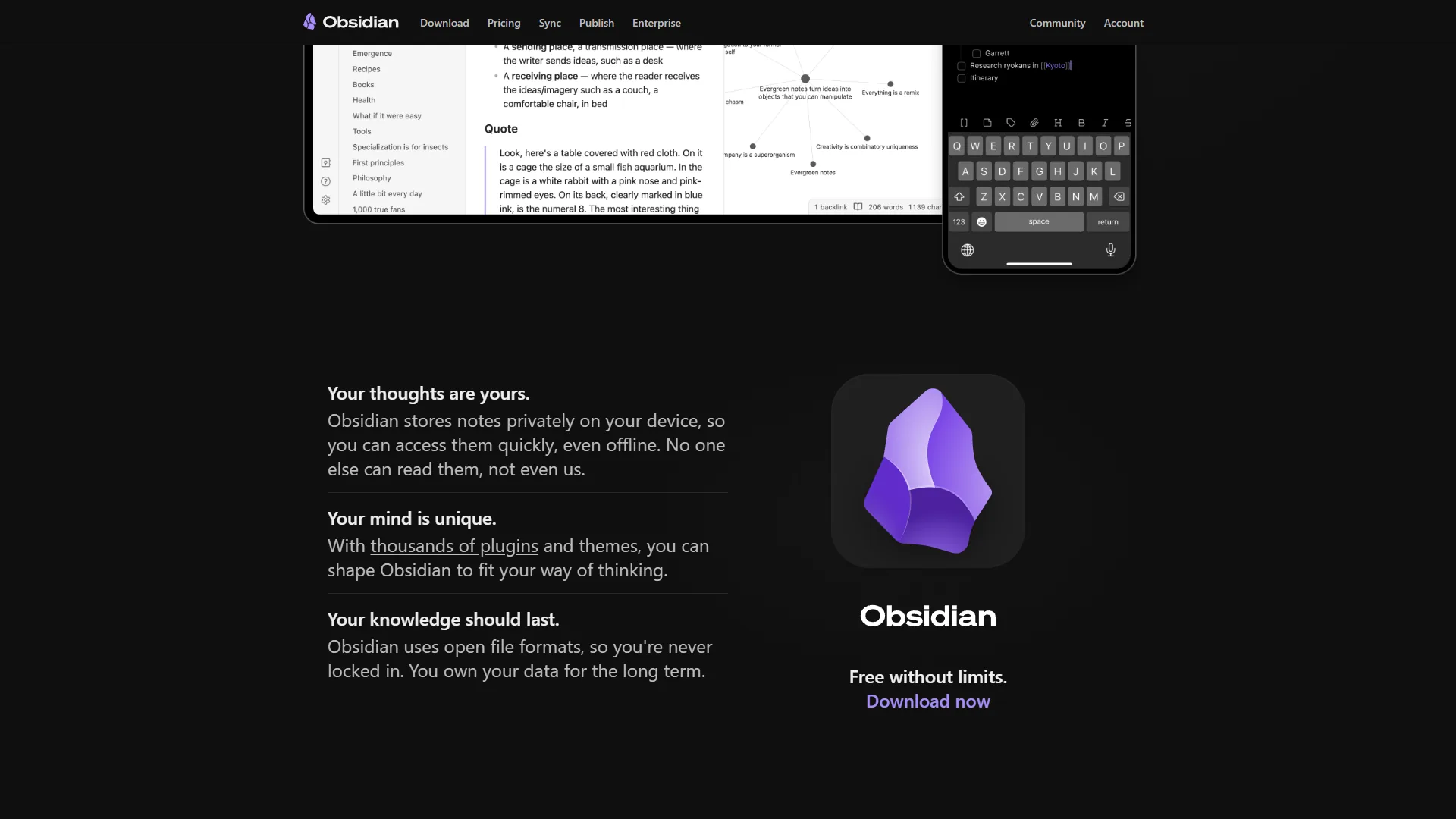
What it does: Smart Connections uses AI embeddings to find notes related to what you are writing, even with zero shared keywords. Writing about “remote team communication” can surface a forgotten note about “async video updates” - concept matching that keyword search cannot do.
Key features:
- Semantic similarity panel that updates as you type
- Works with local AI models (no API key required for basic features)
- Chat interface to ask questions about your vault, with OpenAI, Anthropic, and local model support
Time saved: Around 20 minutes/day in searching and rediscovery for vaults of 1,000+ notes.
Copilot for Obsidian - ChatGPT Inside Your Vault
What it does: Copilot for Obsidian adds a ChatGPT-style chat interface that references your notes as context. Ask “What did I learn about pricing strategies last quarter?” and get an answer grounded in your actual vault - no copy-pasting into a separate chatbot.
Key features:
- Chat interface with vault context awareness
- Multiple AI model support (OpenAI, Anthropic, local models)
- Conversation history saved as Markdown notes; custom system prompts per workflow
Text Generator - AI Writing Assistance
What it does: Text Generator generates, rewrites, and expands text using AI models inside your editor - drafting summaries, clarifying sections, or turning bullet points into prose without leaving Obsidian.
Key features:
- Generate text from prompts or selected text
- Multiple template-based generation modes across various AI providers
- Context-aware generation using surrounding notes
Together these three plugins can replace a ChatGPT Plus subscription ($20 per month), adding vault context that standalone chatbots cannot match.
Plugin Performance Tips: How Many Is Too Many?
Fewer than 20 plugins is the safe limit for most users, with no noticeable performance impact on modern hardware; problems begin past 40 plugins.
The Performance Reality
Under 20 plugins: No noticeable performance impact on modern hardware - the sweet spot for most users.
20-40 plugins: Startup time increases by 1-3 seconds, with occasional graph-view lag at 5,000+ notes.
40+ plugins: Expect startup delays of 5-10 seconds, conflicts, and higher memory usage.
Which Obsidian Plugin Conflicts Are Most Common?
- Tasks + Dataview: Both query tasks with different syntax - stick to one for task queries
- Templater + core Templates: Disable the core Templates plugin when using Templater
- Multiple AI plugins: Smart Connections, Copilot, and Text Generator running together can spike memory - enable only what you use
Performance Best Practices
- Audit quarterly. Disable plugins you have not used in 30 days
- Check update frequency. Abandoned plugins (no updates in 6+ months) may break with Obsidian updates
- Use Restricted mode to diagnose issues. If a problem disappears, a plugin is the cause
- Index large vaults incrementally. Let Smart Connections embedding process overnight for vaults with 2,000+ notes
Role-Based Plugin Stacks
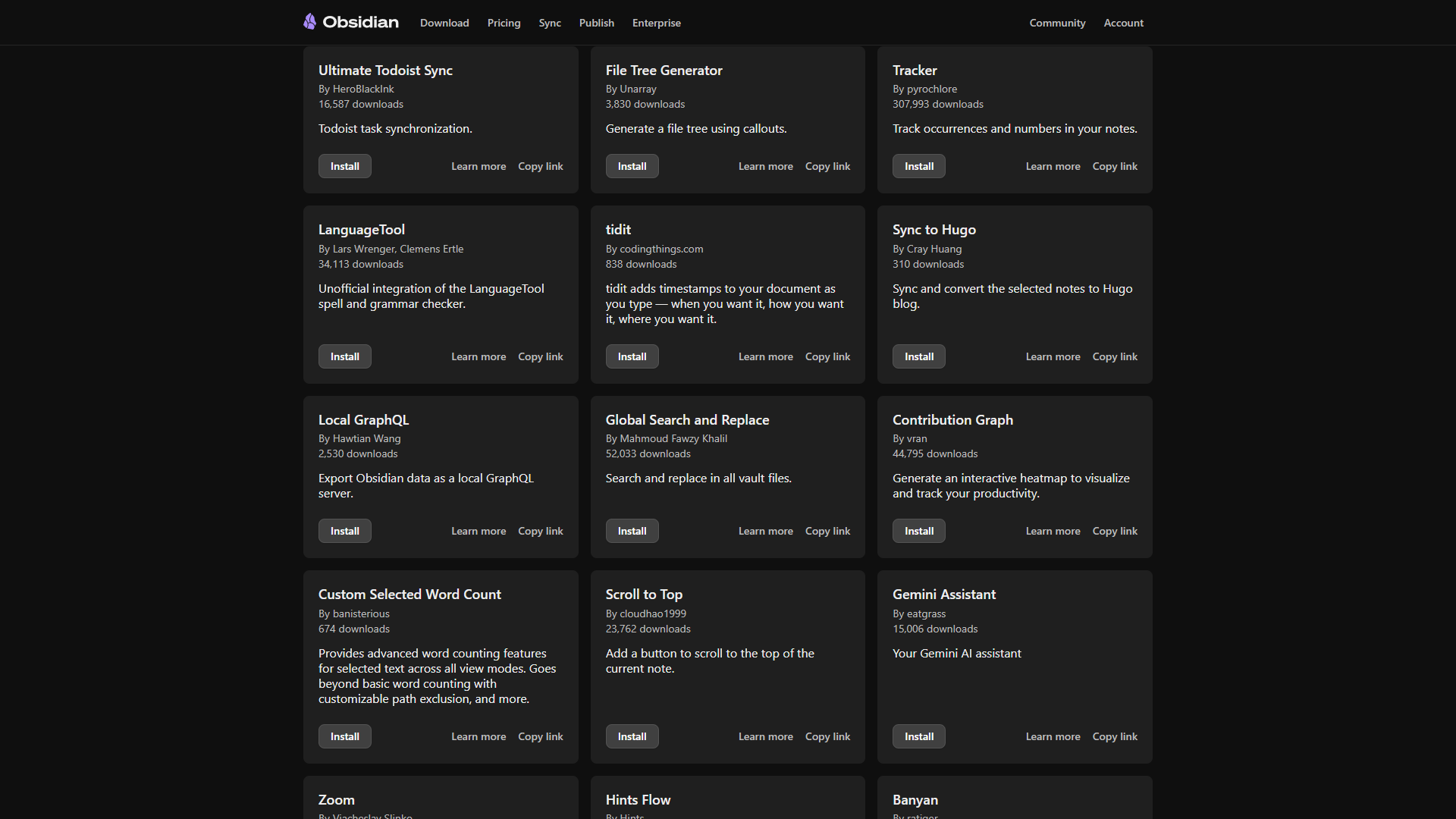
Role-based Obsidian stacks are different for each job: writers, developers, students, and project managers each need a six-to-eight-plugin combination, curated below by how you work.
The Writer Stack (8 plugins)
Core: Templater, Periodic Notes, Calendar, QuickAdd AI: Smart Connections, Text Generator Bonus: Longform (manuscript management), Word Count Dashboard
Why this works: Writers need frictionless capture (QuickAdd), structured drafts (Templater + Longform), and AI rewriting (Text Generator + Smart Connections). See Obsidian vs Notion for a writing-tool comparison.
Tools replaced: Scrivener ($49 one-time), Grammarly Pro ($12 per month), ChatGPT Plus ($20 per month)
The Developer Stack (7 plugins)
Core: Tasks, Dataview, Templater, QuickAdd AI: Copilot for Obsidian Bonus: Git (version control), Execute Code (run code snippets)
Why this works: Dataview provides the query layer, Tasks tracks sprint items, and Copilot answers questions about technical docs. The Obsidian Git plugin keeps your vault version-controlled alongside your code.
Tools replaced: Notion workspace ($10 per month), Todoist Pro ($5 per month)
The Student Stack (6 plugins)
The best Obsidian plugins for students are Templater, Calendar, Periodic Notes, Tasks, Smart Connections, and Spaced Repetition - a six-plugin stack tuned for coursework.
Core: Templater, Calendar, Periodic Notes, Tasks AI: Smart Connections Bonus: Spaced Repetition (flashcard review)
Why this works: Students need lecture-note templates (Templater), assignment tracking (Tasks), exam review (Spaced Repetition), and connections across course materials (Smart Connections) - all free, which matters on a student budget.
Tools replaced: Anki (free but complex), Notion Student ($0 but cloud-locked), Quizlet Plus ($8 per month)
The Project Manager Stack (8 plugins)
Core: Tasks, Kanban, Dataview, Templater, Calendar, Periodic Notes AI: Copilot for Obsidian Bonus: Obsidian Projects (alternative project views)
Why this works: Project managers need visual boards (Kanban), query-driven dashboards (Dataview), structured meeting notes (Templater), and quick answers about project history (Copilot), with Periodic Notes for weekly reviews.
Tools replaced: Trello Premium ($10 per month), Todoist Business ($8 per month), Notion Plus ($10 per month)
Mobile and Sync Workflow
Most Obsidian productivity plugins work on mobile for viewing and quick capture, but AI plugins, complex Templater scripts, and Kanban drag-and-drop are best left to desktop.
What works well on mobile: core note-taking and linking, the Tasks plugin (view and create tasks), Calendar navigation, and basic Dataview queries.
What works poorly or not at all on mobile: most AI plugins (resource-intensive), complex Templater scripts, Kanban drag-and-drop (touch limitations), and QuickAdd macros.
Recommended workflow: Use mobile for quick capture; do heavy work on desktop. For cross-device sync, Obsidian Sync ($5 per month) is most reliable, though free options like iCloud, Dropbox, or Syncthing work if you accept occasional conflicts.
Getting Started: Your First 30 Minutes
A new Obsidian user has four plugins to install first - Templater, Tasks, Calendar, and Periodic Notes - then adds Dataview and one AI plugin only after a few weeks of use. The recommended order below covers your first 30 minutes:
- Install Obsidian from obsidian.md (free)
- Enable community plugins in Settings > Community plugins
- Install in this order: Templater > Tasks > Calendar > Periodic Notes
- Create one daily-note template using Templater
- Add Dataview after your first week, once you have notes to query
- Try one AI plugin (Smart Connections) after your first month
- Audit and adjust - remove what you do not use, add what you need
Less is more: a vault with 4 well-configured plugins outperforms one with 20 you barely understand. Build incrementally as your workflow demands.
The Bottom Line: Obsidian Plugins Productivity
The best obsidian plugins for productivity are the ones that eliminate friction in your specific workflow - not the ones with the most GitHub stars. The seven essential plugins form a proven foundation that replaces $540+ per year in standalone subscriptions, and the three AI plugins add intelligence no competitor article mentions. Start with four plugins, master them, then expand.
FAQ
These FAQ answers are the most common questions about must-have Obsidian plugins, performance limits, mobile support, and install order.
Q: What are the must-have Obsidian plugins for productivity?
Seven essential plugins form a reliable productivity stack: Tasks, Dataview, Templater, Calendar, Kanban, Periodic Notes, and QuickAdd. Together they replace standalone apps like Todoist, Trello, and Notion databases. Every plugin is free, open-source, and actively maintained, eliminating around $45 per month in SaaS subscriptions while keeping your data in plain Markdown files.
Q: How many Obsidian plugins are too many?
Under 20 plugins has no noticeable performance impact on modern hardware and is the sweet spot for most users. Between 20 and 40 plugins, startup time increases by 1-3 seconds. Beyond 40 plugins, expect startup delays of 5-10 seconds, potential conflicts, and higher memory usage. Audit quarterly and disable anything you have not used in 30 days.
Q: Can Obsidian plugins replace ChatGPT?
Three AI plugins together can replace a ChatGPT Plus subscription at $20 per month for most knowledge work. Smart Connections finds related notes through semantic search, Copilot for Obsidian adds a chat interface that reads your vault as context, and Text Generator drafts and rewrites content inside the editor. They also add vault context awareness that standalone chatbots cannot match.
Q: Do Obsidian plugins work on mobile?
Core note-taking, the Tasks plugin, Calendar navigation, and basic Dataview queries work well on mobile. Most AI plugins, complex Templater scripts, Kanban drag-and-drop, and QuickAdd macros work poorly or not at all. The recommended workflow is mobile for quick capture and task review, with desktop reserved for heavier Dataview queries, AI analysis, and Kanban management.
Q: Which Obsidian plugins should I install first?
Install in this order: Templater, Tasks, Calendar, then Periodic Notes. Create one daily-note template with Templater, add Dataview after your first week once you have enough notes to query, then try Smart Connections after your first month. A vault with four well-configured plugins will outperform one with 20 plugins you barely understand, so build incrementally as your workflow demands.
Q: What are the best Obsidian plugins for note-taking specifically?
For pure note-taking, the core app covers Markdown editing, backlinks, and graph view, so the highest-value additions are Templater for consistent structure, Calendar for date navigation, and Smart Connections for semantic discovery of related notes. Tasks and Dataview become essential once a vault grows past a few hundred notes.
Related Reading
These related guides have more detail on the tools referenced above. Tools covered in this article:
- Notion - AI-powered workspace for notes, docs, and databases
- Obsidian - Local-first knowledge base built on plain Markdown files
- ChatGPT - Standalone AI assistant for writing, research, and coding
- Dropbox - Cloud storage and file sync for cross-device access
- Craft - Beautiful AI writing and note-taking app
More Obsidian and productivity guides:
- Obsidian Daily Notes Workflow - Build a complete daily notes system with templates and reviews
- Obsidian vs Notion - Detailed comparison of local-first vs cloud-first approaches
- Obsidian vs Logseq - Choosing between document-first and outliner-first PKM
- Best Note-Taking Apps with Graph Views - Graph-based PKM tools compared
- Best Note-Taking Apps 2026: Craft vs Notion vs Obsidian
External Resources
These primary Obsidian sources let you verify plugin counts and browse the directory.