

Most “best free PDF editors” lists are misleading. They mix genuinely free tools with paid software that happens to have a 7-day trial, then bury the limitations in fine print. Whether you want a fully free editor or a specific desktop download for 2026, the answer depends on workflow. After evaluating the best free PDF editors 2026 has to offer across real workflows - editing contracts, converting reports, signing documents, and running OCR on scanned pages - here is what is actually free, what costs extra, and which tool fits your situation.
The short version: if you want genuinely free with zero cost, PDFgear is the only tool that qualifies - no watermarks, no limits, no catch. Smallpdf is the best browser-based free option for quick tasks. Everything else locks features behind a paywall or caps how many tasks you can run per day.
Quick Picks: Best Free PDF Editors 2026 by Situation
The best free PDF editors 2026 are PDFgear for fully free desktop editing, Smallpdf for browser tasks, Adobe Reader for viewing, PDFelement for cheap AI editing, and Foxit as the budget paid alternative.
Completely free, no strings attached: PDFgear - Full editing, AI copilot, conversions, e-signatures, no watermarks, no daily limits
Best free tier for quick web tasks: Smallpdf - Browser-based, no install needed, limited daily operations on free plan
Best free reader (viewing only): Adobe Acrobat Reader - Industry-standard viewing, commenting, and form filling
Best budget paid option with AI: Wondershare PDFelement - Starts at $6.67 per month with multi-model AI features and 98% OCR accuracy
Best paid alternative to Adobe: Foxit PDF Editor - $10.99 per month with bundled AI credits and perpetual license option
Methodology: What “Free” Actually Means
Free PDF editors in 2026 are split into three distinct categories: truly free, freemium with daily caps, and free reader paired with a paid editor. Our analysis draws on current vendor documentation, pricing pages, and independent research rather than sponsored placement. AI Productivity may earn a commission from links on this page; our rankings are editorially independent.
-
Truly free - No cost, no feature restrictions, no watermarks. PDFgear is the only tool in this comparison that qualifies.
-
Freemium - Basic features are free, but you hit daily limits, page caps, or watermarked output quickly. Smallpdf (daily task limits) falls here.
-
Free reader, paid editor - You can view PDFs for free, but editing requires a subscription. Adobe Acrobat, Foxit, Nitro, and PDFelement all use this model.
Most people searching for “free PDF editors” actually need one of three things: edit text in an existing PDF, convert a PDF to Word, or sign a document. Platform matters too: a Windows 11 user has different options than someone editing on an Android phone. Keep your actual needs in mind as you read - you may not need a full-featured editor at all.
Is PDFgear the Only Genuinely Free PDF Editor?
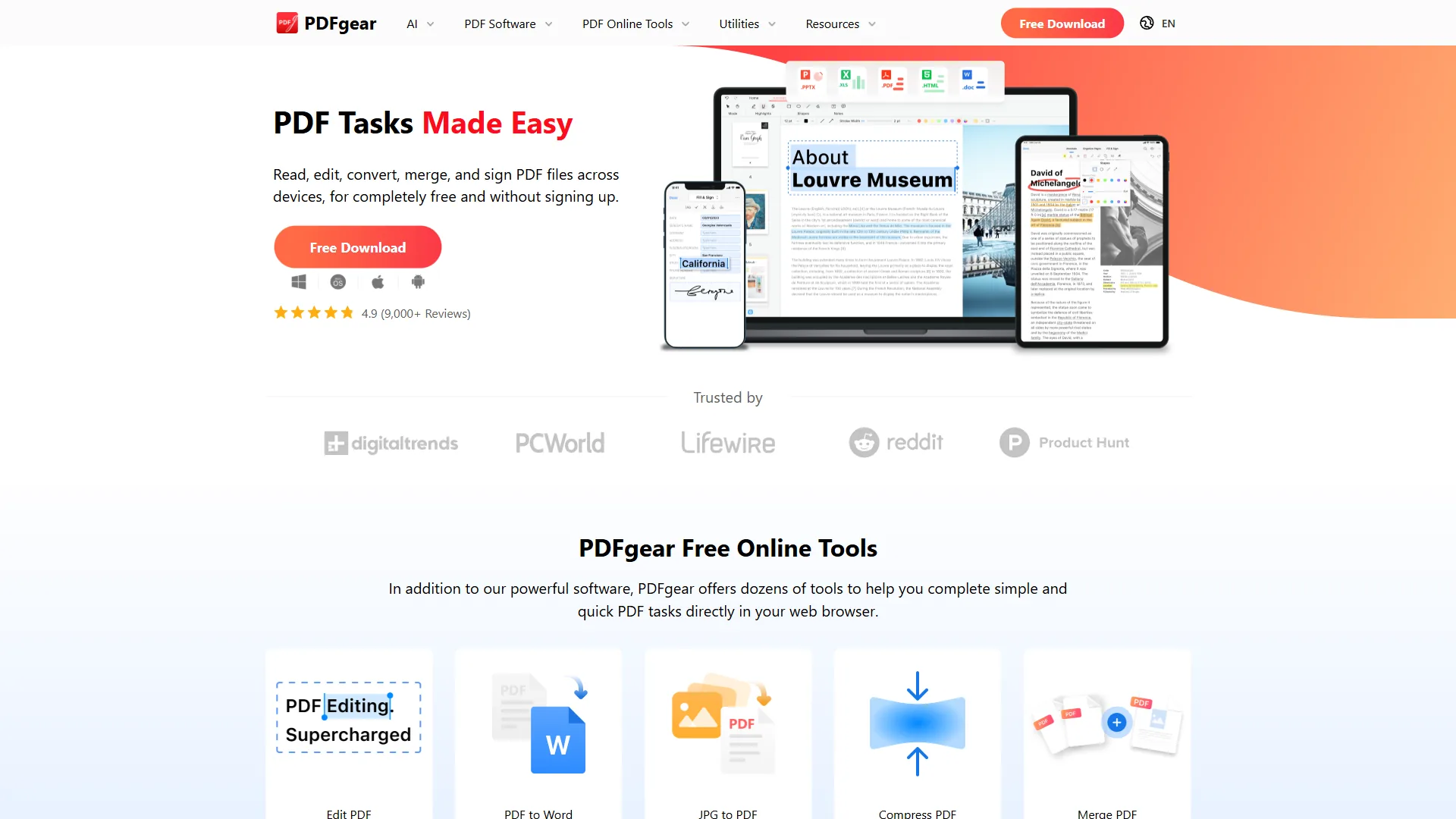
PDFgear is the standout on this list because it is the only tool that gives you everything for free - no watermarks, no daily caps, no feature gates. You get full PDF editing, file conversion (Word, Excel, PowerPoint), e-signatures, compression, OCR, and an AI copilot powered by ChatGPT. All of it. For $0.
What Makes It Different
The AI copilot is the headline feature. You can ask it to summarize a 50-page document, answer specific questions about the content, or translate sections into other languages. It works directly within the editor - no copy-pasting into ChatGPT. For students plowing through research papers or anyone dealing with dense legal documents, this is genuinely useful.
The editing tools cover the basics well. Text editing, image insertion, annotations, form filling, and page management all work without drama. Editing a 30-page contract, adding signature fields, and exporting produces clean output - no watermarks, no “upgrade to remove branding” popups.
Where It Falls Short
Limitations and who it’s not for: Skip PDFgear if you need browser-based access, advanced redaction tools, or work in a Chromebook-only environment. Drawbacks include desktop-only install, font substitution on PDFs with custom typography, and a depth ceiling versus Adobe Acrobat Pro. Cons also include unclear long-term sustainability since the product has no monetization.
Desktop install required. There is no web version. If you are on a Chromebook, a shared computer, or somewhere you cannot install software, PDFgear will not work for you. Smallpdf is the better choice in those situations.
Font issues with complex documents. When editing PDFs with non-standard or embedded fonts, PDFgear sometimes substitutes different fonts. The result looks slightly off. For simple edits this is not a problem, but if you are working with branded documents that use custom typography, the output may not match.
Advanced editing has limits. Adobe Acrobat Pro’s editing depth - layer control, advanced OCR accuracy, batch processing, redaction tools - is in a different league. PDFgear handles 80% of what most people need, but power users will notice the gaps.
Long-term sustainability is unclear. A completely free business model with no monetization raises fair questions about how long the product will be maintained and updated. That said, the tool has been around since 2022 and continues to ship updates.
Best For
Students, freelancers, solopreneurs, and small businesses who need solid PDF tools without adding another subscription. If you are paying $20+/month for Adobe Acrobat and only use it for basic editing and signing, PDFgear replaces that workflow entirely.
Is Adobe Acrobat Reader Free for Viewing but Paid for Editing?
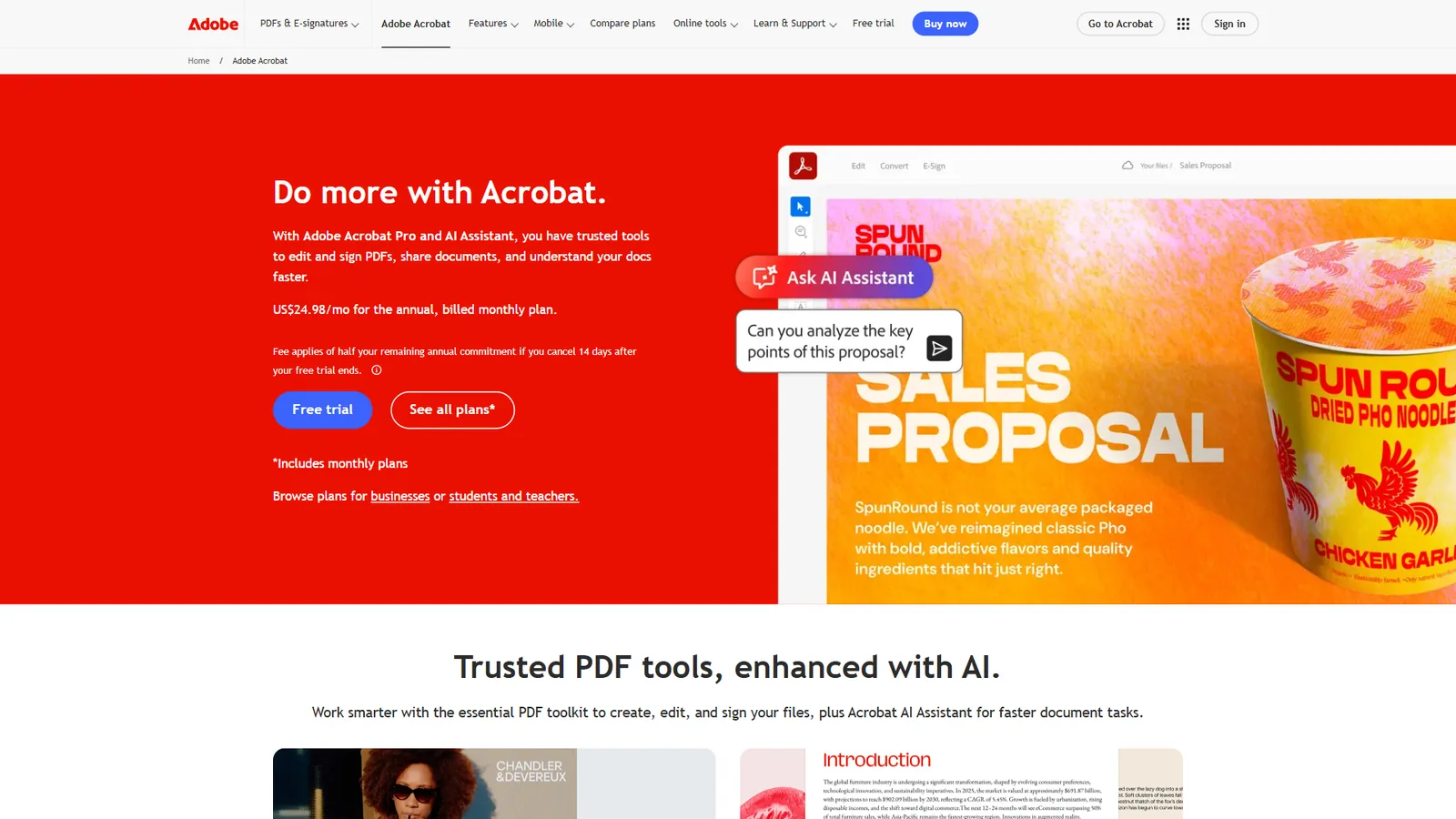
Let’s be clear about what is free with Adobe Acrobat: viewing, commenting, and form filling. That is it. If you need to edit text, convert files, run OCR, or use the AI Assistant, you are looking at a subscription starting at $12.99 per month.
The Free Reader Experience
Adobe Acrobat Reader remains the standard for PDF viewing. It opens every PDF correctly, handles complex layouts and embedded media, and the commenting tools (highlights, sticky notes, text markup) work well for review workflows. If all you need is to read PDFs and fill out forms, Reader does the job.
When You Need to Pay
The moment you try to edit text, convert a PDF to Word, or sign a document with Adobe Sign, you hit the paywall. Here is what the paid tiers cost:
| Tier | Price | Key Additions |
|---|---|---|
| Acrobat Standard | $12.99/mo | PDF editing, conversion, e-signatures |
| Acrobat Pro | $19.99/mo | Advanced editing, OCR, redaction, batch processing |
| AI Assistant Add-on | +$4.99/mo | Document summarization, Q&A, contract intelligence |
| Acrobat Studio | $24.99/mo | All Pro + AI built-in, PDF Spaces (100-doc analysis) |
Is the Paid Version Worth It?
For professionals in legal, compliance, or enterprise environments - yes. Adobe Acrobat Pro’s OCR is the most accurate on the market, the redaction tools meet regulatory standards, and the new AI Assistant features (PDF Spaces, contract intelligence) are genuinely powerful for document-heavy workflows. According to Abhigyan Modi, senior vice president at Adobe Document Cloud, “Acrobat AI Assistant is helping people across industries unlock insights, accelerate workflows, and act on the information trapped inside their documents.” A separate Forrester Total Economic Impact study commissioned by Adobe reported 22.6 hours per week reclaimed by Acrobat AI Assistant users.
For everyone else, the pricing is hard to justify when PDFgear offers 80% of the functionality for free. The “Adobe tax” is real - you are paying for industry-standard compatibility, enterprise security features, and the most polished editing experience available. Whether that premium matters depends on your use case.
Best For
Organizations that need industry-standard PDF compatibility, legal teams requiring certified redaction and compliance features, and anyone already embedded in the Adobe ecosystem. For casual use, the free Reader is fine for viewing but is not a PDF editor.
Limitations and who it’s not for: Skip Adobe Acrobat if you need free editing - the free Reader does not edit text or convert files, and the cons start at $12.99 per month for basic editing. Drawbacks for casual users include paying the “Adobe tax” for features you may not use; AI Assistant is an extra $4.99 per month on top.
Smallpdf - Best Free Tier for Browser-Based Tasks
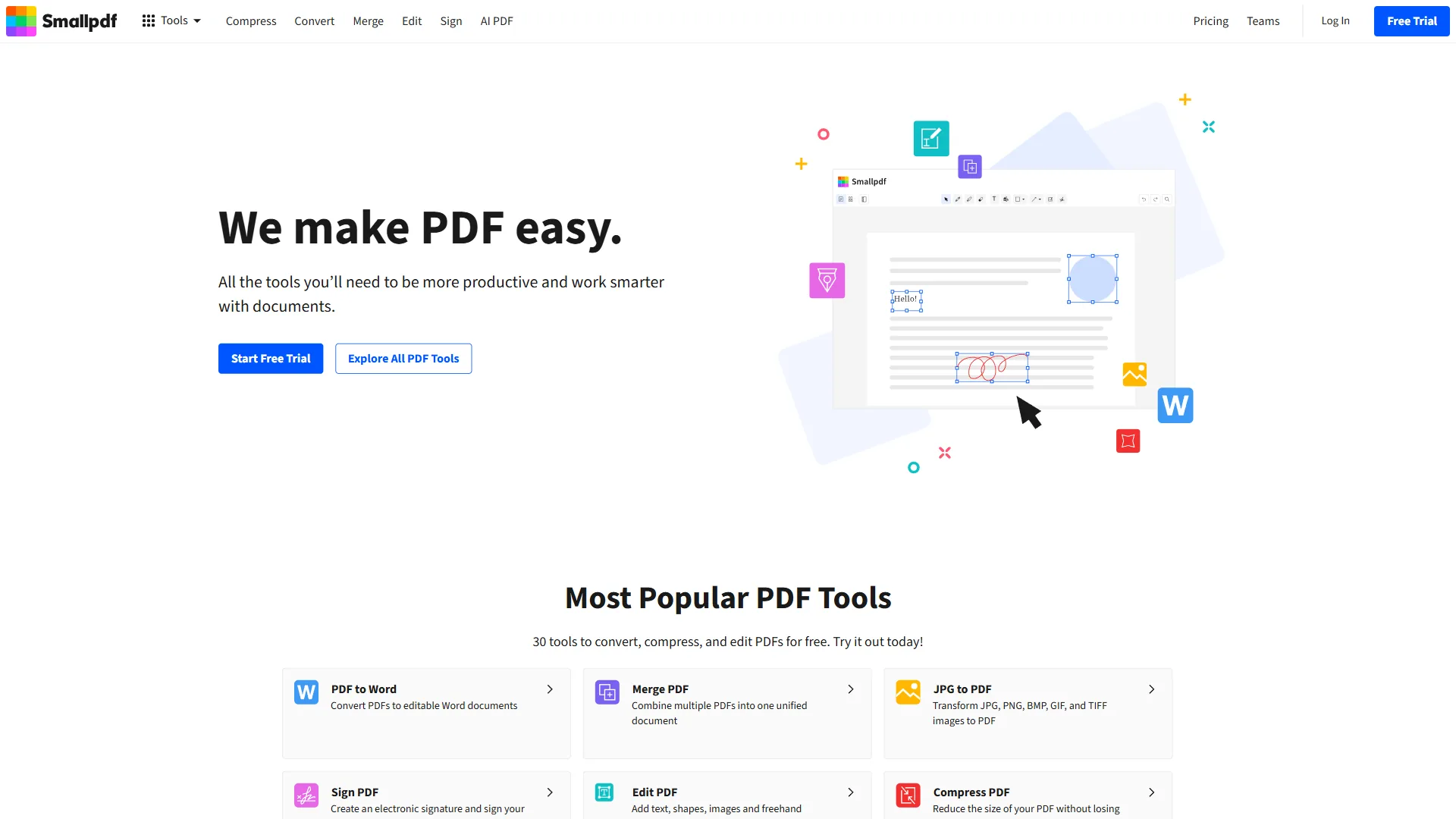
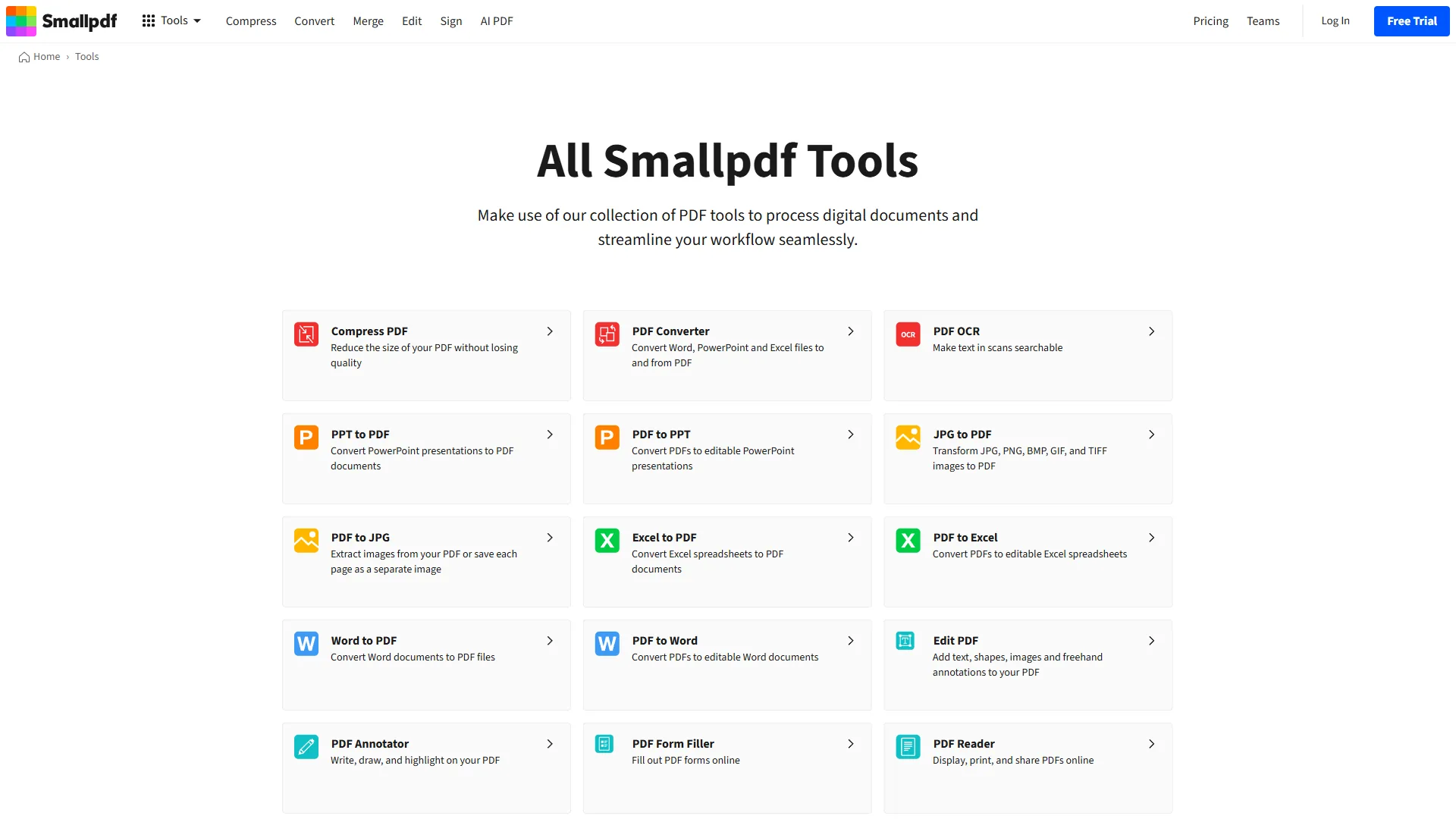
Smallpdf is the best free tier for browser-based PDF tasks in 2026 because it runs entirely in your browser - no downloads, no installations, no compatibility headaches. For quick one-off tasks - compressing a file before emailing it, converting a PDF to Word, or merging two documents - it is the fastest path from “I need to do something with this PDF” to “done.”
What the Free Tier Actually Includes
The free plan gives you access to all 20+ tools (compress, convert, merge, split, sign, edit) but limits how many tasks you can run per day. You will hit the limit quickly if you process more than a handful of files. There are also file size restrictions on the free tier.
For occasional use - a few PDFs per week - the free tier is genuinely usable. Smallpdf does not add watermarks to free outputs, which is a notable advantage over many online PDF tools.
The Catch
Once you hit the daily limit, Smallpdf pushes hard for the Pro upgrade at $18 per month ($15 per month billed annually). That pricing is awkward - it is more expensive than Adobe Acrobat Standard ($12.99 per month) while offering significantly fewer features. The value proposition of Smallpdf is simplicity and convenience, not feature depth.
Processing large files (100MB+) through the browser can also be slow, especially on modest internet connections. Desktop tools handle large documents more reliably.
Security Considerations
Smallpdf is headquartered in Switzerland, holds ISO 27001 certification, and encrypts files during transfer. Documents are automatically deleted from their servers after one hour. For most business documents, this is adequate. For highly sensitive legal, medical, or classified materials, a desktop-only tool eliminates the cloud upload risk entirely.
Best For
Anyone who needs quick PDF tasks without installing software - especially on shared computers, Chromebooks, or locked-down work machines. Students and remote workers who process a few PDFs per week will find the free tier sufficient. Heavy users should look at desktop alternatives.
Limitations and who it’s not for: Skip Smallpdf if you process more than a handful of files per day, work with documents over 100MB, or handle highly sensitive material. Drawbacks include daily task limits on the free tier, slow performance on large files, and Pro pricing ($18 per month) that costs more than Adobe Acrobat Standard while offering fewer features. Cons: cloud upload is a non-starter for classified or HIPAA-bound work.
Foxit PDF Editor - No Free Editor, But Strong Paid Value
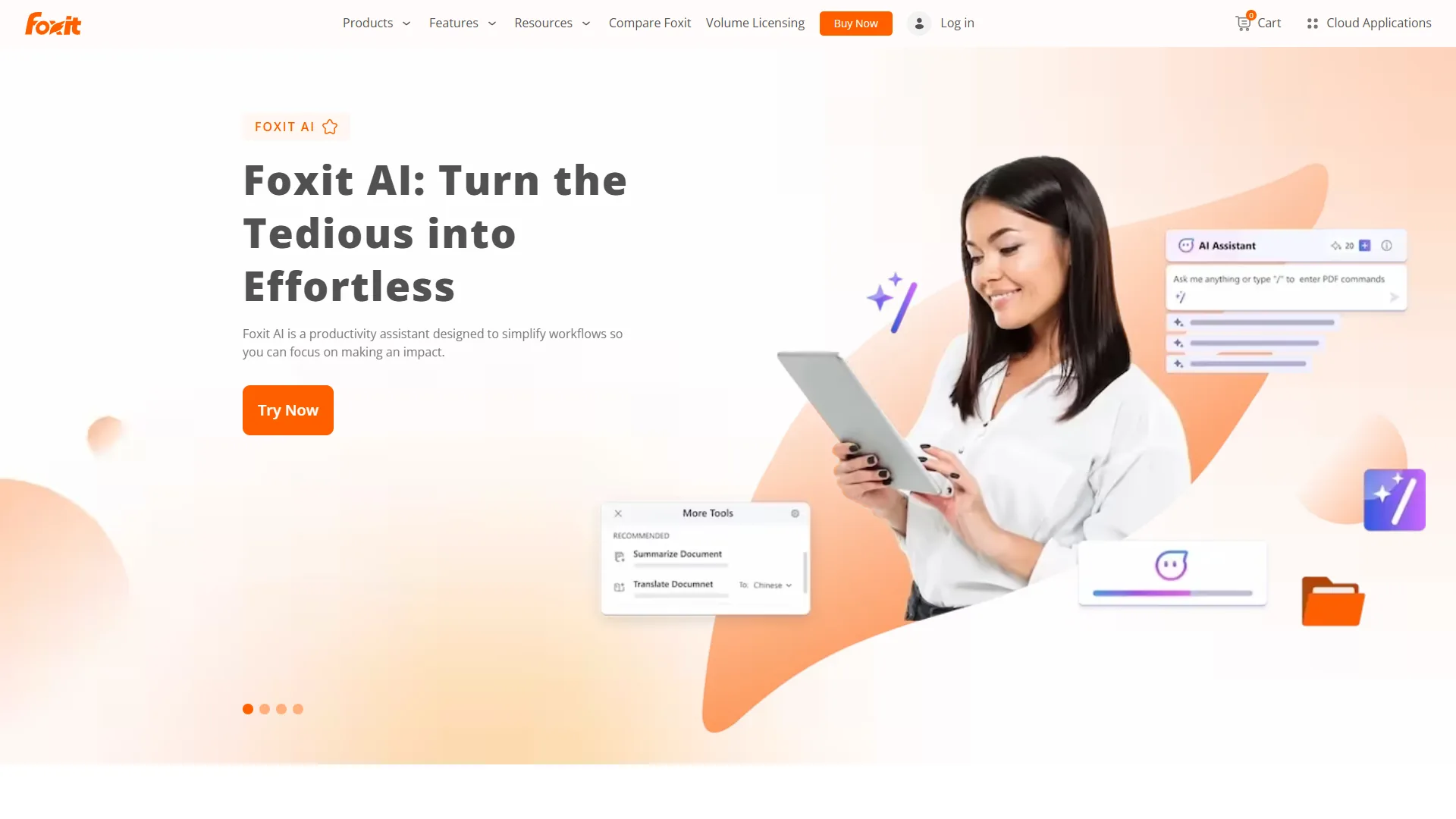
Foxit PDF Editor does not have a free editor - only a free reader for viewing. But it earns a spot on this list because it is the most compelling paid alternative if free tools are not cutting it. At $10.99 per month, Foxit delivers Adobe Acrobat-level editing at roughly half the price.
Why Consider Foxit Over Free Options
Foxit is noticeably faster than Adobe Acrobat, especially with large or scanned documents. Launch times are 2-3 seconds versus Adobe’s 8-12 seconds, and the memory footprint is lighter. If you work with PDFs daily and speed matters, the performance difference is real.
The AI features are increasingly competitive. Foxit now offers an AI document assistant with natural language commands, smart redaction with AI-powered PII detection, and - notably - an industry-first MCP Host for agentic AI workflows. The base plan includes 2,000 AI credits per month.
Foxit also offers perpetual licensing - a one-time purchase option that Adobe discontinued years ago. For organizations that prefer capital expenditure over recurring subscriptions, this is a genuine differentiator.
Pricing
| Tier | Price | Key Features |
|---|---|---|
| PDF Editor | $10.99/mo | Full editing, OCR, forms, 2,000 AI credits |
| PDF Editor+ | $13.99/mo | Mobile apps, 150GB cloud, Smart Redact, admin console |
| Perpetual License | One-time | Core editing, no subscription, limited updates |
Best For
Budget-conscious professionals who need more than free tools offer but do not want to pay Adobe’s premium. Teams that process PDFs daily and value speed. Organizations that prefer one-time purchases over subscriptions.
Limitations and who it’s not for: Skip Foxit if you want a free editor - there isn’t one, only a free reader. Drawbacks include 2,000-credit AI cap on the base plan and cons that show up in regulated workflows where Adobe-grade certified redaction is required. Not the right fit for casual users who edit a PDF twice a year.
Nitro PDF Pro - Enterprise Focus, No Free Tier
Nitro PDF Pro is built for teams, not individuals looking for free PDF tools. There is no free tier - just a 14-day trial. Starting at $14.99 per month for the Pro plan, it sits between Foxit and Adobe on pricing while targeting mid-size business workflows.
Why It Is on This List
Nitro includes AI features at no extra cost - Knowledge Assistant, Document Assistant for summarization and translation, and Smart Redact for automated PII detection. Adobe charges $4.99 per month extra for its AI Assistant, so Nitro’s bundled approach offers better value for teams that want AI capabilities.
The built-in analytics dashboard that tracks hours saved and workflow efficiency is unique. If you need to justify the software cost to management, Nitro gives you hard ROI data. A Forrester Total Economic Impact study verified 694% ROI over three years for enterprise deployments.
The Drawback
Limitations and who it’s not for: Nitro is Windows-focused, so Mac users hit clear limitations - they’re stuck with cloud-based features, which cuts utility significantly. Skip Nitro if you’re an individual user, work on Mac, or want a true perpetual license - the “Classic” one-time purchase is actually a 3-year license, not perpetual, and the cons include $14.99-$16.50 per month pricing that’s hard to justify for casual use.
Best For
Windows-centric teams of 20+ who need PDF collaboration with built-in ROI tracking. Not a fit for individuals, Mac users, or anyone looking for genuinely free tools.
Wondershare PDFelement - Best AI Features Under $10 per month
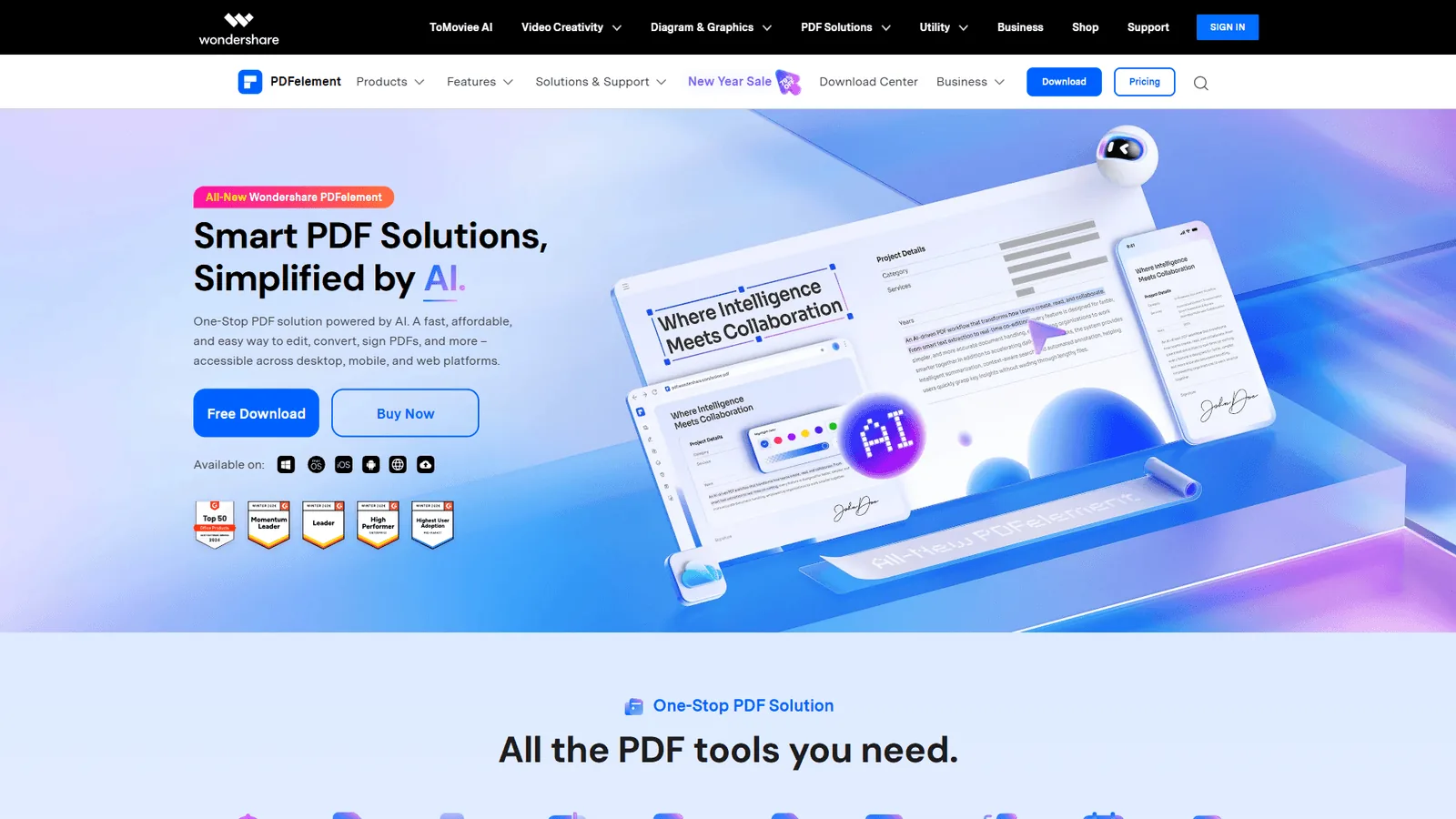
Wondershare PDFelement is not free, but at $6.67 per month (billed annually) it is the cheapest paid PDF editor with meaningful AI features. There is also a perpetual license for $129.99 - a one-time purchase that includes multi-model AI chat with ChatGPT, DeepSeek, and Gemini.
What You Get for the Price
The standout feature is multi-model AI chat. You can switch between ChatGPT, DeepSeek, and Gemini within the same document to compare summarizations, ask questions, and translate content across 75 languages. No other PDF editor offers this flexibility.
Smart redaction automatically detects sensitive information - names, Social Security numbers, credit card numbers, bank account details - with impressive accuracy. OCR hits 98% accuracy across 20+ languages. Batch processing handles multiple files simultaneously. Cross-platform apps cover Windows, Mac, iOS, and Android.
Enterprise case studies show 60-70% cost savings versus Adobe Acrobat. Thai Oil achieved 70% savings, Bose Automotive reduced costs by 70%, and CITIC Europe saved over 50% after switching.
The Tradeoff
Limitations and who it’s not for: Skip PDFelement if you work in heavily regulated industries - it lacks ISO PDF/A compliance and certified redaction logs required for legal, government, or healthcare workflows. Drawbacks include an interface that differs enough from Adobe’s that transitioning users need about a week to reach full productivity. Cons: not the right fit for compliance-bound teams.
Best For
The best option if free tools are too limited but Adobe is too expensive. Ideal for small businesses, freelancers, and anyone who wants AI-powered PDF editing without a $20 per month subscription. The perpetual license at $129.99 breaks even versus the annual subscription after 20 months.
Comparison Table: Best Free PDF Editors 2026
The comparison table below ranks the six leading free and budget PDF editors of 2026 side by side on free editing, starting price, AI features, OCR, e-signatures, web access, perpetual licensing, supported platforms, and best-fit use case.
| Feature | PDFgear | Adobe Acrobat | Smallpdf | Foxit | Nitro PDF Pro | PDFelement |
|---|---|---|---|---|---|---|
| Free Editing | Full | No (Reader only) | Limited daily | No | No | No |
| Starting Price | $0 | $12.99/mo | $0 (free tier) | $10.99/mo | $14.99/mo | $6.67/mo |
| AI Features | ChatGPT copilot | AI Assistant (+$4.99) | Basic | 2,000 credits/mo | Included | Multi-model AI |
| OCR | Basic | Industry-leading | Pro only | Multi-language | AI-powered | 98% accuracy |
| E-Signatures | Yes | Yes | Pro only | Yes | Nitro Sign | Yes |
| Web-Based | No | Yes | Yes | No | Cloud version | No |
| Perpetual License | N/A (free) | No | No | Yes | 3-year only | $129.99 |
| Platforms | Win, Mac, iOS | Win, Mac, Web, Mobile | Web, Desktop, Mobile | Win, Mac, Mobile | Win (Mac cloud) | Win, Mac, iOS, Android |
| Best For | Free full editing | Enterprise/legal | Quick browser tasks | Budget pro editing | Team workflows | Cheap AI editing |
Which Tool Fits Your PDF Workflow in 2026
The decision tree is simpler than you might expect:
Do you need to edit PDF text, convert files, or sign documents?
- Yes, and you can install desktop software: PDFgear (free, full-featured)
- Yes, but you need browser-based access: Smallpdf free tier (limited daily tasks)
- No, just viewing and commenting: Adobe Acrobat Reader (free)
Are free tools not cutting it?
- Want AI features on a monthly budget: Wondershare PDFelement ($6.67 per month or $129.99 one-time)
- Want the best value at mid-range pricing: Foxit PDF Editor ($10.99 per month)
- Need enterprise features, compliance, and the industry standard: Adobe Acrobat Pro ($19.99 per month)
Do you process PDFs on a team?
- Windows team needing ROI tracking: Nitro PDF Pro ($14.99 per month)
- Cross-platform team needing AI: Wondershare PDFelement ($6.67 per month individual or $9.08 per month business)
- Enterprise with compliance requirements: Adobe Acrobat Teams ($14.99-$29.99 per month)
The Bottom Line
Here is what most comparison articles will not tell you: the best free PDF editor in 2026 is not a stripped-down trial version - it is PDFgear, which gives you full editing, conversion, and AI-powered analysis at zero cost. For most casual to moderate PDF needs, it simply replaces paid tools entirely.
If you need more than basic editing, the paid tools earn their price. Adobe Acrobat’s OCR is measurably more accurate. Foxit’s speed with large documents saves real time. PDFelement’s multi-model AI chat genuinely improves document analysis. These are real capability gaps that justify the monthly cost for the right workflow.
And if you need browser-based convenience without installing software, Smallpdf’s free tier handles occasional tasks well.
FAQ
Q: What is the best truly free PDF editor in 2026?
PDFgear is the only genuinely free PDF editor in 2026 - no watermarks, no daily caps, and no feature gates. You get full PDF editing, file conversion to Word, Excel, and PowerPoint, e-signatures, compression, OCR, and a ChatGPT-powered AI copilot at zero cost. It is desktop-only, so Chromebook users should pick Smallpdf instead.
Q: Is Adobe Acrobat Reader free for editing PDFs?
No. Adobe Acrobat Reader is free for viewing, commenting, and form filling only. Editing text, converting PDFs to Word, running OCR, or using the AI Assistant requires a paid subscription starting at $12.99 per month for Acrobat Standard, $19.99 for Pro, or $24.99 for Acrobat Studio with built-in AI features.
Q: Does Smallpdf put watermarks on free PDFs?
No, Smallpdf does not add watermarks to free outputs, which is a notable advantage over many online PDF tools. The free browser-based tier gives access to all 20+ tools but limits how many tasks you can run per day and caps file size. Pro upgrades cost $18 per month, more than Adobe Acrobat Standard.
Q: What is the cheapest paid PDF editor with AI features?
Wondershare PDFelement is the cheapest paid PDF editor with meaningful AI at $6.67 per month billed annually, or a $129.99 one-time perpetual license. It includes multi-model AI chat across ChatGPT, DeepSeek, and Gemini, 98% OCR accuracy across 20+ languages, smart redaction for sensitive data, and cross-platform apps for Windows, Mac, iOS, and Android.
Related Reading
Related reading includes adjacent PDF editor comparisons, OCR roundups, and individual tool reviews that expand on the picks in this guide.
- Best PDF Editors 2026: Adobe vs Foxit vs Nitro vs PDFelement
- Best Free PDF Tools 2026: Complete Comparison
- Best PDF Editors for Windows Power Users
- OCR Software Comparison
- Best OCR Software 2026: 3 Top Tools Compared on Accuracy
- PDFgear Review
- Adobe Acrobat Review
- Smallpdf Review
- Foxit PDF Editor Review
- Wondershare PDFelement Review
- Nitro PDF Pro Review
External Resources
External resources include direct links to each vendor’s official pricing and download pages plus the standards bodies cited above for independent verification.
- PDFgear Official Site - Download the free PDF editor
- Adobe Acrobat - Free Reader download and paid plans
- Smallpdf - Browser-based PDF tools
- Foxit PDF Editor - Lightweight PDF editing alternative
- Nitro PDF Pro - Team-focused PDF productivity
- Wondershare PDFelement - Budget AI-powered PDF editor
- ISO 27001 information security standard - Certification referenced for Smallpdf
- NIST PDF and document security guidance - Federal standards for document handling