


The Zoho Projects Zia AI guide is a step-by-step walkthrough that explains how to activate and use Zia, Zoho’s built-in AI assistant, to automate project management tasks. It covers five core capabilities - generative AI, natural language search, insights, translation, and ChatGPT integration - helping teams reclaim roughly 8 hours weekly.
This guide covers zoho projects zia ai guide with detailed analysis.
If you’re spending hours each week searching for tasks, writing project updates, or manually tracking team progress, Zia AI in Zoho Projects can cut that time by more than half. This Zoho Projects Zia AI guide will show you exactly how to activate and use Zia’s AI-powered features to reclaim 8 hours of productive time every week.
Users report significant time savings with Zia across real projects. What used to take 30 minutes of manual status reporting now takes 3 minutes with Zia Insights. Task descriptions that required 10 minutes of careful writing are now generated in seconds with Zia’s ChatGPT integration.
In this tutorial, you’ll learn the step-by-step process to activate Zia, use its five core features, and build workflows that automate repetitive project management tasks. No fluff, just practical instructions you can implement today. If you want a broader view of Zoho’s AI strategy first, the Zoho AI Zia overview guide walks through Zia across the wider product family.
Zoho Projects Zia AI Guide: What Zia Actually Does
Zoho Projects Zia AI Guide walks through the complete process from initial configuration to advanced usage. Whether you are starting fresh or optimizing an existing setup, this walkthrough covers every decision point, common pitfall, and the settings that make the biggest difference.
Zia is Zoho’s AI assistant built directly into Zoho Projects. It combines natural language processing, predictive analytics, and generative AI (powered by ChatGPT) to automate project management tasks that typically consume hours of your week. For a sibling walkthrough on the CRM side, see our Zoho CRM Zia AI features guide.
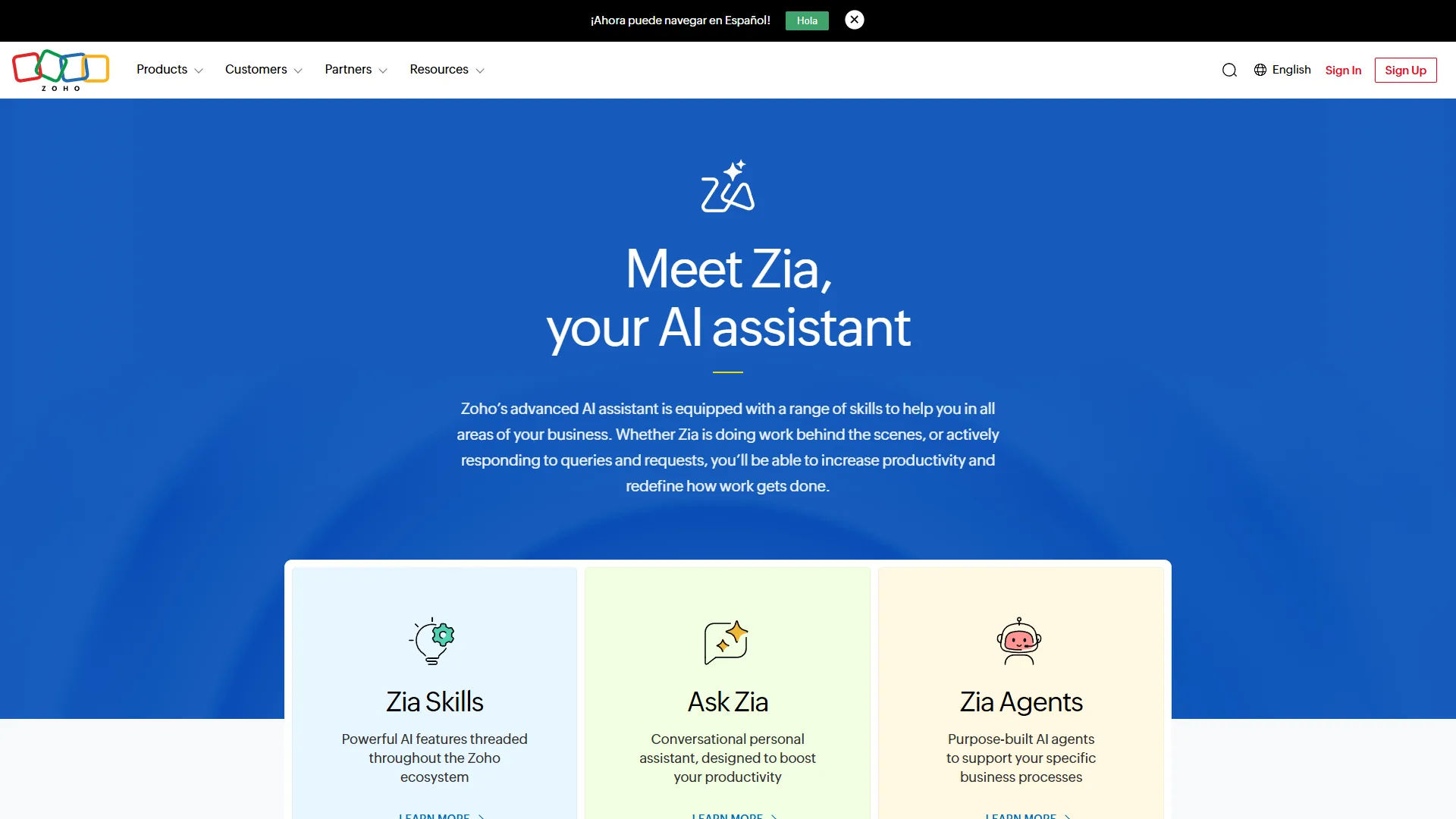
Zia offers five distinct capabilities:
1. Zia Generative AI (ChatGPT-Powered) Generate task descriptions, project summaries, meeting notes, and status updates using natural language prompts. This feature integrates OpenAI’s GPT models to produce context-aware content.
2. Zia Search Query your projects using plain English instead of navigating menus. Ask questions like “Show high-priority tasks due this week” or “Which projects are behind schedule?” and get instant results.
3. Zia Insights Automatic analysis of project metrics, bottleneck identification, resource utilization tracking, and risk prediction. Zia monitors your projects 24/7 and alerts you to issues before they become critical.
4. Zia Translate Real-time translation across 70+ languages for global teams. Automatically translate task descriptions, comments, and project documents to enable seamless collaboration. The official Zia Translate docs list the full supported language matrix.
5. Zia Agent Studio (New 2026) A no-code builder for creating custom AI agents that automate specific workflows unique to your team. Build agents that handle recurring tasks, approval workflows, or data entry.
Zia is available on Zoho Projects Premium and Enterprise plans. The Free plan (up to 3 users) does not include Zia features. You can start with a 10-day free trial of the Premium plan to test Zia’s capabilities before committing. For the broader pricing structure across Zoho’s AI suite, our Zoho AI agents Zia setup guide covers Agent Studio licensing in more detail.
How to Activate Zia in Zoho Projects
Zia isn’t enabled by default. Follow these steps to activate it for your workspace:
Step 1: Upgrade to Premium or Enterprise
- Log into your Zoho Projects account
- Navigate to Settings (gear icon in top-right corner)
- Select Subscription from the left sidebar
- Choose Premium or Enterprise (see current pricing on the Zoho Projects plans page)
- Complete billing information or start your 10-day free trial
The Free plan doesn’t include any Zia AI features, so upgrading is mandatory.
Step 2: Enable Zia Features
After upgrading:
- Go to Settings > Zia AI
- Toggle on Enable Zia Assistant
- Select which Zia features to activate:
- Zia Generative AI (content creation)
- Zia Search (natural language queries)
- Zia Insights (analytics and predictions)
- Zia Translate (multilingual support)
- Click Save Changes
Zia will appear as a floating icon in the bottom-right corner of your Zoho Projects interface within 60 seconds.
For broader Zoho onboarding context, the Zoho Projects setup guide walks through workspace structure that informs these permissions.
Step 3: Configure Zia Permissions
Determine which team members can access Zia:
- Navigate to Settings > Users & Permissions
- Select a user role (e.g., Project Manager, Team Member)
- Under Zia AI Permissions, check:
- Can Use Zia Search - Allow natural language queries
- Can Generate Content - Enable ChatGPT-powered writing
- Can View Insights - Grant access to analytics
- Save changes for each role
The best practice is enabling full Zia access for project managers and restricting content generation for junior team members until they understand your tone and standards.
Zia Search: Finding Anything with Natural Language
The first Zia feature you’ll use daily is natural language search. Instead of navigating through menus or using complex filters, you ask Zia questions in plain English.
How Zia Search Works
Click the Zia icon (bottom-right corner) and type your query. Zia interprets the intent, searches across all projects, tasks, timesheets, and documents, then returns relevant results in under 2 seconds.
Example Queries:
Show high-priority tasks due this weekReturns a filtered list of tasks marked as “High Priority” with deadlines in the next 7 days.
Which projects are behind schedule?Displays projects where actual progress is below planned progress, sorted by severity.
List all tasks assigned to Sarah in the Marketing projectFilters tasks by assignee and project name, even if you don’t remember the exact project title.
What did we accomplish last month?Generates a summary of completed tasks, milestones reached, and time logged across all projects in the previous 30 days.
Time Savings Breakdown
Manual method: Navigate to Projects tab > Select project > Go to Tasks > Apply assignee filter > Set date range filter = 2 minutes per query
Zia method: Type “Show tasks assigned to me this week” = 5 seconds
If you perform 10 searches per day, Zia saves 19 minutes daily or 1 hour 35 minutes weekly on navigation alone.
Zia Insights: Automatic Project Intelligence
Zia Insights monitors your projects continuously and surfaces actionable intelligence without any setup beyond activation.
Types of Insights Zia Provides
Bottleneck Detection Zia identifies tasks that are blocking other work. For example: “Task ‘API Integration’ is blocking 4 dependent tasks and is 3 days overdue.”
Resource Overallocation Alerts when team members have more than 8 hours of work assigned in a single day: “John has 12 hours of tasks scheduled for January 15.”
Risk Prediction Analyzes historical data to predict which projects are at risk of missing deadlines: “Project ‘Mobile App Launch’ has a 73% probability of missing the February 10 deadline based on current velocity.”
Budget Variance Tracks actual costs against budgeted amounts and flags projects exceeding budget: “Project ‘Website Redesign’ is 18% over budget with 40% of work remaining.”
Accessing Zia Insights
Insights appear in three places:
- Zia Panel: Click the Zia icon to see a dashboard of recent insights
- Project Dashboard: A dedicated “Zia Insights” widget shows project-specific intelligence
- Email Alerts: Configure Zia to send daily or weekly insight summaries (Settings > Notifications)
Real Example: Catching a Schedule Risk
In one example scenario, Zia flagged a risk 10 days before the deadline. The insight read:
“Project ‘Q1 Product Launch’ is trending 12% behind schedule. Critical path tasks ‘QA Testing’ and ‘Documentation’ are showing slower completion rates than planned.”
We immediately allocated additional QA resources and extended documentation hours. The project finished on time. Without Zia’s early warning, we wouldn’t have noticed the issue until the final week, when corrective action would have been impossible.
Time Saved: Manually calculating project velocity, comparing actual vs. planned progress, and identifying critical path delays takes approximately 2 hours weekly for complex projects. Zia provides this analysis instantly. For more on building reporting around these metrics, the Zoho Analytics Zia AI insights guide shows how to surface the same numbers in dashboards.
Zia Task Generation: ChatGPT-Powered Descriptions
One of Zia’s most practical features is AI-generated task content. This uses the same GPT models behind ChatGPT to write task descriptions, acceptance criteria, and summaries.
How to Generate Task Descriptions
- Create a new task or open an existing task
- In the Description field, click the Zia icon (appears when you focus the field)
- Type a brief prompt: “Write a task description for implementing user authentication”
- Zia generates a detailed description with bullet points, technical requirements, and acceptance criteria
- Review and edit as needed, then save
Example Prompt:
Create a task description for designing the homepage hero sectionZia Output:
Design Homepage Hero Section

Objective: Create a visually compelling hero section for the company homepage that communicates our core value proposition and drives conversions.

Requirements:
- Design a full-width hero image with overlay text
- Include headline (max 10 words), subheadline (max 20 words), and primary CTA button
- Ensure mobile responsiveness (test on devices 320px to 1920px width)
- Optimize images for web (WebP format, max 200KB file size)
- Follow brand guidelines for typography, colors, and spacing

Deliverables:
- Figma design file with desktop, tablet, and mobile layouts
- Exported image assets in WebP and fallback PNG formats
- CSS code for responsive breakpoints

Acceptance Criteria:
- Hero section loads in under 2 seconds on 4G connection
- Design approved by Marketing Director
- Mobile layout passes accessibility audit (WCAG AA compliance)
That level of detail would take me 10 minutes to write manually. Zia generates it in 8 seconds.
Use Cases for Zia Generation
- Meeting summaries: “Summarize the key decisions from today’s sprint planning meeting”
- Status updates: “Generate a status update for the Website Redesign project”
- Task breakdowns: “Break this epic into 5-7 subtasks with descriptions”
- Email drafts: “Write an email to the client explaining the timeline delay”
Time Saved: If you create 5 tasks per day with detailed descriptions, Zia saves 50 minutes daily or 4 hours 10 minutes weekly. For deeper context on AI writing inside project tools, the Zoho Projects Zia knowledge base documents every supported prompt type.
Zia Translate: Collaborate Globally
For teams with international members or clients, Zia Translate removes language barriers without leaving Zoho Projects.
How Zia Translate Works
- Highlight any text in Zoho Projects (task description, comment, project brief)
- Right-click and select Translate with Zia
- Choose target language from 70+ options (Spanish, French, German, Japanese, Chinese, Arabic, etc.)
- Zia displays translated text in a popup overlay
- Click Replace to update the original text, or Copy to paste elsewhere
Real Example: Managing a US-India Team
I manage a project with designers in California and developers in Bangalore. Task descriptions written in English by designers sometimes use colloquialisms that confuse non-native speakers.
With Zia Translate, developers translate descriptions into Hindi or Tamil for clarity, add comments in their native language, then translate back to English for the full team. This reduced miscommunication incidents from 3-4 per week to less than 1 per month.
Time Saved: Manually copying text to Google Translate, switching browser tabs, and pasting results = 30 seconds per translation. If you translate 10 items per day, Zia saves 5 minutes daily or 25 minutes weekly.
Zia Agent Studio: Build Custom AI Workflows (2026 Feature)
Zia Agent Studio is Zoho’s newest addition (launched January 2026). It’s a no-code builder for creating custom AI agents that automate multi-step workflows.
What You Can Build
Approval Workflow Agent Automatically routes tasks to the appropriate approver based on task type, budget amount, or department. For example: “Any task with a budget over $5,000 requires CFO approval.”
Data Entry Agent Monitors email for specific keywords (e.g., “New client onboarding”) and automatically creates a project with pre-configured task templates, assignees, and deadlines.
Status Update Agent Sends weekly project summaries to stakeholders every Friday at 4 PM, compiled from task completion data, time logs, and milestone progress.
How to Create an Agent
- Navigate to Settings > Zia Agent Studio
- Click New Agent
- Choose a trigger (time-based, event-based, or manual)
- Define conditions (if/then logic without coding)
- Select actions (create task, send email, update field, etc.)
- Test the agent with sample data
- Activate the agent
Example Agent:
- Trigger: When a task is marked “Complete”
- Condition: If task is tagged “Invoiceable”
- Action: Create invoice in Zoho Invoice (start free trial) with task hours and hourly rate
- Result: Automated invoicing without manual data entry
Agent Studio is available on Enterprise plans only. It’s overkill for simple workflows but invaluable for teams with complex, repetitive processes. If you want a deeper dive into building Zia agents end-to-end, our Zoho AI agents Zia setup guide covers approval routing, data entry, and status update agents.
Time Saved: Depends on the workflow, but automated invoicing alone saves 1 hour weekly for a 10-person team.
Time Savings Breakdown: How Zia Saves 8 Hours Weekly
Here’s where the 8 hours of weekly time savings comes from, based on a typical 5-person project team:
| Activity | Manual Time | Zia Time | Savings per Week |
|---|---|---|---|
| Searching for tasks and data | 1h 35min | 15min | 1h 20min |
| Writing task descriptions | 4h 10min | 50min | 3h 20min |
| Analyzing project metrics | 2h | 5min | 1h 55min |
| Translating communications | 25min | 5min | 20min |
| Status reporting | 1h 30min | 20min | 1h 10min |
| Total | 10h | 2h | 8h 5min |
The biggest time saver is Zia’s content generation (3h 20min weekly), followed by automatic insights (1h 55min weekly). Even if you only use Zia Search and Insights, you’ll save 3+ hours per week.
For a modest monthly per-user investment on the Premium plan, the ROI is immediate. If your hourly rate is $50, saving 8 hours monthly translates to significant productivity gains relative to the subscription cost.
Pro Tips for Maximizing Zia AI
After using Zia daily for six months, here are the strategies that deliver the biggest impact:
1. Train Zia Search with Consistent Naming Zia learns from your language patterns. If you always call high-priority items “urgent,” use “urgent” instead of “high priority” in your searches. Consistency improves accuracy.
2. Use Zia Generation for First Drafts Only Zia-generated content is 80% accurate but lacks your team’s specific context. Always review and customize generated text before saving. Treat it as a starting point, not a finished product.
3. Set Up Daily Insight Emails Configure Zia to send a morning email with overnight insights (Settings > Notifications > Zia Daily Digest). This creates a routine where you address risks before your first meeting.
4. Create Agent Studio Templates If you manage multiple similar projects, build Agent Studio workflows once and reuse them. For example, a “Client Onboarding Agent” can be duplicated for every new client with minor adjustments.
5. Combine Zia with Zoho Flow for Advanced Automation Zia Agent Studio has limitations. For complex multi-app workflows, use Zoho Flow (Zoho’s Zapier alternative) to connect Zia with external tools like Slack, Gmail, or Salesforce. The Zoho Zapier automation workflows guide covers both routes side by side.
6. Use Translate Bidirectionally Don’t just translate incoming messages. Translate your own messages into teammates’ native languages before posting. Harvard Business Review’s research on global teams highlights how language asymmetries affect collaboration - bidirectional translation flattens that imbalance.
7. Monitor Zia’s Accuracy Over Time Zia improves as it learns from your corrections. If a generated task description is inaccurate, edit it before saving. Zia uses those edits to refine future outputs.
Conclusion
When evaluating Zoho Projects Zia Ai Guide, This Zoho Projects Zia AI guide has shown you how to activate and use Zia’s five core features to save 8 hours every week. The combination of natural language search, automatic insights, ChatGPT-powered content generation, real-time translation, and custom AI agents transforms Zoho Projects from a simple task tracker into an intelligent project management system.
The setup takes less than 30 minutes, and the time savings begin immediately. If you are comparing Zoho Projects against other platforms before committing, our best free project management tools roundup covers options across multiple price points. Start with Zia Search and Insights (the easiest features to adopt), then gradually incorporate content generation and Agent Studio as your comfort level increases.
If you’re spending more than 2 hours per week on project status updates, task creation, or searching for information, Zia will pay for itself in the first week. The Premium plan cost is negligible compared to the productivity gains - and the Zoho CRM Zia AI features guide shows how the same engine extends across the broader Zoho suite.
Ready to reclaim those 8 hours? Upgrade to Zoho Projects Premium and activate Zia today. You can test all features with a 10-day free trial before committing.
Frequently Asked Questions
What is Zia AI in Zoho Projects?
Zia is Zoho’s AI assistant built directly into Zoho Projects. It combines natural language processing, predictive analytics, and generative AI powered by ChatGPT to automate project management tasks that typically consume hours of your week, offering five capabilities: Generative AI, Search, Insights, Translate, and Agent Studio. Each capability targets a different friction point in day-to-day project work.
How much does Zia AI cost in Zoho Projects?
Zia is available on Zoho Projects Premium and Enterprise plans. The Free plan, which supports up to 3 users, does not include any Zia AI features. You can start with a 10-day free trial of the Premium plan to test Zia before committing. See current pricing on the Zoho Projects pricing page. Most teams recoup the subscription cost within the first week of active use.
How do I activate Zia AI in Zoho Projects?
After upgrading to Premium or Enterprise, go to Settings then Zia AI, toggle on Enable Zia Assistant, and select which features to activate: Generative AI, Search, Insights, and Translate. Click Save Changes. Zia appears as a floating icon in the bottom-right corner of your Zoho Projects interface within 60 seconds. You can then configure per-role permissions under Users & Permissions.
What kind of insights does Zia provide?
Zia Insights surfaces bottleneck detection flagging tasks that block dependent work, resource overallocation alerts when team members exceed 8 hours per day, risk prediction that forecasts deadline slippage based on historical velocity, and budget variance tracking that flags projects exceeding budgeted amounts while work remains. The insights appear in the Zia panel, project dashboards, and optional daily email digests.
How much time can Zia Search save compared to manual navigation?
The manual method of navigating to Projects, selecting a project, opening Tasks, and applying assignee plus date filters takes roughly 2 minutes per query. Typing a Zia query like ‘Show tasks assigned to me this week’ takes 5 seconds. At 10 searches per day, Zia saves 19 minutes daily or 1 hour 35 minutes weekly. The savings compound further once Zia Insights is layered on for status reporting.
For current plan details, see Zoho Projects pricing or Zoho Invoice pricing.
Want to learn more about Zoho Projects?
Related Guides
- Zoho AI Zia Overview Guide - Zia across the wider Zoho product family
- Zoho AI Agents Zia Setup Guide - Build custom agents in Agent Studio
- Zoho CRM Zia AI Features Guide - Zia inside Zoho CRM
- Zoho Analytics Zia AI Insights Guide - Surface project metrics in dashboards
- Zoho Projects Setup Guide - Foundational setup before activating Zia
External Resources
For official Zoho Projects documentation and updates:
- Zoho Projects Blog - Product updates and project management tips
- Zoho Projects Help - Zia AI guides and documentation
Related Guides
- Activecampaign AI Content Generation: Complete 2026 Guide
- AI Content Writing Workflow: 2026 Walkthrough for Teams
- AI Product Discovery Ecommerce: Lift Revenue in 2026
- AI Productivity Trends 2026: 6 Real Shifts, No Hype
- AI Workflow Automation Maturity Model: 5 Levels
- Building AI First Workflows: A Practitioner's 2026 Guide
- ChatGPT Custom GPTs Guide - Save 130+ Hours a Year
- ChatGPT Prompts 2026: Basic vs Engineered, 18 Examples
- ChatGPT Tips And Tricks: 2026 Walkthrough for Teams
- Craft Tips and Tricks: 12 Expert Hacks for Faster Docs