



GitHub Copilot guide is a practical walkthrough of the AI pair programmer from GitHub and OpenAI, covering setup, pricing from $10 per month Pro to $39 per user/mo Enterprise, and support for 40+ languages including Python, JavaScript, and Go. It explains code completion, chat, inline suggestions, and 2026 workspace context features.
Developers spend roughly 55% of their time understanding existing code and only 5% actually writing new code. This github copilot guide explains how Copilot fundamentally changes this equation. “Developers who used GitHub Copilot completed the task significantly faster - 55% faster than the developers who did not use GitHub Copilot,” according to a controlled study by Eirini Kalliamvakou, Senior Researcher at GitHub Next. The 2024 Stack Overflow Developer Survey reports that 76% of professional developers are now using or planning to use AI tools in their development process.
This isn’t about replacing developers. It’s about eliminating the tedious parts of coding - boilerplate, repetitive patterns, API syntax you can never quite remember - so you can focus on what actually matters.
Methodology: our analysis draws on GitHub’s current pricing and documentation, GitHub Next’s published productivity research, and independent developer-survey data rather than sponsored placement. Disclosure: AI Productivity may earn a commission from links on this page; our rankings and pricing analysis are editorially independent.
TL;DR: GitHub Copilot Quick Facts
GitHub Copilot costs $10 per month for the Individual plan, supports 40+ languages, and integrates with VS Code, JetBrains, Neovim, and Visual Studio out of the box. The 2026 release adds Workspace context, Vision for UI-to-code, and an Extensions marketplace on top of inline completion and chat.
| Feature | Details |
|---|---|
| Rating | |
| Pricing | Free tier available, Pro $10/mo, Business $19/user/mo, Enterprise $39/user/mo |
| Best For | Individual developers and teams seeking AI-powered code assistance |
| Languages | Python, JavaScript, TypeScript, Ruby, Go, C#, C++, and 40+ more |
| Key Features | Code completion, chat interface, inline suggestions, test generation |
| 2026 Updates | Workspace context, Vision for UI-to-code, Extensions marketplace |
| Free Trial | Yes - free tier with limited completions |
Try GitHub Copilot or read our full tool review.
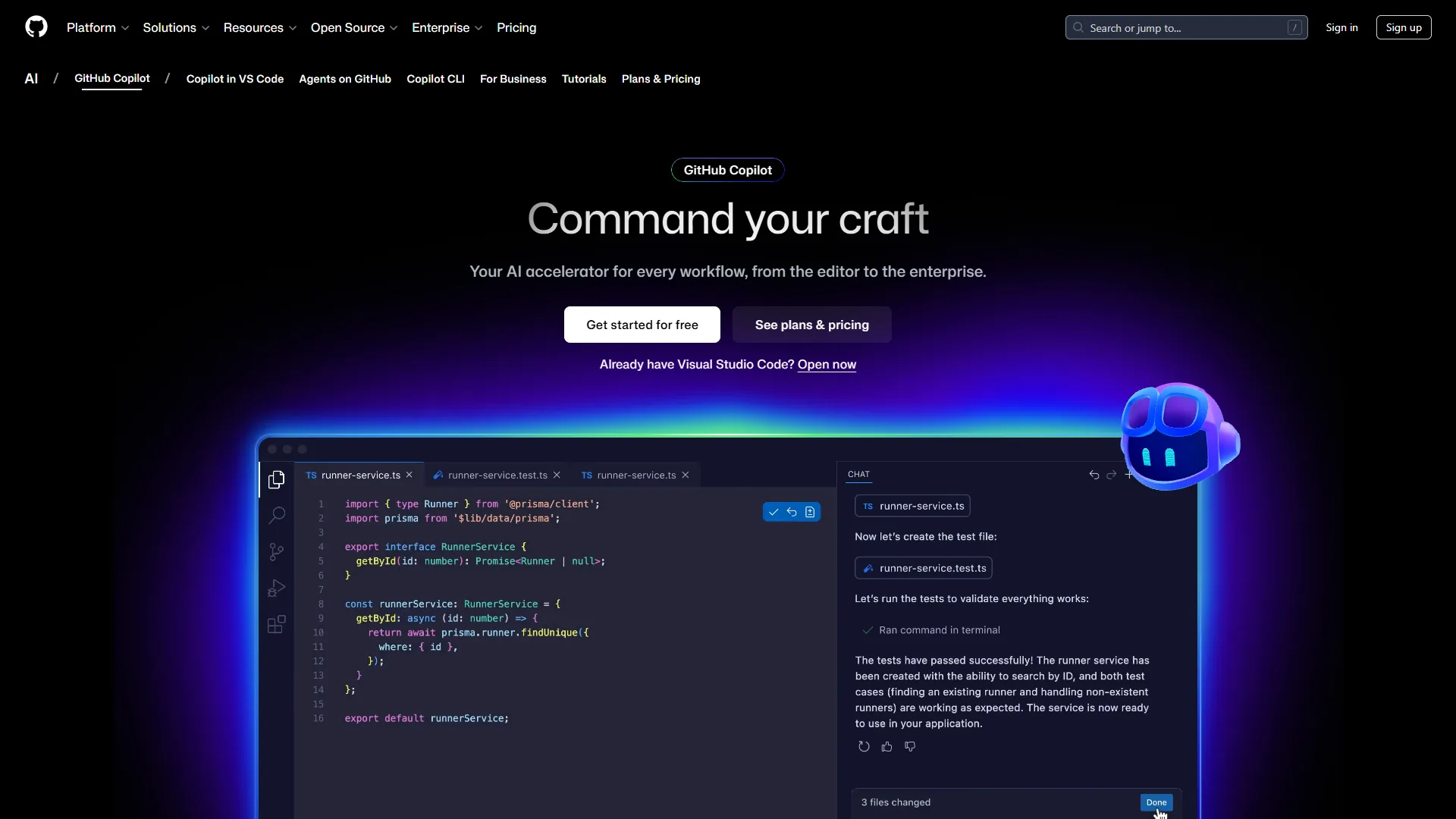
What is GitHub Copilot?
GitHub Copilot is an AI pair programmer developed by GitHub and OpenAI. It suggests code completions, entire functions, and even complex algorithms as you type. Think of it as an autocomplete on steroids - one that understands context, reads your comments, and can generate multi-line code blocks that actually work.
The tool integrates directly into your editor (VS Code, JetBrains, Neovim, Visual Studio) and uses machine learning models trained on billions of lines of public code. How to use GitHub Copilot in vscode is the most common path: you write a comment describing what you want, and Copilot suggests implementations. You start a function signature, and it completes the logic, with the official GitHub Copilot documentation covering every editor-specific nuance.
What makes Copilot different from basic autocomplete is context awareness. It reads your entire file, understands your project structure, and tailors suggestions to your coding style, and a GitHub Copilot guidelines file lets you pin those patterns per repo. The 2026 version adds workspace-level context, meaning it can reference patterns from your entire codebase, not just the current file, which pairs well with the GitHub Copilot instructions examples the community has published.
GitHub Copilot Guide: Installation and Setup
GitHub Copilot installation takes about five minutes and requires a GitHub account, a paid or free-tier Copilot subscription, and the Copilot extension installed in your editor of choice. The walkthrough below covers subscribing, installing in VS Code or a JetBrains IDE, and configuring inline-suggestion keybindings.
Per GitHub’s official quickstart guide, the practical walkthrough is:
Step 1: Subscribe to Copilot
- Go to github.com/features/copilot
- Choose your plan (start with the free tier to test)
- Connect your GitHub account
- Complete the subscription process
The free tier gives you limited completions per month - enough to evaluate if Copilot fits your workflow according to GitHub’s free tier announcement, which keeps the GitHub Copilot setup friction low before you commit. Pro ($10 per month) removes limits and adds chat features, and the same account unlocks the GitHub Copilot CLI tutorial flow for terminal-first workflows.
Step 2: Install the Extension
For VS Code:
- Open Extensions (Ctrl+Shift+X / Cmd+Shift+X)
- Search “GitHub Copilot”
- Install both “GitHub Copilot” and “GitHub Copilot Chat”
- Reload VS Code
- Sign in with your GitHub account when prompted
For JetBrains IDEs:
- Go to Settings → Plugins
- Search “GitHub Copilot”
- Install and restart your IDE
- Authenticate via GitHub
Step 3: Configure Your Preferences
Once installed, customize Copilot’s behavior:
- Enable/disable inline suggestions: Settings → Copilot → Enable Auto Completions
- Set keybindings: Default is Tab to accept, Alt+[ / ] to cycle suggestions
- Language preferences: Copilot works in 40+ languages, but you can prioritize specific ones
- Filters: Add files or patterns to ignore (e.g.,
.envfiles, credentials)
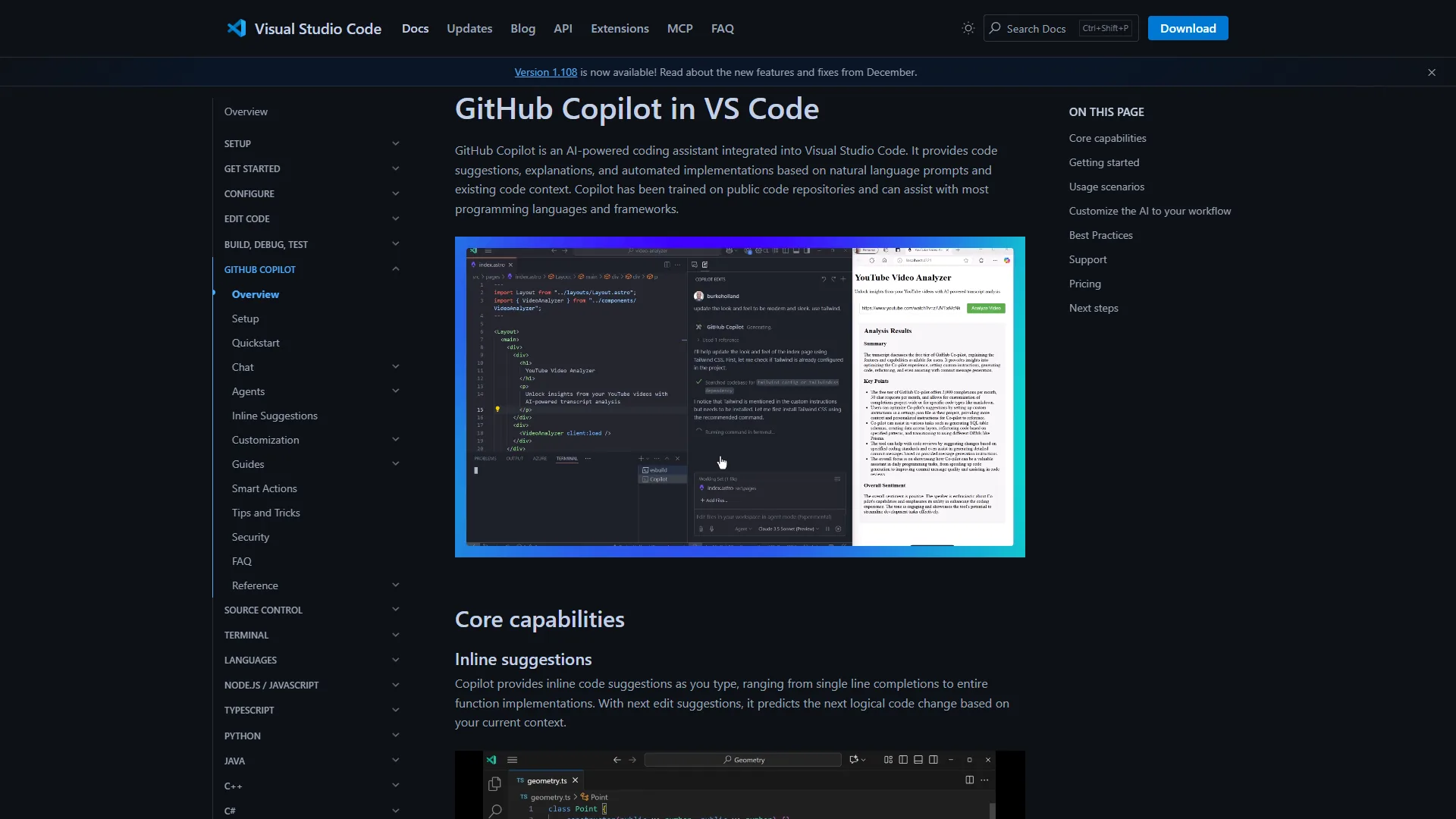
Core Features: What Copilot Can Actually Do
Here are the features that provide the most value:
1. Inline Code Completion
This is the core feature. As you type, Copilot suggests completions - from single lines to entire functions. The quality varies, but for common patterns, it’s remarkably accurate.
Example workflow:
// Convert array of user objects to CSV
function usersToCsv(users) {
  // Copilot suggests the entire implementation here
}
Copilot reads your comment and suggests a complete CSV conversion function, including header handling and field escaping. You review it, maybe tweak a few lines, and move on.
Pro tip: Write clear comments before functions. “Create a function that…” works better than vague descriptions.
2. Copilot Chat
The 2026 chat interface handles code explanation, refactoring requests, test generation, and bug fixing - all within your editor, with workspace context referencing your actual code rather than generic examples.
3. Multi-Language Support
Copilot supports 40+ languages, with near-production-quality suggestions in Python, JavaScript, and TypeScript; strong patterns in Go, Ruby, C#, and Java; reliable standard-library help in C++ and Rust; and boilerplate assistance for SQL, HTML, and CSS. It is less reliable for niche languages or very new frameworks.
4. Context-Aware Suggestions
Copilot reads your current file, open tabs (with the 2026 Workspace feature), imported modules, and nearby comments, so suggestions adapt to your project and tailor to whichever library API you are calling.
5. 2026 New Features
Workspace Context: Copilot now indexes your entire project, so a custom error handler defined in one file gets reused when you add new ones. Vision: Upload UI mockups or screenshots and Copilot generates the corresponding HTML/CSS/React code (still experimental). Extensions: Third-party plugins add database query builders, API client generators, and documentation writers.
Practical Tips: Getting the Most from Copilot
The most impactful strategies for daily use:
Write Better Comments
Copilot is only as good as your instructions. # Filter users by active status, sort by join date descending, return top 10 produces a far stronger suggestion than # Process data.
Use Copilot for Boilerplate, Not Architecture
Copilot excels at CRUD operations, API request handlers, data transformations, test scaffolding, and common algorithms. It struggles with system architecture decisions, complex business logic, performance optimization, and security-critical code. Use it to eliminate grunt work, not to replace thinking.
Review Every Suggestion
Always review generated code. Copilot can suggest deprecated APIs, inefficient algorithms, security vulnerabilities, or code that does not match your project’s patterns. Treat suggestions as drafts; expect issues in about 20% of multi-line completions.
Use Chat for Learning
When Copilot suggests unfamiliar code, ask it to explain: “Why did you use a Set here instead of an Array?”, “What’s the time complexity of this approach?”, “Are there edge cases I should test?”. This turns Copilot into a teaching tool, not just a code generator.
Customize Keybindings
Default keybindings often conflict with muscle memory. A common remapping: Accept suggestion Tab to Ctrl+J (Tab interferes with indentation), Next suggestion Alt+] to Ctrl+N, Open chat Ctrl+I.
Pricing Breakdown: Is Copilot Worth It?
Let’s analyze the value proposition:
| Plan | Price | Best For | Key Features |
|---|---|---|---|
| Free | $0/mo | Evaluation | Limited completions, basic suggestions |
| Individual | $10/mo | Freelancers, solo devs | Unlimited completions, chat, multi-editor support |
| Business | $19/user/mo | Teams | Everything in Individual + organization management, policy controls |
| Enterprise | $39/user/mo | Large organizations | Everything in Business + audit logs, SAML SSO, indemnification |
ROI Analysis
If Copilot saves one hour daily (conservative for routine coding), that is 20 hours per month - at a $100/hour developer rate, $2,000 of value against a $10 plan, or a 20,000% ROI. Even at 15 minutes saved daily, the Individual plan pays for itself; for a 5-person team on the Business plan, 30 minutes saved per developer per day is roughly 50 hours monthly, easily worth $950 in productivity.
Who Should Pay for Copilot?
The Individual plan ($10 per month) is a no-brainer for anyone coding more than five hours a week. The Business plan ($19 per user/month) earns its keep through centralized billing, usage analytics, policy enforcement, and consistent team standards. The Enterprise plan ($39 per user/month) is only necessary for audit logs, SAML SSO, or legal indemnification on generated code.
Comparison to Alternatives
GitHub Copilot competes most directly with Cursor, Tabnine, and Amazon Q Developer, and each rival wins on a specific axis - Cursor on whole-codebase context, Tabnine on on-prem privacy, and Amazon Q on AWS-native workflows. The side-by-side below names where each one beats Copilot in 2026.
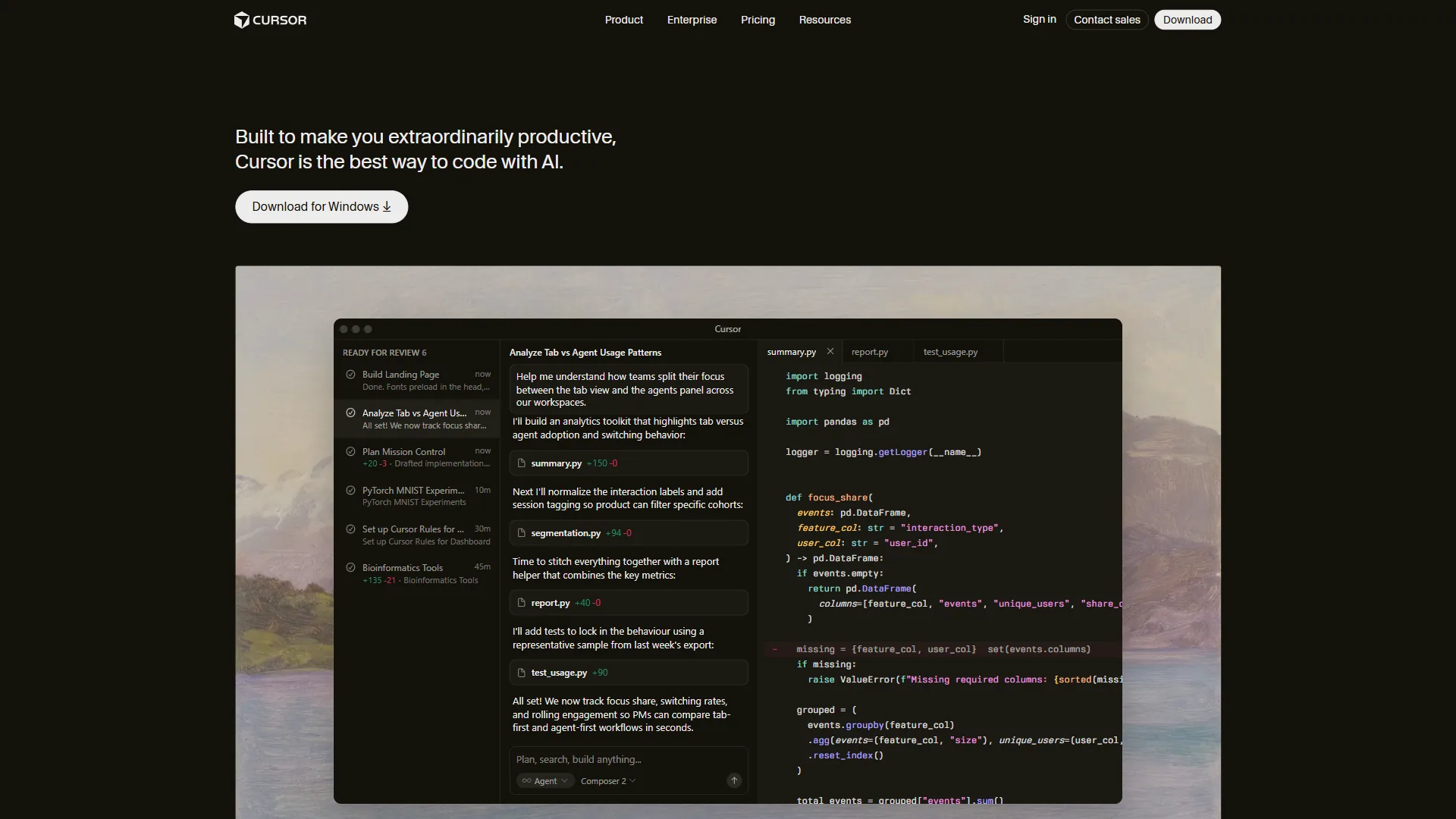
vs. Cursor: Cursor offers a similar chat interface but focuses on entire codebase context. Better for large refactoring projects, but more expensive ($20 per month). Read our Cursor review.
vs. Tabnine: Tabnine emphasizes privacy (can run locally) and offers team-specific model training. Good for companies with strict data policies. Compare Tabnine.

vs. Amazon Q Developer: Amazon’s offering focuses on AWS integration and migration assistance. Better if you’re heavily invested in AWS. See Amazon Q review.
Why Copilot wins for many developers: GitHub integration, broad language support, and the chat interface. The 2026 Workspace feature seals the deal - context across an entire project is a major shift.
Real-World Productivity Impact
Representative metrics from Copilot usage across common project types:
| Scenario | Stack | Without Copilot | With Copilot | Time saved |
|---|---|---|---|---|
| API refactoring (30 endpoints, new auth) | Python FastAPI | 12 h | 7 h | ~42% |
| Component library (15 UI components) | React + TypeScript | 20 h | 14 h | ~30% |
| Migration scripts (schema changes) | SQL + Python | 8 h | 5 h | ~38% |
Copilot carries the repetitive auth decorators, PropTypes boilerplate, ALTER statements, and rollback skeletons; edge cases, accessibility, and data integrity still need manual review. Typical time savings: 30-40% on projects with significant routine work; greenfield or highly creative work drops to 10-15%; pure maintenance and CRUD can hit 50%.
Advanced Workflows for 2026
Three workflows that exploit Copilot’s newest features:
TDD with Copilot. Write a failing test, ask Copilot Chat “Implement the function to pass this test”, review the implementation, then run tests and iterate. This grounds generated code in your spec rather than what “looks right”.
Codebase exploration. When joining a new project, open a central file (main.py, app.js), ask Copilot Chat “Explain the architecture of this codebase”, highlight complex functions for explanations, and use Chat to locate specific features. Cuts onboarding time significantly.
Refactoring with Workspace Context. Identify a pattern to change (callback hell to async/await), refactor one file manually, then ask Copilot “Apply this pattern to [other file]”. Copilot references your refactored file and replays the approach - the Workspace feature makes this powerful.
Common Pitfalls and How to Avoid Them
The four GitHub Copilot pitfalls that bite teams hardest are over-reliance on raw suggestions, accepted security vulnerabilities (SQL injection and XSS patterns appear in real generations), outdated library APIs in training data, and copy-paste use of code the developer does not understand. Each one has a concrete mitigation below.
Pitfall 1: Over-Reliance on Suggestions
Problem: Accepting every suggestion without thinking atrophies your coding skills.
Solution: Use Copilot for speed, but regularly code without it to maintain fundamentals. Some teams practice “no-Copilot Fridays” to stay sharp.
Pitfall 2: Security Vulnerabilities
Problem: Copilot sometimes suggests insecure patterns (SQL injection, XSS vulnerabilities).
Solution: Always review security-critical code manually. Run static analysis tools. Never blindly accept auth, validation, or database code.
Pitfall 3: Outdated Libraries
Problem: Copilot trains on public code, some of which uses deprecated APIs.
Solution: Check documentation for suggested libraries. If Copilot uses an unfamiliar API, verify it’s current.
Pitfall 4: Copy-Paste Without Understanding
Problem: Using code you don’t understand leads to unmaintainable projects.
Solution: If you don’t understand a suggestion, ask Copilot Chat to explain it. If the explanation doesn’t make sense, write it manually.
Conclusion: Is GitHub Copilot Worth It in 2026?
GitHub Copilot is worth it in 2026 for most developers who code more than five hours a week, with the $10-per-month Individual plan paying back even at a conservative 15-minute daily time-saving. The Enterprise plan is only required where audit logs, SAML SSO, or generated-code indemnification are non-negotiable.
Use Copilot if: you spend significant time on routine coding, work across multiple languages, and are comfortable reviewing generated code. Skip Copilot if: you work exclusively on highly specialized niche systems, your company has strict data policies (the Enterprise plan offers indemnification), or you are a beginner learning fundamentals.
The 2026 updates - Workspace context, Vision, Extensions - make Copilot more powerful than ever. It is not about replacing developers; it is about eliminating the tedious 80% so you can focus on the creative 20%.
Recommendation: Start with the free tier for a week on real projects. If you reach for Tab to accept suggestions more than 10 times an hour, upgrade to Individual.
Ready to try AI-powered coding? Get started with GitHub Copilot or explore our full tool review. For more AI coding tools, see our guides on Cursor, Tabnine, and Amazon Q Developer.
For more information about github copilot guide, see the resources below.
FAQ
Q: What is GitHub Copilot?
GitHub Copilot is an AI pair programmer developed by GitHub and OpenAI that suggests code completions, entire functions, and complex algorithms as you type. It integrates directly into editors like VS Code, JetBrains, Neovim, and Visual Studio, using machine learning models trained on billions of lines of public code to generate context-aware multi-line code blocks.
Q: How much does GitHub Copilot cost?
GitHub Copilot offers a free tier with limited completions, making it accessible for trial use. Paid plans include Pro at $10 per month for individual developers, Business at $19 per user per month for teams, and Enterprise at $39 per user per month for larger organizations needing advanced controls and workspace-level context features.
Q: Which programming languages does GitHub Copilot support?
GitHub Copilot supports more than 40 programming languages, including Python, JavaScript, TypeScript, Ruby, Go, C#, and C++. This broad language coverage makes it useful for individual developers and teams working across diverse stacks, from web development to systems programming and everything in between.
Q: How much faster does GitHub Copilot make developers?
Research indicates coding speed increases by about 30 to 40 percent on routine tasks when using GitHub Copilot. Since developers spend roughly 55 percent of their time understanding existing code and only 5 percent writing new code, Copilot frees up mental bandwidth for architecture and problem-solving by eliminating boilerplate and repetitive patterns.
Related Reads
The four tools covered in this guide each have dedicated reviews on AI Productivity, and three deeper comparison reads expand on the AI-coding category.
Tools covered in this article:
- GitHub Copilot - AI pair programming assistant
- Cursor - AI-native code editor
- Tabnine - Code completion assistant
- Amazon Q Developer - AWS AI coding tool
More AI coding guides:
- Best AI Coding Assistants - Code completion tools
- JetBrains AI Assistant - IDE-native AI coding
- GitHub Copilot vs Cursor - Feature-by-feature breakdown
External Resources
The three primary sources behind this guide are GitHub’s own product and engineering docs, plus the Stack Overflow Developer Survey, which tracks AI-tool adoption across the practitioner population.