







The best screen recording tools 2026 are Loom for async team messaging, Descript for AI text-based video editing, Camtasia for professional training content, OBS Studio for live streaming, ScreenPal for budget teams, and Vidyard for sales prospecting. This guide compares six screen recording solutions across budgets and skill levels, highlighting which tools use AI-powered features and workflow integration to deliver real productivity gains rather than just adding complexity.
Our analysis draws on current vendor pricing pages, product documentation, and independent research rather than sponsored placement or hands-on benchmarking. AI Productivity may earn a commission from links on this page; rankings are editorially independent.
Screen recording has evolved from a niche technical skill into a daily productivity essential. Whether you’re creating tutorials, documenting bugs, recording sales demos, or replacing meetings with async video updates, the right screen recording tool can save hours every week.
Among the leading best screen recording tools 2026, those with AI-powered features and strong workflow integration deliver real productivity gains, while others just add complexity. This guide breaks down six screen recording solutions across different use cases, budgets, and technical skill levels.
Selection Criteria: What Makes a Great Screen Recording Tool in 2026
A great screen recording tool in 2026 combines AI-powered editing, deep workflow integration, use-case-specific features, and a record-to-share time under five minutes. The best screen recording tools 2026 are not just about capturing your screen anymore. Modern tools differentiate themselves through:
AI-Powered Editing - Automatic transcription, filler word removal, and text-based editing that lets you edit video as easily as a document. Tools like Descript have pioneered this approach, making professional editing accessible to non-video editors.
Workflow Integration - Direct integrations with your CRM, project management tools, and knowledge bases. The best screen recorders fit into your existing workflows rather than forcing you to add another disconnected tool.
Use-Case Optimization - Different recording needs require different features. Sales teams need CRM integration and viewer analytics. Educators need annotation tools and chapter markers. Content creators need high-resolution output and advanced editing capabilities.
Time-to-Value - The fastest tools let you record, edit, and share in under 5 minutes. Every additional click or export step compounds when you’re creating 10+ videos per week.
Comparison Table: Best Screen Recording Tools 2026
The comparison table below ranks Loom, Descript, Camtasia, OBS Studio, ScreenPal, and Vidyard by best-fit use case, price, AI features, and aggregated user rating. Here is how the top platforms stack up across key criteria:
| Tool | Best For | Pricing | AI Features | Rating |
|---|---|---|---|---|
| Loom | Async communication & quick demos | Free - $20/user/mo | Auto transcription, AI summaries, meeting notes | |
| Descript | Content creators & podcasters | Free - $50/user/mo | Text-based editing, Studio Sound, AI voices | |
| Camtasia | Professional tutorials & training | $169 - $499/year | Limited AI features | - |
| OBS Studio | Live streaming & advanced users | Free (open source) | None (requires plugins) | - |
| ScreenPal | Budget teams & educators | Free - $8/creator/mo | AI translations | - |
| Vidyard | Sales prospecting & demos | Free - $99/user/mo | AI script generator, viewer insights | - |
1. Loom - Best for Async Communication
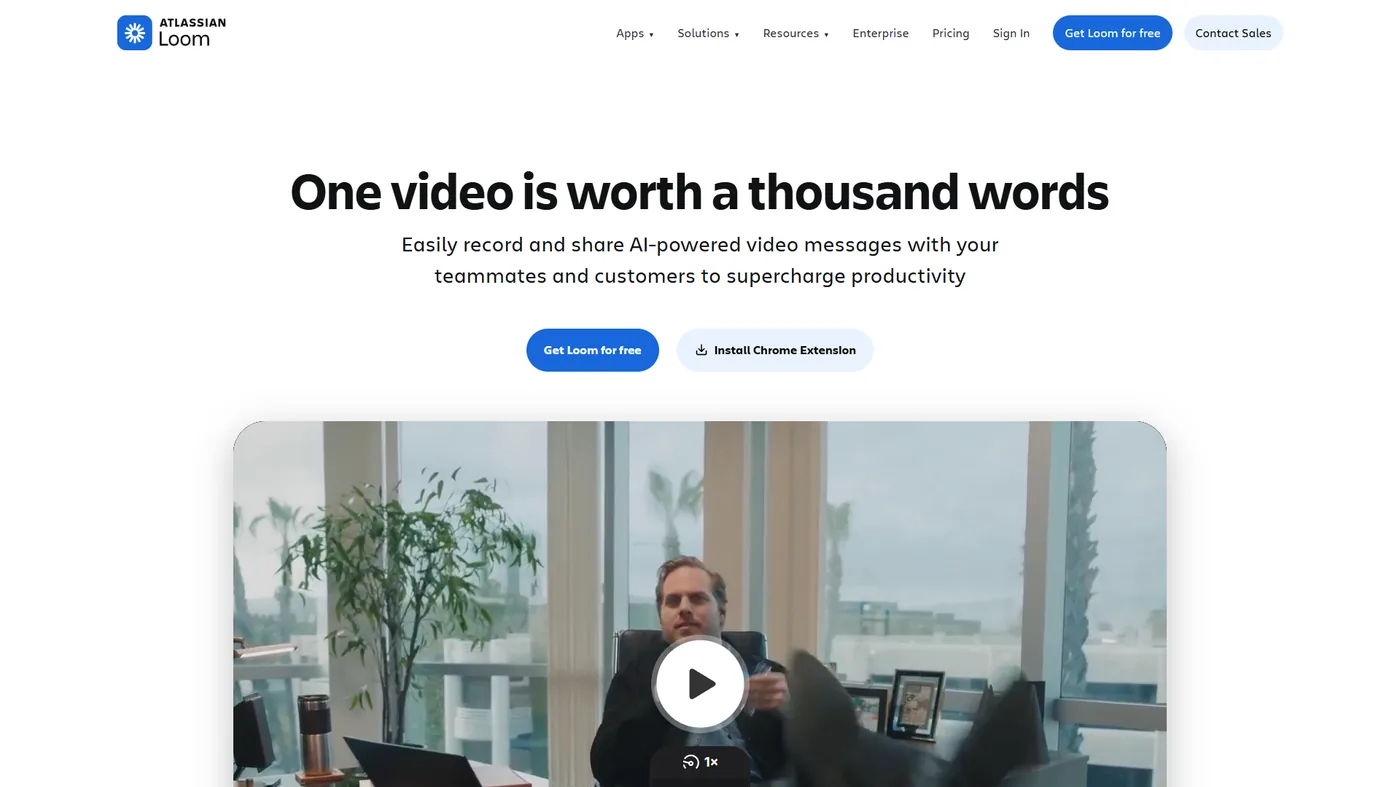
Loom is the best screen recorder for async team communication, offering one-click recording, instant background upload, and AI auto-titles and summaries on the $20 per user/month Business + AI plan. Loom pioneered the “async video messaging” category and remains the easiest screen recorder for quick internal communications. If your goal is replacing meetings and Slack messages with video updates, Loom is purpose-built for this workflow.
According to Loom co-founder Vinay Hiremath, writing on the company blog, “video is the closest digital approximation of being in the room with someone,” which is why async video tends to replace status meetings rather than email.
What Makes Loom Stand Out
The magic of Loom is how little friction exists between “I should record this” and “video is shared with my team.” The desktop app and Chrome extension both offer instant recording with one click - no project setup, no rendering, no export dialogs. Videos upload in the background while you continue working.
The Business + AI plan ($20 per user/month) adds features that genuinely save time:
- Auto Titles & Summaries - AI generates accurate titles and one-paragraph summaries, making your video library searchable
- Filler Word Removal - Automatically detects and removes “um,” “uh,” and long pauses without manual editing
- Meeting Notes Integration - Records Zoom/Google Meet calls and generates action items with calendar context
- AI Workflows - Convert videos directly into Jira tickets or Confluence pages with auto-generated documentation
Real-World ROI
A mid-sized SaaS company calculated that Loom saved each product manager 3.2 hours per week by replacing status update meetings with async video walkthroughs. At $20 per user/month for 8 PMs, that’s $160 per month to save 25.6 hours - roughly $1,500 in time value at typical PM hourly rates.
Limitations
Loom isn’t built for long-form content creation. Video editing capabilities remain basic (trim, cut, add simple overlays), and the free tier’s 5-minute limit makes it impractical for detailed tutorials. The pricing also scales quickly for larger teams.
Pricing:
- Starter (Free): 25 videos, 5-minute limit, basic transcription
- Business ($12.50 per user/mo): Unlimited videos, HD recording, viewer analytics
- Business + AI ($20 per user/mo): All AI features included
- Enterprise: Custom pricing with SSO and advanced security
2. Descript - Best for Content Creators
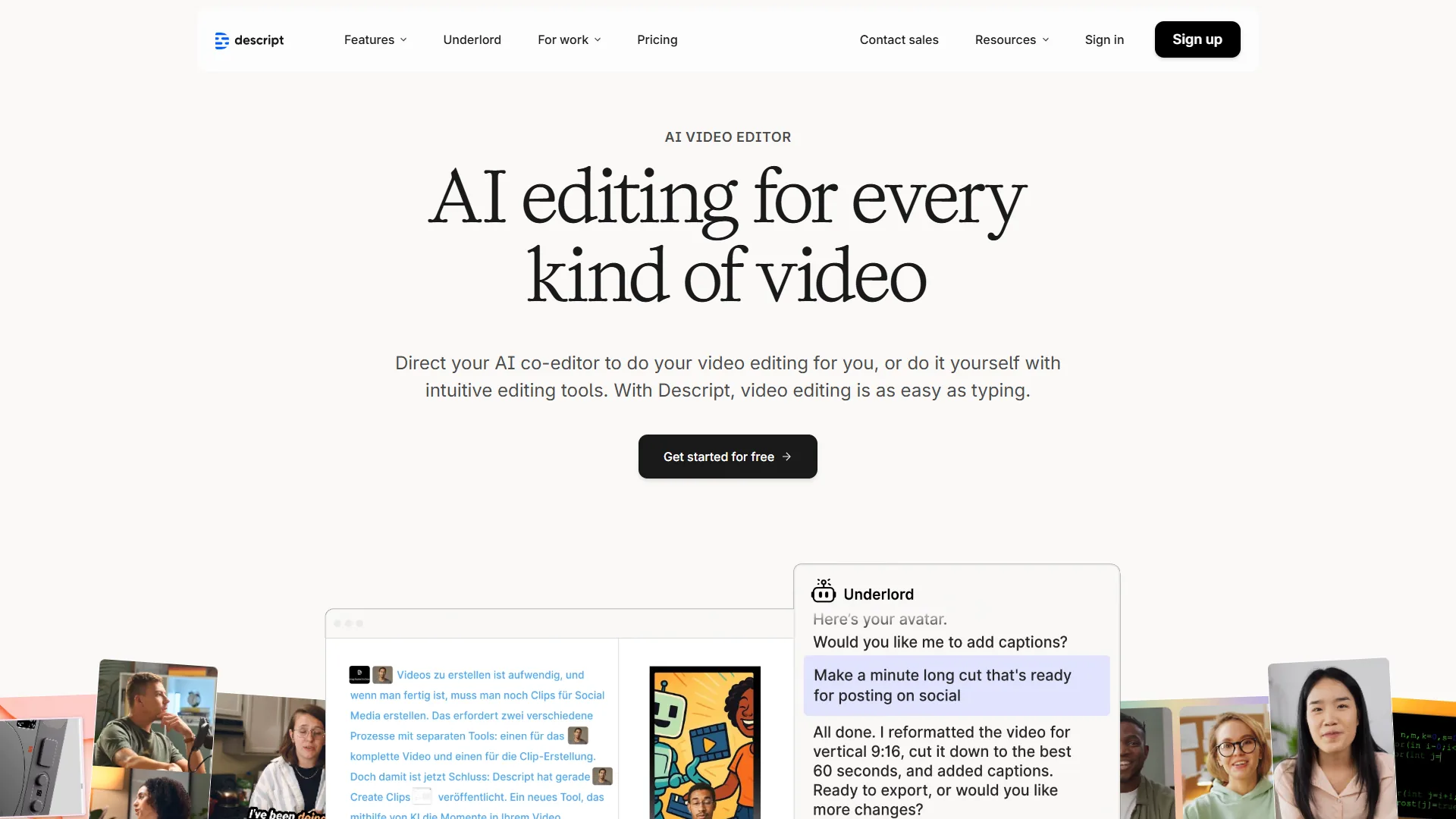
Descript is the best screen recorder for content creators, treating each recording as an editable transcript so deleting a sentence of text deletes the matching video. Descript fundamentally rethinks video editing by treating your recording like a text document. Delete a sentence from the transcript, and the corresponding video disappears. This “edit video like a document” approach feels like magic when you experience it.
What Makes Descript Stand Out
After recording your screen in Descript, you get an automatically generated transcript that becomes your primary editing interface. A 30-minute tutorial can be edited in under 10 minutes by:
- Removing filler words with one click (auto-detects “um,” “uh,” repetitions)
- Cutting entire paragraphs by deleting text (video automatically adjusts)
- Rearranging sections by drag-dropping transcript blocks
- Adding AI-generated voice corrections using Overdub (their voice cloning feature)
The Creator plan ($24 per month) unlocks Studio Sound, which uses AI to make any microphone sound like a professional studio recording. This feature alone saves users from re-recording videos due to poor audio input.
AI Features That Matter
Descript’s AI assistant goes beyond basic transcription:
- Eye Contact Correction - Uses AI to make it appear you’re looking at the camera even when reading notes
- AI Green Screen - Removes background without physical green screen
- Automated Show Notes - Generates episode summaries with timestamps for podcast creators
- Multi-language Translation - Export your video with AI-generated voiceover in 30+ languages (Business plan only)
Pricing:
- Free: 1 hour/month, 100 AI credits, 720p export with watermark
- Creator ($12 per month): 10 hours/month, 400 AI credits, 1080p export
- Pro ($24 per month): 30 hours/month, 800 AI credits, full AI access, 4K export
- Business ($50 per month): 40 hours/month, 1500 AI credits, team features
Limitations and who it’s not for: Skip Descript for live streaming or fast async messaging - it is built around the edit-after-record loop, not record-and-share. Cons include AI credit consumption that runs out fast on the Creator tier, and a transcription engine that struggles with thick accents or technical jargon. Drawbacks include occasional rendering glitches on long projects (>30 min) that force re-exports.
3. Camtasia - Best for Professional Training Content
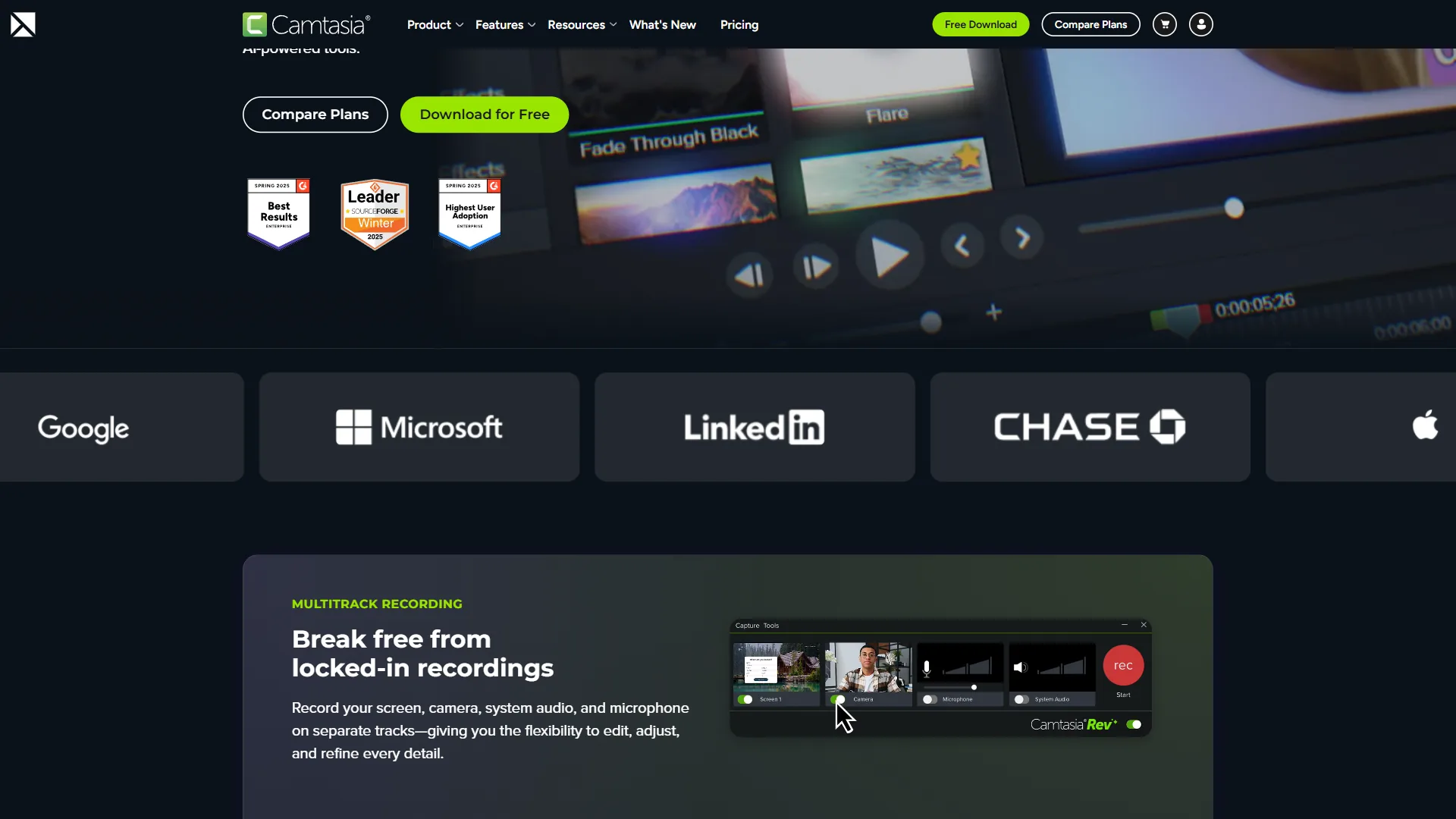
Camtasia is the best screen recorder for professional training content, pairing a multi-track timeline with cursor effects, quiz interactions, and 4K export at a $169 one-time or $499 per year price. TechSmith’s Camtasia represents the traditional approach to screen recording - record now, edit extensively later. While it lacks the AI innovation of Descript or the async workflow of Loom, Camtasia remains unmatched for creating polished, professional training videos and software tutorials.
What Makes Camtasia Stand Out
Camtasia gives you complete control over every aspect of your recording and editing:
- Multi-track timeline with unlimited video, audio, and effect layers
- Built-in asset library with music, transitions, and lower-thirds templates
- Cursor effects and annotations (highlights, zooms, callouts) that make technical demos clearer
- Quiz and interactive elements for e-learning content
- High-resolution export up to 4K with granular control over codecs and bitrates
The learning curve is steeper than Loom or Descript, but you gain precision. Camtasia shines for client-facing training videos where production quality matters and content rarely needs updates.
ROI for Corporate Training
One manufacturing company calculated that creating professional training videos in-house with Camtasia ($499 per year Pro license) saved $12,000 annually versus hiring external video production. They produce 30-40 training videos per year for equipment operation and safety procedures.
Pricing:
- Standard: $169 one-time purchase
- Pro: $499 per year subscription (advanced effects, stock media library)
Limitations and who it’s not for: Skip Camtasia for async messaging, live streaming, or any AI-driven editing workflow - it is a desktop-first traditional editor. The biggest drawback is the steep learning curve relative to Loom or Descript, and cons include limited cloud collaboration (you mostly export and email files). Skip Camtasia if you collaborate with editors across timezones; tools like Frame.io handle review cycles better.
4. OBS Studio - Best for Live Streaming and Power Users
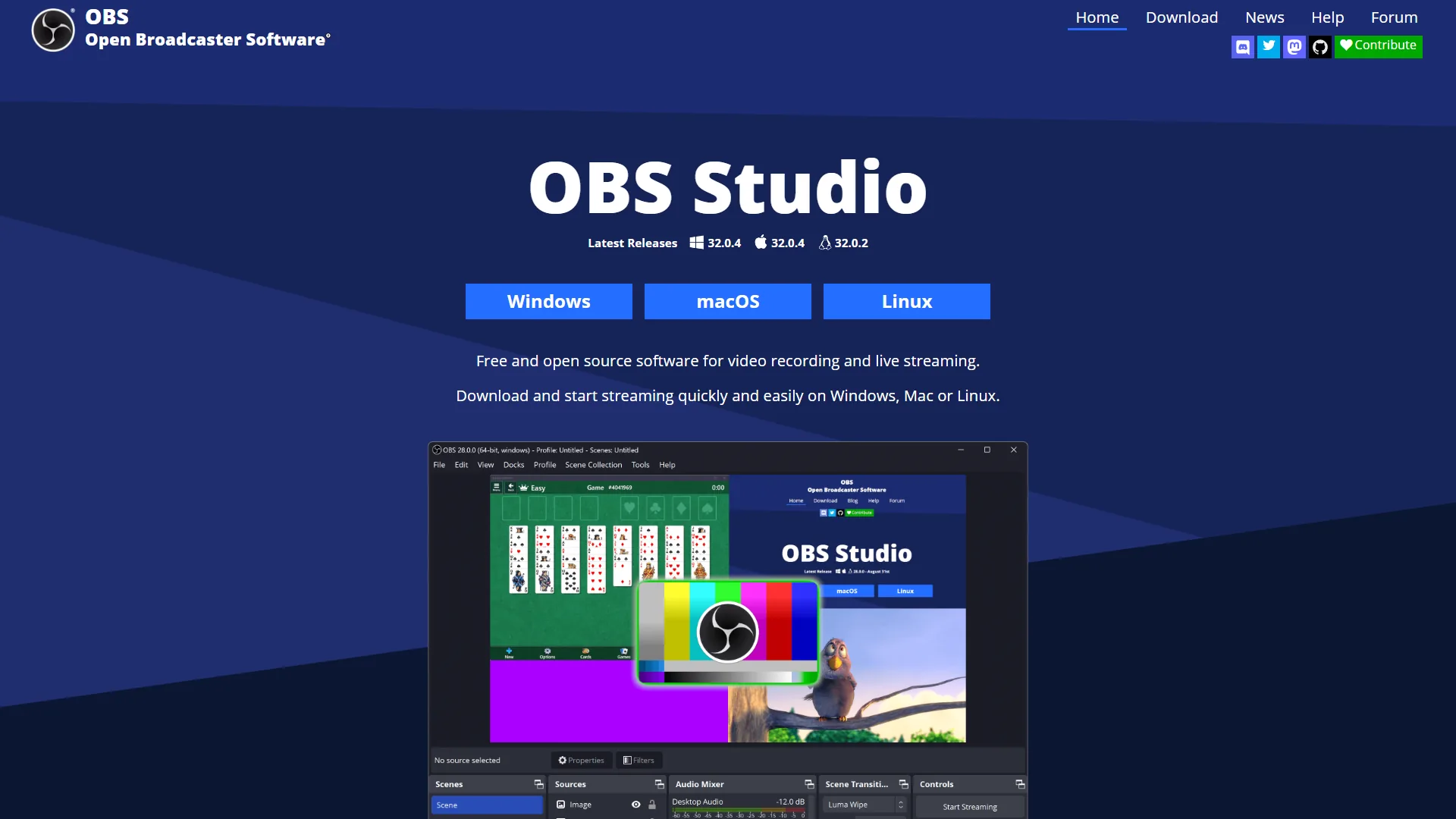
OBS Studio (Open Broadcaster Software) is the industry-standard tool for live streaming on Twitch, YouTube, and Facebook Gaming. It’s completely free, open source, and infinitely customizable. It’s also the most complex tool on this list.
What Makes OBS Stand Out
OBS isn’t just a screen recorder - it’s a complete live production studio. You create “scenes” with multiple sources (screen capture, webcam, images, overlays) and switch between them during recording or streaming. Professional streamers use it because nothing else offers this level of control for free.
Key capabilities include unlimited scenes and sources with instant switching, advanced audio mixing with filters and noise gates, a plugin ecosystem with hundreds of community extensions, and multi-platform streaming to multiple destinations simultaneously.
The Learning Curve Trade-off
OBS has the steepest learning curve of any tool here. Expect to spend 2-3 hours reading documentation and watching tutorials before you create your first clean recording. But once configured, you can create professional-looking content that rivals expensive production software.
Pricing: Free and open source
Limitations and who it’s not for: Skip OBS Studio if you do not have 2-3 hours to invest in initial setup and configuration - the learning curve is the biggest drawback by far. Cons include no built-in editing (you record, then edit elsewhere), no transcription, and zero AI features. OBS is not a good match for casual screen recording - use Loom for that and reserve OBS for live streaming or scene-composed recordings.
5. ScreenPal - Best Budget Option for Teams
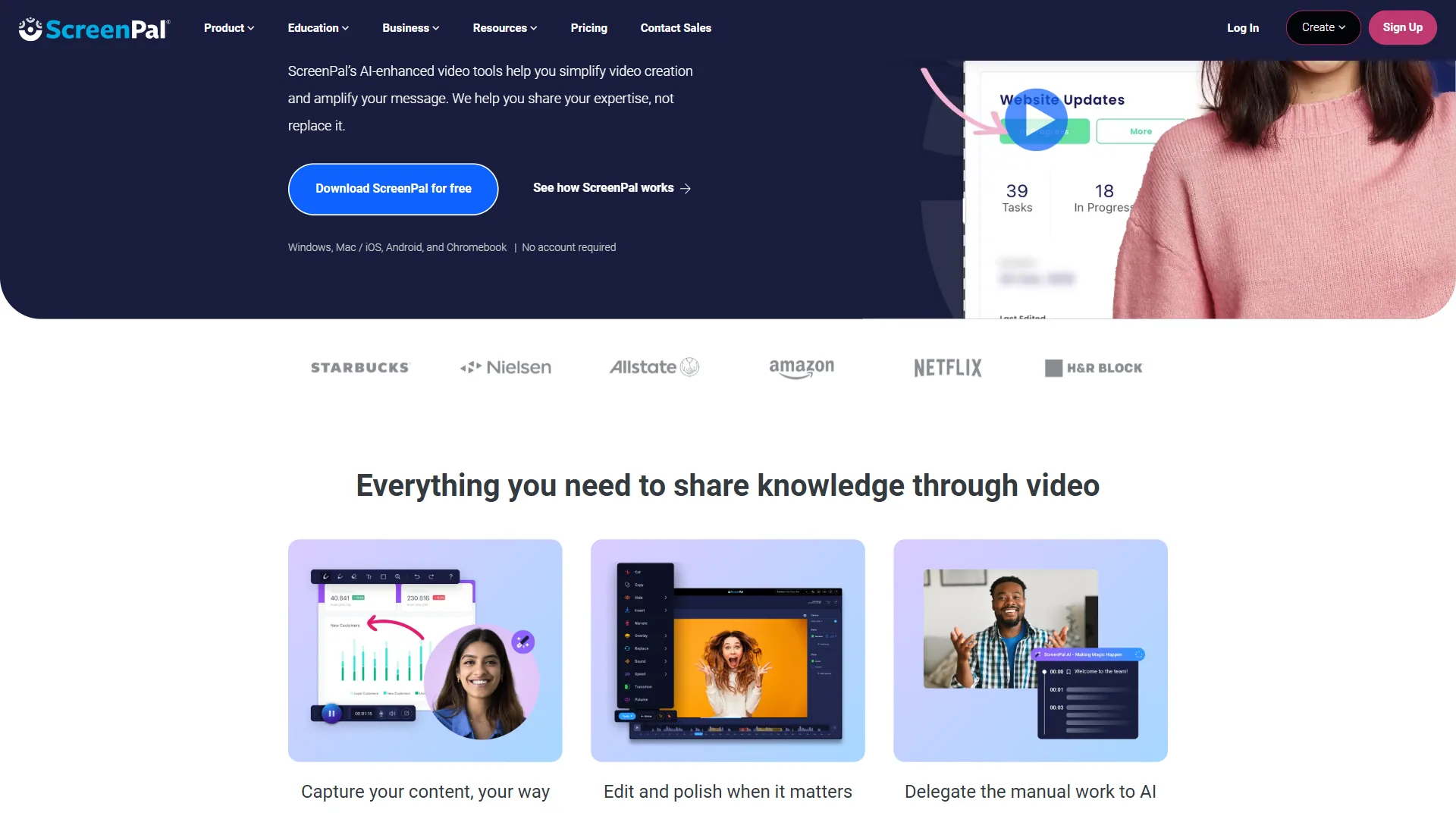
ScreenPal is the best budget screen recorder for teams, offering unlimited recordings, AI translation into 50+ languages, and team plans at $8 per creator per month. ScreenPal (formerly Screencast-O-Matic) occupies the “good enough” category - not the most powerful, but affordable for teams that need basic screen recording without premium features. At $8/creator/month for unlimited recordings and editing tools, it’s significantly cheaper than Loom Business or Descript Creator.
What Makes ScreenPal Stand Out
ScreenPal’s strength is simplicity at scale. Their team plans include unlimited recordings with no time limits, basic editing tools (trim, crop, add text overlays), AI-powered auto-translation into 50+ languages, script teleprompter during recording, and secure video hosting with password protection.
The AI translation feature stands out - you can record a training video in English and automatically generate Spanish, French, German, or Mandarin versions with AI voiceover. This typically costs $50+/month on other platforms but is included in ScreenPal’s $8 per month plan.
Pricing:
- Free: Screen & webcam recording with watermark, 15-minute limit
- Deluxe ($8/creator/mo): Unlimited recording, editing tools, AI translations
- Premier ($16/creator/mo): Stock media library and advanced editing
Limitations and who it’s not for: Skip ScreenPal if you need polished editing or modern AI features beyond translation. Cons include a UI that feels dated next to Loom or Descript, basic editing tools (no multi-track timeline), and limited integration with project management or CRM tools. Drawbacks for advanced creators include the absence of professional codecs and color-grading controls.
6. Vidyard - Best for Sales and Customer Success Teams
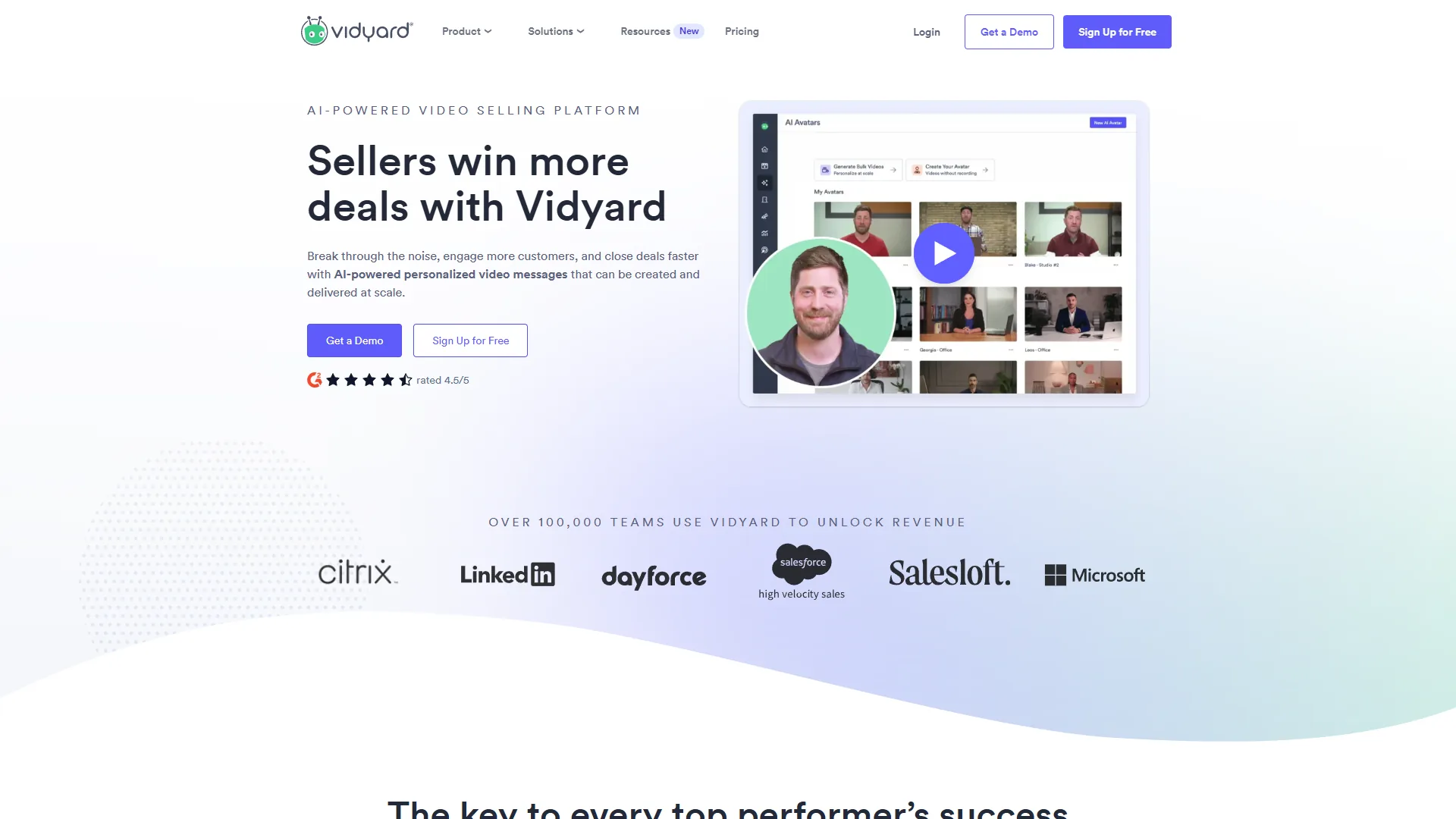
Vidyard is the best screen recorder for sales and customer success teams, embedding video into Salesforce, HubSpot, Outreach, and Salesloft with viewer analytics that show exactly who watched what. Vidyard built its platform specifically for revenue teams - sales reps, customer success managers, and account executives who use video for prospecting and relationship building. If you’re using video to close deals rather than create content, Vidyard’s CRM integrations and viewer analytics make it worth the premium pricing.
What Makes Vidyard Stand Out
Vidyard’s core differentiation is treating videos as sales assets:
- Direct CRM integration with Salesforce, HubSpot, Outreach, and Salesloft
- Viewer analytics showing who watched, how long, which sections they rewatched
- AI video script generator that creates personalized scripts from LinkedIn profiles
- Custom video thumbnails with your face for higher email open rates
- Video pages with embedded CTAs and meeting scheduling links
A sales team implemented Vidyard and tracked a 24% increase in response rates for cold outreach emails that included personalized video versus text-only.
Pricing:
- Free: 50 videos, basic analytics, Vidyard branding
- Pro ($29 per user/mo): Unlimited videos, custom branding, basic CRM integration
- Business ($99 per user/mo): Advanced CRM features, AI script generator
Limitations and who it’s not for: Skip Vidyard if you are not on a sales or customer success team - the pricing only makes sense when CRM integration and viewer analytics directly drive revenue. Cons include a relatively basic editor (it is built for fast personalized recordings, not polished content), and the $99 per user/mo Business tier is steep for SMB sales teams. The biggest drawback is feature lock-in: most useful features (custom thumbnails, CRM sync, AI scripts) require Pro or Business plans.
Best Picks by Use Case: Decision Framework
The right screen recording tool depends on whether the priority is async team messaging (Loom), creator content (Descript), polished training video (Camtasia), live streaming (OBS Studio), large-team budget recording (ScreenPal), or sales prospecting (Vidyard).
Choose Loom if:
- Your primary use case is replacing meetings with async video updates
- You want the fastest possible record-to-share workflow
- Your team needs lightweight collaboration without learning video editing
- Budget: $0-$20 per user/month
Choose Descript if:
- You create regular content for YouTube, podcasts, or courses
- You make lots of verbal mistakes and need easy editing
- Audio quality is inconsistent and you need Studio Sound enhancement
- Budget: $12-$50 per user/month
Choose Camtasia if:
- You’re creating professional training or tutorial content
- You need complete creative control over editing
- You prefer one-time purchase over subscriptions
- Budget: $169-$499 one-time/annual
Choose OBS Studio if:
- You’re live streaming or need advanced scene composition
- You have technical skills and time to learn complex software
- You want unlimited customization for free
- Budget: $0
Choose ScreenPal if:
- You need basic recording for a large team on a budget
- Multi-language AI translation is valuable
- You don’t need advanced editing or integrations
- Budget: $0-$16 per user/month
Choose Vidyard if:
- You’re on a sales or customer success team
- CRM integration and viewer analytics are essential
- Personalized video prospecting is part of your workflow
- Budget: $29-$99 per user/month
ROI Calculator: Time Savings from Screen Recording
Let’s quantify the productivity impact. Consider a typical scenario:
Without Screen Recording:
- Write detailed email explanation: 15 minutes
- Schedule call to clarify: 30 minutes
- Conduct call: 30 minutes
- Follow-up email summarizing decisions: 10 minutes
- Total: 85 minutes
With Screen Recording (Loom/Descript):
- Record 5-minute video walkthrough: 7 minutes (including 2 min setup/review)
- Share link via Slack/email: 1 minute
- Recipient watches async: 5 minutes
- Total: 8 minutes of YOUR time
If you replace just 3 meetings per week with screen recordings:
- Time saved per week: 231 minutes (3.85 hours)
- Time saved per year: 200 hours
- Value at $75/hour: $15,000 annual productivity gain
At $20 per user/month for Loom Business + AI ($240 per year), the ROI is 62:1. Even accounting for time spent recording, the math heavily favors async video for the best screen recording tools 2026.
Pro Tips: Productivity for Screen Recording
Screen recording productivity comes down to four habits: pre-recording checklists, lightweight scripts, an optimized audio and visual setup, and batching similar recordings into one session. Regardless of which tool you choose, these practices will save significant time:
Create Recording Checklists
Before hitting record, verify correct microphone input is selected, browser tabs and notifications are closed to prevent accidental exposure, recording region is set correctly, and camera is positioned properly if using picture-in-picture.
Use Scripts for Consistent Content
Even a simple bullet-point outline reduces rambling and makes editing easier. Tools like Vidyard and ScreenPal include built-in teleprompters.
Optimize Your Recording Environment
Use a decent USB microphone ($50-100) - audio quality matters more than video quality. Record in a quiet room or use AI noise cancellation. Increase text size in your browser/IDE so viewers can read clearly. Slow down cursor movement and clicks.
Batch Similar Recordings
If you’re creating multiple videos on similar topics, record them in one session to maintain consistent audio setup and stay in “recording mode” where you make fewer mistakes.
Final Recommendations
Loom is the best overall screen recorder for teams, Descript is the best pick for creators, OBS Studio is the best free option for technical users, and Vidyard is the best choice for sales. The tier list breaks down like this:
Best Overall: Loom for teams prioritizing speed and collaboration. The AI features in the Business + AI plan justify the $20 per month cost if you’re recording 5+ videos per week.
Best for Creators: Descript changes video editing with text-based workflows. Worth the $24 per month Creator plan if content creation is part of your job.
Best Free Option: OBS Studio if you’re technical and willing to invest setup time. ScreenPal’s free tier if you need simplicity.
Best for Sales: Vidyard’s CRM integrations and viewer analytics provide measurable ROI for revenue teams.
The right screen recording tool depends entirely on your use case. Start with the free tier of whichever tool matches your primary use case, then upgrade only when you hit specific limitations. Most importantly: just start recording. The biggest productivity gain comes from replacing synchronous communication with async video, regardless of which best screen recording tools 2026 you choose.
FAQ
Q: What do most YouTubers use to screen record?
OBS Studio is the industry-standard tool for creators streaming and recording on platforms like YouTube, Twitch, and Facebook Gaming. It is completely free, open source, and infinitely customizable, functioning as a complete live production studio. Professional streamers favor it because nothing else offers this level of control for free, though it has the steepest learning curve of the tools reviewed.
Q: How to screen record in 2026?
At $20 per user/month for Loom Business + AI ($240 per year), the ROI is 62:1. Even accounting for time spent recording, the math heavily favors async video for the best screen recording tools 2026.
Q: What is the best tool for screen recording?
The right screen recording tool depends entirely on your use case. Start with the free tier of whichever tool matches your primary use case, then upgrade only when you hit specific limitations.
Q: How to screen record on Windows 2026?
At $20 per user/month for Loom Business + AI ($240 per year), the ROI is 62:1. Even accounting for time spent recording, the math heavily favors async video for the best screen recording tools 2026.
Q: Which screen recording tool is best for async team communication?
Loom is purpose-built for async video messaging, letting you record and share with one click and no export dialogs. Videos upload in the background while you keep working. The Business + AI plan at $20 per user/month includes auto transcription, AI summaries, and meeting notes - making it the top pick for teams replacing meetings with video updates.
Related Reads
Related reads cover the six tools reviewed above plus adjacent video and recording guides for AI video generation, training video production, and blog-to-video repurposing. Tools covered in this article (with the tradeoffs and limitations noted in each section above):
- Loom - Async video messaging platform
- Descript - AI-powered video editing
- Camtasia - Professional tutorial and training video editor
- OBS Studio - Free open-source screen recording and streaming
- ScreenPal - Budget-friendly screen recording for educators
- Vidyard - Sales-focused video prospecting platform
More video and recording guides:
- Best AI Video Generators 2026 - AI video creation tools
- Best AI Training Video Tools 2026 - Training video platforms
- Blog to Video Tools - Content repurposing tools
External Resources
External resources below link to first-party vendor documentation and blogs for the three tools where official guidance is most useful: Loom, OBS Studio, and TechSmith’s Camtasia.