When I first tried to add internationalization to my React app, I spent hours figuring out the right setup. The React i18n ecosystem has several moving parts, and most tutorials skip the practical details you actually need.
This guide walks through everything: setting up react-i18next, organizing translation files properly, and — my favorite part — automating the entire translation workflow so you’re not manually managing JSON files for every language.
Why React Apps Need i18n
When exploring react i18n setup, consider the following.
I built a SaaS product that initially only supported English. When we decided to expand to European markets, I faced a choice: build separate apps for each language (terrible idea) or implement proper internationalization.
Here’s what proper i18n gives you:
- Market expansion: Tap into non-English speaking markets without rebuilding your app
- User experience: Users prefer apps in their native language — conversion rates prove it
- SEO benefits: Localized content ranks better in regional search results
- Maintainability: One codebase serves all languages
The trick is setting it up right from the start. Let me show you how.
Setting Up react-i18next
React-i18next is the standard internationalization framework for React. It’s built on i18next, which means you get a mature, well-tested solution.
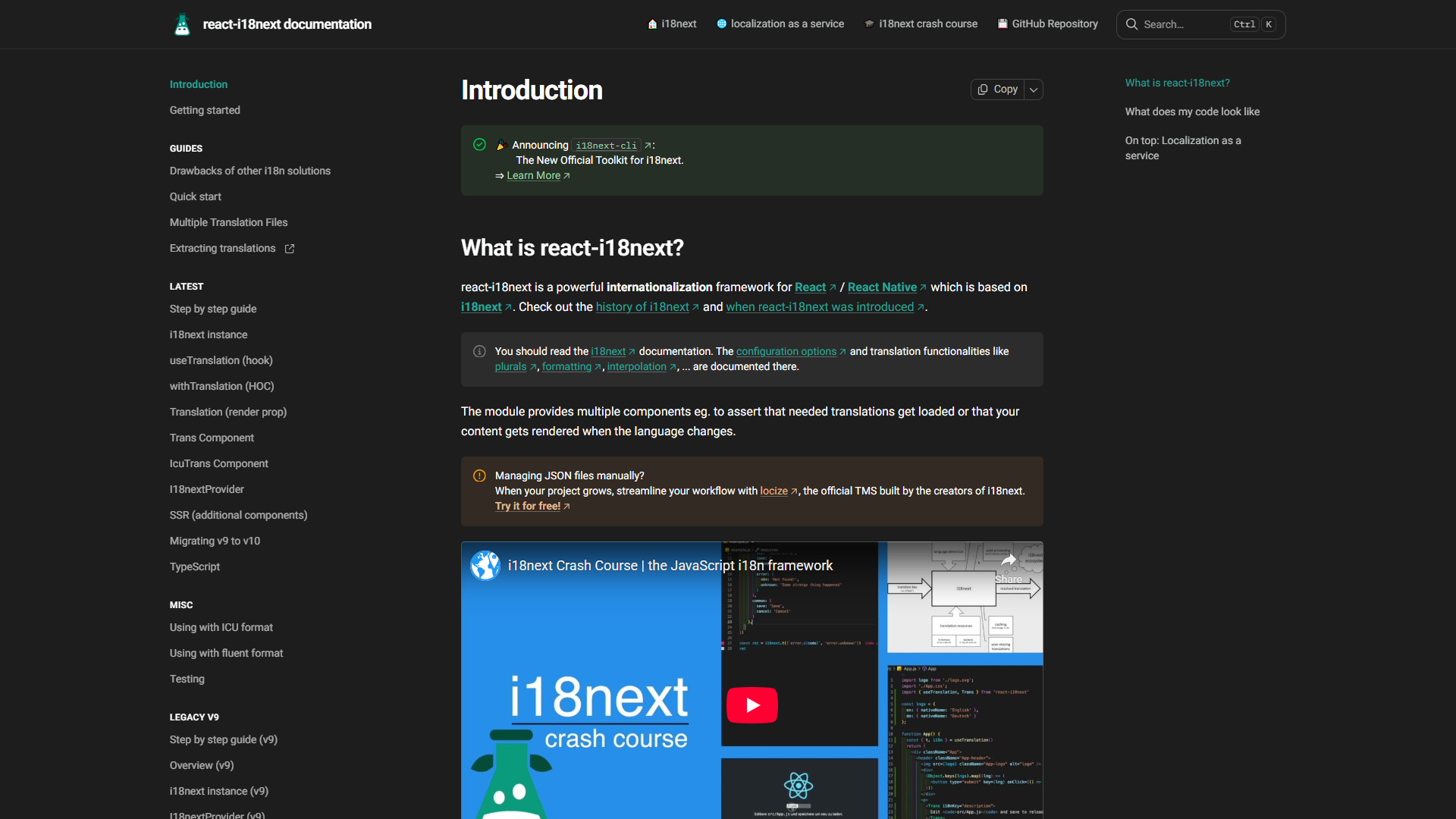
Installation
Start by installing the required packages:
npm install react-i18next i18next i18next-browser-languagedetectorHere’s what each package does:
- react-i18next: React bindings for i18next
- i18next: Core internationalization framework
- i18next-browser-languagedetector: Automatically detects user’s language from browser settings
Basic Configuration
Create a new file src/i18n/config.js:
import i18n from 'i18next';
import { initReactI18next } from 'react-i18next';
import LanguageDetector from 'i18next-browser-languagedetector';

// Import your translation files
import translationEN from './locales/en/translation.json';
import translationES from './locales/es/translation.json';
import translationFR from './locales/fr/translation.json';

const resources = {
  en: {
    translation: translationEN
  },
  es: {
    translation: translationES
  },
  fr: {
    translation: translationFR
  }
};

i18n
  .use(LanguageDetector)
  .use(initReactI18next)
  .init({
    resources,
    fallbackLng: 'en',
    debug: false,
    interpolation: {
      escapeValue: false // React already handles XSS protection
    }
  });

export default i18n;
Then import this config in your src/index.js or src/main.jsx:
import React from 'react';
import ReactDOM from 'react-dom/client';
import './i18n/config'; // Import BEFORE your App component
import App from './App';

ReactDOM.createRoot(document.getElementById('root')).render(
  <React.StrictMode>
    <App />
  </React.StrictMode>
);
Organizing Translation Files
This is where most developers make mistakes. I’ve seen translation files turn into unmaintainable messes with hundreds of flat keys.
Folder Structure
Here’s the structure I use:
src/
  i18n/
    config.js
    locales/
      en/
        translation.json
        common.json
        dashboard.json
      es/
        translation.json
        common.json
        dashboard.json
      fr/
        translation.json
        common.json
        dashboard.json
Organizing Keys by Namespace
Instead of flat structures, I organize keys by feature or component:
// src/i18n/locales/en/translation.json
{
  "nav": {
    "home": "Home",
    "about": "About",
    "contact": "Contact"
  },
  "auth": {
    "login": "Log In",
    "logout": "Log Out",
    "signup": "Sign Up",
    "password": "Password",
    "forgotPassword": "Forgot your password?"
  },
  "dashboard": {
    "welcome": "Welcome back, {{name}}!",
    "stats": {
      "users": "Total Users",
      "revenue": "Revenue",
      "growth": "Growth"
    }
  },
  "errors": {
    "required": "This field is required",
    "invalidEmail": "Please enter a valid email",
    "networkError": "Network error. Please try again."
  }
}
This nested structure makes it easy to find keys later. When I’m working on the dashboard, I know all dashboard-related translations live under dashboard.*.
Using Translations in Components
React-i18next gives you several ways to access translations. Here are the patterns I use most:
useTranslation Hook (Recommended)
This is my go-to method for functional components:
import { useTranslation } from 'react-i18next';

function LoginForm() {
  const { t } = useTranslation();

  return (
    <form>
      <h2>{t('auth.login')}</h2>
      <input
        type="email"
        placeholder={t('auth.email')}
      />
      <input
        type="password"
        placeholder={t('auth.password')}
      />
      <button type="submit">
        {t('auth.login')}
      </button>
      <a href="/forgot-password">
        {t('auth.forgotPassword')}
      </a>
    </form>
  );
}
Trans Component (For Complex Content)
When you need to embed components inside translated strings:
import { Trans } from 'react-i18next';

function TermsNotice() {
  return (
    <p>
      <Trans i18nKey="auth.termsAgreement">
        By signing up, you agree to our
        <a href="/terms">Terms of Service</a>
        and
        <a href="/privacy">Privacy Policy</a>
      </Trans>
    </p>
  );
}
Your translation file would contain:
{
  "auth": {
    "termsAgreement": "By signing up, you agree to our <1>Terms of Service</1> and <3>Privacy Policy</3>"
  }
}
Language Switcher Component
Every i18n app needs a language switcher:
import { useTranslation } from 'react-i18next';

function LanguageSwitcher() {
  const { i18n } = useTranslation();

  const languages = [
    { code: 'en', name: 'English' },
    { code: 'es', name: 'Español' },
    { code: 'fr', name: 'Français' }
  ];

  return (
    <select
      value={i18n.language}
      onChange={(e) => i18n.changeLanguage(e.target.value)}
    >
      {languages.map(lang => (
        <option key={lang.code} value={lang.code}>
          {lang.name}
        </option>
      ))}
    </select>
  );
}
Handling Plurals and Interpolation
This is where i18n gets tricky. Different languages have different pluralization rules.
Interpolation
Pass dynamic values into translations:
function WelcomeMessage({ userName, unreadCount }) {
  const { t } = useTranslation();

  return (
    <div>
      <h1>{t('dashboard.welcome', { name: userName })}</h1>
      <p>{t('dashboard.unreadMessages', { count: unreadCount })}</p>
    </div>
  );
}
Your translation file:
{
  "dashboard": {
    "welcome": "Welcome back, {{name}}!",
    "unreadMessages": "You have {{count}} unread messages"
  }
}
Pluralization
React-i18next handles plural forms automatically:
{
  "items": {
    "cartCount_one": "{{count}} item in cart",
    "cartCount_other": "{{count}} items in cart",
    "cartCount_zero": "Your cart is empty"
  }
}
Usage:
function CartSummary({ itemCount }) {
  const { t } = useTranslation();

  return <p>{t('items.cartCount', { count: itemCount })}</p>;
}
This automatically picks the right plural form based on the count and current language.
Automating Translations with Lingo.dev
Here’s where the magic happens. Manually managing translation files is tedious and error-prone. I used to copy English strings into Google Translate, paste them back, and repeat for every language. It was awful.
Lingo.dev changed how I handle translations. It’s an AI-powered localization platform that integrates directly into your Git workflow.
Why I Use Lingo.dev
The traditional localization workflow looks like this:
- Export translation files
- Send to translators
- Wait days or weeks
- Import translated files
- Fix formatting issues
- Deploy
With Lingo.dev, it’s automatic:
- Push code changes to Git
- Lingo detects new/changed strings
- AI translates them (with context awareness)
- Translations sync back to your repo
- Deploy
Setting Up Lingo.dev
The setup takes about 10 minutes:
- Connect your repository: Lingo.dev supports GitHub, GitLab, and Bitbucket
- Configure file paths: Point it to your
src/i18n/locales/folder - Select target languages: Choose from 83+ supported languages
- Enable auto-translation: Turn on AI translations for new strings
The free tier includes 10,000 words per month, which is plenty for most apps.
Context-Aware Translations
What impressed me most: Lingo.dev’s AI understands context. If you have a string like “Home” in your navigation, it won’t translate it the same way as “home” in “Welcome home.”
It analyzes your codebase structure to understand whether “Home” is a button label, page title, or part of a sentence.
Git-Native Workflow
Every translation happens through pull requests. When you push new strings to your en/translation.json file, Lingo.dev:
- Detects the changes
- Translates new strings to all configured languages
- Creates a PR with the translations
- Runs your CI/CD checks
- Auto-merges when tests pass (optional)
This means translations stay in sync with your code. No more wondering if the Spanish version has the latest button labels.
Best Practices and Tips
After implementing i18n in multiple React apps, here are the patterns that saved me headaches:
1. Extract Strings Early
Don’t hardcode strings in components. Even if you’re only supporting English initially:
// Bad
<button>Submit</button>

// Good
<button>{t('common.submit')}</button>
Adding i18n later is much harder than building it in from the start.
2. Use Namespaces for Large Apps
Split translations into multiple files by feature:
const { t } = useTranslation(['dashboard', 'common']);

return (
  <div>
    <h1>{t('dashboard:title')}</h1>
    <button>{t('common:save')}</button>
  </div>
);
3. Handle Missing Translations
Set up a fallback strategy in your i18n config:
i18n.init({
  fallbackLng: 'en',
  saveMissing: true, // Log missing translations in dev
  missingKeyHandler: (lng, ns, key) => {
    console.warn(`Missing translation: ${lng}/${ns}/${key}`);
  }
});
4. Test with Long Strings
German translations are often 30-40% longer than English. Test your UI with long strings:
{
  "test": {
    "longString": "Geschwindigkeitsbegrenzungsüberschreitungsverwarnung"
  }
}
5. Extract Date and Number Formatting
Use i18next’s formatting features for locale-aware dates and numbers:
import { useTranslation } from 'react-i18next';

function PriceDisplay({ amount, date }) {
  const { i18n } = useTranslation();

  const formattedPrice = new Intl.NumberFormat(i18n.language, {
    style: 'currency',
    currency: 'USD'
  }).format(amount);

  const formattedDate = new Intl.DateTimeFormat(i18n.language, {
    dateStyle: 'long'
  }).format(date);

  return (
    <div>
      <p>{formattedPrice}</p>
      <p>{formattedDate}</p>
    </div>
  );
}
6. SEO for Multilingual Content
If you’re using React Router, set the HTML lang attribute dynamically:
import { useEffect } from 'react';
import { useTranslation } from 'react-i18next';

function App() {
  const { i18n } = useTranslation();

  useEffect(() => {
    document.documentElement.lang = i18n.language;
  }, [i18n.language]);

  return <YourApp />;
}
This helps search engines understand which language version they’re indexing.
Conclusion
When evaluating React I18N Setup, Setting up React i18n properly takes some initial work, but it pays off massively when you need to expand to new markets. The key is choosing the right tools and patterns from the start.
React-i18next handles the runtime translation logic beautifully. Combined with an automation tool like Lingo.dev, you get a complete localization workflow that scales from 2 languages to 20 without adding manual work.
Start with these steps:
- Install react-i18next and set up basic configuration
- Organize translation files by feature/namespace
- Use the
useTranslationhook consistently - Connect Lingo.dev to automate translations
- Test with multiple languages early in development
The apps I’ve built with this setup support 8-12 languages with minimal maintenance. It’s a solved problem — you just need the right foundation.
Related Reading
- Best AI Localization Tools 2026
- AI Translation Accuracy: What to Expect in Production
- Best AI Code Editors 2025
For more information about react i18n setup, see the resources below.
External Resources
For official documentation and updates: