This guide covers multilingual ocr guide with hands-on analysis.
If you’ve ever tried to extract text from a Japanese contract, an Arabic research paper, or a Russian legal document, you know the frustration of standard OCR tools failing spectacularly. Most OCR software handles English fine, maybe Spanish or French if you’re lucky — but what about the other 190+ languages people actually use in business?
This Multilingual OCR guide will show you exactly how to process documents in 192 languages, handle complex scripts like Arabic and Chinese, and set up an automated workflow that actually works. I’ll walk through the practical setup process, share what I’ve learned processing thousands of multilingual documents, and break down the pricing so you know exactly what you’re getting.
What is Multilingual OCR?
Multilingual OCR (Optical Character Recognition) is technology that can recognize and extract text from images or scanned documents in multiple languages — sometimes simultaneously within the same document. Unlike basic OCR that’s trained on one or two languages, multilingual OCR systems use advanced machine learning models trained on hundreds of character sets, scripts, and language patterns.
The technical challenge is enormous. English uses 26 letters in one direction (left to right). Arabic uses 28 letters, writes right to left, and has four different forms for each letter depending on position. Chinese has thousands of characters with similar-looking strokes. Japanese mixes three different writing systems in one sentence. Korean uses syllabic blocks that combine multiple letters.
A true multilingual OCR system needs to:
- Identify the language(s) present in the document automatically
- Recognize different scripts (Latin, Cyrillic, Arabic, Chinese, Japanese, Korean, Devanagari, Thai, Hebrew, etc.)
- Handle text direction (LTR, RTL, vertical text)
- Preserve layout when languages mix in complex documents
- Maintain accuracy across drastically different character sets
The best systems today, like ABBYY FineReader, achieve 99.8% accuracy across 192 languages using proprietary AI technology that’s been refined over decades of development.
Why 192 Languages Matters in Real Business
When I first started working with multilingual documents, I thought “192 languages” was marketing hyperbole. Who actually needs to process documents in Zulu, Icelandic, and Vietnamese in the same workflow?
Turns out, quite a few people:
International law firms handle contracts in 20+ languages daily. A colleague at a corporate legal team told me they regularly process employment agreements from their European offices (English, German, French, Spanish, Italian, Polish, Czech), Asian branches (Japanese, Chinese, Korean, Thai), and Middle Eastern operations (Arabic, Hebrew). One contract might have annexes in three different languages. Standard OCR fails completely.
Academic researchers need to digitize historical documents and papers across language barriers. A university librarian I spoke with was digitizing a collection of 1950s scientific papers — some in Russian Cyrillic, some in German, some in English, all from the same journal. Their previous OCR tool could handle one language at a time, requiring manual sorting. With multilingual OCR, they processed the entire collection as a single batch.
Global manufacturing companies receive technical specifications, safety certifications, and supplier documents in dozens of languages. The quality control team at one automotive manufacturer gets component certifications in whatever language the supplier operates in — German standards from Europe, Japanese specs from Asia, Portuguese documentation from Brazil. They need searchable digital archives of everything.
Immigration services and government agencies process passports, visas, birth certificates, and legal documents from every country. One immigration consultant told me they see documents in 50+ languages monthly. Every document needs to be digitized, verified, and archived.
The value isn’t just processing exotic languages — it’s processing whatever language shows up without changing your workflow. You don’t want a system that requires you to identify the language first, switch software settings, then process. You want to drop 100 mixed-language PDFs into a folder and get searchable text output for all of them.
How to Process Multilingual Documents: Practical Workflow
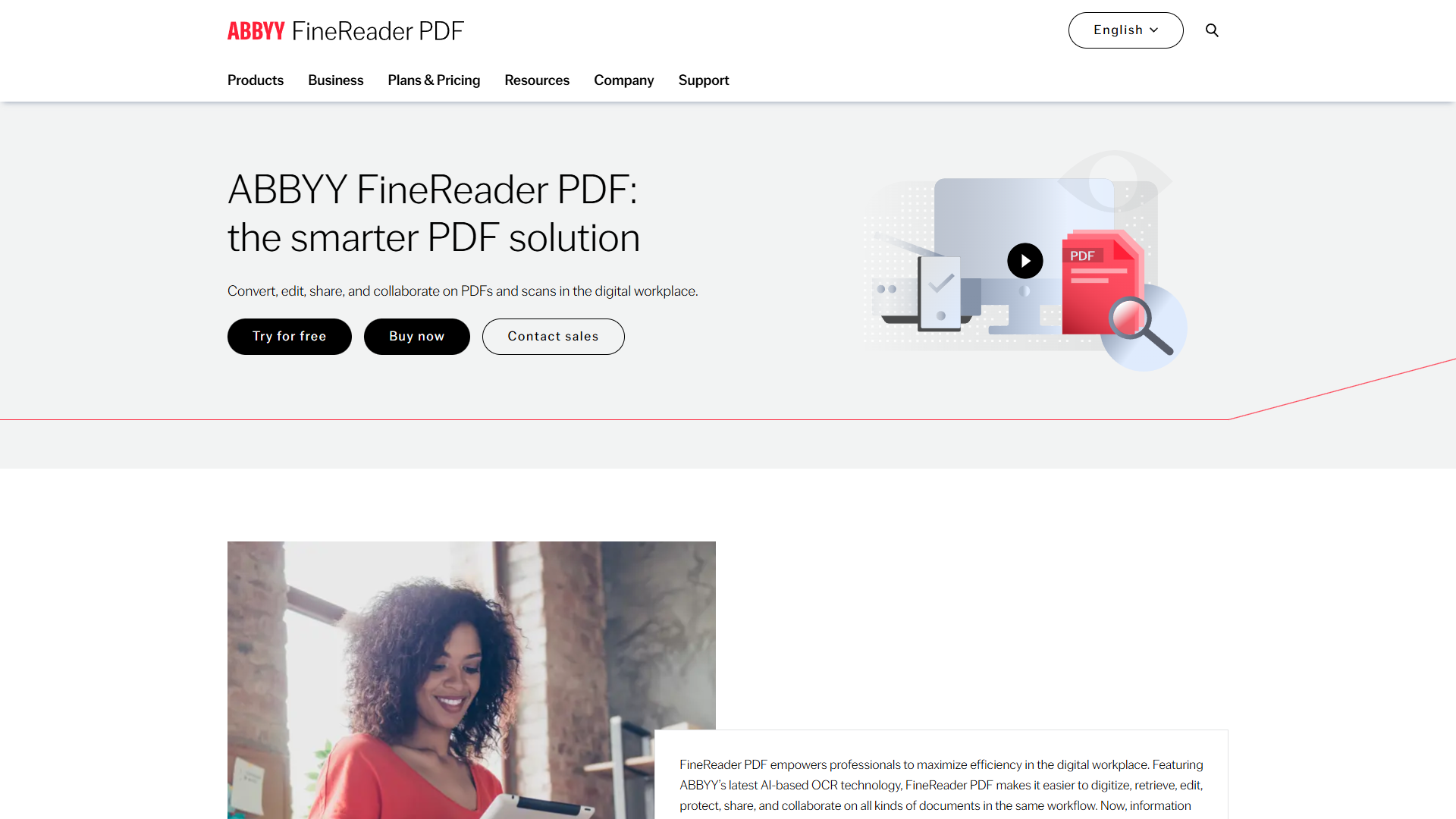
Here’s the step-by-step workflow I use to process multilingual documents with ABBYY FineReader. This works whether you’re handling 5 documents or 5,000.
Step 1: Initial Setup (One-Time Configuration)
Download and install ABBYY FineReader from the official ABBYY website. The installation includes all 192 language recognition modules automatically — you don’t need to download language packs separately like some competing tools require.
Open FineReader and go to Tools → Options → Document Languages. Here’s where most people make their first mistake: they try to select all 192 languages thinking more is better. Don’t do this.
Instead, select only the languages you actually expect to see in your documents. If you’re processing European business documents, select English, German, French, Spanish, Italian, and maybe Polish. If you’re working with Asian markets, add Japanese, Chinese (Simplified and Traditional), Korean, and Thai.
Why limit languages? OCR accuracy improves when the engine knows what to look for. If you tell it to expect 192 languages, it has to consider more character possibilities, which increases errors. A focused language set (5-15 languages) gives you better accuracy than enabling everything.
For mixed-language documents, enable “Detect document language automatically”. FineReader will identify which language appears on each page.
Step 2: Document Preparation
OCR quality depends heavily on scan quality. Here are the standards I follow:
- Resolution: 300 DPI minimum, 400-600 DPI for small text
- File format: PDF or TIFF work best; JPG is acceptable if high quality
- Color mode: Black and white for text-only documents, grayscale or color for documents with graphics
- Orientation: FineReader auto-rotates, but pre-straightening saves processing time
For documents with complex layouts (tables, multiple columns, mixed text/images), save yourself headaches by scanning at 400 DPI or higher. The extra file size is worth it for cleaner text recognition.
Step 3: OCR Processing
For single documents:
- Click Open and select your file
- FineReader automatically detects pages, language, and layout
- Review the detected areas (blue boxes for text, pink for images, green for tables)
- Click Convert to and choose your output format (searchable PDF, Word, Excel, or plain text)
For batch processing:
- Go to File → New Task
- Select Convert to PDF or your preferred output
- Add your input folder containing mixed-language documents
- Configure output settings (I recommend searchable PDF to preserve original formatting)
- Click Start and let it process everything
The Corporate plan includes Hot Folder automation, which monitors a folder and automatically processes any new documents that appear. This is incredibly useful for ongoing workflows — just save or scan documents to the watched folder and they process automatically.
Step 4: Handling Complex Scripts
Different scripts require different handling:
Arabic and Hebrew (RTL languages): FineReader preserves right-to-left text direction automatically. In the verification step, check that paragraph alignment is correct — sometimes complex tables with mixed LTR/RTL content need manual adjustment.
Chinese, Japanese, Korean: These languages can be written horizontally or vertically. FineReader detects text direction automatically, but if you have vertical text in historical documents, verify the reading order in the verification pane.
Thai, Khmer, Lao: These languages don’t use spaces between words. FineReader’s language models understand word boundaries, but accuracy is slightly lower than spaced languages. For critical documents, budget extra time for verification.
Cyrillic scripts: Russian, Ukrainian, Bulgarian, Serbian use similar-looking letters to Latin script but with different meanings. Make sure the correct language is selected — confusing Russian and Bulgarian can lead to wrong character recognition.
Mixed scripts in one document: If you have English text with Chinese annotations (common in international contracts), enable both languages. FineReader will apply the correct recognition model to each text area.
Step 5: Verification and Export
After OCR processing, use FineReader’s verification mode to check accuracy:
- Click Verify to open the verification pane
- FineReader highlights words it’s uncertain about (shown with pink backgrounds)
- Review each highlighted word and correct if needed
- For multilingual documents, pay extra attention to proper nouns, technical terms, and numbers
Export options:
- Searchable PDF: Preserves original document appearance with invisible text layer (best for archival)
- Microsoft Word: Editable document that maintains formatting (best for documents you need to modify)
- Excel: For tables and data extraction
- Plain Text: For feeding into other systems or translation workflows
I typically use searchable PDF for legal and compliance documents (need original appearance), Word for contracts that require editing, and plain text for documents headed to translation systems.
Best Practices for Multilingual OCR Accuracy
After processing tens of thousands of multilingual documents, here’s what actually improves accuracy:
Start with the best source material possible. This sounds obvious but bears repeating: a clean 400 DPI scan will always outperform aggressive processing of a blurry 150 DPI phone photo. If you have access to original documents, invest in proper scanning. If you’re working with documents you received digitally, request higher resolution versions before running OCR.
Use language detection strategically. For documents where you know the language, explicitly selecting it gives better results than auto-detection. Auto-detection is excellent for mixed batches where you don’t know what’s coming, but if you’re processing 100 Japanese documents, select Japanese as the only language.
Process similar documents in batches. FineReader’s layout analysis works better when it sees patterns. If you have 50 invoices from the same German supplier, process them as one batch. The engine learns the template structure and applies it consistently. Don’t mix invoices, contracts, and research papers in the same batch unless you have to.
Verify critical documents manually. For legal contracts, compliance documents, or anything with financial/legal implications, always use verification mode. FineReader’s 99.8% accuracy means 2 errors per 1,000 characters. In a 10-page contract, that’s 30-40 potential errors. Most will be minor (punctuation, spacing), but you need to catch the 2-3 that matter.
Handle low-quality sources with pre-processing. For faded historical documents, newspaper clippings, or damaged pages, use FineReader’s image preprocessing tools: adjust brightness/contrast, remove noise, straighten pages. Sometimes spending 2 minutes on image enhancement saves 20 minutes of verification.
Create templates for recurring document types. If you process the same type of document regularly (customs forms, immigration paperwork, supplier invoices), create a template that defines recognition areas, language settings, and output format. This ensures consistency and saves setup time.
Watch for false friends between languages. Certain language pairs share similar-looking characters with different meanings. Russian “P” is Latin “R”, Greek “H” is Latin “N”. If you’re getting nonsense results, check that the correct language is selected — it might be recognizing characters from the wrong alphabet.
Pricing and ROI: Is ABBYY FineReader Worth It?
ABBYY FineReader offers three pricing tiers:
Standard: $16/month ($99/year) for individual users who need basic OCR across multiple languages. Includes all 192 languages, PDF editing, and document comparison. Best for freelancers, consultants, or small teams processing moderate document volumes.
Corporate: $24/month ($165/year) adds Hot Folder automation (process up to 5,000 pages per month automatically), batch processing scripting, and network licensing. This is the tier that makes sense for businesses with ongoing OCR needs.
Mac version: $69/year with slightly reduced features compared to Windows (no Hot Folder automation). If you’re on Mac and need automation, consider running Windows FineReader in Parallels or using a Windows VM.
ROI calculation: Let’s say you currently pay someone $25/hour to manually retype multilingual documents, and they can accurately transcribe about 5 pages per hour (slower for languages they’re less familiar with). If you process 100 pages per month:
- Manual transcription cost: 20 hours × $25 = $500/month
- ABBYY FineReader Corporate: $24/month
- Time saved: ~19 hours/month
- Monthly savings: $476
- Payback period: One month
Even at lower volumes (20 pages/month, 4 hours of manual work), you save $76/month against the $24 subscription cost, paying for itself in under 4 months.
The bigger value is capacity and speed. Manual transcription creates a bottleneck — you can only process as many documents as your team has time to type. OCR processes hundreds of pages in the time it takes to type one, enabling workflows that would be impossible manually.
Compared to alternatives: Adobe Acrobat DC ($23.99/month) offers OCR but with significantly fewer languages (around 30) and lower accuracy on non-Latin scripts. Google Cloud Vision API offers 50+ languages but charges per page ($1.50 per 1,000 pages) and requires technical setup. For most business users processing multilingual documents regularly in 2026, ABBYY FineReader’s combination of language coverage, accuracy, and ease of use justifies the price premium.
For a detailed comparison of OCR solutions, see our Best OCR Software 2025 guide and OCR Software Comparison analysis. You can also check out the ABBYY FineReader language support documentation for the complete list of supported languages.
Conclusion
When evaluating Multilingual Ocr Guide, Processing documents in multiple languages used to mean juggling different tools, manually identifying languages, and accepting mediocre accuracy on anything beyond English. Modern multilingual OCR tools like ABBYY FineReader change this completely — 192 languages with 99.8% accuracy, automatic language detection, and proper handling of complex scripts.
The key to successful multilingual OCR is understanding what you’re processing and configuring your language sets appropriately. Enable the languages you actually expect to see, use batch processing for similar documents, and verify critical content manually. With proper setup, you can process mixed-language document collections as easily as single-language batches.
Whether you’re managing international contracts, digitizing academic archives, or processing supplier documentation from around the world, a proper multilingual OCR workflow eliminates the language-switching headache and lets you focus on using the information instead of fighting to extract it.
Start with a clear inventory of which languages appear in your documents, configure FineReader with those specific languages, and process a small test batch to verify accuracy before committing to large-scale digitization. The hour you invest in proper setup will save hundreds of hours in manual transcription and rework.