JetBrains AI Assistant sits at a fascinating crossroads in 2026. It offers arguably the deepest IDE integration of any AI coding assistant, with features like the Junie autonomous agent and Claude Agent that competitors simply don’t have. But the pricing structure — with three paid tiers plus a free option — confuses many developers trying to decide what they actually need.
After three months of daily use across Java, Python, and TypeScript projects, I’ve mapped out exactly what each tier offers, when to upgrade, and whether the premium pricing justifies itself against GitHub Copilot’s simpler $10/month model.
TL;DR: JetBrains AI Assistant Quick Facts
| Feature | Details |
|---|---|
| Rating | |
| Pricing | AI Free ($0), AI Pro ($8/mo), AI Ultimate ($30/mo), Enterprise (custom) |
| Best For | JetBrains IDE users, especially Java/Kotlin developers |
| Key Features | Context-aware completion, Junie agent, Claude Agent, MCP support |
| Languages | 25+ languages (strongest: Java, Kotlin, Python, TypeScript) |
| 2026 Updates | GPT-5 support, Claude 4.5 Sonnet, unified credit system |
| Free Tier | Yes - unlimited local completions, limited cloud features |
Try JetBrains AI Assistant or read our full tool review.
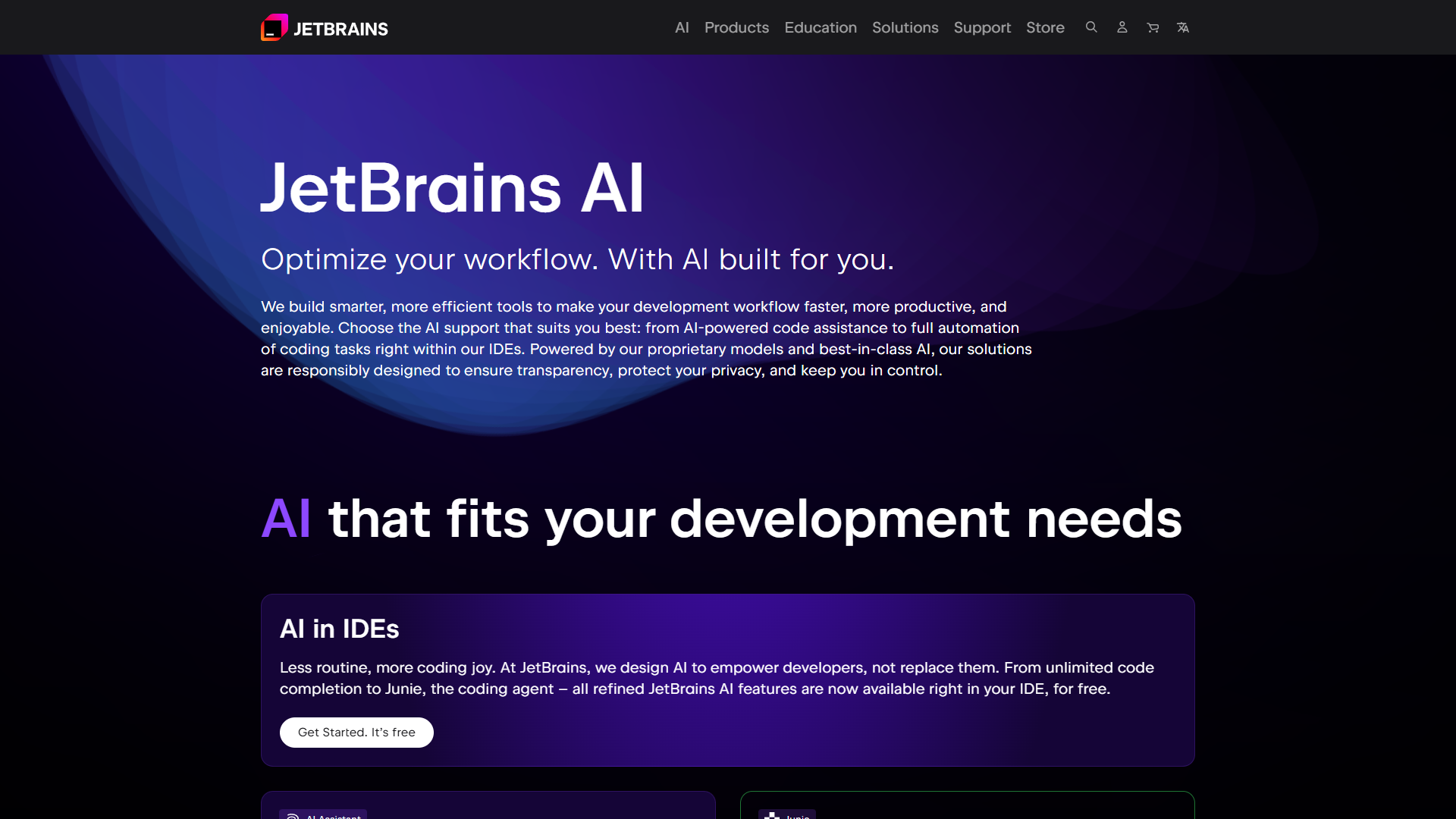
What is JetBrains AI Assistant?
JetBrains AI Assistant is an AI-powered coding assistant built directly into JetBrains IDEs — IntelliJ IDEA, PyCharm, WebStorm, RubyMine, and the rest of the JetBrains family. Unlike extensions that bolt onto your editor, this is native integration that understands your project structure, dependencies, and coding patterns at a fundamental level.
The tool offers context-aware code completion, an AI chat interface, automated test generation, documentation creation, and two standout features that set it apart: the Junie autonomous agent and Claude Agent integration powered by Anthropic’s Agent SDK.
What makes JetBrains AI Assistant different from GitHub Copilot or Cursor? The IDE integration runs deeper. It doesn’t just see your current file — it understands your entire project’s semantic structure. For Java/Kotlin developers especially, this produces noticeably better suggestions because IntelliJ already excels at understanding JVM code.
AI Free vs Pro vs Ultimate: The Complete Breakdown
This is where most developers get confused. JetBrains offers four tiers, but only three are relevant for individual developers. Let me break down exactly what you get at each level.
AI Free Tier ($0/month)
The free tier launched in early 2025 and offers more than you might expect:
What’s Included:
- Unlimited local code completions (runs on your machine)
- Limited cloud features (quota-based)
- Local model support (Ollama, LM Studio, llama.cpp)
- Available in most JetBrains IDEs v2025.1+
What’s NOT Included:
- Not available in Android Studio
- Not available in Community Editions
- No access to frontier models (GPT-5, Claude 4.5)
- No Junie or Claude Agent access
Who Should Use It: The free tier works well for developers who want basic AI assistance without cloud dependency. If you’re comfortable running Ollama or LM Studio locally, you can get genuinely useful code completions at zero cost. The completions won’t match the quality of GPT-5 or Claude 4.5, but for routine coding tasks, local models like CodeLlama or DeepSeek Coder perform adequately.
AI Pro Tier ($8/month or $7/month annual)
This is the sweet spot for most developers — and here’s the key detail many miss: AI Pro is included free with All Products Pack and dotUltimate subscriptions.
What’s Included:
- Everything in AI Free
- Enhanced cloud AI capabilities
- Shared credit system with Junie and Claude Agent
- Commercial use allowed ($16/month for business)
Pricing Details:
- Personal: $8/month or $79/year (approximately $6.60/month)
- Commercial: $16/month or $158/year
- Free if you have All Products Pack ($249/year)
- Free if you have dotUltimate ($199/year)
Who Should Use It: If you’re already paying for JetBrains All Products Pack — which many professional developers do — AI Pro costs you nothing extra. This makes it the best value proposition in the AI coding assistant market. Even standalone at $8/month, it undercuts GitHub Copilot’s $10 while offering comparable features.
AI Ultimate Tier ($30/month or $20/month annual)
The premium tier unlocks everything, including frontier model access and unlimited agent usage.
What’s Included:
- Everything in AI Pro
- Full Junie autonomous agent access
- Full Claude Agent access (Anthropic’s Agent SDK)
- Frontier models: GPT-5, Claude 4.5 Sonnet, Gemini 2.5 Pro
- $35 in monthly AI Credits (with $5 bonus)
- Top-up credits available (last 12 months)
Pricing Details:
- Personal: $30/month or $237/year (approximately $20/month)
- Commercial: $47/month or $474/year (approximately $40/month)
- Credits reset every 30 days
- 1 AI Credit = $1 USD
Who Should Use It: AI Ultimate makes sense if you need daily access to frontier models and autonomous agents. The $35 monthly credits essentially subsidize the cost — you’re paying $30 for $35 in model access plus the agent features. For heavy users who would otherwise pay OpenAI or Anthropic directly for API access, this consolidates costs.
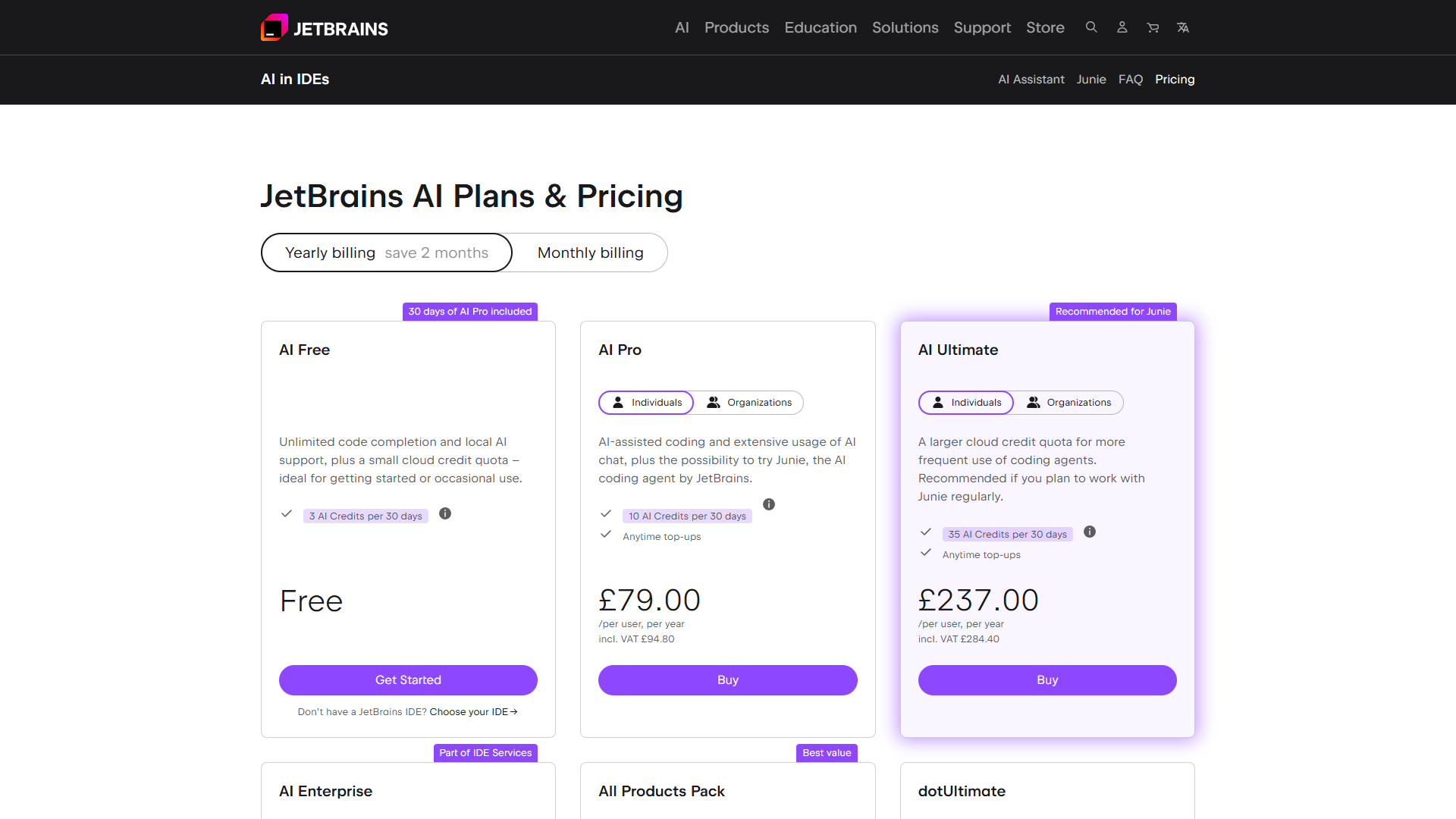
Tier Comparison Table
| Feature | AI Free | AI Pro ($8/mo) | AI Ultimate ($30/mo) |
|---|---|---|---|
| Local completions | Unlimited | Unlimited | Unlimited |
| Cloud completions | Limited | Enhanced | Unlimited |
| Junie Agent | No | Shared credits | Full access |
| Claude Agent | No | Shared credits | Full access |
| GPT-5, Claude 4.5 | No | No | Yes |
| Monthly credits | None | Shared pool | $35 included |
| All Products Pack | N/A | Included free | Add $22/mo |
| Best for | Trying AI, local models | Most developers | Power users |
Key Features Deep Dive
Let me walk through the features that actually matter in daily use.
Context-Aware Code Completion
JetBrains AI Assistant understands your code at a semantic level, not just syntactic. It reads your imports, understands your class hierarchies, and suggests completions that fit your project’s patterns.
In practice, this means:
- Suggestions use the right variable names from your scope
- Method calls include the correct parameters based on your existing code
- Completions follow your project’s coding style
For Java and Kotlin, the quality is exceptional — better than Copilot in my testing. For Python and TypeScript, it’s solid but not dramatically different from alternatives. For less common languages, results vary.
Pro tip: The quality improves significantly when you have multiple related files open. The AI uses your open tabs as additional context.
Junie Autonomous Agent
Junie launched in January 2026 as JetBrains’ answer to Cursor’s Composer and GitHub Copilot’s Agent features. Unlike simple code completion, Junie handles entire tasks autonomously.
What Junie can do:
- Refactor entire modules based on natural language instructions
- Generate comprehensive test suites for existing code
- Update documentation across multiple files
- Apply coding patterns consistently across a codebase
Example workflow:
- Select a class in your project
- Tell Junie: “Generate unit tests for this class with edge cases”
- Junie analyzes the class, identifies methods, and generates test files
- You review and commit
The catch? Junie consumes AI Credits, which are limited on AI Pro and refresh monthly on AI Ultimate. Complex tasks can burn through credits quickly.
Claude Agent Integration
In September 2025, JetBrains integrated Anthropic’s official Agent SDK, enabling Claude-powered autonomous workflows. This goes beyond simple chat — Claude Agent can:
- Search your codebase for relevant patterns
- Interact with external tools via Model Context Protocol (MCP)
- Execute multi-step tasks with decision-making
- Access external documentation via web search
The MCP support is particularly powerful. You can connect databases, APIs, and other tools directly to the AI. If you have an internal API documentation server, Claude Agent can query it while writing code.
Multi-Model Flexibility
Unlike Copilot (GPT-4 only) or Cursor (requires manual model switching), JetBrains AI Assistant lets you choose models per-conversation and even suggests the optimal model based on your task.
Available models (AI Ultimate):
- GPT-5 (best for complex reasoning)
- Claude 4.5 Sonnet (best for code generation quality)
- Gemini 2.5 Pro (best for large context windows)
- GPT-4.1 (balanced cost/performance)
- Claude 3.7 Sonnet (faster, cheaper option)
Available for local use (all tiers):
- Ollama models
- LM Studio models
- Any OpenAI-compatible API endpoint
The automatic model selection shows cost/performance indicators, helping you balance between quality and credit consumption.
Local Model Support
For developers with strict data policies or who simply prefer offline work, JetBrains AI Assistant supports fully local models:
- Ollama: Easy setup, wide model variety
- LM Studio: User-friendly interface
- llama.cpp: Maximum control
- LiteLLM: Unified API for multiple providers
Local models don’t consume credits and work without internet. The quality gap has narrowed significantly — DeepSeek Coder V2 running locally approaches cloud model quality for many tasks.
When to Choose Each Tier
Based on three months of use, here’s my decision framework:
Choose AI Free if:
- You’re evaluating JetBrains AI Assistant for the first time
- You prefer running local models for privacy
- You use Community Edition IDEs (upgrade required)
- Your AI needs are occasional, not daily
Choose AI Pro ($8/month) if:
- You already have All Products Pack (it’s free!)
- You want cloud AI without frontier model costs
- Your usage is moderate (10-20 hours coding weekly)
- You don’t need daily Junie/Claude Agent access
Choose AI Ultimate ($30/month) if:
- You need GPT-5 or Claude 4.5 Sonnet quality daily
- You use Junie autonomously for major refactoring
- You’d otherwise pay for OpenAI/Anthropic API directly
- You work across multiple complex projects
Stick with GitHub Copilot ($10/month) if:
- You use VS Code primarily (JetBrains AI doesn’t support it)
- You want consistent cross-language quality
- You prefer simpler pricing without credit tracking
- Performance stability matters more than frontier features
JetBrains AI Assistant vs GitHub Copilot
The comparison everyone wants: how does JetBrains AI stack up against GitHub Copilot?
| Aspect | JetBrains AI Assistant | GitHub Copilot |
|---|---|---|
| Price | $8-30/month | $10-39/month |
| IDE Support | JetBrains only | VS Code, JetBrains, Visual Studio |
| Best Language | Java/Kotlin | Python/JavaScript |
| Autonomous Agent | Junie + Claude Agent | Copilot Agent (preview) |
| Model Choice | Multiple (GPT-5, Claude 4.5) | GPT-4 Turbo only |
| Local Models | Yes (Ollama, etc.) | No |
| Performance | Variable (slower on large projects) | Consistent, fast |
| Integration Depth | Deeper (native) | Extension-based |
My take: If you live in JetBrains IDEs and work primarily with Java/Kotlin, JetBrains AI Assistant wins. The IDE integration is genuinely better — it feels native rather than bolted on. But for everyone else, Copilot’s $10/month delivers more consistent value with fewer rough edges.
I actually run both: Copilot as my primary assistant for general work, JetBrains AI Assistant specifically for IntelliJ projects where the deeper integration pays dividends.
Getting Started: Setup Guide
Setting up JetBrains AI Assistant takes about 5 minutes:
Step 1: Check Your IDE Version
JetBrains AI Assistant requires v2024.2 or later. For AI Free tier, you need v2025.1+.
Update your IDE: Help → Check for Updates (or JetBrains Toolbox)
Step 2: Enable AI Assistant
- Open Settings (Ctrl+Alt+S / Cmd+,)
- Navigate to Tools → AI Assistant
- Click Enable and log in with your JetBrains Account
- Choose your subscription tier or start the free trial
Step 3: Configure Your Preferences
Model preferences: Settings → AI Assistant → Models
- Set your default model (I recommend Claude 4.5 Sonnet for code generation)
- Enable cost/performance indicators
- Configure fallback model for when primary is unavailable
Completion settings: Settings → AI Assistant → Completion
- Enable inline suggestions (default: on)
- Set suggestion delay (lower = more responsive, higher = fewer interruptions)
- Choose languages for multiline completion
Privacy settings: Settings → AI Assistant → Privacy
- Review what data gets sent to cloud models
- Enable local-only mode if needed
- Configure excluded files (e.g., .env, credentials)
Step 4: Learn the Keybindings
| Action | Windows/Linux | macOS |
|---|---|---|
| Accept suggestion | Tab | Tab |
| Cycle suggestions | Alt+] / Alt+[ | ⌥] / ⌥[ |
| Open AI Chat | Ctrl+Shift+A | ⌘⇧A |
| Invoke Junie | Ctrl+Shift+J | ⌘⇧J |
| Explain code | Select → Right-click → AI Actions | Select → Right-click → AI Actions |
Step 5: Configure Local Models (Optional)
If you want offline capability:
- Install Ollama: ollama.com
- Pull a coding model:
ollama pull deepseek-coder-v2 - In Settings → AI Assistant → Local Models, add Ollama endpoint
- Switch to local model when working offline
Practical Tips from Daily Use
After three months, here’s what actually improves productivity:
Write Descriptive Comments First
JetBrains AI reads your comments to understand intent. Instead of:
// process dataWrite:
// Filter active users, sort by registration date descending, limit to 50The detailed comment produces dramatically better suggestions.
Use Junie for Bounded Tasks
Junie works best for well-defined tasks:
- “Generate tests for this class” ✓
- “Refactor this method to use streams” ✓
- “Rewrite the entire authentication system” ✗
For large, ambiguous tasks, break them into smaller Junie requests.
Leverage the Chat for Code Reviews
Before committing:
- Select your changed code
- Open AI Chat
- Ask: “Review this code for bugs, performance issues, and style problems”
I’ve caught several bugs this way that I would have missed in manual review.
Monitor Your Credit Usage
If you’re on AI Ultimate, check credit consumption weekly:
- Settings → AI Assistant → Usage
- Identify which features consume most credits
- Consider switching to local models for routine tasks
Context Window Optimization
Keep related files open. The AI uses open tabs as context. For maximum suggestion quality:
- Open the interfaces/types your current file implements
- Open test files alongside implementation
- Keep configuration files visible when writing setup code
The Rating Reality Check
You’ve probably noticed JetBrains AI Assistant has a lower-than-expected rating on the JetBrains Marketplace. What’s going on?
Common complaints:
- IDE slowdowns on large projects
- Automatic installation without permission (earlier versions)
- Credit system complexity
- Inconsistent suggestion quality outside Java/Kotlin
The context:
- 22M+ downloads despite the rating
- 77% of users report productivity improvements (JetBrains survey)
- Performance has improved significantly since launch
- Many negative reviews are from v1.0 (2023-2024)
My experience: The performance concerns are real. On a large TypeScript monorepo, I’ve experienced noticeable lag. For Java projects, it’s smooth. JetBrains is actively improving this, but it’s not Copilot-smooth yet.
The marketplace rating shouldn’t scare you off, but set realistic expectations. This is a tool that excels for JetBrains power users and underdelivers for casual users who expect Copilot-level polish.
Conclusion: Is JetBrains AI Assistant Worth It?
After three months of daily use, here’s my verdict:
Absolutely worth it if:
- You already have All Products Pack (AI Pro is free)
- You’re a Java/Kotlin developer using IntelliJ
- You want multi-model flexibility (GPT-5, Claude 4.5, local models)
- You need autonomous agents (Junie, Claude Agent)
- You value deep IDE integration over cross-platform support
Consider alternatives if:
- You use VS Code primarily (GitHub Copilot or Cursor)
- You want consistent pricing without credits ($10/month Copilot)
- Performance stability is your top priority
- You work across many languages equally
My recommendation:
- If you have All Products Pack, enable AI Pro immediately — it’s free value
- Start with AI Pro for a month before considering Ultimate
- Only upgrade to Ultimate if you’re hitting credit limits or need frontier models daily
- Keep Copilot as a backup for VS Code work and when JetBrains lags
The JetBrains AI Assistant isn’t for everyone, but for JetBrains IDE loyalists — especially Java/Kotlin developers — it’s the best AI coding assistant available. The IDE integration is unmatched, the Junie agent is genuinely useful, and the multi-model flexibility future-proofs your workflow.
Ready to try it? Get started with JetBrains AI Assistant or explore our detailed tool page for feature comparisons and ROI calculations.
For more AI coding tools, check out our guides on GitHub Copilot, Cursor, and our comprehensive Best AI Coding Assistants 2026 comparison.
External Resources
For official documentation and updates:
- JetBrains AI Assistant — Official website
- OpenAI — Additional resource