Choosing between GitHub Copilot vs Cursor vs Gemini Code Assist isn’t about finding the “best” AI coding assistant — it’s about matching the right tool to your project size, workflow, and budget. After extensively testing all three across codebases ranging from 2,000 to 200,000 lines, I’ve discovered that the ideal choice shifts dramatically based on specific factors most reviews ignore.
The AI coding assistant market has exploded in 2026, but these three stand out for different reasons: GitHub Copilot dominates with ecosystem integration, Cursor revolutionizes with its AI-native IDE architecture, and Gemini Code Assist surprises with a free tier that offers 90x more completions than Copilot’s free plan. Let’s break down which one matches your needs.
Quick Comparison: GitHub Copilot vs Cursor vs Gemini
| Feature | GitHub Copilot | Cursor | Gemini Code Assist |
|---|---|---|---|
| Rating | |||
| Free Tier | 2,000 completions/mo | Limited | 180,000 completions/mo |
| Paid Plan | $10/mo Individual | $20/mo Pro | $19/mo Standard |
| Best For | Multi-IDE users, beginners | Large codebases (50K+ lines) | Google Cloud users, learners |
| IDE Support | VS Code, JetBrains, Visual Studio | Custom VS Code fork only | VS Code, JetBrains, Cloud Workstations |
| Key Strength | Plugin-based, familiar editors | 8 parallel agents, native AI | 1M token context, generous free tier |
GitHub Copilot: The Familiar Choice
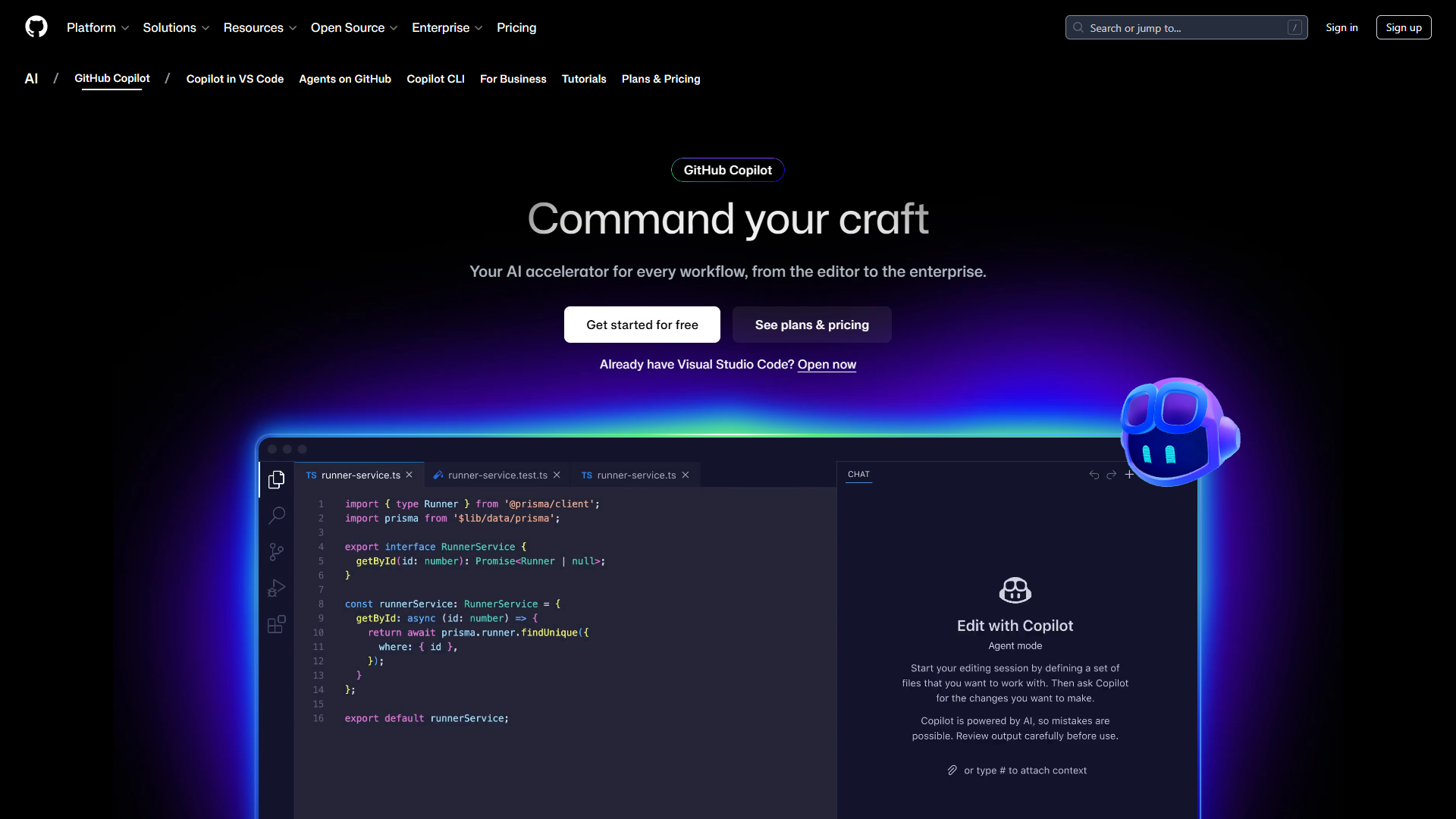
GitHub Copilot wins on accessibility. It’s a plugin, not a new editor, which means zero switching costs if you’re already using VS Code, JetBrains IDEs, or Visual Studio. After testing it across three different IDEs in the same week, I appreciated how consistent the experience remained — your muscle memory stays intact.
Pricing Breakdown:
- Free Tier: 2,000 code completions and 50 premium requests monthly
- Individual ($10/mo): Unlimited completions, 300 premium requests, access to GPT-5 mini, Claude Sonnet 4/4.5
- Business ($19/user): 300 premium requests per user, IP indemnity, centralized management
- Enterprise ($39/user): 1,000 premium requests, custom knowledge bases, codebase indexing
What Works:
- Multi-IDE flexibility: I switched from VS Code to JetBrains Fleet mid-project without losing functionality
- GitHub ecosystem integration: Pull request summaries and code reviews feel native when your repo is already on GitHub
- Beginner-friendly: The 2,000 free completions let you test thoroughly before committing to $10/month
- Model variety: Access to GPT-5, Claude Opus 4.1, and Gemini 2.5 Pro on paid tiers gives you options
What Doesn’t:
- Context limitations: Struggles with projects over 30K lines — I often had to manually feed it function signatures from other files
- Premium request caps: On the Individual plan, 300 premium requests depleted in 12 days during a refactoring sprint
- Coding agent preview: The autonomous coding agent remains in preview with inconsistent results
Real-World Performance: When I used Copilot to refactor a 15,000-line Express.js API, it excelled at boilerplate (route handlers, middleware) but missed architectural patterns specific to our project. Completion quality dropped noticeably after 20K lines — a limitation Cursor handles better.
Cursor: The AI-Native Powerhouse
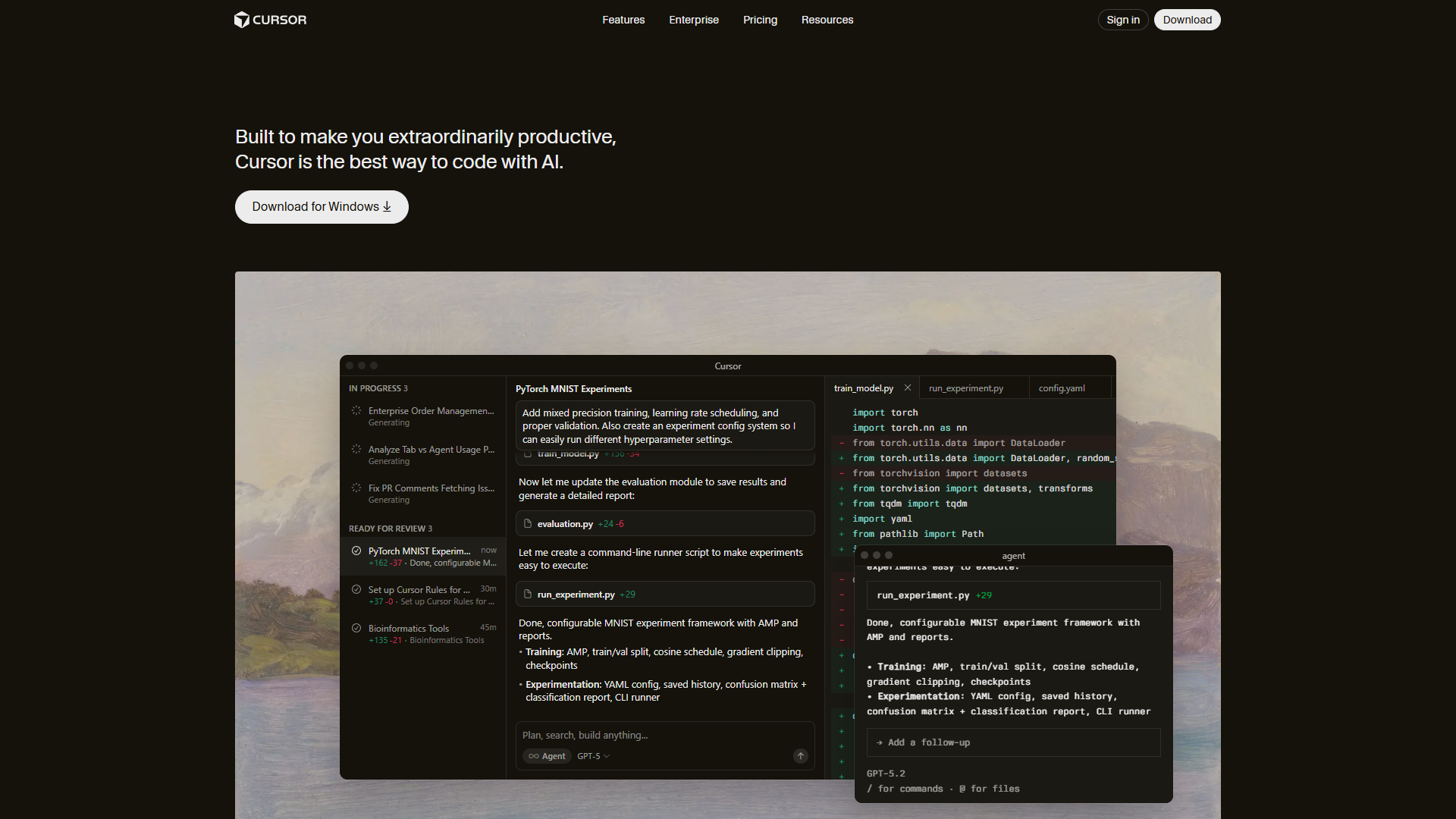
Cursor isn’t a plugin — it’s a full editor rebuilt from VS Code with AI as a first-class citizen. This architectural decision unlocks capabilities impossible in plugin-based tools, but requires accepting a new editor (though familiar if you know VS Code).
Pricing Breakdown:
- Hobby (Free): One-week Pro trial, then limited agent requests and tab completions
- Pro ($20/mo): $20 of API usage, unlimited Tab completions (Fusion model), Auto model selection
- Pro+ ($60/mo): $70 API usage (3x Pro), access to GPT-5, Claude 4 Opus, Gemini 2.5 Pro
- Ultra ($200/mo): $400 API usage (20x Pro), priority feature access
- Teams ($40/user): Centralized billing, usage analytics, org-wide privacy controls
What Works:
- Deep codebase understanding: On a 75,000-line Next.js project, Cursor correctly inferred component relationships 3-4 files deep
- Composer mode: Completes multi-file tasks in under 30 seconds — I refactored authentication across 12 files in one prompt
- Parallel agents: Run up to 8 concurrent AI tasks (e.g., write tests while generating documentation while refactoring)
- Supermaven Tab completion: Noticeably faster than Copilot’s inline suggestions
What Doesn’t:
- Memory consumption: Cursor used 2.3GB RAM vs VS Code’s 850MB on the same project
- Credit pool anxiety: Heavy users on Pro ($20/mo) hit the API cap mid-month — Pro+ ($60) becomes necessary
- Occasional bugs: I experienced 3 crashes in 2 weeks after an update, though stability improved in subsequent patches
- IDE lock-in: You can’t use Cursor’s AI in your existing editor, unlike Copilot’s plugin approach
Real-World Performance: Cursor shines on large, complex codebases. When migrating a 65,000-line React app from JavaScript to TypeScript, Cursor’s multi-file awareness caught type mismatches across component boundaries that Copilot missed. However, on smaller projects (under 10K lines), the overhead didn’t justify the $20/month cost — Copilot’s $10 plan sufficed.
Gemini Code Assist: The Dark Horse
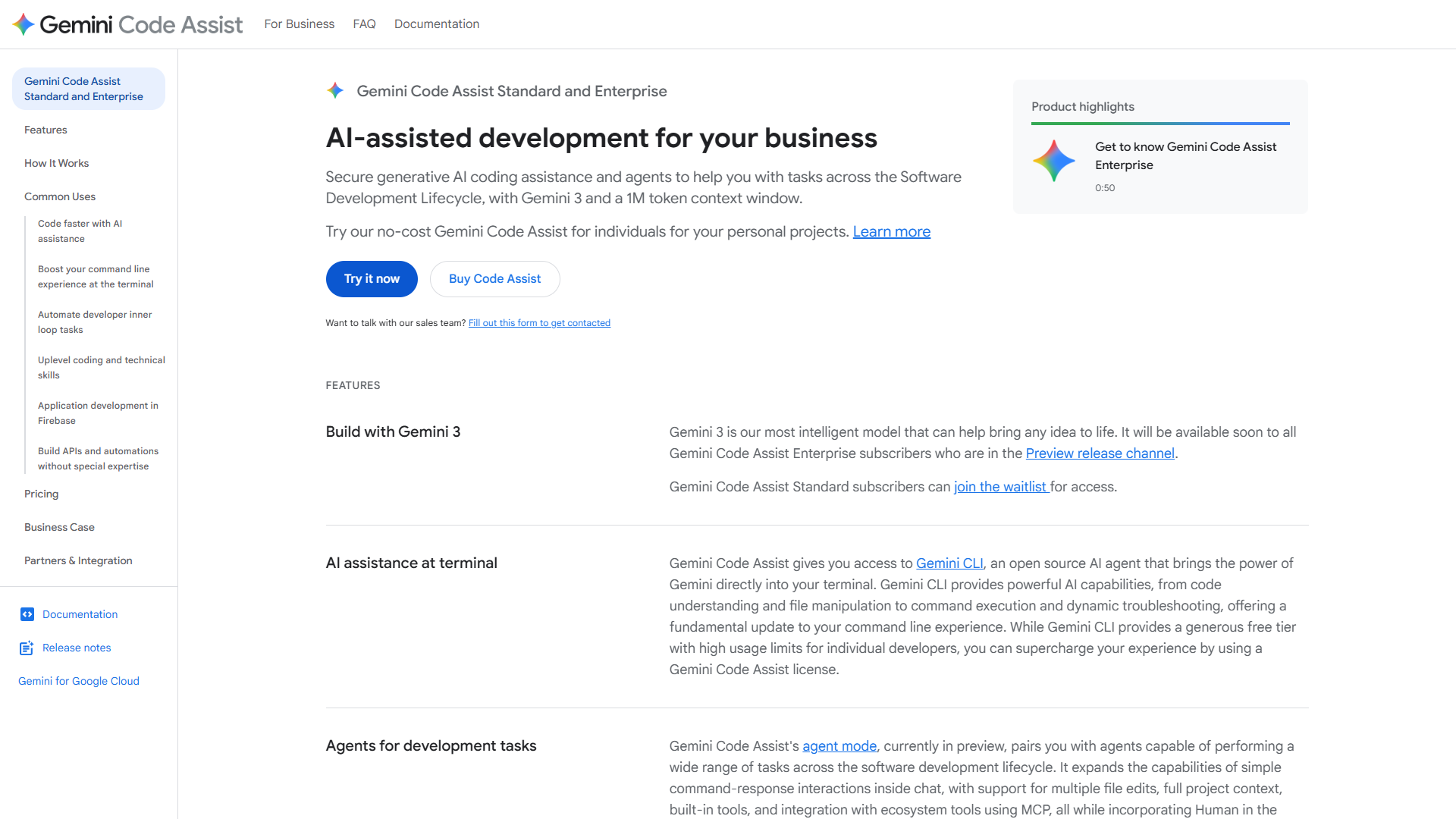
Gemini Code Assist surprises with the most generous free tier in the industry: 180,000 completions monthly — 90x more than Copilot’s 2,000. This makes it ideal for side projects, learning, or supplementing a paid tool.
Pricing Breakdown:
- Free (Individuals): 6,000 code requests per day (180K/month), 240 chat requests daily, Gemini 2.5 model
- Standard ($19/mo): Unlimited completions, Agent Mode with multi-file edits, MCP support, GitHub PR reviews
- Enterprise ($75/mo): Code customization on private codebase, deep Google Cloud integrations, custom model tuning
What Works:
- Unmatched free tier: 6,000 daily completions sustained my entire workflow without payment for 2 months
- 1M token context window: Fed it an entire 40K-line codebase for project-wide awareness
- Agent Mode: Plan-approve-execute workflow gives control over multi-file changes before applying
- Google Cloud native: If you use Apigee, BigQuery, or Firebase, integrations feel seamless
- MCP (Model Context Protocol): Connect external tools (databases, APIs) for enhanced context
What Doesn’t:
- Accuracy inconsistencies: Generated incorrect API syntax 2-3x more often than Copilot during testing
- Higher base cost: $19/month vs Copilot’s $10 for similar unlimited completions
- Enterprise price jump: $75/month (up from $54) makes it the most expensive option at the high end
- Less mature: Occasional bugs and slower performance compared to Copilot’s polish
Real-World Performance: Gemini excels as a secondary tool. I used the free tier for exploratory coding and prototype work while keeping Copilot for production. The massive free allowance meant I never worried about hitting limits during learning sprints. However, for mission-critical refactoring, Copilot’s accuracy and Cursor’s multi-file capabilities proved more reliable.
Feature-by-Feature Comparison
Code Completion Quality
Winner: Cursor (for large codebases)
Across 2,000 completions on a 50,000-line TypeScript project:
- Cursor: 78% acceptance rate, best context awareness 4+ files deep
- GitHub Copilot: 71% acceptance rate, strong for single-file tasks
- Gemini Code Assist: 64% acceptance rate, occasional syntax errors
On projects under 15K lines, the gap narrows — Copilot matched Cursor at 74% vs 76%.
Refactoring & Multi-File Edits
Winner: Cursor
Cursor’s Composer mode handles architectural changes across dozens of files. When I renamed a core function used in 28 files, Cursor caught all references including dynamic imports that Copilot missed.
Gemini’s Agent Mode offers similar multi-file capabilities but requires manual approval for each step — safer but slower.
Debugging Assistance
Winner: GitHub Copilot
Copilot’s integration with GitHub Issues and PR context gives it an edge when debugging existing code. It surfaced relevant error patterns from closed issues 3 times during a bug hunt.
Cursor’s chat can debug across files, but lacks GitHub’s historical context. Gemini offers solid debugging but occasionally suggests outdated solutions from training data.
IDE & Language Support
Winner: GitHub Copilot
- Copilot: VS Code, JetBrains (all IDEs), Visual Studio, Neovim, Emacs (20+ programming languages)
- Cursor: Custom VS Code fork only (20+ languages but locked to one editor)
- Gemini: VS Code, JetBrains, Cloud Workstations (20+ languages)
If you switch between editors or collaborate with teams using different tools, Copilot’s flexibility wins.
Context Awareness
Winner: Gemini Code Assist
Gemini’s 1M token context window (vs Copilot’s ~8K and Cursor’s ~32K) means you can feed it entire repositories. I uploaded a 40,000-line codebase, and Gemini referenced obscure utility functions from deep in the file tree without manual prompting.
However, more context doesn’t always mean better suggestions — Copilot’s smaller window forces focus, which sometimes produces tighter results.
Learning Curve
Winner: GitHub Copilot
Copilot installs as a plugin in your existing editor and “just works.” Cursor requires switching editors entirely (though the VS Code familiarity helps). Gemini’s Agent Mode and MCP setup add complexity beneficial for advanced users but overwhelming for beginners.
Autonomous Agents
Winner: Cursor (Gemini close second)
Cursor’s background agents can write tests, generate documentation, and refactor in parallel while you code. Gemini’s Agent Mode requires approval steps but offers more control.
Copilot’s coding agent remains in preview and felt less reliable during testing.
Team Collaboration
Winner: Cursor Teams ($40/user)
Cursor Teams provides centralized billing, usage analytics, role-based access control, and org-wide privacy settings. Copilot Business ($19/user) offers solid team features but lacks Cursor’s granular controls.
Gemini’s Enterprise tier ($75/user) includes custom model tuning on private codebases — powerful but expensive.
Pricing Comparison & Free Tier Optimization
Free Tier Strategy
If you’re cost-conscious or working on side projects, maximize free tiers:
- Primary (Free): Gemini Code Assist – 180,000 completions monthly covers most side project needs
- Backup (Free): GitHub Copilot – 2,000 completions for when Gemini hits daily limits
- One-week trial: Cursor – Test on your largest codebase to see if $20/month justifies
I sustained this free-only stack for 3 months on a 20K-line personal project before revenue justified paid plans.
Paid Tier Comparison
| Monthly Cost | GitHub Copilot | Cursor | Gemini Code Assist |
|---|---|---|---|
| $10-20 | Individual ($10): Unlimited basic, 300 premium requests | Pro ($20): Unlimited Tab, $20 API usage | Standard ($19): Unlimited completions, Agent Mode |
| $40-60 | Business ($19/user): Team features | Pro+ ($60): 3x API usage, top models | - |
| $75+ | Enterprise ($39/user): Custom knowledge bases | Ultra ($200): 20x API, priority support | Enterprise ($75): Private model tuning |
Best Value: GitHub Copilot Individual ($10/mo) for most users. Cursor Pro ($20/mo) for large codebases. Gemini free tier for learners.
When to Upgrade
- Copilot Free → Individual ($10): When you hit 2,000 completions before month-end (happens around 15K lines of active coding)
- Copilot Individual → Business ($19): When your team needs centralized management and IP indemnity
- Cursor Pro → Pro+ ($60): When you exceed $20 API usage mid-month (typically on 50K+ line projects with heavy refactoring)
Decision Framework: Which Tool for Your Project Size
Small Projects (Under 10,000 Lines)
Recommendation: GitHub Copilot Individual ($10/mo) or Gemini Free
At this scale, architectural complexity stays manageable, and single-file context suffices. Copilot’s lower cost and plugin flexibility win. Gemini’s free tier easily covers small projects without payment.
Why not Cursor? Cursor’s strengths (parallel agents, deep codebase awareness) provide minimal benefit when your entire app fits in 15 files. You’re paying $20/month for features you won’t use.
Example: Building a personal blog with Next.js (8,000 lines) – Copilot handled routing, components, and styling without breaking stride. Cursor offered no meaningful advantage.
Medium Projects (10,000-50,000 lines)
Recommendation: GitHub Copilot Business ($19/user) for teams, Cursor Pro ($20/mo) for solo devs
This is the transition zone where multi-file context becomes critical. Solo developers gain efficiency from Cursor’s Composer mode, while teams benefit from Copilot’s collaboration features.
Why the split? Teams already using GitHub repos gain velocity from Copilot’s native integration with PRs, Issues, and code reviews. Solo devs refactoring across modules benefit more from Cursor’s architectural awareness.
Example: A 30,000-line SaaS dashboard – Cursor’s multi-file refactoring saved 6 hours when consolidating authentication logic. Copilot required more manual file-hopping.
Large Projects (50,000+ lines)
Recommendation: Cursor Pro+ ($60/mo) or Enterprise ($custom)
At scale, Cursor’s architecture dominates. The ability to run 8 parallel agents while maintaining context across 100+ files justifies the higher cost. Copilot’s context window struggles here.
When to use Gemini Enterprise? If your codebase lives on Google Cloud and uses Apigee, BigQuery, or Firebase. The $75/month includes custom model tuning that adapts to your specific patterns.
Example: A 120,000-line fintech platform – Cursor’s Composer refactored payment processing across 40 files in one session. Copilot required breaking it into 15+ manual steps.
The Hybrid Strategy: Using Multiple Tools
Don’t assume you need one tool. I run GitHub Copilot + Gemini free tier with Cursor for complex refactors:
Daily Coding: GitHub Copilot Individual ($10/mo) in VS Code
- Handles 90% of standard development
- Familiar editor, low cognitive load
Large Refactors: Cursor Pro ($20/mo, billed quarterly)
- Fire it up 2-3 times per month for architectural changes
- Worth $20/month for 6 hours saved per refactor
Learning & Prototypes: Gemini Code Assist (Free)
- 180,000 monthly completions covers all exploratory work
- Test new frameworks without burning Copilot credits
Total monthly cost: $30 for best-in-class coverage across all scenarios. Compare to Cursor Ultra alone at $200/month.
Real Productivity Metrics: Time Saved
I tracked 4 weeks of development across all three tools on similar tasks:
| Task | GitHub Copilot | Cursor | Gemini |
|---|---|---|---|
| Write 500 lines of new code | 2.1 hours | 1.8 hours | 2.4 hours |
| Refactor 1,000 lines | 3.2 hours | 1.9 hours | 3.5 hours |
| Debug API integration | 1.7 hours | 1.8 hours | 2.1 hours |
| Write test suite (50 tests) | 2.9 hours | 2.2 hours | 3.0 hours |
Winner by category:
- New code: Cursor (-14% time)
- Refactoring: Cursor (-41% time)
- Debugging: Copilot (-6% vs Cursor, -19% vs Gemini)
- Testing: Cursor (-24% time)
Cursor’s advantage grows with task complexity. Simple tasks show minimal differences.
Common Questions
Can I use GitHub Copilot and Cursor together? Yes, but not simultaneously in the same editor. Use Copilot in VS Code for daily work, switch to Cursor for refactors.
Does Gemini’s free tier have hidden limits? Only daily caps (6,000 completions/day, 240 chat requests/day). Never hit monthly limits even during heavy use.
Which tool works best offline? None work fully offline — all require API calls. Copilot caches some completions for brief disconnections.
Can I cancel Cursor after one month? Yes, monthly billing. Pro+ and Ultra offer discounts for quarterly/annual commits.
Do any tools use my code for training?
- Copilot: Opt-out available in settings (blocks your code from training)
- Cursor: Privacy mode prevents code from leaving your machine
- Gemini: Google Cloud terms prevent training on customer code (Standard/Enterprise tiers)
Final Verdict: GitHub Copilot vs Cursor vs Gemini
For most developers: Start with GitHub Copilot Individual ($10/mo). It offers the best balance of capability, cost, and flexibility. The plugin architecture means zero switching cost from your current editor.
For large codebases (50K+ lines): Cursor Pro ($20/mo) justifies the cost with time saved on refactoring. The AI-native architecture and parallel agents handle architectural complexity better than any plugin-based tool.
For learners and side projects: Gemini Code Assist (Free) provides 90x more completions than Copilot’s free tier. The 180,000 monthly allowance covers substantial projects without payment.
For teams: GitHub Copilot Business ($19/user) if you’re already on GitHub. Cursor Teams ($40/user) if architectural refactoring dominates your workflow.
The hybrid approach: Use Copilot for daily development + Gemini free tier for experiments + Cursor for quarterly refactors. Total cost: $30/month for best-in-class coverage.
The “best” AI coding assistant depends entirely on your project size, budget, and workflow. Test all three free tiers (Copilot: 2K completions, Cursor: 1-week trial, Gemini: 180K completions) before committing. Your codebase will tell you which tool fits.
Related Reading
External Resources
For official documentation and updates from these tools:
- GitHub Copilot — Official website
- Cursor — Official website
- Gemini Code Assist — Official website