If you’ve ever felt like your notes are a chaotic mess of disconnected thoughts, you’re not alone. I spent months jumping between Notion, Obsidian, and Roam Research before discovering Tana and its game-changing feature: Supertags.
This Tana Supertags guide will walk you through everything from creating your first Supertag to building complex knowledge graphs that actually make your notes useful. No fluff, just practical steps you can follow today.
What Are Tana Supertags (And Why Should You Care)?
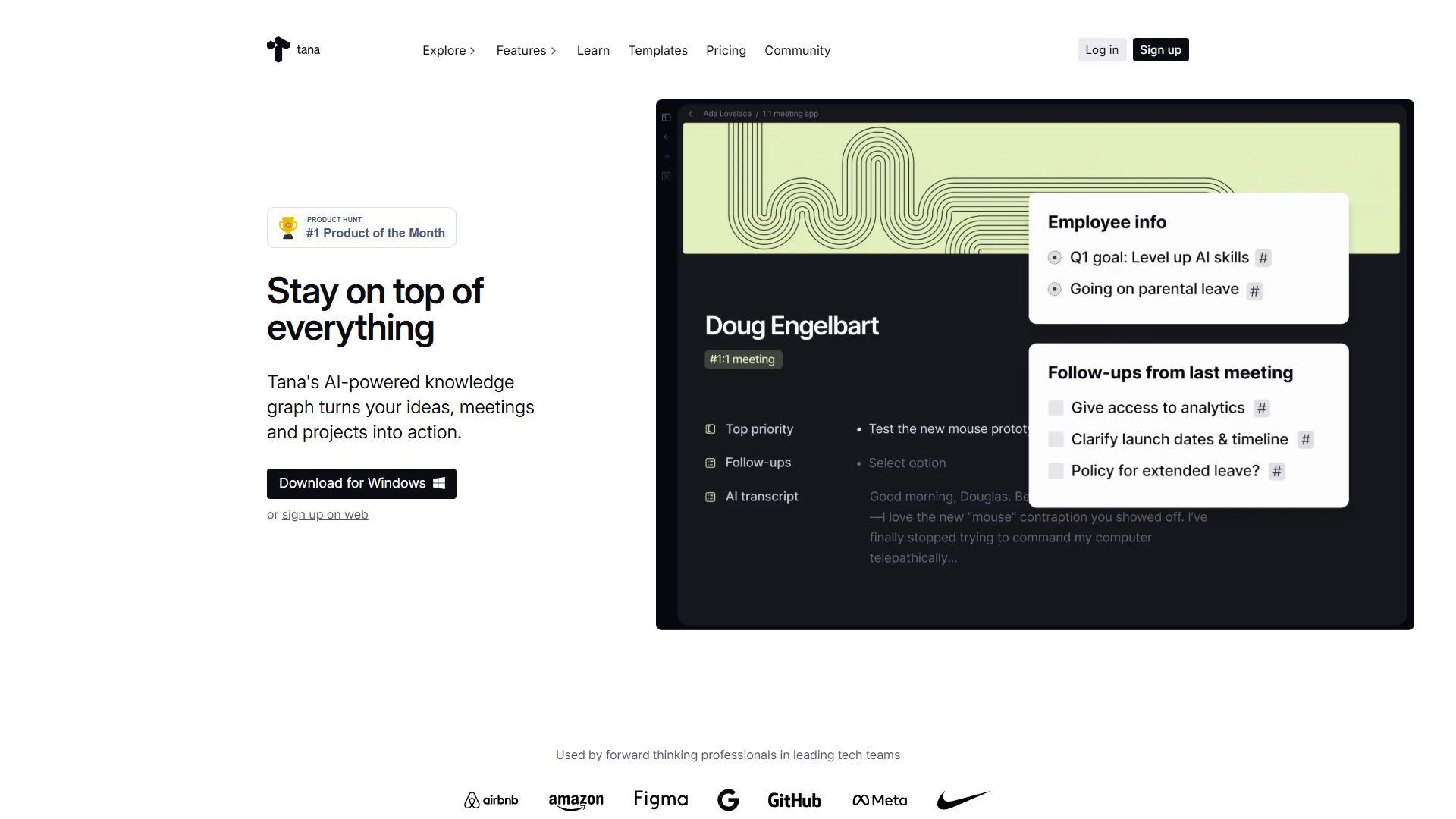
Supertags are Tana’s secret weapon for turning simple notes into structured, queryable data. Think of them as customizable templates that you can attach to any node in your workspace.
Here’s the key difference: In most note-taking apps, a task is just text with a checkbox. In Tana, a task can be a Supertag with fields for due date, priority, project, time estimate, and anything else you need. Then you can query all your tasks, filter by project, sort by priority, and see everything in one dynamic view.
After using Tana for six months, I can confidently say Supertags have replaced at least three separate apps in my workflow: my project manager, CRM, and book tracking system. They all live in Tana now, connected through a knowledge graph that actually makes sense.
Why Supertags matter in 2026:
- AI Integration: Tana now supports GPT-5.1, Gemini 3 Pro, and Claude Sonnet 4.5, making your structured data perfect for AI workflows
- Custom Colors: December 2025 update added visual customization so you can see Supertag types at a glance
- Voice Integration: AI voice chat on iOS means you can create and tag nodes hands-free
Getting Started: Creating Your First Supertag
Let’s start simple. I’ll walk you through creating a basic “Book” Supertag to track your reading list.
Step 1: Create a new node
Type anywhere in your Tana workspace and press Enter. You’ll see a bullet point appear. Type “My Reading List” and press Enter again.
Step 2: Turn it into a Supertag
With your cursor on the “My Reading List” node:
- Press
Cmd/Ctrl + Kto open the command palette - Type “Make into Supertag” and press Enter
- You’ve just created your first Supertag
Step 3: Add fields to your Supertag
Now let’s make this Supertag useful. Click on “My Reading List” to open the Supertag definition view. Here’s where you configure what fields every book will have:
- Click “Add field”
- Type “Author” and press Enter
- Add another field called “Status” (set it as an option field with choices: To Read, Reading, Finished)
- Add “Rating” (set as a number field from 1-5)
- Add “Notes” (plain text field)
Step 4: Use your Supertag
Create a new node, type a book title like “Atomic Habits,” then:
- Type
#to trigger the Supertag menu - Select “My Reading List”
- Fill in the fields: Author (James Clear), Status (Finished), Rating (5)
Congratulations. You just created your first structured data node in Tana.
Configuring Supertags: Beyond the Basics
Now that you understand the concept, this Tana Supertags guide continues with the powerful configuration options that make Supertags truly flexible.
Field Types and When to Use Them
Tana offers several field types. Here’s how I use each one:
Plain text fields:
- Best for: Notes, descriptions, URLs
- Example: “Meeting notes” field on a #Meeting Supertag
Option fields:
- Best for: Status, priority, categories (finite list of choices)
- Example: “Status” field with options like “Not Started,” “In Progress,” “Done”
- Pro tip: Use the new custom colors feature (December 2025) to color-code your options
Date fields:
- Best for: Deadlines, milestones, timestamps
- Example: “Due date” on a #Task Supertag
- Bonus: These integrate with Tana’s calendar views
Number fields:
- Best for: Ratings, time estimates, budgets
- Example: “Time estimate (hours)” on a #Project Supertag
Reference fields:
- Best for: Linking to other nodes
- Example: “Project” field on a #Task that links to a #Project node
- This is where the knowledge graph really shines
Setting Default Content
Here’s a time-saver I wish I’d learned earlier: You can configure Supertags to automatically create child nodes when you use them.
Let’s say you have a #Meeting Supertag. You can set it up so every new meeting automatically creates these child nodes:
- “Attendees”
- “Agenda”
- “Action Items”
- “Notes”
To configure default content:
- Open your Supertag definition
- Click “Default content”
- Add the nodes you want created automatically
- Now every time you tag something as a meeting, these sections appear instantly
I use this for my weekly review process. My #WeeklyReview Supertag automatically creates sections for “Wins,” “Challenges,” “Next Week Goals,” and “Metrics.” It’s saved me countless hours of manual setup.
Inheritance: The Power Move
This is where Supertags get really powerful. You can create Supertag hierarchies where child tags inherit fields from parent tags.
Real example from my workflow:
I have a #Content Supertag with fields like “Status,” “Due Date,” and “Platform.” Then I created child Supertags:
- #BlogPost (inherits from #Content, adds “Word Count” and “Target Keyword”)
- #YouTubeVideo (inherits from #Content, adds “Video Length” and “Thumbnail Status”)
- #Newsletter (inherits from #Content, adds “Subscriber Segment”)
All three inherit the base fields from #Content, but each has its own specific fields. This means I can query all my content in one view, or filter by specific content types.
To set up inheritance:
- Create your parent Supertag (e.g., #Content)
- Create a new Supertag for the child (e.g., #BlogPost)
- In the child Supertag settings, add the parent tag: Type
#Contentin the Supertag definition - The child now inherits all fields from the parent
Advanced Features: Live Queries and AI Integration
Once you have structured data, you can do powerful things with it. This section of our Tana Supertags guide covers two features I use daily.
Live Queries: Your Personal Database
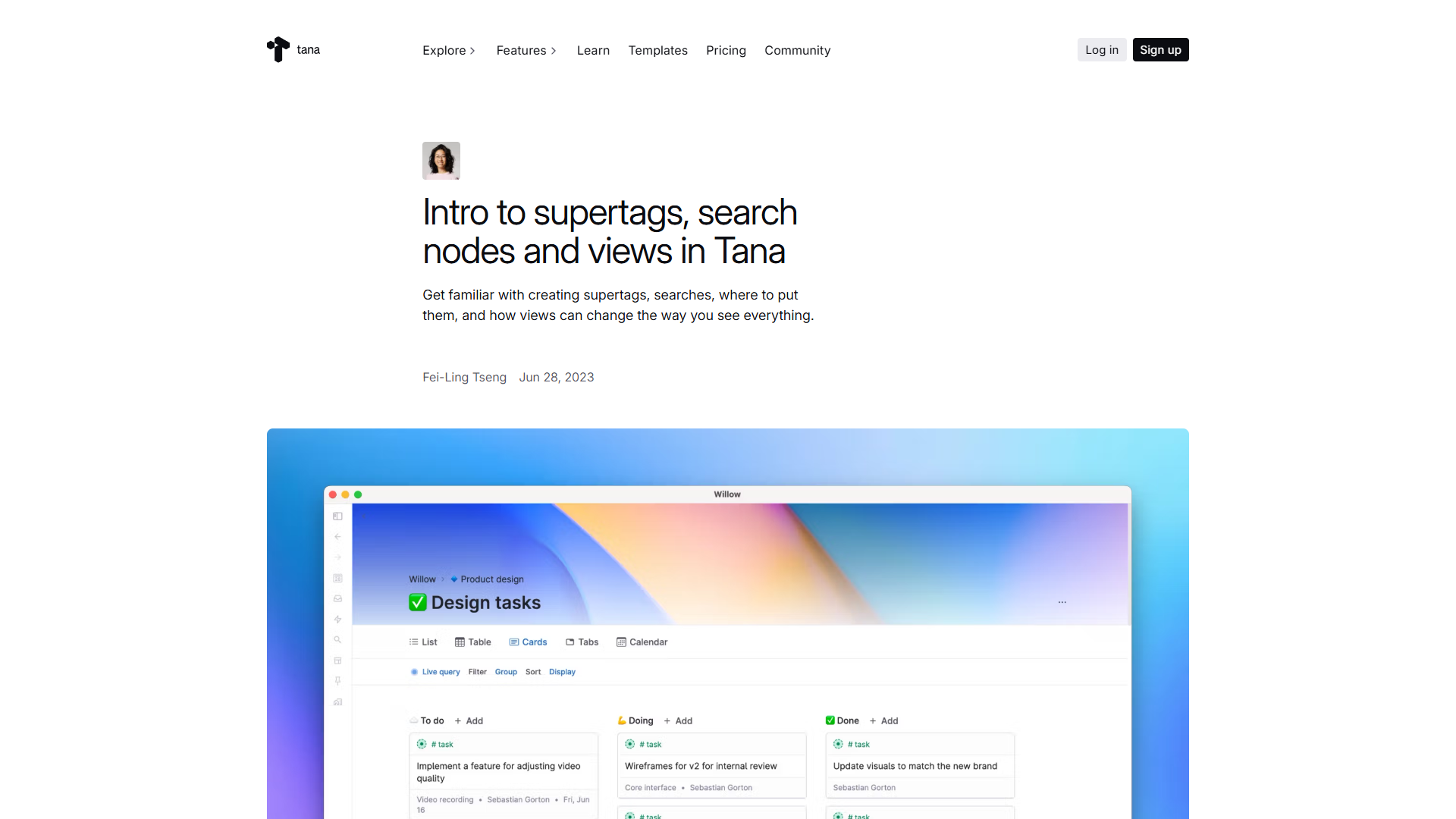
Live Queries let you create dynamic views of your Supertag data. Unlike static lists, these update automatically as you add, edit, or remove nodes.
Basic query example:
Let’s create a view of all your unfinished books:
- Create a new node called “Books to Read”
- Type
/searchand press Enter - In the search dialog, enter:
#Book AND Status::To Read - Set it to “Live query”
You now have a dynamic list that shows all books with the “To Read” status. As you finish books and change their status, they automatically disappear from this view.
Advanced query example:
I use this query to see my high-priority tasks due this week:
#Task AND Priority::High AND Due::next 7 daysYou can add sorting, grouping, and custom views to make these queries even more useful. I have about 20 saved queries in my workspace for different contexts (work tasks, personal projects, content pipeline, etc.).
AI Integration: Structured Data Meets GPT-5.1
Tana’s December 2025 update brought multi-model AI support, and it’s a game-changer when combined with Supertags.
Here’s how I use it:
AI Meeting Summaries: I record meetings in Tana using the AI Meeting Agent. It automatically transcribes the conversation and creates nodes tagged with my #Meeting Supertag, filling in fields like:
- Attendees (extracted from the conversation)
- Action Items (automatically identified)
- Key Decisions (summarized by the AI)
Voice Memos with Auto-Tagging: The new AI voice chat on iOS lets me capture thoughts on the go. I’ll say “Add a task to review the Q4 budget by Friday, high priority” and Tana creates a #Task node with all the fields populated correctly.
Content Generation: I use GPT-5.1 to generate first drafts of blog outlines. I have a #BlogIdea Supertag with fields for “Topic,” “Target Keyword,” and “Audience.” When I’m ready to write, I select the node and ask Tana’s AI to “Generate a detailed outline for this blog post using the topic and keyword.” The structured data provides perfect context for the AI.
Real-World Workflows: Three Complete Examples
Theory is nice, but let me show you exactly how I use Supertags in my actual work.
Workflow 1: Project Management System
I’ve replaced Asana with Tana using this simple setup:
Supertags:
- #Project (fields: Status, Deadline, Owner, Budget)
- #Task (fields: Status, Priority, Project [reference field], Due Date, Time Estimate)
- #Milestone (fields: Project [reference field], Due Date, Deliverables)
How it works:
- I create a new project: “Website Redesign” and tag it with #Project
- I set the deadline, assign myself as owner, set a budget
- I create tasks under the project, each tagged with #Task
- Each task has a “Project” field that links back to “Website Redesign”
The magic: I have a Live Query called “Active Projects” that shows all #Project nodes with Status set to “Active,” sorted by deadline. Under each project, I see all linked tasks automatically through the reference field relationship.
When I complete a task, I change its status, and my “Next Actions” query updates instantly. No manual list management.
Workflow 2: Personal CRM
I track relationships, collaborations, and networking entirely in Tana now.
Supertags:
- #Person (fields: Company, Role, Email, LinkedIn, Last Contact Date, Relationship Type)
- #Meeting (fields: People [reference field], Date, Notes, Follow-ups)
- #Collaboration (fields: People [reference field], Project, Status, Revenue)
How it works:
- When I meet someone new, I create a node with their name and tag it #Person
- I fill in their details (company, role, how we met)
- After meetings, I create a #Meeting node and link it to the person
- I can see all my meetings with that person in their node view
The magic: I have a query: “People I haven’t talked to in 60+ days” that helps me stay in touch. I also track collaboration revenue through linked #Collaboration nodes, so I can see which relationships are most valuable.
Workflow 3: Content Pipeline
This is my most complex workflow, handling blog posts, videos, and newsletters.
Supertags:
- #ContentIdea (fields: Type, Topic, Target Keyword, Status)
- #BlogPost (inherits from #Content, adds: Word Count, Publish Date, Internal Links)
- #Tool (fields: Name, Category, Pricing, Rating, Review Status)
How it works:
- I capture ideas throughout the week as #ContentIdea nodes
- During planning, I promote promising ideas to #BlogPost
- When writing about tools, I create #Tool nodes with all the research
- My blog posts reference these tool nodes, creating a knowledge graph
The magic: When it’s time to write, I run a query: “All #Tool nodes with Review Status::Complete AND Category::AI Writing Tools.” This gives me all the research I need in one view. Then I reference those tools in my blog post, and Tana automatically creates backlinks showing which posts mention each tool.
I can also query: “Show me all #BlogPost nodes that mention #Tool::ChatGPT” to find every post where I’ve covered ChatGPT.
Tips and Best Practices from Six Months of Daily Use
This Tana Supertags guide wouldn’t be complete without the lessons I learned the hard way so you don’t have to.
Start simple, then expand: Don’t try to build your perfect system on day one. I started with just #Task and #Project. After two weeks, I added #Meeting. A month later, I added my CRM system. Let your workflow evolve naturally.
Use reference fields liberally: The power of Tana is in connections. My #Task Supertag has reference fields for Project, Related Person, and Related Content. This creates a web of relationships that makes everything findable.
Create naming conventions: I prefix all my Supertags with #. I use UPPERCASE for saved searches (ACTIVE PROJECTS). I use CamelCase for permanent nodes (MyWeeklyReview). Consistency makes everything easier to find.
Leverage the new custom colors: With the December 2025 update, you can now assign colors to Supertags. I use:
- Red for urgent tasks
- Blue for projects
- Green for completed items
- Purple for people
- Orange for content
Visual scanning is much faster now.
Set up your Daily Note: I have a #DailyNote Supertag that automatically creates:
- Today’s date
- Top 3 Priorities (each a #Task)
- Notes section
- Reflection section
Every morning I create a new daily note, and the structure is already there.
Use the iOS voice chat wisely: The AI voice chat is brilliant for capture, but not for complex queries. I use it to quickly add tasks, meetings, and ideas when I’m away from my computer. Then I process and structure them later.
Don’t over-structure: Not everything needs to be a Supertag. Some notes can just be notes. I only create Supertags for things I need to query or track systematically.
Common Mistakes to Avoid
Mistake 1: Creating too many Supertags too fast I made this mistake early on. I created 30 different Supertags in my first week, and it became overwhelming. Now I only create a Supertag if I’ll use it at least 5 times.
Mistake 2: Not using reference fields If you’re not linking your Supertags together, you’re missing 80% of Tana’s power. Every task should link to a project. Every meeting should link to people. That’s how you build a knowledge graph, not just a list manager.
Mistake 3: Ignoring Live Queries If you’re manually creating lists of tasks or projects, you’re doing it wrong. Live Queries do this automatically. Spend time setting up good queries, and you’ll save hours every week.
Mistake 4: Not customizing default content Why manually create the same structure every time? Set it up once in default content, and it appears automatically.
Pricing and Getting Started
Tana offers four pricing tiers (as of December 2025):
- Free: 500 AI credits/month, basic features, perfect for trying Supertags
- Plus ($10/month): 2000 AI credits, Google Calendar integration, workspace sharing
- Pro ($18/month): 5000 AI credits, unlimited workspaces, advanced integrations, model selection in AI chat
- Student ($5/month): 50% off Plus plan for students and academics
I recommend starting with the free tier to learn Supertags. Once you’re using them daily, upgrade to Plus for the calendar integration and additional AI credits. Pro is worth it if you’re using the AI features heavily or need multiple workspaces.
You can check the latest pricing details on the official Tana pricing page.
Your Next Steps
If you’ve made it this far, you have everything you need to start using Tana Supertags effectively. Here’s what to do next:
- Create your first Supertag: Start with something simple like #Book or #Task
- Add 5-10 items: Actually use it for a few days to see the value
- Set up a Live Query: Create a dynamic view of your data
- Add reference fields: Connect your Supertags to build relationships
- Explore the official documentation: The Tana Supertags documentation goes even deeper into advanced features
The beauty of this Tana Supertags guide is that you can implement it incrementally. You don’t need to build your entire system today. Start with one Supertag, get comfortable, and expand from there.
After six months of daily use, I can confidently say that mastering Supertags was one of the highest-leverage productivity investments I’ve made. The time I spent learning the system has been paid back dozens of times over in saved hours and better organization.
Ready to turn your notes into structured data? Try Tana free and start with your first Supertag today.