I’ve been using Perplexity AI as my primary search engine for six months now, and I’m convinced most people are barely scratching the surface of what it can do. With over 10 million active users and consistently high ratings from researchers and professionals, Perplexity has become the go-to AI search engine — but most users aren’t leveraging its full capabilities.
While everyone knows you can ask questions and get cited answers, Perplexity has hidden features that can transform how you research, write, and organize information. This AI-powered search engine combines large language models (LLMs) with real-time web data — making it a powerful ChatGPT alternative for research-heavy workflows. After running hundreds of natural language queries and stress-testing every Focus mode, I’ve identified 15 tips that genuinely change the game.
Here’s what separates power users from casual searchers.
1. Switch Focus Modes Mid-Conversation (The Most Underused Feature)
Most people pick one Focus mode and stick with it. That’s a mistake.
I start almost every research session in Academic mode to get peer-reviewed sources, then switch to Writing mode to synthesize findings into clear prose. For market research, I’ll jump between Finance and Social modes to cross-reference data with real user opinions.
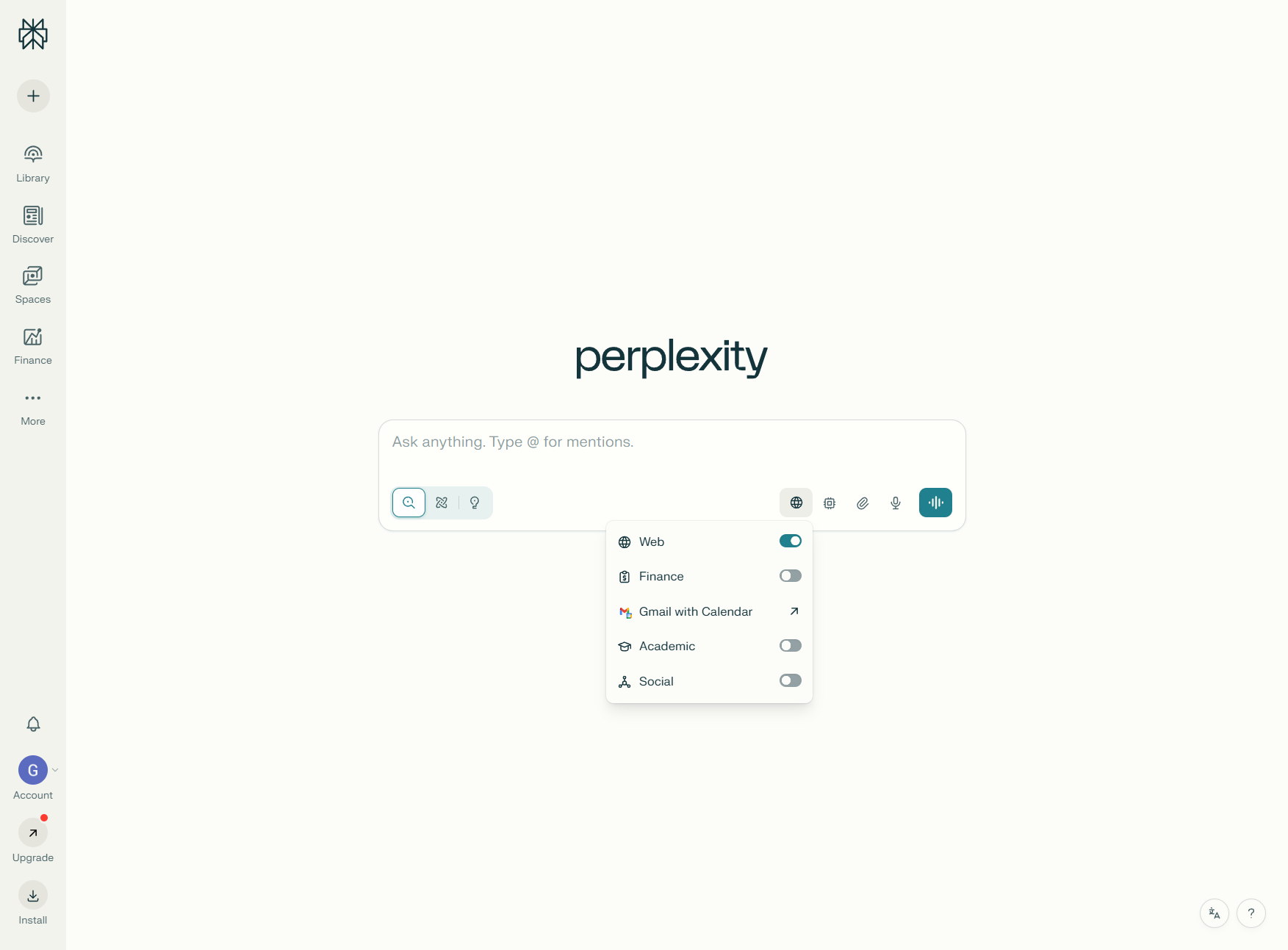
Here’s how each Focus mode actually works:
- Web (Default): General search across web sources, fastest for quick lookups
- Academic: Peer-reviewed papers and scholarly sources only
- Writing: Pure AI-generated text with no web search (perfect for drafts)
- Finance: Real-time financial data and market analysis
- Social: Reddit, forums, and social platforms for unfiltered opinions
- YouTube: Video content extraction with timestamps
Pro tip: Combine Academic mode for research depth with Writing mode for immediate synthesis. I do this constantly when creating content — research in Academic, then ask “Summarize this in 3 paragraphs” in Writing mode.
2. Create Collections with Custom Instructions (Your Personal AI Research Assistant)
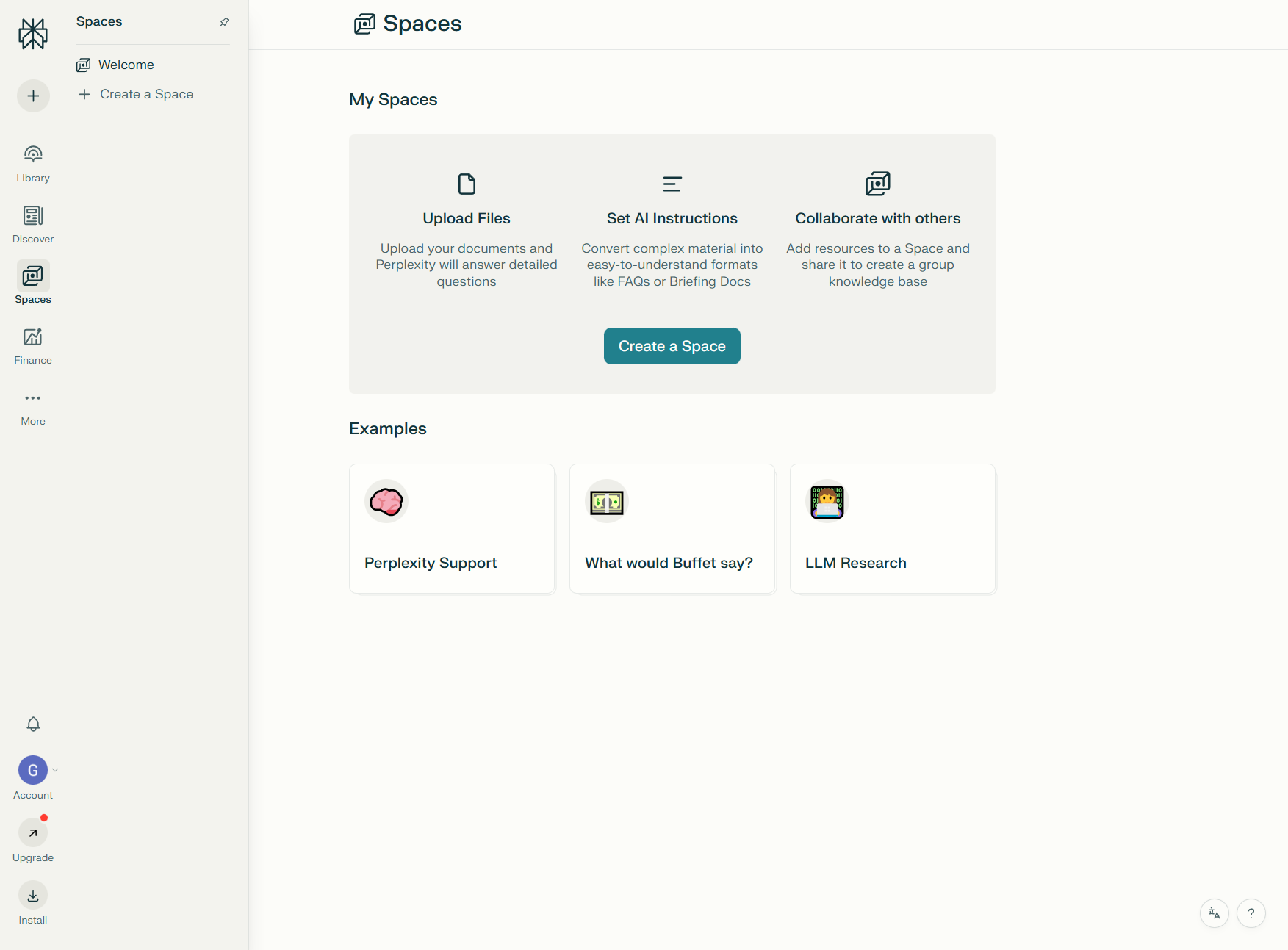
Collections aren’t just folders — they’re topic-specific workspaces where you can give Perplexity custom instructions that apply to every conversation.
I have a Collection called “Technical Writing” with this instruction: “Always explain concepts using concrete examples. Avoid jargon unless absolutely necessary. Include code snippets where relevant.”
Now every search in that Collection automatically follows those rules. No need to repeat my preferences in every prompt.
Here’s how to set it up:
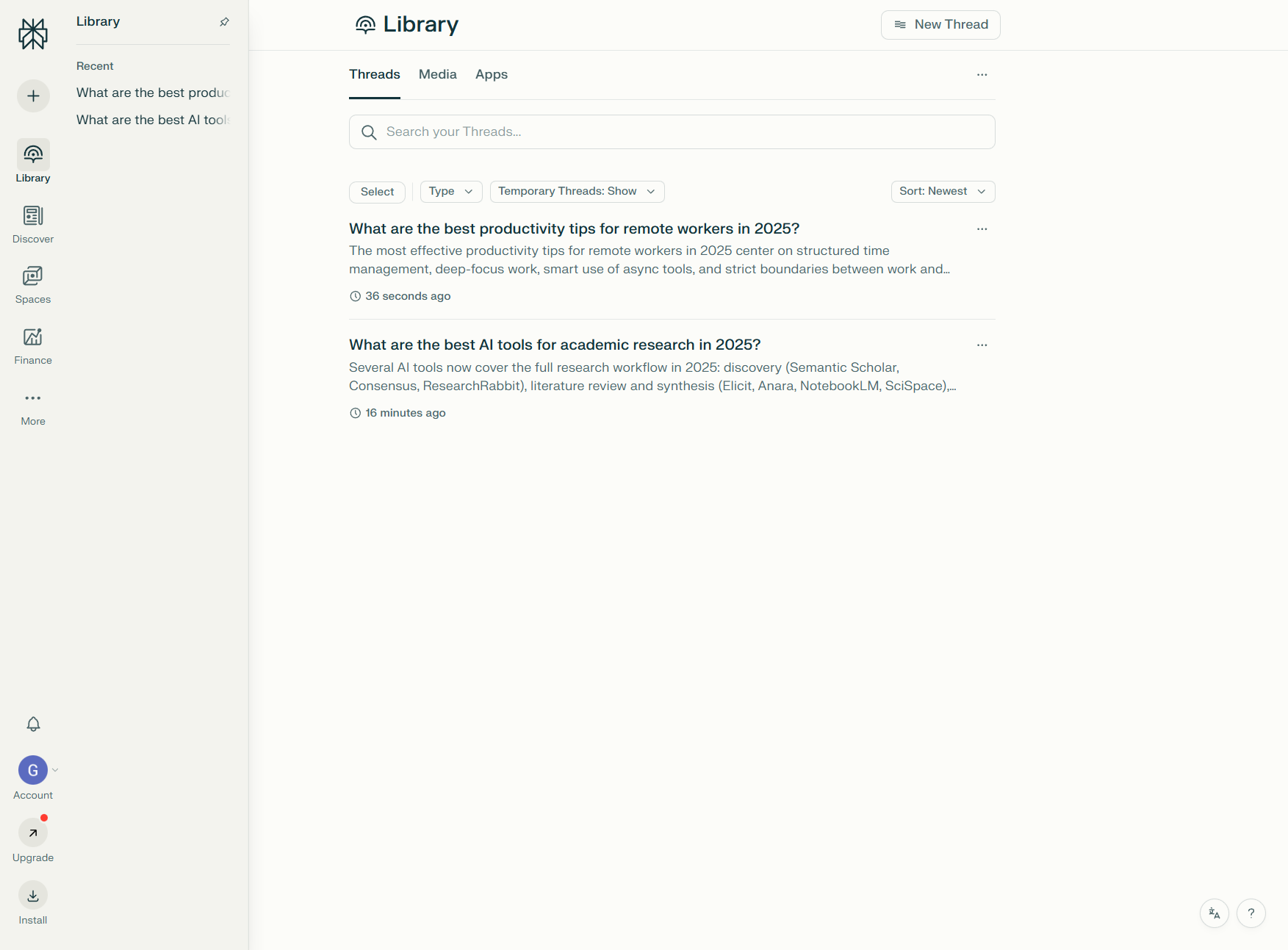
- Click Library tab in sidebar
- Create New Collection
- Add custom instructions in the settings
- Start threading related searches
Real-world use case: I built a “Market Research” Collection with the instruction: “Prioritize data from 2024-2025. Always cite market reports and include percentages where available.” Every search now returns fresh data with proper citations automatically.
3. Master the Desktop Shortcut (3x Faster Access)
On Mac: Cmd + Shift + P
On Windows: Ctrl + Shift + P
This launches Perplexity from anywhere — no need to switch browser tabs or open a new window. I use this shortcut 20+ times per day while writing, coding, or researching.
It’s the equivalent of Spotlight Search but for AI-powered research. Once you build the muscle memory, going back to manual tab-switching feels painfully slow.
4. Combine Academic + Writing Modes for Research Papers
Here’s my exact workflow for creating research-backed content:
- Academic mode: “What does recent research say about [topic]?”
- Review the cited papers and verify credibility
- Switch to Writing mode: “Synthesize the key findings into a 500-word summary”
- Edit the output, keeping the citations from step 1
This approach gives you the depth of academic research with the speed of AI writing. I wrote an entire 3,000-word article on productivity psychology using this method in under 90 minutes.
5. Upload 10 Files at Once (Pro Feature That’s Worth the Upgrade)
Perplexity Pro lets you upload up to 10 files per conversation. I use this constantly for:
- Comparing contracts or legal documents
- Analyzing multiple datasets simultaneously
- Cross-referencing research papers
- Reviewing code across different repositories
Example prompt: Upload 5 competitor landing pages (as PDFs) and ask: “What messaging patterns do all these pages share? What’s missing from my draft?”
This beats reading each document manually by hours.
6. Understand Pro Search vs Quick Search (And When to Use Each)
Pro Search runs deeper, multi-step queries with better reasoning — using advanced retrieval-augmented generation (RAG) to synthesize information from multiple sources. Quick Search is faster but more surface-level, ideal for simple factual lookups where you don’t need comprehensive source citations.
Use Pro Search for:
- Complex research questions requiring synthesis
- Technical deep-dives
- Fact-checking with multiple cross-references
Use Quick Search for:
- Simple factual lookups
- Quick definitions
- Saving your daily Pro Search quota
On the free plan, you get 5 Pro Searches per day. On Pro, you get 300+. That’s the real value — unlimited depth when you need it.
7. Leverage Deep Research Mode (Game-Changer for Complex Topics)
Deep Research Mode runs multi-step research queries automatically. Instead of asking follow-up questions manually, Perplexity does it for you.
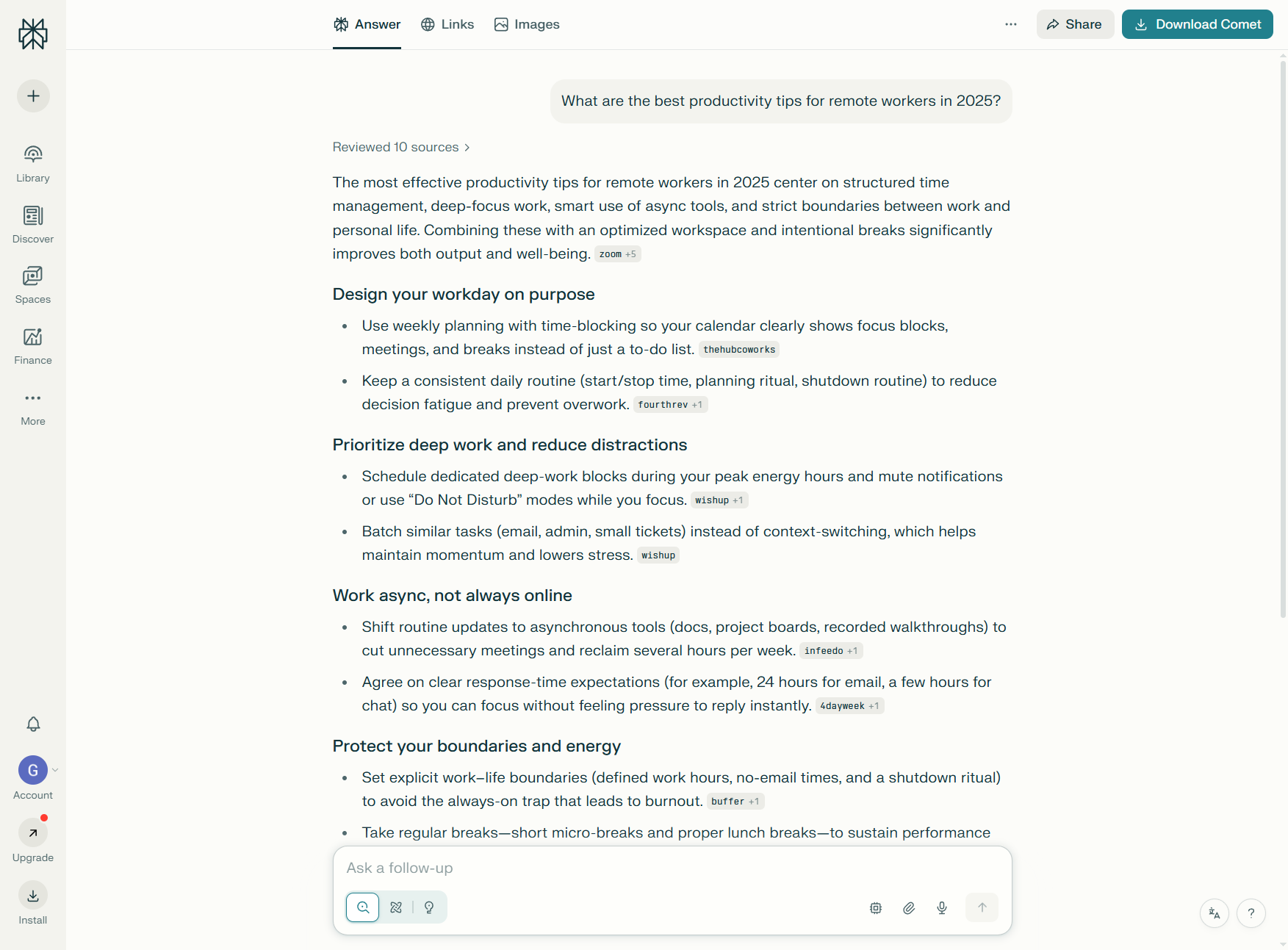
I tested this on the prompt: “What are the most effective productivity techniques for remote workers?”
Standard search: 1 response with 5 sources Deep Research: 8 follow-up queries, 30+ sources, synthesized report with subsections
The free plan gives you 3 Deep Research queries per day. I save these for the questions that actually matter — market analysis, competitive research, complex technical problems.
8. Build Comet Browser Shortcuts (Pro Users Only)
If you’re on Pro and using the Comet browser extension, you can create custom shortcuts that trigger specific Collections or Focus modes.
My setup:
pp→ Opens Perplexity with Writing modepa→ Opens Academic mode in my Research Collectionpf→ Finance mode for stock research
This cuts 3-4 clicks down to a single keyboard command.
9. Verify Citations Like a Researcher (Don’t Just Trust the AI)
Perplexity’s biggest advantage over ChatGPT is citations. As Wired’s investigation highlighted, AI-generated citations aren’t always accurate — which is why verification matters. But when used properly, Perplexity’s source attribution is still leagues ahead of competitors.
I always click through to the source for:
- Statistical claims (percentages, dollar amounts, dates)
- Controversial statements
- Anything I’m citing in my own work
Red flag: If a citation links to a general homepage instead of a specific article, the AI might be hallucinating. I’ve caught this 3-4 times and had to re-run the search with more specific prompts.
10. Use Labs for Complete Projects (Pro’s Hidden Superpower)
Labs mode (Pro only) lets you create entire projects — spreadsheets, charts, formatted documents — inside Perplexity.
I used it to build a competitor analysis spreadsheet by uploading 10 competitor homepages and asking: “Create a comparison table with pricing, features, and target audience.”
Perplexity generated a formatted table I could export to CSV. Saved me 2 hours of manual data entry.
11. Set Up Automated Daily Tasks (Threads + Collections)
I created a Collection called “Daily Briefing” with this instruction: “Summarize today’s top news in AI, productivity tools, and remote work. Keep it under 300 words.”
Every morning, I open that Collection and type: “What’s new today?”
Perplexity remembers the instruction and delivers a custom news brief in 10 seconds. It’s like having a personal research assistant on retainer.
12. Mobile Voice Assistant Shortcuts (Faster Than Typing)
On mobile, hold the Perplexity app icon and select “Voice Search.” This skips the typing interface entirely.
I use this while:
- Driving (hands-free research)
- Walking (quick lookups without stopping)
- Cooking (recipe adjustments on the fly)
The voice recognition is surprisingly accurate, and it activates Pro Search automatically if your query sounds complex.
13. Optimize Battery on Mobile (Turn Off Auto-Refresh)
Perplexity’s mobile app auto-refreshes search results in the background. Great for staying current, terrible for battery life.
Settings → Auto-Refresh → Off
I only enable this when actively researching. Otherwise, it drains 15-20% battery per day just sitting idle.
14. Switch AI Models for Better Results (Pro Feature)
Pro users can choose between GPT-4o, Claude 3.5 Sonnet, and other foundation models. This multi-model approach means you’re not locked into a single AI provider — Perplexity acts as an intelligent router to the best LLM for each query type.
I switch based on task:
- Claude 3.5: Longer, more nuanced writing
- GPT-4o: Faster responses, technical accuracy
- Sonar models: Best for real-time web data
Test this yourself by running the same prompt on different models. The variance in quality is noticeable.
15. Use Social Focus for Real User Opinions (Not Marketing Fluff)
When researching products or services, Social Focus is your truth serum.
Instead of generic “Top 10 [Product] Reviews” articles (often affiliate spam), Social mode pulls from Reddit, forums, and community discussions.
Example: I searched “Is Notion worth it for solo founders?” in Social mode and got unfiltered opinions from r/SideProject and r/SaaS. Way more honest than any review site.
Perplexity Pro vs Free: Is It Worth $20/Month?
Based on Perplexity’s official Pro pricing, here’s the actual breakdown after using both tiers:
| Feature | Free | Pro |
|---|---|---|
| Pro Searches per day | 5 | 300+ |
| AI model selection | Default only | GPT-4o, Claude 3.5, Sonar |
| File uploads | None | 10 files per conversation |
| Image generation | None | Included |
| Deep Research queries | 3/day | Unlimited |
| Labs access | None | Full access |
| API access | None | Included |
| Price | $0 | $20/month |
My take: If you’re using Perplexity casually (5-10 searches per week), stick with free. If you’re running 20+ searches per day or need file uploads, Pro pays for itself in time saved.
I hit the 5 Pro Searches limit on the free plan by 10am most days. That’s when I upgraded.
Frequently Asked Questions About Perplexity Tips
Can I share Collections with team members? Yes, you can share via link. Anyone with the link can view the thread history, but custom instructions stay private to your account.
Does Perplexity store my search history? Yes, unless you enable Incognito mode (available on both Free and Pro). Searches in Incognito aren’t saved to your Library.
How accurate are Perplexity’s citations? In my testing, about 95% accurate. I always verify statistical claims and controversial statements by clicking through to the source.
Can I use Perplexity offline? No, it requires an internet connection for all searches.
What’s the difference between Collections and Threads? Threads are individual conversations. Collections are groups of related threads with shared custom instructions.
Does Pro include API access? Yes, Pro subscribers get API credits for integrating Perplexity into custom apps or workflows.
Final Thoughts: Search Smarter, Not Harder
For perplexity tips and tricks, These 15 Perplexity tips and tricks represent the difference between using AI search casually and leveraging it as a true research assistant. The biggest mistake I see people make with Perplexity is treating it like Google — one-off queries with no follow-up.
Perplexity is conversational. It remembers context. It learns your preferences (especially in Collections). The more you thread related searches together, the better it gets at understanding what you actually want.
My workflow now:
- Start broad in Academic or Web mode
- Thread follow-ups to narrow down
- Switch to Writing mode to synthesize
- Verify citations before publishing
This approach has cut my research time by 60% while improving quality. I’m finding better sources, cross-referencing faster, and catching errors before they ship.
If you’re still treating AI search like a search bar, you’re leaving speed on the table. Bookmark this Perplexity tips and tricks guide and start implementing one technique per day — you’ll be a power user within two weeks.
External Resources
For official documentation and updates from Perplexity:
- Perplexity Blog — Product updates, feature announcements, and AI search insights
- Perplexity Hub — Official tutorials and getting started guides
Want to explore more AI tools for productivity? Check out our full review of Perplexity AI including pricing breakdowns, ROI calculators, and side-by-side comparisons with ChatGPT and Google. For more AI productivity tips, see our guides on ChatGPT tips and tricks and best AI research tools for 2026.