ChatGPT has evolved dramatically since its launch, and if you’re still using it like it’s 2023, you’re leaving massive productivity gains on the table. With over 200 million weekly users as of 2025, ChatGPT has become the go-to AI assistant for professionals, students, and creators worldwide. But here’s the truth: most users barely scratch the surface of what’s possible.
These 25 ChatGPT tips and tricks leverage the 2025 features including Canvas, Memory, Deep Research, and more. Whether you’re a beginner or a daily user looking to level up, these ChatGPT tips and tricks will transform how you work with AI.
Quick Reference: ChatGPT Plans (December 2025)
When exploring chatgpt tips and tricks, consider the following.
Before diving in, here’s what each plan offers:
| Plan | Price | Best Features |
|---|---|---|
| Free | $0/mo | GPT-4o mini, limited GPT-4o (~10 msgs/3hrs), 5 deep research/mo |
| Plus | $20/mo | GPT-4o (80 msgs/3hrs), GPT-5 access, Canvas, 25 deep research/mo |
| Pro | $200/mo | o1 pro mode, GPT-5, 250 deep research/mo, experimental features |
December 2025 Update: GPT-5 is now rolling out to all tiers, and the new Tools dropdown gives direct access to Agent mode, Deep Research, and more.

Getting Started Tips (1-5)
1. Master the New Tools Dropdown
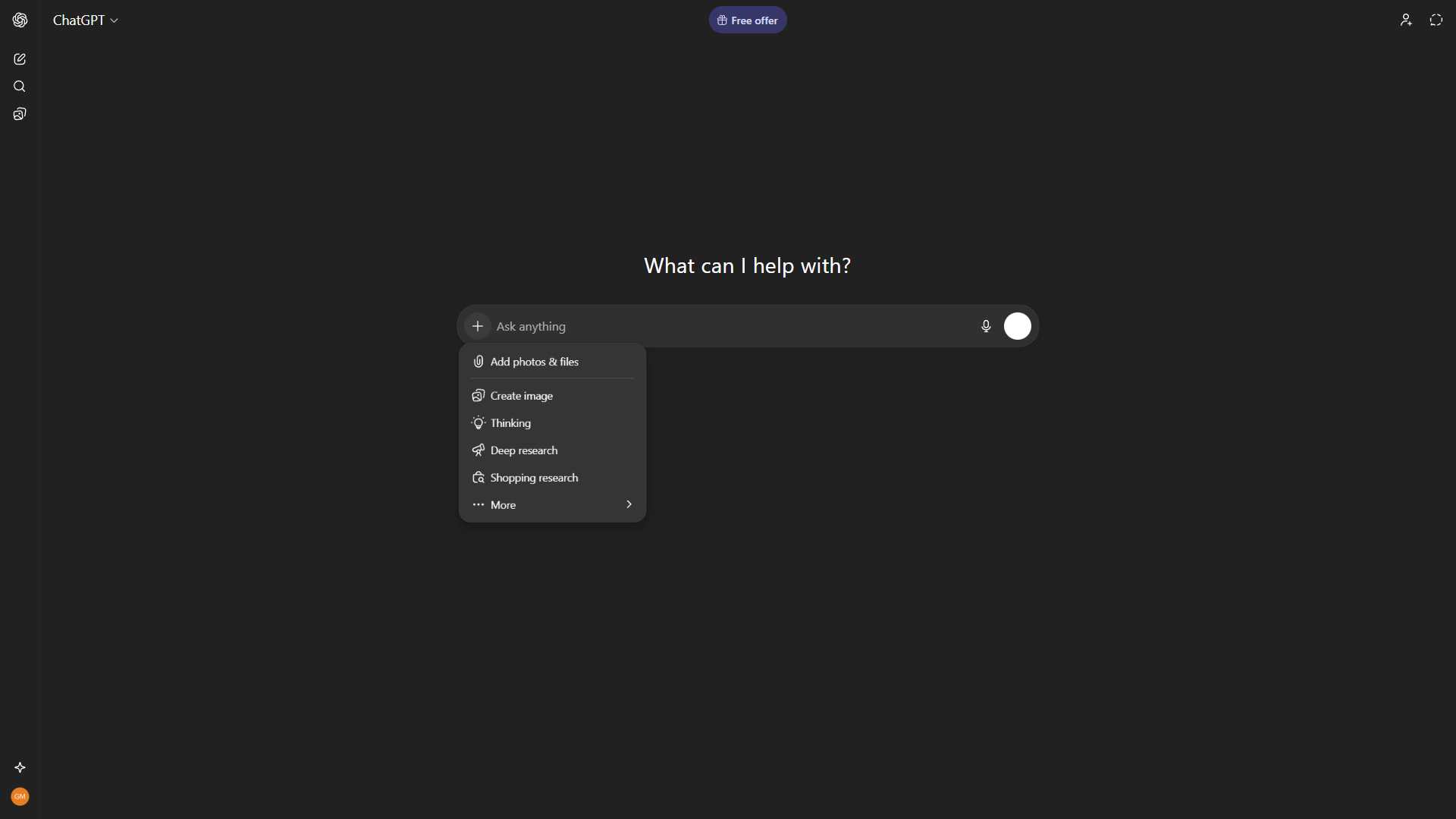
As of late 2025, ChatGPT has a Tools dropdown in the chat input area giving direct access to six specialized modes:
- Agent mode - Autonomous task execution with visual browser
- Deep research - Multi-step internet research (limits by plan)
- Create image - DALL-E image generation
- Study and learn - Educational assistance mode
- Web search - Real-time internet search
- Canvas - Collaborative writing/coding workspace
Pro tip: Instead of asking ChatGPT to search or create images in your prompt, use the Tools dropdown to explicitly select the mode you need. This ensures you’re using the right capability.
2. Master Custom Instructions
Custom Instructions tell ChatGPT how to behave across ALL conversations. Set these once and never repeat yourself.
What to include:
- Your profession and expertise level
- Preferred response format (bullet points, detailed explanations)
- Communication style (formal, casual)
- Things to always include or avoid
Example: “I’m a software developer. Use technical language. Always include code examples in Python unless I specify otherwise. Avoid lengthy introductions.”
3. Enable Memory for Persistent Context
Memory lets ChatGPT remember details across conversations. Enable it in Settings and ChatGPT will recall your preferences, past projects, and personal details.
What Memory tracks:
- Your name and role
- Projects you’ve mentioned
- Style preferences
- Past instructions you’ve given
Privacy tip: Use “Temporary Chat” mode for sensitive topics - these conversations aren’t saved to memory.
4. Start Conversations with Context
Don’t just ask questions - provide context upfront. ChatGPT performs dramatically better when it understands:
- Who you are: “As a marketing manager…”
- What you need: “I need a LinkedIn post about…”
- The constraints: “Keep it under 200 words, professional tone”
- The format: “Return as a bullet list”
5. Use Voice Mode for Hands-Free Productivity
The Voice button enables natural conversation. In 2025, Advanced Voice includes:
- Natural intonation and emotion
- Real-time interruption (you can cut in mid-response)
- Multiple languages with accent awareness
Best for: Brainstorming while commuting, dictating notes, or when typing isn’t convenient.
Power User Tips (6-10)
6. Canvas: Your Collaborative Workspace
Canvas transforms ChatGPT from a chat interface into a collaborative editor. It opens automatically for writing and coding tasks.
Canvas features:
- Side-by-side editing (chat + document)
- Version history
- Direct inline edits
- Code preview with live rendering
Trigger Canvas: Ask to “write,” “draft,” or “create” longer content and Canvas will open automatically.
7. Deep Research for Comprehensive Reports
Deep Research is an agent that browses the web, synthesizes hundreds of sources, and creates detailed reports - work that would take a human hours.
Limitations by plan:
- Free: 5 queries/month
- Plus: 25 queries/month
- Pro: 250 queries/month
Best prompt format: “Research [topic] and create a comprehensive report covering [specific aspects]. Include sources.”
8. Chain Your Prompts for Complex Tasks
Break complex tasks into steps rather than one massive prompt:
- Step 1: “Outline the main sections for a blog post about X”
- Step 2: “Now expand section 1 with detailed points”
- Step 3: “Write the introduction based on that outline”
- Step 4: “Review and suggest improvements”
This gives you control at each stage and produces better results.
9. Use Specific Formatting Instructions
Tell ChatGPT exactly how you want output formatted:
- “Return as a markdown table”
- “Use numbered steps”
- “Format as JSON”
- “Create a bullet list with sub-points”
- “Use headers H2 and H3 only”
10. Leverage File Uploads
Upload documents for analysis, summarization, or transformation:
Supported formats: PDF, Word, Excel, CSV, images, code files
Use cases:
- Summarize a 50-page report
- Extract data from screenshots
- Review and improve your code
- Convert spreadsheet data to insights
Productivity Hacks (11-15)
11. Create Reusable Prompt Templates
Save your best prompts for repeated use. Structure them with placeholders:
Act as a [ROLE].
I need you to [TASK].
The context is [CONTEXT].
Please format the output as [FORMAT].
12. Use “Info Drop” for Multi-Part Context
When providing lots of context, use the “info drop” technique:
Prompt: “I’m going to share information in parts. Just respond ‘Got it’ until I say ‘Now please proceed.’ Then use all the information together.”
This prevents ChatGPT from trying to respond before you’ve provided everything.
13. Request Multiple Options
Instead of one answer, ask for variations:
- “Give me 5 different headline options”
- “Provide 3 approaches to solving this”
- “Show me formal and casual versions”
This gives you options to choose from or combine.
14. Use ChatGPT as a Decision Filter
For decisions, ask ChatGPT to structure the analysis:
Prompt: “I need to decide between X and Y. Ask me 3 clarifying questions, then present pros/cons for each in a scorecard format (time cost, money cost, stress level, long-term payoff). End with a recommendation.”
15. Time-Box Prompts for Productivity
Use the Pomodoro technique with ChatGPT:
Prompt: “Act as my productivity coach. I’ll give you my to-do list. Break it into 25-minute time boxes, insert 5-minute breaks, and create a schedule starting from [time].”
Advanced Techniques (16-20)
16. Assign Expert Personas
The more specific the persona, the better the output:
- Generic: “Help me write an email”
- Better: “You’re a professional copywriter with 10 years of B2B experience. Help me write a cold outreach email.”
Expert personas access more specialized knowledge patterns.
17. Request Self-Critique
Ask ChatGPT to review its own work:
Prompt: “Now review what you just created. What are 3 weaknesses? How would you improve them?”
This often catches issues the first pass missed.
18. Use Chain-of-Thought Prompting
For complex reasoning, ask ChatGPT to show its work:
Prompt: “Think through this step by step before giving your final answer. Show your reasoning.”
This reduces errors on math, logic, and analysis tasks.
19. Set Explicit Constraints
Constraints improve output quality:
- “Maximum 100 words”
- “Use only data from after 2024”
- “Avoid jargon - explain for a beginner”
- “Don’t include any disclaimers”
20. Create Custom GPTs (Plus/Pro)
Build specialized assistants for repeated tasks. For note-taking and knowledge management that complements your ChatGPT workflow, consider pairing it with tools like Obsidian.
Examples:
- Email Responder: Pre-loaded with your company info and communication style
- Code Reviewer: Configured with your team’s standards
- Meeting Summarizer: Formatted to your preferred template
Keyboard Shortcuts (21-23)
21. Essential Navigation Shortcuts
| Shortcut | Action |
|---|---|
| Ctrl/Cmd + Shift + O | New chat |
| Ctrl/Cmd + Shift + C | Copy last response |
| Ctrl/Cmd + / | Show all shortcuts |
22. Quick Actions
| Shortcut | Action |
|---|---|
| Enter | Send message |
| Shift + Enter | New line without sending |
| Escape | Cancel current generation |
23. Access Shortcut Menu
Press Ctrl + / (Windows) or Cmd + / (Mac) to see the full shortcut list. This menu shows all available keyboard commands for your current context.
Integration Tips (24-25)
24. Connect External Data Sources (Connectors)
As of December 2025, Plus, Team, and Pro users can connect external services directly to ChatGPT:
- Box, Dropbox for file storage integration
- Notion, HubSpot for productivity and CRM data
- Microsoft SharePoint and Teams for enterprise documents
- Canva for design assets
These Connectors work with both regular chat search and Deep Research, letting you query your private documents alongside web sources. Team users get the broadest connector access.
25. Use the Mobile App for Capture
The ChatGPT mobile app excels at:
- Voice conversations on the go
- Image capture and analysis
- Quick photo-to-text extraction
- Location-aware suggestions
Pro tip: Take a photo of confusing instructions, product labels, or error messages and ask ChatGPT to explain.
Common Mistakes to Avoid
Before we wrap up, here are the most common mistakes that limit ChatGPT’s effectiveness:
Mistake 1: Vague Prompts
Bad: “Help me with my presentation” Good: “I’m presenting our Q4 sales results to the executive team. Create an outline for a 10-minute presentation covering revenue growth, key wins, and 2025 projections. Use a professional but engaging tone.”
The more specific your prompt, the better the output. Always include context, constraints, and desired format.
Mistake 2: Not Iterating
Many users accept the first response and move on. Instead, treat ChatGPT as a collaborative partner:
- Ask for improvements: “Make this more concise”
- Request alternatives: “Give me 3 different approaches”
- Refine the output: “Keep the structure but use simpler language”
The best results often come from 2-3 rounds of refinement.
Mistake 3: Ignoring Context Length
ChatGPT has a context window limit. In very long conversations, it may “forget” earlier details. Solutions:
- Start new chats for new topics
- Summarize previous context when continuing work
- Use Memory for persistent information
- Restate key requirements in follow-up prompts
Mistake 4: Trusting Everything Without Verification
ChatGPT can make confident-sounding mistakes, especially with:
- Recent events (data has a training cutoff)
- Specific statistics and citations
- Technical details in specialized fields
- Current pricing and product features
Always verify critical information, especially for professional work.
Mistake 5: Not Using the Right Features for the Task
Many users only use the basic chat interface when specialized features would work better:
| Task | Best Feature |
|---|---|
| Writing long documents | Canvas |
| Complex research | Deep Research |
| Code development | Canvas with code preview |
| Quick questions | Standard chat |
| On-the-go capture | Mobile app + voice |
Match the feature to the task for optimal results.
Real-World Workflow Examples
Here’s how to combine multiple tips into practical workflows:
Content Creation Workflow
- Start: Set Custom Instructions with your writing style and audience
- Research: Use Deep Research to gather background information
- Outline: Ask for a structured outline with key points
- Draft: Open Canvas and draft each section
- Refine: Request self-critique and improvements
- Polish: Ask for final proofreading and formatting
Daily Planning Workflow
- Input: Share your to-do list and calendar constraints
- Structure: Ask ChatGPT to create time-blocked schedule
- Prioritize: Have it identify the 3 most important tasks
- Anticipate: Request potential blockers and solutions
- Review: At day’s end, share what got done for next-day planning
Learning Workflow
- Topic: Define what you want to learn
- Plan: Ask for a 30-day learning roadmap
- Explain: Request explanations at your level (beginner/intermediate/advanced)
- Quiz: Have ChatGPT test your understanding
- Apply: Create practice exercises or projects
- Review: Regularly summarize and reinforce key concepts
What’s New and Coming Next
Now rolling out (December 2025):
- GPT-5: OpenAI’s latest model is rolling out to Plus, Pro, Team, and Free users worldwide
- Agent mode with visual browser: Deep research can now see and interact with web pages
- o4-mini: A lightweight model powering more efficient deep research
- Expanded Connectors: More third-party integrations for enterprise users
Coming soon:
- Expanded Agent capabilities: More autonomous task execution across tools
- Improved reasoning: Continued enhancement of o-series models
- Multimodal expansion: Better video understanding and generation
Stay updated by checking OpenAI’s release notes and experimenting with new features as they roll out.
Conclusion
When evaluating Chatgpt Tips And Tricks, ChatGPT in 2026 is far more capable than most users realize. The combination of Canvas for collaboration, Memory for persistence, Deep Research for comprehensive analysis, and Custom GPTs for specialization creates a powerful productivity system.
Start with these fundamentals:
- Set up Custom Instructions and Memory
- Learn the keyboard shortcuts
- Master Canvas for longer content
- Use Deep Research for complex topics
- Create templates for repeated tasks
The users who save hours daily aren’t using magic prompts - they’re using these features systematically. Pick 3 tips from this guide, implement them this week, and build from there.
The key insight is this: ChatGPT is a tool that rewards intentional use. Random prompting gives random results. Structured approaches with clear context, appropriate features, and iterative refinement consistently deliver professional-quality output.
Whether you’re a writer, developer, marketer, or student, these 25 tips provide a foundation for 10x productivity gains. The question isn’t whether ChatGPT can help you - it’s whether you’re willing to learn how to use it effectively.
For more information about chatgpt tips and tricks, see the resources below.
External Resources
For official OpenAI documentation and updates:
- OpenAI Blog — GPT-5 announcements, Canvas updates, and new feature releases
- OpenAI Help Center — Memory, Custom Instructions, and Deep Research guides
Want to explore more AI productivity tools? Check out our Claude review for a comparison with another top AI assistant, or browse our AI tools directory for more options. For developers, see how Cursor integrates AI into your coding workflow.