This guide covers gemini ai google workspace with hands-on analysis.
If you’re paying for Google Workspace in 2026, you’re now paying for Gemini AI whether you use it or not. As of January 2026, Google bundled Gemini capabilities into all Workspace tiers, effectively making AI assistance mandatory across Gmail, Docs, Sheets, Slides, and Meet.
The good news? According to Forrester’s Total Economic Impact study, organizations using Gemini in Google Workspace see a 336% ROI and 14% productivity gains. The bad news? Most teams barely scratch the surface of what’s possible because they don’t know how to use it effectively.
This guide breaks down exactly how Gemini works in each Google Workspace app, provides 15 ready-to-use prompts for common business tasks, and explains the 2026 pricing changes that affect every one of the 11 million+ organizations using Workspace.
What Is Gemini AI in Google Workspace?
When exploring gemini ai google workspace, consider the following.
Gemini is Google’s large language model integrated directly into Gmail, Google Docs, Sheets, Slides, and Meet. Instead of switching between your work and a separate AI chat interface, you get contextual AI assistance right where you’re working.
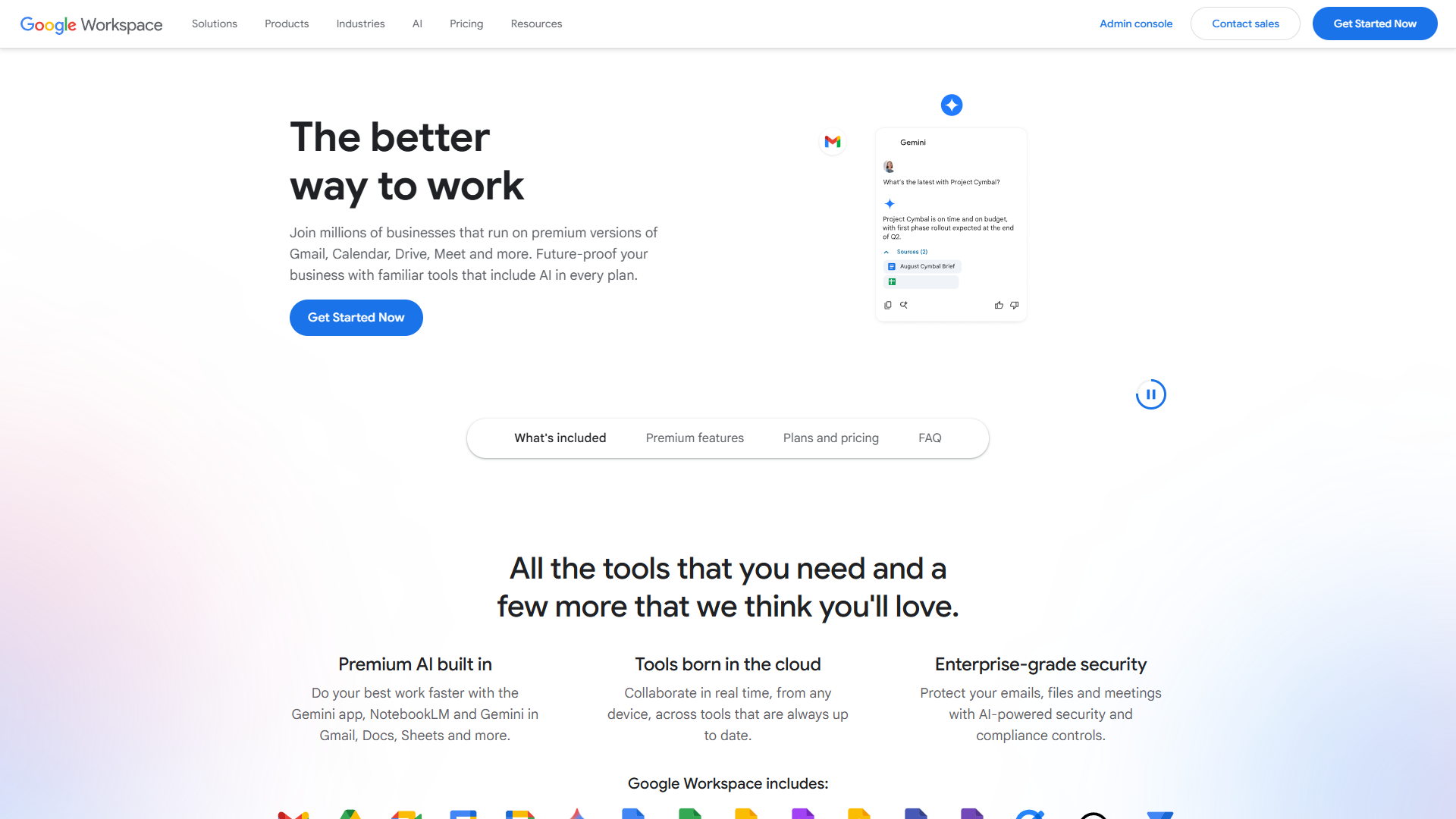
Think of it as having a writing assistant, data analyst, presentation designer, and meeting note-taker built into the tools you already use daily. The key difference from standalone AI tools? Gemini has full context of your documents, emails, calendars, and files within your Workspace environment.
Google Workspace Rating:
2026 Pricing Update: What Changed
Here’s what you need to know about the January 2026 pricing changes:
Before 2026
- Google Workspace: $6-18/user/month (no AI)
- Gemini add-on: $20-30/user/month extra
After January 2026
- All tiers include Gemini: $8.40-22/user/month
- No separate Gemini add-on option
- Price increase of 20-30% across all tiers
- Gemini capabilities now standard in Business Starter through Enterprise
What this means: You can’t opt out of Gemini anymore. The pricing effectively forces adoption, which is why understanding how to actually use these features matters more than ever.
Gemini Workspace vs. Gemini Enterprise
Google still offers two AI capability levels:
| Feature | Gemini Workspace (All Tiers) | Gemini Enterprise Add-on |
|---|---|---|
| Pricing | Included in base ($8.40-22/user/month) | +$10/user/month |
| Gmail AI | Smart compose, email summarization | + Priority inbox, nudges |
| Docs AI | Writing assistance, summarization | + Advanced editing, citations |
| Sheets AI | Basic formulas, data insights | + Advanced analytics, pivot suggestions |
| Meet AI | Recording transcription | + Live translation, Q&A summaries |
| Drive AI | File organization suggestions | + Advanced search, duplicate detection |
| Security | Standard data protection | Enhanced controls, data residency |
For most small-to-medium businesses, the included Gemini Workspace features provide plenty of value. Enterprise add-ons make sense if you need advanced analytics, enhanced security controls, or multi-language support.
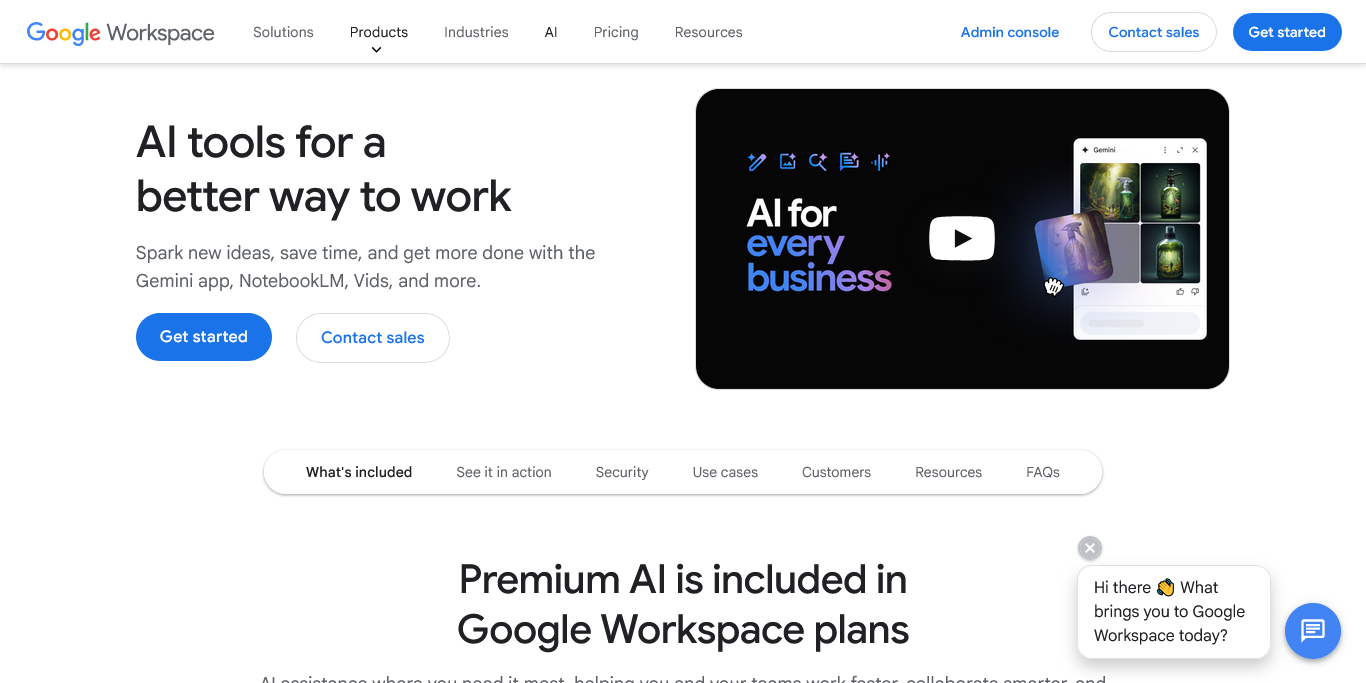
Gemini in Gmail: Email Productivity Features
Gmail is where most users first encounter Gemini, and it’s where the ROI becomes immediately obvious.
Core Capabilities
Smart Compose: Predictive text that suggests complete sentences as you type Email Summarization: Click “Summarize this email” to get key points from long threads Contextual Replies: Suggest three response options based on email content Priority Sorting: Automatically surface important emails
Time-Saved Calculation
Before Gemini:
- Average email response time: 5 minutes
- Daily emails requiring responses: 30
- Total daily time: 150 minutes (2.5 hours)
After Gemini:
- Smart compose reduces typing by 40%
- Email summaries save 2 minutes per long thread (10/day)
- Total time saved: 60 minutes + 20 minutes = 80 minutes daily
Monthly ROI: 40 hours saved per employee at $50/hour = $2,000/month
Ready-to-Use Gmail Prompts
1. Professional Email Draft
Use this when you need to write a formal business email quickly:
Draft a professional email to [recipient name/role] regarding [topic].
Tone should be [formal/friendly/urgent]. Key points to cover:
- [Point 1]
- [Point 2]
- [Point 3]
Include a clear call-to-action and keep it under 150 words.
Customization tip: Adjust tone based on recipient relationship. Use “formal” for executives, “friendly” for colleagues, “urgent” for time-sensitive matters.
2. Email Thread Summary
When you’re catching up on a long email chain:
Summarize this email thread in bullet points. Include:
- Main decision or conclusion
- Outstanding action items with owners
- Any deadlines mentioned
- Key concerns raised
Expected outcome: 3-5 bullet points that let you understand a 20-message thread in 30 seconds.
3. Follow-Up Email Generator
After meetings or conversations:
Create a follow-up email for a meeting about [topic] with [attendees]. Include:
- Brief recap of main discussion points
- Action items with assigned owners and deadlines
- Next steps
- Thank attendees and suggest follow-up timeline
Keep it concise and actionable.
Gemini in Google Docs: Writing Assistant
Google Docs is where Gemini’s writing capabilities shine, particularly for long-form content.
Core Capabilities
Writing Assistance: Real-time suggestions for clarity, tone, and structure Content Generation: “Help me write” feature creates drafts from prompts Document Summarization: Generate executive summaries of long documents Tone Adjustment: Rewrite text to be more formal, casual, or persuasive
Practical Use Cases
- Meeting notes → polished meeting minutes (saves 15 minutes per meeting)
- Bullet points → full proposal drafts (saves 2+ hours)
- Technical jargon → plain language explanations (saves 30 minutes of editing)
Ready-to-Use Docs Prompts
4. Meeting Minutes Template
Convert these meeting notes into professional meeting minutes:

[Paste raw notes]

Format with sections for:
- Attendees
- Key discussion points
- Decisions made
- Action items (with owners and due dates)
- Next meeting date

Use professional business tone.
5. Proposal First Draft
Create a proposal outline for [project/service] targeting [client type]. Include:
- Executive summary
- Problem statement
- Proposed solution
- Timeline and deliverables
- Pricing structure
- Next steps

Length: 800-1000 words. Tone: Professional but approachable.
Time saved: Reduces initial draft time from 3 hours to 30 minutes. You spend your time refining rather than starting from scratch.
6. Plain Language Rewrite
Rewrite this text for a general business audience without technical expertise:

[Paste technical content]

Requirements:
- Explain technical terms in simple language
- Use analogies where helpful
- Keep it concise (max 50% longer than original)
- Maintain all key information
7. Executive Summary Generator
For long documents or reports:
Create an executive summary of this document:

[Paste document or link]

Include:
- Main findings/conclusions (2-3 sentences)
- Key recommendations (3-4 bullet points)
- Critical data points or metrics
- Required action/decision

Length: 250 words maximum
Gemini in Google Sheets: Data Analysis & Formulas
For non-analysts, Sheets is where Gemini provides the biggest skill multiplier.
Core Capabilities
Formula Generation: Describe what you want, get the formula Data Insights: Automatic pattern detection and trend identification Chart Suggestions: AI recommends best visualization for your data Data Cleaning: Identify and fix inconsistencies
ROI Example: Sales Report Automation
Manual Process:
- Build pivot tables: 20 minutes
- Create formulas: 15 minutes
- Generate charts: 10 minutes
- Format report: 15 minutes
- Total: 60 minutes
With Gemini:
- Describe analysis needed: 2 minutes
- Review and adjust output: 8 minutes
- Total: 10 minutes
Time saved per weekly report: 50 minutes × 4 weeks = 200 minutes/month per user
Ready-to-Use Sheets Prompts
8. Complex Formula Builder
Create a formula that:
[Describe desired calculation in plain English]

Example: "Calculate the average sale price for products in category 'Electronics'
where the sale date is in Q4 2025 and quantity sold is greater than 10"

Data is in columns: [specify column letters/names]
Why this works: You describe business logic, Gemini translates to SUMIFS, AVERAGEIFS, or array formulas.
9. Data Analysis Request
Analyze this data and provide:
- Top 3 trends or patterns
- Any outliers or anomalies
- Recommended next actions based on findings
- Suggested visualizations

Data range: [specify]
Context: [explain what the data represents]
10. Automated Report Template
Create a monthly sales report template with:
- Summary metrics (total revenue, average order value, customer count)
- Top 5 products by revenue
- Sales trend visualization
- Month-over-month comparison
- Automatic highlighting of metrics above/below target

Data source: [specify sheet/range]
Gemini in Google Slides: Presentation Generation
Creating presentations from scratch is time-consuming. Gemini can cut this time by 60-70%.
Core Capabilities
Slide Generation: Create presentation outlines and initial drafts Design Suggestions: Recommend layouts based on content type Image Selection: Suggest relevant images from your Drive or web Speaker Notes: Generate talking points for each slide
Ready-to-Use Slides Prompts
11. Presentation Outline Creator
Create a presentation outline for [topic] targeting [audience].

Purpose: [inform/persuade/train]
Duration: [X] minutes
Desired outcome: [what should audience know/do after]

Include:
- Opening hook
- 3-5 main sections
- Key data points to emphasize
- Closing call-to-action
12. Slide Content Generator
Create content for a slide about [specific topic].

Slide purpose: [explain/compare/persuade]
Audience knowledge level: [beginner/intermediate/expert]

Include:
- Concise headline (max 8 words)
- 3-4 key points (max 10 words each)
- One supporting statistic or example
- Visual suggestion (chart type, image concept)
Time saved: Each slide goes from 15 minutes to 3 minutes (initial draft). For a 10-slide deck: 120 minutes saved.
13. Speaker Notes Generator
Create speaker notes for this slide:

[Paste slide content]

Notes should:
- Expand on bullet points (2-3 sentences each)
- Include transition to next slide
- Suggest where to pause for questions
- Add relevant examples or anecdotes
- Total length: 200-250 words
Gemini in Google Meet: Meeting Intelligence
Meeting features provide the biggest team-level productivity gains.
Core Capabilities
Live Transcription: Real-time text of meeting conversation Automated Summaries: Key points, decisions, and action items after meeting Q&A Tracking: Captures questions asked during presentations Action Item Extraction: Automatically identifies commitments and owners
ROI Impact: Meeting Follow-Up Time
Traditional process per meeting:
- Review recording: 30 minutes
- Create summary: 15 minutes
- Extract action items: 10 minutes
- Send follow-up email: 5 minutes
- Total: 60 minutes
With Gemini:
- Review AI summary: 5 minutes
- Edit action items: 3 minutes
- Send follow-up: 2 minutes
- Total: 10 minutes
For a team with 20 meetings/week: 1,000 minutes (16.7 hours) saved weekly
Ready-to-Use Meet Prompts
14. Meeting Summary Request
After meeting ends:
Summarize this meeting transcript. Include:

**Key Decisions:**
[List any decisions made]

**Action Items:**
[Task] - [Owner] - [Due date]

**Discussion Highlights:**
[Main topics covered]

**Parking Lot:**
[Items tabled for later]

**Next Meeting:**
[Proposed date/time if mentioned]
15. Meeting Prep Brief
Before joining a recurring meeting:
Create a brief for today's [meeting name] based on:
- Previous meeting notes: [link]
- Related documents: [links]
- My calendar events: [check for context]

Include:
- Quick recap of last meeting's outcomes
- My outstanding action items
- Key topics likely to be discussed
- Questions I should prepare to answer
Advanced Tips: Getting More from Gemini
Prompt Refinement Strategy
If Gemini’s first output isn’t quite right, use this iterative approach:
- First prompt: Broad request to see what Gemini produces
- Refinement: “Revise this to be more [specific quality]”
- Examples: “Here’s what I mean: [paste example]”
- Format: “Output should match this structure: [specify]“
Context Optimization
Gemini works best when you provide context. Always include:
- Audience: Who will see/read this?
- Purpose: What should it accomplish?
- Constraints: Word count, tone, format requirements
- Background: Relevant business context
Example: ❌ “Write an email about the project delay” ✅ “Write an email to our client (Fortune 500 CFO) explaining a 2-week project delay due to vendor issues. Tone: professional and solution-focused. Include revised timeline and risk mitigation steps.”
Integration with Other Tools
Gemini’s real power emerges when you use it across multiple Workspace apps in sequence:
- Gmail: Receive client request
- Docs: Draft proposal using Gemini
- Sheets: Build pricing calculator with AI-generated formulas
- Slides: Create presentation from Docs outline
- Meet: Present with auto-generated speaker notes
This integrated workflow can reduce a multi-day project cycle to same-day turnaround.
Common Mistakes to Avoid
1. Vague Prompts
Don’t: “Write something about our product” Do: “Write a 150-word product description for [product name] targeting [audience]. Emphasize [key benefit] and include [call-to-action].“
2. Skipping Review
Gemini outputs are starting points, not final deliverables. Always:
- Check facts and figures
- Verify tone matches your brand
- Add specific examples from your context
- Remove generic AI phrasing
3. Ignoring Data Privacy
Don’t input:
- Customer personal information
- Confidential financial data
- Proprietary trade secrets
- Employee private information
Gemini processes within Google’s infrastructure, but your organization’s data policies still apply.
4. Not Iterating
First attempt rarely perfect. Use follow-up prompts:
- “Make this more concise”
- “Add specific examples”
- “Change tone to be more [quality]”
- “Reorganize with [X] first”
Measuring Your Gemini ROI
Track these metrics to quantify value:
Time Metrics
- Average email response time (before vs. after)
- Document creation time (first draft)
- Meeting follow-up time
- Data analysis turnaround
Quality Metrics
- Email response rates
- Document revision cycles
- Meeting action item completion rates
- Report accuracy and completeness
Adoption Metrics
- Percentage of team using Gemini features
- Most-used features by role
- Feature usage frequency
Realistic first-month targets:
- 20% reduction in email time
- 30% faster document drafts
- 50% faster meeting follow-ups
- 40% time saved on routine data analysis
With Google Workspace starting at $8.40/user/month and Gemini included, you need to save just 12 minutes per user daily to break even at a $50/hour labor rate. Most teams report 30-60 minutes saved daily once they learn the features.
Getting Started Checklist
Ready to actually use Gemini effectively? Here’s your week-one plan:
Day 1-2: Gmail
- Enable Smart Compose in settings
- Try summarizing 3 long email threads
- Use contextual reply suggestions on 5 emails
- Note time saved
Day 3-4: Docs
- Use “Help me write” for one meeting notes doc
- Try tone adjustment on existing content
- Generate one document summary
Day 5: Sheets
- Ask Gemini to create one complex formula
- Request data insights on an existing dataset
- Use chart suggestions
Day 6: Slides
- Create presentation outline from prompt
- Use design suggestions on 3 slides
- Generate speaker notes
Day 7: Meet
- Enable transcription for one meeting
- Review auto-generated summary
- Extract action items
Week 2+: Focus on the 2-3 features that saved the most time and make them habitual.
Is the 2026 Price Increase Worth It?
Here’s the math for a 10-person team:
Annual cost increase:
- Previous: $6/user × 10 users × 12 months = $720/year
- Current: $8.40/user × 10 users × 12 months = $1,008/year
- Increase: $288/year
Break-even requirement:
- Need to save: 5.76 hours per year total (all 10 users combined)
- Per user: 34 minutes annually
- You’ll exceed this in your first week
Even if only half your team actively uses Gemini features, and they each save 30 minutes weekly, you’re looking at:
- 10 users × 50% adoption = 5 active users
- 5 users × 30 minutes/week × 50 weeks = 7,500 minutes (125 hours)
- At $50/hour: $6,250 value from a $288 investment
- ROI: 2,170%
This aligns with Forrester’s 336% ROI finding, and it assumes relatively modest usage.
For more productivity insights, explore our guides on Best Ai Automation Tools 2025, Best Ai Writing Tools 2025. For standalone AI assistants that complement Workspace, see ChatGPT or Claude.
Next Steps
Since you’re already paying for Gemini in Google Workspace, the only question is whether you’ll use it enough to justify the mandatory price increase.
Start with these high-impact areas:
- Email summarization for anyone drowning in threads
- Meeting summaries to eliminate manual note-taking
- Formula generation for non-analysts working with data
- Document drafting to overcome blank-page paralysis
The 15 prompts in this guide give you ready-to-use templates for the most common business scenarios. Copy them, customize them for your context, and start saving time this week.
Want to explore the full Google Workspace feature set including Gemini AI? Check out our detailed Google Workspace review with pricing comparisons, real user ratings, and integration guides.
For more information about gemini ai google workspace, see the resources below.
External Resources
For official documentation and updates:
- Google Workspace — Official website
- OpenAI — Additional resource