


A Zoho setup IMAP workflow connects your Zoho Mail account to Outlook, Apple Mail, Thunderbird, or any IMAP-compatible email client. The Zoho Mail IMAP settings Outlook expects are the same across every desktop client: configure imap.zoho.com (US region) on port 993 over SSL, then authenticate with your Zoho email address and an app-specific password.
This guide walks through every step required to move Zoho Mail off the web client and into a desktop or mobile email application, including the Zoho IMAP settings iPhone and iPad users need for native Apple Mail. The process takes roughly 15 minutes once you have confirmed your plan supports IMAP and have generated an app-specific password. Pair this Zoho setup IMAP walkthrough with our Zoho Mail custom domain setup guide if you have not yet pointed your domain at Zoho.
The configuration steps differ slightly by region because Zoho operates separate data centers across the US, EU, India, Australia, China, Japan, and Canada. Use the regional server matching the data center your account was provisioned in, otherwise authentication will fail with a connection refused or invalid credentials error. The official Zoho IMAP access documentation lists every regional endpoint.
Zoho Setup IMAP Prerequisites: Plan, 2FA, and Account Access
Before configuring any email client, confirm three account requirements are in place. Skipping these checks is the most common reason a Zoho setup IMAP attempt fails on the first try.
First, your Zoho Mail plan must support IMAP. The Mail Free plan does not support IMAP or POP, so the only access method on Free is the web client and the official Zoho Mail mobile apps. To unlock IMAP, upgrade to Mail Lite at $1 per user per month (annual billing), which is the cheapest tier with IMAP access enabled per the Zoho Mail pricing page. Mail Premium at $4 per user per month adds 50 GB of storage, S/MIME, and eDiscovery if those features matter for your workflow.
Workplace bundles also include IMAP. Workplace Standard runs $3 per user per month and Workplace Professional runs $6 per user per month, both billed annually. If you already pay for Zoho One, IMAP is included.
Second, decide whether two-factor authentication is enabled on your Zoho account. If 2FA is on, your normal account password will not work for IMAP authentication. You must generate an app-specific password from the Zoho Accounts security panel and use that string as the IMAP password. The steps for generating one are covered in a later section.
Third, confirm you can sign in to mail.zoho.com (or the regional equivalent such as mail.zoho.eu) with your full email address. If web sign-in fails, no IMAP client will succeed either, so resolve account access before touching any email client.
What Are the Zoho IMAP Server Settings by Region?
Zoho assigns each account to a data center based on the region selected at signup. The IMAP hostname must match that data center, so check your Zoho web URL before configuring the client. If you sign in at mail.zoho.eu, your IMAP server is imap.zoho.eu, not imap.zoho.com.
| Region | Web Domain | IMAP Server | Port | Encryption |
|---|---|---|---|---|
| United States | mail.zoho.com | imap.zoho.com | 993 | SSL/TLS |
| Europe | mail.zoho.eu | imap.zoho.eu | 993 | SSL/TLS |
| India | mail.zoho.in | imap.zoho.in | 993 | SSL/TLS |
| Australia | mail.zoho.com.au | imap.zoho.com.au | 993 | SSL/TLS |
| China | mail.zoho.com.cn | imap.zoho.com.cn | 993 | SSL/TLS |
| Japan | mail.zoho.jp | imap.zoho.jp | 993 | SSL/TLS |
| Canada | mail.zoho.ca | imap.zoho.ca | 993 | SSL/TLS |
Port 993 with SSL is required across every region per the IMAP TLS standard (RFC 8314). The matching Zoho SMTP settings use port 465 with SSL for outgoing mail. Plain IMAP on port 143 is not offered by Zoho, and any client that defaults to STARTTLS on 143 will not connect. Set the encryption type to SSL/TLS explicitly during configuration.
For authentication, the username is always your full email address (for example, you@yourdomain.com), not the local part alone. The password is either your account password (if 2FA is off) or an app-specific password (if 2FA is on). The Zoho two-factor authentication documentation covers the full 2FA toggle path.
Enable IMAP Access in Your Zoho Mail Settings
Even on a paid plan, IMAP access is sometimes disabled at the mailbox level. The toggle lives inside Zoho Mail Settings rather than in the admin console, which is a common source of confusion when setup fails despite the right plan.
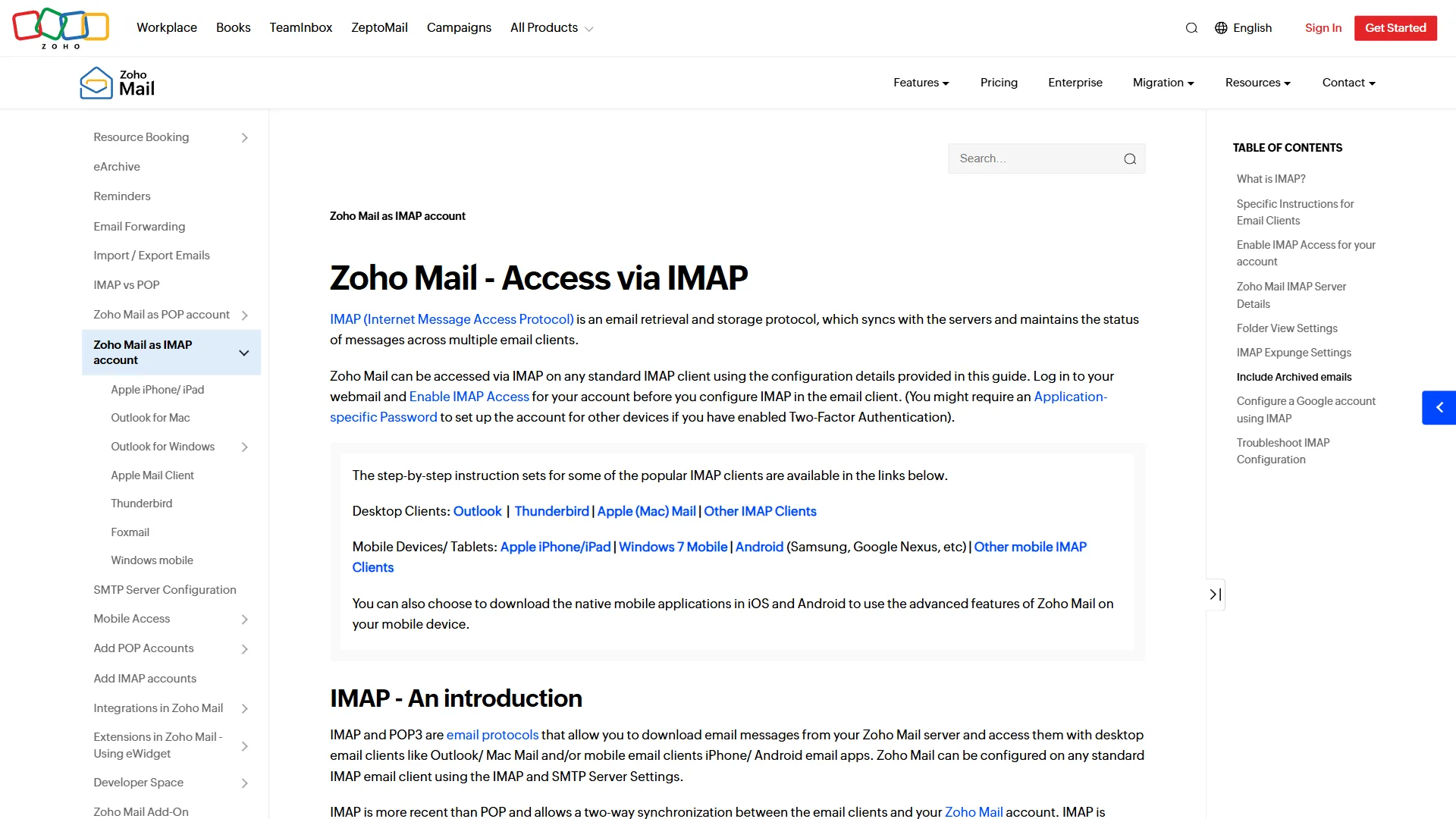
Sign in to your Zoho Mail web client at the regional URL, then open Settings from the gear icon in the top right corner - the Zoho IMAP/POP policy documentation covers admin-level toggles. In the left navigation, select Mail Accounts. Find the email address you intend to connect, then click on it to open the account-level settings panel.
Scroll to the IMAP/POP section. Under IMAP Access, switch the toggle to ON. Zoho will display the regional IMAP server hostname and port directly in this panel, which is useful as a final sanity check that you are configuring the correct server.
If your organization uses Zoho Mail under a custom domain and you cannot see the IMAP toggle, your administrator may have disabled IMAP at the policy level. In that case, the admin needs to sign in to the Zoho Mail Admin Console, navigate to Security and Compliance, and enable IMAP access for the relevant user group before you can proceed.
How Do I Generate a Zoho App-Specific Password?
Skip this section if two-factor authentication is disabled on your Zoho account. If 2FA is on, generating an app-specific password is mandatory because Zoho rejects the regular account password on IMAP and SMTP connections when 2FA is active.
Open accounts.zoho.com in a browser and sign in. From the left navigation, select Security, then Application Passwords. Click Generate New Password.
Enter a label that identifies the client you are configuring, for example “Outlook Desktop” or “iPhone Apple Mail”. The label is for your reference only and does not affect functionality. Click Generate.
Zoho displays a 16-character password string. Copy it immediately and paste it into your email client during the IMAP setup. This password is shown only once. If you lose it, you cannot retrieve it later, so generate a new one and revoke the old one from the same Application Passwords panel.
Treat each app-specific password as a credential limited to one device or one client. Generating separate passwords per device makes it possible to revoke access for a lost phone without breaking your desktop client. The wider Zoho stack documented in our Zoho One bundle review 2026 reuses the same Zoho Accounts identity layer.
Zoho Setup IMAP in Outlook
Outlook for Microsoft 365 and Outlook 2021 both support IMAP through the standard account setup wizard. Open Outlook and select File, then Add Account.
Enter your full Zoho email address and click Connect. Outlook will attempt automatic discovery, which often fails for Zoho because Microsoft does not maintain autodiscover records for it. When that happens, click Advanced Options, check Let me set up my account manually, then click Connect again.
Choose IMAP as the account type. Outlook displays a server settings form with two sections.
For incoming mail, set the server to imap.zoho.com (or your regional server from the table above), the port to 993, and the encryption method to SSL/TLS. For outgoing mail, set the SMTP server to smtp.zoho.com (or the regional SMTP equivalent), the port to 465, and encryption to SSL/TLS. Our Zoho SMTP server setup guide covers SMTP-only patterns in depth.
Click Next, then enter your password. If 2FA is enabled, paste the app-specific password generated in the previous section, not your account password. Click Connect. Outlook will run a diagnostic against both servers and confirm the connection.
If the diagnostic fails on the outgoing server but passes on incoming, double-check that My outgoing server requires authentication is enabled and that the SMTP credentials match the IMAP credentials.
Zoho Setup IMAP in Apple Mail
On Apple Mail (macOS), open Mail, then choose Mail in the menu bar and select Add Account. On iOS, open Settings, scroll to Mail, tap Accounts, then tap Add Account.
In the account type list, choose Other rather than any of the named providers. Apple Mail does not include a Zoho preset, so the manual path is required.
Enter your name, full Zoho email address, app-specific password (or account password if 2FA is off), and a description such as “Zoho Work”. Tap Next.
Apple Mail will probe for autoconfiguration and fail. The form expands to show separate Incoming Mail Server and Outgoing Mail Server sections. Confirm the Account Type is set to IMAP at the top.
For incoming mail, set the host name to imap.zoho.com (or your regional server), the user name to your full email address, and the password to your app-specific password. For outgoing mail, use smtp.zoho.com on port 465 with SSL, and supply the same credentials.
Tap Next. Apple Mail will verify both servers and prompt you to choose which sync items to enable, typically Mail and Notes. Save the account. The first sync may take several minutes if the mailbox is large.
Zoho Setup IMAP in Thunderbird
Thunderbird is the most forgiving of the three clients because it asks for explicit IMAP server values instead of relying on autodiscover. Open Thunderbird and choose Account Settings, then Account Actions, then Add Mail Account.
Enter your name, Zoho email address, and password. Click Configure manually rather than letting Thunderbird probe.
In the manual configuration form, the incoming protocol should be IMAP. Set the hostname to imap.zoho.com (or regional equivalent), the port to 993, the connection security to SSL/TLS, and the authentication method to Normal Password.
For outgoing, set the hostname to smtp.zoho.com (or regional equivalent), the port to 465, the connection security to SSL/TLS, and the authentication method to Normal Password. The username for both incoming and outgoing should be your full email address.
Click Re-test. Thunderbird will validate both servers and confirm that the configuration is reachable. Click Done. The folders pane will populate with Inbox, Sent, Drafts, and any custom Zoho labels within a few seconds.
If the Sent folder shows duplicate copies of outgoing mail later, open Account Settings, navigate to Copies and Folders, and uncheck Place a copy in. Zoho writes Sent items via IMAP automatically, so Thunderbird does not need to add a second copy.
Verify the Connection and Send a Test Email
After configuring any client, run two checks before declaring the Zoho setup IMAP process complete.
First, confirm new mail arrives. Send yourself a test message from a different account (a personal Gmail address works well). The message should appear in the IMAP client inbox within 30 seconds. If it shows up on the Zoho web client but not in your IMAP client, the IMAP listener is not subscribed to the inbox folder. Right-click the inbox in your client and choose Subscribe to refresh the folder list.
Second, confirm outgoing mail works. Compose a message addressed to your own external account and send it. The message should appear in your external inbox within 60 seconds, and a copy should land in the Zoho Sent folder.
If outgoing mail produces a Relay access denied error, the SMTP server is rejecting the authentication. Re-enter the SMTP credentials carefully, and confirm the SMTP port is 465 with SSL rather than 587 with STARTTLS per the Zoho SMTP documentation. Zoho prefers 465 for IMAP-paired clients.
Common IMAP Errors and Fixes
Authentication failed with valid credentials usually means 2FA is on and you are sending the account password instead of an app-specific password. Generate one from accounts.zoho.com under Security, Application Passwords.
Connection timed out on port 993 typically indicates a corporate firewall blocking outbound IMAPS - the IANA port registry documents 993/tcp as imaps. Test from a personal network or mobile hotspot to confirm. If the connection works off-network, ask IT to whitelist port 993 to imap.zoho.com.
Certificate not trusted appears when the client is pointed at the wrong regional server. The certificate on imap.zoho.com is not valid for imap.zoho.eu, so an EU account configured against the US server triggers the warning. Match the server to your data center per the Zoho data center reference.
Folders missing or empty after a successful login means the IMAP folder subscription list is empty. Right-click the account name in the client and choose Subscribe, then check the boxes next to Inbox, Sent, Drafts, Trash, and any custom labels you want to sync.
IMAP option not visible in Settings indicates either a Free plan account or an admin policy blocking IMAP. Upgrade to Mail Lite or higher, or contact your Zoho administrator to enable IMAP access for your user group.
Slow folder sync after the initial connection is usually a question of mailbox size rather than a configuration error per the IMAP4rev2 protocol specification (RFC 9051). A mailbox with tens of thousands of messages can take 30 to 60 minutes to fully index on the first sync, and during that window the client may appear unresponsive. Leave the client running on a stable network connection until the activity indicator reports idle. If the sync stalls completely with no progress for more than an hour, remove the account from the client, restart the client, and re-add the account. The second sync usually completes faster because the server has cached the IMAP folder index from the first attempt.
Duplicate sent messages occur when both Zoho and the email client write to the Sent folder. Outlook and Apple Mail typically detect Zoho’s IMAP Sent folder correctly and avoid the issue, but Thunderbird sometimes inserts a second copy. The fix is in Account Settings, Copies and Folders, where the Place a copy in option should be unchecked or set to the Zoho Sent folder rather than a local folder.
Want to learn more about Zoho Mail?
Frequently Asked Questions
How do I integrate IMAP with Zoho?
The Zoho setup IMAP flow starts in Zoho Mail: open Settings, navigate to Mail Accounts, select your address, and switch IMAP Access to ON. Then configure your email client with the regional IMAP server (for example imap.zoho.com), port 993, SSL/TLS encryption, and your full email address as the username. If two-factor authentication is on, generate an app-specific password from accounts.zoho.com and use that as the IMAP password.
Does Zoho email support IMAP?
Yes, but only on paid plans. Mail Free does not include IMAP or POP access, restricting users to the web client and the Zoho Mail mobile apps. Mail Lite at $1 per user per month is the cheapest tier with IMAP enabled, and every higher plan including Mail Premium, Workplace Standard, Workplace Professional, and Zoho One also supports IMAP.
How to find IMAP server on Zoho Mail?
The IMAP server hostname depends on which Zoho data center your account was provisioned in. Check the URL of your Zoho Mail web client. If it ends in .com, your IMAP server is imap.zoho.com. The .eu suffix maps to imap.zoho.eu, .in to imap.zoho.in, .com.au to imap.zoho.com.au, .com.cn to imap.zoho.com.cn, .jp to imap.zoho.jp, and .ca to imap.zoho.ca. Port is always 993 with SSL/TLS.
Why is my Zoho IMAP not connecting?
Three issues cause most connection failures. First, IMAP is disabled at the mailbox level (turn it on in Settings, Mail Accounts). Second, two-factor authentication is rejecting the account password (generate an app-specific password instead). Third, the client is configured against the wrong regional server (match imap.zoho.eu, imap.zoho.in, or whichever region your account uses). Less commonly, a corporate firewall blocks outbound port 993, which can be tested from a mobile hotspot.
Related Reading
- Zoho Mail tool page
- Best email marketing platforms 2026
- Best CRM for small business 2026
- Best marketing automation tools 2026
Related Guides
- Zoho Mail Custom Domain Setup: Migrate from Gmail
- Zoho SMTP Setup Guide: Send Email Through Zoho Mail Server
External Resources
- Zoho Mail pricing - Mail Lite, Mail Premium, and Workplace tiers; IMAP is available from Mail Lite upward
- Zoho One pricing - bundle option that includes Zoho Mail with IMAP on every seat
- Zoho IMAP access documentation - official protocol reference
- Zoho SMTP server documentation - outgoing mail configuration
- IMAP4rev2 specification (RFC 9051) - underlying protocol standard
Related Guides
- Zoho AI Agents: Step-by-Step Zia Agent Studio Setup
- Zoho AI Guide: Zia Features, Pricing, and Use Cases 2026
- Zoho Assist Setup Guide: Free Remote Support for IT
- Zoho Bookings Setup: Schedule Appointments Fast
- Zoho Books Setup Guide: Small Business in 30 Minutes
- Zoho Campaigns Setup: Send Your First Email Campaign
- Zoho Cliq Setup Guide 2026: Team Chat in 20 Minutes
- Zoho Commerce Setup Guide (2026): Domain to First Sale
- Zoho Connect Setup Guide: Build a Team Network 2026
- Zoho CRM For Small Business Explained (2026 Guide)