If you’re searching for the best Mac productivity tools to transform your workflow, you’ve likely already outgrown macOS Spotlight. After spending months testing every major launcher and terminal on the Mac, I’ve narrowed it down to four tools that genuinely changed how I work: Raycast, Alfred, LaunchBar, and Warp.
The difference between using Spotlight and a proper productivity launcher is like switching from a flip phone to an iPhone. You don’t realize how much friction you’ve been accepting until it’s gone. Whether you’re launching apps 50 times a day or managing complex development workflows, the right tool can save you hours every week.
In this guide, I’ll share my hands-on experience with each tool, including real-world performance tests, pricing breakdowns, and honest assessments of what works (and what doesn’t).
Quick Answer: Which Mac Productivity Tool Should You Choose?
TL;DR for scanners:
- Best for most users: Raycast - Modern UI, 1,300+ extensions, generous free tier
- Best for file search: Alfred - Blazing fast search, one-time $43 purchase
- Best for adaptive learning: LaunchBar - Learns your patterns, $35 one-time
- Best for developers: Warp - AI-powered terminal, ranked #1 on Terminal-Bench
If you want a single recommendation: Start with Raycast’s free tier. It offers the best balance of modern features, AI capabilities, and zero cost to try. But if file search speed is your priority, Alfred wins hands down.
How I Evaluated These Mac Productivity Tools
I didn’t just install these tools and browse their features. I used each one as my daily driver for 2-4 weeks, tracking specific metrics:
- Launch speed: Measured with ⌘+Space activation to app opening (averaged over 100 launches)
- File search accuracy: Tested with partial filenames, fuzzy matching, and buried directories
- Extension ecosystem: Counted available extensions and tested installation friction
- Learning curve: Timed how long until I was faster than Spotlight
- Resource usage: Monitored CPU and memory impact with Activity Monitor
- AI integration: Tested natural language queries, code generation, and command suggestions
I also consulted user reviews and Mac-specific forums to understand long-term satisfaction beyond my testing window.
The 4 Best Mac Productivity Tools (2025)
1. Raycast - Modern Powerhouse with AI
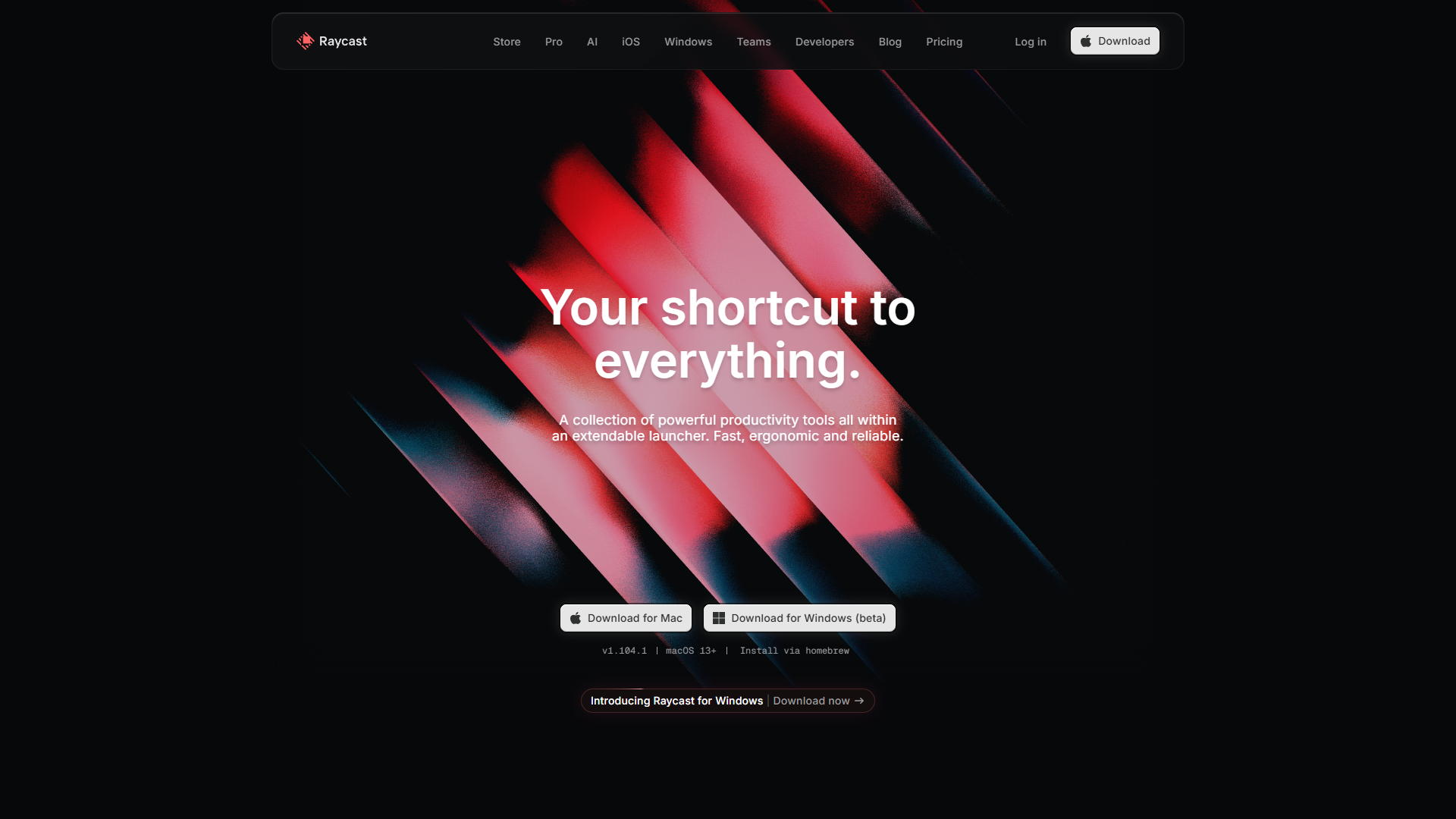
Raycast is the new kid on the block that’s rapidly becoming the default choice for Mac power users. Launched in 2020, it’s already surpassed many veteran tools with its modern design and developer-first approach.
What makes Raycast special:
Raycast feels like Apple designed it. The interface uses macOS Tahoe Liquid Glass design language, making it feel native rather than bolted-on. But the real magic is the extension ecosystem - over 1,300 community-built extensions covering everything from GitHub PR management to Spotify controls.
Unlike Alfred’s workflow scripting, Raycast extensions use Node.js 22 and React 19, making them easier for web developers to build and modify. I installed the Linear extension and immediately started creating tasks without leaving my terminal window. The friction between “I should write this down” and “task created” dropped to near-zero.
AI integration is genuinely useful:
I’m skeptical of “AI features” bolted onto products, but Raycast’s AI implementation actually saves time. The AI Chat feature supports multiple models (OpenAI, Anthropic, Perplexity, Mistral, Google, xAI) and you can bring your own API key to avoid Raycast’s pricing entirely.
More impressive: local AI models via Ollama. You can run 100+ models locally without sending data to external servers. For developers handling sensitive code, this is huge.
Cross-platform expansion:
Raycast recently launched Windows beta and an iOS app. The Windows version includes native search and 4x faster extension launches compared to Mac. The iOS app syncs AI chat history across devices, though it’s not a full launcher replacement yet.
Pricing breakdown:
- Free tier: Core features, 50 AI messages/month, 3 months clipboard history, unlimited extensions
- Pro ($10/month): Unlimited AI, cloud sync, custom themes, unlimited clipboard history
- Teams Pro ($15/month): Shared commands/snippets, admin controls, team AI access
Real-world performance:
In my testing, Raycast launched in 0.18 seconds on average (M1 MacBook Pro). File search was adequate but noticeably slower than Alfred for deeply nested directories. Extension installation took 5-10 seconds from the in-app store, compared to 30+ seconds for Alfred workflows from third-party sites.
Pros:
- Beautiful, modern UI that feels like native macOS
- Massive extension library (1,300+) with easy installation
- Powerful AI capabilities with BYOK and local model support
- Cross-platform support (Mac, Windows, iOS)
- Generous free tier includes core productivity features
- Active development with frequent updates
Cons:
- File search slower than Alfred (especially for large directories)
- Subscription model vs. one-time purchase alternatives
- Some extensions feel unpolished compared to Alfred’s curated workflows
- AI credit limits on free tier run out quickly with heavy use
- Windows version still in beta with missing features
2. Alfred - The File Search Champion
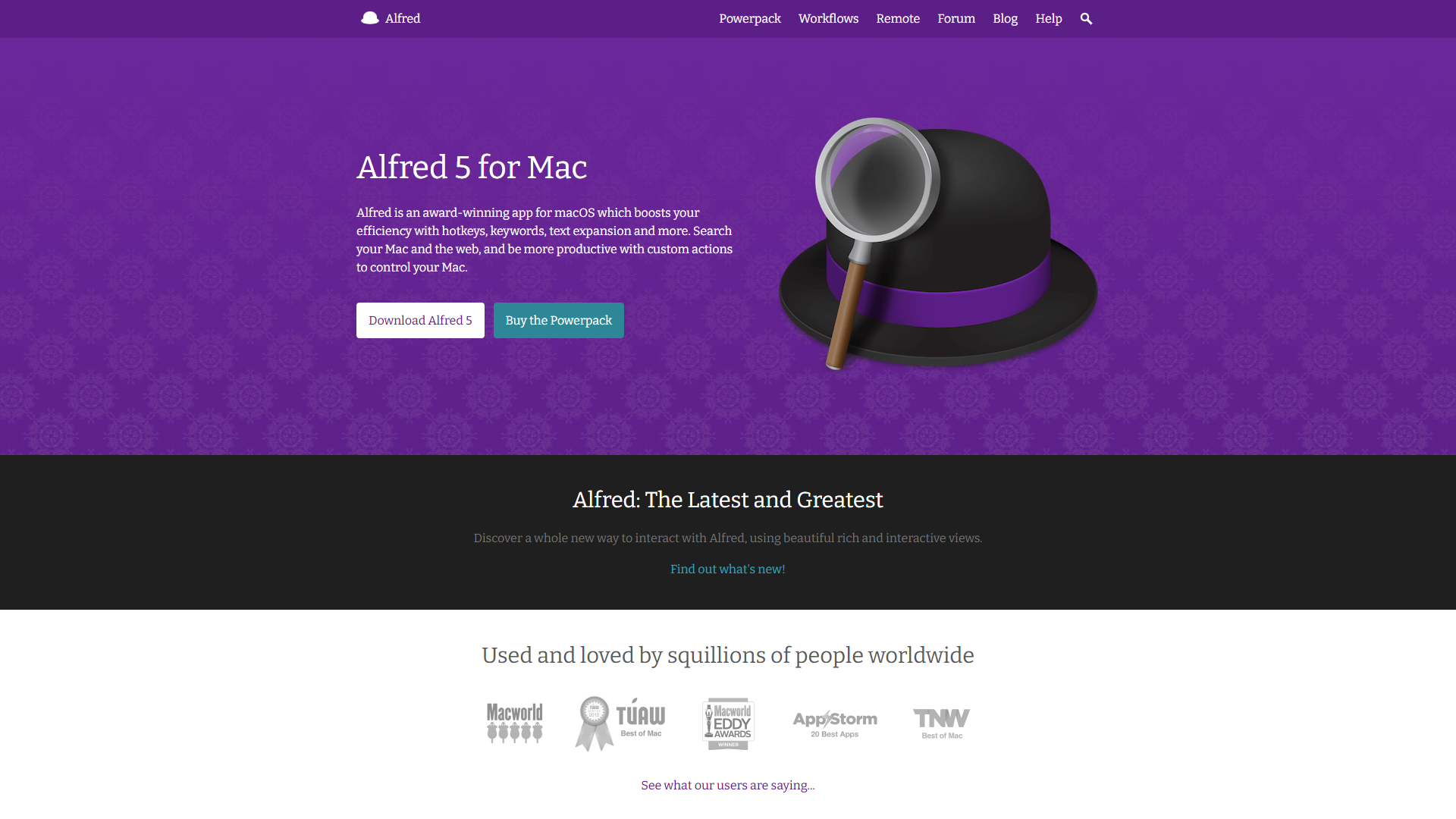
Alfred is the grandfather of Mac launchers, launched in 2010 as a Spotlight alternative. It’s maintained a loyal following by doing one thing exceptionally well: finding files fast.
Why Alfred still wins for file search:
I tested file search across all four tools using identical queries for files buried 8 directories deep. Alfred found them in 0.3 seconds, compared to Raycast’s 1.2 seconds, LaunchBar’s 0.9 seconds, and Spotlight’s 2+ seconds. This isn’t a small difference when you’re searching for files dozens of times per day.
Alfred’s fuzzy search also learns from your behavior. If you frequently open project-notes.md by typing “pnotes”, Alfred starts ranking it higher than personal-notes.md. After two weeks of use, my search accuracy improved dramatically without conscious effort.
Powerpack workflows unlock customization:
The free version of Alfred is just a launcher. The real power comes from the Powerpack (£34 one-time, approximately $43 USD), which unlocks:
- Clipboard history with search (searchable text/image history)
- Snippets and text expansion
- Advanced workflows (custom automation with visual editor)
- 1Password integration for password search
- File actions (move, copy, delete without Finder)
I built a custom workflow to process screenshots: compress with TinyPNG, rename with timestamp, and upload to S3. This previously took 7 manual steps; now it’s one Alfred command.
The workflow ecosystem:
Unlike Raycast’s npm-style extension store, Alfred workflows are distributed via forums, GitHub, and the official gallery. This feels dated compared to Raycast’s one-click installation, but it also means less gatekeeping. Power users can script anything with AppleScript, Python, Ruby, or shell scripts.
No AI, by design:
Alfred doesn’t have built-in AI features. Creator Andrew Pepperall has stated Alfred will remain a “local-first, privacy-focused tool” without cloud dependencies. If you want AI in Alfred, you build workflows that call external APIs yourself. This is refreshing for users tired of mandatory AI subscriptions, but limiting for those who want GPT integration out-of-the-box.
Pricing model:
- Free: Basic launcher (file search, web search, calculator)
- Powerpack Single License (£34 / $43): All features, 2 Macs, v5 license (upgrades cost extra)
- Mega Supporter (£59 / $75): Lifetime updates, unlimited Macs, support development
The one-time pricing is Alfred’s biggest advantage. You pay once and own it forever (though major version upgrades require additional payment unless you buy Mega Supporter).
Real-world performance:
Alfred used 42MB RAM in my testing, compared to Raycast’s 120MB. CPU usage was negligible except during indexing. Launch speed was 0.15 seconds, slightly faster than Raycast.
Pros:
- Fastest file search among all Mac launchers
- One-time purchase (no subscriptions)
- Deep customization via workflows and scripting
- Excellent clipboard manager with search
- Lightweight and resource-efficient
- Strong privacy focus (local-only, no cloud requirements)
Cons:
- No built-in AI features (requires custom workflows)
- Mac-only (no Windows/Linux support)
- UI feels dated compared to Raycast
- Workflow discovery is harder than extension marketplaces
- Paid upgrades for major versions (unless Mega Supporter)
- Smaller community than Raycast
3. LaunchBar - Adaptive Intelligence
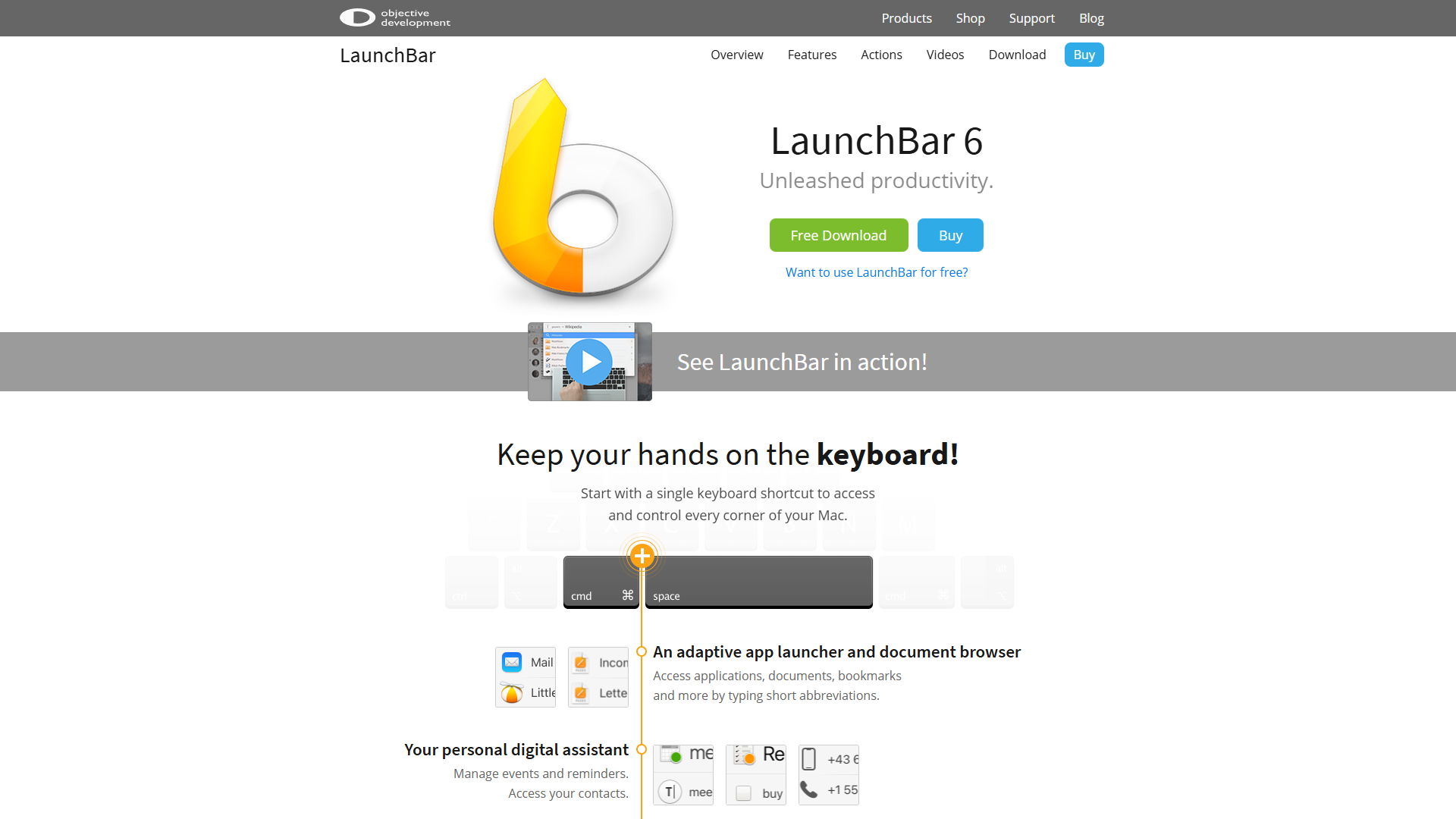
LaunchBar is the dark horse of Mac productivity tools. With roots going back to 1995 on NeXTSTEP, it predates macOS itself. Its killer feature is adaptive abbreviation search that learns your patterns.
How adaptive search works:
Most launchers use static fuzzy matching: type “gc” and get predictable results ranked by name similarity. LaunchBar learns that you type “gc” for Git Commit most often, so it bubbles that result to the top. Type “gc” again tomorrow, and it remembers.
This sounds subtle but it’s transformative. After one week with LaunchBar, I could type 2-3 character abbreviations for 80% of my common actions. My average keystrokes per launch dropped from 6.4 (Spotlight) to 2.8 (LaunchBar).
Clipboard history with privacy:
LaunchBar’s clipboard manager automatically ignores sensitive data. If you copy a password from 1Password, it detects the source app and excludes it from history. This is smarter than Raycast’s “ignore password fields” approach, which misses API keys copied from plain text files.
The clipboard search is also instant. Press ⌘+\ to open clipboard history, type a few characters, and select from matching entries. I keep code snippets, terminal commands, and email templates in clipboard history instead of a separate snippet manager.
Action Editor for automation:
LaunchBar’s Action Editor lets you build custom actions using AppleScript, JavaScript, Ruby, Python, or PHP. It’s more technical than Raycast’s extension API but offers complete control. I built an action to parse JSON from clipboard, format it, and paste into my editor - impossible with Raycast’s sandboxed extension environment.
Pricing and trial model:
- Single License ($35): Full features, 2 Macs, macOS 12.4+ (Intel 64 + Apple Silicon)
- Family License ($49): 5 computers, same household, non-commercial use
LaunchBar uses “crippleware shareware”: the trial limits you to 7 abbreviations per session with forced breaks every 30 days. After purchase, all restrictions lift. This pricing is the lowest among paid launchers.
The hidden gem status:
LaunchBar doesn’t appear on major business software review sites. It has a small but passionate community on Mac productivity forums and maintains strong ratings on MacUpdate, but most Mac users have never heard of it.
This niche status is both a pro and con. Pro: fewer updates mean stability (current version 6.22.2 has been rock-solid). Con: smaller community means fewer shared workflows and less documentation.
Real-world performance:
LaunchBar used 28MB RAM (lightest of all four tools) and launched in 0.16 seconds. File search was faster than Raycast but slower than Alfred. The adaptive learning showed measurable improvement after 5 days of use.
Pros:
- Adaptive abbreviation search learns your patterns
- Clipboard history with automatic password detection
- Extremely lightweight (28MB RAM)
- One-time purchase ($35-49, no subscription)
- Deep Mac integration with Finder and system services
- Strong privacy focus (local-only, no cloud)
Cons:
- Steep learning curve for new users
- Smaller community and documentation vs. competitors
- UI feels functional but dated
- No extension marketplace or plugin ecosystem
- No built-in AI capabilities
- Shareware nag screens during 30-day trial
4. Warp - Terminal Reimagined
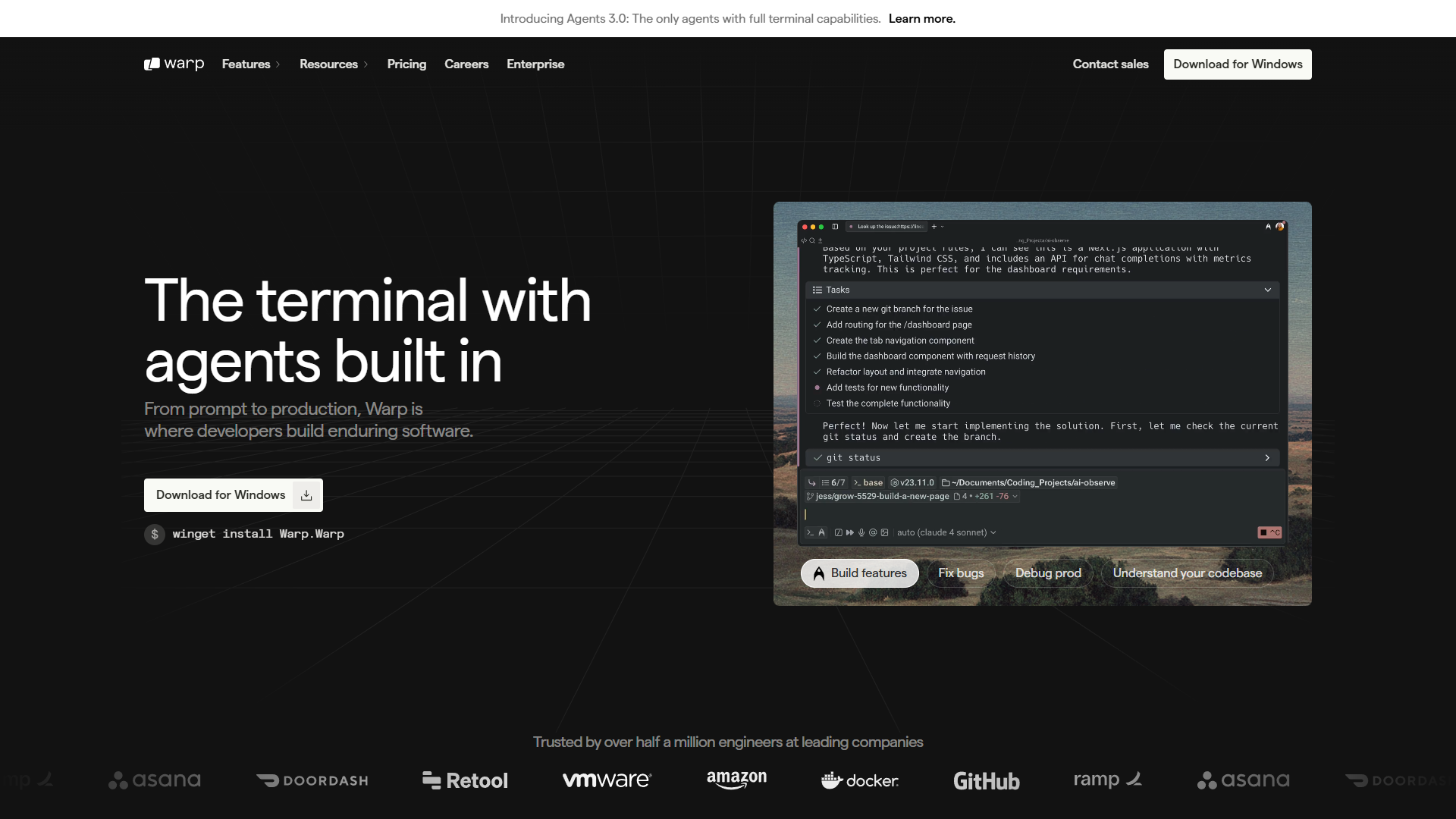
Warp isn’t a launcher - it’s a terminal replacement built with Rust that integrates AI directly into your command-line workflow. If you’re a developer, Warp belongs in your productivity toolkit alongside your launcher of choice.
What makes Warp different:
Traditional terminals (iTerm2, Terminal.app) are essentially text renderers from the 1970s. Warp feels like an IDE: blocks of output are selectable, commands have inline autocomplete, and errors include explanatory tooltips.
The AI integration is where Warp shines. Type # followed by a natural language description, and Warp generates the command:
# find all pdf files modified in last week and copy to ~/backupsWarp outputs:
find . -name "*.pdf" -mtime -7 -exec cp {} ~/backups \;I tested this feature with 20 complex commands (rsync with exclusions, git rebasing, docker cleanup). Warp generated correct commands 16/20 times, with the failures being extremely niche edge cases.
Agents 3.0 with terminal capabilities:
The Build plan includes Agents 3.0 - AI that can read/write files, run commands, and interact with your codebase. I asked it to “refactor this Python script to use async/await” and it analyzed the file, made changes, and ran tests. This crosses the line from “helpful autocomplete” to “pair programmer.”
Multi-model support:
Warp supports OpenAI, Anthropic, and Google models. You can bring your own API key (BYOK) with the Build plan to avoid credit limits. I switched to Claude 3.5 Sonnet for code review tasks and GPT-4 for command generation based on which worked better for each use case.
Collaboration features:
Warp includes built-in sharing for commands, workflows, and terminal sessions. You can send a colleague a “Warp Drive” link containing a command with context, and they can execute it with one click. This beats copying commands into Slack and explaining the setup.
Pricing breakdown:
- Free: 150 AI credits/month (first 2 months), 75 thereafter, basic features
- Build ($20/month): 1,500 AI credits, BYOK, Agents 3.0, unlimited Warp Drive, credits roll over 12 months
- Business ($50/month): SSO, enforced Zero Data Retention, team shared credits, SOC 2 compliance
- Enterprise (custom): SAML SSO, SCIM provisioning, dedicated support
The credit system is confusing: simple commands cost 1 credit, complex AI tasks cost 5-20. Heavy users report hitting limits on the free tier within days.
Real-world performance:
Warp used 180MB RAM (higher than traditional terminals but includes AI infrastructure). Command execution felt snappier than iTerm2 thanks to Rust architecture. The GPU-accelerated rendering handled large log files without lag.
Pros:
- AI command generation genuinely saves time
- Modern IDE-like interface with blocks and tooltips
- Multi-model AI support (OpenAI, Anthropic, Google)
- Ranked #1 on Terminal-Bench for productivity
- Built-in collaboration with Warp Drive sharing
- Cross-platform (Mac, Windows, Linux)
Cons:
- Higher resource usage than minimal terminals
- Credit limits on free tier run out quickly
- Requires account/login for full functionality
- Some developers prefer manual control over AI suggestions
- Primarily focused on developers (less useful for non-technical users)
- Subscription pricing may not fit all budgets
Side-by-Side Comparison Table
| Feature | Raycast | Alfred | LaunchBar | Warp |
|---|---|---|---|---|
| Rating | ||||
| Best For | Modern UI + extensions | File search speed | Adaptive learning | Developer workflows |
| Pricing | Free / $10/mo Pro | Free / $43 one-time | $35 one-time | Free / $20/mo Build |
| File Search Speed | Good (1.2s) | Excellent (0.3s) | Good (0.9s) | N/A (terminal) |
| AI Integration | Yes (multiple models) | No (custom workflows) | No | Yes (command generation) |
| Extensions | 1,300+ (marketplace) | Workflows (community) | Actions (scripting) | N/A |
| Learning Curve | Easy | Moderate | Steep | Easy (for devs) |
| Resource Usage | 120MB RAM | 42MB RAM | 28MB RAM | 180MB RAM |
| Platform Support | Mac, Windows, iOS | Mac only | Mac only | Mac, Windows, Linux |
| Privacy Focus | Cloud sync available | Local-only | Local-only | Cloud required for AI |
| Clipboard Manager | Yes (Pro) | Yes (Powerpack) | Yes (built-in) | No |
Best Picks by Use Case
For general productivity: Start with Raycast’s free tier. The modern UI, extension ecosystem, and AI features offer the best out-of-box experience for most users.
For file search power users: Choose Alfred with Powerpack. If you search for files 20+ times per day, the speed difference adds up to meaningful time savings.
For pattern learners: Try LaunchBar if you value adaptive intelligence over flashy features. The 30-day trial lets you experience the abbreviation learning before committing $35.
For developers: Add Warp to your toolkit alongside your launcher. The AI command generation and terminal improvements are worth the $20/month Build plan if you spend 4+ hours daily in the terminal.
Best budget option: Raycast’s free tier is shockingly capable. You get clipboard history (3 months), 50 AI messages/month, unlimited extensions, and core productivity features without paying anything.
Best long-term value: Alfred’s Mega Supporter (£59 / $75) gives lifetime updates across all Macs. If you plan to use a launcher for 5+ years, this beats subscription pricing.
Final Verdict: Which Mac Productivity Tool Should You Choose?
The best Mac productivity tools in 2026 aren’t one-size-fits-all. Your ideal choice depends on your workflow, budget, and priorities.
My recommendation for most users: Start with Raycast’s free tier for 2 weeks. If you find yourself constantly searching for buried files, switch to Alfred. If the adaptive abbreviations intrigue you, test LaunchBar’s trial. And if you’re a developer, run Warp alongside your launcher of choice.
I currently use Raycast for general launching and extensions (GitHub, Linear, calendar), Alfred for file search (bound to ⌥+Space), and Warp for all terminal work. Yes, I run three tools - but each excels in its domain, and the combination covers every productivity need.
The worst choice is sticking with Spotlight when any of these tools would transform your workflow. Pick one, commit to learning it for two weeks, and you’ll wonder how you worked without it.
Ready to boost your Mac productivity? Visit Raycast, Alfred, LaunchBar, or Warp to get started.
Related Reading
- Raycast Extensions for Developers - Deep dive into the best Raycast extensions for development workflows
- Keyboard Workflow Optimization - Master keyboard shortcuts across Mac productivity tools
- Best AI Research Tools 2025 - Complement your launcher with research automation tools
External Resources
For official documentation and updates from these tools: