Creating professional presentations used to mean hours of formatting slides, searching for images, and tweaking layouts. If you’ve ever spent an entire afternoon wrestling with PowerPoint alignment guides, you know the frustration.
AI presentation tools have changed the game in 2025-2026. In this AI presentation creation guide, I’ll walk you through exactly how to use AI to create polished, professional decks in minutes instead of hours. We’re not just listing tools — you’ll learn the practical workflow that saves 70-80% of your presentation creation time.
Whether you’re preparing for a client pitch, investor meeting, or internal update, this guide will show you how to leverage AI effectively while maintaining your unique voice and message. We’ll cover three leading AI presentation tools: Gamma, Beautiful.ai, and Canva.
Understanding AI Presentation Tools: What They Actually Do
Before diving into the how-to, let’s clarify what makes AI presentation tools different from traditional software like PowerPoint or Google Slides.
Traditional presentation software gives you a blank canvas and manual formatting controls. You make every design decision yourself — choosing layouts, selecting fonts, aligning elements, picking colors. It’s complete creative freedom, but it’s time-intensive.
AI presentation tools flip this model. Instead of starting with design decisions, you start with your content and message. The AI handles three critical tasks:
Smart Layout Generation: The AI analyzes your content and automatically selects appropriate slide layouts. If you’re presenting a comparison, it chooses a side-by-side layout. For process flows, it suggests sequential diagrams. You’re not manually creating each slide structure.
Intelligent Content Formatting: When you paste text or bullet points, the AI determines optimal formatting — heading sizes, text density per slide, visual hierarchy. It applies design principles you’d normally need to implement manually.
Contextual Visual Selection: Modern AI tools like Gamma and Beautiful.ai can generate or suggest images that match your content. Instead of spending 20 minutes searching stock photo sites, the AI provides relevant visuals instantly.
The result? You focus on your message and storytelling, while the AI ensures professional visual execution. A task that normally takes 3-4 hours gets compressed to 30-45 minutes.
Step-by-Step: Creating Your First AI Presentation
Here’s the practical workflow I use to create AI-powered presentations. This process works whether you’re using Gamma, Beautiful.ai, or Canva.
Step 1: Prepare Your Core Content (5-10 minutes)
Don’t jump straight into the tool. Start with a simple outline in your notes app or a Google Doc:
- Key message: What’s the one thing you want your audience to remember?
- Main sections: 3-5 major topics you’ll cover
- Supporting points: 2-4 bullet points per section
- Data/evidence: Any statistics, case studies, or examples you’ll reference
This preparation step is crucial. AI tools excel at formatting and design, but they need your structured thinking as input. A clear outline produces better AI results than improvising as you go.
Step 2: Choose Your AI Tool Based on Use Case
Different tools excel at different scenarios:
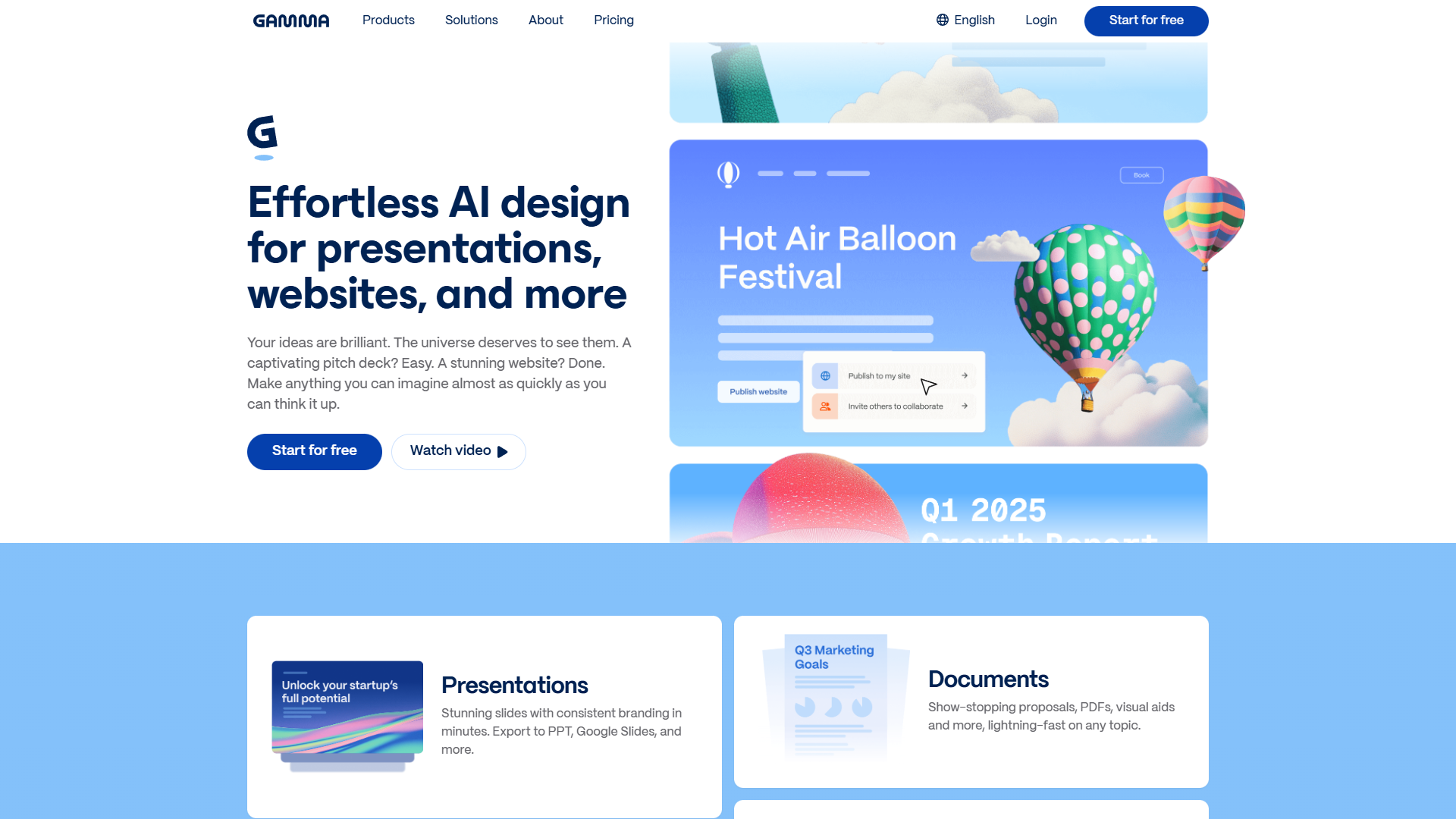
For speed and web presentations → Use Gamma. Its pricing starts at $10/month, and it can generate a complete deck in 45-60 seconds. Gamma Agent (their AI design partner) is particularly good for quickly iterating on design concepts.
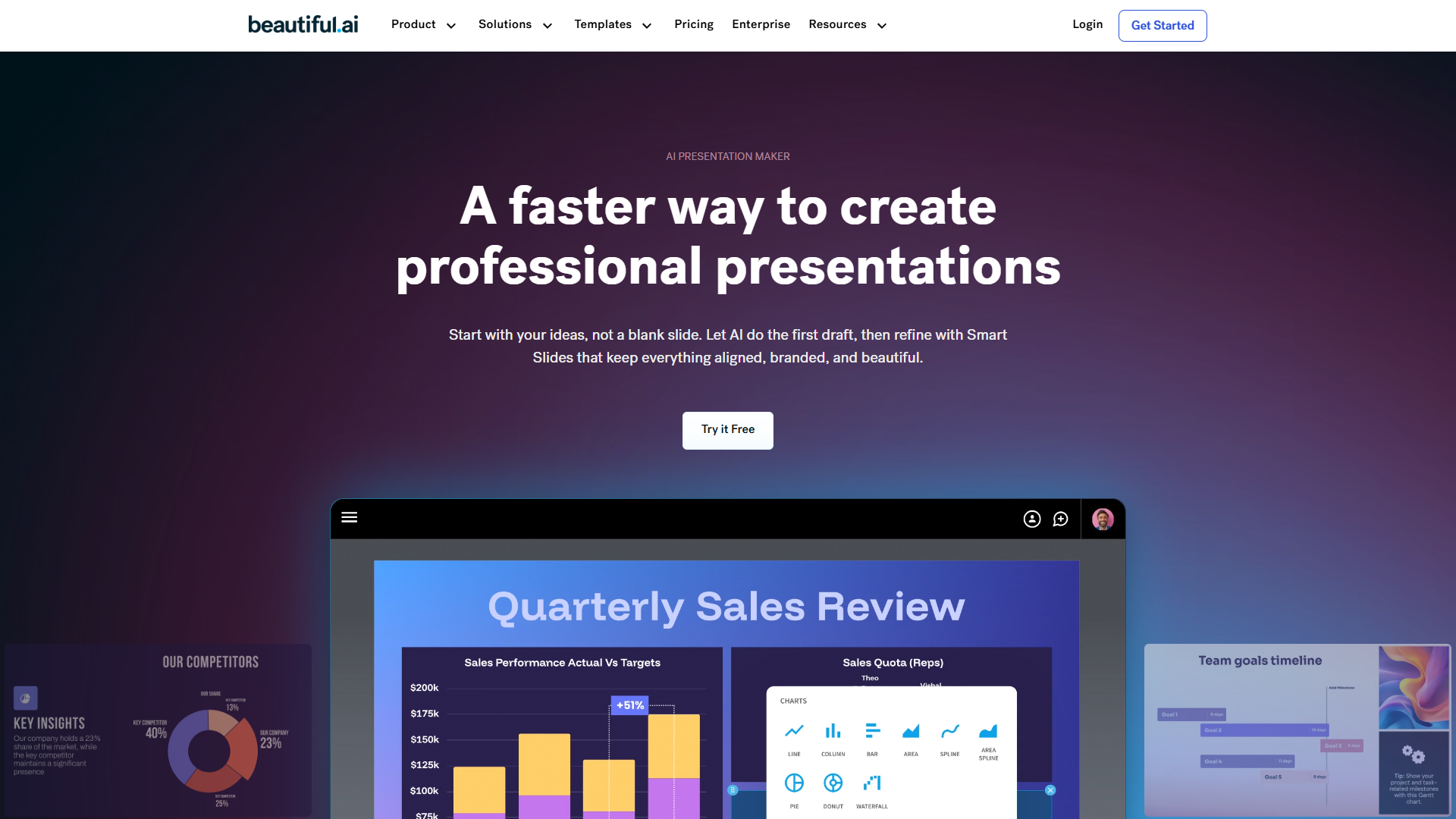
For sales decks and team collaboration → Use Beautiful.ai. At $12/month (annual billing), it offers Smart Slides that automatically adapt as you add content. The PowerPoint import feature is essential if you’re transitioning existing decks.
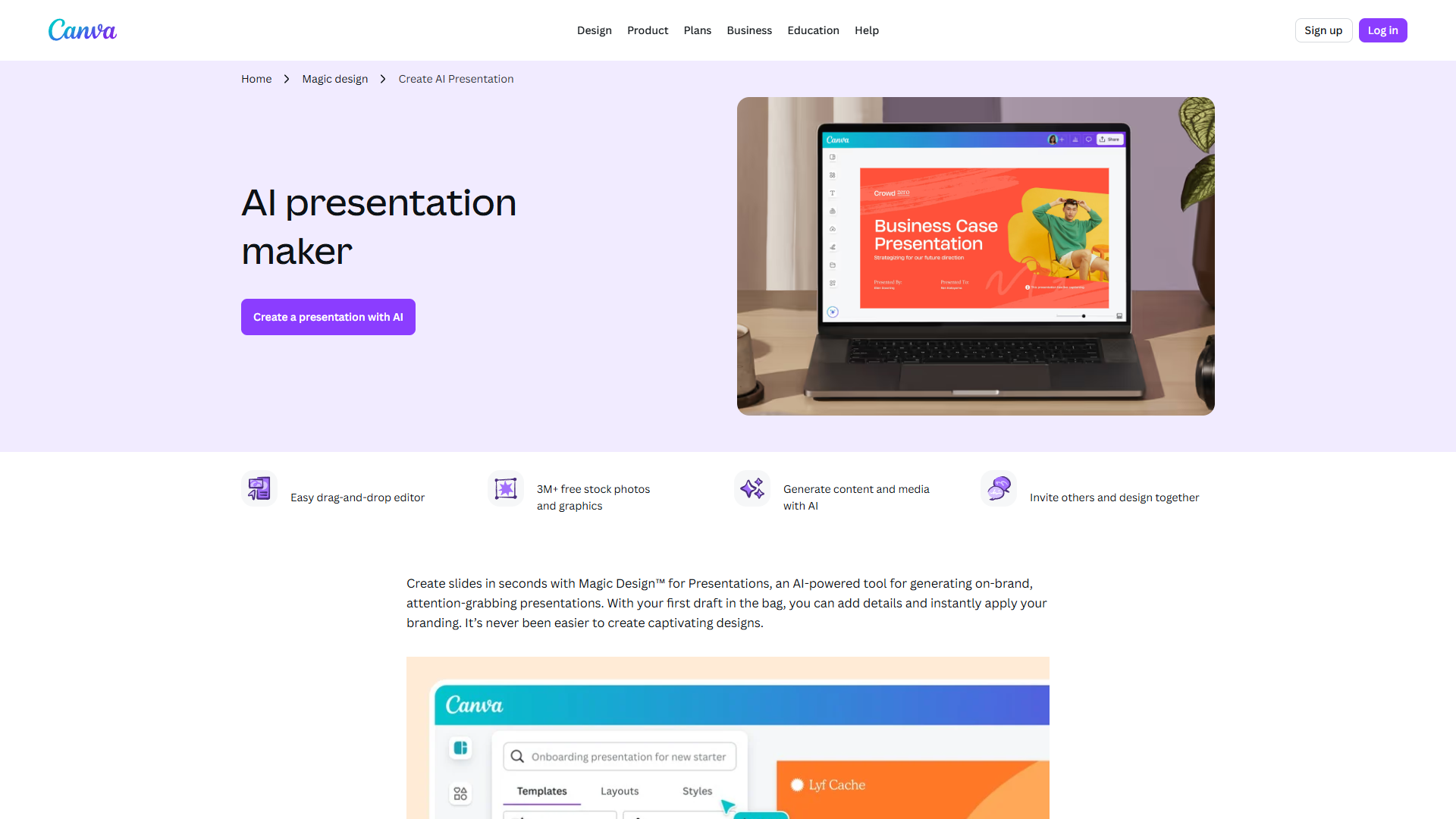
For visual-heavy presentations and social content → Use Canva. The free tier is surprisingly capable, and Canva Pro at $12.99/month unlocks Magic Studio features including AI-powered design suggestions.
Step 3: Input Your Content Strategically (10-15 minutes)
How you feed content to the AI significantly impacts the quality of output. Here’s what works:
Be specific with your prompt or input: Instead of “create a marketing presentation,” try “create a 10-slide sales deck for B2B SaaS product targeting marketing directors, focusing on ROI and time savings.”
Use hierarchical structure: Clearly mark main headings vs. supporting points. AI tools detect heading levels (H1, H2, etc.) and translate them into slide hierarchy.
Include data in context: Don’t just paste “47% increase.” Write “Customers saw a 47% increase in productivity within 90 days.” The AI uses this context to create more meaningful visual representations.
Specify visual needs: If you want a comparison chart, flowchart, or timeline, mention it explicitly. Most AI tools respond better to direct instructions than implied needs.
In Gamma, you can use their AI Agent to conversationally describe what you want. In Beautiful.ai, you’ll work with their Smart Slide templates. In Canva, you’ll leverage Magic Design to transform text into formatted presentations.
Step 4: Review and Refine AI Output (15-20 minutes)
The AI gives you an 80% solution. Your job is refining that final 20% to match your specific needs:
Check brand consistency: Adjust colors to match your brand palette. Most tools let you save custom color schemes. Gamma and Canva both support brand kits that automatically apply your colors, fonts, and logos.
Verify data accuracy: AI sometimes misinterprets numbers or data relationships. Double-check any charts or statistics the AI visualized.
Adjust information density: AI tools sometimes create too many slides for simple concepts or compress too much information onto one slide. Merge or split slides as needed.
Refine image selections: If the AI-generated or suggested images don’t quite fit your message, swap them out. Tools like Gamma offer AI image generation with Dall-E 3 integration, while Beautiful.ai and Canva provide extensive stock photo libraries.
This refinement step is where you add your unique perspective and ensure the presentation sounds like you, not a generic AI output.
Step 5: Add Your Personal Touch (10-15 minutes)
The most effective AI-powered presentations still have human touches:
- Custom examples: Replace generic placeholder examples with stories from your actual experience
- Speaker notes: Add notes for yourself about stories to tell or points to emphasize
- Interactive elements: If presenting virtually, add questions or polls at strategic points
- Transitions: Adjust how slides flow together to match your narrative arc
Remember: AI handles the design heavy lifting, but you control the story and message.
Tool Comparison: Beautiful.ai vs Gamma vs Canva
Here’s how these three leading AI presentation tools stack up based on actual usage:
Speed and Efficiency
Gamma wins for pure speed. I’ve generated complete 15-slide decks in under 60 seconds using Gamma Agent. The AI understands context remarkably well and produces coherent slide sequences with minimal input.
Beautiful.ai is slightly slower but offers more control during creation. The Smart Slides system means you spend less time in post-production tweaking layouts. Time saved: 70-80% compared to manual PowerPoint work.
Canva sits in the middle. Magic Design is fast for simple presentations, but the platform’s breadth (it’s not presentation-specific) means you might spend time navigating to the right features.
Time savings comparison:
- Traditional PowerPoint: 3-4 hours for a professional deck
- Gamma: 30-45 minutes total (including refinement)
- Beautiful.ai: 45-60 minutes total
- Canva: 1-1.5 hours total
Design Quality and Customization
Beautiful.ai produces the most consistently polished output. Their Smart Slides enforce design best practices automatically. You can’t easily create slides with poor spacing or misaligned elements — the system prevents it.
Canva offers the most design flexibility with 140M+ templates and extensive customization options. The trade-off: more decisions mean more time. Great for visual-heavy presentations or when you need pixel-perfect brand matching.
Gamma prioritizes web-native presentations with responsive designs that work on any device. The designs are clean and modern but less customizable than Canva. Best for presentations you’ll share as links rather than downloadable files.
Collaboration and Sharing
Canva leads in collaboration features with real-time editing, comments, and approval workflows. Teams can work simultaneously on the same deck.
Gamma excels at sharing with unique URLs for each presentation and built-in analytics to see who viewed your deck. The web-first approach means no file compatibility issues.
Beautiful.ai offers team features on higher-tier plans ($40-50/month for Teams) including brand lock, template sharing, and collaboration tools.
Pricing and Value
For individual users:
- Gamma Plus: $10/month - Best value for high-volume creators
- Beautiful.ai Pro: $12/month (annual) - Best for sales professionals
- Canva Pro: $12.99/month - Best all-around design tool (not just presentations)
For teams:
- Gamma Pro: $20/month per user
- Beautiful.ai Team: $40-50/month per user
- Canva Teams: $10/user/month (5 user minimum)
All three offer free tiers to test the platform, though with limited AI features.
Pro Tips for Better AI Presentation Results
After creating hundreds of AI-powered presentations, here are techniques that consistently improve output quality:
1. Front-Load Your Structure
AI tools work best when you provide clear structure upfront. Instead of adding slides randomly and reorganizing later, outline your complete structure first. In Gamma, use the outline view. In Beautiful.ai, select your slide sequence before adding content.
2. Use Consistent Terminology
If you call something a “client” in slide 3, don’t switch to “customer” in slide 7. AI tools use terminology consistency to make design decisions. Inconsistent language can result in the AI treating related concepts as separate topics, creating disjointed visual flow.
3. Leverage AI for Iteration, Not Just Creation
Don’t stop at the first AI-generated version. Tools like Gamma Agent allow conversational iteration: “make this slide more visual” or “combine slides 4 and 5.” Each iteration refines the output toward your vision.
4. Mix AI and Manual Elements
The best presentations combine AI efficiency with manual touches. Use AI for slide layout and initial content formatting, but manually add custom diagrams, annotated screenshots, or hand-drawn elements that make your presentation unique.
5. Export and Backup Early
AI tools are cloud-based, which means they depend on internet connectivity and platform stability. Once you have a version you like, export to PowerPoint or PDF as a backup. Beautiful.ai and Canva both support exports; Gamma offers PDF export.
6. Optimize for Your Delivery Method
Creating a deck you’ll present live? Keep slides visual-heavy with minimal text — you’ll provide context verbally. Creating a deck people will read independently? Add more explanatory text and speaker notes. Tell the AI which scenario you’re optimizing for.
Common Mistakes to Avoid
Even with AI assistance, certain mistakes can undermine your presentation quality:
Over-Relying on AI Suggestions
AI tools make educated guesses based on patterns, but they don’t know your specific context. If the AI suggests a particular layout or visual that doesn’t match your message, override it. You’re the expert on your content.
Skipping the Outline Phase
Jumping straight into AI generation without an outline leads to rambling, unfocused presentations. The AI can’t create narrative structure from scratch — it needs your strategic thinking as input.
Using Generic Prompts
“Create a business presentation” yields generic results. “Create a 12-slide fundraising pitch for a fintech startup targeting Series A investors, emphasizing market opportunity and unit economics” yields specific, relevant output.
Ignoring Brand Guidelines
AI-generated color schemes and fonts might look good in isolation but clash with your brand identity. Always adjust AI suggestions to match your brand guidelines, especially for client-facing presentations.
Not Testing Interactive Features
If you’re using Gamma’s web-native features or Canva’s interactive elements, test them before your actual presentation. Features that work in the editor sometimes behave differently in presentation mode.
Forgetting Accessibility
AI tools don’t automatically ensure accessibility. Check that text has sufficient contrast against backgrounds, image alt text is descriptive, and font sizes are readable for all audience members.
Conclusion: Your Next Steps with AI Presentations
When evaluating Ai Presentation Creation Guide, This AI presentation creation guide has shown you the practical workflow for creating professional presentations 70-80% faster using AI tools. The key is understanding that AI handles design execution while you focus on message and strategy.
Start with one of the three tools we covered:
- Try Gamma if you need speed and web-based sharing
- Choose Beautiful.ai for consistently polished sales decks
- Pick Canva for maximum design flexibility and broader creative tools
Begin with a simple internal presentation to learn the tool without high stakes. Once you’re comfortable with the workflow — outline, strategic input, AI generation, refinement, personal touches — you’ll wonder how you ever created presentations the old way.
The time you save on formatting and design can now go toward what actually matters: crafting compelling stories, developing stronger arguments, and practicing your delivery. That’s the real power of AI presentation creation.
Ready to create your first AI-powered presentation? Pick your tool and start with that outline. The AI will handle the rest.